Description
The Import YouTube feature within Contesimal allows users to seamlessly bring video content from YouTube into the Content Library and transform it into text-based, AI-ready assets. By entering a YouTube URL - whether for a single video, an entire playlist, or a channel - Contesimal automatically converts each video into text format, making it fully searchable, indexable, and ready for deeper analysis.
Instead of manually transcribing or downloading content, this feature lets you quickly review all detected videos and select which ones to import in the next step, ensuring you only ingest the material that matters most. Once imported, each video’s transcript becomes a standalone, taggable document that can be used with tools like Chat Browser and Content Mixer for research, summarization, and content creation.
For best results, use a public YouTube URL, which ensures that Contesimal can reliably access and process the video content without permission or visibility issues. This capability supports Contesimal’s mission to help content creators, educators, and researchers unlock value from rich media sources by turning them into structured, text-based knowledge that is easy to explore, reuse, and integrate into AI-driven workflows.
Step-by-Step:
The step-by-step instructions, screen descriptions, and UI details in this section are examples only. They are intended to help you understand how the feature works and how to complete the flow. Screens, labels, and layout may change in future product updates.
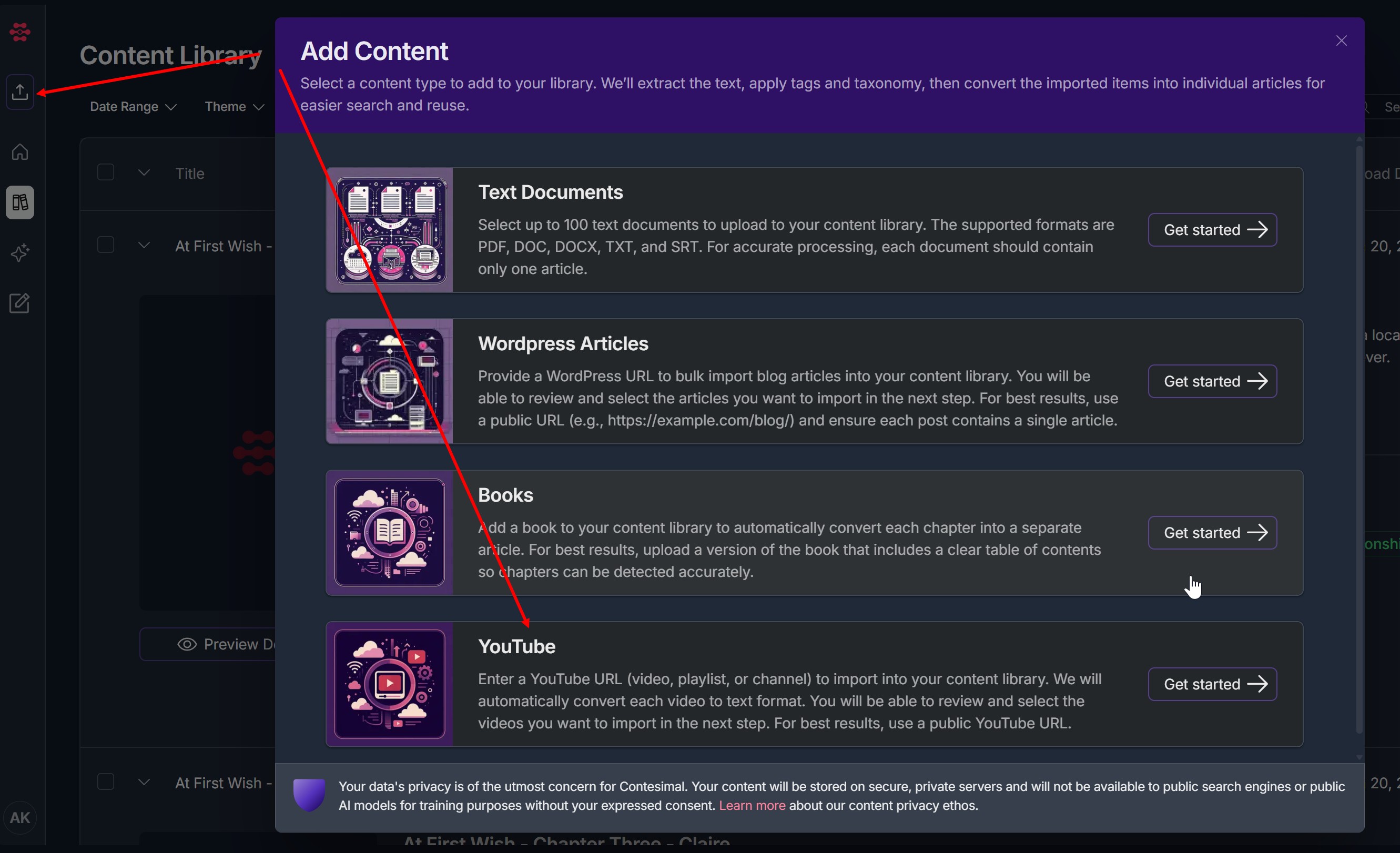
A. Start from clicking Add Content button
Click on the "Add Content" button (Up Arrow icon) located at the left navigation menu.
In the Add Content screen:
Select “YouTube” under the listed import options.
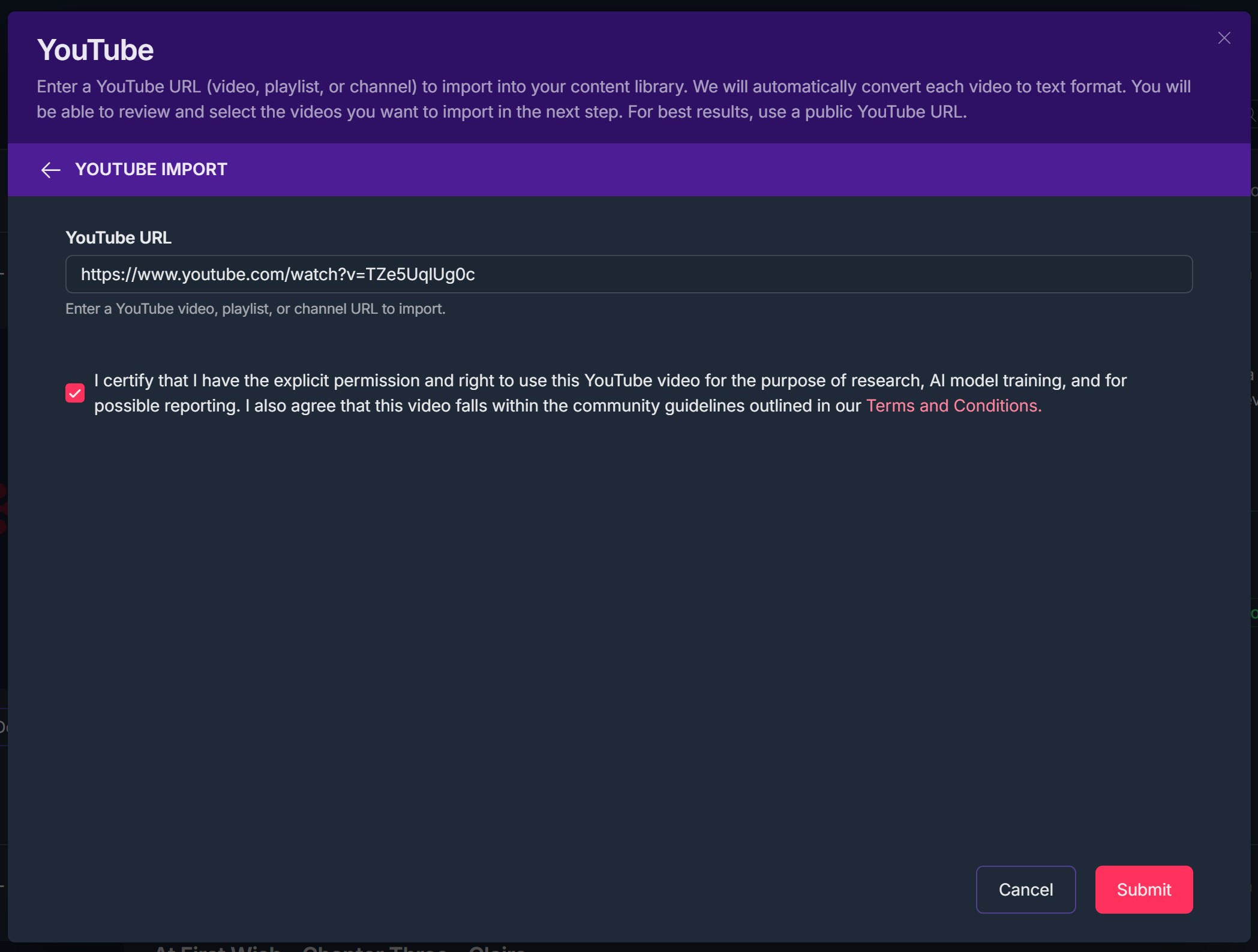
B. YouTube URL Import Process
Enter the full YouTube URL
Example format: https://www.youtube.com/watch?v=TZe5UqlUg0c
This is done in the field labeled YouTube URL.
- Confirm Permissions
Check the box stating:
“I certify that I have the explicit permission and right to use this YouTube video…”
- Click 'Submit' button
This redirects to Select Video to Import page
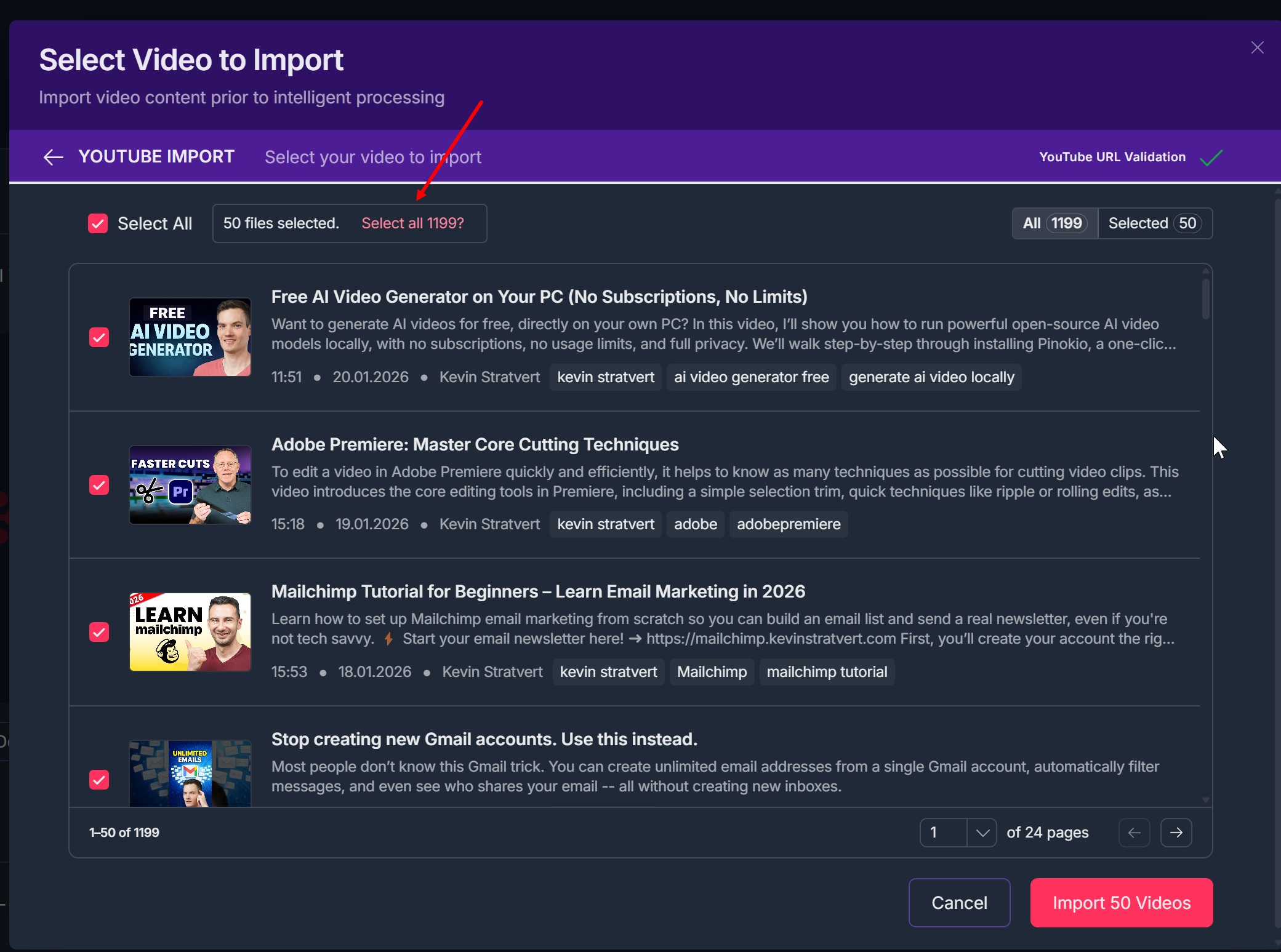
C. Select and Import Video
6. Select video(s) to import
Use checkboxes to select individual videos or choose “Select All” to batch import.
- Once 'Select All" is chosen, all videos are selected (if there are 50 or less videos)
If there are more than 50 videos available after scanning, and you want to import all videos - click "Select all {videos number}?"
Click "Import {number of videos selected} Video" button
- Click "Proceed with Upload"
- Add unique User Tag(s) to ALL content and click "Add Tags & Process"
- Click "Skip" if no unique User tags needed
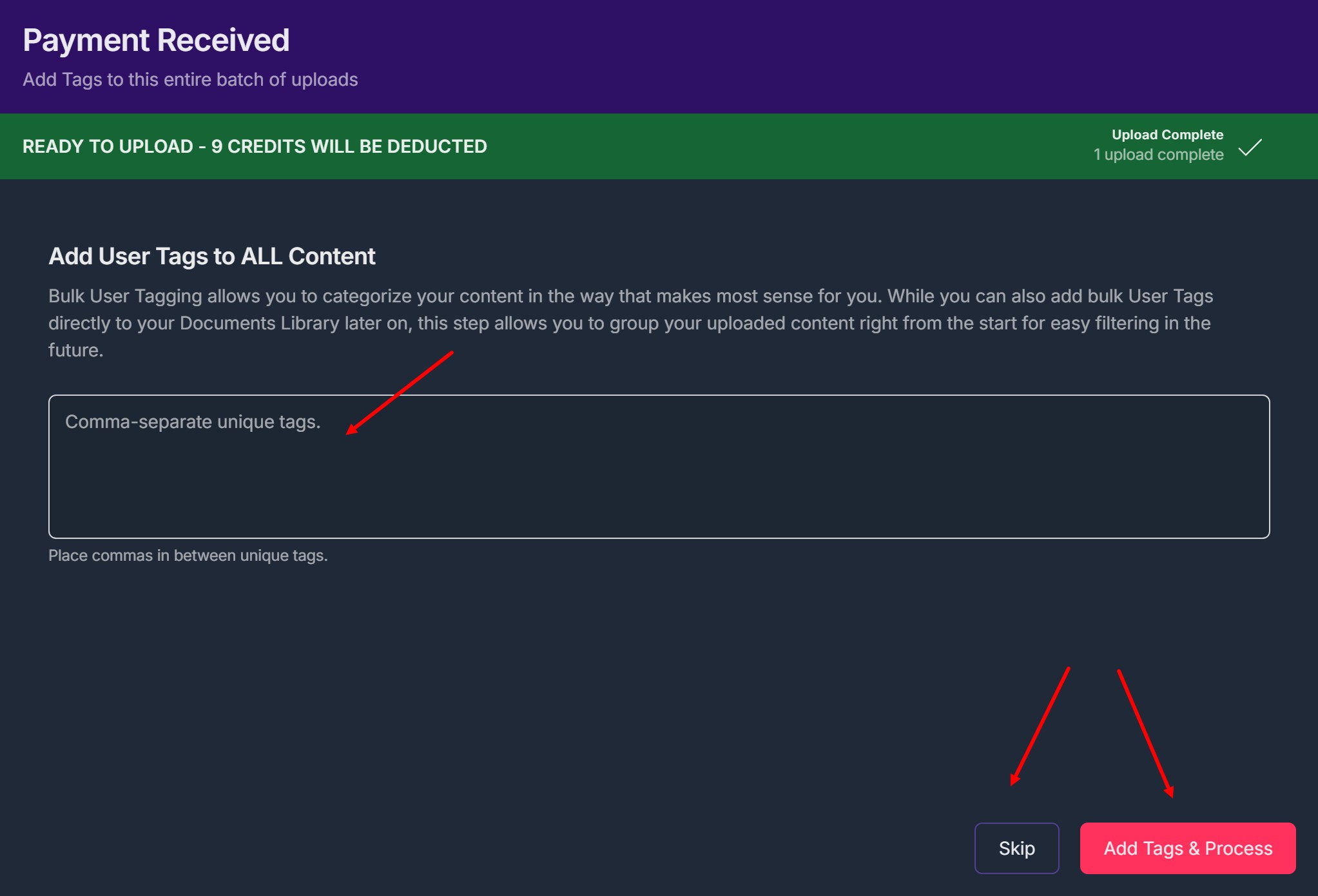
- Selected content will be transferred into your Contesimal Library for processing.
D. Video Processing
7. After import, you are directed to a screen stating: “Contesimal is processing your documents.”
This step:
Applies Theme Packs automatically.
Prepares content for AI research sessions.
May take a few minutes to several hours depending on volume.
When processing is complete, videos become searchable, taggable, and available to preview, edit (Pencil icon), or delete (Trash can icon) on the Content Library page.
Troubleshooting Guide
A. Invalid or unsupported YouTube URL
Issue: The URL is rejected, or the system cannot recognize it as a YouTube video/playlist/channel.
Error appears below YouTube URL field: "URL Validation Failed. Please provide a valid YouTube URL."
Fix:
Make sure the link is a valid YouTube video, playlist, or channel URL.
Copy the URL directly from the browser address bar (avoid incomplete/edited links).
- Try a different URL type (e.g., open the specific video page instead of a shortened/share link).
B. YouTube URL is not public (private/unlisted/restricted)
Issue: The import starts but no content is found, or the import fails because the videos cannot be accessed.
Fix:
Use a public YouTube URL (public video/playlist/channel).
If the content is private or age-restricted/region-restricted, try importing a publicly accessible alternative.
- If you manage the channel, change visibility to Public and retry.
C. Playlist/channel opens, but no videos appear to select
Issue: The next step shows an empty list, even though the playlist/channel contains videos.
Fix:
Confirm the playlist/channel has public videos.
Remove filters from the YouTube page (if applicable) and re-copy the URL.
- Try importing a smaller scope first (one video URL) to confirm imports work.
D. Content Processing Stucks
Issue: Video processing stuck for long periods.
Fix:
Wait up to 24 hours.
Try re-uploading smaller batches.
Contact support if delay persists past expected timeframe.
Was this article helpful?
That’s Great!
Thank you for your feedback
Sorry! We couldn't be helpful
Thank you for your feedback
Feedback sent
We appreciate your effort and will try to fix the article