Description
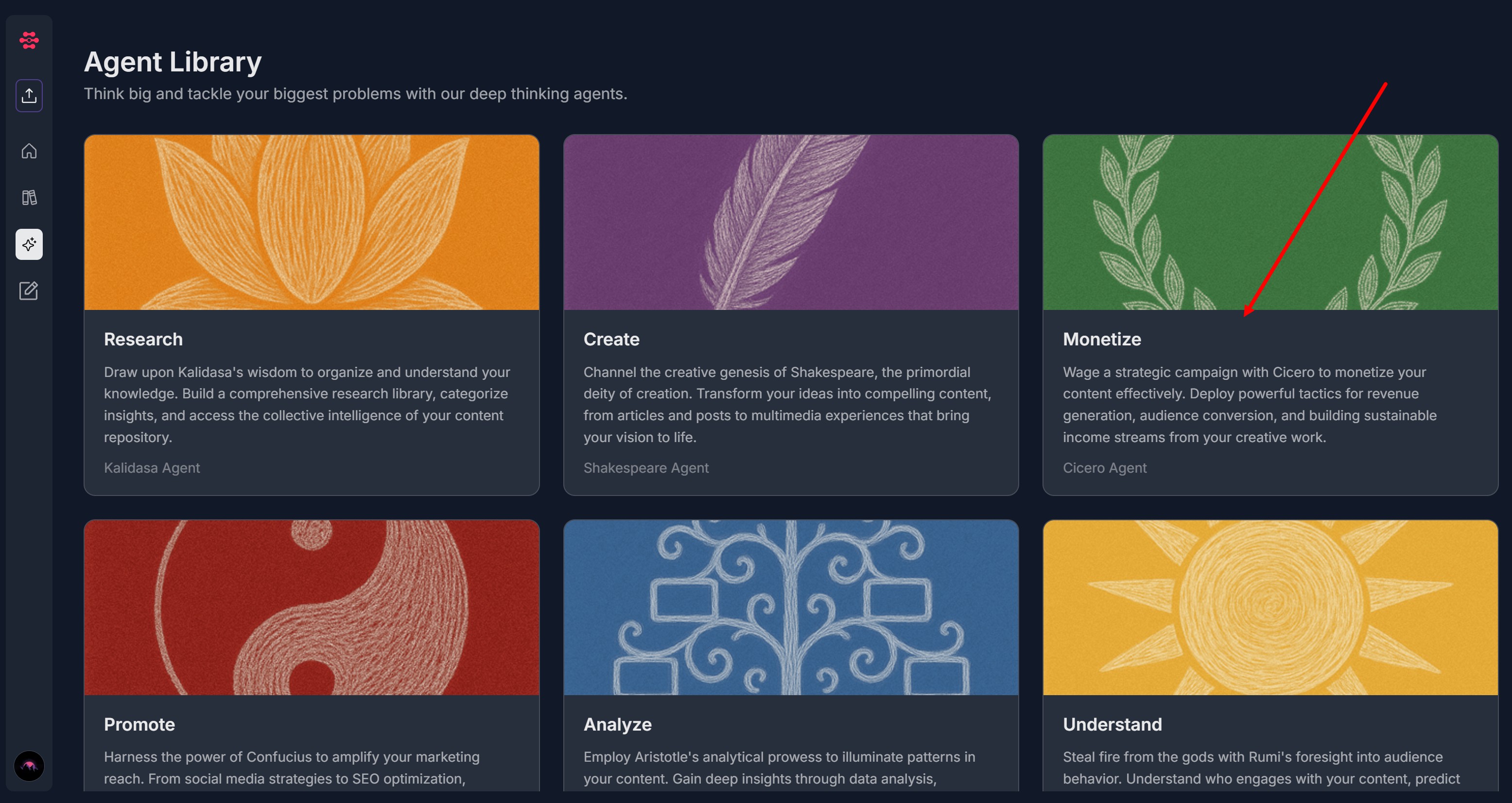
The Agent Library - Monetize feature lets you use Cicero (Contesimal's AI agent) to analyze your content library and generate monetization strategies, reports, and actionable insights across different monetization models. You can choose from six monetization types: Sponsorships, Library as Trust Engine, Licensing & Enterprise Access, Content Bundles & Playbooks, Tiered Memberships, and Subscription Access.
Each monetization type provides specific tasks tailored to that monetization model (e.g., "Generate a Sponsorship Strategy", "Subscription Stickiness & Retention Drivers Report", "Enterprise Alignment Report"). After selecting your monetization type and task, providing optional context, and selecting a project, Cicero processes your request and generates monetization insights and strategies that you can refine and use in your Creation Canvas.
Step-by-Step:
The step-by-step instructions, screen descriptions, and UI details in this section are examples only. They are intended to help you understand how the feature works and how to complete the flow. Screens, labels, and layout may change in future product updates.
1. Access Agent Library - Monetize
- Navigate to the Agent Library section In left navigation menu
- Click Monetize section
2. Select Monetization Type
- On the "Select an option" screen, choose one of the six monetization types:
- Sponsorships
- Library as Trust Engine
- Licensing & Enterprise Access
- Content Bundles & Playbooks
- Tiered Memberships
- Subscription Access
- Click on your desired monetization type
3. Select Task
After selecting a monetization type, you'll see a "Select a task" screen with specific task options for that monetization model
- For Sponsorships, available tasks include:
- Outcome Attribution & Sponsor ROI Signals Report
- Map content themes to measurable sponsor outcomes such as lead quality, intent signals, or downstream conversions to support premium pricing
- Sponsor Integration Opportunity Report
- Identifies organic insertion points for sponsorships (stories, workflows, frameworks, tools) that enhance rather than interrupt the audience experience
- Content Environment & Brand Safety Report
- Assess tone, subject matter, and thematic consistency to ensure sponsor alignment with brand values and risk tolerance
- Contextual Trust & Attention Quality Report
- Evaluates how trust, credibility, and attentiveness vary across content formats and moments, identifying where sponsor messages will feel most authentic and effective
- Audience Alignment & Sponsor Fit Report
- Analyze audience roles, needs, and buying power to match content segments with sponsors whose products naturally solve audience problems
- Write a Brand Outreach Email
- Generate a podcast introduction to potential brand partners
- Generate a Sponsorship Strategy
- Develop a list of potential sponsors for future content creations
- List Brand Aligned Partner Ideas
- Get a breakdown of brands that align well with your content and the reasons why
- Outcome Attribution & Sponsor ROI Signals Report
- For Library as Trust Engine, available tasks include:
- Service Alignment & Deal Readiness Report
- Map content themes to specific service offerings, revealing where the library naturally pre-sells engagements and shortens sales cycles
- Objection Resolution & Risk Reversal Report
- Identify content that proactively addresses common objections, fears, or doubts that block conversion to higher-commitment offers
- Proof, Credibility & Social Validation Report
- Extract real-world examples, outcomes, and third-party validation embedded in the content that can be leveraged in sales contexts
- Buyer Readiness & Confidence Acceleration Report
- Analyze which content sequences most effectively move consumers from interest to trust by reducing uncertainty and perceived risk
- Authority Signal Concentration Report
- Identify where the content most strongly demonstrates expertise, experience, and pattern recognition that builds buyer confidence
- Service Alignment & Deal Readiness Report
- For Licensing & Enterprise Access, available tasks include:
- Stakeholder Value Report
- Analyze how well the content speaks to different enterprise stakeholders (executives, managers, practitioners), supporting multi-buyer purchasing decisions
- Customization & White-Label Potential Report
- Evaluate which content can be branded, contextualized, or customized for specific organizations while preserving core intellectual property
- Risk Reduction & Business Impact Report
- Identify content that mitigates operational, financial, or reputational risk, strengthening the enterprise ROI justification
- Standardization & Repeatability Readiness Report
- Assess how easily content can be standardized, modularized, and reused across teams without loss of clarity or effectiveness
- Enterprise Alignment Report
- Map content themes and frameworks to common enterprise use cases such as onboarding, leadership development, compliance, or transformation initiatives
- Create an Embedded Campaign Strategy
- Product placement strategy for relevant products & brands
- Stakeholder Value Report
- For Content Bundles & Playbooks, available tasks include:
- Pricing Anchor & Perceived Value Report
- Assess comparative value signals within the content to determine optimal pricing tiers and anchoring strategies for bundles
- Scope Boundary & Completeness Report
- Evaluate whether a proposed bundle feels "complete" without requiring ongoing access, reducing buyer friction for one-off purchases
- Framework & Playbook Extraction Report
- Detect repeatable methods, step-by-step processes, and decision frameworks that can be formalized into structured playbooks
- Problem-Specific Demand & Urgency Report
- Analyze which problems discussed in the content are acute, expensive, or time-sensitive enough to justify standalone paid bundles
- Outcome-Based Bundle Report
- Identifies clusters of content that collectively deliver a clear, self-contained transformation suitable for a one-time purchase
- Pricing Anchor & Perceived Value Report
- For Tiered Memberships, available tasks include:
- Tier Cannibalization & Differentiation Risk Report
- Identify overlap between tiers that could reduce upgrades, ensuring each level delivers a distinct and escalating value proposition
- Exclusivity & Scarcity Leverage Report
- Assess which content or experiences gain disproportionate value when gated, time-limited, or access-restricted to support premium tiers
- Perceived Value vs. Effort Alignment Report
- Evaluate whether the effort required to consume and apply content is matched by the perceived payoff, ensuring higher tiers justify higher pricing
- Upgrade Trigger & Momentum Report
- Identify moments in the content where members naturally want deeper access, guidance, or advanced material - creating clear upgrade prompts between tiers
- Value Stratification & Tier Fit Report
- Analyze content depth, complexity, and outcome intensity to determine which assets belong in entry-level, core, or premium membership tiers
- Tier Cannibalization & Differentiation Risk Report
- For Subscription Access, available tasks include:
- Evergreen vs. Fresh Value Balance Report
- Evaluate which content maintains long-term relevance versus which drives short-term engagement, informing optimal release cadence for sustained subscriptions
- Expansion & Tier Differentiation Report
- Identify content that supports premium tiers, add-ons, or upsells based on depth, exclusivity, or required support
- Progression & Learning Path Opportunity Report
- Map natural content sequences that create a sense of progress, mastery, or advancement - key drivers for reducing churn in subscription models
- Subscription Stickiness & Retention Drivers Report
- Analyze which content types, themes, and learning paths correlate most strongly with repeat usage and long-term subscriber retention
- Core Value Density Report
- Identify which topics, themes, and assets deliver the highest concentration of actionable value per unit of consumption and justify ongoing subscription access
- Evergreen vs. Fresh Value Balance Report
- Click on the task card that matches your needs
4. Add Additional Context (Optional)
On the "Would you like to add additional context?" screen, you have three options:
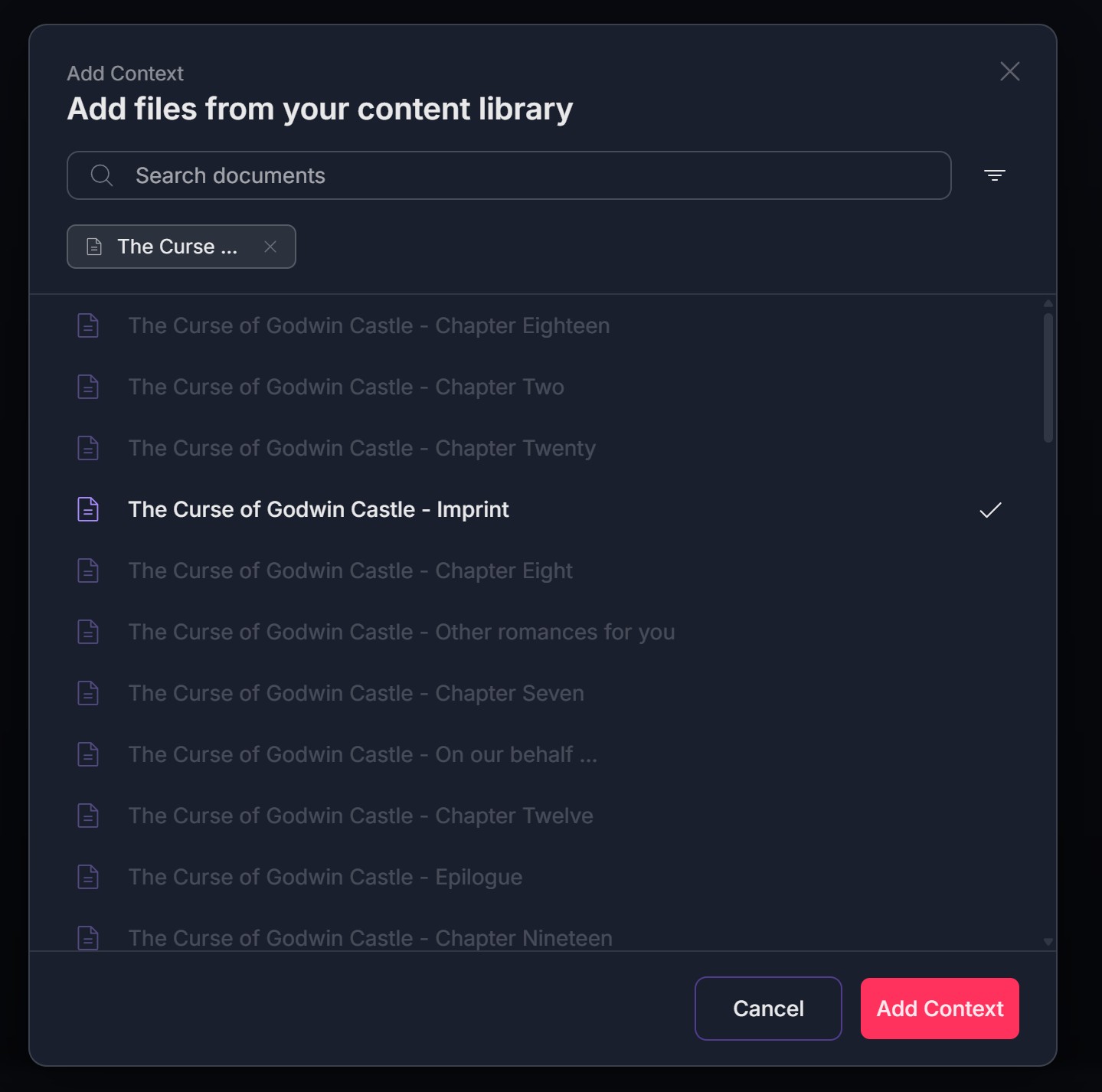
- "Add from your Library" - Select documents from your existing content library
- Select one document from the Content Library and click "Add Content" button OR
- Search for a document from the Content Library and click "Add Content" button
- Click the X icon on selected document to remove it and add another one
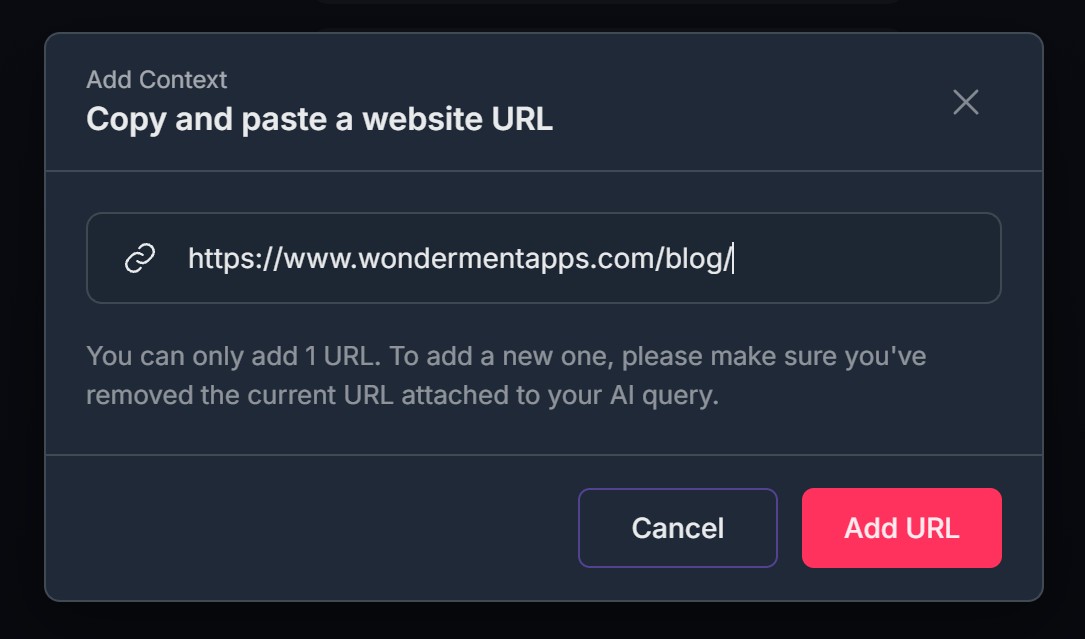
- "Add a URL" - Provide a web URL for Cicero Agent to reference
- "Upload a document" - Upload a new document from your computer
- Suppported formats: PDF, DOC, DOCX, TXT,
- Max size 480 KB
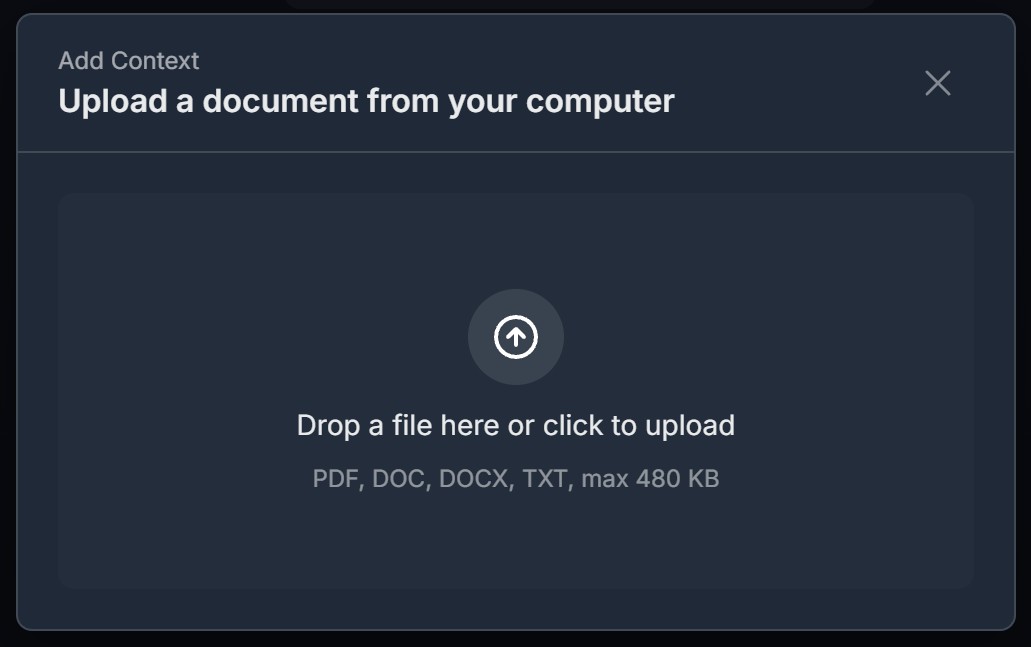
- Click the X icon to remove a context item and upload a new one
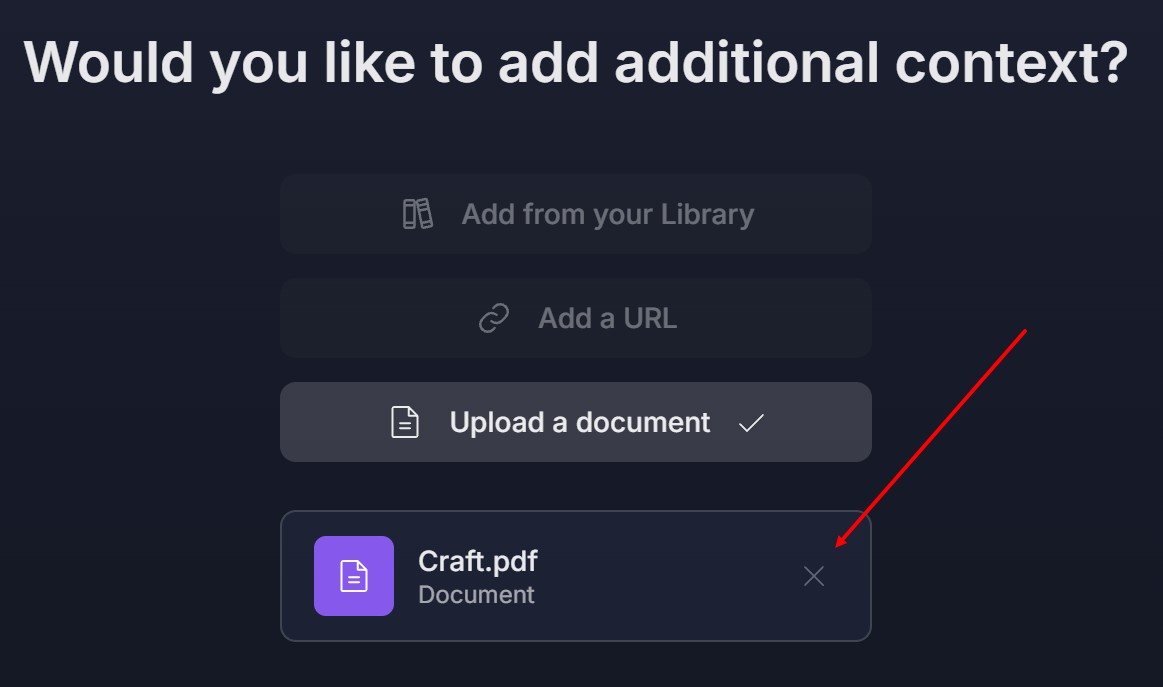
- Click "Next" to proceed, or "Skip" if you don't want to add context
5. Select or Create Project
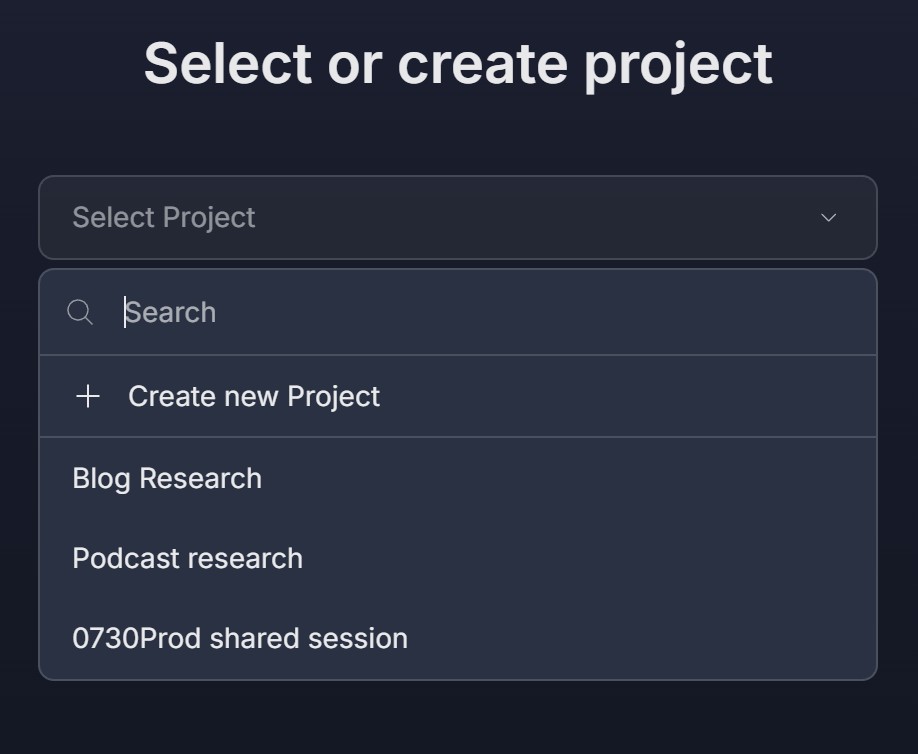
On the "Select or create project" screen, choose where to save your research:
- Select an existing project from the dropdown menu
- Use the search bar to find a specific project
- Click "+ Create new Project" to create a new project
- Click "Next" button
6. Cicero Agent Processes Your Request
- You'll see: "Cicero is working on your request" screen
- A progress bar will show at the bottom
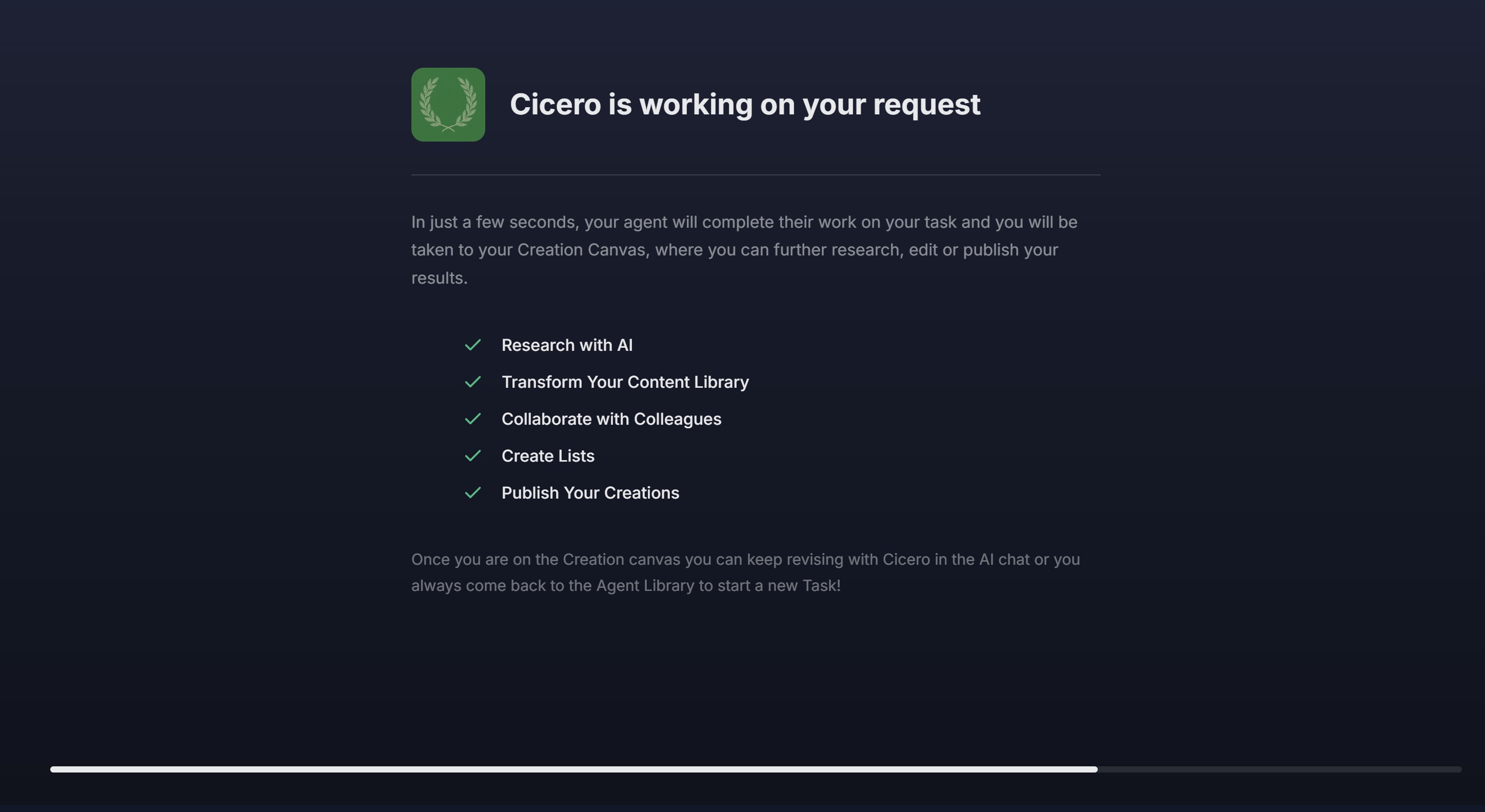
- Wait for the Agent to complete the research (typically takes a few seconds to a few minutes)
7. Review Results on Creation Canvas
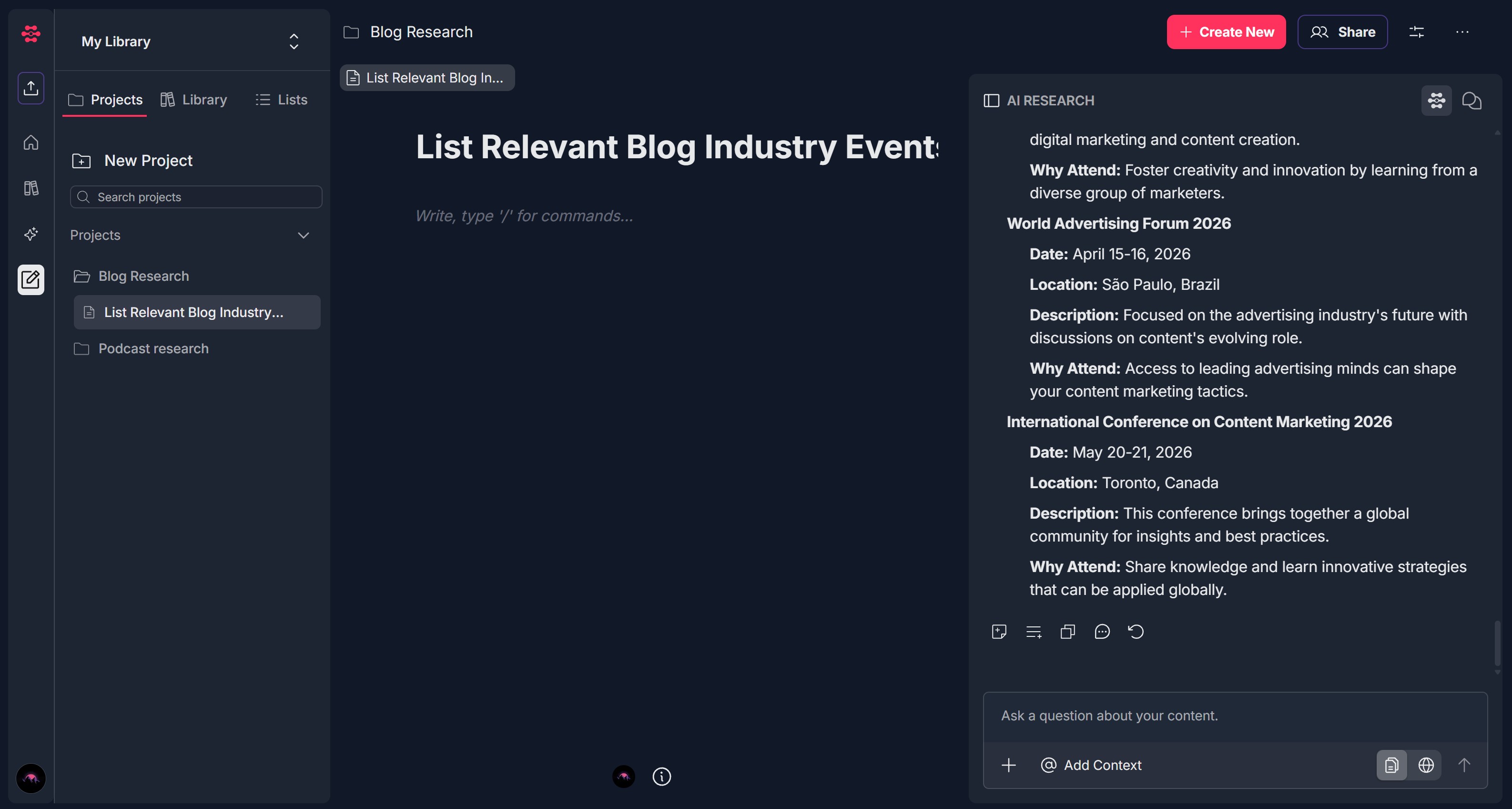
- Once Cicero Agent completes the research, you'll be automatically redirected to the Creation Canvas
- Your research results will be displayed in a document format
- You can review, edit, refine, delete or share your creation
Troubleshooting Guide
A. Monetization Type Options Don't Appear
Issue: After accessing Monetize, the monetization type selection screen is blank or options don't load.
Fix:
Refresh the page and wait a few seconds for options to load
Check your internet connection - ensure you have a stable connection
Clear browser cache and try again
Try a different browser (Chrome, Edge, Firefox) if the issue persists
If options consistently don't appear, contact Support and mention that content creation types aren't loading
B. Task Cards Don't Appear
Issue: After selecting a monetization type, the task selection screen is blank or task cards don't load.
Fix:
Refresh the page and wait a few seconds for tasks to load
Check your internet connection - ensure you have a stable connection
Clear browser cache and try again
Try selecting the monetization type again
If tasks consistently don't appear, contact Support and mention which content creation type you selected
C. Task Cards Don't Respond to Clicks
Issue: Clicking on a task card (e.g., "Generate a Sponsorship Strategy") doesn't proceed to the next step.
Fix:
Refresh the page and try clicking the task card again
Wait a moment - there may be a brief delay before navigation
Try clicking directly on the card text rather than the edges
Check browser console for any JavaScript errors
Try a different browser if the issue persists
If clicking consistently doesn't work, contact Support with the specific content creation type and task you're trying to select
D. Can't Find Documents in Library Search
Issue: When adding context from Library, you can't find the documents you're looking for.
Fix:
Use the search bar - type keywords from the document title
Check document names - ensure you're searching for the correct title
Scroll through the list - there may be more documents below the visible area
Use filters - click the filter icon to narrow down document types
Check if documents are processed - ensure your documents have finished processing in the Library
If you still can't find documents, try uploading them directly using "Upload a document"
E. Selected Context Items Don't Appear or Can't Be Removed
Issue: After selecting documents from Library, they don't show as tags, or you can't remove them with the X icon.
Fix:
Refresh the page and try selecting documents again
Click the X icon directly on the tag to remove it
Check if documents were actually selected - look for checkmarks in the modal
Try selecting fewer documents - there may be a limit on context items
If context items consistently don't appear, contact Support and mention the context selection issue
F. Project Dropdown Doesn't Open or Shows No Projects
Issue: The "Select or create project" dropdown doesn't open, or no projects are listed.
Fix:
Click the dropdown arrow to ensure it opens
Use the search bar within the dropdown to find projects
Create a new project by clicking "+ Create new Project"
Refresh the page and try again
Check if you have existing projects - you may need to create one first
If the dropdown consistently doesn't work, contact Support and mention the project selection issue
G. Agent Takes Too Long or Gets Stuck
Issue: The "Cicero is working on your request" message persists for an unusually long time, or the progress bar doesn't advance.
Fix:
Wait a few minutes - complex research requests may take longer
Check your internet connection - ensure you have a stable connection
Refresh the page - sometimes a refresh can resolve temporary issues
Check if the research completed - try navigating to Creation Canvas manually to see if results are there
Try a simpler research request - very complex or broad requests may take longer
If Shakespeare remains stuck for more than 10-15 minutes, contact Support with details about your research request
H. Not Redirected to Creation Canvas After Research Completes
Issue: Agent appears to have finished, but you're not automatically taken to the Creation Canvas.
Fix:
Manually navigate to the Creation Canvas section
Check your project - look in the project you selected to see if research results are there
Clear browser cache and cookies, then try a new research request
Check browser settings - ensure no extensions are blocking redirects
Try a different browser if the issue persists
If automatic redirection consistently fails, contact Support and mention the redirect issue
I. Create Results Are Incomplete or Incorrect
Issue: The create results on Creation Canvas don't match what you requested, or information seems wrong.
Fix:
Review your instructions - ensure they were clear and specific
Check your context - verify that the documents/URLs you added are relevant
Try refining the research - use the AI Research panel to ask follow-up questions
Add more specific instructions - try running the research again with more detailed instructions
Check the research type and option - ensure you selected the correct research category
If results are consistently incorrect, contact Support with details about what you requested vs. what you received
J. Can't Add URL or Upload Document for Context
Issue: The "Add a URL" or "Upload a document" options don't work when clicked.
Fix:
Refresh the page and try clicking the option again
For URL: Ensure you're entering a valid, accessible web address
For Upload: Check file size limits and supported formats (PDF, DOCX, TXT, etc.)
Try a different browser if the issue persists
Check browser permissions - ensure file access is allowed
If these options consistently don't work, try using "Add from your Library" instead, or contact Support
Was this article helpful?
That’s Great!
Thank you for your feedback
Sorry! We couldn't be helpful
Thank you for your feedback
Feedback sent
We appreciate your effort and will try to fix the article