Description
The Create a Project feature lets you start a new project in Contesimal using Content Library. Your Content Library (or document library) is the top-level container for all your documents. It holds the articles, episodes, books, and other content you have imported or created. Everything you do in projects and creations can draw from this library.
A project is a "child" of the library - it is created based on the document library you have. When you create a project, you are creating a workspace that uses your library - for example, to add context via @ Add Context (Content Library, URL, or upload), to search and browse your content, and to build lists or run AI research. So: Content Library = parent; Project = child of the library.
A project is a "parent" to creations - it is the container under which you create and organize your work. Under a project you get an Untitled Document by default, and you can add creations such as Content Mixer, Agent Library, and Blank Document (via + Create New at the top). Documents, mixes, and other outputs created inside a project live under that project in the sidebar. So: Project = parent to creations (documents, mixes, etc.).
Step-by-Step:
The step-by-step instructions, screen descriptions, and UI details in this section are examples only. They are intended to help you understand how the feature works and how to complete the flow. Screens, labels, and layout may change in future product updates.
1. Go to Creations -> Projects and click New Project
- Log in to your Contesimal account
- In the left sidebar, go to Creations (the edit/pencil icon)
- Under My Library, ensure the Projects tab is selected (it is underlined when active; Library and Lists are the other tabs)
- Click New Project (the option with a + icon and folder icon below the tabs)
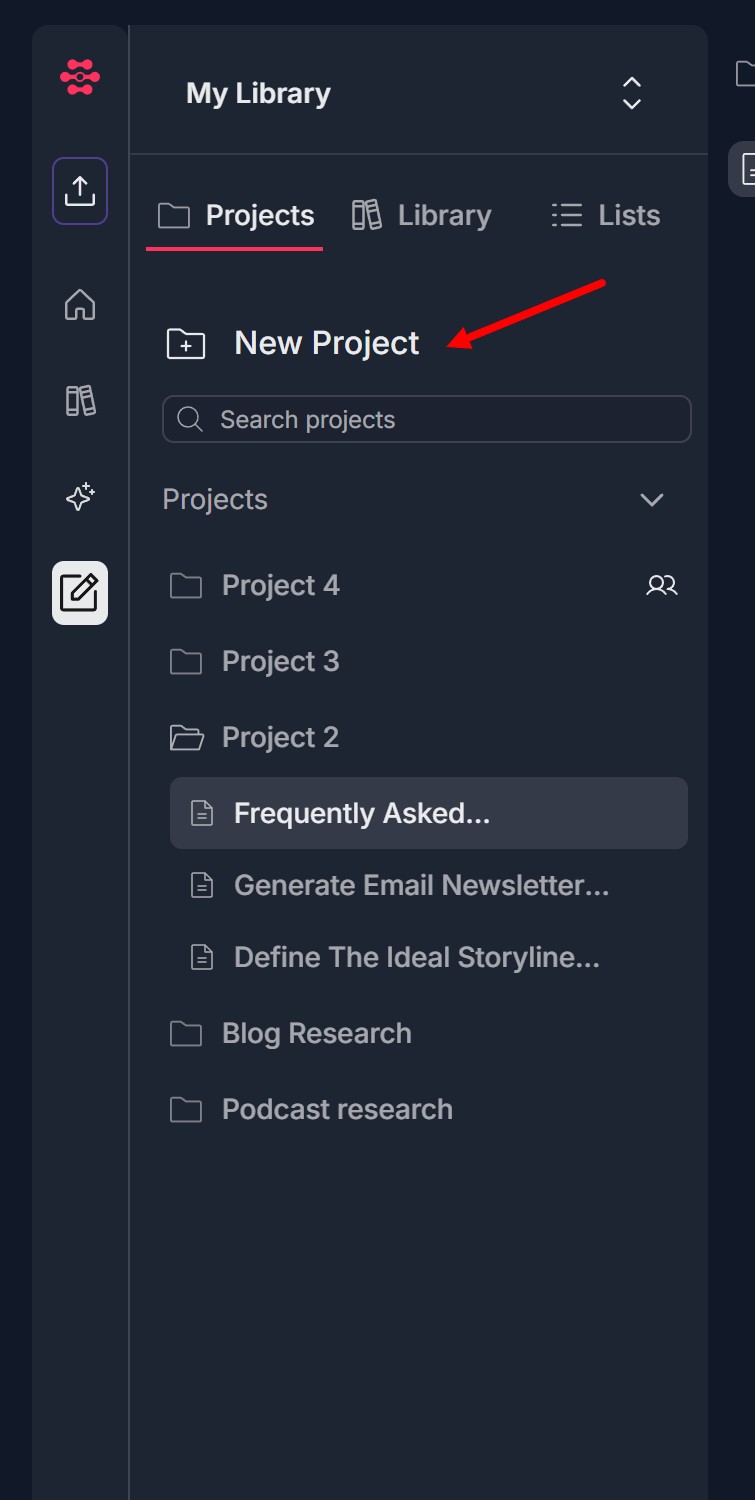
- A new project is created.
2. Untitled Project and Untitled Document created by default
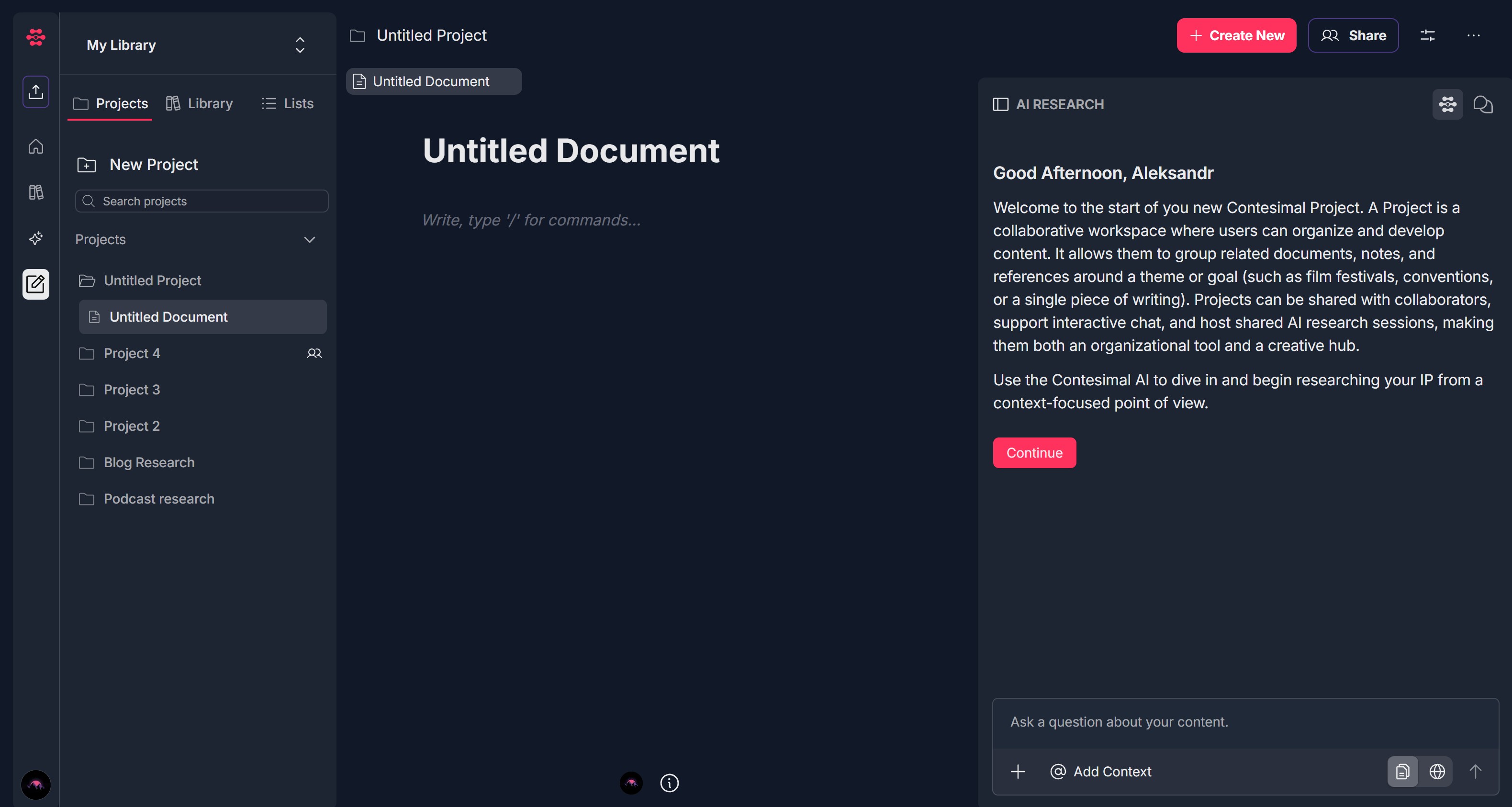
- After clicking New Project, an Untitled Project (folder icon) and an Untitled Document (document icon) are created by default
- In the left sidebar, the Untitled Project appears in the Projects list and is expanded; Untitled Document is nested under it and is the currently selected document (highlighted)
- The central panel shows: Tabs at the top — Untitled Project and Untitled Document (Untitled Document is the active tab); A large heading "Untitled Document"; A placeholder "Write, type '/' for commands..." — the editable area for the document
- The right panel shows AI RESEARCH with: A welcome message; A short description of what a project is; The instruction to use the Contesimal AI to dive in and begin researching; A red Continue button; At the bottom: an input "Ask a question about your content." and icons: +, @ Add Context, and icons for document, globe, and upload
- The top bar will show Untitled Project, Untitled Document, and buttons such as + Create New, Share, and a menu (three dots)
3. Click Continue to start AI research — Main goal appears
- In the AI RESEARCH panel (right side), click the red Continue button
- The AI research flow starts and the Main goal question appears: "Which of the following best describes your MAIN GOAL of your session?"
- You will see three options (buttons): Create a List, Get an Answer, Search Content
- An information link or icon (e.g., "What is a project goal?") may appear below
- The bottom bar still shows the + icon, @ Add Context, and the input "Ask a question about your content." with the document, globe, and upload icons
- Select one of the main goal options to proceed with your research session
4. Use the "+" menu to explore — Search, Build a List, Browse Themes, Browse Topics, Agent Library
- At the bottom of the AI RESEARCH panel, find the + icon (often in a red-outline or dark square)
- Click the + icon to open a pop-up menu with: Search (magnifying glass), Build a List (list/checklist), Browse Themes (document), Browse Topics (four-circles/grid), Agent Library (sparkle/star)
- Search:
- If you choose Search, a Search modal opens with title "Search", instructions about keywords and comma-separating, a large input "Comma separate multiple items", and a red Generate Result button — click it to run the search
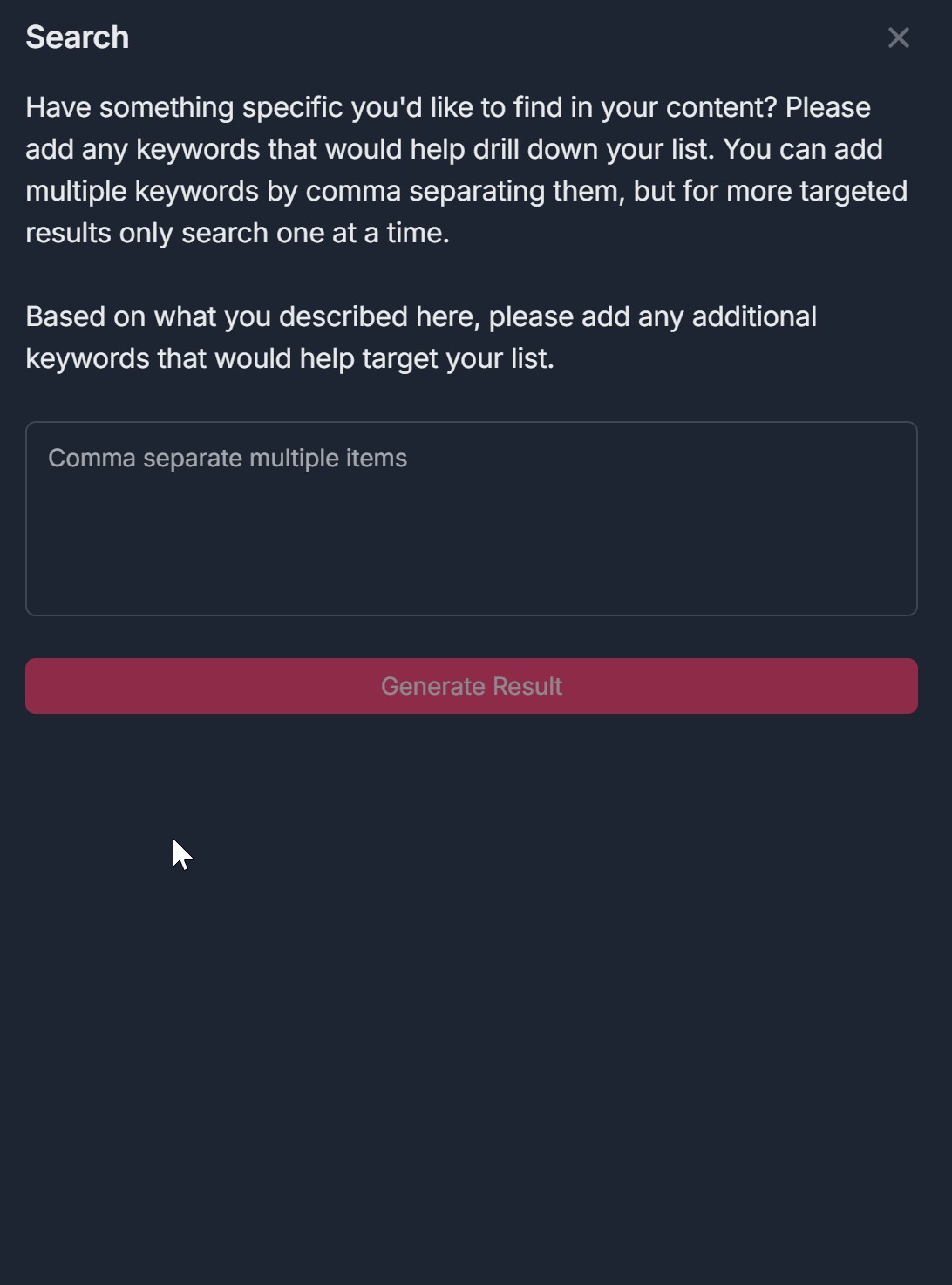
- If you choose Search, a Search modal opens with title "Search", instructions about keywords and comma-separating, a large input "Comma separate multiple items", and a red Generate Result button — click it to run the search
- Build a List:
- If you choose Build a List, the AI may ask how you'd like to EXPLORE your library and show Search and Browse buttons; you can then refine and generate a list
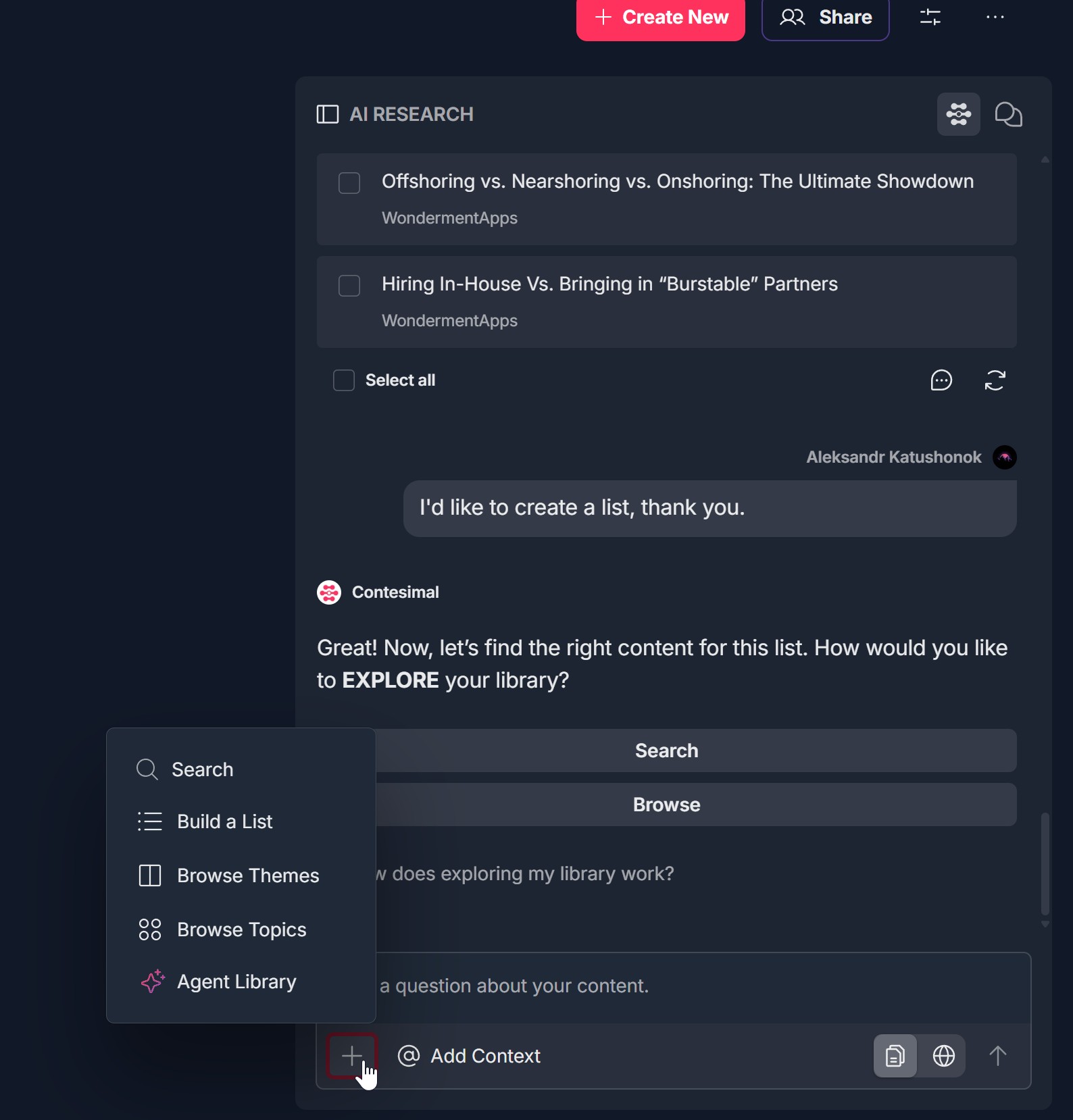
- If you choose Build a List, the AI may ask how you'd like to EXPLORE your library and show Search and Browse buttons; you can then refine and generate a list
- Browse Themes:
- If you choose Browse Themes, the AI instructs you to select THEMES; you will see "Select one or several themes" (dropdown) and a red Generate Result button
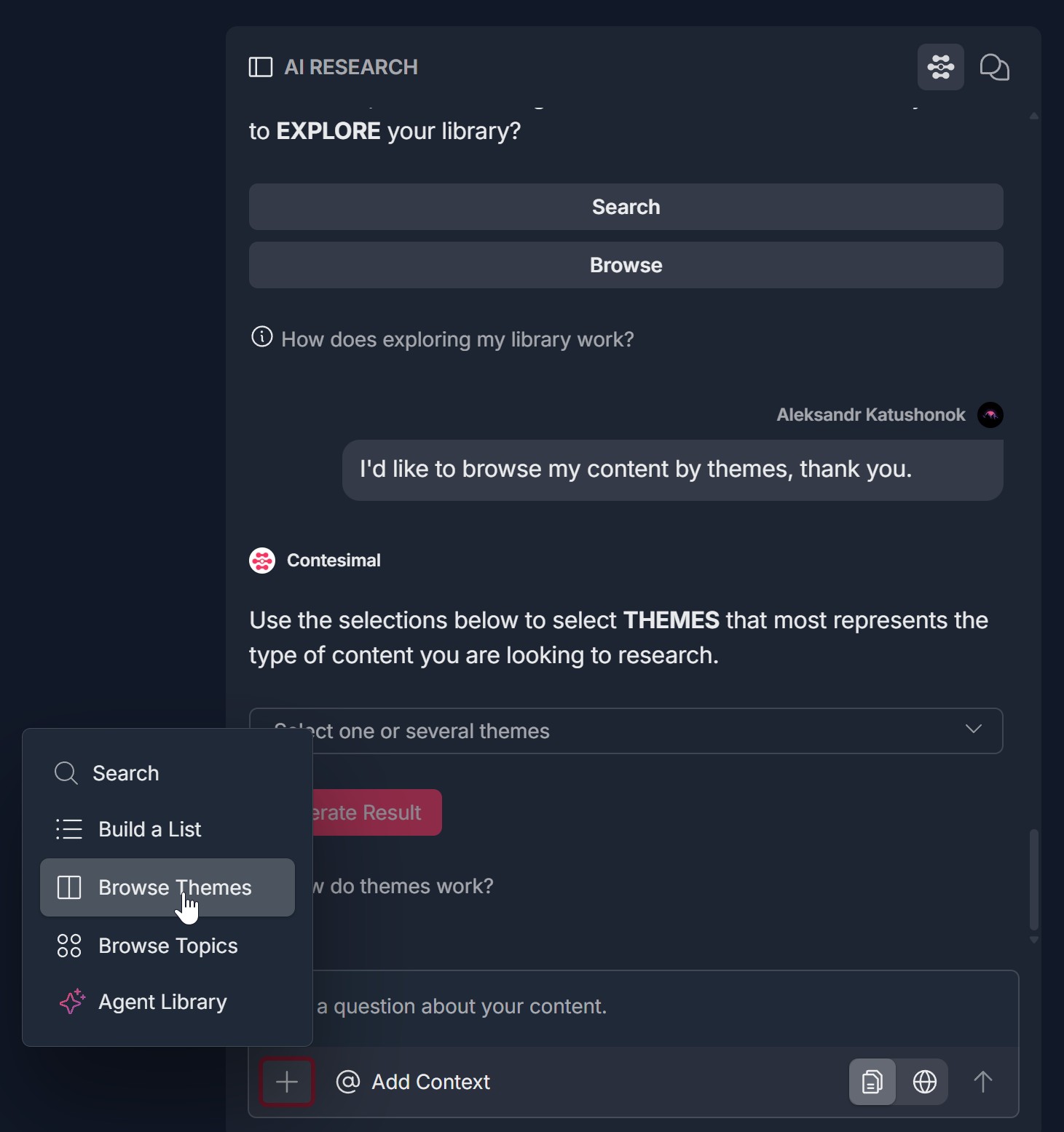
- If you choose Browse Themes, the AI instructs you to select THEMES; you will see "Select one or several themes" (dropdown) and a red Generate Result button
- Browse Topics:
- If you choose Browse Topics, the AI instructs you to select TOPICS; you will see "Select one or several topics" (dropdown) and a red Generate Result button
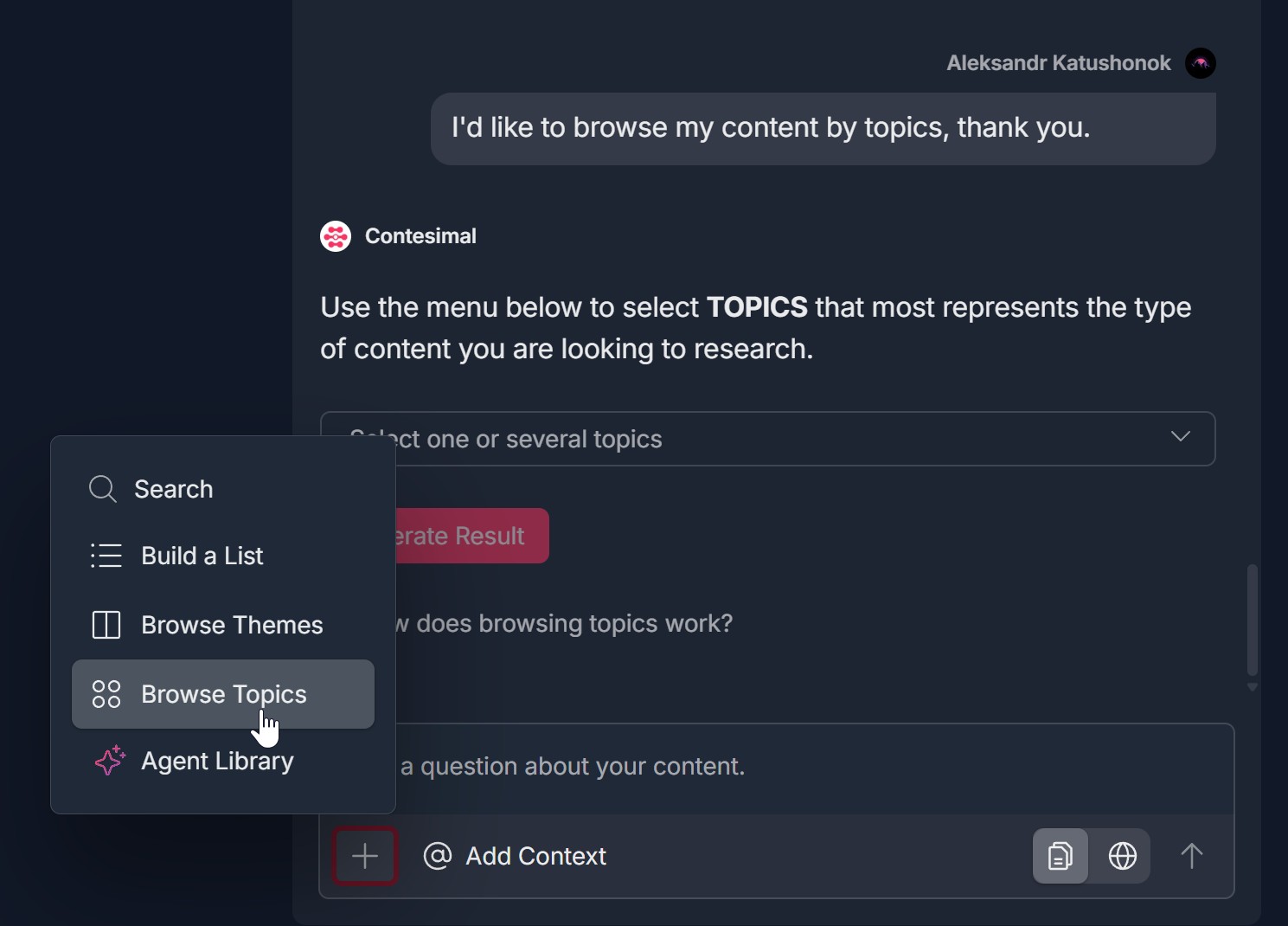
- If you choose Browse Topics, the AI instructs you to select TOPICS; you will see "Select one or several topics" (dropdown) and a red Generate Result button
- Agent Library:
- If you choose Agent Library, the Agent Library view appears with agent categories: Research, Create, Monetize, Promote, Analyze, Understand; click an agent to use it
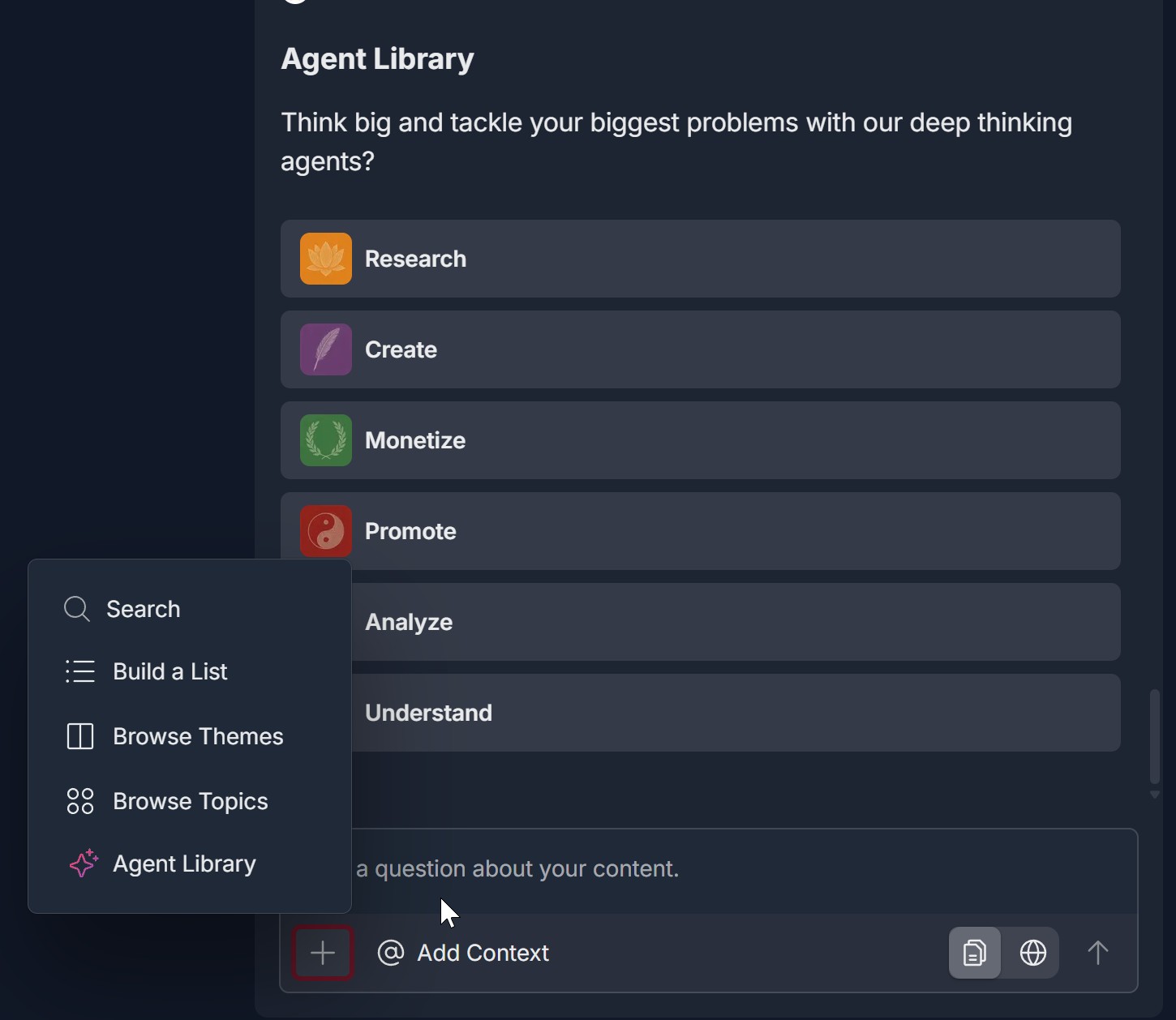
- If you choose Agent Library, the Agent Library view appears with agent categories: Research, Create, Monetize, Promote, Analyze, Understand; click an agent to use it
5. Add content to the project — click "@ Add Context"
- At the bottom of the AI RESEARCH panel, find the @ Add Context button (to the right of the + icon)
- Click @ Add Context to open a dropdown or menu with: Content Library (document icon), URL (chain-link icon), Add Document (document icon)
- Content Library:
- If you choose Content Library, a MY LIBRARY view opens with Search documents and a scrollable list of your documents; click a document to add it to your project context
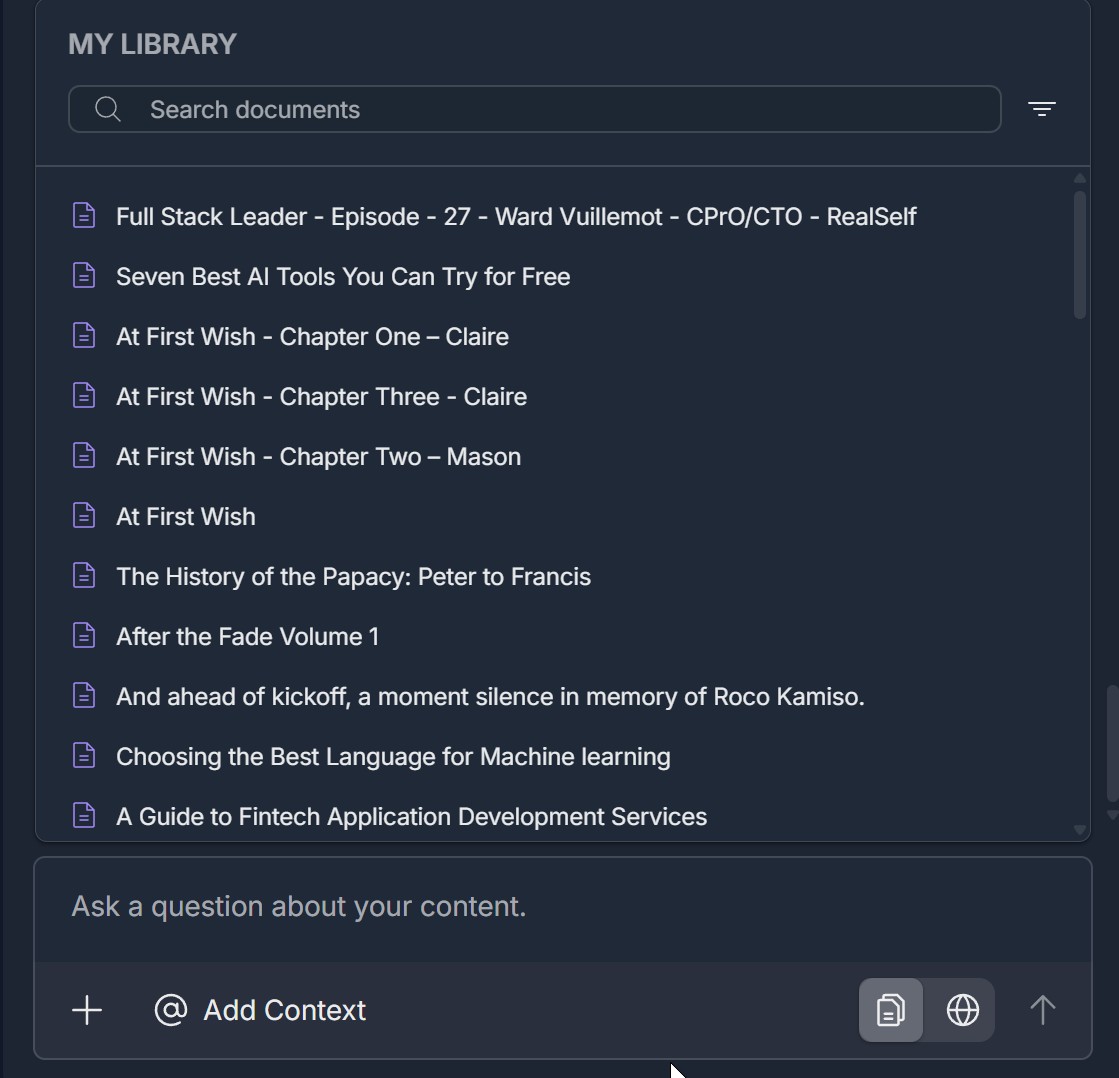
- If you choose Content Library, a MY LIBRARY view opens with Search documents and a scrollable list of your documents; click a document to add it to your project context
- URL:
- If you choose URL, a Paste URL input and red Add URL button appear; paste your web address and click Add URL. Note: You can only add 1 URL; remove the current URL before adding a new one
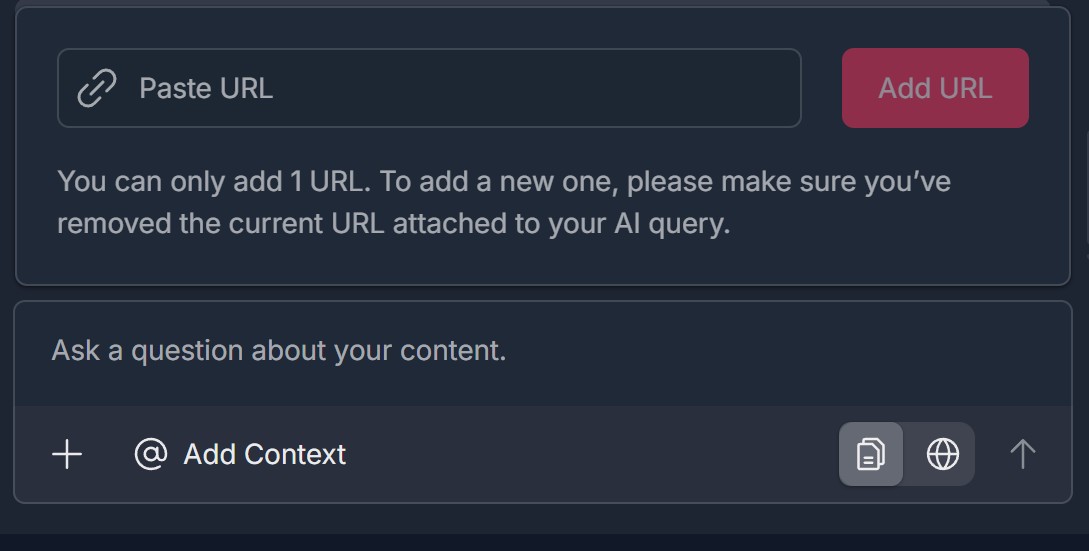
- If you choose URL, a Paste URL input and red Add URL button appear; paste your web address and click Add URL. Note: You can only add 1 URL; remove the current URL before adding a new one
- Add Document (upload from computer):
- If you choose Add Document, a file selection dialog opens; browse to a folder, select file(s), and confirm with Open to upload and add to your project context; use Cancel to close without adding
Troubleshooting Guide
A. New Project Doesn't Create a Project or Nothing Happens
- Issue: You click New Project under Creations -> Projects but no new project appears or nothing happens.
- Fix:
- Ensure you are on the Projects tab (under My Library), not Library or Lists
- Click directly on New Project (the option with the + and folder icon), not on "Search projects" or an existing project name
- Refresh the page and go to Creations -> Projects again, then click New Project
- Check your network connection; creation may require a successful request
- If the issue continues, try a different browser or contact Support with your browser and steps taken
B. Untitled Project or Untitled Document Doesn't Appear
- Issue: After clicking New Project, you don't see Untitled Project or Untitled Document in the sidebar or central panel.
- Fix:
- Wait a few seconds; the project and document may load shortly after creation
- Check the left sidebar; expand the Projects section if it is collapsed (click the chevron)
- Refresh the page and look for the new project at the top of the Projects list
- Confirm you are in Creations (e.g., edit/pencil icon) and on the Projects tab
- If they still don't appear, try creating another project; if the problem persists, contact Support
C. Continue Doesn't Show Main Goal or AI RESEARCH Doesn't Update
- Issue: You click Continue in the AI RESEARCH panel but the main goal question with options (Create a List, Get an Answer, Search Content) does not appear.
- Fix:
- Ensure you clicked the red Continue button in the right-hand AI RESEARCH panel, not a button in the central or left panel
- Scroll within the AI RESEARCH panel to see if the main goal appears below
- Refresh the page, open the project and Untitled Document again, and click Continue
- Check your network connection; the AI research flow may need a successful request
- If the main goal still doesn't appear, try a different browser or contact Support
D. "+" Menu Doesn't Open or Options Are Missing
- Issue: You click the + icon at the bottom of the AI RESEARCH panel but the menu (Search, Build a List, Browse Themes, Browse Topics, Agent Library) does not open, or some options are missing.
- Fix:
- Click directly on the + icon (bottom left of the AI RESEARCH panel), not on "@ Add Context" or the input field
- Ensure the AI RESEARCH panel is visible and the project/document is loaded
- Refresh the page and open the project again; click + once the panel has loaded
- Check if a pop-up or ad blocker is blocking the menu
- Try a different browser if the menu still doesn't open or options are missing; contact Support if the issue persists
E. @ Add Context Doesn't Open or Content Doesn't Add
- Issue: You click @ Add Context but the dropdown (Content Library, URL, Add Document) doesn't appear, or you choose an option but content doesn't attach to your project or AI query.
- Fix:
- Click directly on @ Add Context, not on the + icon or the document/globe/upload icons
- For Content Library: Confirm you are in MY LIBRARY view; use "Search documents" if needed; click a document to add it
- For URL: Paste a valid URL and click Add URL; if you already have a URL attached, remove it first (only one URL is allowed)
- For Add Document: Ensure the file picker opened; select a supported file and click Open; if the dialog doesn't open, check pop-up blockers or try again
- Refresh the page and repeat the @ Add Context steps; if content still doesn't add, contact Support with the source and what you see on screen
F. Search, Browse Themes, or Browse Topics Modal Doesn't Generate Results
- Issue: You open Search (or Browse Themes / Browse Topics) and click Generate Result but nothing happens or no results appear.
- Fix:
- For Search: Enter at least one keyword in "Comma separate multiple items"; for better results, use one keyword at a time; then click Generate Result
- For Browse Themes or Browse Topics: Select at least one theme or topic from the dropdown; then click Generate Result
- Check your network connection
- Wait a few seconds; results may load after a short delay
- If results still don't appear, refresh and try again; contact Support if the issue persists
Was this article helpful?
That’s Great!
Thank you for your feedback
Sorry! We couldn't be helpful
Thank you for your feedback
Feedback sent
We appreciate your effort and will try to fix the article