Description
The Content Mixer is a powerful feature that lets you mix your Contesimal Library with trending concepts to create something new in minutes. You blend your existing content (e.g., books, episodes, articles) with today's headlines and trends, then generate fresh, multi-format output (Blog Post, Email, Facebook, Instagram, LinkedIn, TikTok, X (Twitter)) from a single mix. The result is timely, on-brand content that extends your IP across channels without starting from scratch each time.
Goals
- Combine today's news with your library — Use trending topics and headlines as a lens on your own content so new pieces feel current and relevant.
- Generate new content for your business in minutes — One configuration (content types, tone, optional topic/theme/audience) produces multiple formats at once, so you increase social and editorial output without multiplying effort.
- Create something new from existing IP — Turn one source (e.g., a chapter, episode, or article) into blog posts, emails, and social posts that stay true to your voice and message.
- Increase your social output — Get platform-ready copy (and optional visuals) for several channels from a single mix, then edit on the fly, re-generate if needed, and publish under your project.
Advantages
- One mix, multiple formats — Select one or more content types (Blog Post, Email, Facebook, Instagram, LinkedIn, TikTok, X (Twitter)); the mixer generates tailored content for each in one run, so you don't recreate the same idea format by format.
- Trending + library = timely and on-brand — By mixing trending headlines or topics with your library, you get content that's both current and aligned with your existing IP, strengthening relevance and consistency.
- Full control over voice and targeting — Set tone and language (e.g., humorous, authoritative, style of an author), and optionally topic, theme, and target audience, so every output matches your brand and goals.
- Iterate quickly — Adjust parameters in the left panel, re-generate to try new variants, preview by content type with tabs, insert images, and edit before you publish—all in one flow.
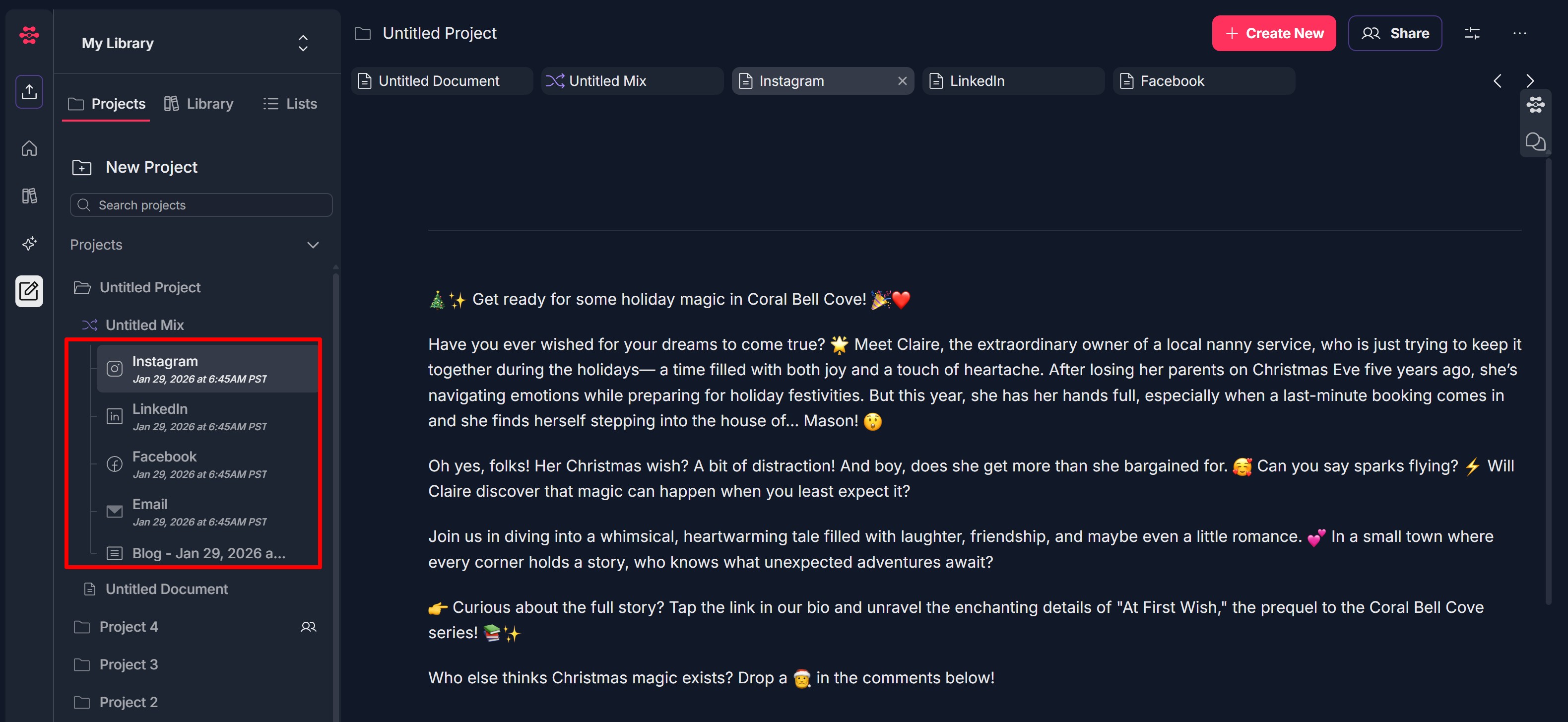
- Organized under your project — Generated content is saved under the project and the created mix (e.g., Instagram, LinkedIn, Facebook, Email, Blog), so teams can find, share, and reuse it in one place.
Step-by-Step:
The step-by-step instructions, screen descriptions, and UI details in this section are examples only. They are intended to help you understand how the feature works and how to complete the flow. Screens, labels, and layout may change in future product updates.
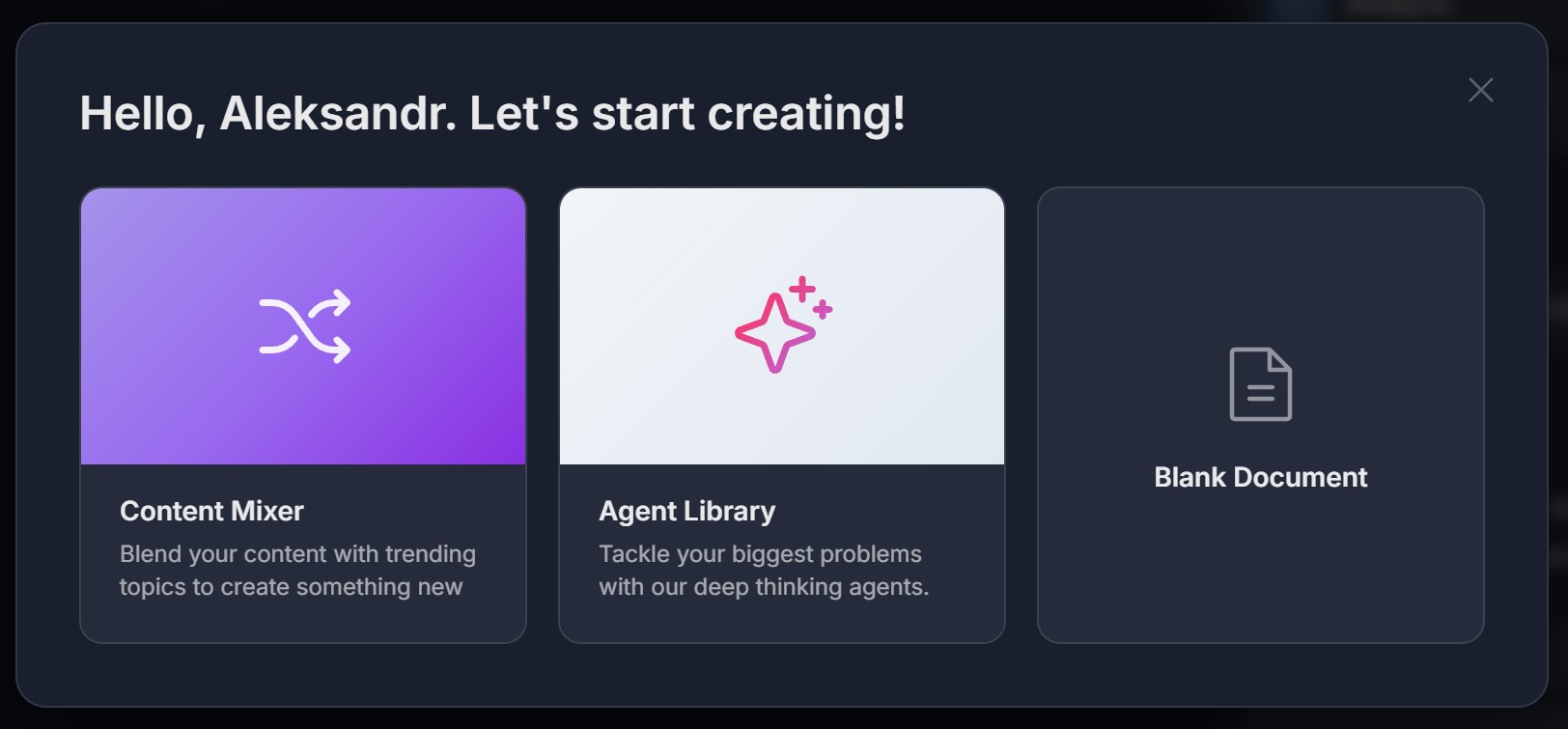
1. Under a project, click + Create New at the top and select Content Mixer
- Log in and open a project (e.g., Untitled Project with Untitled Document in the left sidebar)
- In the top right, find the red button + Create New and click it

- A modal opens: "Hello, [Name]. Let's start creating!" with three cards: Content Mixer (purple, "Blend your content with trending topics to create something new"), Agent Library, Blank Document
- Click the Content Mixer card; the modal closes and the Content Mixer view opens
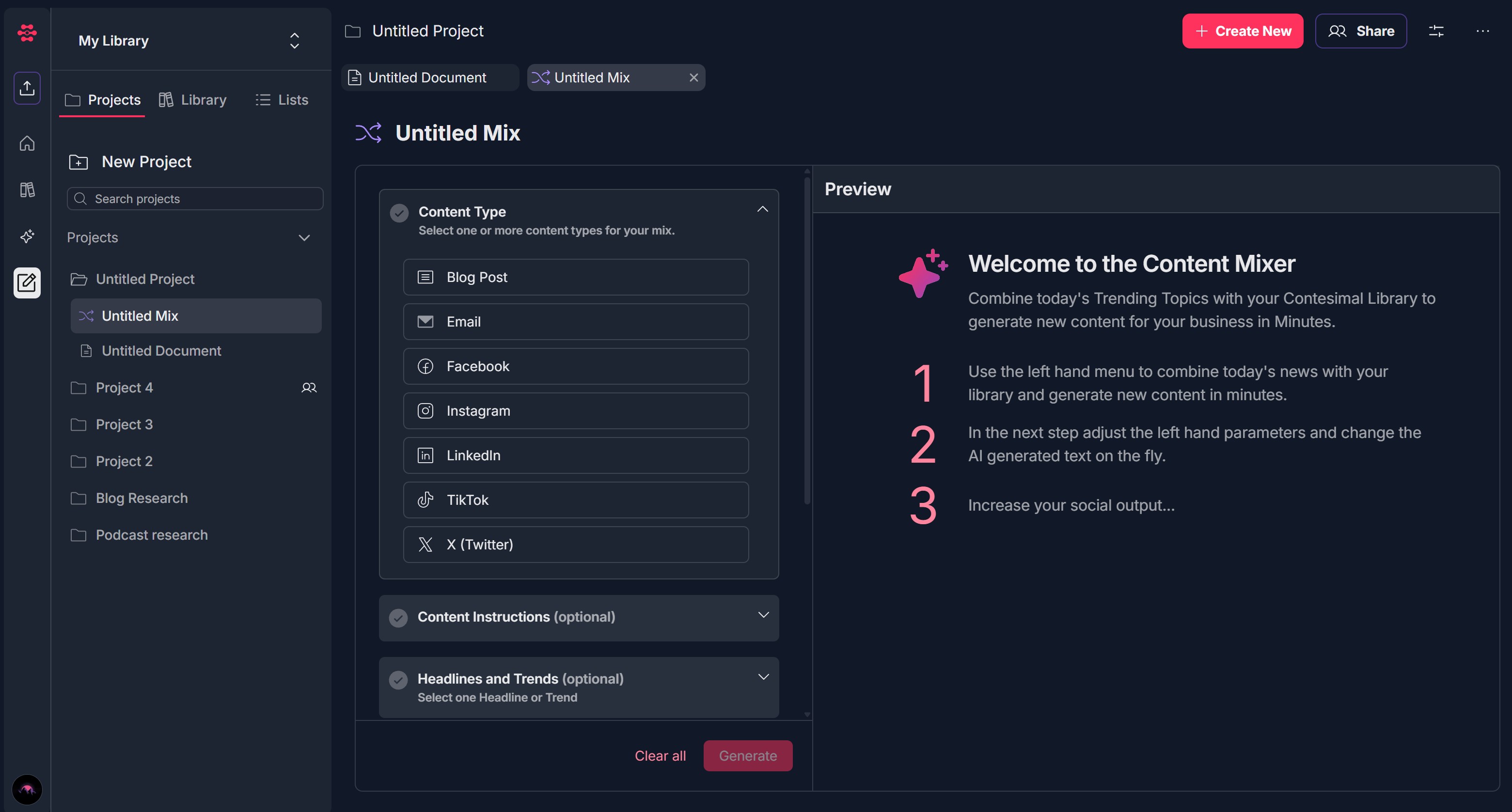
2. Untitled Mix appears
- Left panel: Configuration sections (Content Type, Content Instructions optional, Headlines and Trends optional, Mix in your Content, Tone, Topic optional, Theme optional, Target Audience optional); each with checkmark and expand/collapse arrow
- Right panel: Preview with "Welcome to the Content Mixer." and instructions; bottom left: Clear all and Generate (red)
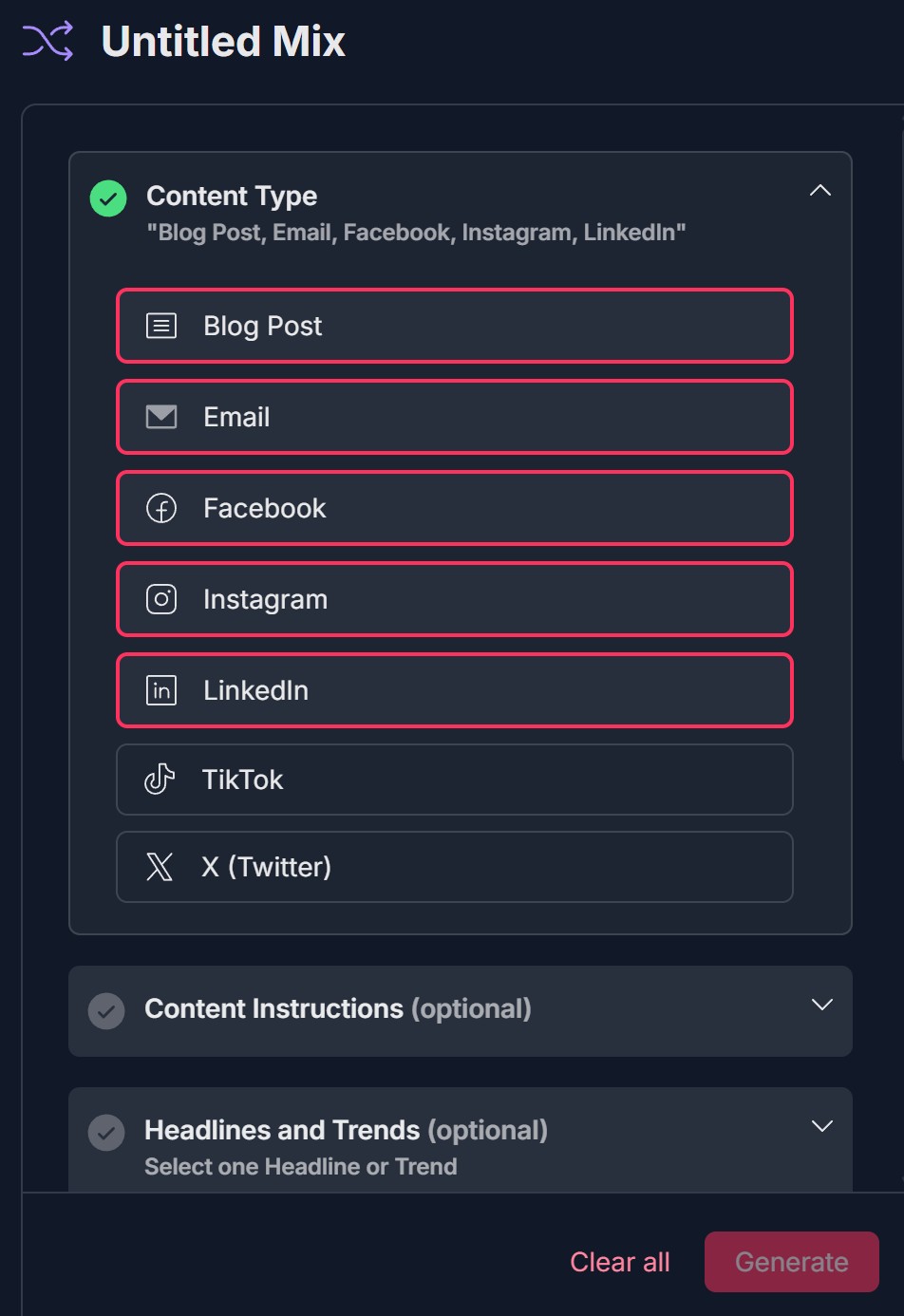
3. Select one or more content types for your mix
- Expand Content Type section; select one or more: Blog Post, Email, Facebook, Instagram, LinkedIn, TikTok, X (Twitter); selected types appear as summary below title
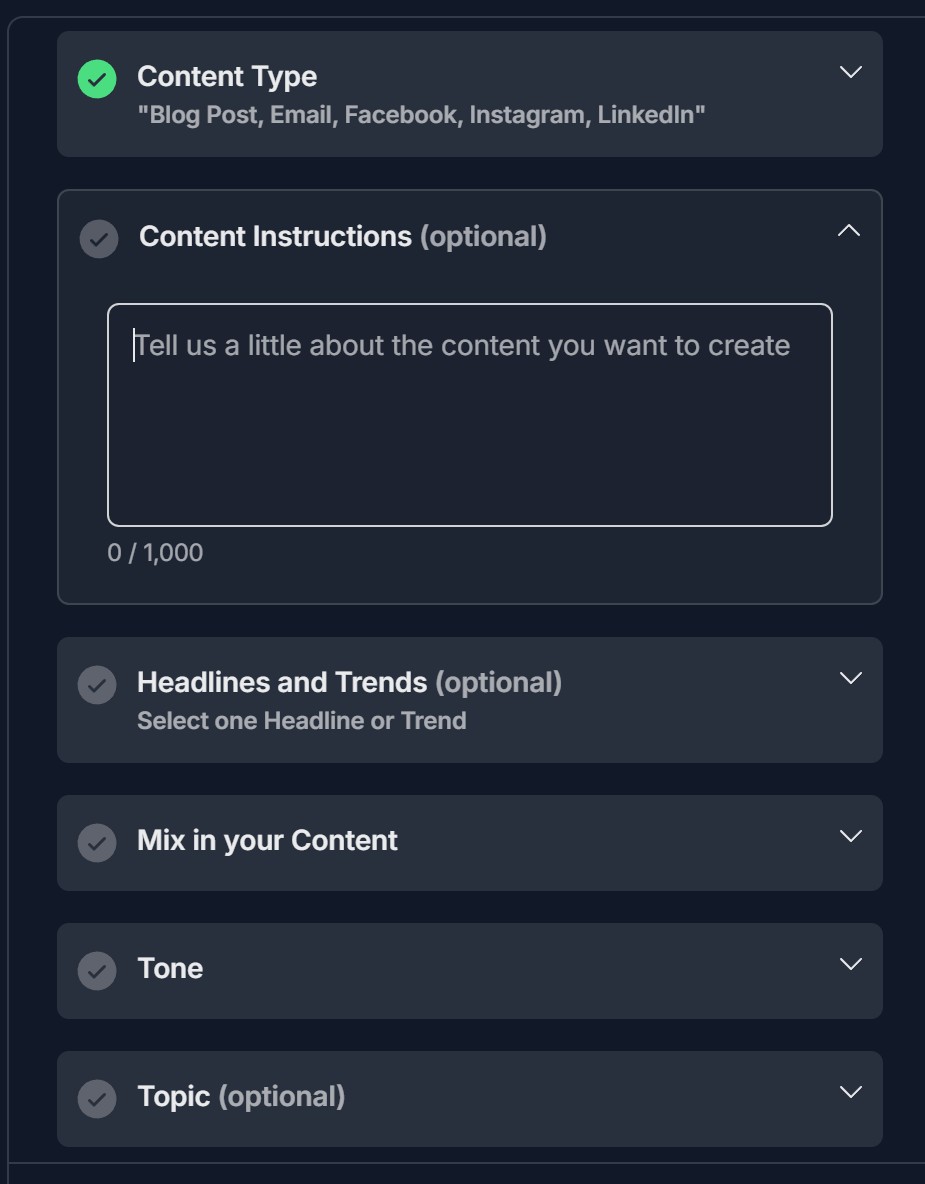
4. Add content instructions (optional)
- Expand Content Instructions (optional); type in "Tell us a little about the content you want to create" (character counter 0 / 1,000);
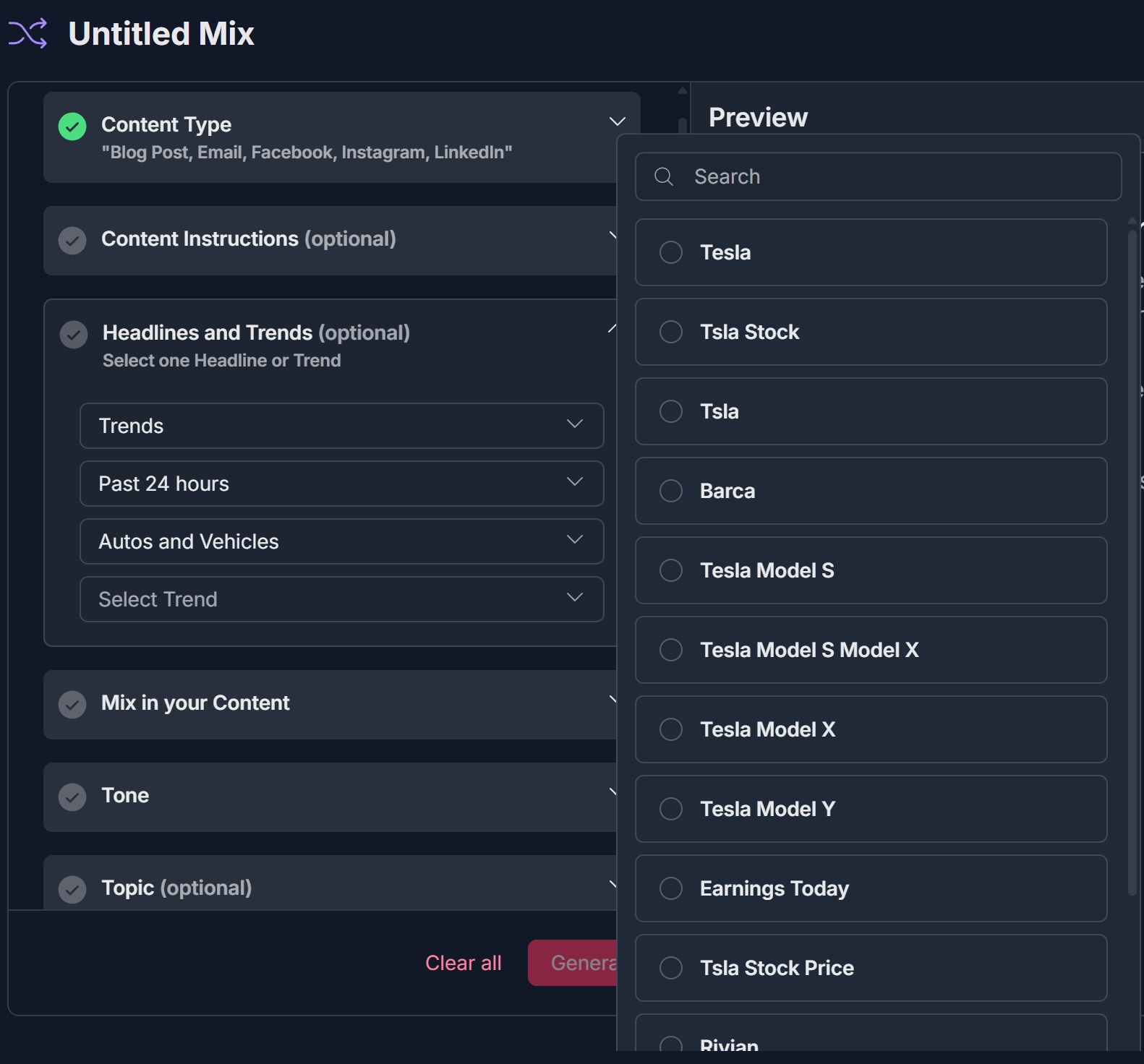
5. Select headlines and trends (optional)
- Expand Headlines and Trends (optional); "Select one Headline or Trend"; use dropdowns (e.g., Trends, Past 24 hours, category) and/or Preview list with radio buttons; select one;
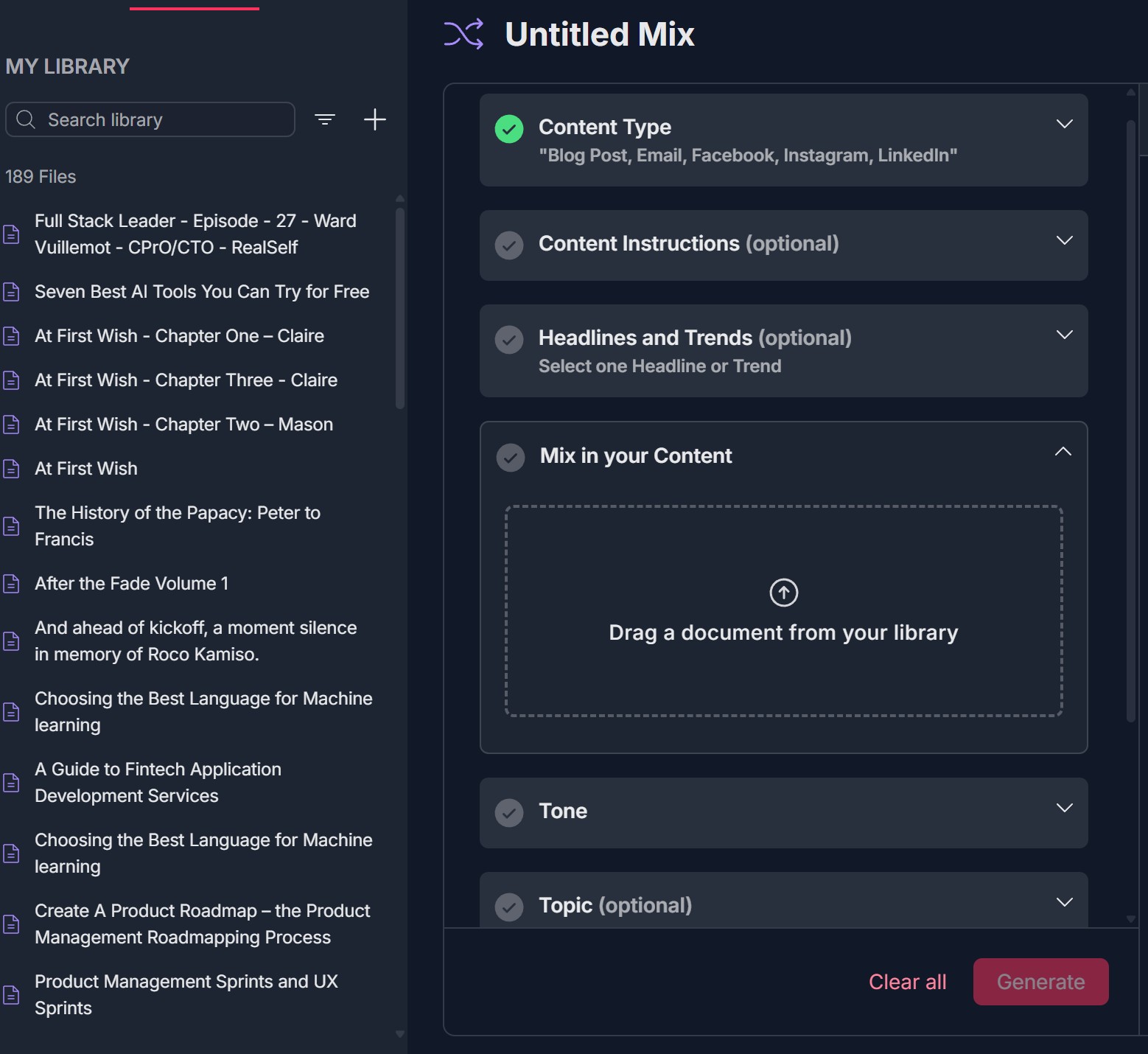
6. Mix in your content
- Expand Mix in your Content; MY LIBRARY (Search library, document list) or dashed box "Drag a document from your library"; drag or select a document (e.g., "At First Wish"); section shows green checkmark when set
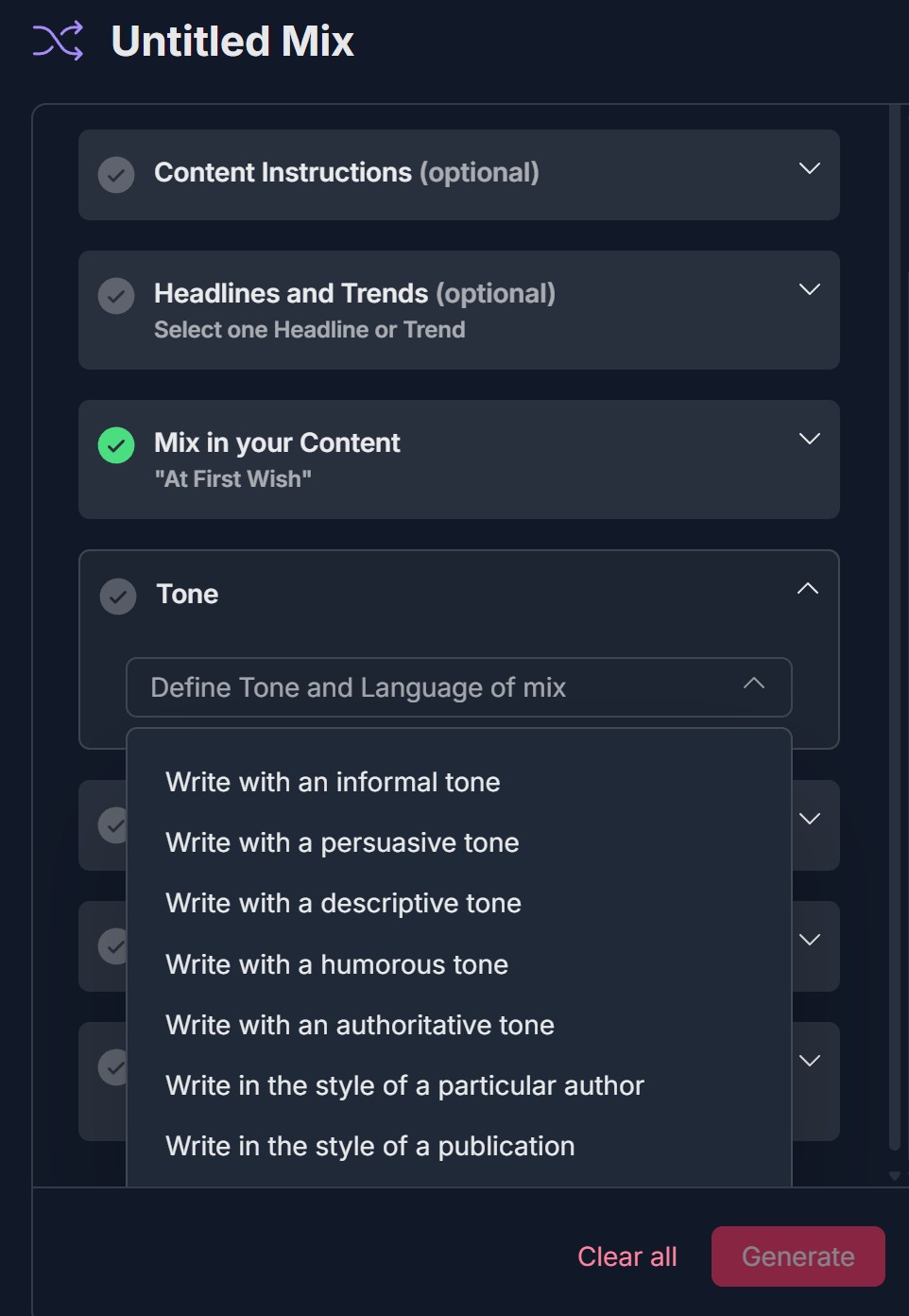
7. Define tone and language of the mix
- Expand Tone; "Define Tone and Language of mix" dropdown; select one (e.g., Write with informal/persuasive/descriptive/humorous/authoritative tone, Write in the style of a particular author/publication); section shows green checkmark when set
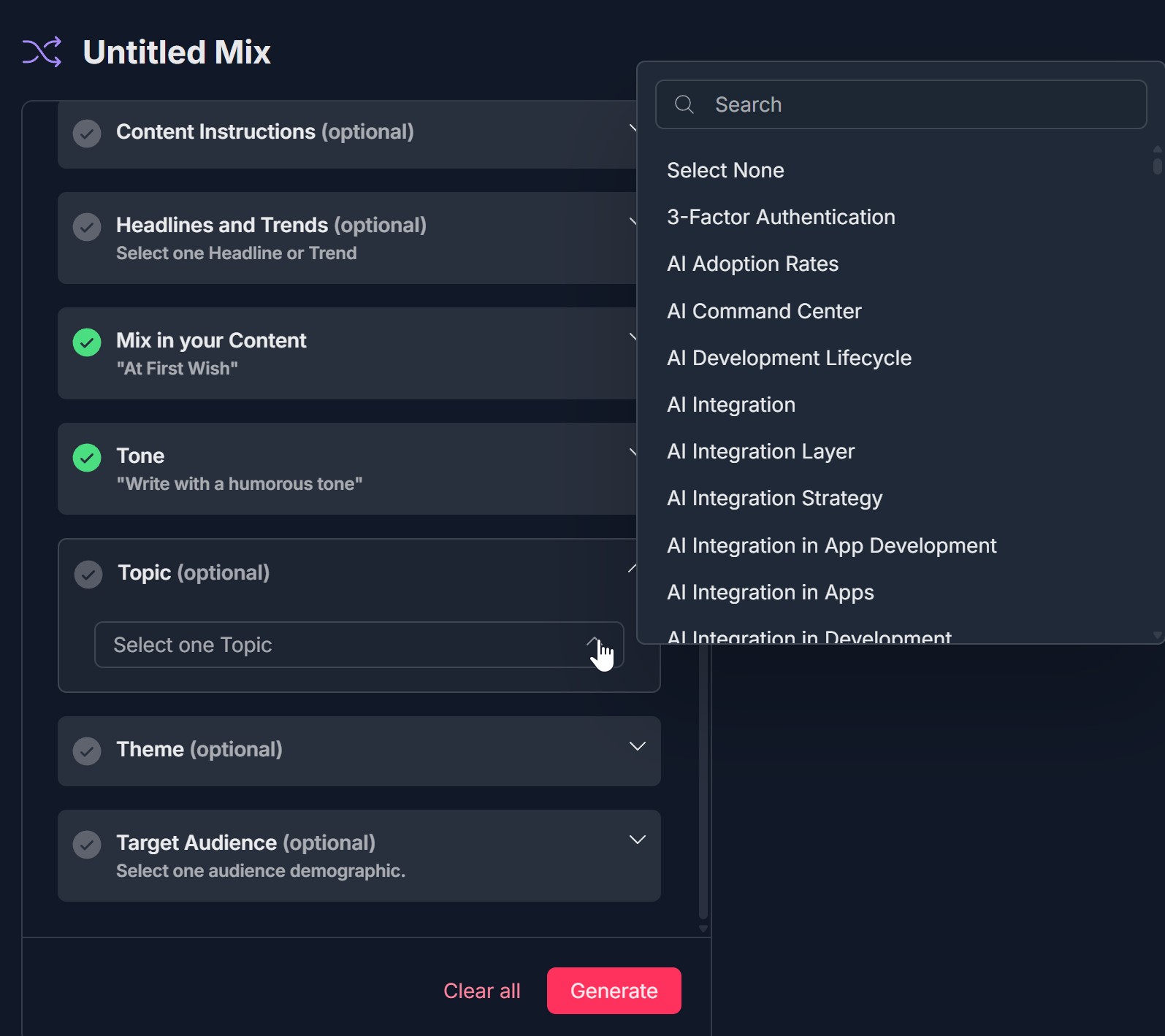
8. Select one topic (optional)
- Expand Topic (optional); "Select one Topic" dropdown with Search and list (e.g., Select None, AI Adoption Rates, AI Integration); select one or Select None;
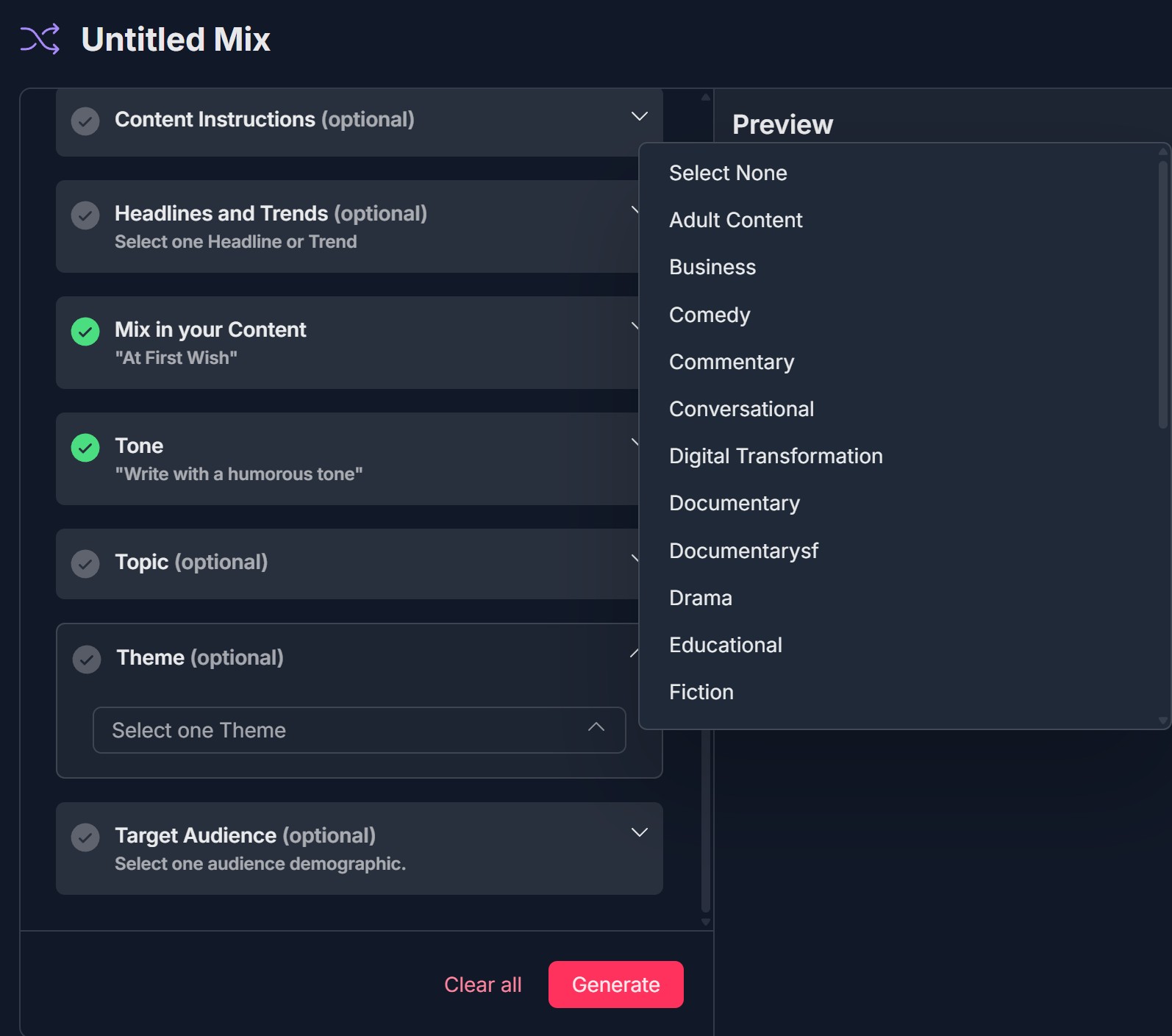
9. Select one theme (optional)
- Expand Theme (optional); "Select one Theme" dropdown (e.g., Select None, Business, Comedy, Educational); select one or Select None;
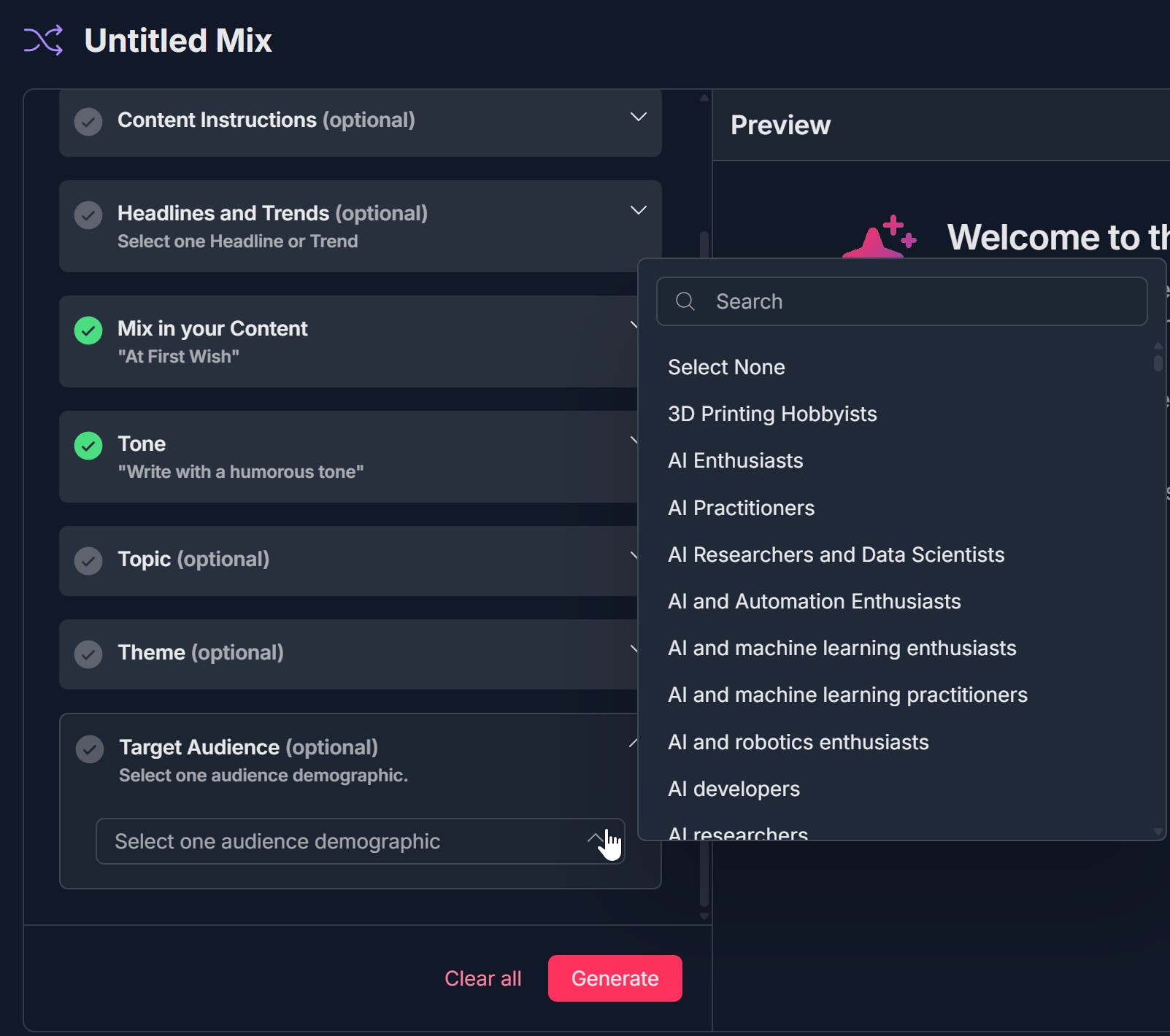
10. Select one target audience demographic (optional)
- Expand Target Audience (optional); "Select one audience demographic" dropdown with Search and list (e.g., AI Enthusiasts, AI Practitioners); select one or Select None;
11. Clear all (optional)
- At bottom of left panel, click Clear all to reset all selections;
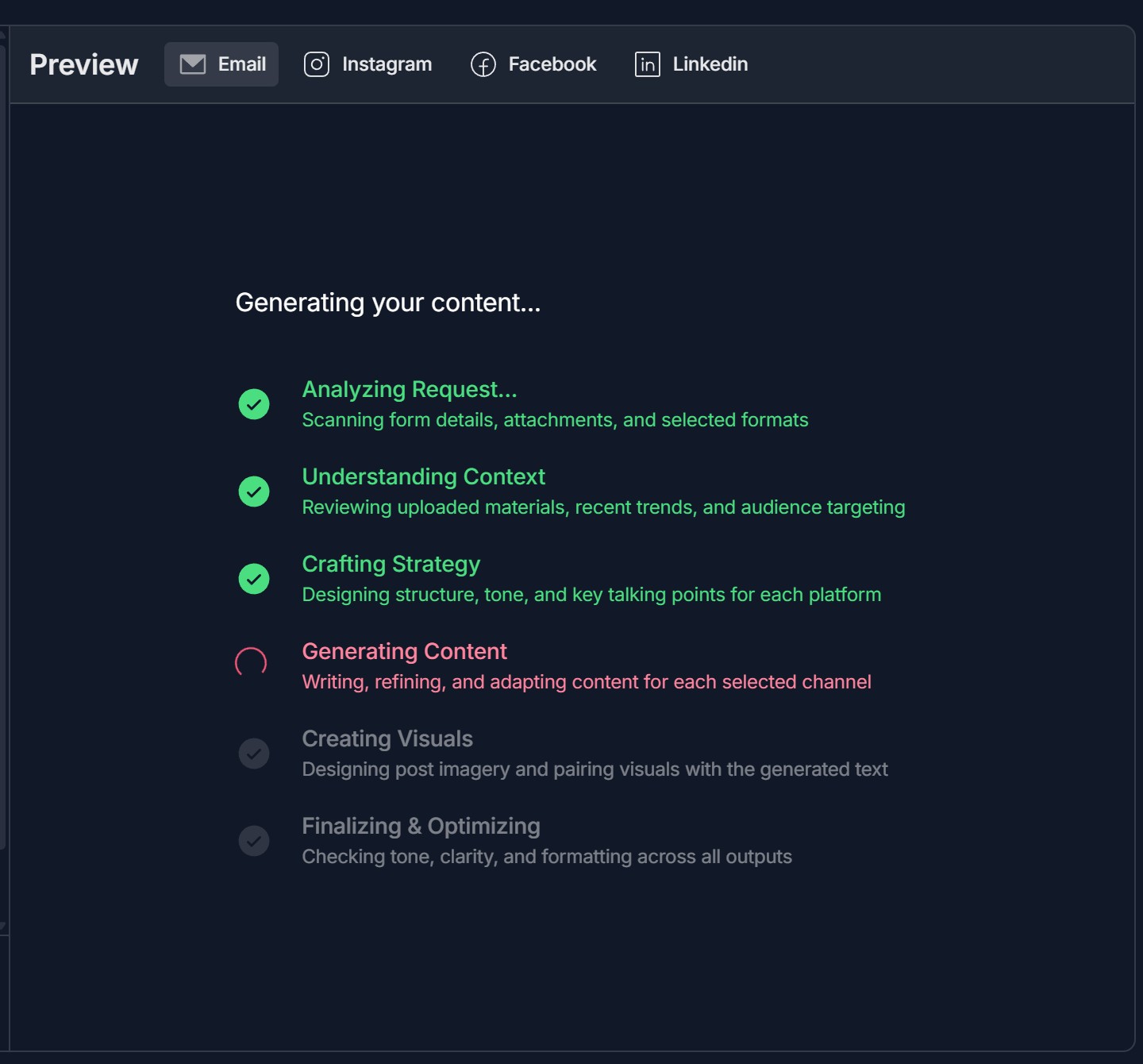
12. Click Generate — content is generating in Preview
- Click the red Generate button at bottom of left panel
- Preview shows "Generating your content..." with steps: Analyzing Request, Understanding Context, Crafting Strategy, Generating Content, Creating Visuals, Finalizing & Optimizing; wait for completion
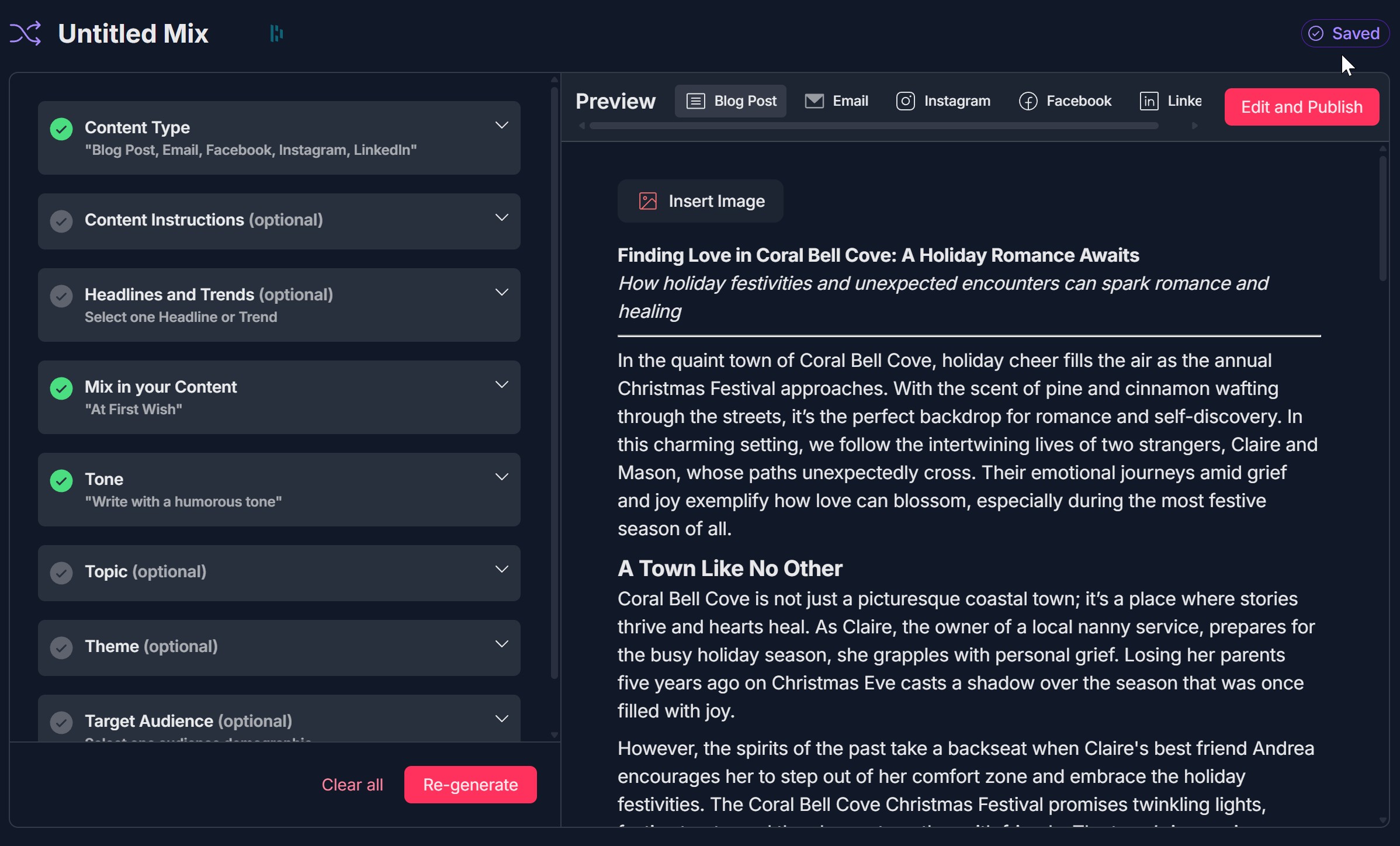
13. Content is generated — preview, switch tabs, insert image
- Preview shows generated content; tabs at top (Blog Post, Email, Instagram, Facebook, LinkedIn) let you switch by content type; Insert Image button; Edit and Publish (red); left panel shows Clear all and Re-generate
14. Re-generate (optional)
- After content is generated, click Re-generate (red button) to create new content from same or updated configuration; Preview updates with new output
15. Click Edit and Publish — confirmation toast appears
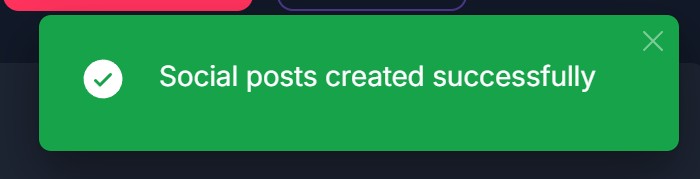
- In Preview, click the red Edit and Publish button; system saves/publishes; green toast "Social posts created successfully" with checkmark and X to dismiss
16. Content is created and visible under project / created mix
- Left sidebar: under project (e.g., Untitled Project), Untitled Mix shows generated items (Instagram, LinkedIn, Facebook, Email, Blog - date); click any item to open in main area; content remains part of project and mix
Troubleshooting Guide
A. + Create New Doesn't Open or Content Mixer Isn't an Option
- Issue: You click + Create New at the top of a project but the modal doesn't open, or the modal opens but Content Mixer is missing.
- Fix:
- Ensure you are inside a project (e.g., Untitled Project with Untitled Document or Untitled Mix in the left sidebar)
- Click directly on the red + Create New button in the top right
- Refresh the page and open the project again, then click + Create New
- Check if your account or plan includes Content Mixer; if unsure, contact Support
- If the modal opens but only Agent Library and Blank Document appear, contact Support
B. Untitled Mix Doesn't Appear or Preview Is Blank
- Issue: You select Content Mixer but the Untitled Mix view doesn't load, or the right Preview panel stays blank or shows only "Welcome to the Content Mixer" after you expect content.
- Fix:
- Wait a few seconds; the mix canvas may load after the modal closes
- Refresh the page and go to the project again; use + Create New -> Content Mixer
- Check the left panel: ensure at least Content Type and Mix in your Content are configured (and Tone if required)
- If Preview stays blank after clicking Generate, see "Generate Doesn't Start or Content Doesn't Appear in Preview" below
C. Generate Doesn't Start or Content Doesn't Appear in Preview
- Issue: You click Generate but nothing happens, or "Generating your content..." appears but no content shows when it finishes.
- Fix:
- Ensure you have selected at least one Content Type and mixed in at least one document from your library; Tone may be required
- Click the red Generate button at the bottom of the left panel, not Clear all
- Check your network connection; generation requires a successful request
- Wait for all steps (Analyzing Request through Finalizing & Optimizing) to complete; then check the content type tabs in Preview
- If generation fails repeatedly, try Clear all, reconfigure, and Generate again; if the issue persists, contact Support
D. Mix in Your Content — Can't Add or See Library Documents
- Issue: The "Mix in your Content" section doesn't show MY LIBRARY, or you can't drag/select a document.
- Fix:
- Expand the Mix in your Content section fully; the library list or "Drag a document from your library" area may be below the fold
- If MY LIBRARY appears in a separate left column, use Search library to find a document, then drag or click to add
- Ensure you have at least one document in your Contesimal Library
- Refresh the page and open the mix again; try adding a document one more time
- If the library never loads, contact Support with your project and mix name
E. Edit and Publish Doesn't Show Toast or Content Not Under Project
- Issue: You click Edit and Publish but no confirmation toast appears, or the created content doesn't show under the project/created mix in the sidebar.
- Fix:
- Wait a few seconds after clicking Edit and Publish; the toast may appear briefly
- Check the left sidebar: expand the project and look under Untitled Mix (or the mix name) for items like Instagram, LinkedIn, Facebook, Email, Blog
- Refresh the page and expand the project and mix again
- Ensure generation completed successfully (all steps with green checkmarks) before clicking Edit and Publish
- If the toast never appears and no items appear under the mix, try Re-generate and then Edit and Publish again; if the issue persists, contact Support
F. Re-generate Doesn't Work or Overwrites Unexpectedly
- Issue: You click Re-generate but nothing happens, or the new content replaces the previous content in a way you didn't expect.
- Fix:
- Ensure you clicked Re-generate (red button at bottom of left panel after first generation), not Generate
- Wait for the "Generating your content..." steps to complete before making further changes
- If Re-generate is disabled, check that content was generated at least once and the mix is still open
- For expected behavior (e.g., whether Re-generate creates new items or updates existing ones), check product help or contact Support
Was this article helpful?
That’s Great!
Thank you for your feedback
Sorry! We couldn't be helpful
Thank you for your feedback
Feedback sent
We appreciate your effort and will try to fix the article