Description
The WordPress Import feature within Contesimal allows users to automatically import blog content from their WordPress websites into the Contesimal platform. This powerful tool streamlines the content research and organization process by turning your existing blog posts and articles into indexed, searchable, and taggable documents within the Contesimal ecosystem.
By enabling bulk content ingestion directly from a WordPress domain, this feature supports Contesimal’s mission to help users organize, contextualize, and monetize their content using advanced AI tools like the Chat Browser and Content Mixer. This empowers content creators, business professionals, and researchers to conduct faster thematic analysis, collaborate with teams, and build richer content experiences based on their existing materials.
Step-by-Step:
The step-by-step instructions, screen descriptions, and UI details in this section are examples only. They are intended to help you understand how the feature works and how to complete the flow. Screens, labels, and layout may change in future product updates.
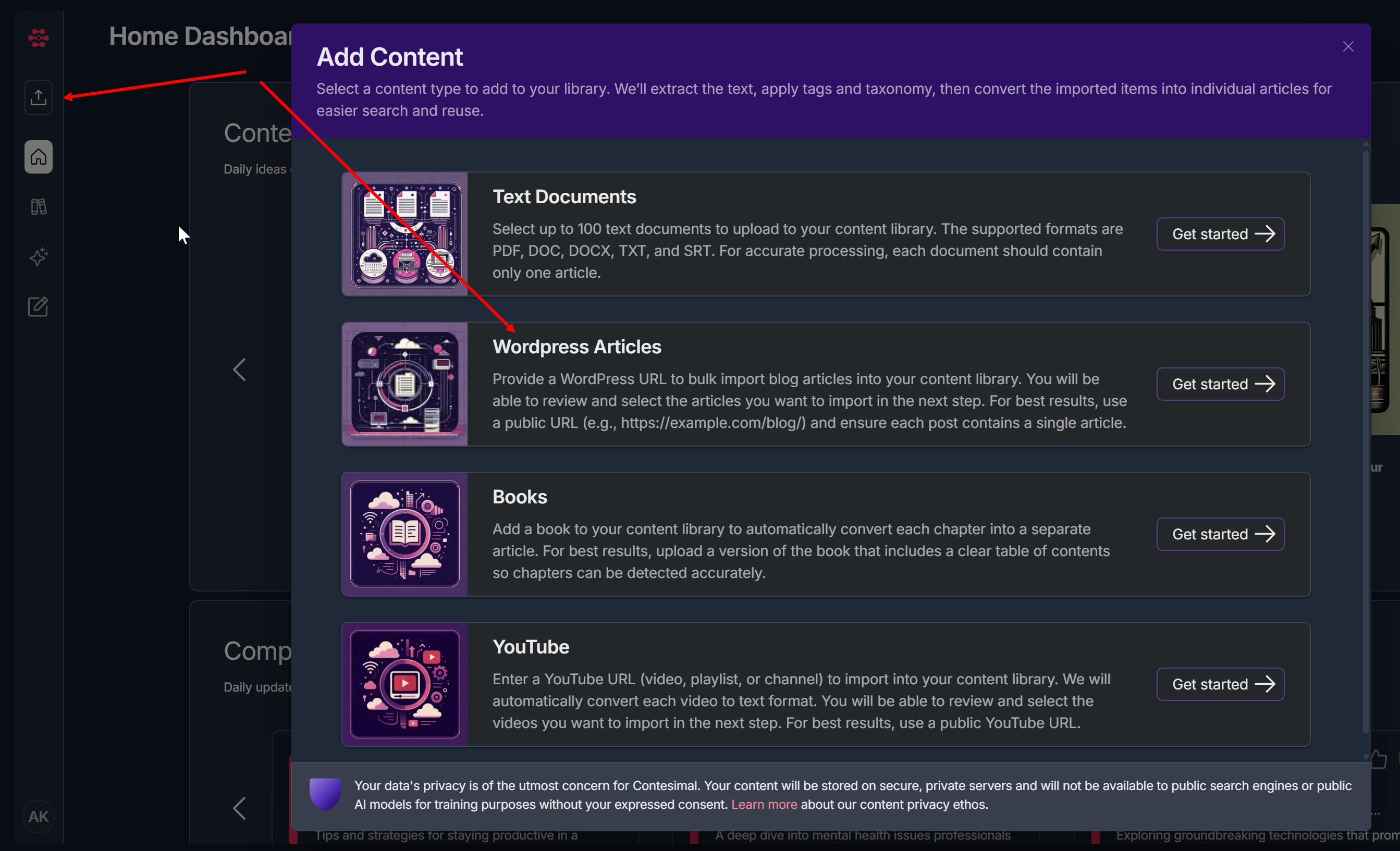
A. Start from clicking Add Content button
Click on the "Add Content" button (Up Arrow icon) located at the left navigation menu.
In the Add Content screen:
Select “Wordpress Articles” under the listed import options.
B. URL Import Process
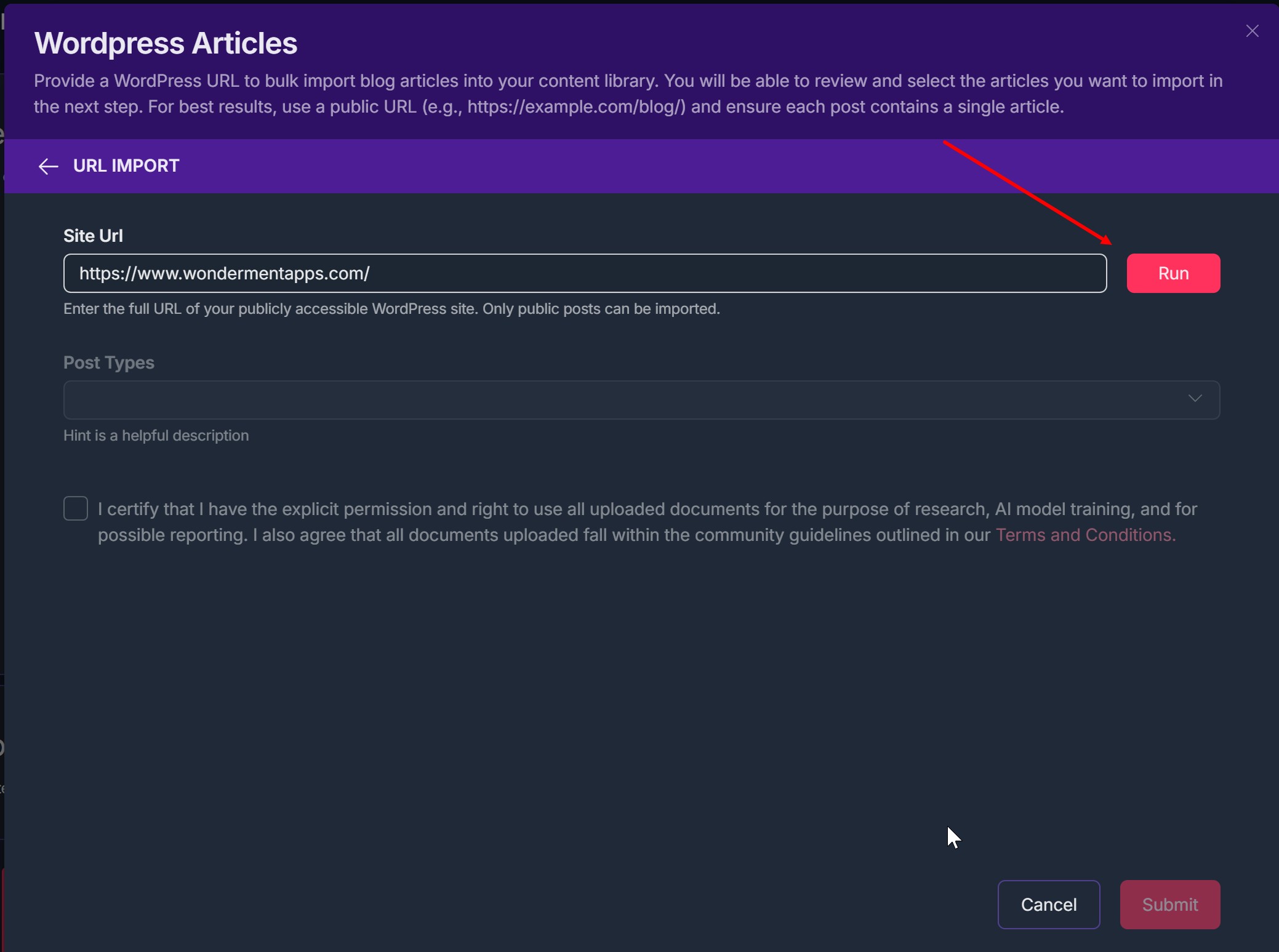
Enter the full WordPress site URL
Example format:
https://wondermentapps.comThis is done in the field labeled Site URL.
- Click “Run”
This begins scanning the WordPress site for available content that matches your selections.
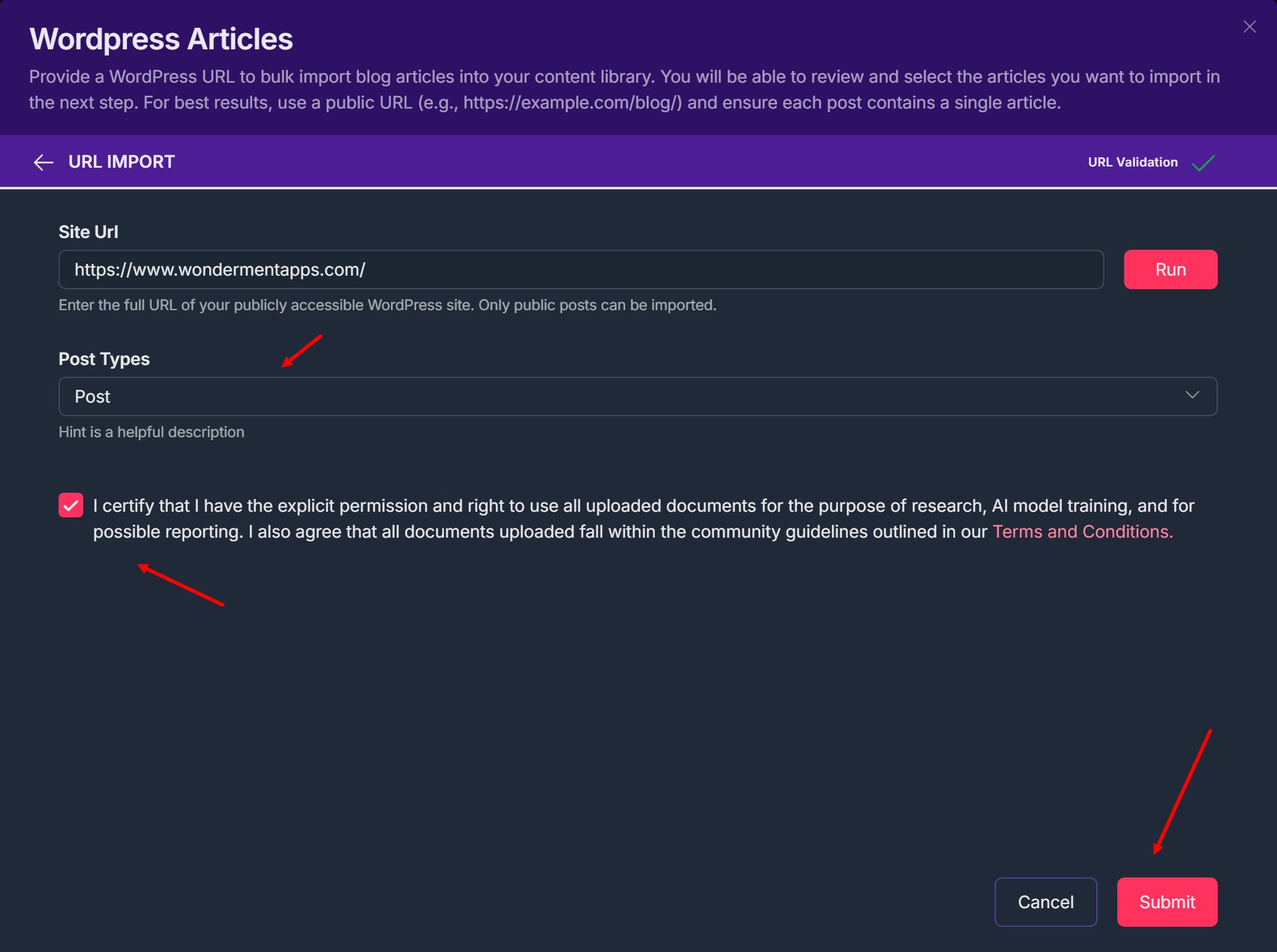
Select the Post Types
Options typically include:
Post – Standard blog entries.
Page – Static pages (like About Us, Contact, etc.).
Project – Custom post types (if enabled on the WordPress site).
Choose Post for blog-style content import.
Confirm Permissions
Check the box stating:
“I certify that I have the explicit permission and right to use all uploaded documents…”
- Click 'Submit' button
This starts Wordpress site scanning for available blog posts
C. Select and Import Content
8. Once scanned, a list of articles appears for selection:
Each article shows:
Title
Date imported
Preview text
Visual thumbnail
Use checkboxes to select individual articles or choose “Select All” to batch import.
Once 'Select All" is chosen, all articles are selected (if there are 50 or less articles)
If there are more than 50 articles available after scanning, and you want to import all articles - click "Select all {articles number}?"
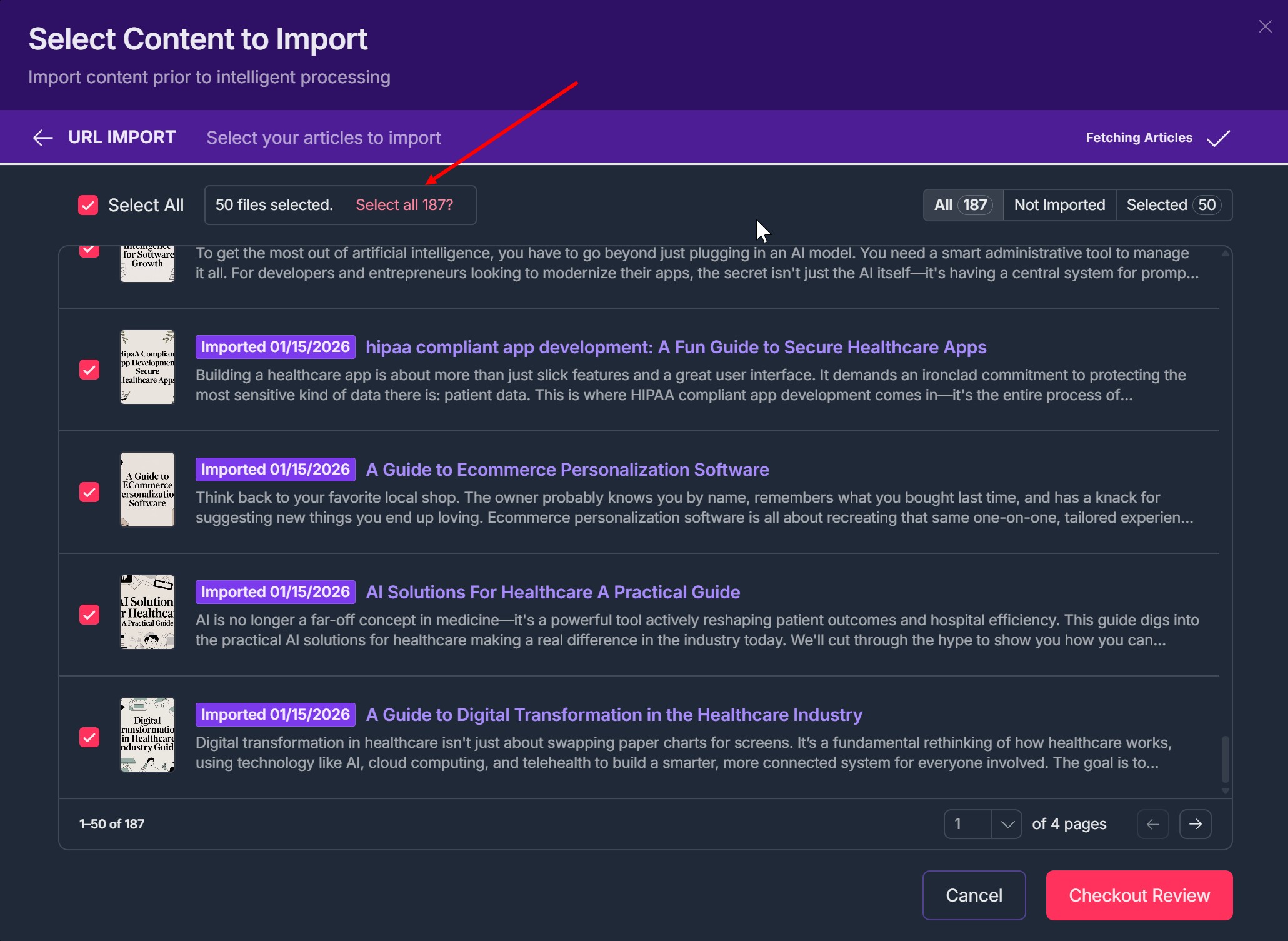
9. Click “Checkout Review”
- Click "Proceed with Upload"
- Add unique User Tag(s) to ALL content and click "Add Tags & Process"
- Click "Skip" if no unique User tags needed
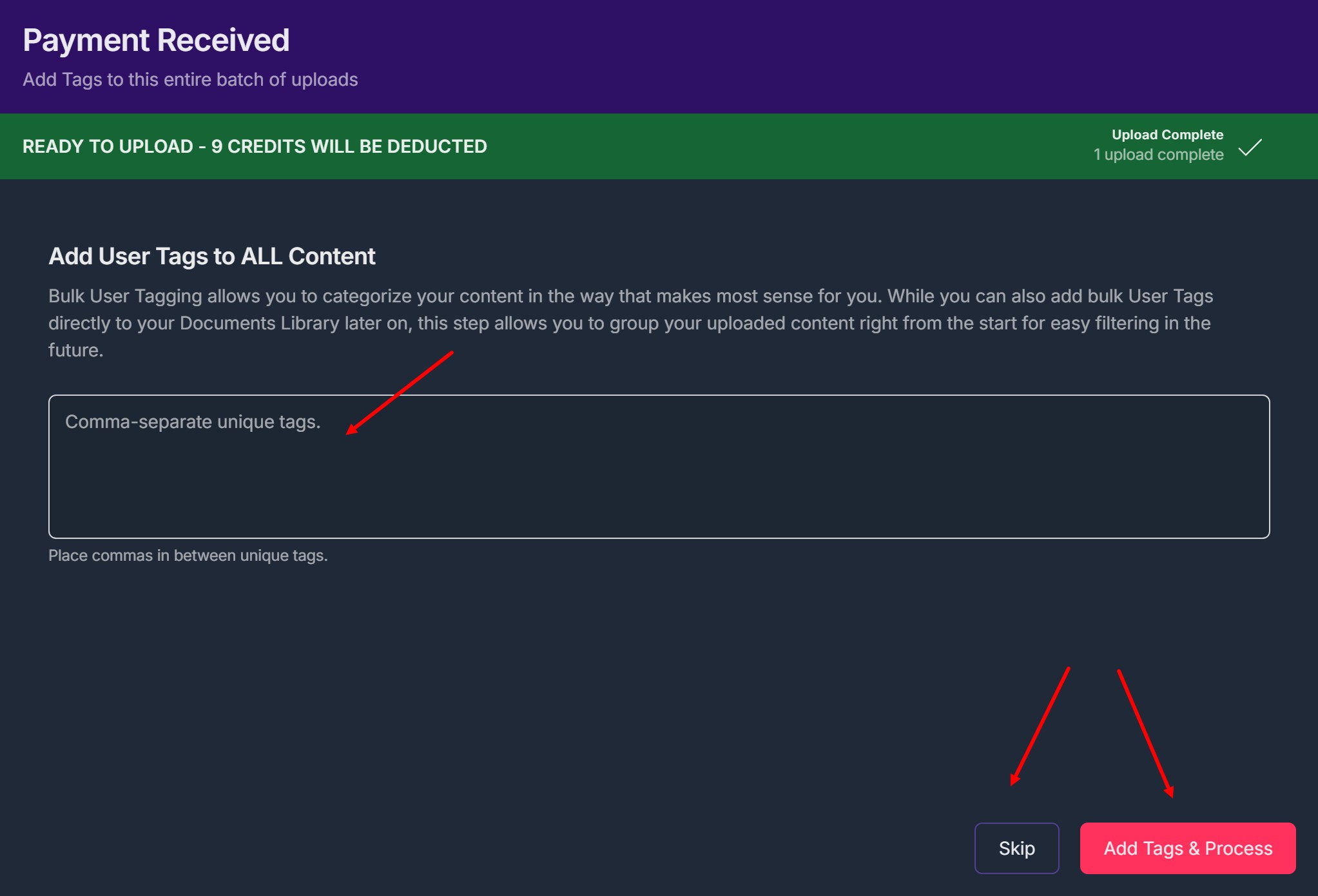
- Selected content will be transferred into your Contesimal Library for processing.
D. Content Processing
10. After import, you are directed to a screen stating: “Contesimal is processing your files.”
This step:
Applies Theme Packs automatically.
Prepares content for AI research sessions.
May take a few minutes to several hours depending on volume.
When processing is complete, articles become searchable, taggable, and available to preview, edit (Pencil icon), or delete (Trash can icon) on the Content Library page.
Troubleshooting Guide
A. Error: Invalid URL Format
Issue: URL not recognized or improperly formatted.
Fix: Ensure it begins with
https://and includes the full domain (e.g.,https://example.com).
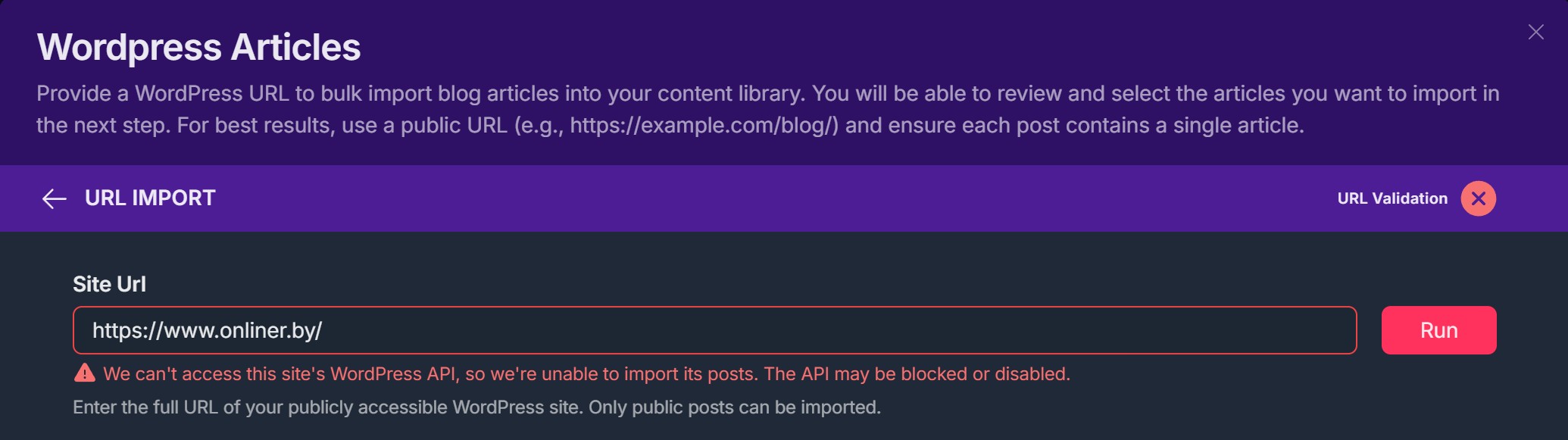
B. Error: "We can't access this site's Wordpress API..."
Issue: API is not public or disabled.
Fix:
Add another site URL with public enabled API
C. No Content Found After “Run”
Issue: No posts detected.
Fix:
Double-check selected Post Types.
Confirm that the WordPress site is public and contains content.
Ensure posts aren’t restricted by password or plugin blocks.
D. Cannot Check Permission Box
Issue: Checkbox unresponsive.
Fix: Scroll through the full Terms and Conditions, as some UI versions require full view to activate the checkbox.
E. “Import Selection” Button is Disabled
Issue: You haven’t selected any articles.
Fix: Check at least one item before proceeding.
F. Content Processing Stucks
Issue: File processing stuck for long periods.
Fix:
Wait up to 24 hours.
Try re-uploading smaller batches.
Contact support if delay persists past expected timeframe.
Was this article helpful?
That’s Great!
Thank you for your feedback
Sorry! We couldn't be helpful
Thank you for your feedback
Feedback sent
We appreciate your effort and will try to fix the article