Description
The Import Books feature within Contesimal allows users to add full-length books to the Content Library and automatically transform them into structured, chapter-level content. Instead of importing a book as one large document, Contesimal detects chapter boundaries and converts each chapter into a separate article, making the material easier to browse, search, and use in AI workflows.
By breaking books into smaller, organized units, this feature accelerates research and reuse of long-form content - chapters become indexed, searchable, taggable, and AI-ready assets that can be referenced independently in the Content Library and related tools. This helps users quickly locate specific topics, quote relevant sections, and build higher-quality outputs from authoritative sources.
For best results, upload a book file that includes a clear table of contents, as this enables more accurate chapter detection and cleaner segmentation. This capability supports Contesimal’s mission to help content creators, business professionals, and researchers centralize knowledge and extract value from long-form materials using advanced AI tools such as the Chat Browser and Content Mixer - enabling faster insights, better collaboration, and richer, data-driven content experiences.
Step-by-Step:
The step-by-step instructions, screen descriptions, and UI details in this section are examples only. They are intended to help you understand how the feature works and how to complete the flow. Screens, labels, and layout may change in future product updates.
A. Start from clicking Add Content button
Click on the "Add Content" button (Up Arrow icon) located at the left navigation menu.
In the Add Content screen:
Select “Books” under the listed import options.
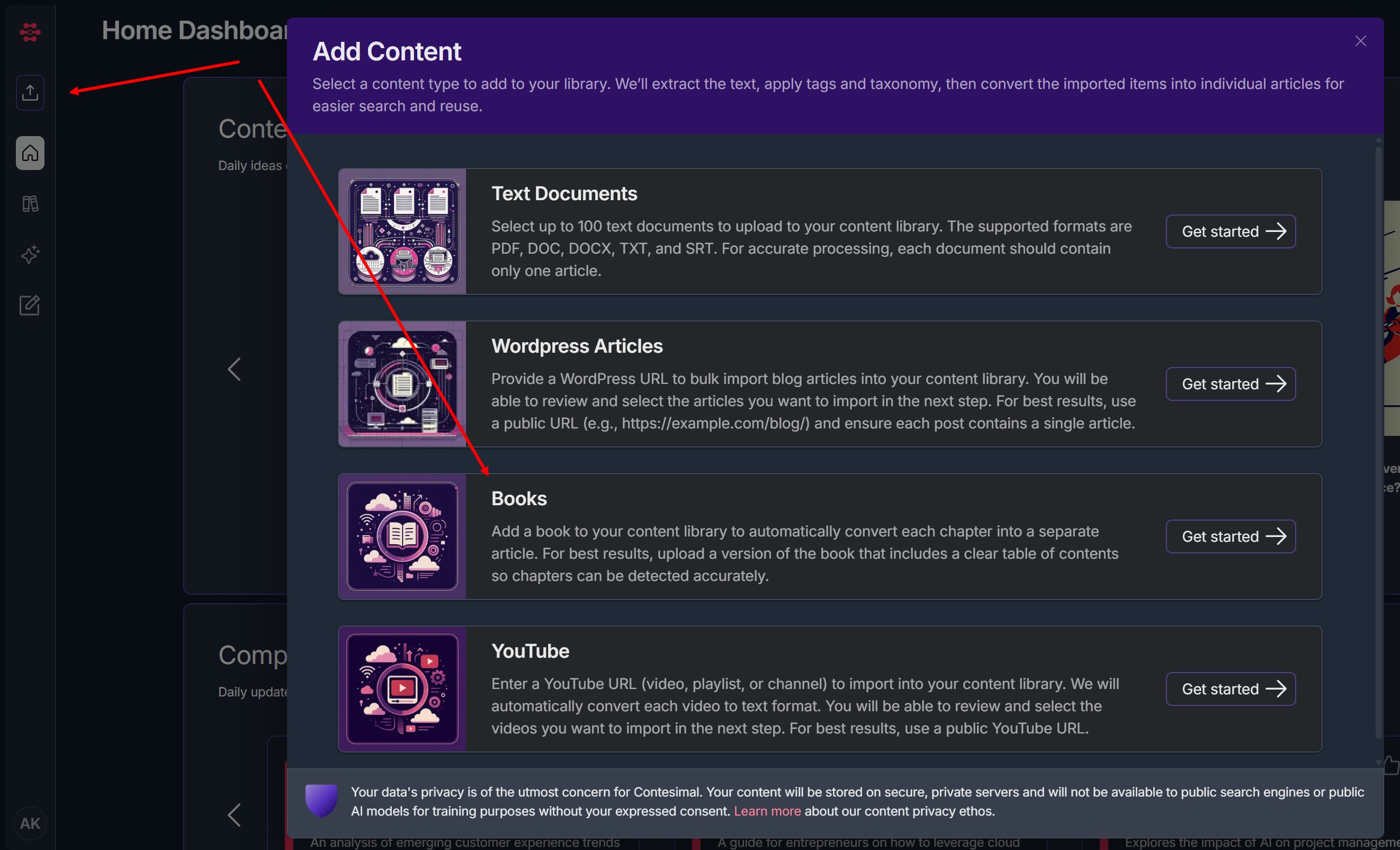
B. Upload Books
Drag book(s) or click drag and drop field to upload documents
Accepted formats:
PDFMax document size is 40 MB
- Wait until upload is complete and click “Next” button
Remove any uploaded books by clicking trash icon to the right of book title or click drag and drop area/drag and drop new files to add and upload
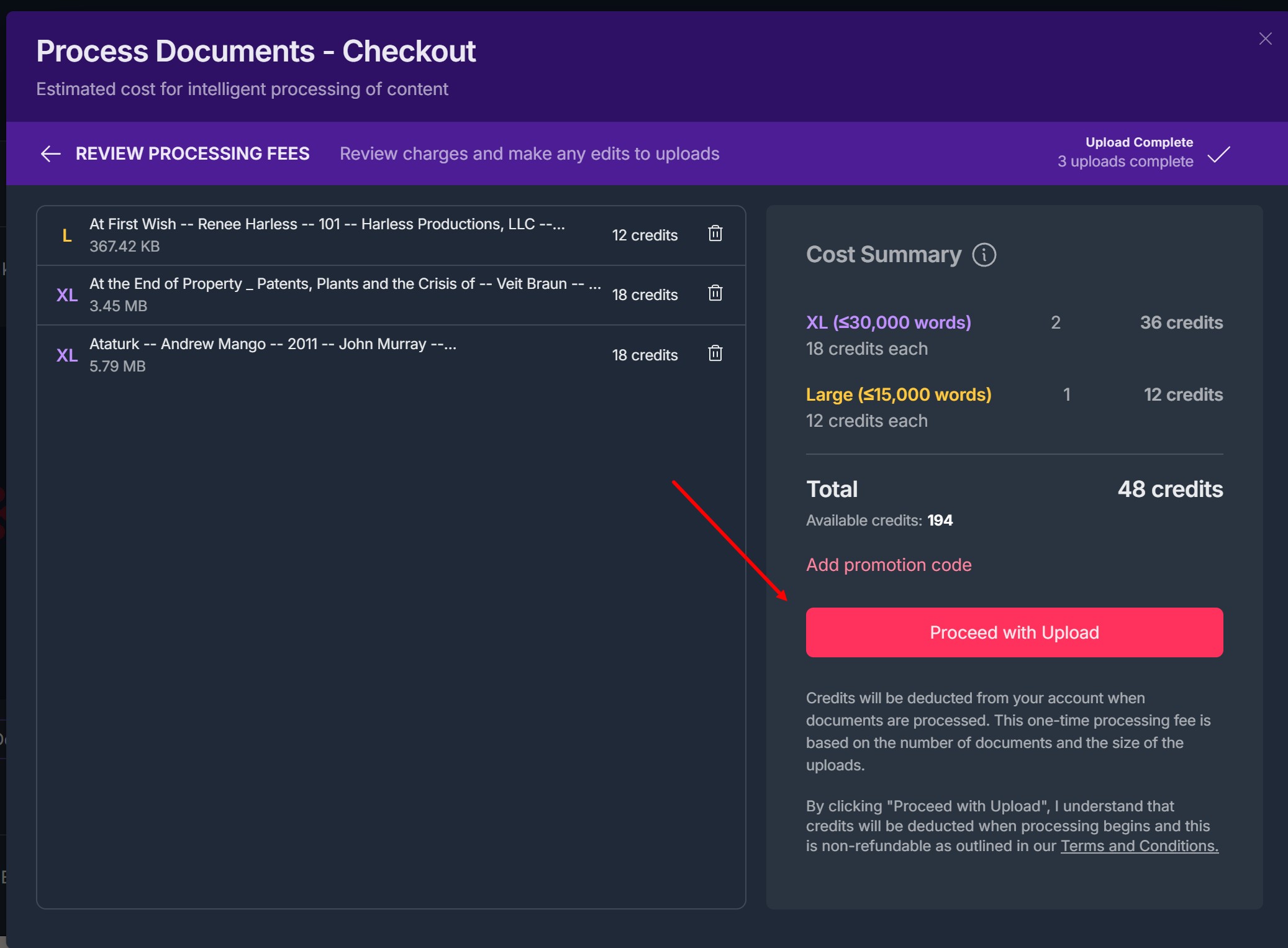
Click "Proceed with Upload" button on Checkout screen
6. Add User Tags to ALL Content
- Add unique User Tag(s) to ALL content and click "Add Tags & Process"
- Click "Skip" if no unique User tags needed
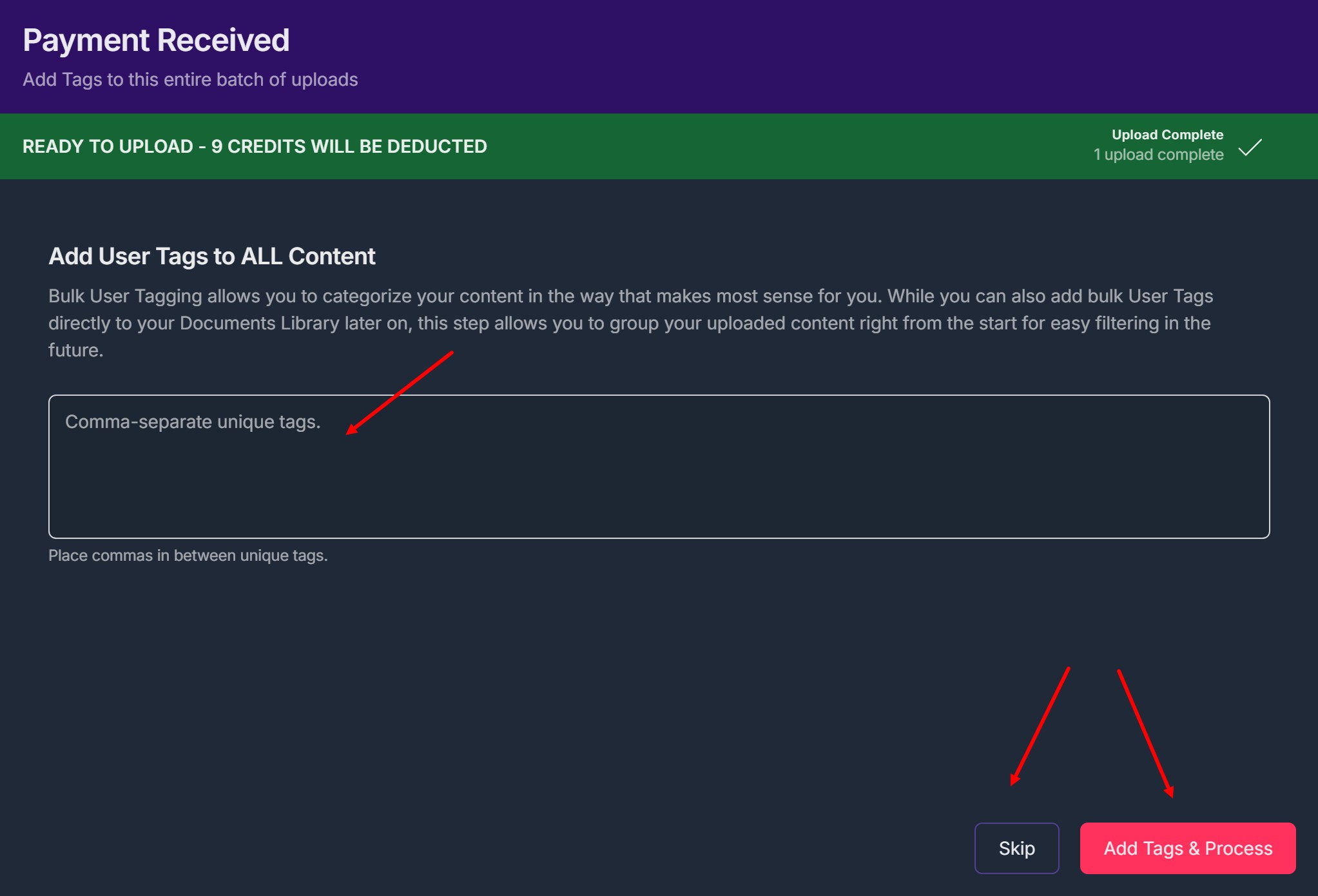
- Selected content will be transferred into your Contesimal Library for processing.
C. Content Processing
7. After import, you are directed to a screen stating: “Contesimal is processing your documents.”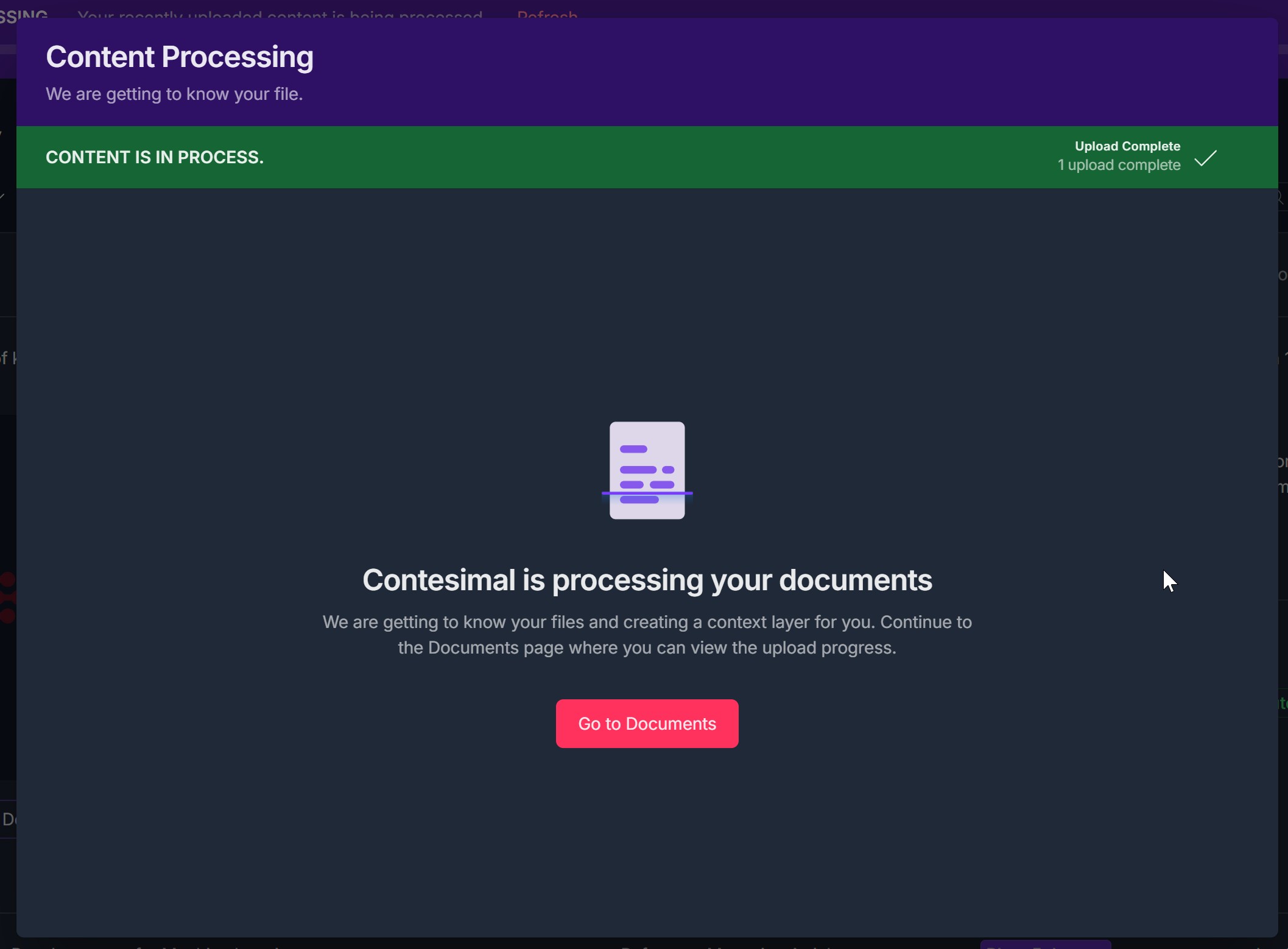
Processing bar appears at the top of the page

This step:
Applies Theme Packs automatically.
Prepares content for AI research sessions.
May take a few minutes to several hours depending on volume.
When processing is complete, articles become searchable, taggable, and available to preview, edit (Pencil icon), or delete (Trash can icon) on the Content Library page.
Troubleshooting Guide
A. File is not uploaded (unsupported format)
Issue: File is not uploaded due to unsupported file format.
Fix: Ensure the file extension is PDF format.
If the file is in another format (e.g., JPG/PNG/HTML/RTF), convert it to a supported PDF format.
Re-try the upload after conversion.
B. File is not uploaded (file too large)
Issue: The upload is rejected because the file exceeds the maximum allowed size.
Fix: Confirm the file size is 40 MB or less.
Reduce the file size - split the document into multiple smaller files (each ≤ 40 MB).
Re-try the upload after resizing/splitting.
C. Content Processing Stucks
Issue: File processing stuck for long periods.
Fix:
Wait up to 24 hours.
Try re-uploading smaller batches.
Contact support if delay persists past expected timeframe.
Was this article helpful?
That’s Great!
Thank you for your feedback
Sorry! We couldn't be helpful
Thank you for your feedback
Feedback sent
We appreciate your effort and will try to fix the article