Description
Shared Lists in Contesimal lets people with shared access to a project view and work with Lists that belong to that project. When a project is shared with you, you get access to any Lists that were created in that project. You can view all lists and their items, edit lists by adding comments (notations), articles, snippets, and other content, and delete content according to your role: the project owner can delete everything in a list (any item, regardless of who added it); a user with shared access can only delete content that they added themselves. You cannot delete items added by the owner or other collaborators. This feature keeps list-based research and curation in one place while making permissions clear so collaboration stays safe and predictable.
How This Feature Helps You
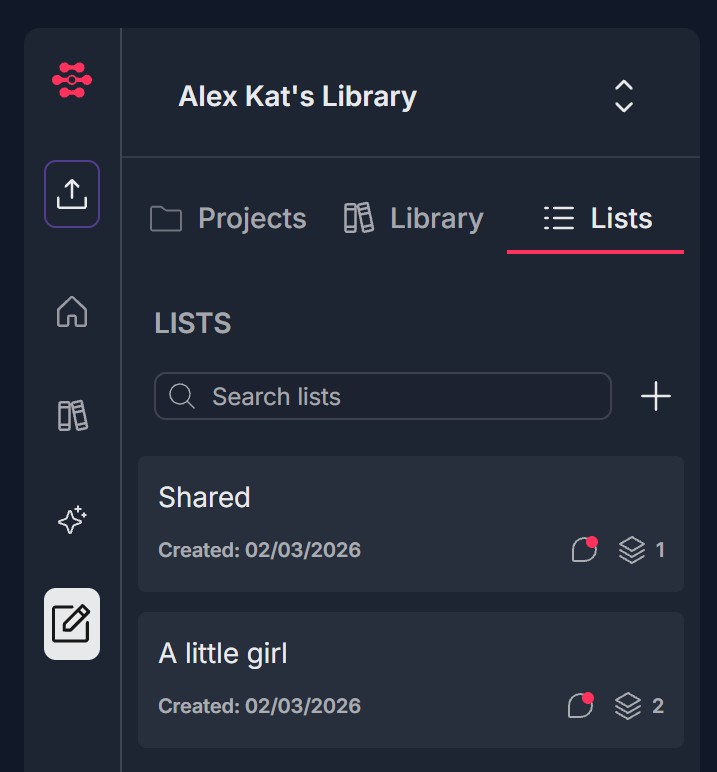
- View lists in a shared project — In the shared project context (e.g., under Projects with the two-person icon, or when the library view reflects the shared project), open the Lists tab. You see all lists created in that project (e.g., Shared, A little girl), each with a Search lists field, creation date, and indicators for comments (e.g., thought bubble with count) and items (e.g., stack-of-papers icon with count). Click a list name to open it and view its items (articles, snippets, chat messages, etc.).
- Edit lists — add comments, articles, snippets — You can add content to shared lists: add comments (notations) on list items (open an item, use Add comment and send with the paper airplane icon); add articles, snippets, or keyword search items from the AI Research flow (e.g., Build a List, Save to list) so long as you are working in the shared project context. You can also add notations to existing items. Editing (adding content) follows the same flows as in your own lists; see Build and Organize Lists and User Notations on Lists and Snippets for details.
- Delete content — owner vs. shared user — Project owner: Can delete any item in a list (articles, snippets, chat messages, etc.), including items added by others. Use the trash can icon on a list item to remove it; confirm if prompted. User with shared access: Can delete only items (or content) that they added. The trash can icon appears on items you added; it may be hidden or disabled on items added by the owner or other users. If you don't see a delete option on an item, you don't have permission to delete it (it was added by someone else).
Benefits
- Collaborative lists — Shared project lists become a single place for the team to collect articles, snippets, and notes; everyone with access can view and add content.
- Clear permissions — Owner can fully manage the list (delete anything); shared users can delete only what they added, reducing accidental removal of others' work.
- Same workflows — Viewing, adding comments, and adding articles/snippets work like in your own lists, so you use the same skills in shared projects.
- Transparency — Comment counts and item counts on each list (e.g., thought bubble 1, stack 2) help you see activity at a glance.
Step-by-Step:
The step-by-step instructions, screen descriptions, and UI details in this section are examples only. They are intended to help you understand how the feature works and how to complete the flow. Screens, labels, and layout may change in future product updates.
1. Open a Shared Project and Go to Lists
- Log in to your Contesimal account
- In the left panel, go to Shared Projects (under your library,e.g., Alex Kat's Library). Ensure the Projects tab is selected
- Find a project that was shared with you—it is marked with the shared-project icon (e.g., two person silhouettes) next to the project name
- Open the shared project (click the project name). The main area may show the project name and its documents
- Select the Lists tab (e.g., next to Projects and Library). The Lists tab is highlighted (e.g., with a red underline) when active
- You see the LISTS section: a Search lists field, a + (create new list) button if your role allows it, and a list of lists in this project (e.g., Shared, A little girl). Each list may show Created: date and icons for comments (e.g., thought bubble with number) and items (e.g., stack of papers with number)
- You now have access to view and, depending on permissions, edit and delete content in these shared lists
2. View a List and Its Items
- In the Lists tab, click a list name (e.g., A little girl, Shared) to open it
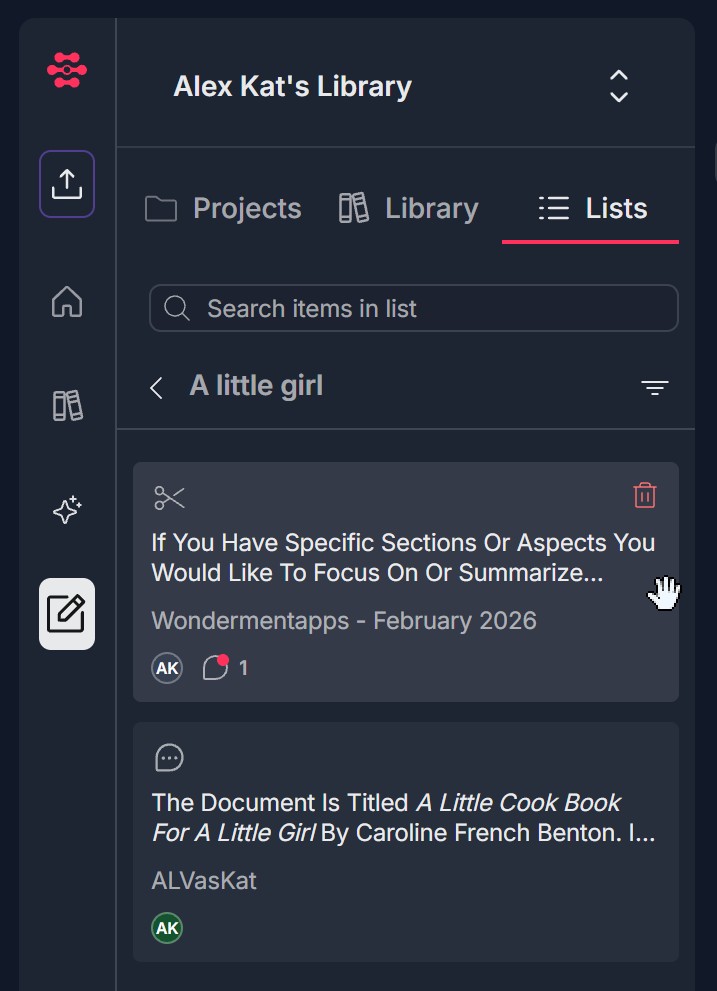
- The list view opens with: A back or list title (e.g., < A little girl) and optionally a filter icon; a Search items in list field to find specific entries; list items shown as cards: each item may show an icon (e.g., scissors for snippet, comment bubble for chat message), title or preview text, source or user (e.g., Wondermentapps - February 2026, ALVasKat), and at the bottom avatar (e.g., AK) and reaction/comment count (e.g., heart with 1)
- Scroll to see all items. Items can be articles, snippets, keyword search items, or chat messages depending on what was added to the list
- Click any list item to open its detail pop-up and view full content and notations (comments); see User Notations on Lists and Snippets for adding and managing comments
3. Edit List — Add Comments, Articles, Snippets
- Add comments (notations) on list items: Open a list (Step 2), then click a list item to open its detail pop-up. In the pop-up, use the Add comment field at the bottom and send with the paper airplane icon. Your notation is saved and visible to the project owner and other collaborators. You can also edit, add reactions, or delete your own notations as in User Notations on Lists and Snippets
- Add articles, snippets, or keyword items to the list: While working in the shared project (with the project open and AI Research in that context), use the AI Research flow to Build a List or Save to list: run a keyword search or browse by theme/topic, then use Save to list (three dots or + near Select all) and choose this shared project's list. Or select text in an AI Research message and Save to list to add a snippet. The same flows as in Build and Organize Lists apply; the only difference is that you are adding to a list in the shared project
- Create a new list: In the Lists tab, click the + icon or Create New List if shown. Enter a name (and optional description) and create the list. If the option is not visible, only the project owner may be allowed to create lists; you can still view and edit existing lists as above
4. Delete Content — Owner vs. Shared User
- If you are the project owner: You can delete any item in a shared list (items you added and items added by others). In the list view, find the item you want to remove. Click the trash can icon (usually on the item card, e.g., top right). Confirm deletion if a dialog appears. The item is removed from the list
- If you have shared access (not the owner): You can delete only items (or content) that you added. In the list view, the trash can icon appears only on items that you added. Hover over or click the item to see the trash can if the UI shows it on hover. Click the trash can on an item you added and confirm if prompted. The item is removed. You cannot delete items added by the project owner or other collaborators. The trash can is hidden or disabled on those items. If you don't see a delete option, you do not have permission to delete that item
Troubleshooting Guide
A. I Don't See Lists or the Lists Tab in the Shared Project
- Issue: You opened a project shared with you but don't see a Lists tab or any lists.
- Fix:
- Confirm you opened the shared project (click the project name in Projects; the project should show the shared-project icon)
- Check that you are in the Lists tab (next to Projects and Library); click Lists if it's not selected
- The project may have no lists yet. If the owner hasn't created any lists, the list area may be empty or show Create New List. Ask the project owner if lists exist
- Refresh the page and open the shared project again; go to the Lists tab
- If you still don't see a Lists tab or lists, your access may not include list visibility; contact the project owner or Support
B. I Can't Add Comments (Notations) to List Items
- Issue: You open a list item but can't add a comment or the Add comment field doesn't appear or doesn't send.
- Fix:
- Ensure you opened the list item (click the item so the detail pop-up opens); the Add comment field is at the bottom of the pop-up
- Type some text in Add comment before sending; empty comments may not be saved
- Check your permission in the shared project; some roles may be view-only and cannot add notations
- Refresh the page and open the list and item again; try adding the comment again
- See User Notations on Lists and Snippets troubleshooting for more (e.g., send button, network)
C. I Can't Add Articles, Snippets, or Items to the List
- Issue: You try to add content from AI Research to a shared list but the list doesn't appear in the Save to list picker, or the add fails.
- Fix:
- Ensure you are working in the shared project context (the shared project is open and AI Research is using that project's content)
- When you click Save to list (or Build a List), check that the list picker includes lists from the shared project; select the correct list
- Confirm your role allows adding items to shared lists; if you have view-only access, you may not be able to add content
- Refresh the page, open the shared project, and try the add flow again
- If the list doesn't appear in the picker, the list may belong to a different project; contact the project owner or Support
D. I Don't See a Trash Can (Delete) on a List Item
- Issue: You want to delete an item but don't see a trash can icon, or it's disabled.
- Fix:
- If you have shared access (not the owner): You can delete only items you added. The trash can is hidden or disabled on items added by the owner or other users. If you don't see delete on an item, that item was added by someone else—you cannot delete it
- If you are the owner: The trash can should appear on all items. Try hovering over the item card (e.g., top right corner) to reveal the icon; some UIs show it on hover
- Refresh the page and open the list again; check if the trash can appears
- If you are the owner and still don't see delete on any item, try a different browser or contact Support
E. I Get an Error When Trying to Delete an Item
- Issue: You click the trash can but get an error message or the item doesn't delete.
- Fix:
- Shared user: Ensure the item was added by you. If it was added by someone else, you are not allowed to delete it; the error may state that
- Owner: Confirm you clicked the trash can on the correct item and confirmed in any dialog
- Check your network connection; a failed request can prevent deletion
- Refresh the page and try deleting again
- If the error persists, contact Support with your role (owner vs. shared user), the list name, and the error message
F. Lists Look Different or Options Are Missing
- Issue: The Lists tab, list view, or options (e.g., Create New List, Search lists) look different or are missing.
- Fix:
- Confirm you are in the shared project and on the Lists tab
- Create New List may be available only to the project owner; if you don't see it, you may only be able to view and edit existing lists
- Product updates may change layout or labels; compare with Build and Organize Lists and User Notations on Lists and Snippets for current flows
- If options you expect are missing, contact Support with your role and what you see
Was this article helpful?
That’s Great!
Thank you for your feedback
Sorry! We couldn't be helpful
Thank you for your feedback
Feedback sent
We appreciate your effort and will try to fix the article