Description
The Snippets let you move AI research into your creative canvas in one click. You choose where on the canvas the content should go, select the text (or the whole response) in the AI RESEARCH panel, and use Add to Canvas to insert it as a snippet. The snippet appears on the canvas where you placed the insertion point. Once on the canvas, you can edit or delete the snippet like any other content.
How This Feature Helps You
- Place content where you want — Click on the canvas to set the insertion point; the snippet is added at that location, so you control layout and flow.
- Use a selection or the full response — Select a specific passage in the AI research result and add only that part to the canvas, or add the entire AI research response with one action.
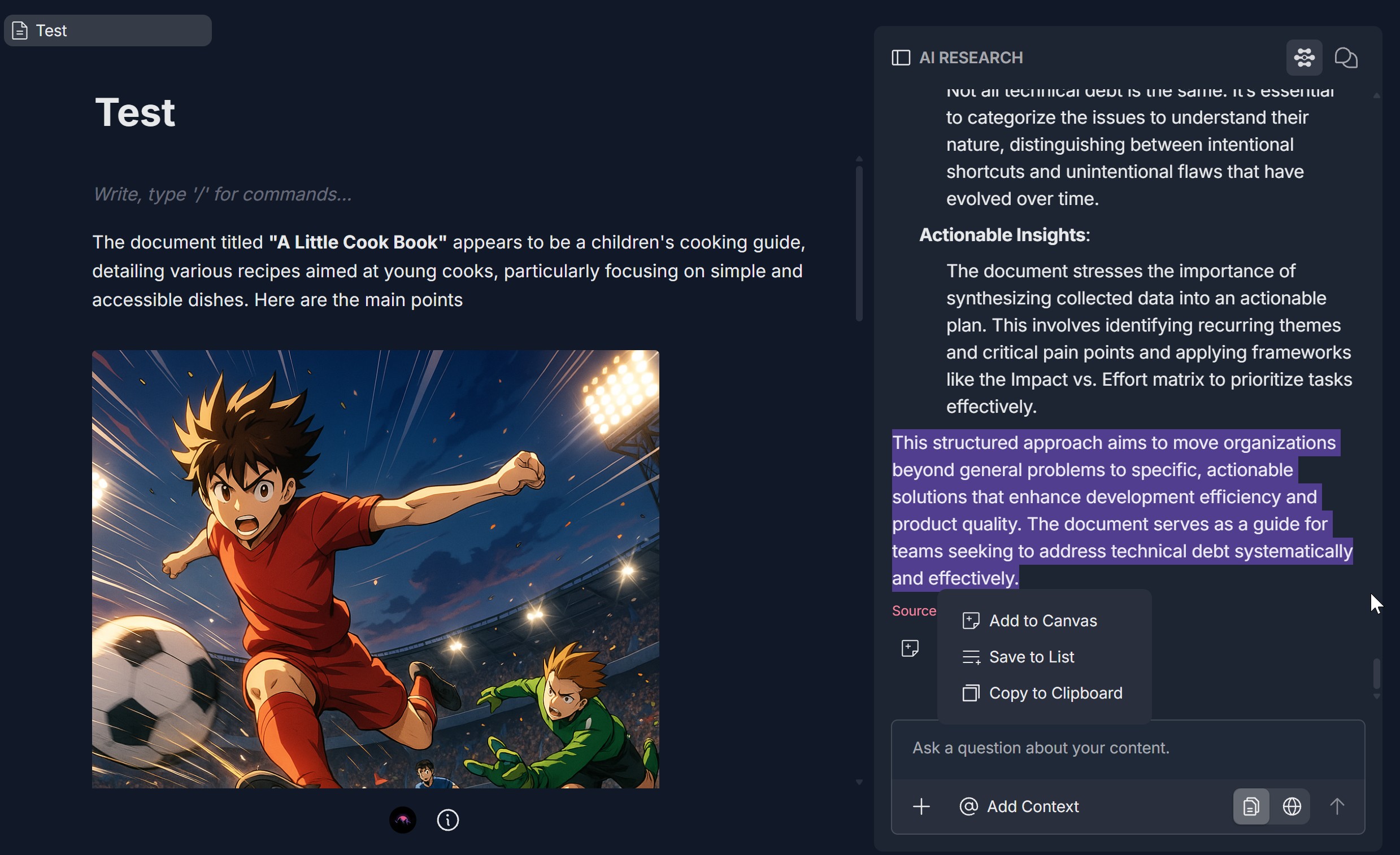
- One-click add — After selecting text, a context menu appears with Add to Canvas, Save to List, and Copy to Clipboard. Click Add to Canvas to insert the selection as a snippet on the canvas.
- Edit and delete on the canvas — Snippets on the canvas behave like normal content: you can edit the text or delete the snippet as needed.
Benefits
- Faster drafting — Pull insights from AI research directly into your document or board without copy-pasting.
- Precise placement — Set the insertion point on the canvas first, so snippets land exactly where you intend.
- Flexible reuse — Add a sentence, a paragraph, or the full AI response depending on what you need.
- Clean workflow — Edit or remove snippets on the canvas without affecting the original AI research or any lists you saved to (see Collect and Organize Snippets for list-based workflow).
Step-by-Step Usage
The step-by-step instructions, screen descriptions, and UI details in this section are examples only. They are intended to help you understand how the feature works and how to complete the flow. Screens, labels, and layout may change in future product updates.
1. Set the Insertion Point on the Canvas
- Open your project so the creative canvas (e.g., project document or board) and the AI RESEARCH panel are both visible.
- Click on the canvas at the place where you want the snippet to appear (e.g., after a heading, between paragraphs, or at the end of the document).
- The insertion point (cursor) is now set at that location. Content you add with Add to Canvas will be inserted there.
2. Get an AI Research Result and Select Text
- In the AI RESEARCH panel, ask a question about your content (e.g., using Ask a question about your content.) and send the request.
- When the result appears, select the text you want to add to the canvas (click and drag to highlight a sentence, paragraph, or passage).
- The selected text is highlighted (e.g., with a colored background).
- A context menu appears near the selection with options such as Add to Canvas, Save to List, and Copy to Clipboard.
3. Add the Selection to the Canvas
- In the context menu, click Add to Canvas (or the document-with-plus icon, if shown).
- The selected text is inserted on the canvas at the insertion point you set in Step 1.
- The new content appears as a snippet (block of text) on the canvas. You can continue typing, add more snippets, or move the content as needed.
4. Add the Whole AI Research Response to the Canvas
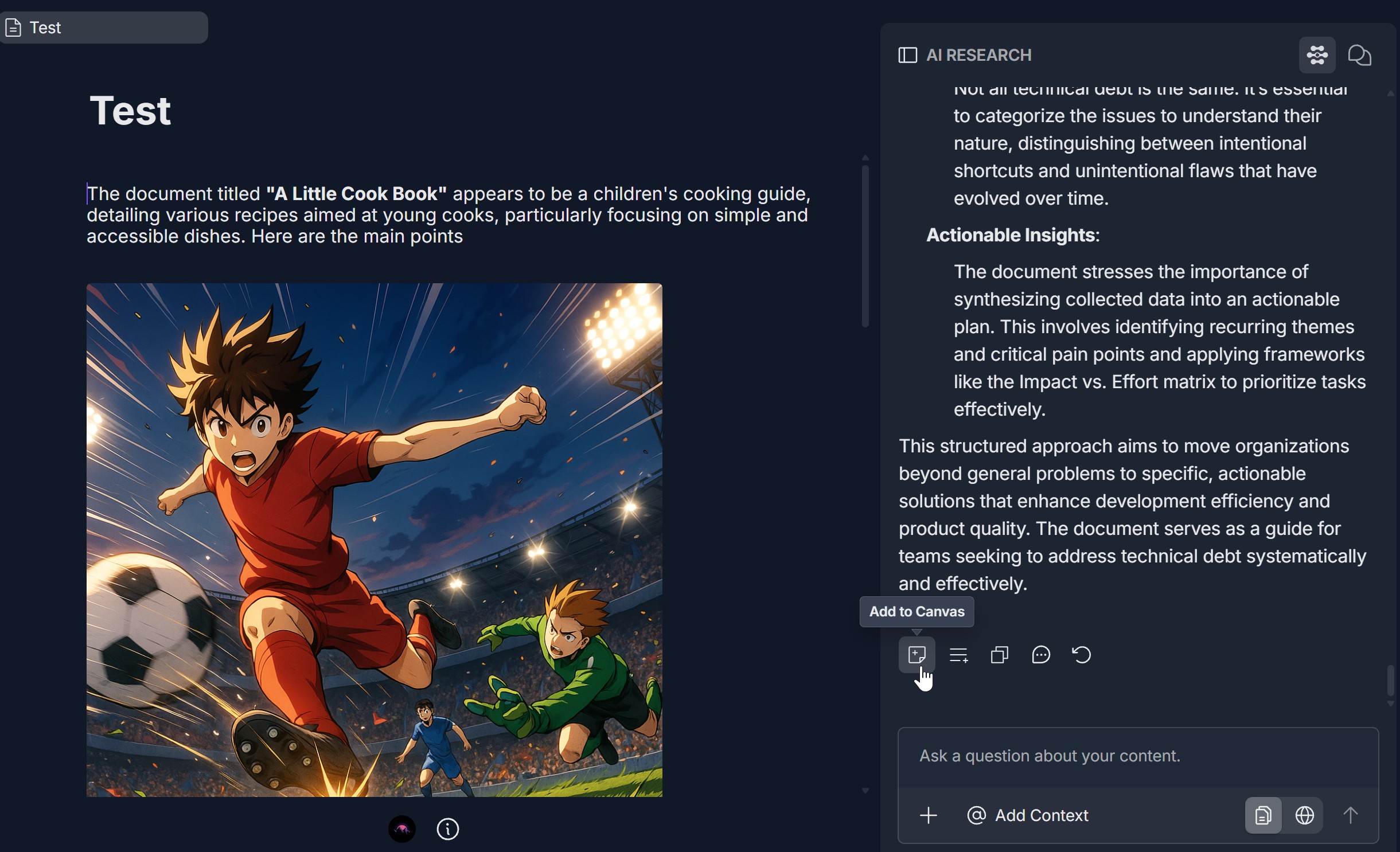
- If you want to add the entire AI research response (not just a selection), use the Add to Canvas action available for the full response (e.g., a button or icon in the toolbar below the response, or an option that applies to the whole message).
- Click Add to Canvas for the full response.
- The whole response is added to the canvas at the current insertion point. You can set the insertion point first (Step 1) so the full response goes where you want.
5. Edit or Delete the Snippet on the Canvas
- Edit — Click into the snippet on the canvas and change the text as you would any other content (e.g., add, delete, or rephrase).
- Delete — Select the snippet block (or place the cursor in it) and use the delete/remove action (e.g., block menu, backspace, or delete key) to remove it from the canvas.
- Editing or deleting a snippet on the canvas does not change the original AI research result or any copy you saved to a list (see Collect and Organize Snippets for list-based snippet management).
Troubleshooting Guide
A. Context Menu Does Not Appear After Selecting Text
- Issue: You select text in the AI RESEARCH result but no menu appears, or Add to Canvas is missing.
- Fix:
- Ensure the text is actually selected (highlighted); the menu typically appears on or near the selection
- Try selecting again: click and drag over the passage; avoid selecting only a single character or blank space
- Confirm you are in the AI RESEARCH panel and viewing a result (answer or message), not only the input area
- Refresh the page, run the question again, and select the text once more
- If the menu still does not appear or Add to Canvas is missing, contact Support with where you were selecting and what options you see
B. Snippet Does Not Appear on the Canvas or Appears in the Wrong Place
- Issue: You click Add to Canvas but nothing appears on the canvas, or the snippet appears somewhere other than where you wanted.
- Fix:
- Set the insertion point first: Click on the canvas at the exact place you want the snippet (e.g., after a specific paragraph) before clicking Add to Canvas
- After adding, scroll or check the canvas (e.g., end of document or next block) to see if the snippet was inserted elsewhere
- Ensure the canvas is editable and you have permission to add content (e.g., you are not in view-only mode)
- Refresh the page and try again: set the insertion point, then select text and click Add to Canvas
- If the snippet still does not appear or placement is wrong, contact Support with your steps and product version
C. Cannot Add the Full AI Research Response
- Issue: You want to add the entire response but do not see an option to add the full response to the canvas.
- Fix:
- Look for an Add to Canvas button or icon that applies to the whole message (e.g., in the toolbar below the full response, or in a menu for the message)
- If you only see the selection-based menu, you can select all the response text (e.g., click in the result and use Select All with Ctrl+A or Cmd+A), then choose Add to Canvas from the context menu
- Product layout may vary; check the area below or beside the AI research message for an action that adds the full response
- If the option is still missing, contact Support with a description of the AI RESEARCH panel you see
D. Cannot Edit or Delete the Snippet on the Canvas
- Issue: The snippet appears on the canvas but you cannot edit the text or remove it.
- Fix:
- Edit: Click inside the snippet block and type or select text; ensure the canvas is in edit mode (not view-only or locked)
- Delete: Select the block (e.g., click in it and use the block menu or keyboard shortcut for delete block) or use Backspace/Delete as you would for other canvas blocks
- Confirm you have edit permission for the project/canvas; shared projects may restrict editing for some users
- Refresh the page and try editing or deleting again
- If the snippet behaves differently from other blocks (e.g., not selectable), contact Support with what you see and your permissions
E. Add to Canvas and Save to List Confusion
- Issue: You are unsure whether to use Add to Canvas or Save to List.
- Fix:
- Add to Canvas — Use when you want the text on the creative canvas (document, board) to draft, arrange, or present. You can edit and delete it there. Placement is controlled by the canvas insertion point
- Save to List — Use when you want to collect and organize the text in a list (with optional notations, comments, and list management). See the Collect and Organize Snippets guidelines for saving to lists, viewing snippets in lists, and adding comments or deleting from lists
- You can use both: add a selection to the canvas for a draft and save the same (or another) selection to a list for reference
Was this article helpful?
That’s Great!
Thank you for your feedback
Sorry! We couldn't be helpful
Thank you for your feedback
Feedback sent
We appreciate your effort and will try to fix the article