Description
The Build and Organize Lists feature in the Contesimal AI Research tool lets you create, fill, and manage lists of content from your library. You create a new list from Creations -> Lists (the list starts empty). To add content, you open the AI Research flow, click + -> Build a List, then either search by keyword or browse your content by theme or topic. After results are generated, you add the returned result(s) to your list by using the three dots below the checkbox or the + near Select all (e.g., Save to list). You can view added items, edit the list, remove items, and add snippets by selecting text in the AI Research tool and clicking Save to list. This feature helps you curate collections of articles, snippets, or references in one place for research, planning, or reuse.
How This Feature Helps You
- Curated collections — Instead of losing track of useful articles or passages, you build named lists (e.g., Festival ideas, Quotes) and add items from search or browse results so everything stays in one place.
- Flexible discovery — You can fill a list by keyword search (specific terms) or by browsing by theme or topic; themes were created during document upload, topics during initial import. Use the same flows as in the AI Research tool (Search, Browse Themes, Browse Topics).
- Snippets as well as full articles — You can add full articles from results to a list, or select a passage of text in the AI Research tool and Save to list to add just that snippet.
- Organize and maintain — You can view list contents, edit the list (e.g., rename, reorder), and remove items so your lists stay relevant.
Benefits
- One place for research — Keep articles and snippets in named lists instead of scattering them across chats or tabs.
- Reuse across projects — Lists can hold content you want to reference later in projects, documents, or canvas.
- Multiple ways to add — Use keyword search when you know what you want, or browse by theme/topic when exploring; then add results via three dots or + near Select all, or add snippets via Save to list on selected text.
- Full control — View, edit, and remove items so lists stay up to date.
Step-by-Step Usage
The step-by-step instructions, screen descriptions, and UI details in this section are examples only. They are intended to help you understand how the feature works and how to complete the flow. Screens, labels, and layout may change in future product updates.
1. Go to Creations -> Lists to Create a New List
- Log in to your Contesimal account
- In the left panel, go to Creations (e.g., edit/pencil icon or Creations section)
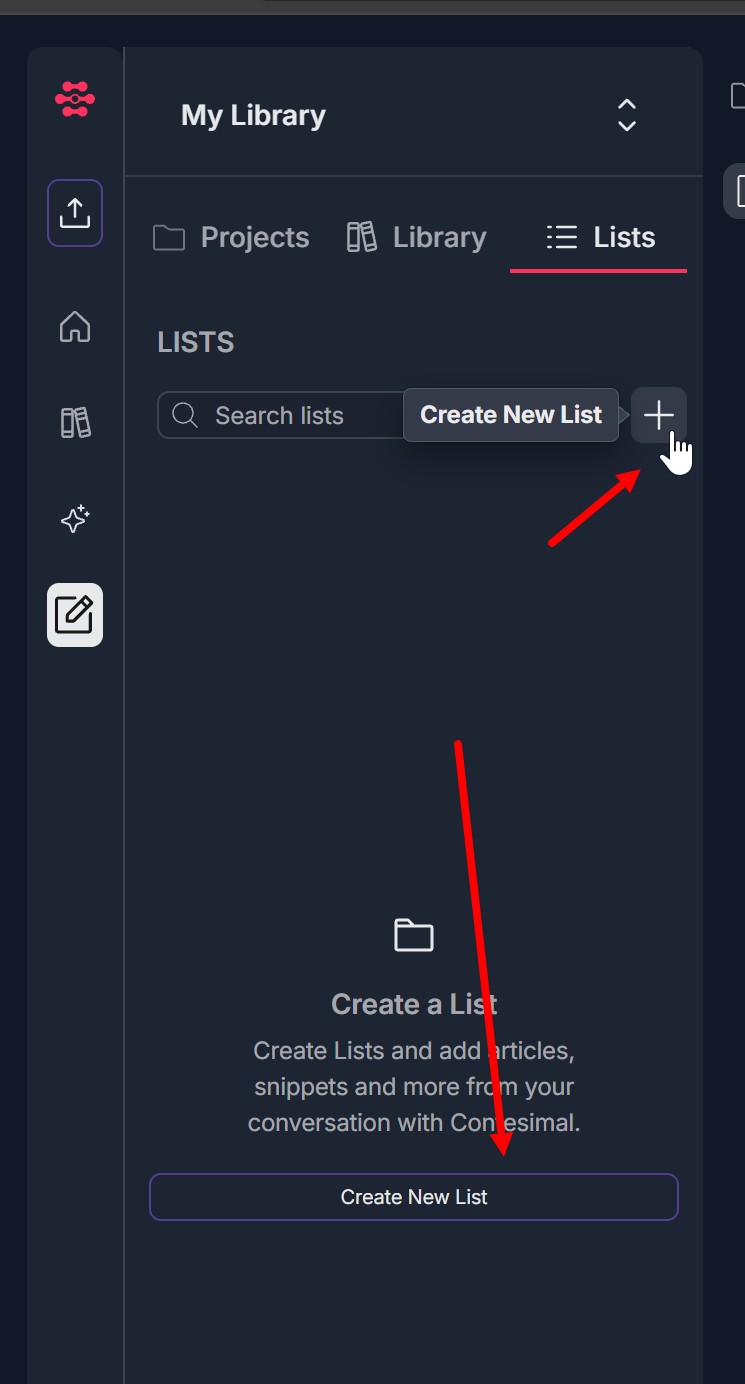
- Under My Library, select the Lists tab (list/bullet icon; underlined when active)
- Click Create New List (button next to "Search lists") or the + icon next to it; or use the large Create New List button in the center if you have no lists yet. The central prompt may say: "Create a List" — "Create Lists and add articles, snippets and more from your conversation with Contesimal."
- A Create New List modal opens with: Title: "Create New List"; Informative text: "Lists help you gather research and organize it cleanly. They work well on a more granular level than creations. Think article, episode, or book chapter."; Give your list a name — text input; Describe the type of list you would like Contesimal to generate — multi-line field (optional); Cancel (purple) and Create List (red) buttons; X in the top right to close.
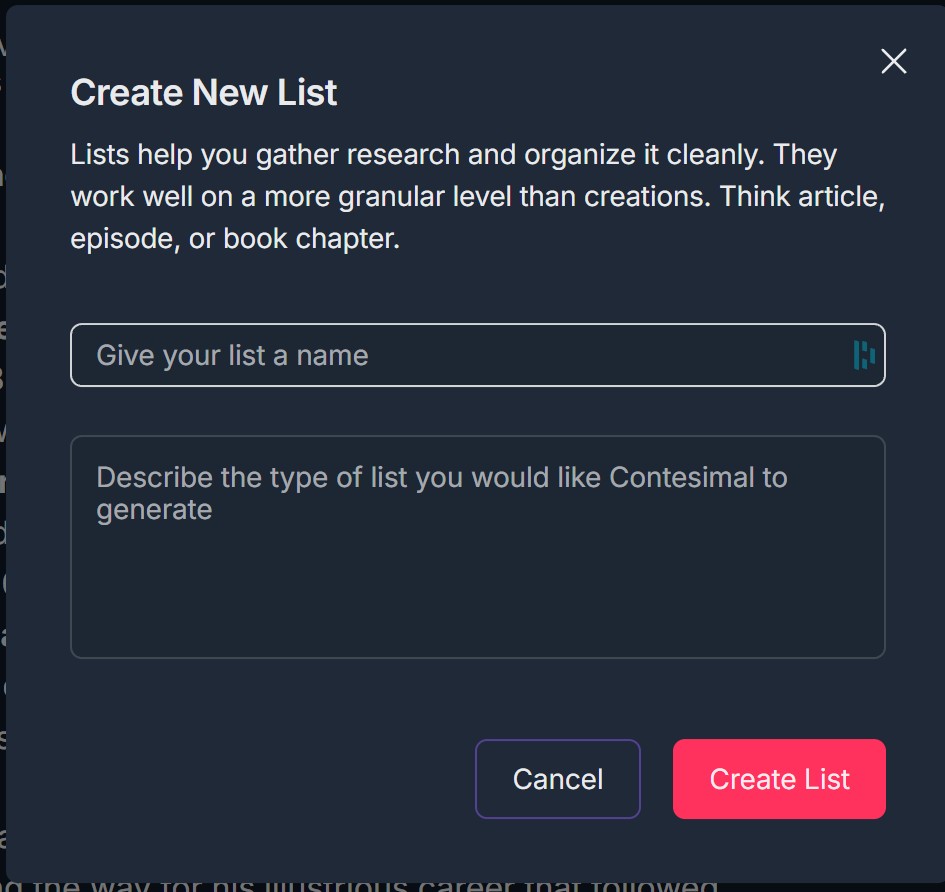
- Enter a name (and optionally a description), then click Create List; the new list is created and appears in your Lists area
2. When the List Is Created It Is Empty
- Right after creation, the list has no items yet
- You see "Your List is Empty" and the message: "To populate your list, you will need to add articles, snippets and more from your conversation."
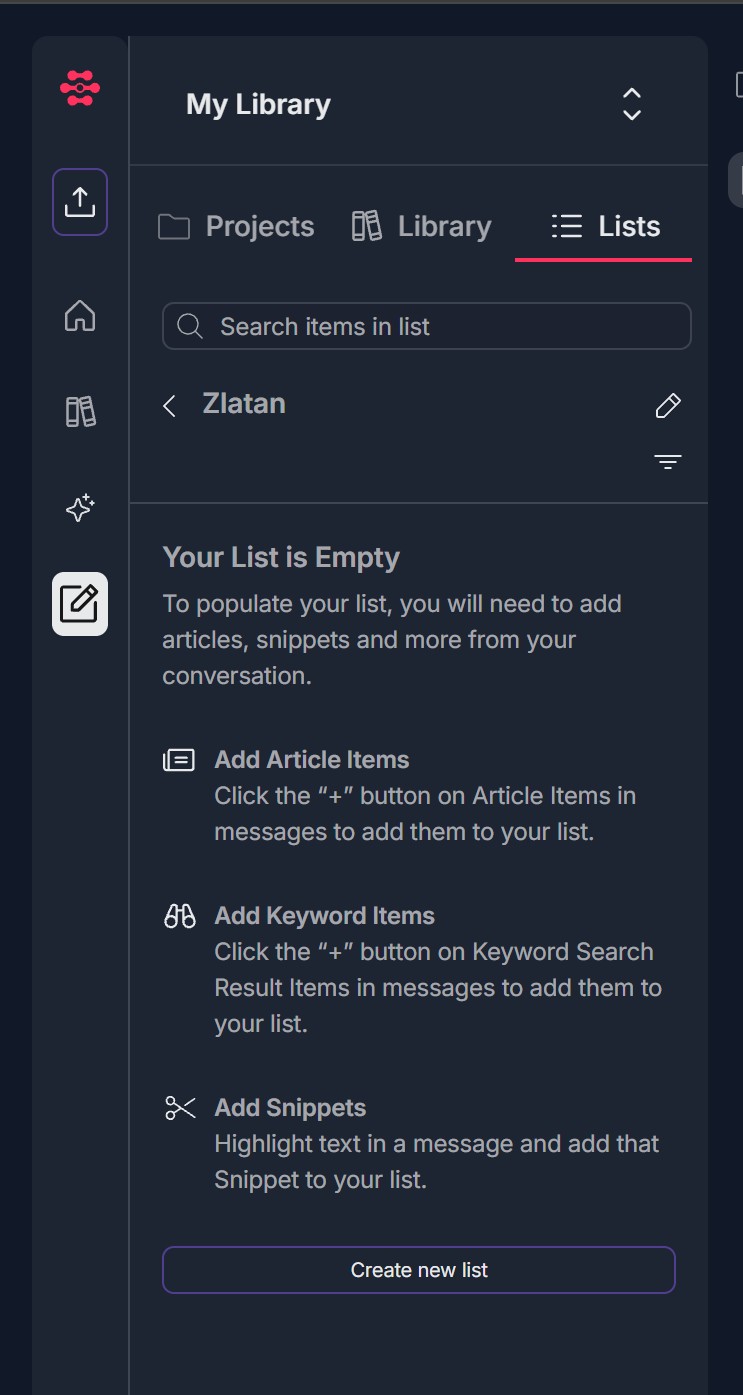
- Three ways to add content are shown: Add Article Items — "Click the '+' button on Article Items in messages to add them to your list."; Add Keyword Items — "Click the '+' button on Keyword Search Result Items in messages to add them to your list."; Add Snippets — "Highlight text in a message and add that Snippet to your list."
- A Create new list button at the bottom lets you create another list
- Use Build a List (from the AI Research + menu) to search or browse and add results to this lis
3. To Build a List — Click + -> Build a List
- Open a project so the AI RESEARCH panel is visible on the right (Creations -> Projects -> open a project)
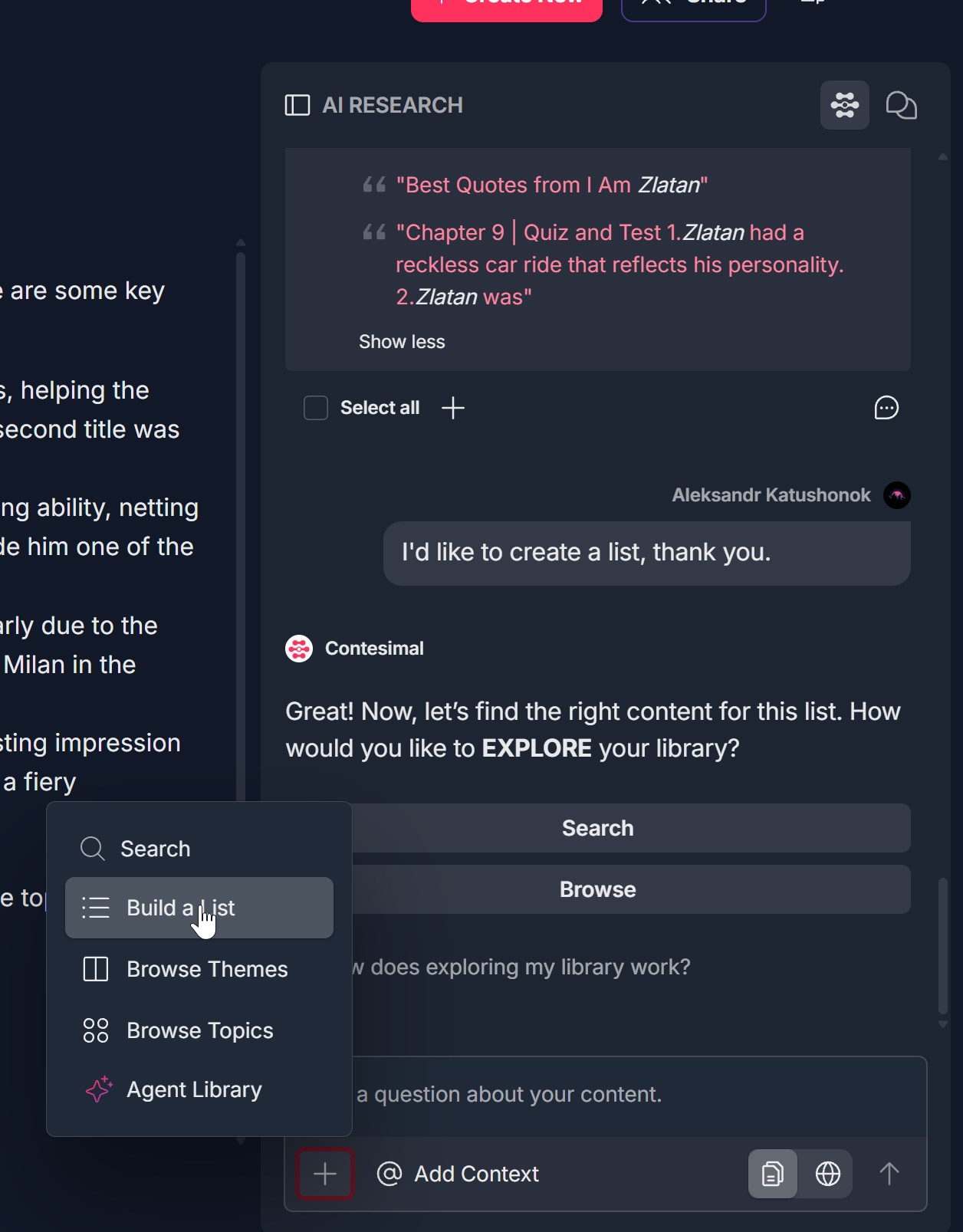
- At the bottom of the AI RESEARCH panel, click the + icon (often a red circular button with a white plus)
- A dropdown menu opens with options: Search (magnifying glass), Build a List (list icon), Browse Themes (document icon), Browse Topics (four circles/grid icon), Agent Library (sparkle/star icon)
- Click Build a List (list icon)
- The Build a List flow opens; you can then search by keyword or browse your content
4. Search by Keyword or Browse Your Content
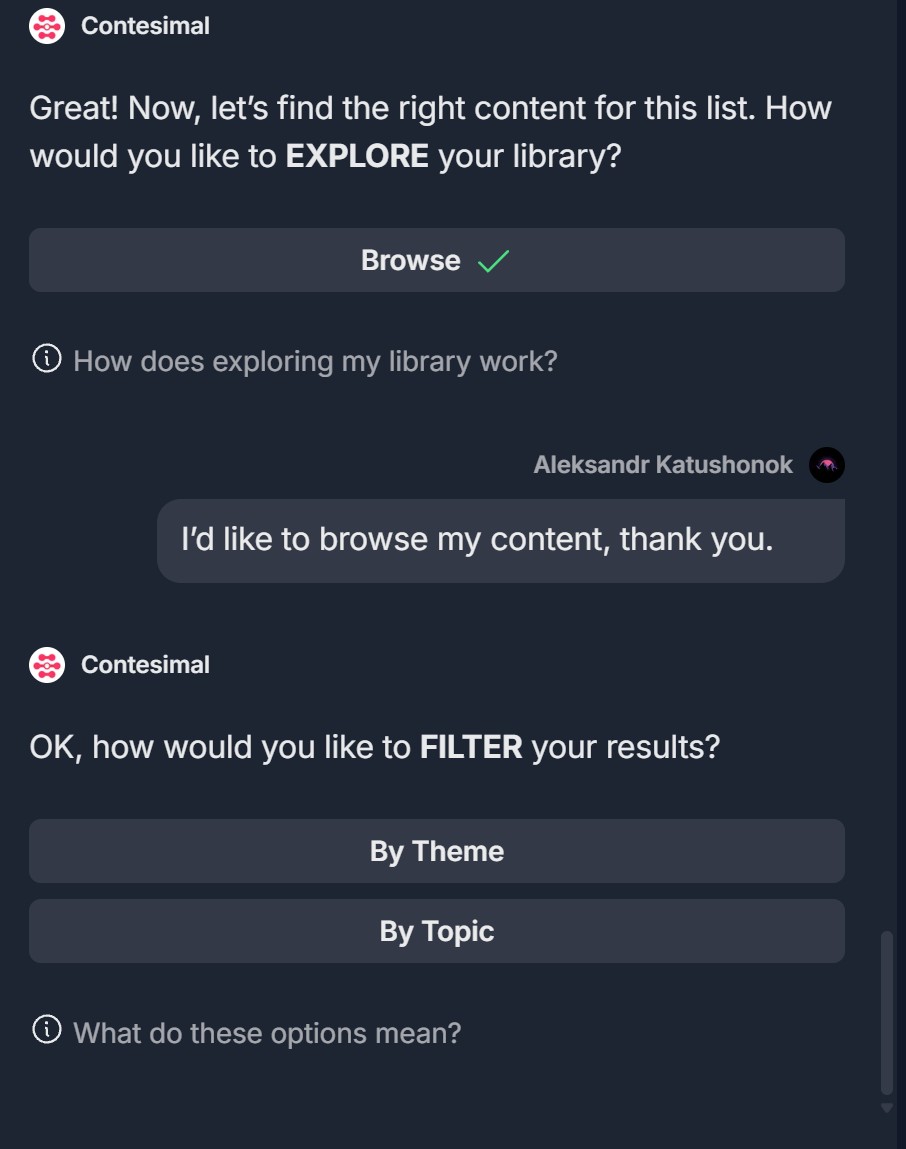
- Contesimal asks: "How would you like to EXPLORE your library?" with buttons Search and Browse. An info link "How does exploring my library work?" may appear.
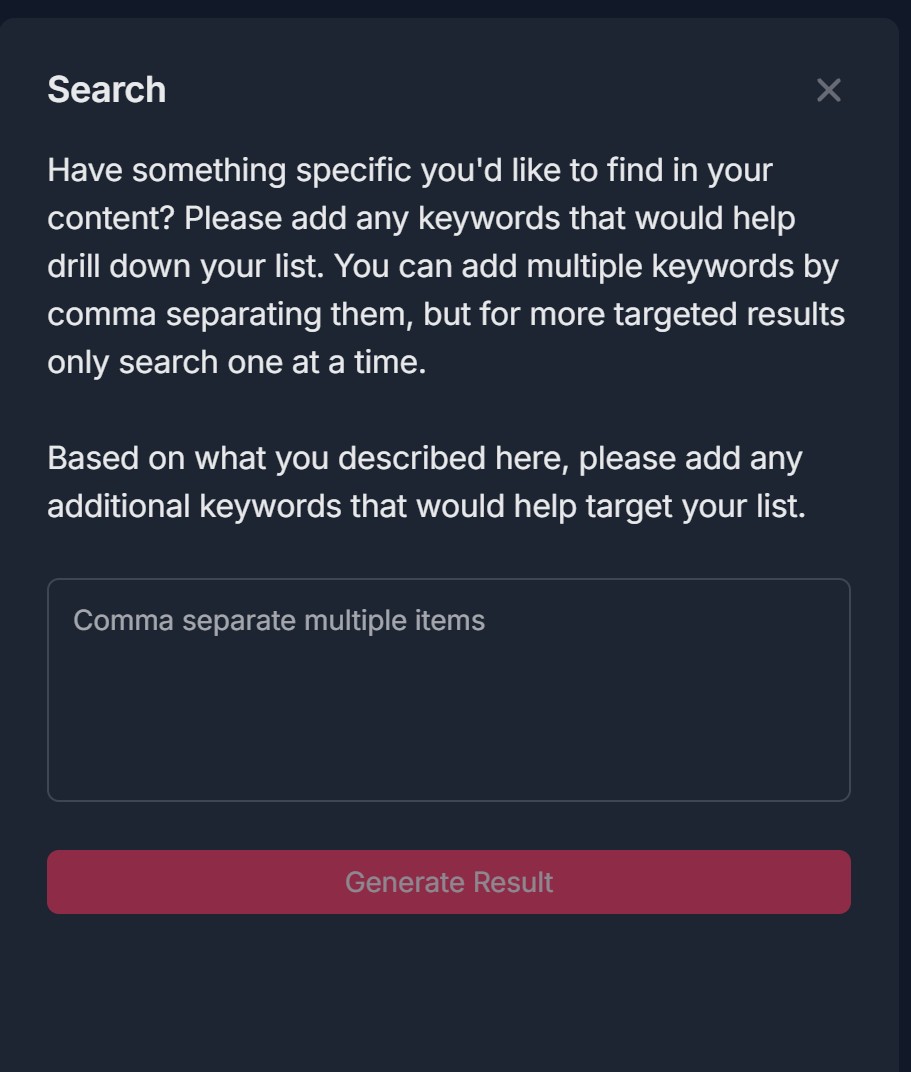
- Search by keyword — If you choose Search, a Search modal opens: title "Search," instructions about keywords (comma-separate for multiple; one at a time for more targeted results), input "Comma separate multiple items," and a red Generate Result button. Enter keyword(s) and click Generate Result. Results appear as a list of relevant articles. See Keyword Search in AI Research guidelines for details.
- Browse your content — If you choose Browse, Contesimal asks: "How would you like to FILTER your results?" with buttons By Theme and By Topic. An info link "What do these options mean?" may appear. Choose By Theme or By Topic (see step 5), then select themes or topics and click Generate Result.
- After results are generated, proceed to step 6 to add them to your list
5. If You Browse — By Theme or By Topic
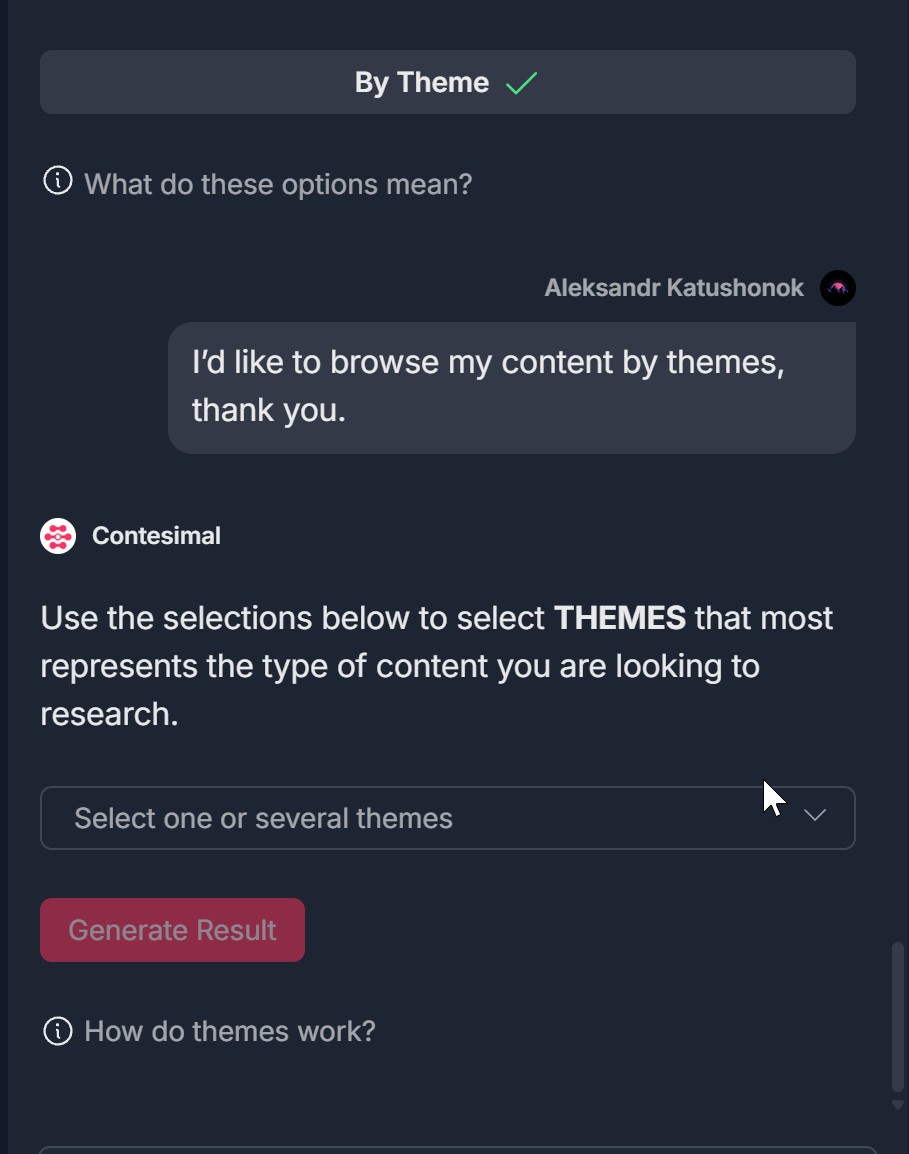
- By theme — You see an instruction such as "Use the selections below to select THEMES that most represents the type of content you are looking to research." and a field "Select one or several themes." Themes were created during the original upload of your documents. Select one or several themes and click Generate Result.
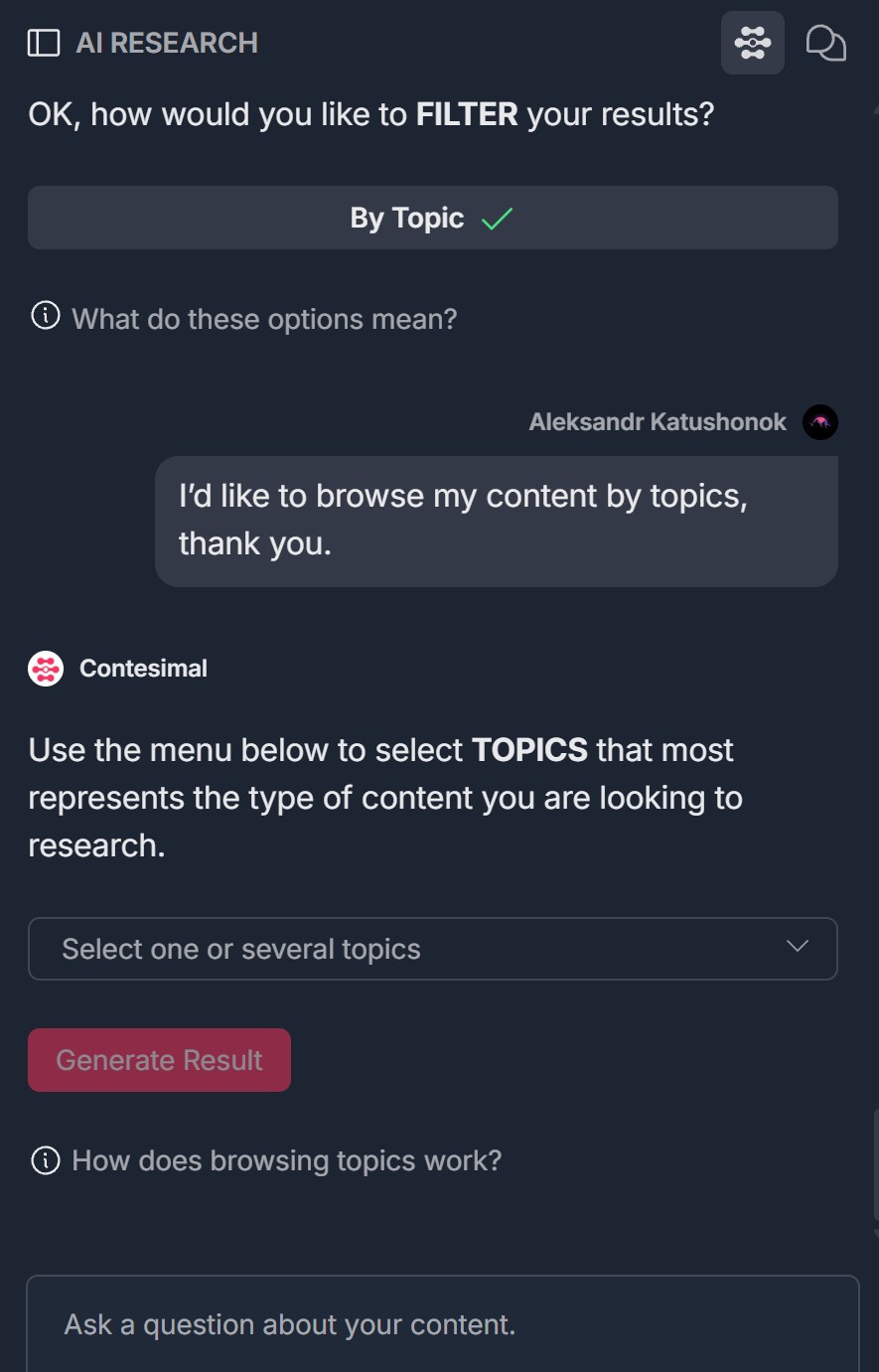
- By topic — You see a similar instruction for TOPICS and a field "Select one or several topics." Topics were generated during your initial import; broader topics yield more articles, more topics narrow results. Select one or several topics and click Generate Result.
- Results are displayed in the same way as for keyword search; you then add the desired result(s) to your list (step 6)
6. Add Returned Result(s) to Your List
- After results are generated, you see a list of relevant articles (e.g., "Displaying 1 out of 1 Results" or "Displaying N out of M Results") with the message "Here is a list of relevant articles from your content library."
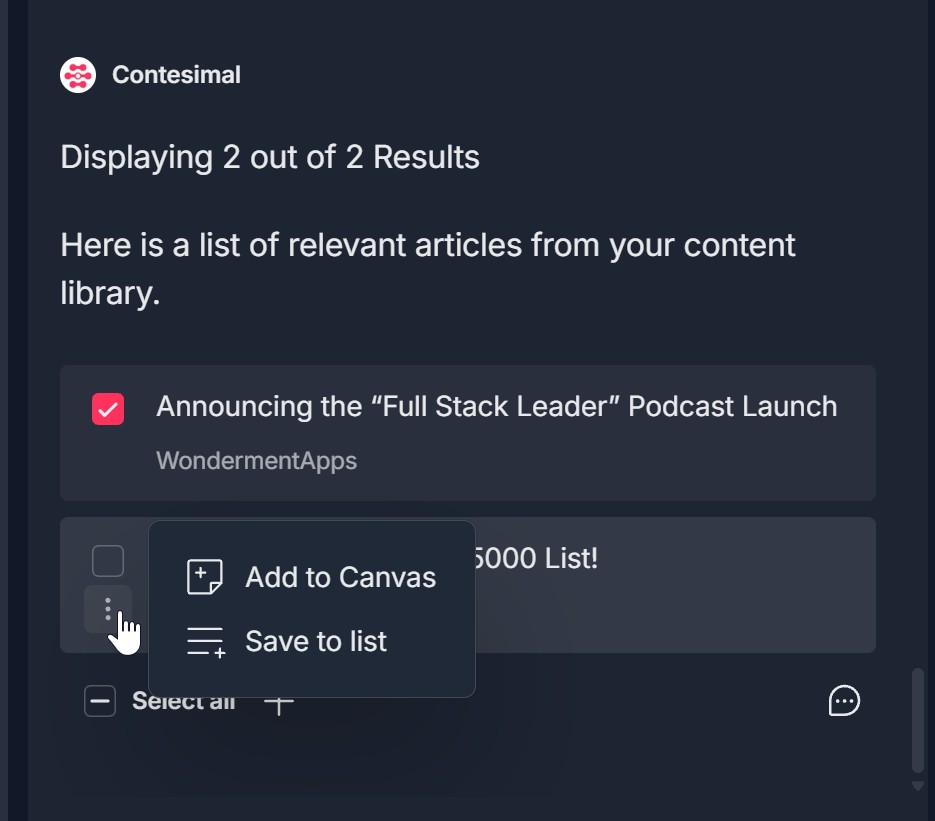
- Each result has a checkbox on the left, title (e.g., "I Am Zlatan"), source or category (e.g., "WondermentApps"), and a three-dots menu (vertical ellipsis) for more options
- The three-dots menu offers Add to Canvas (document-with-plus icon) and Save to list (list-with-plus icon)
- At the bottom there is a "Select all" checkbox and a + icon near it
- To add result(s) to your list: Option A: Click the three dots below the checkbox (or next to a result) and choose Save to list; an Add Multiple Items to List modal may open if you selected multiple items. Option B: Check the checkbox(es) for the article(s) you want, then click the + near Select all and choose Save to list.
- If the Add Multiple Items to List modal opens: it shows "N Items Included," an Add To List dropdown (choose your list), and Add Notation (optional) with the note: "Remember when saving multiple items, this notation will save across all of them. Try typing something that's relevant to all of them." Click Save to add the selected items to the chosen list
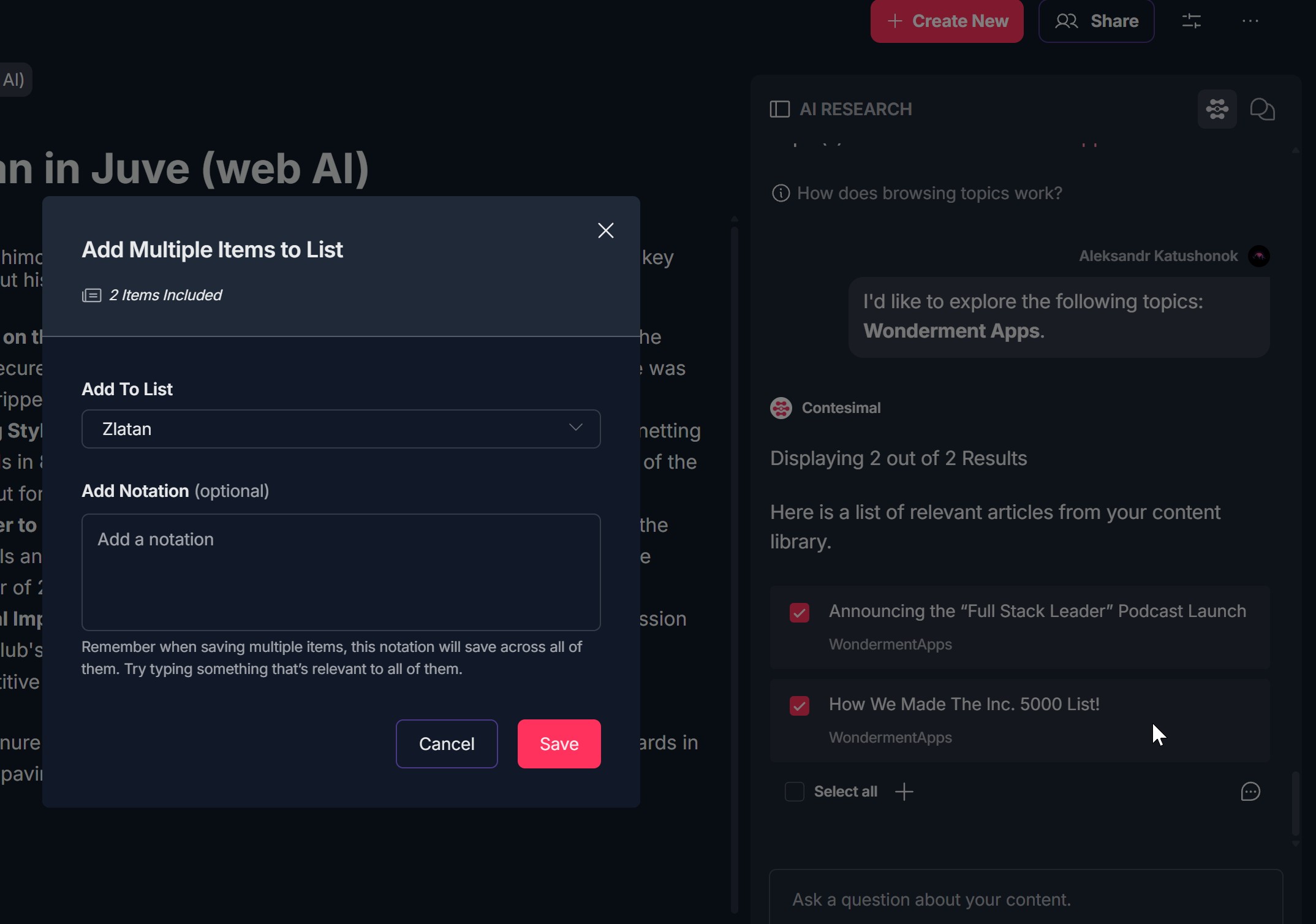
- Selected articles are added to the list you chose
7. Results Are Added to the List
- After you add result(s), they appear in your list
- You may see a confirmation or the list view updating to show the new items
- You can continue adding more results from the same or another search/browse, or switch to viewing or editing the list
8. View Added Items to the List
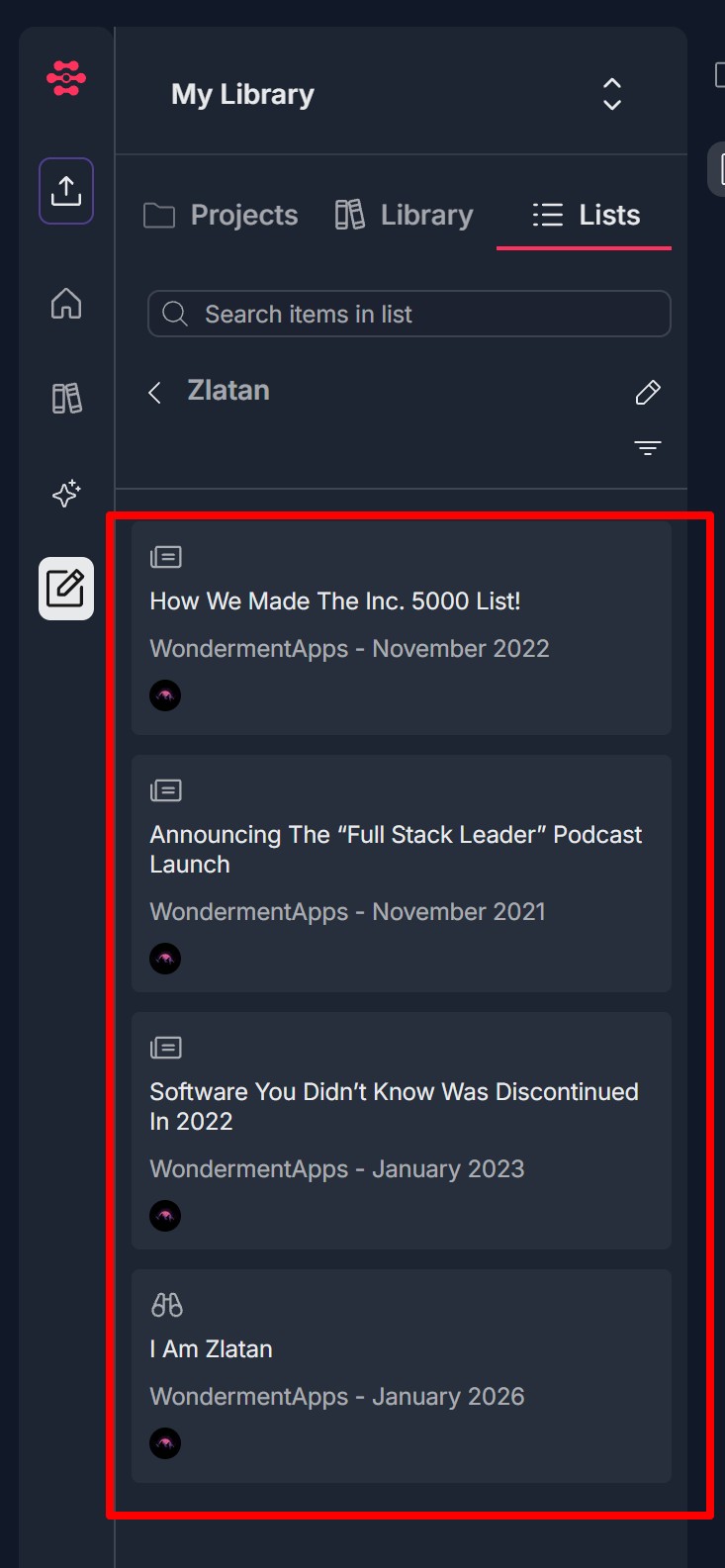
- Go to Creations -> Lists and open your list (e.g., click the list name; breadcrumb may show < List name)
- You see all added items (articles or snippets) in the list. Use Search items in list to find specific items
- Each item shows title, source and date (e.g., "WondermentApps - January 2026"), and an icon (document for articles; chain/snippet icon for snippets)
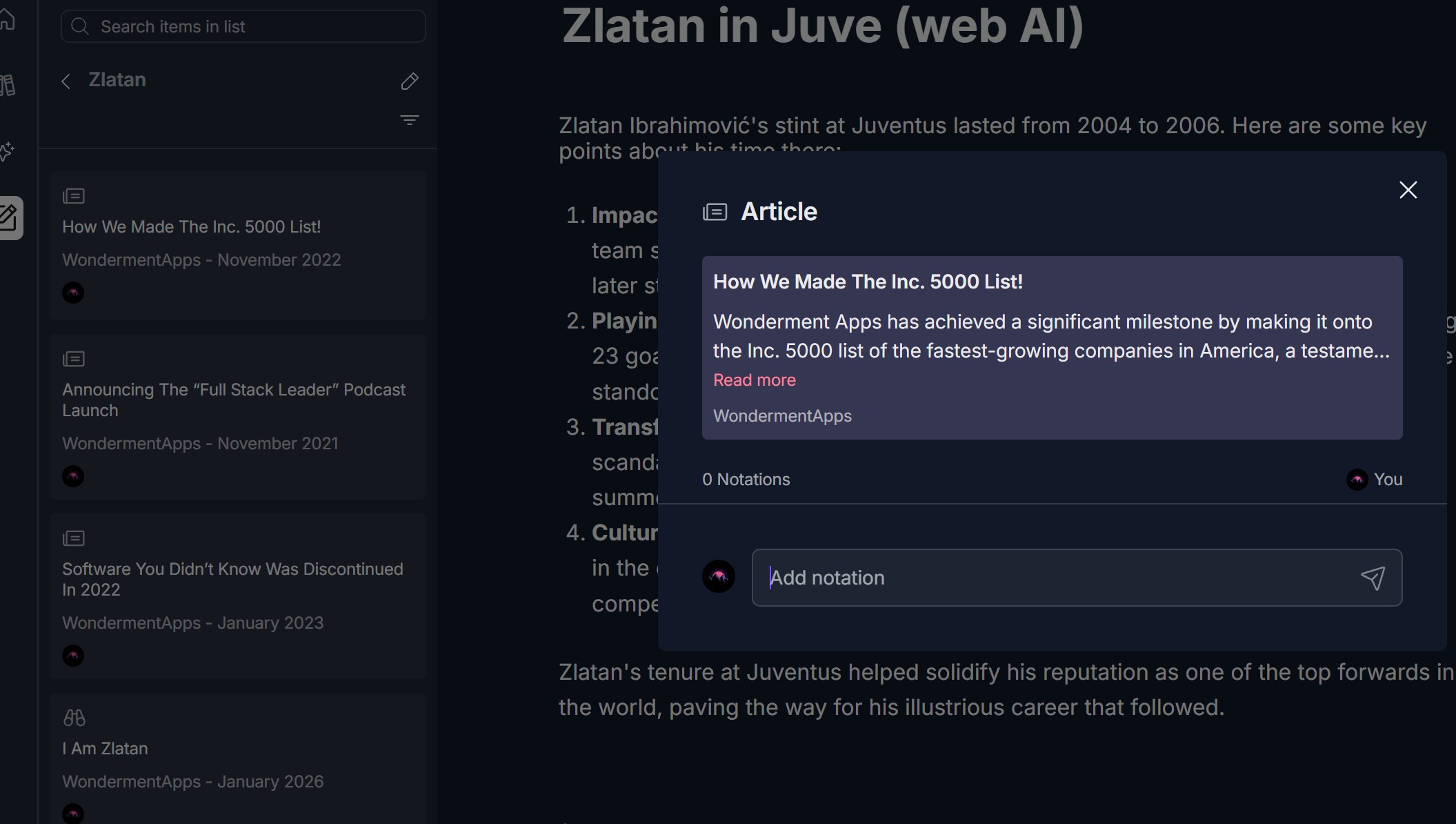
- Click an item to open its detail view: an Article (or Keyword Item) modal shows title, description, Read more link, source, and Notations — "0 Notations" or existing notes, with an Add notation input and send icon. You can add or view notations here
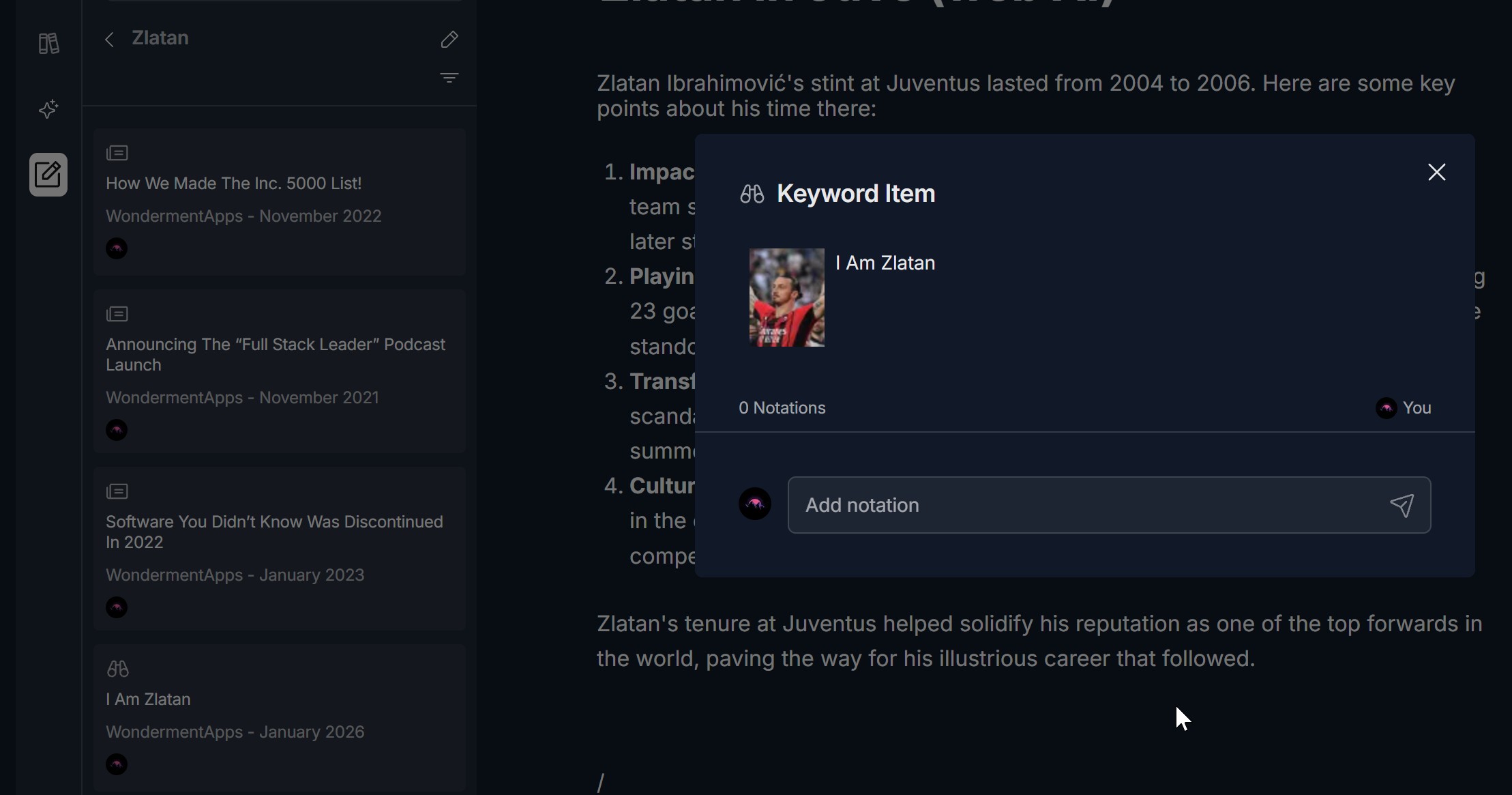
- Use the pencil icon (edit list) and filter icon (three horizontal lines) next to the list name for list options
9. Edit the List
- From the list view (Creations -> Lists -> open list), use the edit or settings option for the list (e.g., pencil icon, Edit list, or three-dots menu)
- You can typically rename the list, and depending on the product, reorder items or change list settings
- Save or confirm your changes
10. Remove Items from the List
- Open your list (Creations -> Lists -> open list)
- Locate the item you want to remove (each item is shown as a card with title, source/date, and icons)
- Click the trash can icon at the top right of the item card (or use a three-dots menu -> Remove)
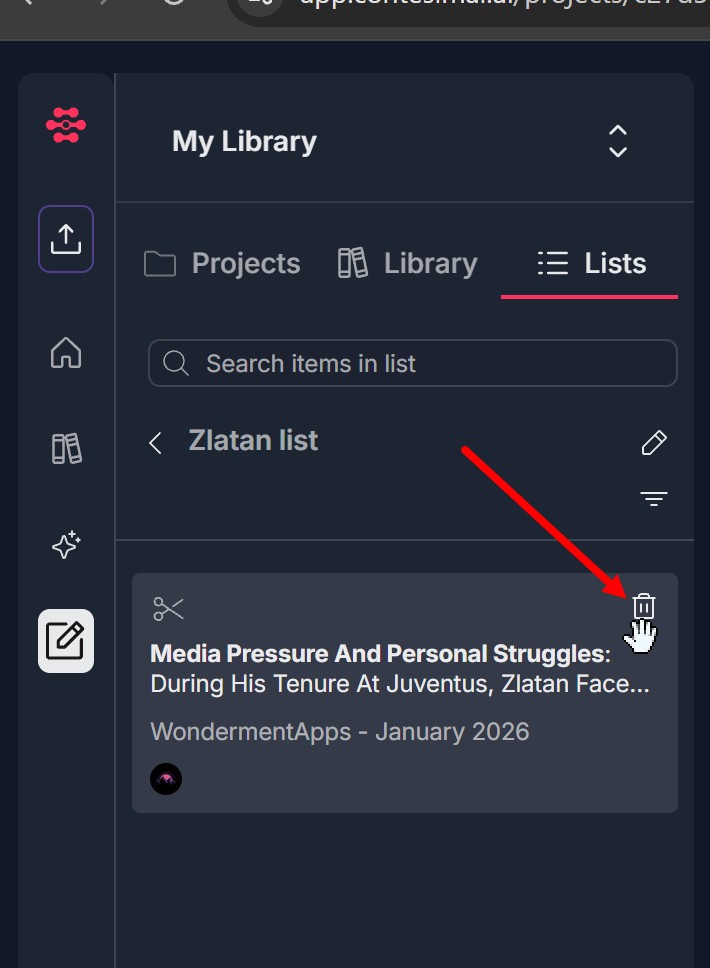
- Confirm deletion - the item is removed from the list
11. Add a Snippet to the List — Select Text in AI Research Tool -> Save to List
- In the AI RESEARCH panel, open an article or a view where you can select text (e.g., a passage in the chat/results area)
- Select the text you want to save as a snippet (click and drag to highlight)
- A context menu appears over the selection with Add to Canvas, Save to List, and Copy to Clipboard
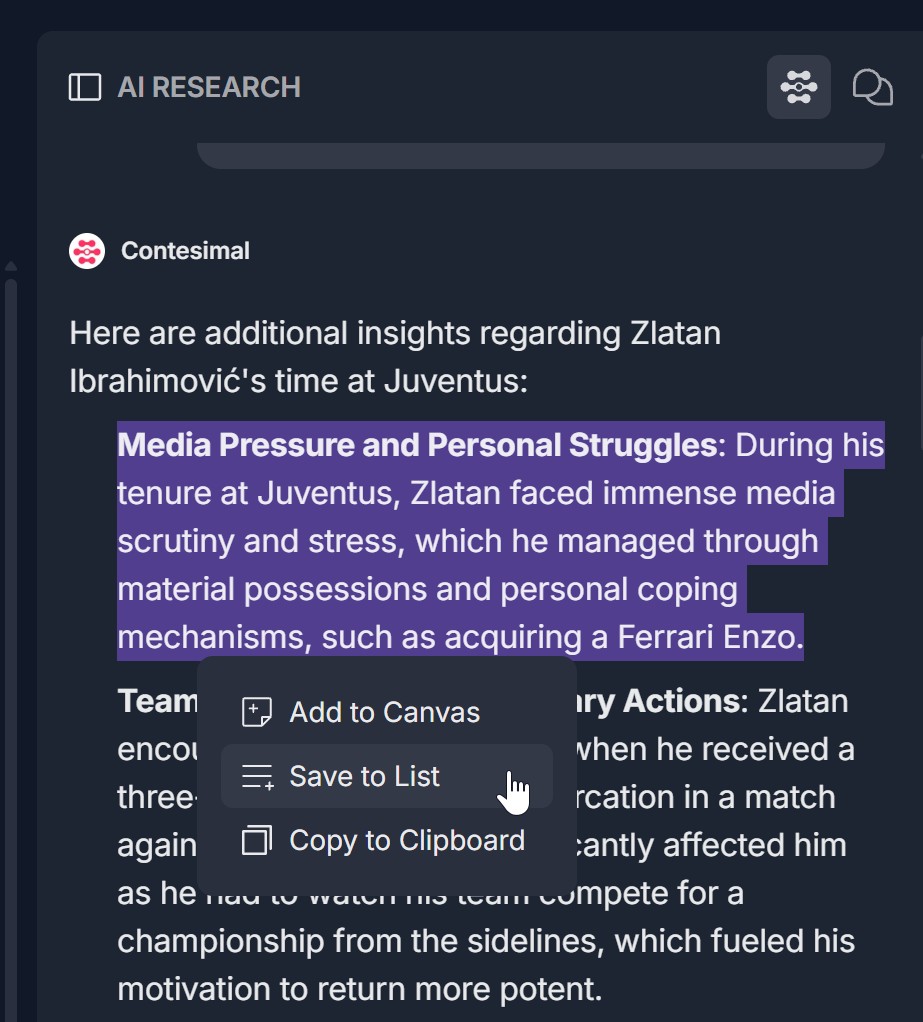
- Click Save to List
- A Save Snip to List modal opens: The selected snippet text is shown at the top (with a scissors icon); Add To List — dropdown to choose the list (e.g., "Zlatan List"); Add Notation (optional) — input "Add a notation" with the note: "Remember when saving multiple items, this notation will save across all of them. Try typing something that's relevant to all of them."; Cancel (purple) and Save (red) buttons; X to close.
- Choose the list, optionally add a notation, and click Save
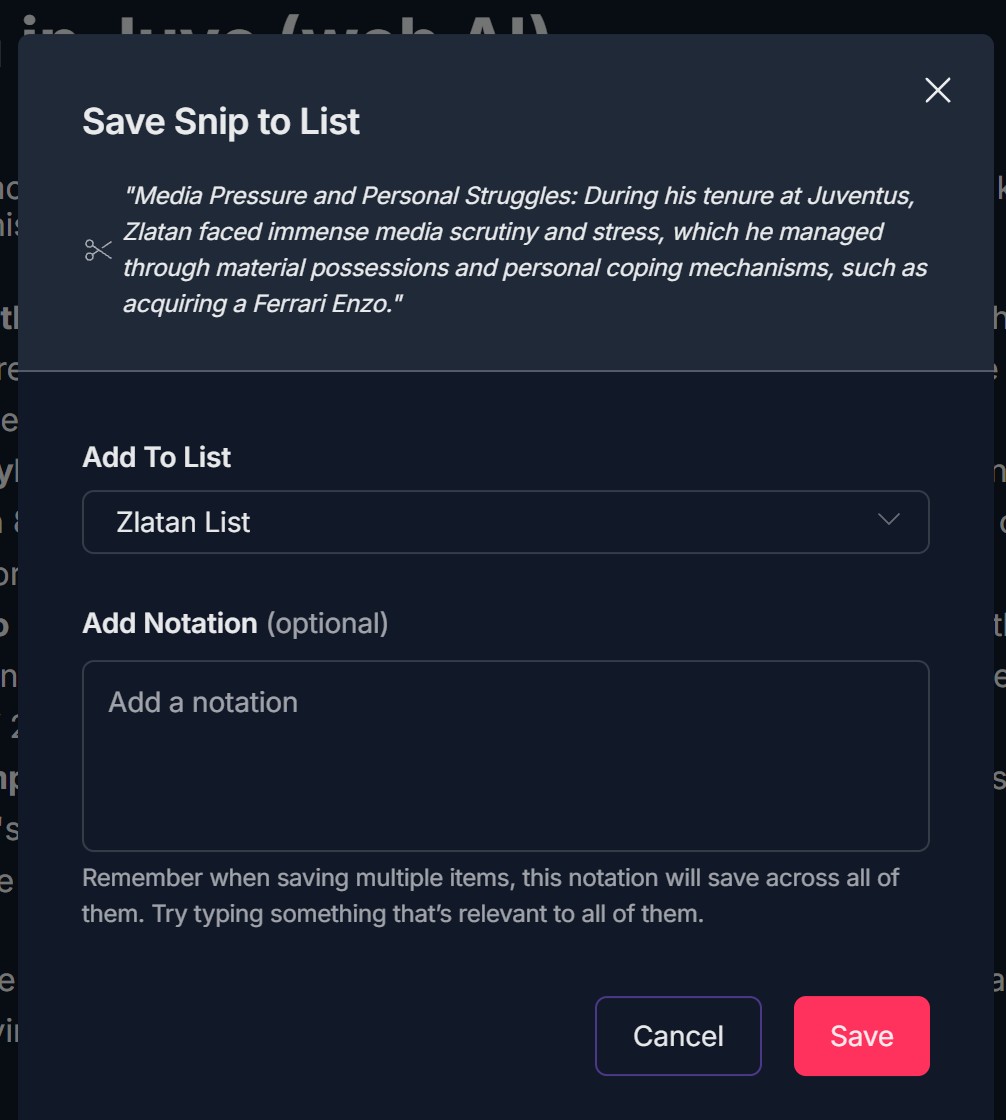
- The selected text is added to the list as a snippet (snip); you can view it in the list and add notations in the item detail view (Article/Keyword Item modal)
Troubleshooting Guide
A. Creations -> Lists Not Visible or Cannot Create a New List
- Issue: You cannot find the Lists section under Creations, or the option to create a new list is missing or disabled.
- Fix:
- Ensure you are logged in and have access to Creations and My Library
- Look for a Lists tab or Lists section under Creations or My Library; the exact location may vary by plan or role
- Refresh the page and navigate to Creations again
- If you still cannot see Lists or create a list, contact Support with your account and what you see in the left panel
B. + Menu Doesn't Open or Build a List Isn't Listed
- Issue: You click the + icon in the AI RESEARCH panel but the dropdown doesn't open, or Build a List is missing from the menu.
- Fix:
- Ensure you are inside a project (Creations -> Projects -> project open) and the AI RESEARCH panel is visible on the right
- Click directly on the + icon (red circular button with white plus), not on @ Add Context or the input field
- Refresh the page and open the project again; click + once the panel has loaded
- Check if a pop-up or ad blocker is blocking the dropdown
- If Build a List still doesn't appear, try a different browser or contact Support
C. Search or Browse Doesn't Return Results
- Issue: You choose Search or Browse (theme/topic) in Build a List but get no results or "0 Results."
- Fix:
- For Search: Enter at least one keyword and click Generate Result; see Keyword Search in AI Research guidelines for troubleshooting
- For Browse: Select at least one theme or topic and click Generate Result; for topics, try a broader topic for more articles. See Browse Content by Themes and Topics guidelines for troubleshooting
- Ensure your content library has documents; if the library is empty or doesn't match your criteria, results may be zero
D. Results Don't Add to the List (Three Dots or + Near Select All)
- Issue: You select result(s) and click the three dots or + near Select all and choose Save to list, but nothing is added to the list.
- Fix:
- Ensure you checked the checkbox(es) for the result(s) you want before using Save to list (if the UI requires selection)
- Use the Save to list (or equivalent) option from the three-dots menu or from the + menu near Select all; if prompted, select the correct list
- Refresh the page and run the search/browse again; select results and try Save to list once more
- If the action still doesn't work, note what you see (e.g., no list to choose, error message) and contact Support
E. Cannot Edit List or Remove Items
- Issue: You open the list but cannot find how to edit it (e.g., rename) or remove an item.
- Fix:
- Look for an edit or settings control on the list (e.g., pencil icon, Edit list, or three-dots menu on the list header)
- For removing an item, look for a three-dots menu or trash/remove icon on each row or card
- Refresh the page and open the list again
- If edit or remove options are still missing, contact Support with your list view and role/plan
F. Save to List for Snippets Doesn't Work
- Issue: You select text in the AI Research tool and click Save to list but the snippet is not added.
- Fix:
- Ensure you selected the text (it should be highlighted) before clicking Save to list
- Use the Save to list option that appears after selection (context menu, toolbar, or popover); if prompted, choose the list to add to
- Try selecting a shorter passage if the selection is very long
- Refresh the page and try again; if it still doesn't work, contact Support with where you were selecting (e.g., article view, chat) and what you see after clicking Save to list
Was this article helpful?
That’s Great!
Thank you for your feedback
Sorry! We couldn't be helpful
Thank you for your feedback
Feedback sent
We appreciate your effort and will try to fix the article