Description
The AI Research Сhat is the main chat interface inside a project's AI RESEARCH panel. You can ask a question about your content and receive answers based on document-focused AI (answers drawn from your library and added context) or web-enabled AI (answers that can use web sources for up-to-date or broader information).
Power of AI Research Chat
- One place for questions and exploration — Ask natural-language questions and get answers in the same panel where you search, browse, build lists, and use agents. No need to leave the project or switch tools.
- Two modes in one chat — Document-focused AI grounds answers in your library and added context (Content Library, URL, uploaded documents), so responses stay on your IP. Web-enabled AI augments with web sources for current facts, trends, or broader knowledge. Switch with one click (toggle or globe icon).
- Explore your library without leaving the chat — Use the + menu to run keyword Search, Build a list, Browse themes, or Browse topics, and use Agent Library for deep-thinking agents. Results and chat history stay in one flow.
- Add context and research it — Use @ Add Context to pull in content from your Content Library, a URL, or an uploaded document, then ask questions; the AI uses that context in document-focused mode so you can research specific sources inside the chat.
- Act on every answer — Every AI response has an action bar: Add to canvas, Save to list, Copy, Comment, and Ask chat to say more. You can reuse, organize, and iterate on research without re-asking from scratch.
Advantages
- Document-focused answers stay on your IP — When you need answers grounded in your own content (books, episodes, articles), document-focused AI uses only your library and added context, so you get accurate, on-brand research.
- Web-enabled answers stay current and broad — When you need up-to-date facts, stats, or general knowledge, web-enabled AI can use web sources so you get timely, comprehensive answers without leaving the chat.
- One chat for Q&A, search, browse, and agents — You don't switch between separate tools; keyword search, build a list, browse themes/topics, and Agent Library are all available from the + menu in the same panel, so research stays in one place.
- Context from library, URL, or upload — Add documents from your Content Library, paste a URL, or upload a file, then ask questions; the AI researches that content so you can go deep on specific sources.
- Reuse and iterate on results — Add answers to your canvas, save to a list, copy for use elsewhere, comment for collaboration, or ask the chat to say more (regenerate or continue). Research becomes actionable without extra steps.
Step-by-Step Usage
The step-by-step instructions, screen descriptions, and UI details in this section are examples only. They are intended to help you understand how the feature works and how to complete the flow. Screens, labels, and layout may change in future product updates.
1. Open AI Research in the Library
- Log in to your Contesimal account
- In the left panel, go to Creations (e.g., edit/pencil icon or Creations section)
- The AI RESEARCH panel is visible on the right: heading "AI RESEARCH" at top; content area (chat history, Search/Browse prompts); at bottom: input field ("Ask a question about your content." or "Ask a web-enabled question about your content."), + icon, @ Add Context, Document-focused AI / Web-enabled AI (globe icon), send (upward arrow) icon
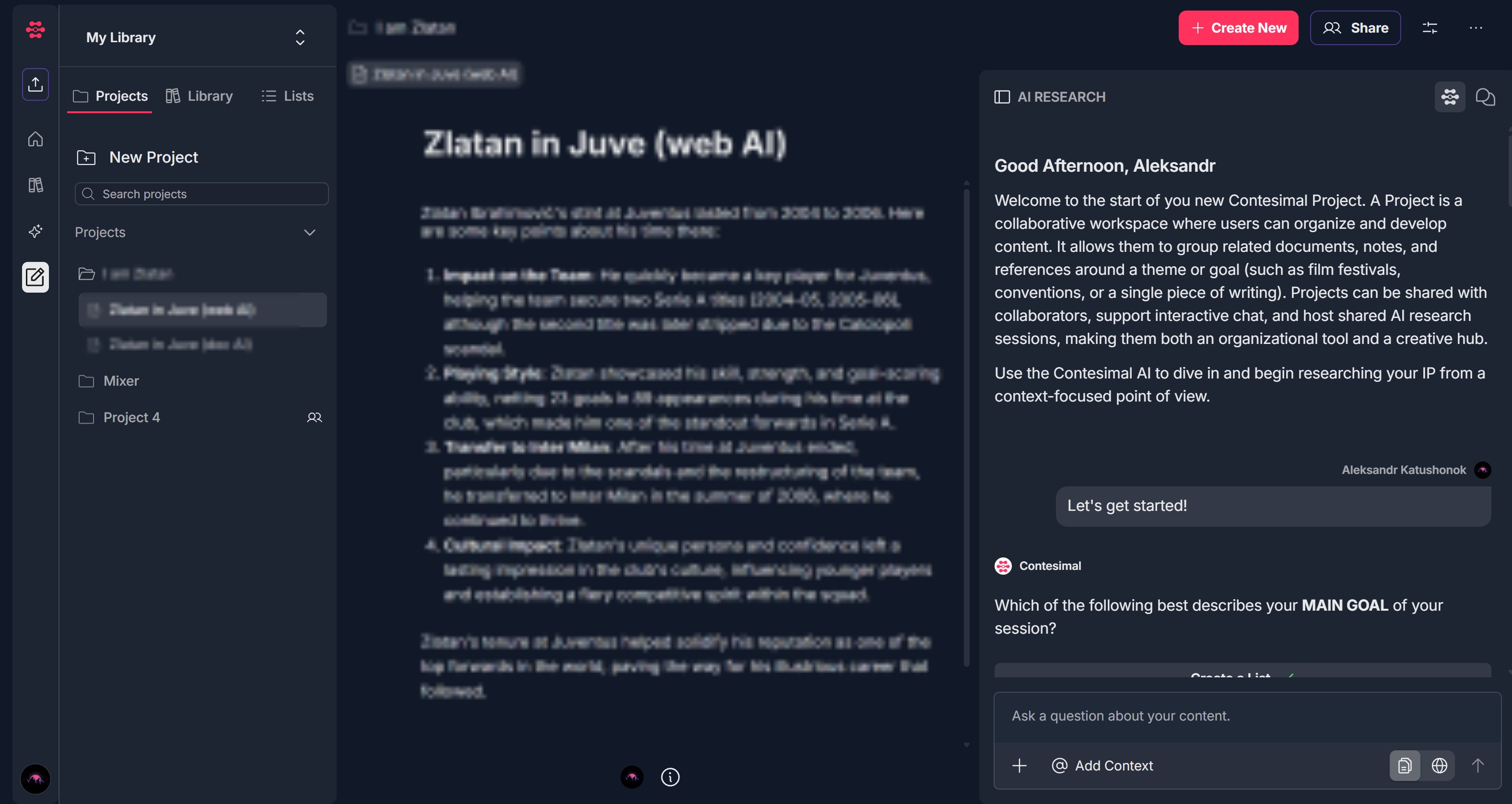
2. Choose Document-focused AI or Web-enabled AI
- At the bottom of the AI RESEARCH panel, find the input field and the controls to its right
- Document-focused AI — When selected, placeholder may read "Ask a question about your content."; answers are based on your content library and added context
- Web-enabled AI — Click the globe icon or "Web-enabled AI" button to switch; placeholder may change to "Ask a web-enabled question about your content."; answers can use web sources
- Choose the mode that fits your question (document-only vs web-augmented)
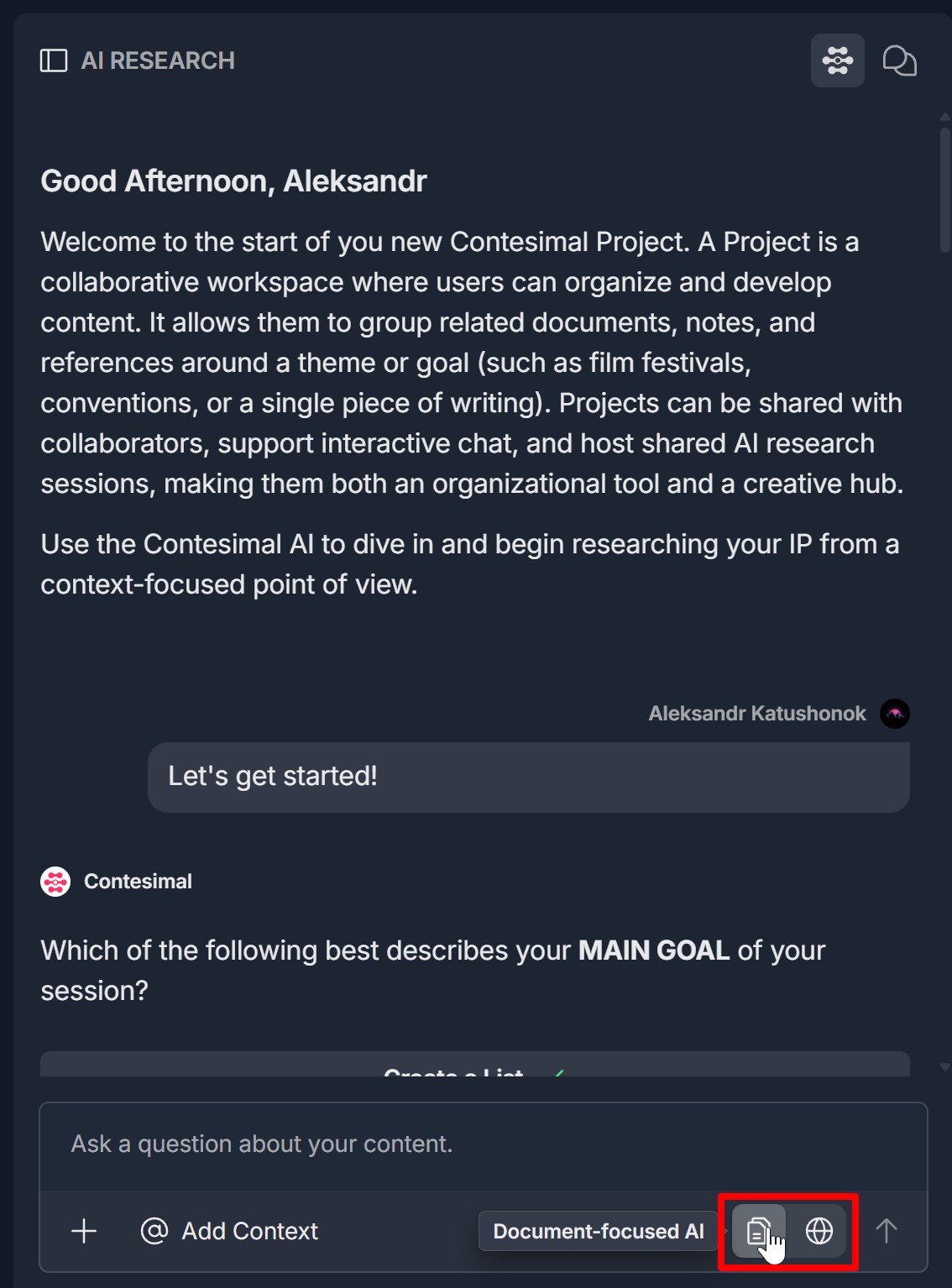
3. Ask a question and receive an answer
- Click inside the input field at the bottom of the AI RESEARCH panel
- Type your question (e.g., about your content or a general topic)
- Click the send icon (upward arrow) to the right of the input—or press Enter if supported
- The AI (e.g., Contesimal) responds in the chat; the answer appears below your question
- Document-focused mode: answer based on your library and added context; web-enabled mode: answer may include web-sourced or up-to-date information
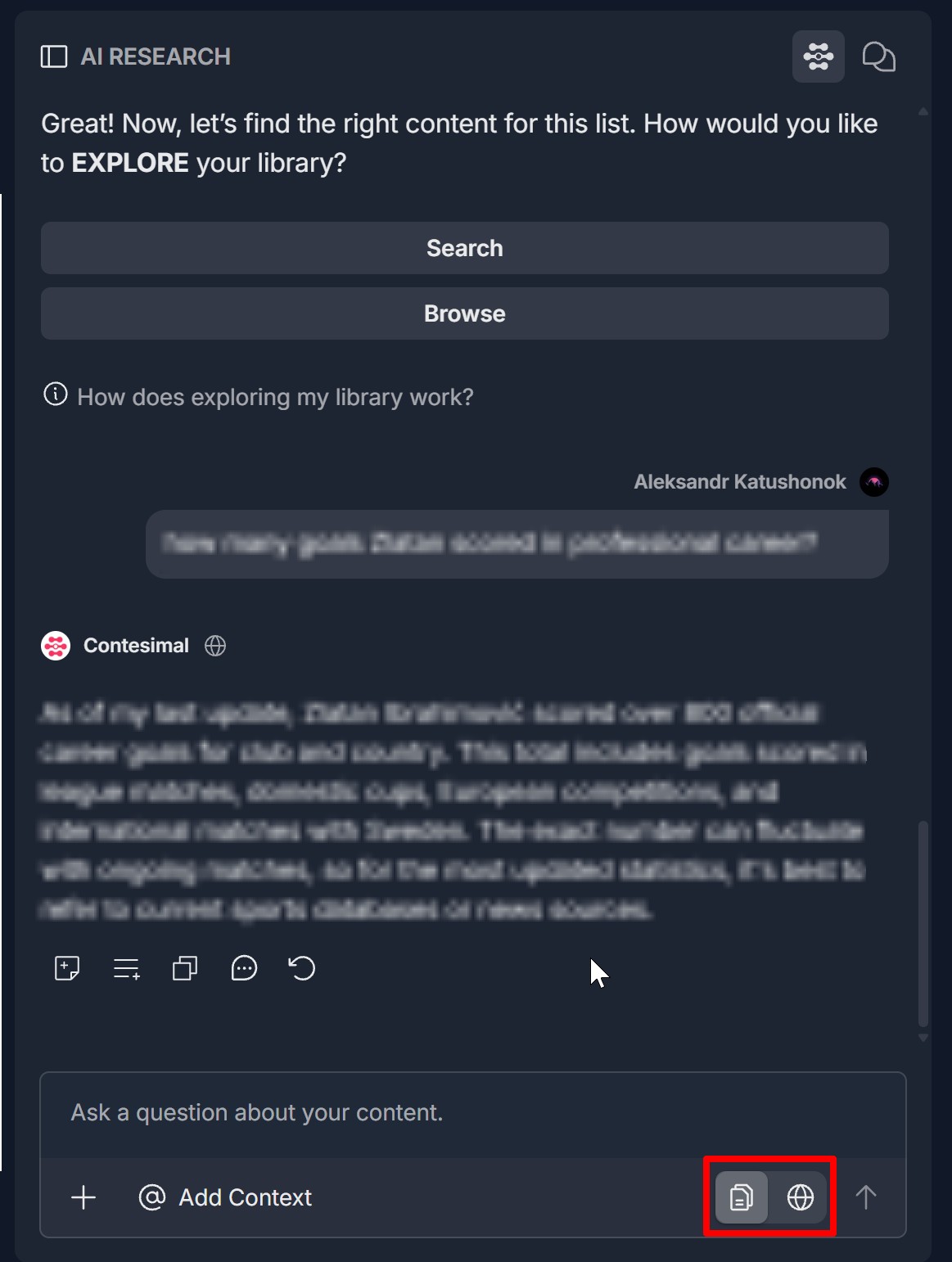
4. Use actions on AI research results (Add to Canvas, Save to List, Copy, Comment, Ask chat to say more)
- Below the AI's response, a horizontal action bar with icons appears
- Add to Canvas — Icon: square with plus; adds the AI response (or selected content) to your canvas or document
- Save to List — Icon: three horizontal lines with plus; saves the response or selected content to a list
- Copy — Icon: two overlapping squares; copies the response (or selected text) to the clipboard
- Comment — Icon: chat bubble (with dots); opens or adds a comment on the response
- Ask chat to say more — Icon: curved arrow (refresh/regenerate); asks the chat to say more, continue, or regenerate the response
- Click the icon for the action you want; follow any on-screen prompts; you can use these actions on any AI research result in the chat
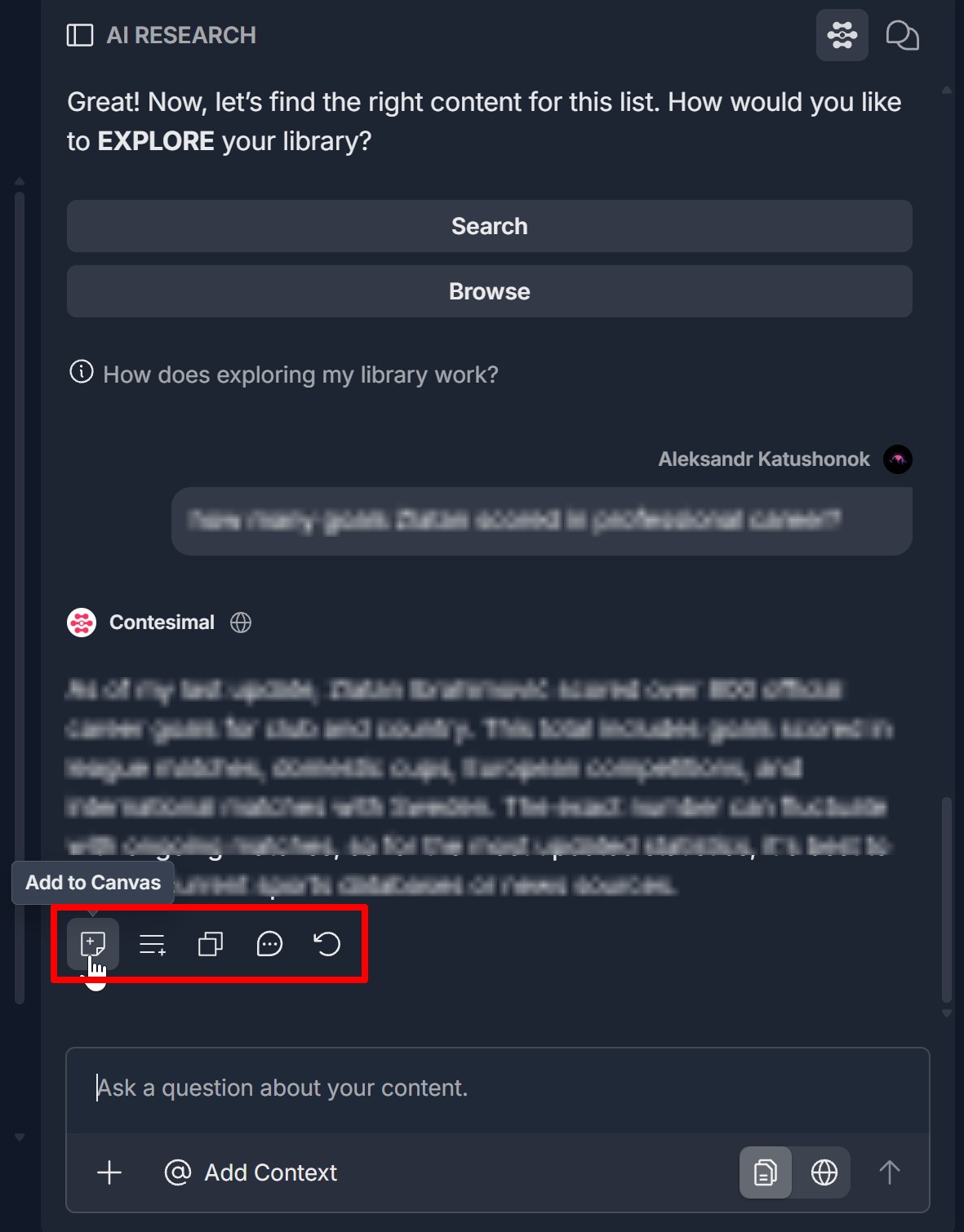
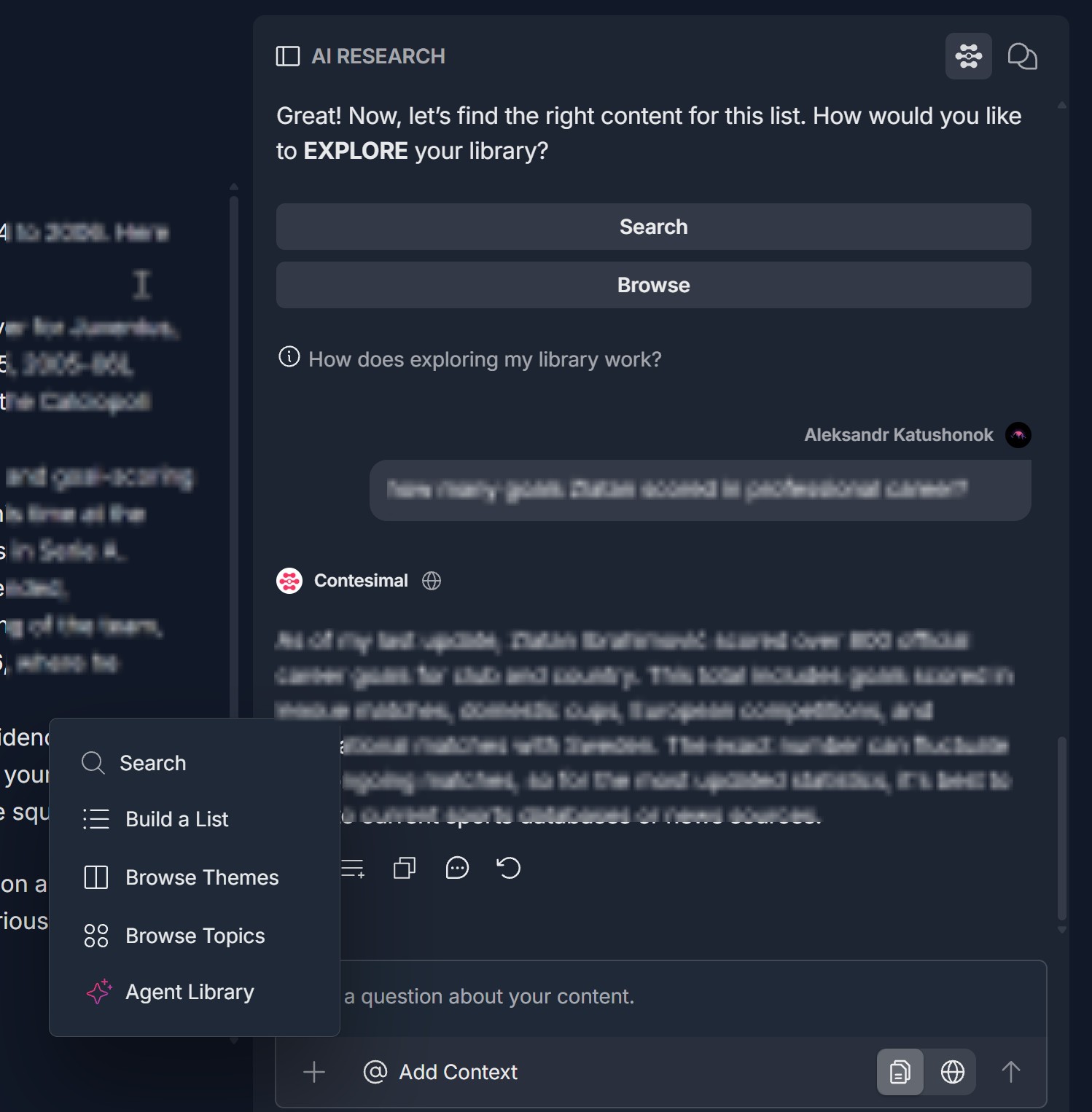
5. Use the + menu (Keyword search, Build a list, Browse themes, Browse topics, Agent Library)
- At the bottom of the AI RESEARCH panel, click the + icon (often a red circular button with a white plus)
- A dropdown menu opens: Search (magnifying glass), Build a List (list icon), Browse Themes (document icon), Browse Topics (four circles/grid icon), Agent Library (sparkle/star icon)
- Click the option you want (e.g., Agent Library to use agents; Search for keyword search); the corresponding flow or view opens
- Complete the flow (e.g., enter keywords and Generate Result for Search; select an agent for Agent Library); results or outputs appear in the panel
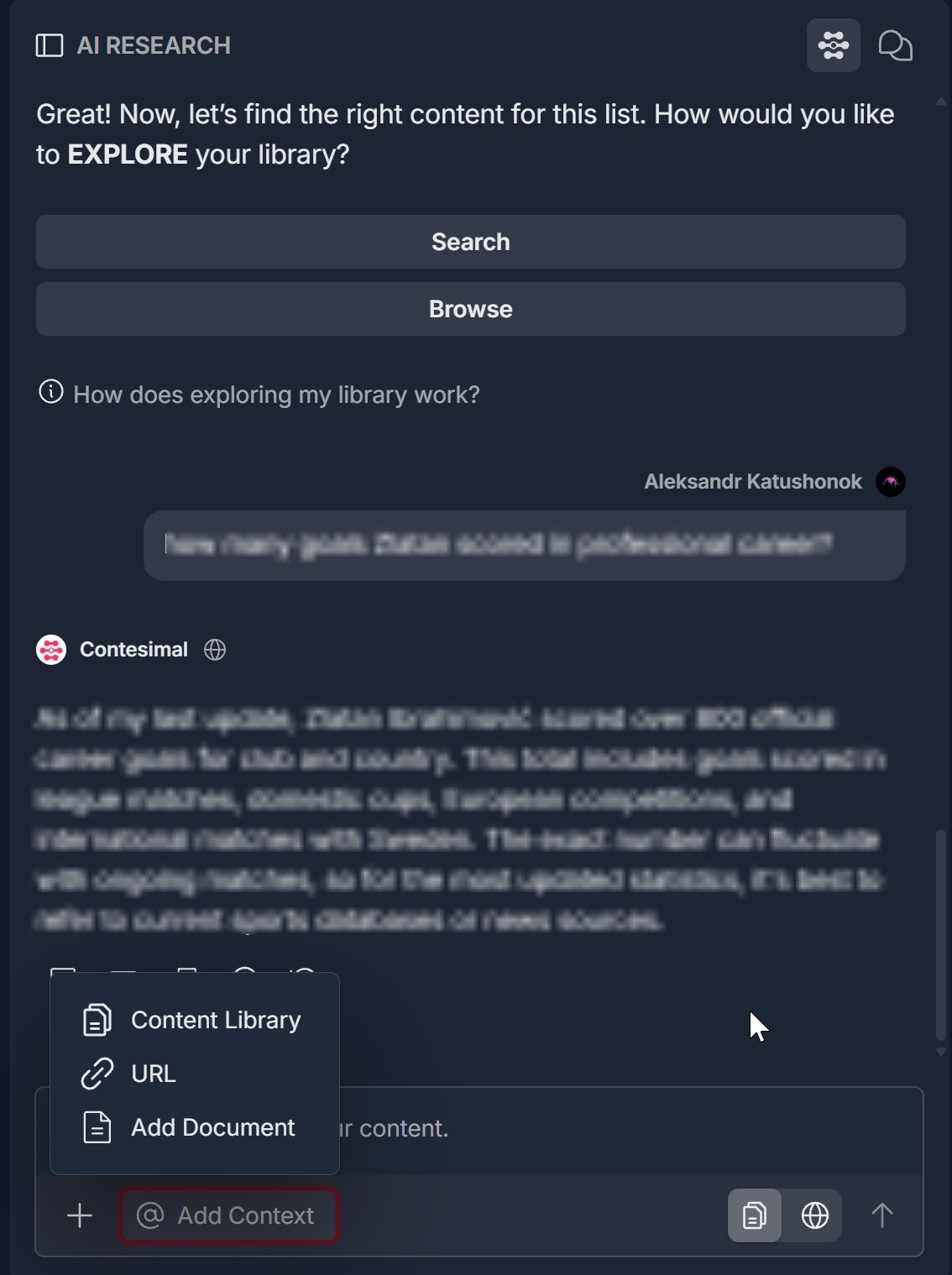
6. Add content with @ Add Context (Content Library, URL, Add Document) and research it
- At the bottom of the AI RESEARCH panel, click @ Add Context (to the right of the + icon)
- A dropdown menu opens: Content Library (stack of documents icon), URL (chain-link icon), Add Document (document icon)
- Choose one and complete the step (e.g., pick a document from Content Library, paste a URL and confirm, or select a file to upload)
- The added content is attached as context for the AI; you can then ask a question in the input field (document-focused or web-enabled) and the AI will use this context in its answer
- Ask questions about the content you added; the AI's answers will be based on that content (and your library) when in document-focused mode
Troubleshooting Guide
A. AI RESEARCH Panel Doesn't Appear or Input Is Missing
- Issue: You open a project but the AI RESEARCH panel on the right doesn't show, or the input field and + / @ Add Context are missing.
- Fix:
- Ensure you are inside a project (Creations -> Projects -> project open), not only in the library or lists view
- Refresh the page and open the project again; the AI RESEARCH panel may load after the central content
- Resize or scroll to ensure the right panel is visible; the input may be at the bottom of the panel
- If the panel still doesn't appear, try a different browser or contact Support
B. Document-Focused AI or Web-Enabled AI Toggle Doesn't Work
- Issue: You click "Document-focused AI" or the globe icon ("Web-enabled AI") but the mode doesn't change, or the placeholder text doesn't update.
- Fix:
- Click directly on Document-focused AI (text/button) or the globe icon (Web-enabled AI), not on the input field or @ Add Context
- Wait a moment; the placeholder may update (e.g., to "Ask a web-enabled question about your content." when web-enabled is on)
- Refresh the page and open the project again; try toggling once more
- If the toggle still doesn't respond, contact Support with your browser and what you see
C. Question Doesn't Send or No Answer Appears
- Issue: You type a question and click the send icon (or press Enter) but nothing happens, or no AI response appears.
- Fix:
- Ensure you entered some text in the input field before sending
- Click the send icon (upward arrow) to the right of the input, not the + or @ Add Context
- Check your network connection; the AI request requires a successful call
- Wait a few seconds; the response may take a moment to load
- If no answer appears after a delay, try a shorter question or refresh and try again; if the issue persists, contact Support
D. Action Bar (Add to Canvas, Save to List, Copy, Comment, Say More) Doesn't Work
- Issue: You click one of the icons below the AI response (Add to Canvas, Save to List, Copy, Comment, Ask chat to say more) but nothing happens.
- Fix:
- Ensure you are clicking the icon directly below the AI response you want to act on (the action bar is tied to that response)
- For Add to Canvas or Save to List, follow any prompt (e.g., choose a canvas or list) if one appears
- For Copy, check that the text was copied (e.g., paste in another app); some browsers may require a user gesture for clipboard access
- For Comment, ensure the comment panel or modal opened; if it didn't, try again or refresh
- For Ask chat to say more, wait for the new or continued response to load
- Refresh the page and ask a new question; try the action again on the new response; if it still fails, contact Support
E. + Menu or @ Add Context Doesn't Open
- Issue: You click the + icon or @ Add Context but the dropdown menu doesn't open.
- Fix:
- Click directly on the + icon (red circular button) or @ Add Context text/button, not on the input field or send icon
- Ensure the AI RESEARCH panel is fully loaded (you see the input and the + / @ Add Context)
- Check if a pop-up or ad blocker is blocking the dropdown
- Refresh the page and open the project again; click + or @ Add Context once more
- If the menu still doesn't open, try a different browser or contact Support
Was this article helpful?
That’s Great!
Thank you for your feedback
Sorry! We couldn't be helpful
Thank you for your feedback
Feedback sent
We appreciate your effort and will try to fix the article