Description
The Project Creation Canvas in Contesimal is the main editing area where you add and edit content (text, headings, lists, images, and more) within a project document. You can add text or selected text (e.g., from AI Research results) to the canvas, then edit it using a rich set of options: format text (headings, bold, italic, alignment), turn blocks into lists or blockquotes, insert images (upload, drag-and-drop, or generate with AI), move content blocks by dragging, and use AI-powered tools (Improve, Ask Contesimal) to refine or extend your writing. You can also select text on the canvas and send it to the AI RESEARCH panel as context for questions. The canvas treats content as blocks (nodes) — each paragraph, heading, or list is a block you can move, duplicate, or delete independently. This feature gives you a single place to compose and structure project documents with full formatting and AI support.
How This Feature Helps You
- Add text and content to the canvas — Type directly in the canvas, or use the + button (e.g., Click to add below) to insert a new block. You can also type / to open a command palette (/Filter...) that lets you insert Text, H1/H2/H3 Heading, Bullet List, Numbered List, To-do list, Blockquote, Insert Image, Emoji, or Separator. Content added from AI Research (e.g., summaries) appears as editable blocks on the canvas.
- Edit and format text — When you select text, a floating toolbar appears with: Improve (with AI options), Ask Contesimal, a Text dropdown (Turn into — Text, H1/H2/H3, Bulleted list, Numbered list, To-do list, Blockquote, Code block), Bold, Italic, Underline, Link, Text color (A with arrow), Alignment (left, center, right, justify), and More options (ellipsis). You can also right-click selected text to open a context menu with Color, Turn Into (same structure options), Reset formatting, Duplicate node (Mod+D), Copy to clipboard (Mod+C), and Delete (Backspace).
- Move and manage blocks — Each content block has a drag handle (six dots) to the left. Drag the handle to move the block; a tooltip may say Drag to move and Click to open menu. Use the + button next to a block to add a new block below; use the three-dot menu next to a block for more actions.
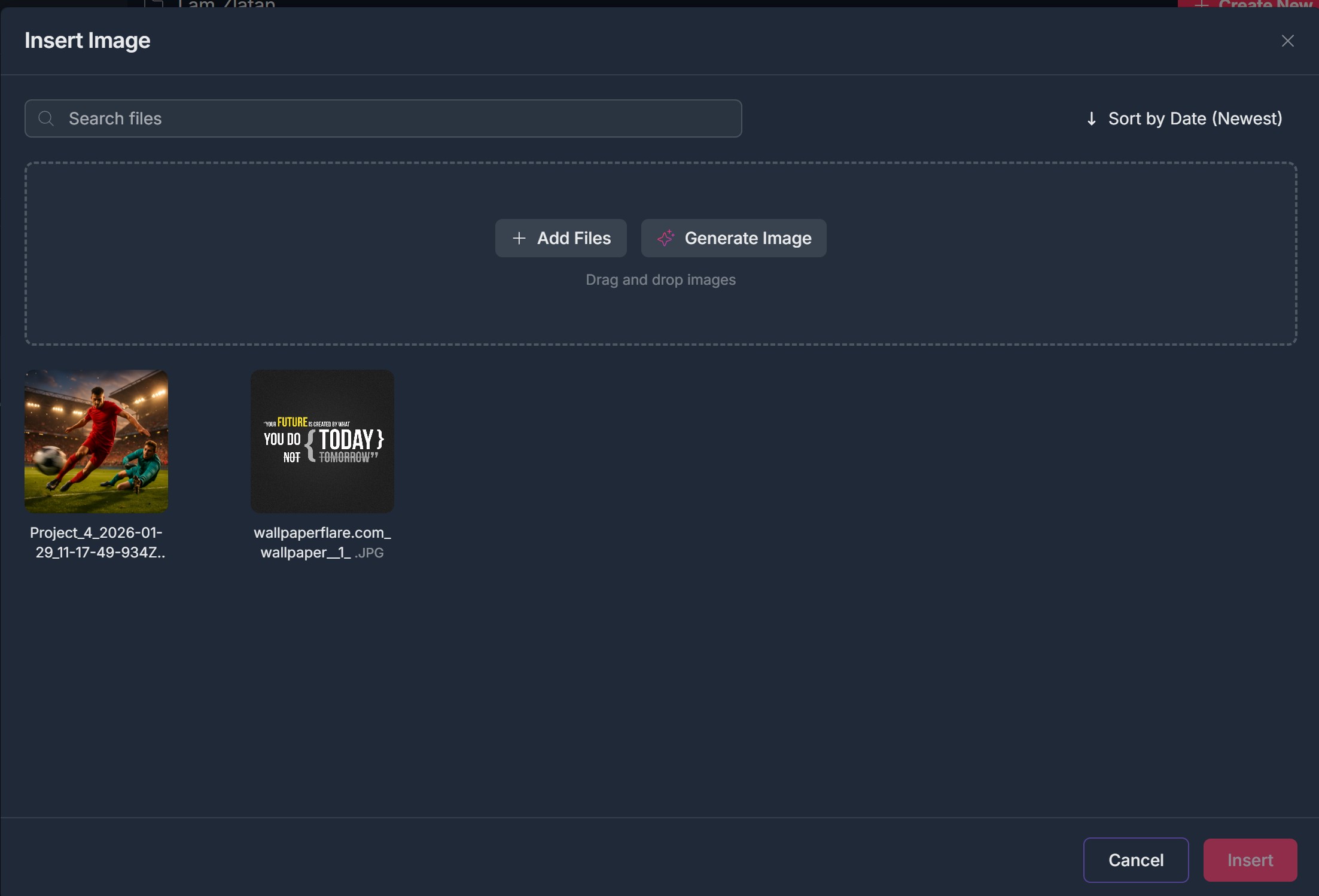
- Insert images — Choose Insert Image from the + menu or command palette. The Insert Image modal opens: Search files, Sort by Date (Newest), a drag-and-drop area for images, + Add Files (to pick from your device), Generate Image (AI-generated image), and thumbnails of existing images. Select an image and click Insert, or Cancel to close without inserting.
- Improve text with AI — Select text and click Improve in the toolbar. An Improve dropdown offers: Adjust Tone, Fix Spelling & Grammar, Extend Text, Reduce Text, Simplify Text, Emojify, Complete Sentence, Summarize, and Translate. Choose an option to apply AI edits to the selected text. Ask Contesimal opens AI assistance for questions or generation about the selection.
- View content details — Click the information (i) icon at the bottom of the canvas to open the Content Details pop-up: Name, Content Type (e.g., General Document), Owner, Created on, Modified on (with last editor). Close the pop-up with X or by clicking outside.
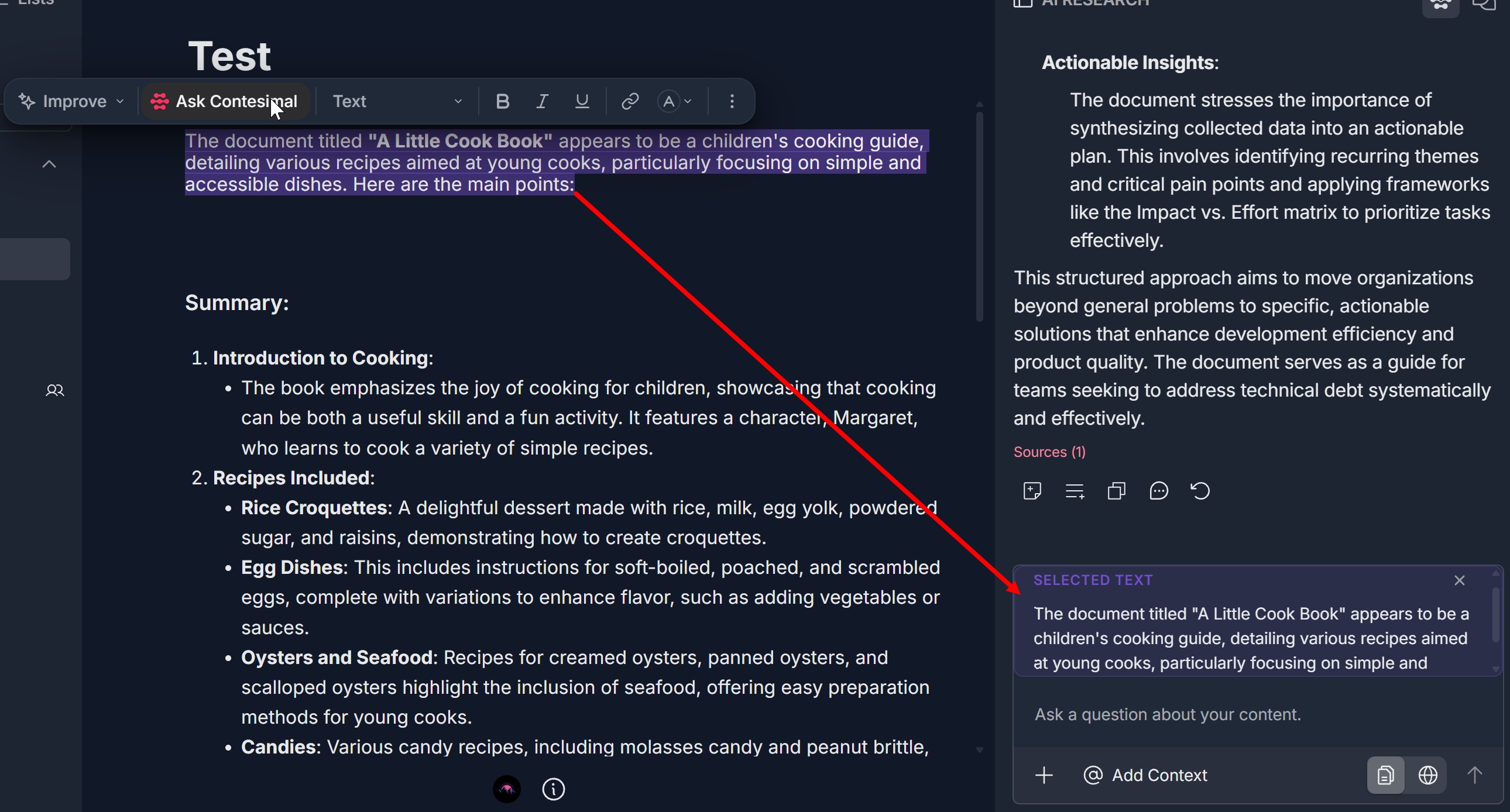
- Use selected canvas text in AI Research — Select text on the canvas; it appears in the AI RESEARCH panel in a SELECTED TEXT box. You can then type in Ask a question about your content. and use + @ Add Context so the AI uses that selection as context for your question. Remove the selection from context with the X on the SELECTED TEXT box.
Benefits
- One place to compose — Build project documents (summaries, outlines, notes) directly on the canvas with full control over structure and layout.
- Rich formatting — Headings, lists, blockquotes, code blocks, bold/italic/underline, alignment, and color so your content is clear and scannable.
- AI-assisted editing — Improve tone, fix grammar, extend or reduce text, simplify, summarize, translate, and ask Contesimal for help without leaving the canvas.
- Flexible blocks — Move, duplicate, or delete blocks independently so you can reorganize content quickly.
- Images and media — Insert uploaded or AI-generated images to make documents visual.
- Connected to AI Research — Use selected canvas text as context for AI questions so research and writing stay in sync.
Step-by-Step:
The step-by-step instructions, screen descriptions, and UI details in this section are examples only. They are intended to help you understand how the feature works and how to complete the flow. Screens, labels, and layout may change in future product updates.
1. Open a Project and Document on the Canvas
- Log in to your Contesimal account
- In the left panel, go to Creations (e.g., edit/pencil icon) and open Projects (or My Library -> Projects)
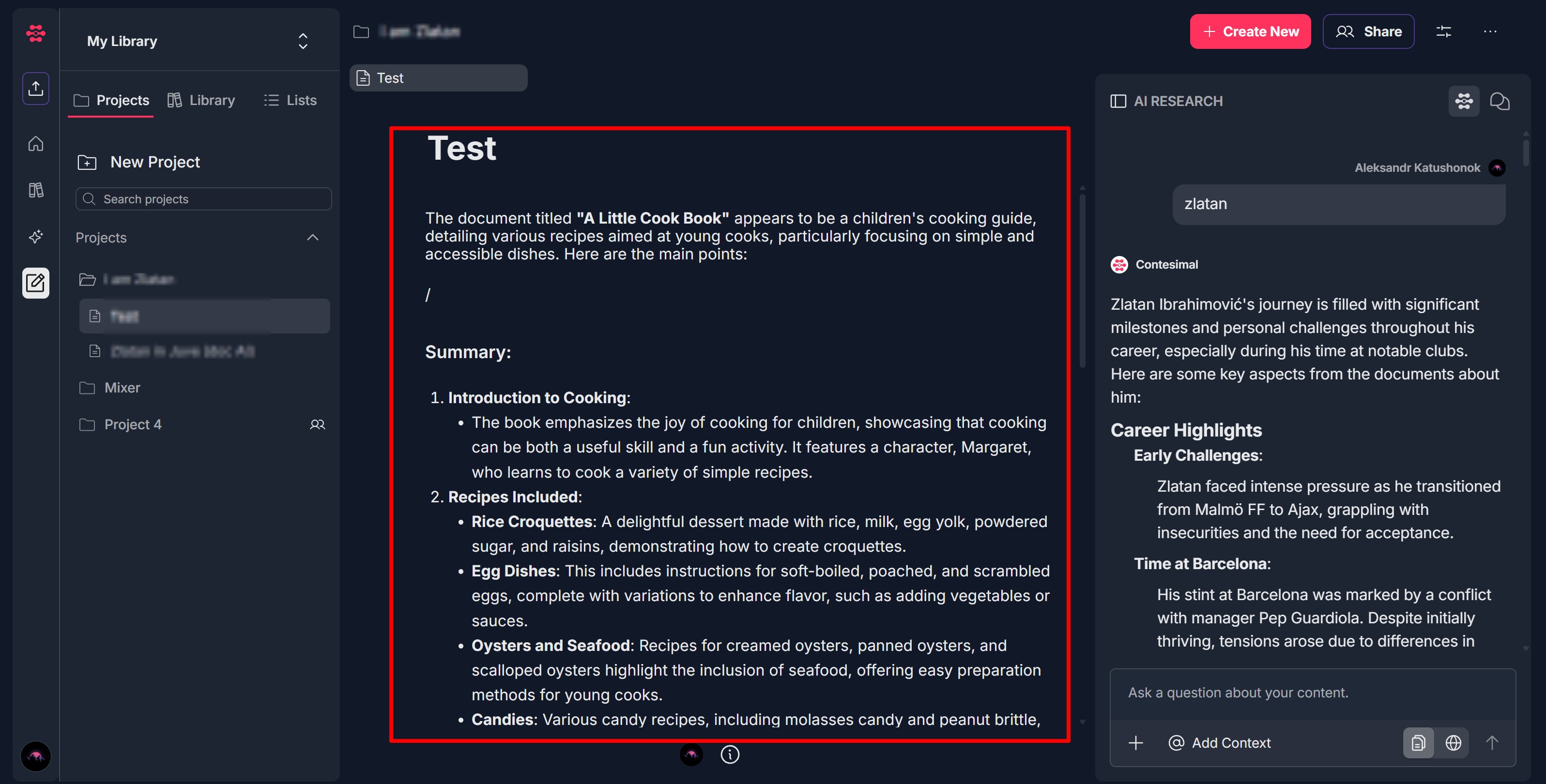
- Open a project (e.g., I am Zlatan) and then open or create a document (e.g., Test). The document opens on the Project Creation Canvas
- The canvas shows the document title at the top (e.g., Test) and a main content area where you can add and edit blocks. The left sidebar may show Lists and the current document (e.g., Test with document icon) selected
- You can start typing, use + to add blocks, or paste/add content from AI Research
2. Add Text and Content Blocks
- Type directly — Click in the canvas and type. The placeholder may say Write, type '/' for commands...
- Add a block below — Click the + button to the left of an existing block. A tooltip may say Click to add below. A new empty block is inserted; you can type or choose a block type
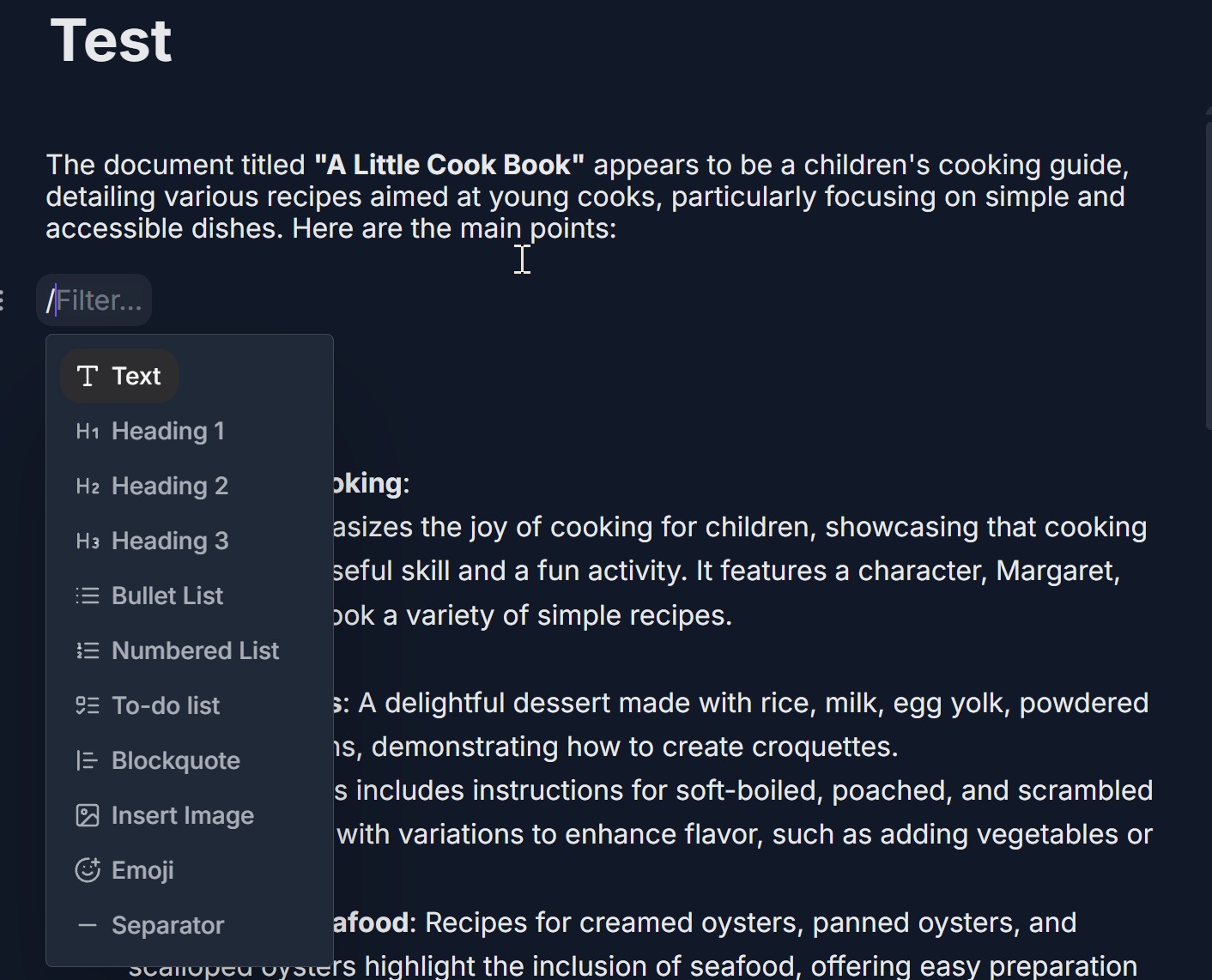
- Use slash commands — Type / in the canvas to open the command palette (or /Filter...). The menu shows: Text (paragraph), H1 Heading 1, H2 Heading 2, H3 Heading 3, Bullet List, Numbered List, To-do list, Blockquote, Insert Image, Emoji, Separator
- Select an option (e.g., Text, H1 Heading 1, Bullet List) to insert that block type. You can then type or paste content into the block
- Add content from AI Research — When you add a research result to the canvas (e.g., via Add to Canvas from AI Research), the text appears as one or more blocks on the canvas that you can edit and format
3. Edit and Format Text (Toolbar and Context Menu)
- Select text on the canvas (click and drag). The selected text is highlighted (e.g., purple)
- A floating toolbar appears above the selection with: Improve (sparkle icon), Ask Contesimal, Text dropdown (Turn into Text, H1, H2, H3, Bulleted list, Numbered list, To-do list, Blockquote, Code block), B (Bold), I (Italic), U (Underline), Link (chain icon), Text color (A with arrow), Alignment (left, center, right, justify), More options (ellipsis)
- Click a formatting option (e.g., B for bold, Turn into -> H2 Heading 2) to apply it to the selection
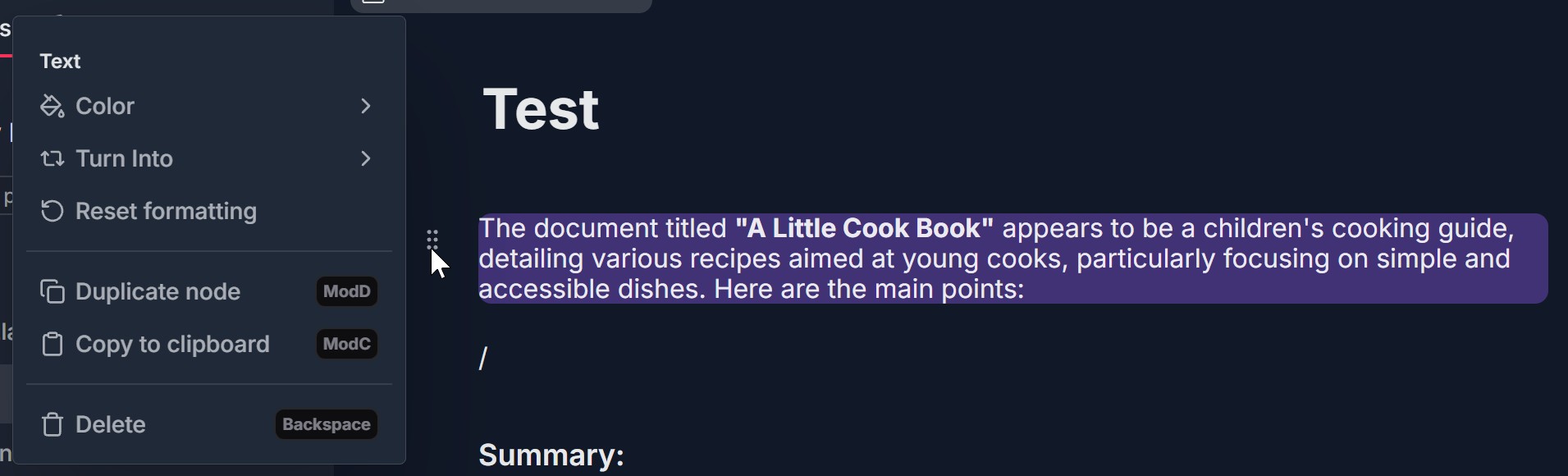
- Right-click selected text to open the context menu: Text, Color (with palette icon), Turn Into (submenu: Text, H1/H2/H3, Bullet List, Ordered List, Task List, Blockquote, Code Block), Reset formatting, Duplicate node (Mod+D), Copy to clipboard (Mod+C), Delete (Backspace)
- Choose an option from the context menu to apply it

4. Move, Add Below, and Manage Blocks
- Each content block has a drag handle (six dots in a 2x3 grid) to the left of the block. A tooltip may say Drag to move and Click to open menu
- Drag the handle to move the block up or down on the canvas
- Click the + button next to a block to add a new block below that block
- Use the three-dot menu (kebab icon) next to a block for additional options (if available)
- To delete a block, select it and press Backspace or use Delete from the context menu. To duplicate a block, use Duplicate node (Mod+D) from the context menu
5. Improve Text with AI
- Select the text you want to improve on the canvas
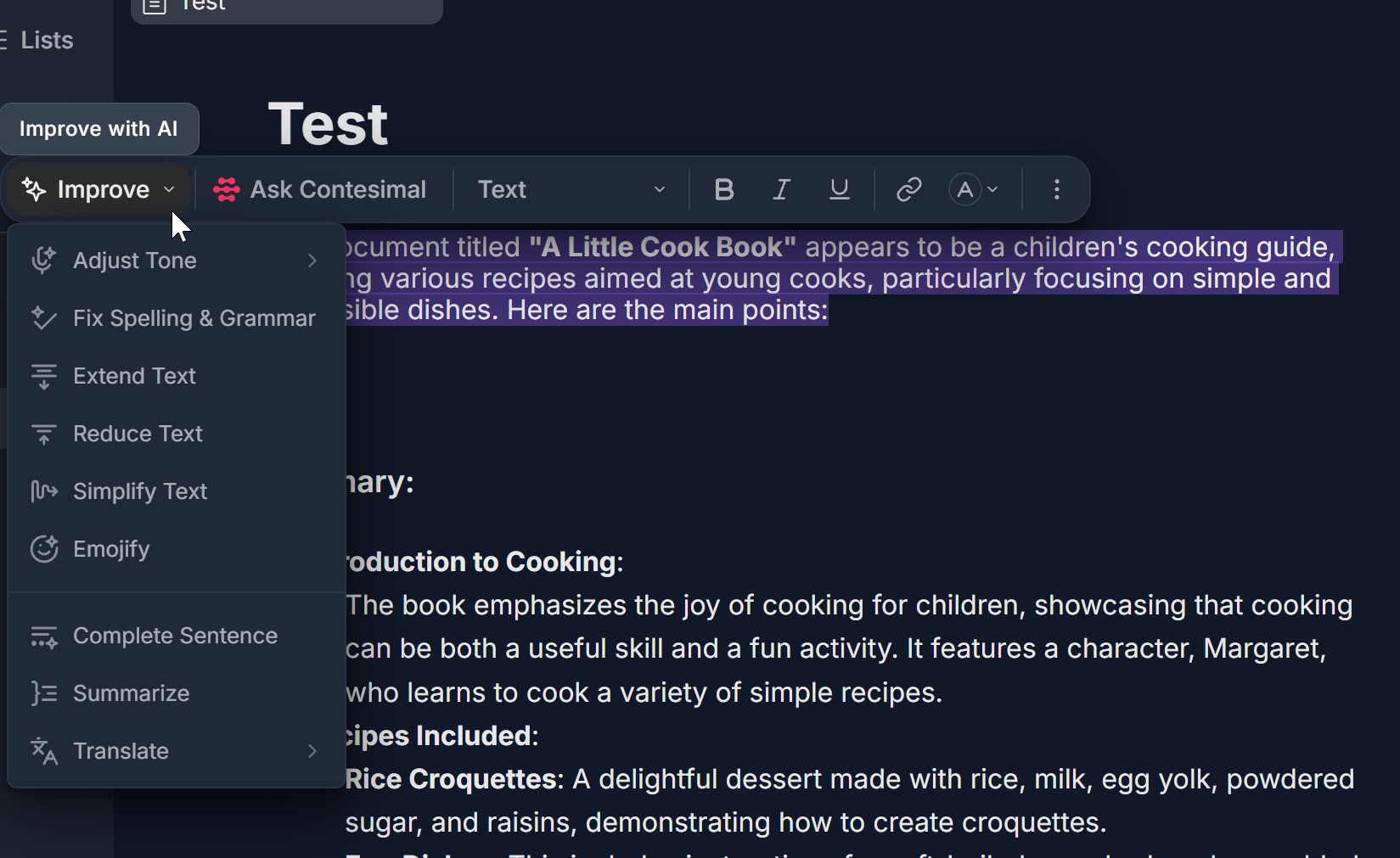
- In the floating toolbar, click Improve (sparkle icon). The Improve dropdown opens with options such as: Adjust Tone, Fix Spelling & Grammar, Extend Text, Reduce Text, Simplify Text, Emojify, Complete Sentence, Summarize, Translate (may have sub-options for language)
- Click an option; the AI applies the change to the selected text. The canvas updates with the new version
- Use Ask Contesimal in the toolbar to ask a question or request different edits about the selection
6. Insert an Image
- Click the + button next to a block, or type / and choose Insert Image from the command palette
- The Insert Image modal opens with: Search files, Sort by Date (Newest), a drag-and-drop area with Drag and drop images, + Add Files (browse your device), and Generate Image (AI-generated image), Thumbnails of existing/uploaded images below
- Upload: Drag files into the area or click + Add Files and select image(s). Generate: Click Generate Image to create an image with AI
- Select an image (click its thumbnail) and click Insert to add it to the canvas. Click Cancel to close without inserting
7. View Content Details and Use Selected Text in AI Research
- Content Details — Click the information (i) icon at the bottom center (or bottom right) of the canvas. The Content Details pop-up opens showing Name, Content Type (e.g., General Document), Owner, Created on, Modified on (with editor name). Click X or outside to close
- Selected text in AI Research — Select text on the canvas. The selection appears in the AI RESEARCH panel (right side) in a SELECTED TEXT box. In that panel, type in Ask a question about your content. and optionally use + @ Add Context; the AI will use the selected text as context. Click X on the SELECTED TEXT box to clear it from context
Troubleshooting Guide
A. I Can't Add a Block or the + Menu Doesn't Open
- Issue: You click the + button or type / but nothing happens, or the add menu doesn't appear.
- Fix:
- Click directly on the + button to the left of a block (tooltip may say Click to add below). If a menu appears, choose a block type; if not, a default block may be inserted
- Type / in the canvas (in an empty block or at the start of a line) to open the command palette; if /Filter... appears, type to filter options and select one
- Ensure you have edit access to the project and document; some roles may be view-only
- Refresh the page and try again; if the issue continues, try a different browser or contact Support
B. Floating Toolbar or Context Menu Doesn't Appear When I Select Text
- Issue: You select text but the formatting toolbar or right-click menu doesn't show.
- Fix:
- Select a range of text (click and drag); the toolbar typically appears above the selection after a short delay
- Right-click on the selected text to open the context menu; ensure the click is on the highlighted area
- Scroll so the selection is fully visible; the toolbar may be positioned above it and could be off-screen
- Refresh the page and select the text again
- If the toolbar or menu never appears, check if the document is in a read-only or restricted mode; contact Support if needed
C. I Can't Move a Block (Drag Doesn't Work)
- Issue: You drag the six-dot handle but the block doesn't move.
- Fix:
- Use the drag handle (six dots) to the left of the block, not the text itself. The tooltip may say Drag to move
- Click and hold on the handle, then drag up or down; release to drop the block in the new position
- Ensure the document is not read-only and you have permission to edit
- Try a different browser if drag-and-drop is unreliable; contact Support if it still fails
D. Insert Image Modal Doesn't Open or Image Doesn't Insert
- Issue: You choose Insert Image but the modal doesn't appear, or you click Insert but the image doesn't show on the canvas.
- Fix:
- Open Insert Image via + -> Insert Image or / -> Insert Image from the command palette
- In the modal, select an image (click its thumbnail) before clicking Insert; some UIs require a selection
- For upload, use + Add Files or drag files into the drag-and-drop area; wait for upload to finish before inserting
- For Generate Image, complete the AI generation flow and then select the generated image and click Insert
- Check your network connection for uploads or AI generation
- If the modal doesn't open, refresh the page and try again; contact Support with your browser and steps taken
E. Improve or Ask Contesimal Doesn't Work
- Issue: You select text and click Improve or Ask Contesimal but nothing happens or you get an error.
- Fix:
- Select some text first; Improve and Ask Contesimal act on the current selection
- Check your network connection; AI features require a request to the server
- If Improve dropdown doesn't open, click Improve again or ensure the toolbar is fully visible
- For Ask Contesimal, a panel or chat may open; check for a new window or tab, or a slide-out panel
- Refresh the page and try again; if the issue persists, contact Support with your account and what you see
F. Selected Text Doesn't Appear in AI Research or SELECTED TEXT Box Is Missing
- Issue: You select text on the canvas but it doesn't show in the AI RESEARCH panel's SELECTED TEXT box.
- Fix:
- Ensure the AI RESEARCH panel is open (e.g., on the right side of the screen). If it's closed, open it from the project or document view
- Select text on the canvas (click and drag); the selection should sync to the SELECTED TEXT box in the AI RESEARCH panel. If it doesn't update immediately, click in the canvas again or reselect
- Check that you are in the same project/document context; the AI RESEARCH panel is tied to the current project
- Refresh the page, open the document and AI RESEARCH panel again, and select text once more
- If the SELECTED TEXT box never appears, the feature may depend on plan or product version; contact Support for guidance
G. Content Details or Info Icon Not Showing
- Issue: You don't see the information (i) icon or the Content Details pop-up doesn't open.
- Fix:
- Look for the information (i) icon at the bottom center or bottom right of the canvas area (sometimes next to a purple/brain-style icon)
- Click the (i) icon to open the Content Details pop-up
- If the icon is missing, the layout may have changed; check the document header or a menu for Details or Info
- Refresh the page and look again; contact Support if you need the exact location for your product version
Was this article helpful?
That’s Great!
Thank you for your feedback
Sorry! We couldn't be helpful
Thank you for your feedback
Feedback sent
We appreciate your effort and will try to fix the article