Description
AI Image Creation in Contesimal lets you generate images using AI and use them directly in your project content. The feature is available from the Project Creation Canvas when you add or insert an image: alongside uploading your own files, you can choose to generate a new image with AI instead.
You describe the image you want in a text prompt (e.g., a scene, a subject, a mood, or a style), and the AI produces an image that matches. To steer the result, you can optionally upload a reference image so the AI follows your vision more closely, set an aspect ratio (e.g., 1:1, 16:9) for the output dimensions, and pick a visual style (e.g., Anime, Art Nouveau, Black and White) from a searchable list. Generation runs in the background: you can close the screen and keep working; when the image is ready, it is added to your gallery. From there you can save it for reuse and insert it onto the canvas so it appears in your document alongside your text and other content.
AI Image Creation is designed so you can produce custom imagery for summaries, reports, and presentations without leaving Contesimal or switching to external tools. It is especially useful when you need visuals that match a specific topic, theme, or aesthetic and want them created and placed in one place.
How This Feature Helps You
- Start from the canvas — On the Project Creation Canvas, click the + button and choose Insert Image. The Insert Image modal opens with Search files, Sort by Date (Newest), a drag-and-drop area (Drag and drop images), + Add Files (upload from your device), and Generate Image (sparkle icon). Click Generate Image to start the AI image flow.
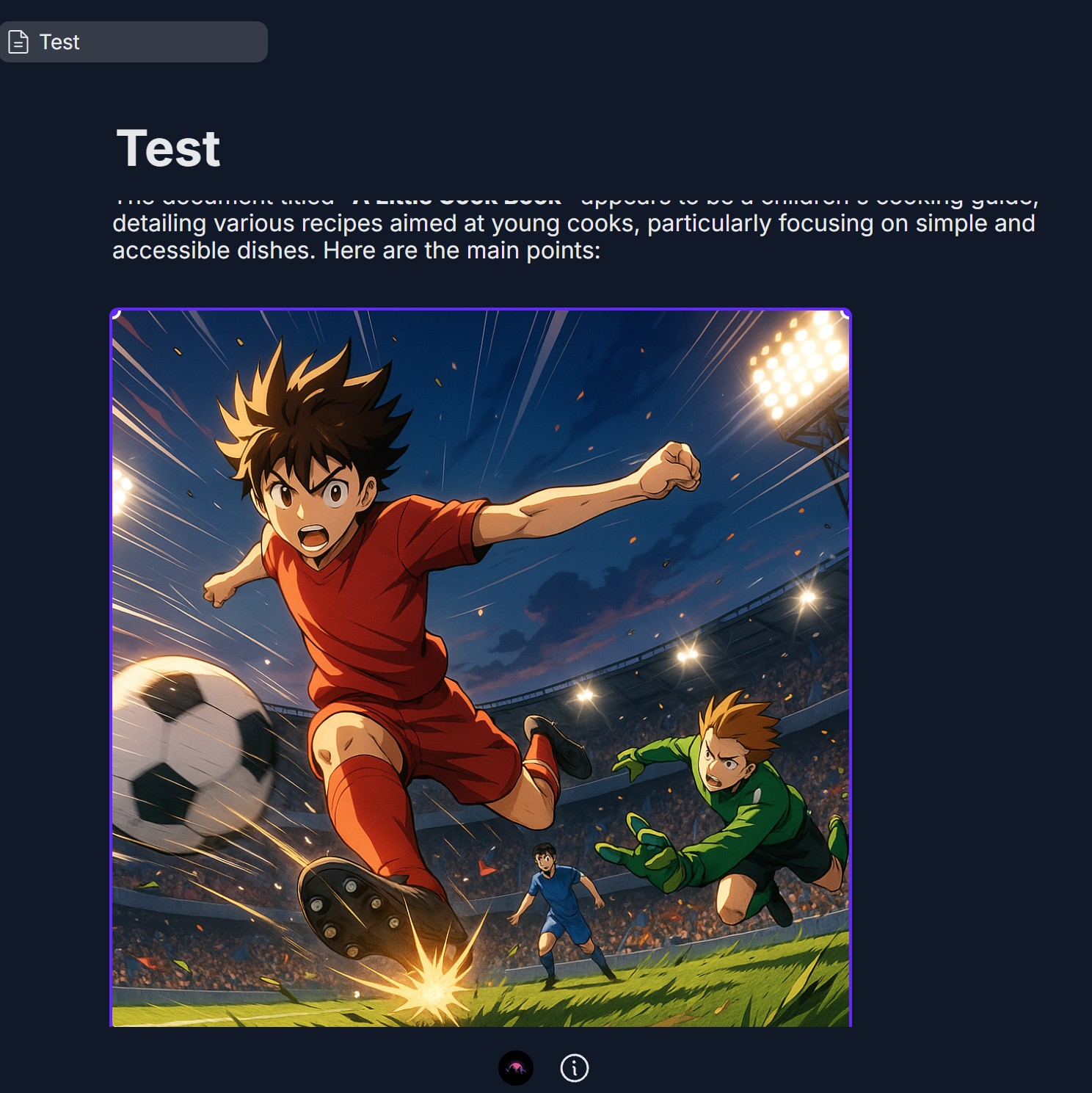
- Describe what you want — In the Generate Image screen, type your prompt in the field (e.g., Describe the image you want to generate... or a high quality picture for football match). The description guides the AI.
- Optional: image reference, ratio, style — You can add an image reference (upload a reference image so the AI follows your vision; Upload 1 reference image modal: Adding a reference image guides our AI engine to create your specific vision, drag-and-drop or click to upload, PNG/JPG/SVG max 5 MB). Select aspect ratio (e.g., Ratio dropdown: 1:1, 3:4, 4:3, 9:16, 16:9). Select a style (e.g., Styles dropdown: Search styles, then choose Anime, Art Nouveau, Black and White, Blog Illustration, Bold Portrait, or others). These options refine the output.
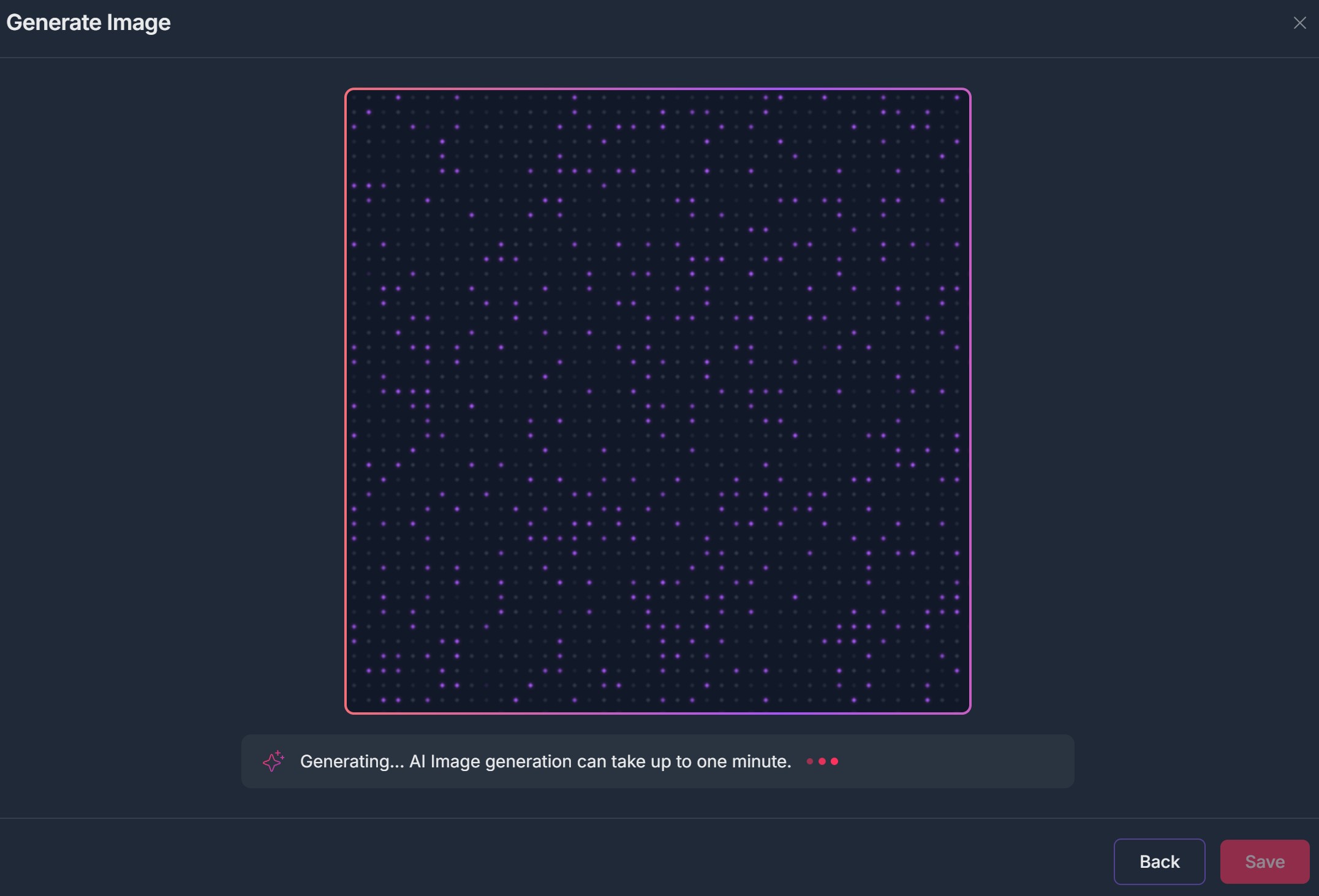
- Generate and wait — Click the Generate image button (up arrow icon). The screen shows Generating... AI Image generation can take up to one minute. You may see an Image Generation in Progress message: Image generation is still in progress. You can safely close this screen and continue your work. We'll add the image to your gallery once it's complete. You can close the screen and keep working; the image will appear in your gallery when ready.
- Save and insert — When the image is generated, it is displayed with an Ask a Follow up field (for refinements), and tags for Image Reference, Ratio, and Style (e.g., Anime). Click Save to add the image to your gallery. Click Insert (or return to the Insert Image modal, select the new image, and click Insert) to add it to the canvas. The image then appears in your document.
Benefits
- Custom imagery — Create images that match your content (e.g., football match, cooking, presentations) without external tools.
- Flexible options — Use a text prompt only, or add a reference image, aspect ratio, and style for more control.
- No blocking — Close the screen during generation and continue working; the image is added to your gallery when complete.
- Reuse and insert — Save to gallery for later use; insert into the canvas to place the image in your document.
Step-by-Step:
The step-by-step instructions, screen descriptions, and UI details in this section are examples only. They are intended to help you understand how the feature works and how to complete the flow. Screens, labels, and layout may change in future product updates.
1. Open the Insert Image Modal from the Canvas
- Log in to your Contesimal account and open a project and document on the Project Creation Canvas
- On the canvas, click the + button to the left of a content block (or use / and choose Insert Image from the command palette)
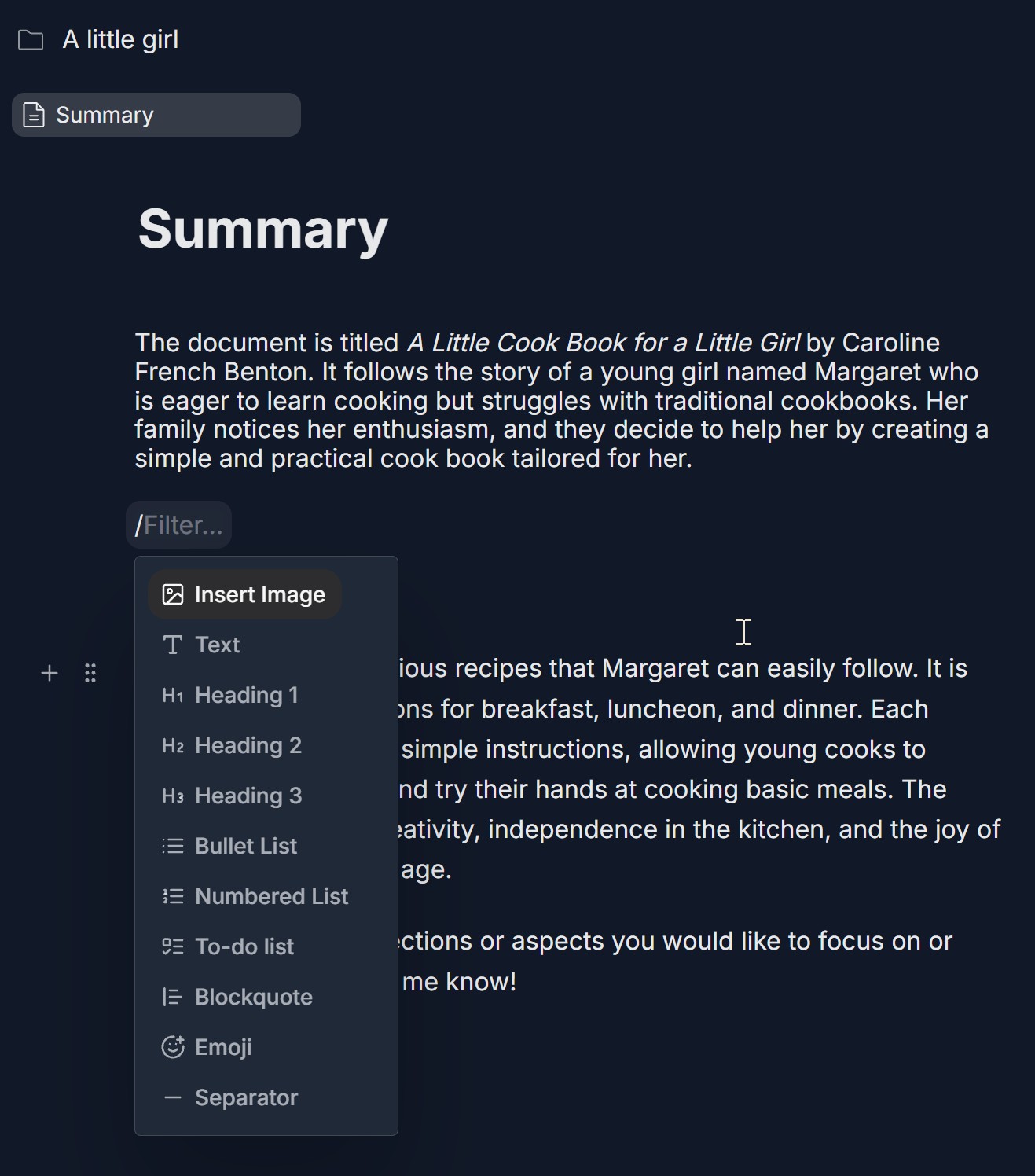
- In the menu that appears, click Insert Image (picture frame icon). The Insert Image modal opens
- The modal shows: Title: Insert Image and an X to close; Search files (with magnifying glass) and Sort by Date (Newest) dropdown; a large drag-and-drop area with Drag and drop images, + Add Files (upload from your device), and Generate Image (button with sparkle icon); Thumbnails of existing images in your gallery below (if any); Cancel and Insert buttons at the bottom
- You can either upload an existing image (+ Add Files or drag-and-drop) or generate a new one with AI. To generate, proceed to Step 2
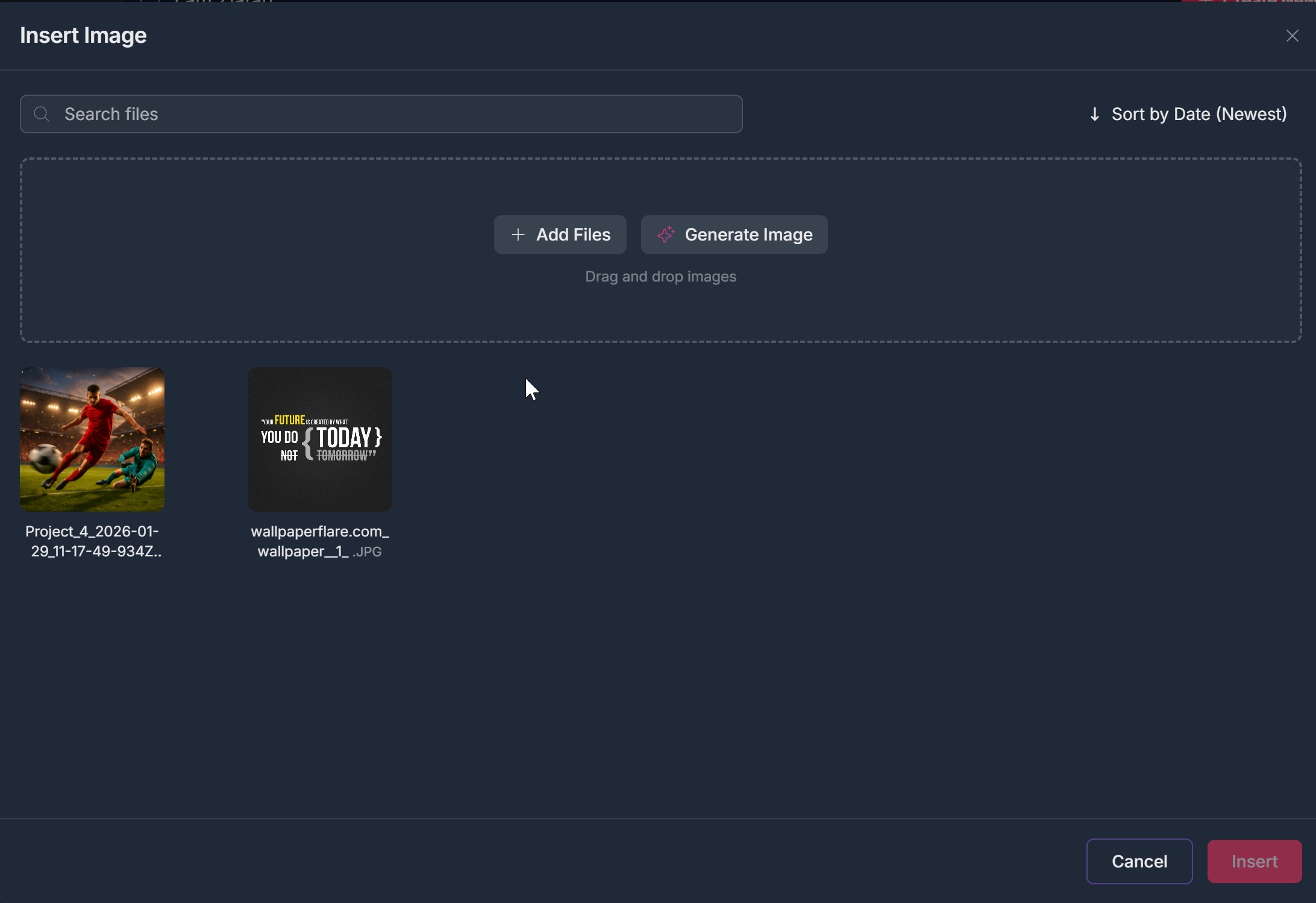
2. Click Generate Image
- In the Insert Image modal, click the Generate Image button (sparkle/star icon)
- The Generate Image flow opens (a new screen or modal titled Generate Image with an X to close). You may see Back and Save buttons at the bottom for navigation
- You are now in the AI image creation flow
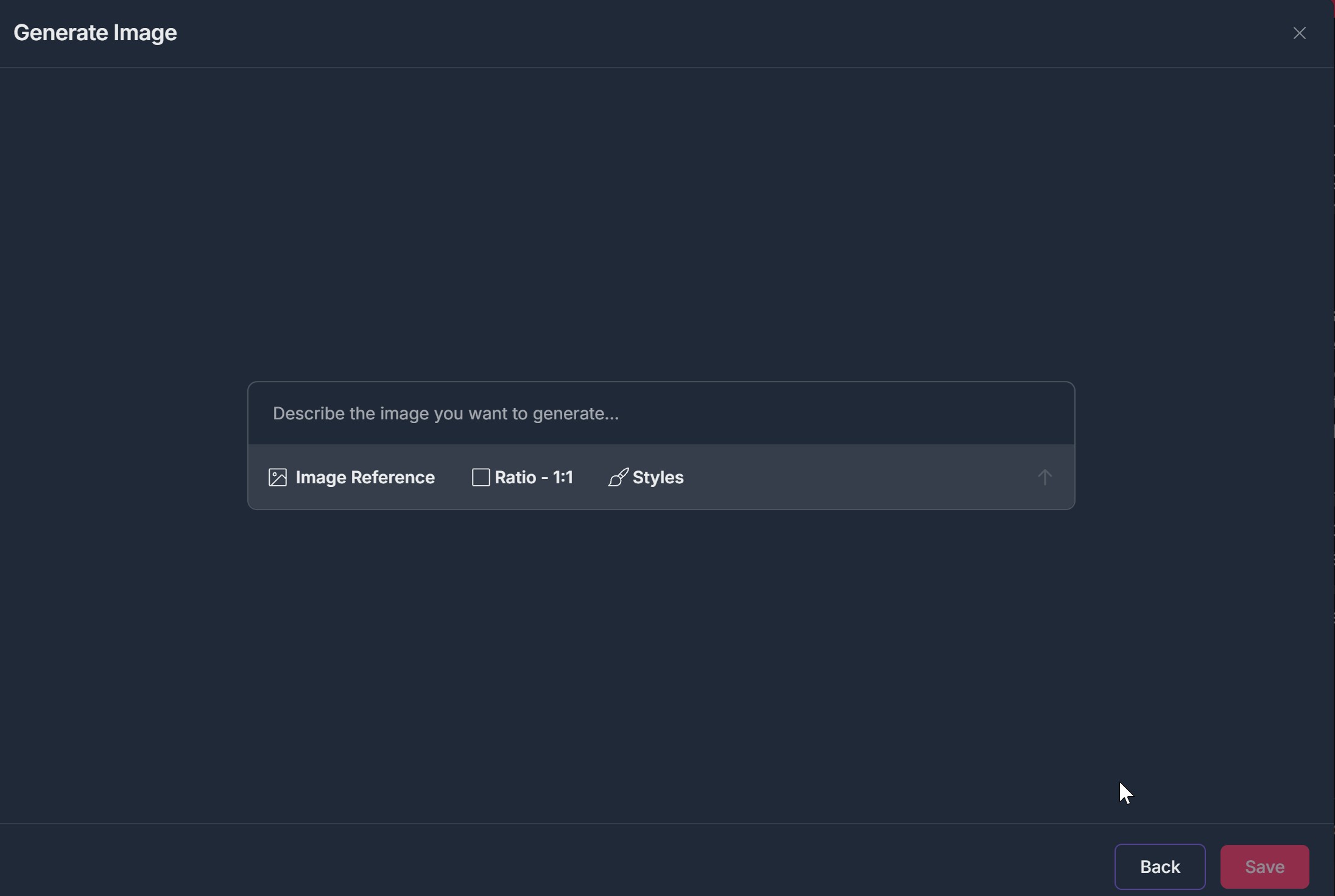
3. Describe the Image You Want to Generate
- In the Generate Image screen, find the text input field (placeholder may say Describe the image you want to generate...)
- Type your prompt — a short description of the image you want (e.g., a high quality picture for football match, a young chef in a kitchen, a sunset over mountains)
- The prompt is used by the AI to create the image. You can edit it at any time before generating
4. (Optional) Add Image Reference, Select Aspect Ratio, and Select Style
- Image reference (optional) — To guide the AI with a reference image, click Image Reference (picture frame icon). A tooltip may say Upload a reference image to guide the AI generation. The Upload 1 reference image modal opens with: Adding a reference image guides our AI engine to create your specific vision, a drag-and-drop area (Drop files here or click to upload), and supported formats PNG, JPG, SVG, max 5 MB. Drag a file in or click to upload. Close the modal when done; the reference is used when you generate
- Aspect ratio — Click Ratio (e.g., Ratio - 1:1 or a ratio dropdown). A dropdown opens with options such as 1:1, 3:4, 4:3, 9:16, 16:9. Select the ratio you want for the generated image
- Style — Click Styles (paintbrush/palette icon). A Styles dropdown opens with Search styles at the top and a list of styles with thumbnails (e.g., Anime, Art Nouveau, Black and White, Blog Illustration, Bold Portrait). Click a style to select it; it may appear as a tag (e.g., Anime with an X to remove). You can search to find more styles
- These options are optional; you can generate with only the text prompt if you prefer
5. Click Generate Image (Up Arrow)
- When your prompt (and optionally reference, ratio, and style) are set, click the Generate image button — typically an up arrow icon on the right of the options bar, or a button labeled Generate image
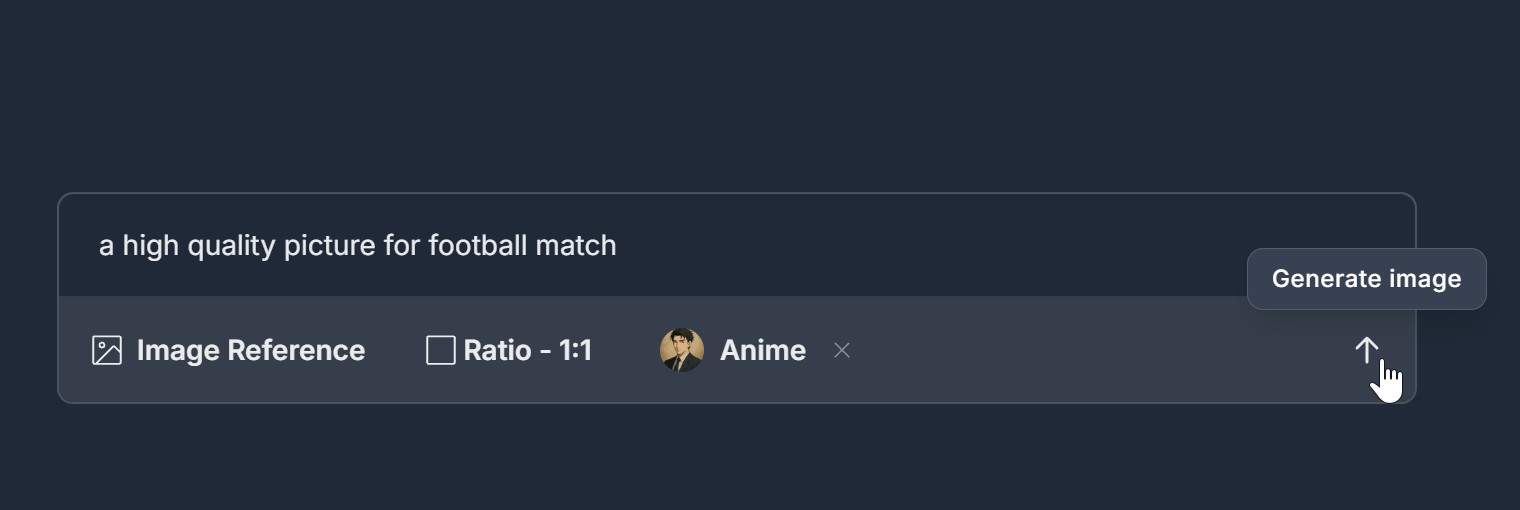
- Generation starts. The screen changes to show the generating state
6. Image Is Generating
- The screen shows a generation in progress state: a central area (e.g., with a gradient border or pattern) and a status message such as Generating... AI Image generation can take up to one minute. An animated indicator (e.g., dots or sparkle icon) may appear
- You can wait on this screen, or you may see an option to continue elsewhere (see Step 7)
7. Generation in Progress — You Can Close the Screen
- A modal or message may appear: Image Generation in Progress with an information icon. The text explains: Image generation is still in progress. You can safely close this screen and continue your work. We'll add the image to your gallery once it's complete.
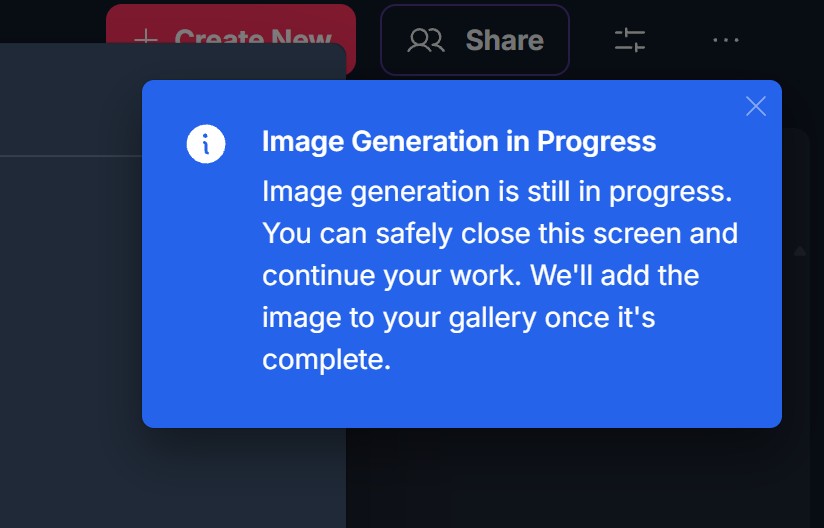
- Click X to close the modal, or close the Generate Image screen. You can continue working on the canvas or other tasks
- When generation finishes, the image is added to your gallery automatically. You can open Insert Image again later and select it to insert
8. Image Is Generated — Save to Gallery and Insert to Canvas
- When the image is ready, the Generate Image screen shows the generated image (e.g., in a framed area). Below it you may see: Ask a Follow up — an input field to refine or generate again with an additional prompt; Tags — Image Reference, Ratio (e.g., Ratio - 1:1), and the selected Style (e.g., Anime with an X to remove); Back (purple) and Save (red) buttons at the bottom
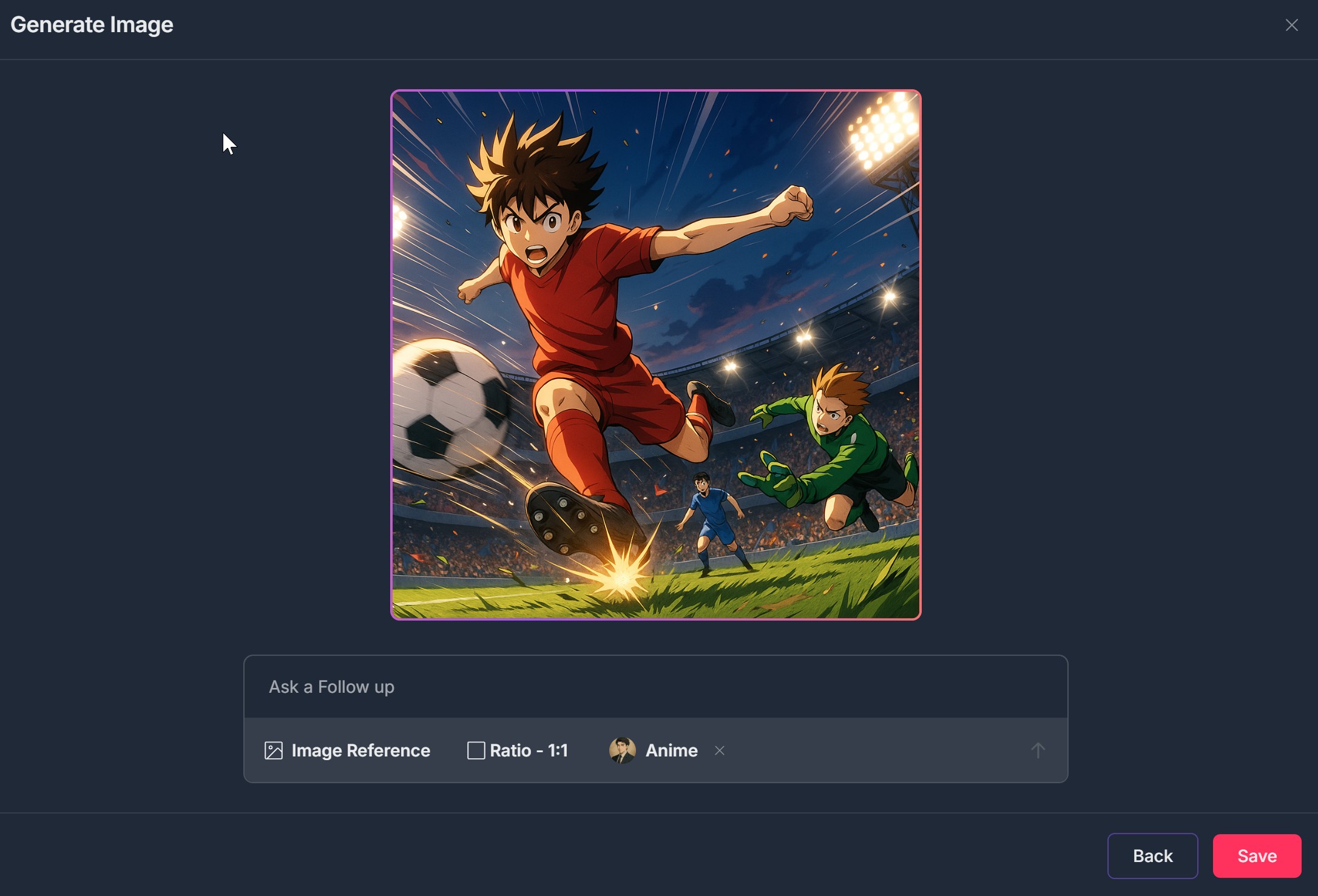
- Save to gallery — Click Save. The image is added to your gallery. You can use it later from the Insert Image modal
- Insert to canvas — To add the image to your canvas (document): If an Insert option is shown on the same screen (e.g., after Save or in place of Save in some flows), click Insert to place the image on the canvas, or Close the Generate Image screen, open Insert Image again from the canvas (+ -> Insert Image), find the newly generated image in the gallery (thumbnails below; it may be at the top if sorted by newest), select it, and click Insert
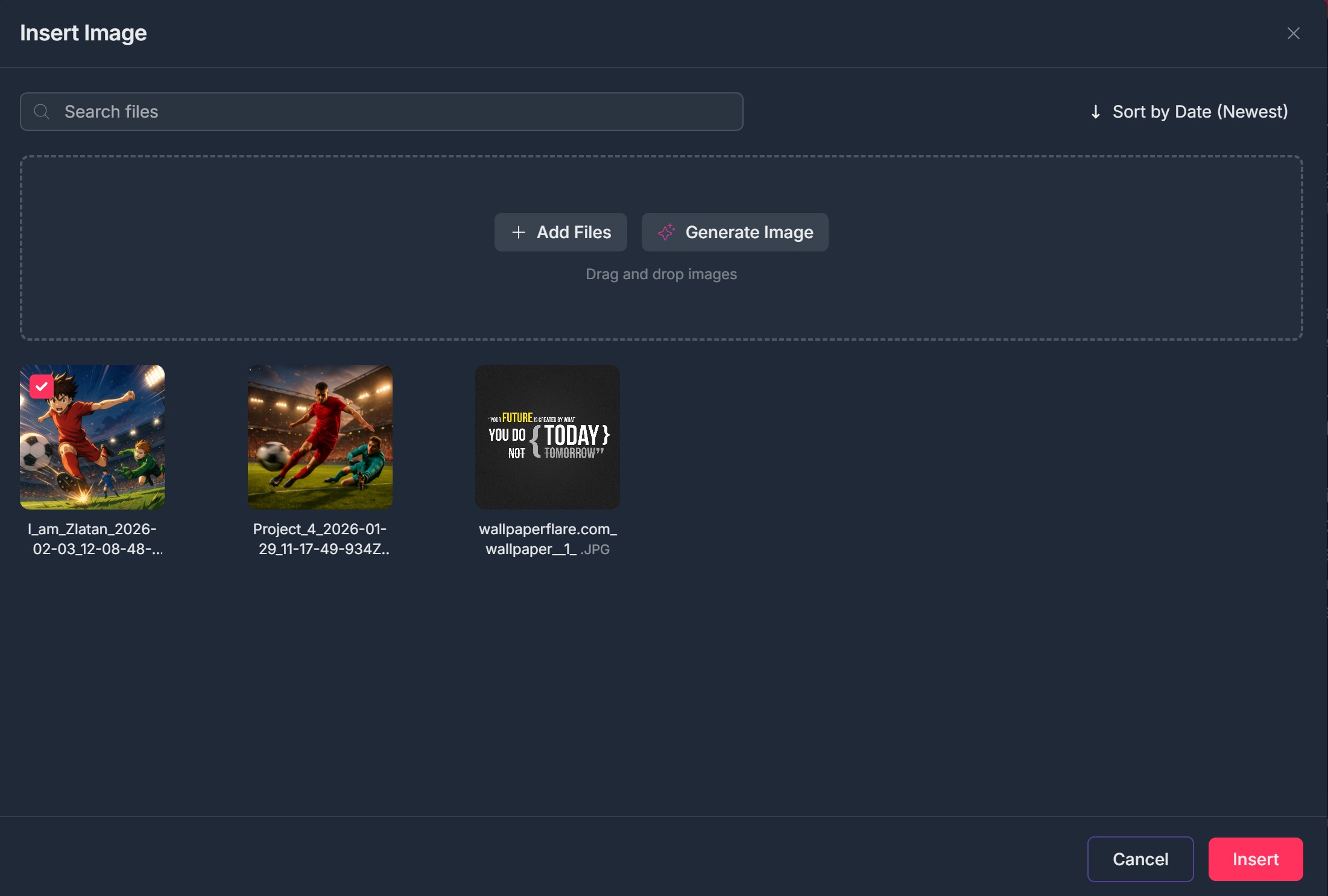
- The image appears on the canvas in your document. You can move or resize it like other canvas content
Troubleshooting Guide
A. I Don't See Insert Image or Generate Image
- Issue: You click + on the canvas but don't see Insert Image, or the Insert Image modal doesn't show a Generate Image button.
- Fix:
- Click the + button to the left of a content block and look for Insert Image (picture frame icon) in the menu. If you typed /, type insert or image to filter and select Insert Image
- In the Insert Image modal, look for the Generate Image button (sparkle/star icon), often next to + Add Files inside the drag-and-drop area
- Ensure you have edit access to the project and that the feature is available for your plan; contact Support if the option is missing
B. My Prompt Is Ignored or the Image Doesn't Match
- Issue: You entered a description but the generated image doesn't reflect it, or the prompt field seems empty.
- Fix:
- Type your prompt in the Describe the image you want to generate... field before clicking Generate. Clear, specific descriptions (e.g., a high quality picture for football match) usually work better
- If you added a reference image, the AI may prioritize the reference; try without a reference or adjust the prompt to complement the reference
- Style and ratio affect the result; try changing style or ratio and generating again
- Use Ask a Follow up after the first generation to refine (e.g., more dramatic lighting, add a stadium crowd)
C. Image Reference Upload Fails or Doesn't Apply
- Issue: You try to upload a reference image but it fails or doesn't seem to be used.
- Fix:
- Use PNG, JPG, or SVG and ensure the file is under 5 MB
- Drag and drop into Drop files here or click to upload or click the area to open the file picker
- Wait for the upload to finish before closing the modal or generating
- If the reference still doesn't apply, try again without it to confirm generation works, then re-add the reference; contact Support if it consistently fails
D. Generation Is Stuck or Takes Too Long
- Issue: The screen shows Generating... for a long time or never finishes.
- Fix:
- AI image generation can take up to one minute or a bit more. Wait at least one to two minutes
- If you see Image Generation in Progress and the option to close, you can close the screen and continue working; the image will be added to your gallery when ready. Check the gallery (Insert Image -> thumbnails) after a few minutes
- Refresh the page and open Insert Image again; look for the new image in the gallery (e.g., Sort by Date Newest)
- Check your network connection; generation requires a stable connection. If it still never completes, contact Support with your prompt and when you started
E. I Don't See My Generated Image in the Gallery
- Issue: Generation seemed to complete but the image doesn't appear in the Insert Image gallery.
- Fix:
- If you closed the screen during generation, the image may still be processing. Wait a minute or two and open Insert Image again; sort by Date (Newest) and look at the top
- Ensure you clicked Save on the result screen when the image was displayed; some flows require Save to add it to the gallery
- Search in the Insert Image modal (Search files) or scroll the gallery; the filename may include a date or project name
- Refresh the page and open Insert Image again; if the image still doesn't appear, contact Support
F. I Can't Insert the Image onto the Canvas
- Issue: The image is in the gallery but doesn't insert when I click Insert.
- Fix:
- In the Insert Image modal, click the thumbnail of the image you want so it is selected (e.g., checkmark or highlight). Then click Insert
- If you are on the Generate Image result screen, use Insert there if available, or close and use + -> Insert Image on the canvas, select the new image, and click Insert
- Ensure the canvas (document) is in edit mode and you have permission to edit; try inserting into a different block or document
- Refresh the page and try again; contact Support if Insert never adds the image to the canvas
Was this article helpful?
That’s Great!
Thank you for your feedback
Sorry! We couldn't be helpful
Thank you for your feedback
Feedback sent
We appreciate your effort and will try to fix the article