Description
The Edit Document Metadata feature in the Content Library allows you to change a document's metadata and AI tags. You can update the cover image, title, description, content date, content type, format type, and AI tags (Themes, Topics, Audiences) from one screen. When you use edit document:
- Edit metadata - Change Title, Description, Content Date, and Content Type (dropdown)
- Change cover image - Use Upload New Cover Image to replace the document's cover image (PNG, max 800 KB)
- Set format type - Select one format type from a grid (e.g., Blog Post, Podcast Transcript, Reference Magazine Article); use "Show all" for more options
- Edit AI tags - Edit Themes, Topics, and Audiences as comma-separated text; "Remember to place commas in between unique tags."
- Save once - Click Save Changes to apply all edits; a confirmation toast appears and the document updates in the library
This feature helps you keep document metadata accurate, categorize content correctly, and present documents consistently in your Content Library.
Step-by-Step Usage
The step-by-step instructions, screen descriptions, and UI details in this section are examples only. They are intended to help you understand how the feature works and how to complete the flow. Screens, labels, and layout may change in future product updates.
1. Access the Content Library and locate the document
- Log in to your Contesimal account
- Navigate to Content Library (in the left sidebar)
- Locate the document you want to edit
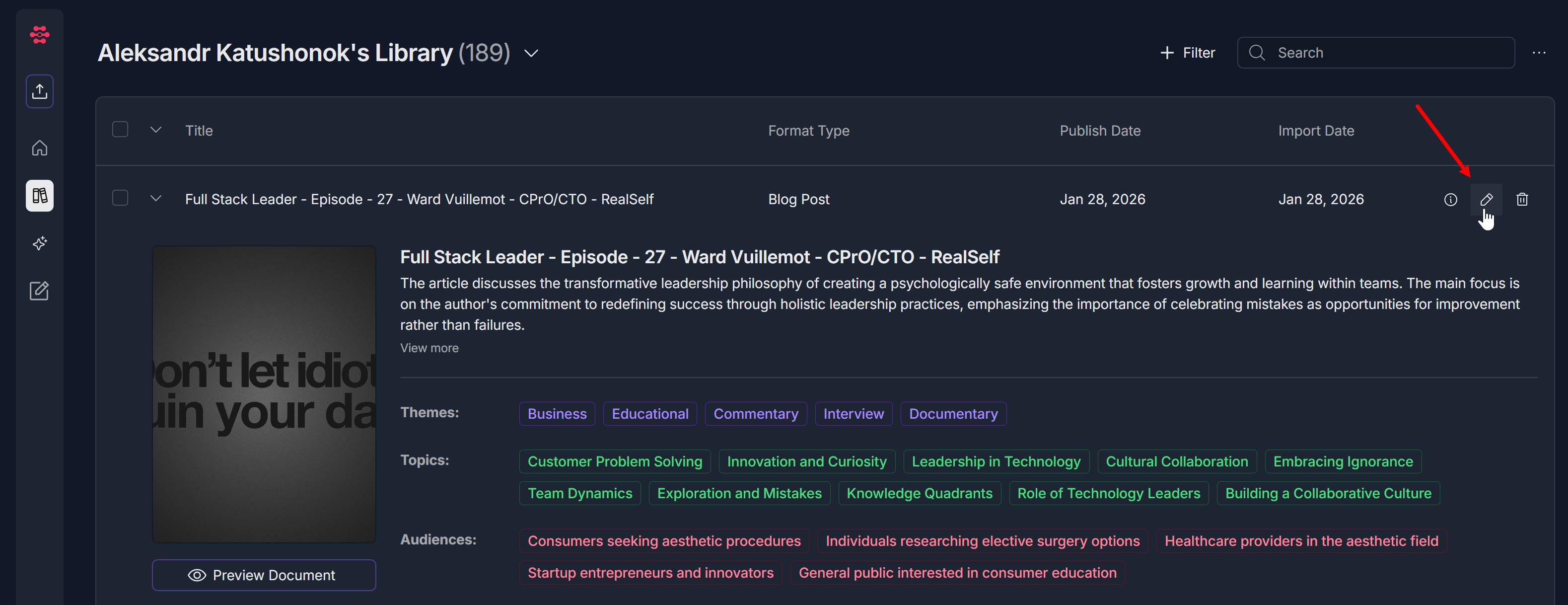
- The document is shown on the page: the document row displays title, Format Type, Publish Date, and Import Date
- When the document's details are visible on the page, you will see: Document title, description (with "View more" if long), and a cover image placeholder on the left; Themes, Topics, and Audiences tags; The Preview Document button below the image; On the right side of the document row: an information (i) icon, an edit (pencil) icon, and a delete (trash) icon
2. Open the Edit Document Metadata screen
- On the document row, find the edit (pencil) icon on the right (next to the information and delete icons)
- Click the edit (pencil) icon
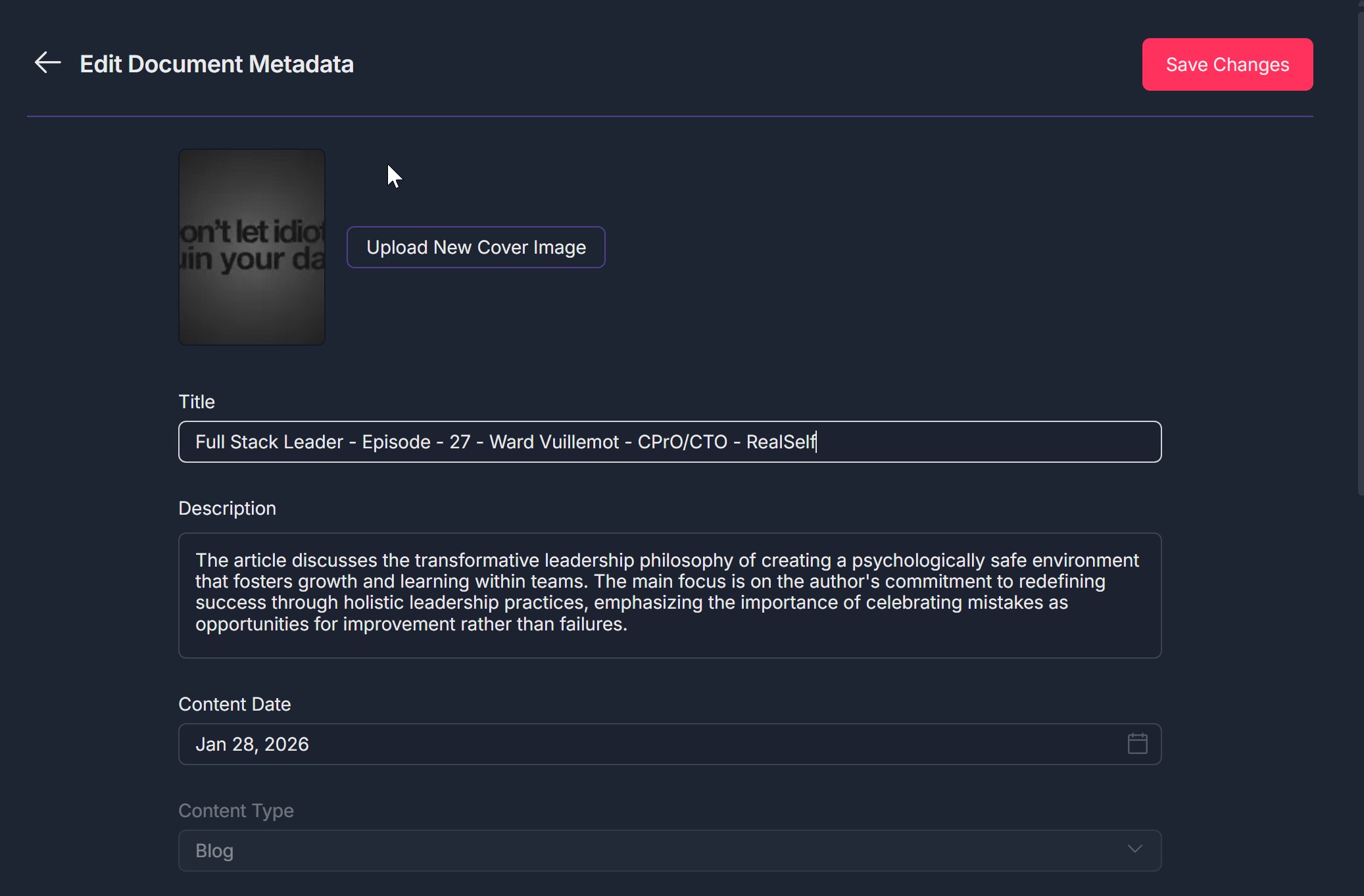
- The Edit Document Metadata screen opens (modal or full screen)
- The screen shows: A back arrow and title "Edit Document Metadata" at the top left; A red Save Changes button at the top right; Cover image section: placeholder (or current image) on the left and an Upload New Cover Image button on the right; Title (single-line input), Description (multi-line text area), Content Date (with calendar icon), and Content Type (dropdown, e.g., "Blog")
3. Edit the fields you want to change
- Cover image: Click Upload New Cover Image to choose and upload a new image (PNG, max 800 KB)
- Title: Edit the text in the Title field
- Description: Edit the text in the Description field
- Content Date: Use the date field and calendar icon to set or change the content date
- Content Type: Not editable
- Format Type: Scroll to the Format Type section; under "Select One of the Following:" choose one option from the grid (e.g., Blog Post, Podcast Transcript, Audio Script, Reference Magazine Article, Reference Book); click Show all to see more format types
- AI Tags - Themes: In the Themes input field, enter or edit tags separated by commas; use the note: "Remember to place commas in between unique tags."
- AI Tags - Topics: In the Topics input field, enter or edit topics separated by commas; same comma rule applies
- AI Tags - Audiences: In the Audiences input field, enter or edit audiences separated by commas; same comma rule applies
- You can revert Themes/Topics/Audiences to original by clicking "revert" icon as soon as any changes are done
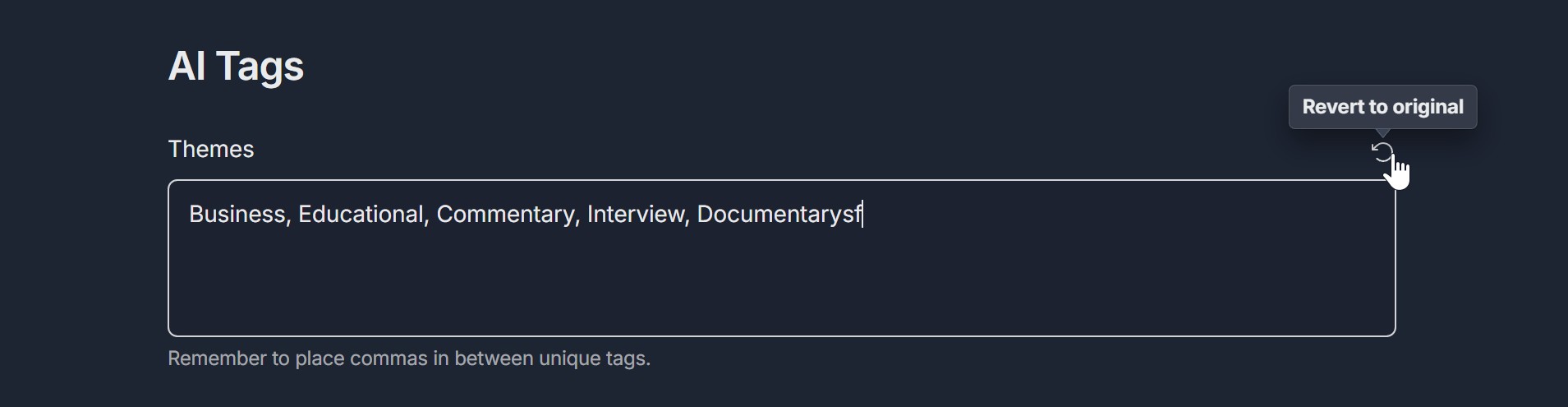
- You can revert Themes/Topics/Audiences to original by clicking "revert" icon as soon as any changes are done
4. Save your changes
- Click the red Save Changes button at the top right of the Edit Document Metadata screen
- The screen closes and you return to the Content Library
- A confirmation toast "Document changes successfully" appears
- The document's metadata (title, description, date, content type, format type, cover image, Themes, Topics, Audiences) is updated and visible on the document row and in the document details on the page
Troubleshooting Guide
A. Edit (Pencil) Icon Doesn't Open Edit Document Metadata
- Issue: You click the edit (pencil) icon on the document row but the Edit Document Metadata pop-up does not open.
- Fix:
- Ensure you clicked directly on the pencil icon, not on the information icon, delete icon, or document text
- Confirm the document row is expanded (you see the detail section with image, description, and metadata)
- Refresh the page and expand the document again, then click the pencil icon
- Check if a pop-up or ad blocker is blocking the modal
- Try a different browser (Chrome, Edge, Firefox) if the issue persists
- Clear browser cache and cookies, then try again
- If the icon is grayed out or disabled, you may not have permission to edit; contact your admin or Support
- If the issue continues, contact Support with your browser and steps taken
B. Save Changes Doesn't Save or Screen Doesn't Close
- Issue: You clicked "Save Changes" but the screen doesn't close, or your edits (metadata, format type, or AI tags) are not saved.
- Fix:
- Ensure you clicked Save Changes (red button at top right), not only edited the fields
- Check your network connection; a failed request can prevent saving
- Refresh the page and open Edit Document Metadata again (pencil icon), re-enter your changes, then click Save Changes
- If the screen doesn't close, try clicking Save Changes again or the back arrow; if it still sticks, refresh the page
- If saving consistently fails, contact Support with your browser and steps taken
C. No Confirmation Toast or Document Metadata Doesn't Update
- Issue: After saving, you don't see a confirmation toast, or the document's metadata in the library still shows the old values.
- Fix:
- Wait a few seconds; the toast may appear briefly and the list may need a moment to refresh
- Scroll or click elsewhere in the Content Library to trigger a refresh, or refresh the page
- Check the document row and expanded details on the page to see if the new metadata appears
- Verify you clicked Save Changes after making your edits
- If metadata still doesn't update, repeat the edit and save; if it persists, contact Support with document name and what you changed
D. Format Type or AI Tags Not Saving Correctly
- Issue: You selected a format type or edited Themes, Topics, or Audiences but the selection or tags don't appear or revert after saving.
- Fix:
- For Format Type: Ensure you selected one option from the grid (the selected one shows a checkmark or highlight); click Save Changes after selecting
- For AI Tags (Themes, Topics, Audiences): Use commas to separate tags (e.g., "Tag1, Tag2, Tag3"); follow the note "Remember to place commas in between unique tags."
- Avoid commas inside a single tag unless the product supports it; remove extra spaces if tags display with unwanted spaces
- Re-open Edit Document Metadata, re-enter or re-select, then click Save Changes
- If the issue persists, contact Support with the field name and what you entered
E. Cover Image or Other Field Not Visible or Editable
- Issue: The Edit Document Metadata screen opens but the cover image section, Format Type, or AI Tags section is missing or not editable.
- Fix:
- Scroll down on the Edit Document Metadata screen; Format Type and AI Tags (Themes, Topics, Audiences) appear below Title, Description, Content Date, and Content Type
- Refresh the page and open Edit Document Metadata again (pencil icon)
- Check if your account or plan includes full metadata editing; if unsure, contact Support
- Try a different browser if fields are missing or disabled
- If the issue continues, contact Support with what you see on the screen
Was this article helpful?
That’s Great!
Thank you for your feedback
Sorry! We couldn't be helpful
Thank you for your feedback
Feedback sent
We appreciate your effort and will try to fix the article