Description
The Keyword Search field is a powerful tool located in the Contesimal Content Library that allows users to perform real-time searches across all documents and content. This functionality provides:
- Full-text search across all indexed documents
- Multi-document search capabilities
- Case-insensitive matching by default
- Partial word matching for flexible search results
- Search result navigation with pagination support
- Export search results metadata
Important Note: Currently, search works by matching keywords within the Document title, summary, and metadata, since these fields are visible to users.
Step-by-Step:
The step-by-step instructions, screen descriptions, and UI details in this section are examples only. They are intended to help you understand how the feature works and how to complete the flow. Screens, labels, and layout may change in future product updates.
Step 1: Access the Search Field
- Navigate to the Content Library section
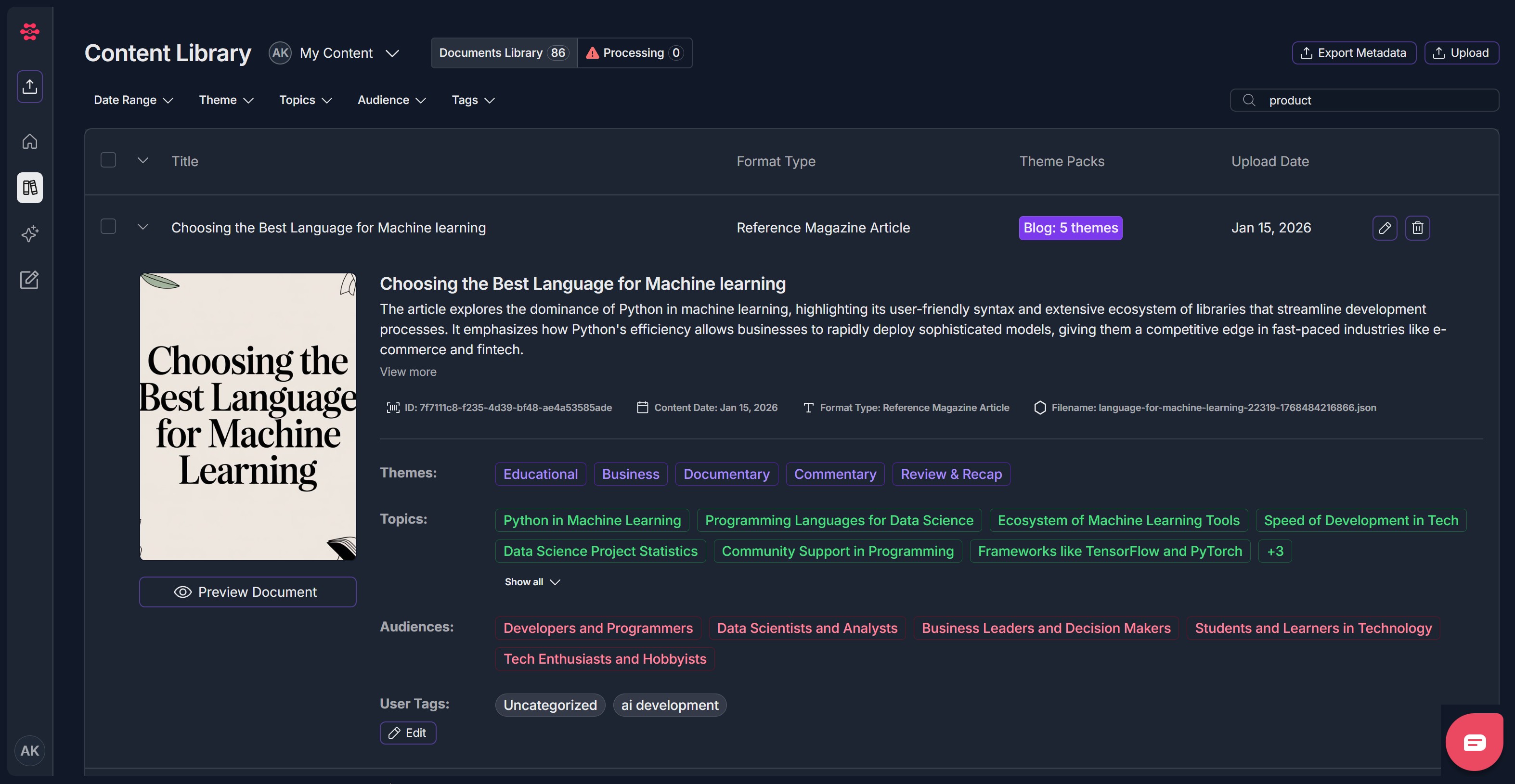
- Locate the search field at the top right of the content area
- Click on the search input field to activate it

Step 2: Enter Search Terms
- Type any word, phrase, or keyword you want to search for
- Click 'Enter' or loop icon
- Results will appear below the search field
Step 3: Review Search Results
- View the list of matching documents in the results area
- Each result shows:
- Document title and brief description
- Document format type
- Document Theme packs
- Upload date
- Document Topics
- Document Audiences
- User Tags (if added)
Step 4: Navigate Document Previews
- Click "Preview Document" on any search result to open the document preview
- Click "Edit" (pencil) icon on any search result to open edit document metadata pop-up
- Click "Delete" (trash) icon on any search result to open delete document pop-up
- Scroll through the document to see all occurrences
Troubleshooting Guide
A. No Search Results Found
- Issue: search returns "No results found" message
- Fix:
- Check spelling of search terms
- Try alternative spellings or synonyms
- Use partial words (e.g., "config" instead of "configuration")
- Wait for indexing to complete (may take a few minutes for new documents)
- Check document upload status in the library
- Refresh the page and try search again
B: Slow Search Performance
- Issue: delayed results appearance
- Fix:
- Reduce search scope
- Use more specific keywords
- Search within a specific document category
- Try search in incognito/private browsing mode
- Restart browser and try again
- Check internet connection
C: Search Results Incomplete or Inaccurate
- Issue: expected documents not appearing in results
- Fix:
- Contact system administrator to rebuild search index
- Wait for index rebuild completion (may take several hours)
- Try search again after index rebuild
D: Search Field Unresponsive
- Issue: cannot click or type in search field
- Fix:
- Refresh the entire page
- Clear browser cache completely
- Try accessing from different browser
E: Empty Content Library
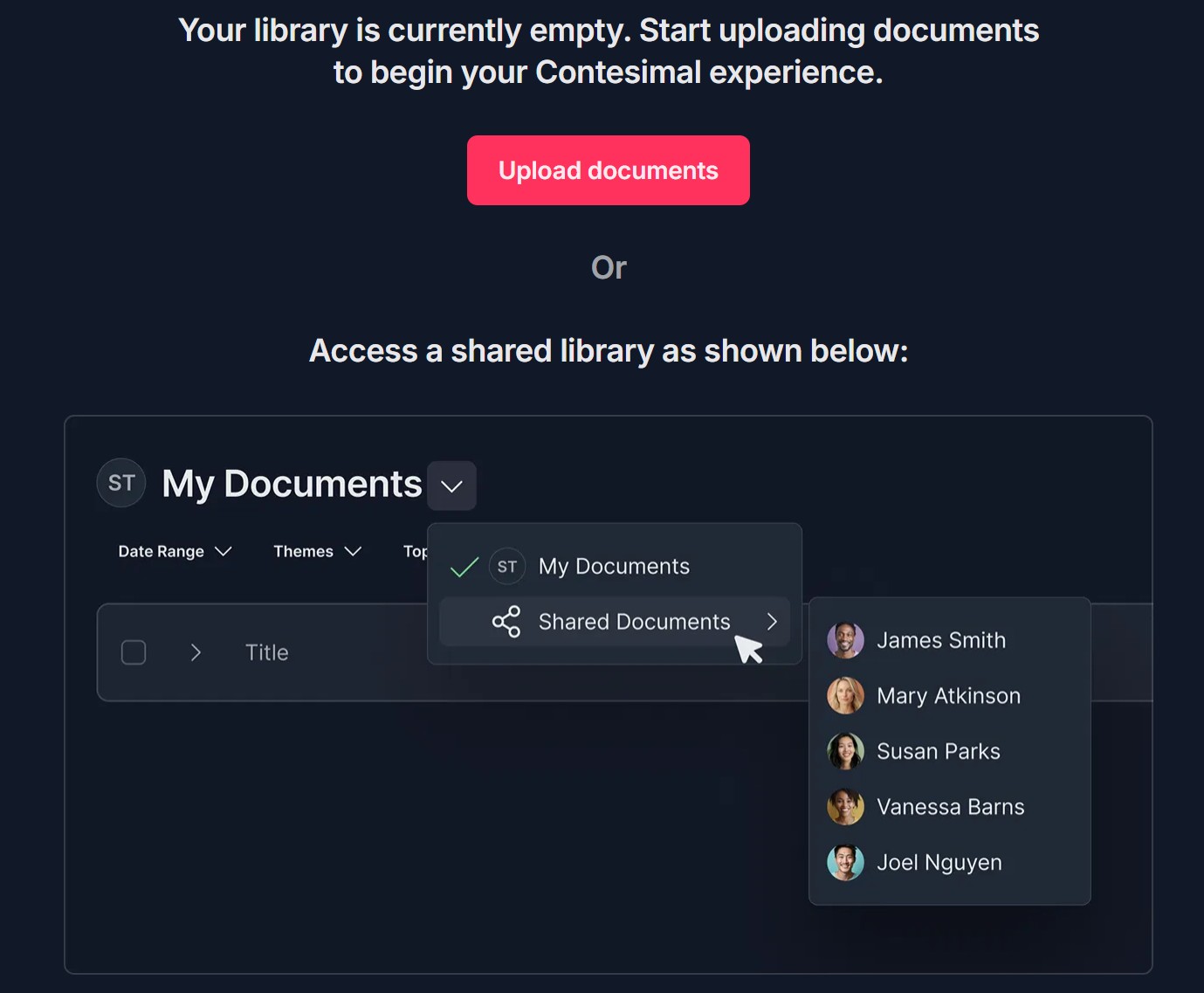
- Issue: "Your library is currently empty..." error
- Fix:
- Upload documents
- Access a shared library
Search Optimization
- Use specific, relevant keywords rather than generic terms
- Combine multiple related terms for better results
Performance Tips
- Avoid extremely broad searches that return thousands of results
- Leverage document categories to limit search scope
Was this article helpful?
That’s Great!
Thank you for your feedback
Sorry! We couldn't be helpful
Thank you for your feedback
Feedback sent
We appreciate your effort and will try to fix the article