Description
The Browse Documents feature allows you to navigate through your Content Library documents using pagination controls. This feature helps you view and access all documents in your library by organizing them into pages. When you browse documents:
- View documents in pages - Documents are organized into pages for easier navigation
- Control items per page - Choose how many documents to display per page (10, 20, 30, or 50)
- Navigate between pages - Use pagination controls to move through all your documents
- See document range - View which documents you're currently viewing (e.g., "1-10 of 188")
- Jump to specific pages - Navigate directly to any page in your document collection
- Track your position - See which page you're on and how many total pages exist
By default, 10 documents are displayed per page, making it easy to browse through your Content Library. The pagination controls at the bottom of the page allow you to navigate through all your documents efficiently.
Step-by-Step Usage
The step-by-step instructions, screen descriptions, and UI details in this section are examples only. They are intended to help you understand how the feature works and how to complete the flow. Screens, labels, and layout may change in future product updates.
1. Access the Content Library
- Log in to your Contesimal account
- Navigate to Content Library (usually in the left sidebar or main navigation)
- The Content Library page will open, displaying your documents
- By default, the first 10 documents are displayed on page 1
- You'll see the pagination controls at the bottom of the page
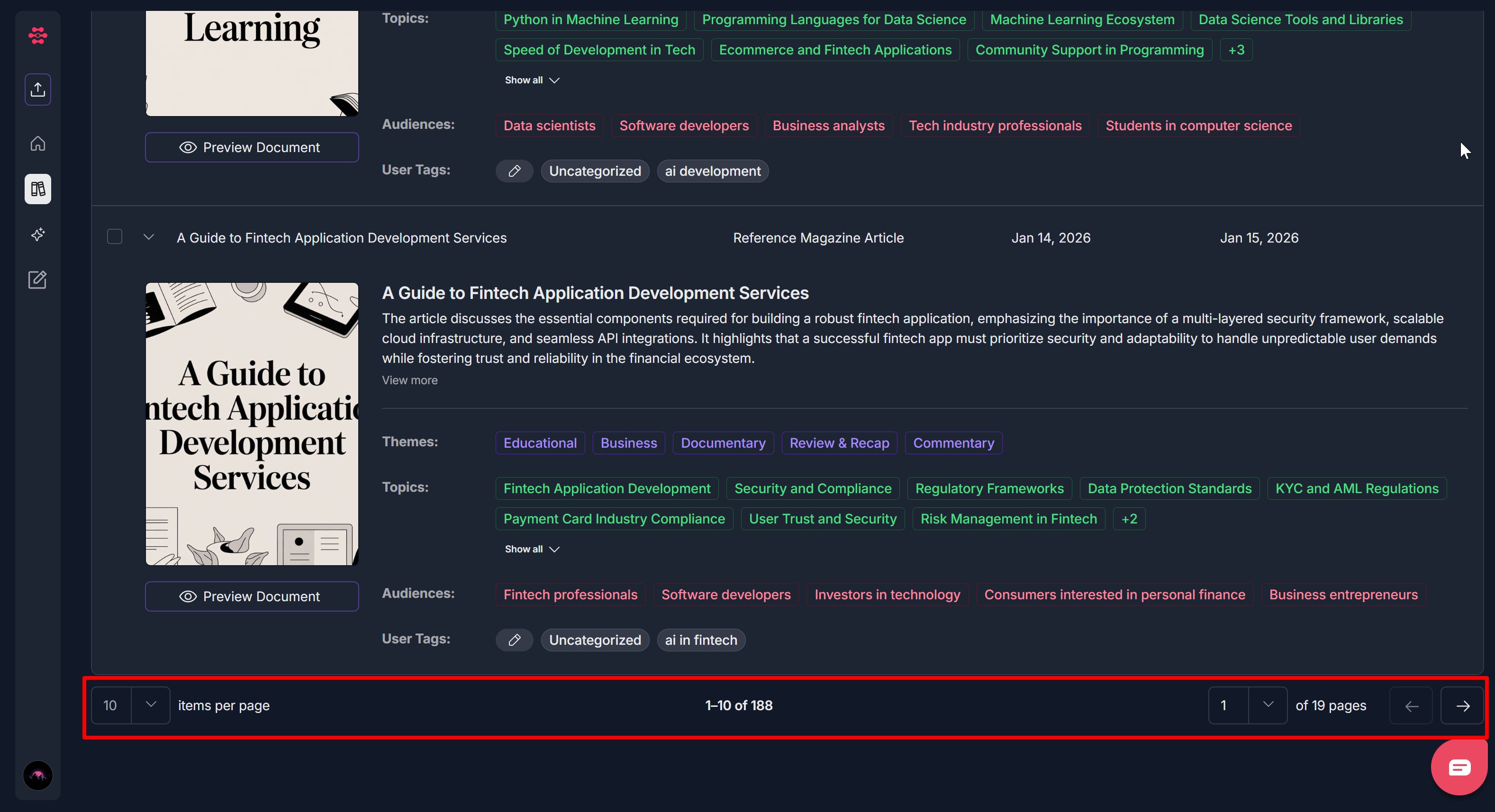
2. View Documents on Current Page
- Documents are displayed in a list or grid format
- Each document shows: Document title, Preview or thumbnail (if available), Metadata (tags, topics, audiences, etc.), Other document information
- Scroll through the documents on the current page
- Click on any document to open it or view details
3. Navigate to Next Page
- Look at the bottom of the Content Library page
- Find the pagination controls on the right side
- Locate the right arrow button (→)
- Click the right arrow button to go to the next page
- The page will update to show the next set of documents
- The page number indicator will update (e.g., "2 of 19 pages")
4. Navigate to Previous Page
- Look at the bottom of the Content Library page
- Find the pagination controls on the right side
- Locate the left arrow button (←)
- Click the left arrow button to go to the previous page
- The page will update to show the previous set of documents
- The page number indicator will update (e.g., "1 of 19 pages")
- Note: The left arrow is disabled/grayed out when you're on the first page
5. Jump to a Specific Page
- Look at the bottom of the Content Library page
- Find the pagination controls on the right side
- Locate the page number dropdown (shows current page number, e.g., "1")
- Click on the page number dropdown
- A dropdown menu will open showing all available pages (e.g., "1", "2", "3", ... "19")
- Click on the page number you want to jump to
- The page will update to show documents from that page
- The document range will update (e.g., "11-20 of 188" for page 2)
6. Change Items Per Page
- Look at the bottom of the Content Library page
- Find the pagination controls on the left side
- Locate the "items per page" dropdown (shows current number, e.g., "10")
- Click on the "items per page" dropdown
- A dropdown menu will open showing available options: 10 (default), 20, 30, 50
- Click on the number of items you want per page
- The page will update to show that many documents per page
- The total number of pages will recalculate based on the new items per page
- Example: If you have 188 documents: 10 per page = 19 pages, 20 per page = 10 pages (rounded up), 30 per page = 7 pages (rounded up), 50 per page = 4 pages (rounded up)
7. Understand Document Range Display
- Look at the bottom center of the Content Library page
- You'll see a range indicator showing: "X-Y of Z"
- X = First document number on current page
- Y = Last document number on current page
- Z = Total number of documents in your library
- Examples:
- "1-10 of 188" = Viewing documents 1 through 10 out of 188 total
- "11-20 of 188" = Viewing documents 11 through 20 out of 188 total
- "181-188 of 188" = Viewing the last 8 documents (on the last page)
- This helps you understand: Which documents you're currently viewing, How many documents you have in total, Your position in the document collection
8. Navigate Through All Pages
- To browse through all documents:
- Start on page 1 (default)
- Use the right arrow (→) to move forward through pages
- Use the left arrow (←) to move backward through pages
- Or use the page number dropdown to jump to specific pages
- To quickly reach the end:
- Use the page number dropdown
- Select the last page number
- You'll see the final documents in your library
- To return to the beginning:
- Use the page number dropdown
- Select page "1"
- Or use the left arrow repeatedly until you reach page 1
Troubleshooting Guide
A. Pagination Controls Don't Appear
Issue: You're on the Content Library page but don't see pagination controls at the bottom.
Fix:
- Scroll down to the bottom of the page - pagination controls are at the very bottom
- Check if you have documents in your library - pagination may not appear if you have 10 or fewer documents (all fit on one page)
- Refresh the page and check again
- Clear browser cache and cookies, then refresh
- Check if you're viewing a filtered view - pagination should still appear
- Try a different browser (Chrome, Edge, Firefox) if the issue persists
- If pagination consistently doesn't appear, contact Support with: How many documents you have in your library, Whether you're using any filters, What browser you're using
B. Navigation Arrows Don't Work
Issue: You click the left or right arrow buttons but the page doesn't change, or the buttons don't respond.
Fix:
- Check if you're on the first page: The left arrow is disabled on page 1 (this is normal)
- Check if you're on the last page: The right arrow is disabled on the last page (this is normal)
- Ensure you're clicking directly on the arrow button, not nearby elements
- Wait a moment - page changes may take a second to load
- Refresh the page and try clicking the arrows again
- Check your internet connection - a slow connection may delay page navigation
- Clear browser cache and cookies, then try again
- Try using the page number dropdown instead of arrows
- If arrows consistently don't work, contact Support with: Which arrow doesn't work (left, right, or both), What page you're currently on, What happens when you click the arrow
C. Page Number Dropdown Doesn't Work
Issue: You try to click the page number dropdown to jump to a specific page, but it doesn't open or doesn't work.
Fix:
- Ensure you're clicking directly on the page number dropdown (shows current page number)
- Wait a moment - the dropdown may take a second to open
- Try clicking the dropdown multiple times
- Refresh the page and try the dropdown again
- Check if the dropdown is blocked by browser pop-up blockers
- Clear browser cache and cookies, then try again
- Try using the arrow buttons instead of the dropdown
- Try a different browser if the issue persists
- If the dropdown consistently doesn't work, contact Support with: Whether the dropdown opens when clicked, Whether you can see page numbers in the dropdown, What happens when you try to select a page number
D. Items Per Page Dropdown Doesn't Work
Issue: You try to change the number of items per page, but the dropdown doesn't work or the change doesn't apply.
Fix:
- Ensure you're clicking directly on the "items per page" dropdown (shows current number, e.g., "10")
- Wait a moment - the dropdown may take a second to open
- Try clicking the dropdown multiple times
- Select an option from the dropdown (10, 20, 30, or 50)
- Wait for the page to update - it may take a moment to recalculate and reload
- Refresh the page and try changing items per page again
- Clear browser cache and cookies, then try again
- Try a different browser if the issue persists
- If the dropdown consistently doesn't work, contact Support with: Whether the dropdown opens, Which option you're trying to select, Whether the page updates after selection
E. Incorrect Page Count or Document Range
Issue: The page count or document range display shows incorrect numbers.
Fix:
- Refresh the page - counts may need to be recalculated
- Check if filters are applied - filtered results will show different counts
- Clear all filters and check the counts again
- Verify the actual number of documents in your library
- Change "items per page" and change it back - this may recalculate counts
- Clear browser cache and cookies, then refresh
- Check if you're viewing a shared library or filtered view
- If counts consistently show incorrect numbers, contact Support with: What the page count shows vs. what you expect, What the document range shows vs. what you expect, How many documents you actually have, Whether any filters are applied
F. Documents Don't Load on New Page
Issue: You type in the search bar within a filter category, but the search doesn't filter the options.
Fix:
- Wait a moment - documents may take a few seconds to load
- Refresh the page and try navigating again
- Check your internet connection - a slow connection may prevent documents from loading
- Try navigating to a different page and then back
- Clear browser cache and cookies, then try again
- Check if filters are applied - they may be filtering out all documents on that page
- Verify that documents exist for that page range
- Try using the page number dropdown instead of arrows
- If documents consistently don't load, contact Support with: Which page you're trying to view, Whether documents appear on other pages, What error message appears (if any)
G. Can't Return to First Page
Issue: You're on a later page but can't navigate back to page 1.
Fix:
- Use the page number dropdown and select "1" directly
- Click the left arrow (←) repeatedly until you reach page 1
- Refresh the page - this should return you to page 1
- Clear browser cache and cookies, then refresh
- Check if you're in a filtered view - try clearing filters first
- If you consistently can't return to page 1, contact Support with: What page you're currently on, What happens when you try to navigate to page 1, Whether the page number dropdown shows page 1
H. Page Navigation Is Slow or Laggy
Issue: Navigating between pages takes a long time or the page is slow to respond.
Fix:
- Wait a moment - page loading may take a few seconds, especially with many documents
- Check your internet connection - a slow connection will cause delays
- Try reducing "items per page" - fewer documents per page may load faster
- Clear browser cache and cookies - cached data may be causing slowdowns
- Close other browser tabs or applications to free up resources
- Try a different browser if the issue persists
- Check if you have many filters applied - complex filters may slow down loading
- If navigation is consistently slow, contact Support with: How long it takes to navigate between pages, Your internet connection speed, How many documents you have, Whether filters are applied
I. Items Per Page Change Doesn't Apply
Issue: You change the items per page setting, but the number of documents displayed doesn't change.
Fix:
- Wait a moment - the page may take a few seconds to update
- Ensure you actually selected an option from the dropdown (not just opened it)
- Try selecting a different number and then back to your desired number
- Refresh the page after changing items per page
- Clear browser cache and cookies, then try again
- Try a different browser if the issue persists
- If the change consistently doesn't apply, contact Support with: Which items per page option you selected, How many documents are actually displayed, Whether the dropdown shows the selected number
J. Pagination Disappears After Applying Filters
Issue: You apply filters and the pagination controls disappear or don't work correctly.
Fix:
- Note: Pagination should still work with filters - it shows pages for filtered results only
- Scroll to the bottom of the page - pagination should still be there
- Check if filters resulted in 10 or fewer documents - pagination may not appear if all results fit on one page
- Clear filters and verify pagination appears, then reapply filters
- Refresh the page and check pagination again
- The page count will be different with filters - this is expected (fewer total documents = fewer pages)
- If pagination consistently doesn't work with filters, contact Support with: Which filters you applied, How many documents match the filters, Whether pagination appears at all
Was this article helpful?
That’s Great!
Thank you for your feedback
Sorry! We couldn't be helpful
Thank you for your feedback
Feedback sent
We appreciate your effort and will try to fix the article