Description
The Content Library Document Sorting feature allows you to filter and organize documents in your Content Library using multiple criteria. This powerful tool helps you quickly find specific documents by applying filters such as date range, theme, topics, audience, tags, and format type. When you use document sorting:
- Filter by multiple criteria - Apply one or more filters to narrow down your document search
- Sort by import date - Documents are displayed by default in import date descending order (newest first)
- Refine your search - Use search functionality within each filter category to quickly find specific options
- View document counts - See how many documents match each filter option
- Apply multiple filters - Combine different filter types to create precise document searches
- Clear filters easily - Reset all filters to return to the default view
By default, all documents in the Content Library are displayed sorted by import date in descending order (newest documents first). The filter feature allows you to customize this view and find exactly what you're looking for.
Default Sorting
- Import Date Descending: By default, all documents are sorted by their import date in descending order
- Newest First: The most recently imported documents appear at the top of the list
- No Filters Applied: All documents are visible when no filters are applied
Filter Categories
- Date Range: Filter documents by when they were imported (using calendar date picker)
- Theme: Filter by content themes (e.g., Business, Educational, Documentary)
- Topics: Filter by specific topics (e.g., AI Integration, Cloud Computing, Customer Experience)
- Audience: Filter by target audience (e.g., Business Executives, Entrepreneurs, IT Professionals)
- Tags: Filter by document tags (e.g., ai, Business, agile development)
- Format Type: Filter by document format (e.g., Blog Post, Podcast Transcript, Reference Magazine Article)
Filter Logic
- Multiple Selections: You can select multiple options within each filter category
- AND Logic: When multiple filters are applied, documents must match ALL selected filters
- Count Display: Each filter option shows the number of documents matching that criteria
- Real-time Updates: Document list updates automatically as you select/deselect filters
Search Within Filters
- Search Functionality: Each filter category (except Date Range) has a search bar
- Quick Filtering: Type keywords to quickly find specific filter options
- Case Insensitive: Search is typically case-insensitive
- Partial Matching: Search matches partial text in filter option names
Step-by-Step Usage
The step-by-step instructions, screen descriptions, and UI details in this section are examples only. They are intended to help you understand how the feature works and how to complete the flow. Screens, labels, and layout may change in future product updates.
1. Access the Filter Menu
- Log in to your Contesimal account
- Navigate to Content Library (in the left sidebar or main navigation)
- You'll see the Content Library page with all your documents
- By default, documents are displayed sorted by import date descending (newest first)
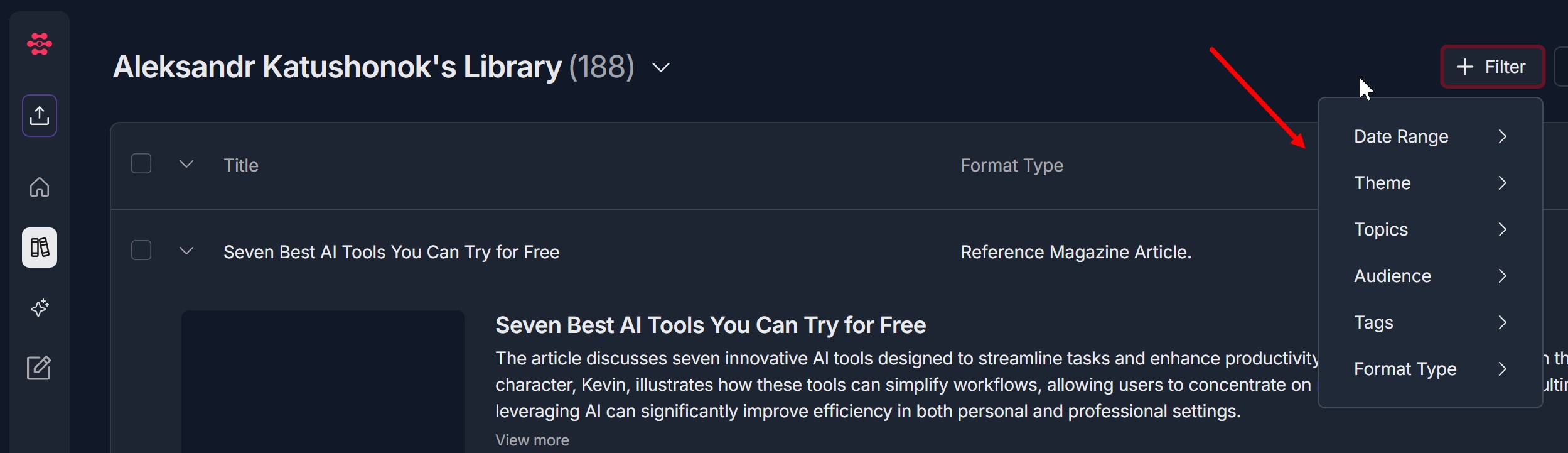
- Look for the "+ Filter" button at the top right of the Content Library page
- Click the "+ Filter" button
- A filter dropdown menu will open on the right side, showing the following filter categories: Date Range, Theme, Topics, Audience, Tags, Format Type
2. Filter by Date Range
- In the filter dropdown menu, click on "Date Range"
- A calendar panel will open to the left of the filter menu
- Calendar navigation:
- Use the left arrow (←) to go to the previous month
- Use the right arrow (→) to go to the next month
- Click on the month name (e.g., "January") to open a month dropdown
- Click on the year (e.g., "2026") to open a year dropdown
- Select a date range:
- Click on a start date in the calendar
- Click on an end date in the calendar (the end date should be after the start date)
- The selected dates will be highlighted
- Apply the date filter:
- Click the "Apply" button (red button at the bottom right of the calendar)
- Documents will be filtered by the selected date range
- Clear the date filter:
- Click the "Clear" button (dark purple button at the bottom left of the calendar) to remove the date filter OR
- Click the "Clear" button at the top left OR
- Click "x" on selected date range at the top
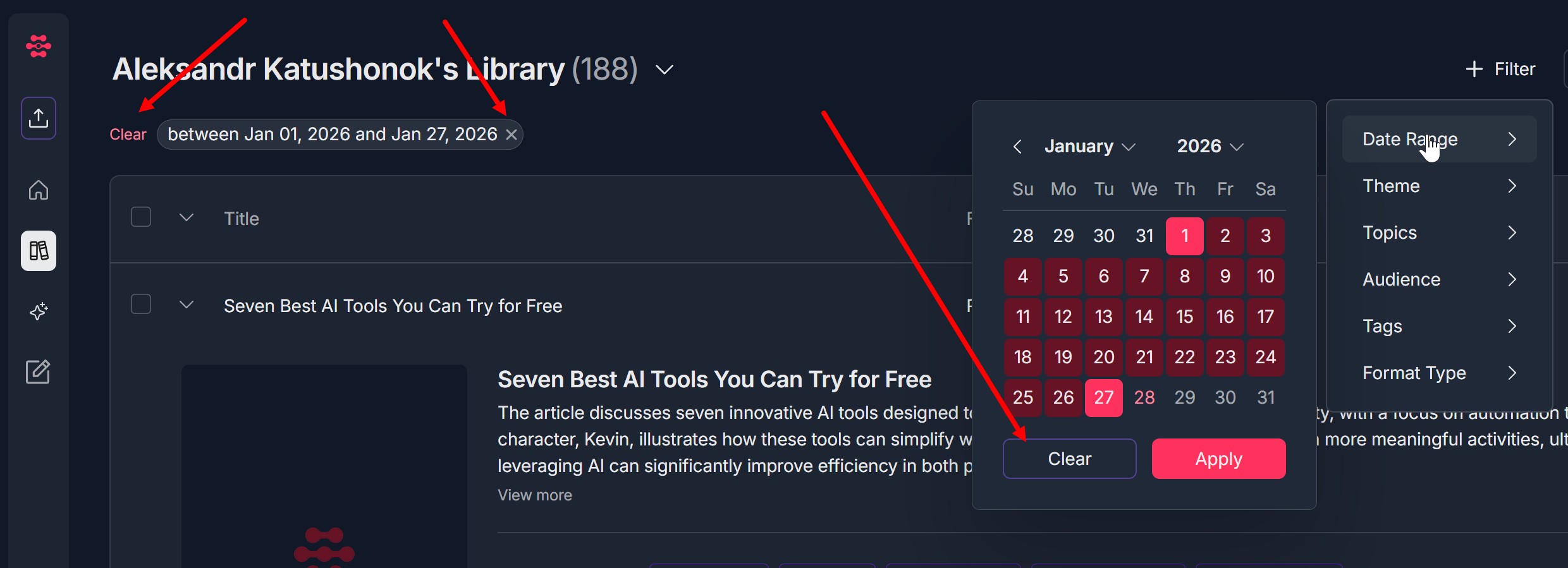
- Date Range filter will be removed and all documents will be visible
3. Filter by Theme
- In the filter dropdown menu, click on "Theme"
- A theme selection panel will open to the left of the filter menu
- Search for themes:
- Use the search bar at the top (with magnifying glass icon) to search for specific options
- Type keywords to filter the list
- Select themes:
- Scroll through the list of available options
- Each option shows a count in parentheses (e.g., "Business (177)", "Educational (186)")
- Click the checkbox next to the option(s) you want to filter by
- You can select multiple options
- View filtered results:
- Documents matching the selected themes will be displayed
- The document list will update automatically
- Clear theme filter:
- Uncheck the selected checkboxes OR
- Close the filter panel and click the "Clear" button at the top left OR
- Click "x" on selected Themes at the top
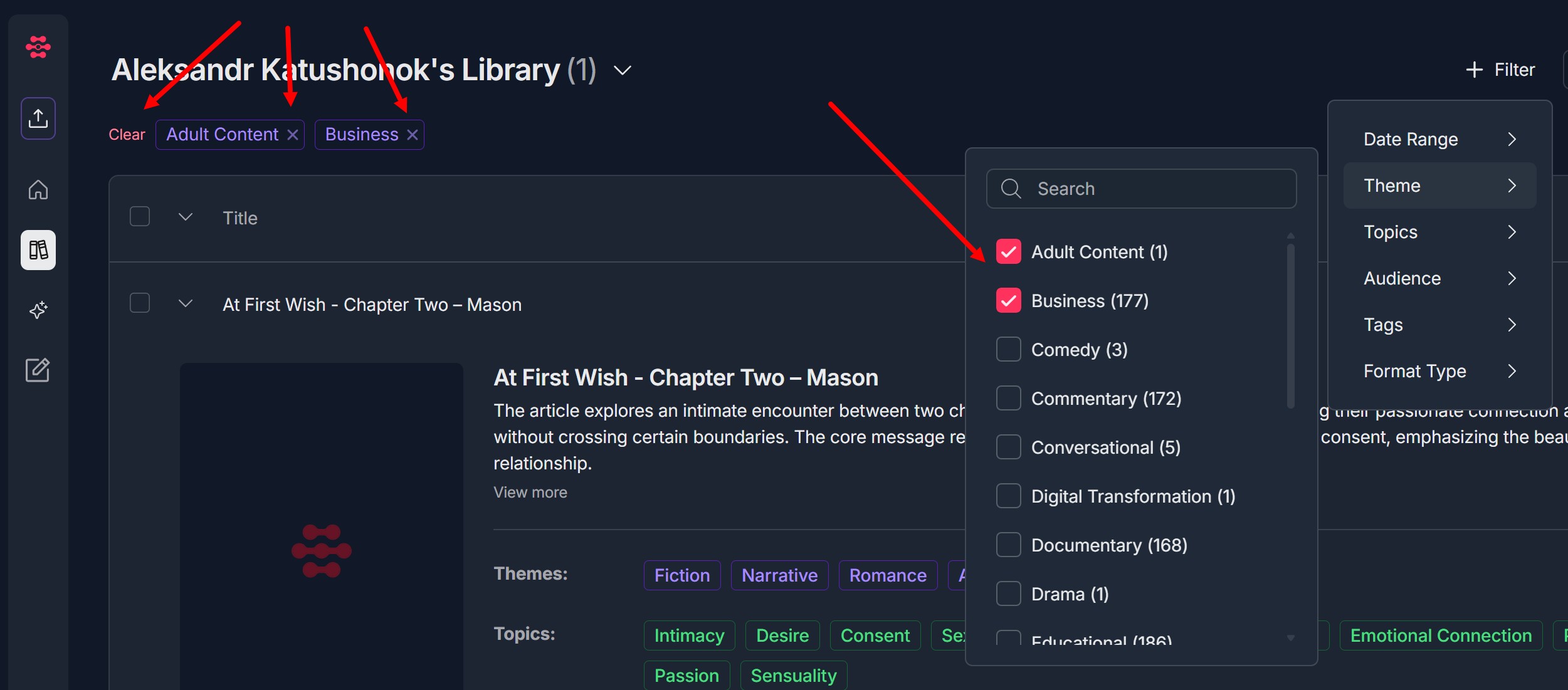
- Theme filter will be removed and documents with all existing themes will be visible
4. Filter by Topics
- In the filter dropdown menu, click on "Topics"
- A topics selection panel will open to the left of the filter menu
- Search for topics:
- Use the search bar at the top (with magnifying glass icon) to search for specific options
- Type keywords to filter the list
- Select topics:
- Scroll through the list of available options
- Each option shows a count in parentheses (e.g., "AI in Healthcare (3)", "Cloud Computing (4)")
- Click the checkbox next to the option(s) you want to filter by
- You can select multiple options
- View filtered results:
- Documents matching the selected topics will be displayed
- The document list will update automatically
- Clear topics filter:
- Uncheck the selected checkboxes OR
- Close the filter panel and click the "Clear" button at the top left OR
- Click "x" on selected Topics at the top
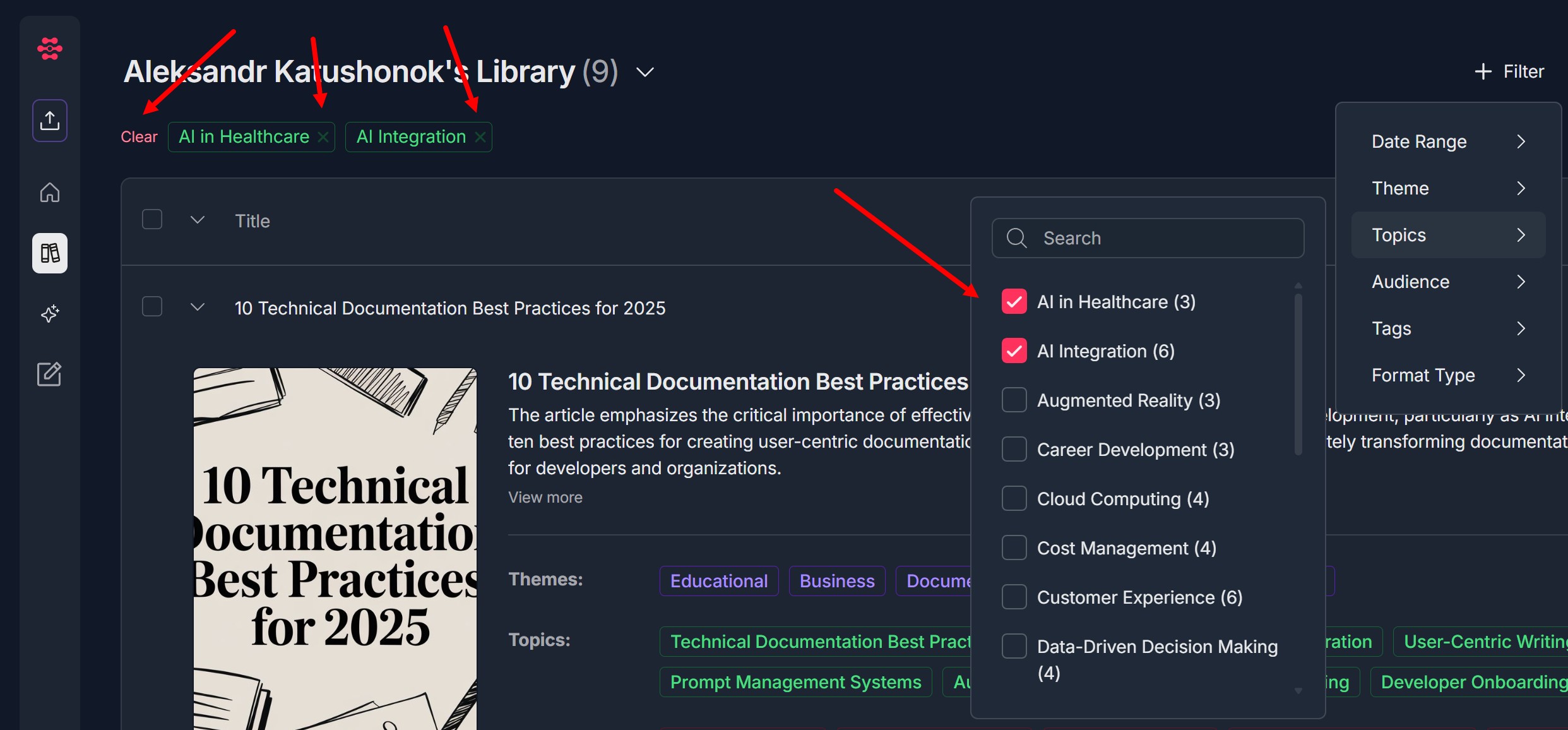
- Topics filter will be removed and documents with all existing topics will be visible
5. Filter by Audience
- In the filter dropdown menu, click on "Audience"
- A audience selection panel will open to the left of the filter menu
- Search for audiences:
- Use the search bar at the top (with magnifying glass icon) to search for specific options
- Type keywords to filter the list
- Select audiences:
- Scroll through the list of available options
- Each option shows a count in parentheses (e.g., "Business Executives (11)", "Entrepreneurs (20)")
- Click the checkbox next to the option(s) you want to filter by
- You can select multiple options
- View filtered results:
- Documents matching the selected audiences will be displayed
- The document list will update automatically
- Clear audience filter:
- Uncheck the selected checkboxes OR
- Close the filter panel and click the "Clear" button at the top left OR
- Click "x" on selected Audience at the top
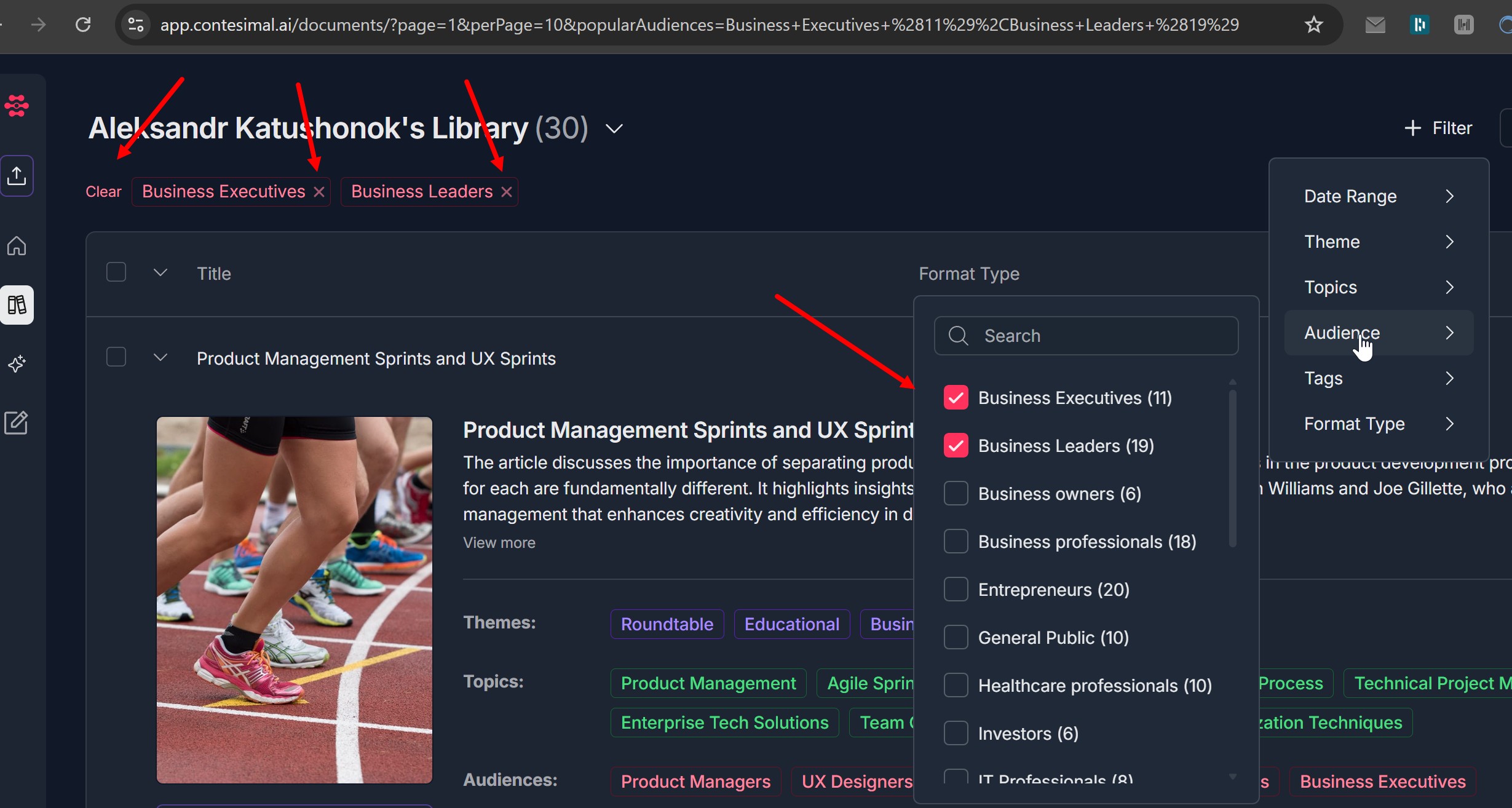
- Audience filter will be removed and documents with all existing audiences will be visible
6. Filter by Tags
- In the filter dropdown menu, click on "Tags"
- A tags selection panel will open to the left of the filter menu
- Search for tags:
- Use the search bar at the top (with magnifying glass icon) to search for specific options
- Type keywords to filter the list
- Select tags:
- Scroll through the list of available options
- Each option shows a count in parentheses (e.g., "ai (4)", "Business (10)")
- Click the checkbox next to the option(s) you want to filter by
- You can select multiple options
- View filtered results:
- Documents matching the selected tags will be displayed
- The document list will update automatically
- Clear tags filter:
- Uncheck the selected checkboxes OR
- Close the filter panel and click the "Clear" button at the top left OR
- Click "x" on selected Tags at the top
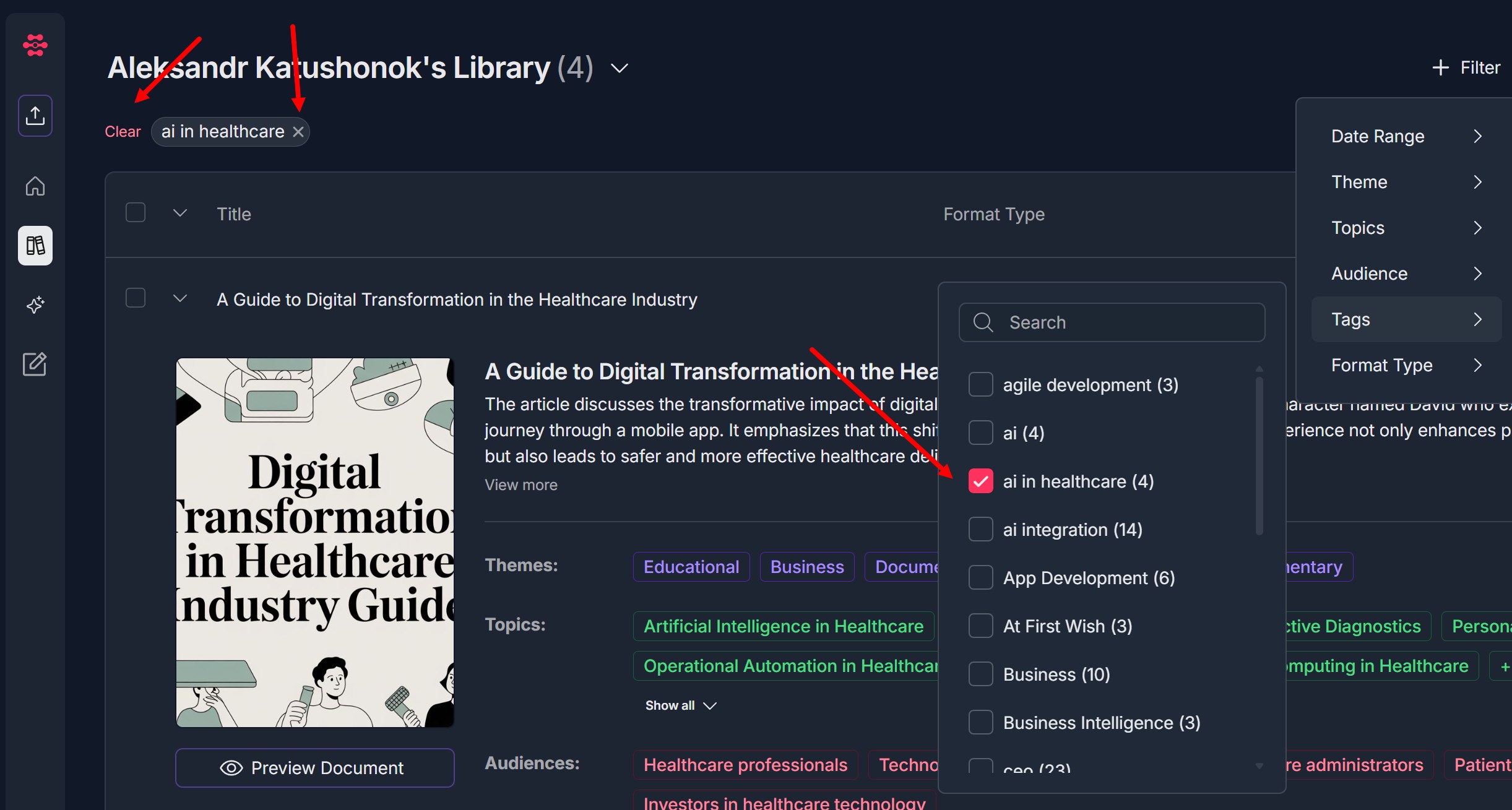
- Tags filter will be removed and documents with all existing tags will be visible
7. Filter by Format Type
- In the filter dropdown menu, click on "Format Type"
- A format type selection panel will open to the left of the filter menu
- Search for format types:
- Use the search bar at the top (with magnifying glass icon) to search for specific options
- Type keywords to filter the list
- Select format types:
- Scroll through the list of available options
- Each option shows a count in parentheses (e.g., "Blog Post (20)", "Podcast Transcript (31)")
- Click the checkbox next to the option(s) you want to filter by
- You can select multiple options
- View filtered results:
- Documents matching the selected format types will be displayed
- The document list will update automatically
- Clear format type filter:
- Uncheck the selected checkboxes OR
- Close the filter panel and click the "Clear" button at the top left OR
- Click "x" on selected Format Type at the top
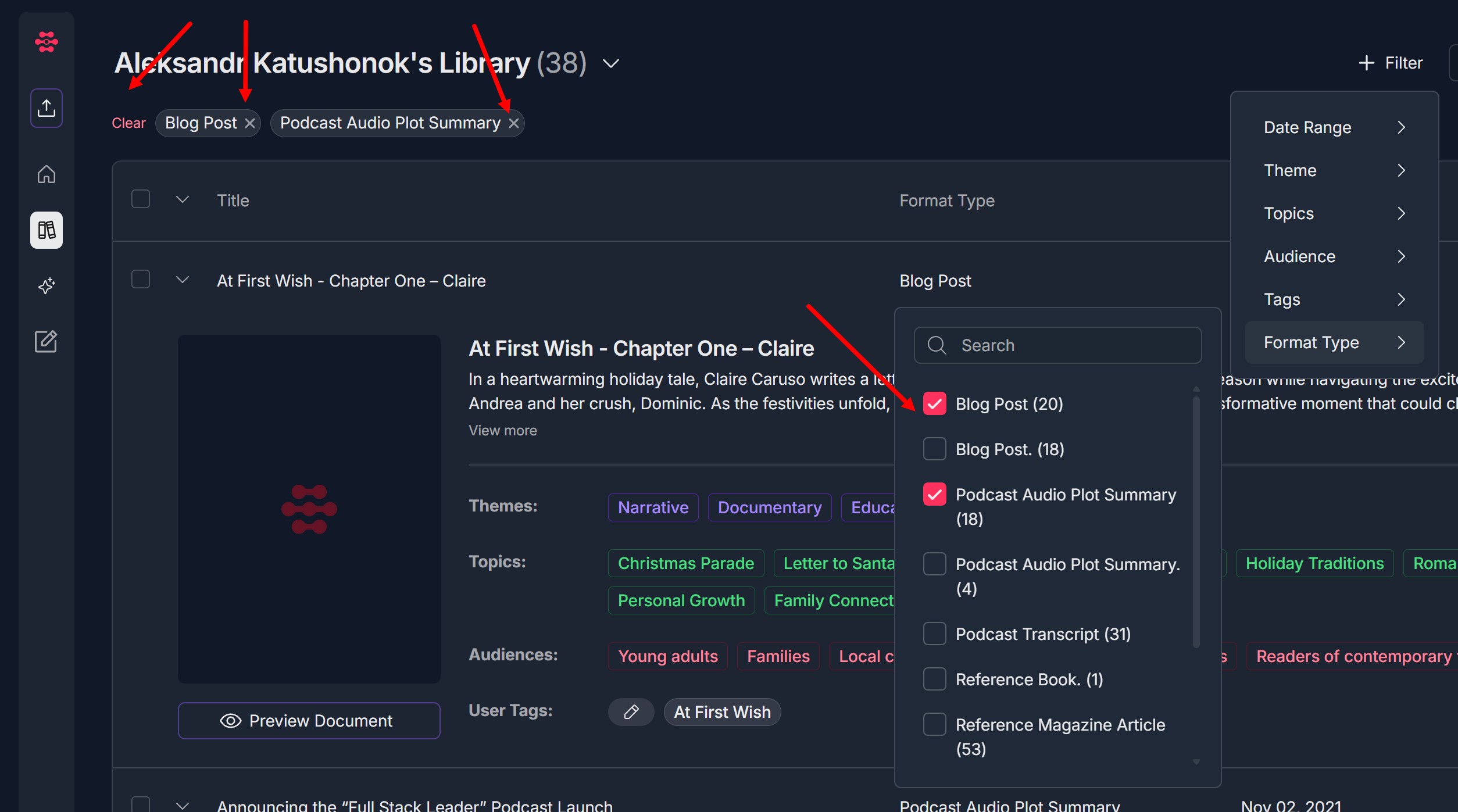
- Format Type filter will be removed and documents with all existing format types will be visible
8. Apply Multiple Filters
- You can apply multiple filters at the same time to create more precise searches
- To apply multiple filters:
- Select filters from different categories (e.g., Theme + Audience + Format Type)
- Each filter category can have multiple selections
- All selected filters work together (AND logic - documents must match all selected filters)
- Example:
- Select "Business" theme
- Select "Business Executives" audience
- Select "Blog Post" format type
- Result: Documents that are Business-themed, for Business Executives, and in Blog Post format
- View combined results:
- The document list will show only documents that match ALL selected filters
- Document counts will reflect the combined filter criteria
- Remove individual filters:
- Uncheck specific filter options to remove them
- The document list will update automatically
- Clear all filters:
- Close all filter panels
- Click "Clear" or remove all checkboxes
- Documents will return to default view (sorted by import date descending)
9. Clear All Filters and Return to Default View
- To clear all filters and return to default view:
- Close the filter panel and click the "Clear" button at the top left OR
- Click "x" on selected filter options at the top OR
- Remove all checkboxes
- Default view:
- All documents will be displayed
- Documents will be sorted by import date descending (newest first)
- No filters will be applied
- Close filter menu:
- Click outside the filter menu OR
- Click the "+ Filter" button again to close it
Troubleshooting Guide
A. Filter Menu Doesn't Appear or Doesn't Open
Issue: You click the "+ Filter" button but the filter menu doesn't open, or the button doesn't respond.
Fix:
- Refresh the page and try clicking the "+ Filter" button again
- Ensure you're clicking directly on the "+ Filter" button, not nearby elements
- Check if you're on the Content Library page - filters are only available in Content Library
- Clear browser cache and cookies, then try again
- Try a different browser (Chrome, Edge, Firefox) if the issue persists
- Ensure you have documents in your library - filters may not appear if the library is empty
- If the filter menu consistently doesn't open, contact Support and mention: Whether the button responds when clicked, Whether you have documents in your library, What browser you're using
B. Filters Don't Apply or Results Don't Update
Issue: You select filter options but the document list doesn't update, or filters don't seem to work.
Fix:
- Wait a moment - filter results may take a second to update
- Ensure you've actually selected filter options (checkboxes are checked)
- Try clicking on a different filter option and then back to your desired option
- Refresh the page and reapply the filters
- Check if the selected filters have matching documents - look at the count numbers in parentheses
- Clear all filters and try applying them one at a time to identify which filter is causing issues
- Check your internet connection - a slow connection may delay filter updates
- Clear browser cache and cookies, then try again
- If filters consistently don't apply, contact Support with: Which filters you're trying to apply, Whether checkboxes are selected, What you see in the document list, Whether filter counts show any matching documents
C. Date Range Filter Doesn't Work
Issue: Like/Dislike Buttons Don't Work
Fix:
- Ensure you're clicking on "Date Range" in the filter menu
- Wait a moment - the calendar may take a second to load
- Try clicking on a date, then another date to select a range
- Ensure the end date is after the start date
- Click the "Apply" button after selecting dates - the filter won't apply until you click Apply
- Use the month/year dropdowns to navigate to the correct month
- Use the arrow buttons to navigate between months
- Refresh the page and try selecting dates again
- Clear browser cache and cookies, then try again
- If the date range filter consistently doesn't work, contact Support with: Whether the calendar appears, Whether you can select dates, What happens when you click "Apply", What dates you're trying to select
D. No Documents Appear After Applying Filters
Issue: You apply filters but no documents are displayed, even though you expect some results.
Fix:
- Check filter counts: Look at the numbers in parentheses next to filter options - if they show 0, there are no documents matching that filter
- Try selecting different filter options that have higher counts
- Clear all filters and verify documents are visible in the default view
- Check if you've applied too many restrictive filters - try removing some filters
- Ensure your selected filters are compatible - some filter combinations may have no matches
- Try applying filters one at a time to see which combination causes no results
- Verify that documents in your library actually have the metadata (tags, themes, etc.) you're filtering by
- Refresh the page and try applying filters again
- If no documents appear even with broad filters, contact Support with: Which filters you've applied, The filter counts shown in parentheses, Whether documents appear in the default (unfiltered) view
E. Documents Not Sorted by Import Date by Default
Issue: Documents are not displayed in import date descending order when no filters are applied.
Fix:
- Clear all filters - ensure no filters are applied
- Refresh the page - this should reset to default sorting
- Check if there's a sort option you've accidentally changed
- Verify you're viewing the Content Library (not a filtered view)
- Clear browser cache and cookies, then refresh
- If default sorting consistently doesn't work, contact Support with: What order documents appear in, Whether any filters are applied, Whether you've changed any sort settings
F. Search Within Filter Categories Doesn't Work
Issue: You type in the search bar within a filter category, but the search doesn't filter the options.
Fix:
- Ensure you're clicking inside the search bar before typing
- Wait a moment - search results may take a second to appear
- Try typing different keywords - some filter options may not match your search terms
- Clear the search bar and try again
- Refresh the page and try searching again
- Check if the filter category has many options - search works best with longer lists
- Try clicking outside the search bar and then back inside it
- Clear browser cache and cookies, then try again
- If search consistently doesn't work, contact Support and mention:
- Which filter category you're searching in
- What keywords you're typing
- Whether the search bar responds to typing
G. Can't Select Multiple Filter Options
Issue: You try to select multiple options within a filter category, but only one can be selected at a time, or selections don't work.
Fix:
- Note: Multiple selections within the same filter category should work - you should be able to check multiple boxes
- Try clicking checkboxes one at a time and verify they stay checked
- Refresh the page and try selecting multiple options again
- Clear browser cache and cookies, then try again
- Try a different browser if the issue persists
- Ensure you're clicking directly on the checkboxes, not just the text
- If multiple selections consistently don't work, contact Support and mention:
- Which filter category you're trying to use
- Whether checkboxes stay checked when clicked
- What happens when you try to select a second option
H. Filter Counts Are Incorrect
Issue: The numbers in parentheses next to filter options don't match the actual number of documents.
Fix:
- Refresh the page - counts may need to be recalculated
- Clear all filters and then reapply them - counts may update
- Check if other filters are affecting the counts - counts may reflect combined filters
- Verify that documents actually have the metadata associated with the filter
- Wait a moment - counts may take time to update after applying filters
- Clear browser cache and cookies, then refresh
- If counts consistently show incorrect numbers, contact Support with:
- Which filter category shows incorrect counts
- What the count shows vs. what you expect
- Whether documents are actually displayed
I. Can't Clear Filters
Issue: You try to clear applied filters but they don't clear, or the "Clear" button doesn't work.
Fix:
- Try clicking "Clear" button multiple times
- Manually uncheck all selected filter checkboxes
- Close the filter menu and reopen it - this may reset filters
- Refresh the page - this will clear all filters and return to default view
- Try clicking outside the filter menu to close it, then reopen
- Clear browser cache and cookies, then refresh
- If filters consistently can't be cleared, contact Support with:
- Which filters are applied
- What happens when you click "Clear"
- Whether you can uncheck checkboxes manually
J. Filter Menu Closes Unexpectedly
Issue: The filter menu closes when you try to select options, or it closes on its own.
Fix:
- Try clicking on filter options more carefully - avoid clicking outside the menu
- Click directly on the filter category name, not the arrow icon
- Wait for the filter panel to fully open before clicking options
- Try clicking the "+ Filter" button again to reopen the menu
- Check if pop-up blockers are interfering
- Clear browser cache and cookies, then try again
- Try a different browser if the issue persists
- If the menu consistently closes unexpectedly, contact Support and mention:
- When the menu closes (what action triggers it)
- Whether you can keep it open long enough to use it
- What browser you're using
K. Calendar Navigation Doesn't Work
Issue: You can't change months or years in the date range calendar, or navigation buttons don't work.
Fix:
- Click directly on the month name to open the month dropdown
- Click directly on the year to open the year dropdown
- Use the left arrow (←) to go to previous month
- Use the right arrow (→) to go to next month
- Wait a moment - calendar navigation may take a second to respond
- Refresh the page and try navigating the calendar again
- Clear browser cache and cookies, then try again
- Try clicking on different parts of the calendar navigation
- If calendar navigation consistently doesn't work, contact Support with:
- Which navigation element doesn't work (arrows, dropdowns)
- What happens when you try to navigate
- Whether the calendar appears at all
L. Selected Filters Don't Persist
Issue: You apply filters but they disappear when you refresh the page or navigate away.
Fix:
- Reapply filters after refreshing the page
- Try using browser bookmarks with filter parameters (if supported)
- Check if there's a "Save filter" option available
- If filter persistence is important, contact Support to request this feature
- For now, you may need to reapply filters each time you visit the Content Library
- If filters should persist but don't, contact Support with:
- Whether filters disappear immediately or after refresh
- What actions cause filters to be lost
Was this article helpful?
That’s Great!
Thank you for your feedback
Sorry! We couldn't be helpful
Thank you for your feedback
Feedback sent
We appreciate your effort and will try to fix the article