Description
The Share a Library feature allows you to grant read-only access to your document library when sharing a project with collaborators. This feature enables team members to view and use your documents for research, content creation, and analysis within shared projects. When you share your library:
- Collaborators receive read-only access to your entire document library
- Collaborators can view all documents in your library through the "Shared with me" section
- Collaborators can use your documents to generate new creations within shared projects
- Collaborators can research against your documents using AI tools
- You maintain full control - collaborators cannot edit or delete your documents
- You can revoke access at any time through the project permissions
Sharing your library is optional - you can share a project without sharing your library, or you can choose to share both. This feature makes collaboration more powerful by giving team members access to relevant content while protecting your data integrity.
Accessing Shared Libraries
- For library owners: You can see your own library in the "My Library" section
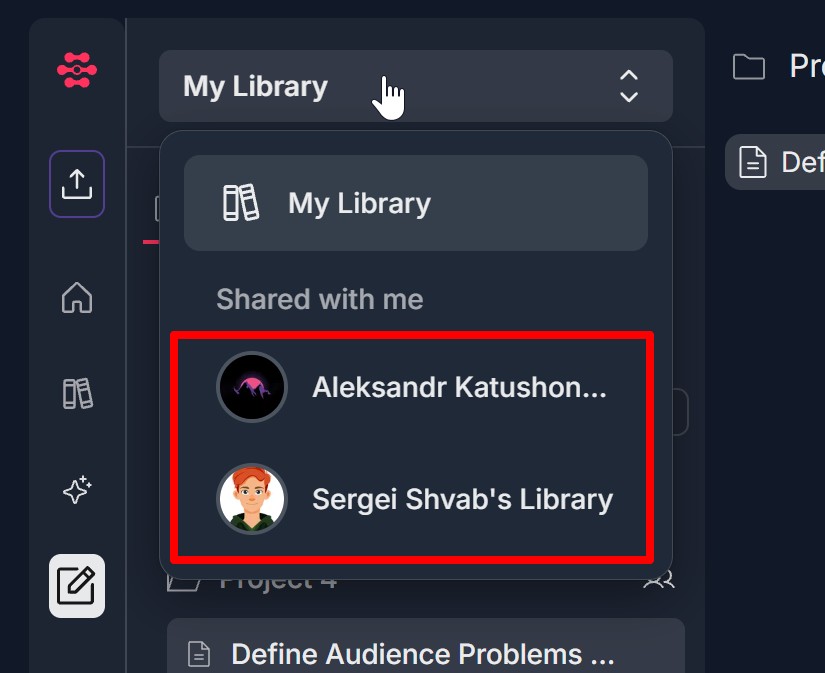
- For collaborators: You can access shared libraries in the "Shared with me" section of the library dropdown/selector
- Shared libraries appear with the owner's name (e.g., "John Doe's Library")
- You can see how many files are in each shared library
- The currently selected library is highlighted (usually with a red outline or background)
Switching Between Libraries
- Click on "My Library" to view your own documents
- Click on any library under "Shared with me" to view that shared library
- Only one library can be active at a time
- The active library's documents are displayed in the Content Library tab
- You can switch between libraries at any time
Library Access Permissions
- Read-only access: Collaborators can view and use documents but cannot edit or delete them
- Automatic access: When a collaborator accepts a project invitation with library access enabled, they automatically receive access to the shared library
- Revocable access: The library owner can revoke access at any time through the project permissions menu
- Project-dependent: Library access is tied to project sharing - if a collaborator is removed from all projects, they lose library access
Using Shared Libraries
- Research: Collaborators can use shared library documents for research within shared projects
- Content Creation: Collaborators can generate new creations using documents from shared libraries
- Exploration: Collaborators can browse and explore documents in the Content Library tab
- Limitations: Collaborators cannot edit, delete, upload, or modify any documents in shared libraries
Step-by-Step:
The step-by-step instructions, screen descriptions, and UI details in this section are examples only. They are intended to help you understand how the feature works and how to complete the flow. Screens, labels, and layout may change in future product updates.
1. Share a Project First
- Log in to your Contesimal account
- Navigate to Creations in the left sidebar menu
- Click on Projects tab (located at the top of the Creations page)
- You'll see a list of all your projects
- Click on any content added below the project you want to share
- Look for the "Share" button at the top right of the screen (next to other action buttons)
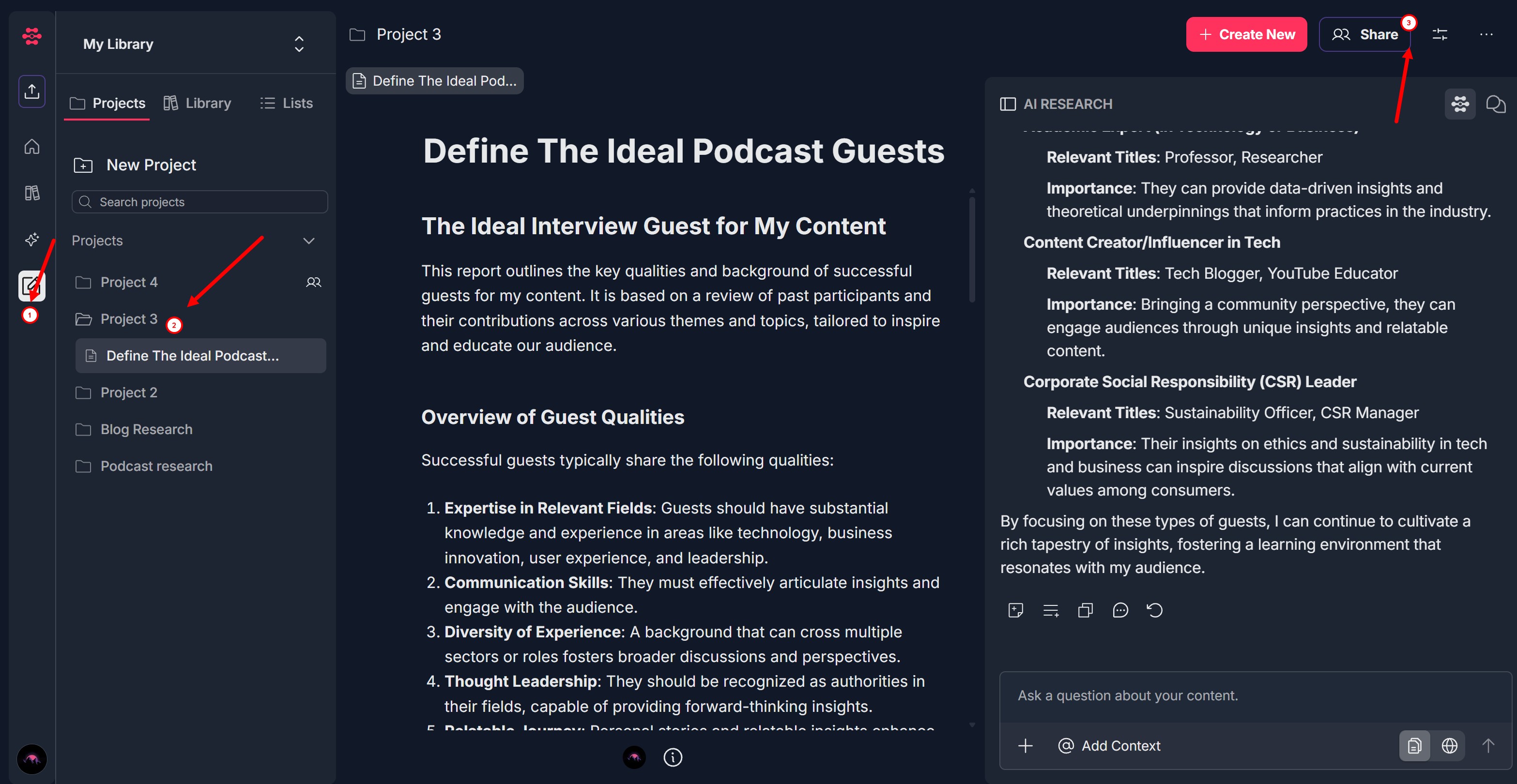
- Click the "Share" button
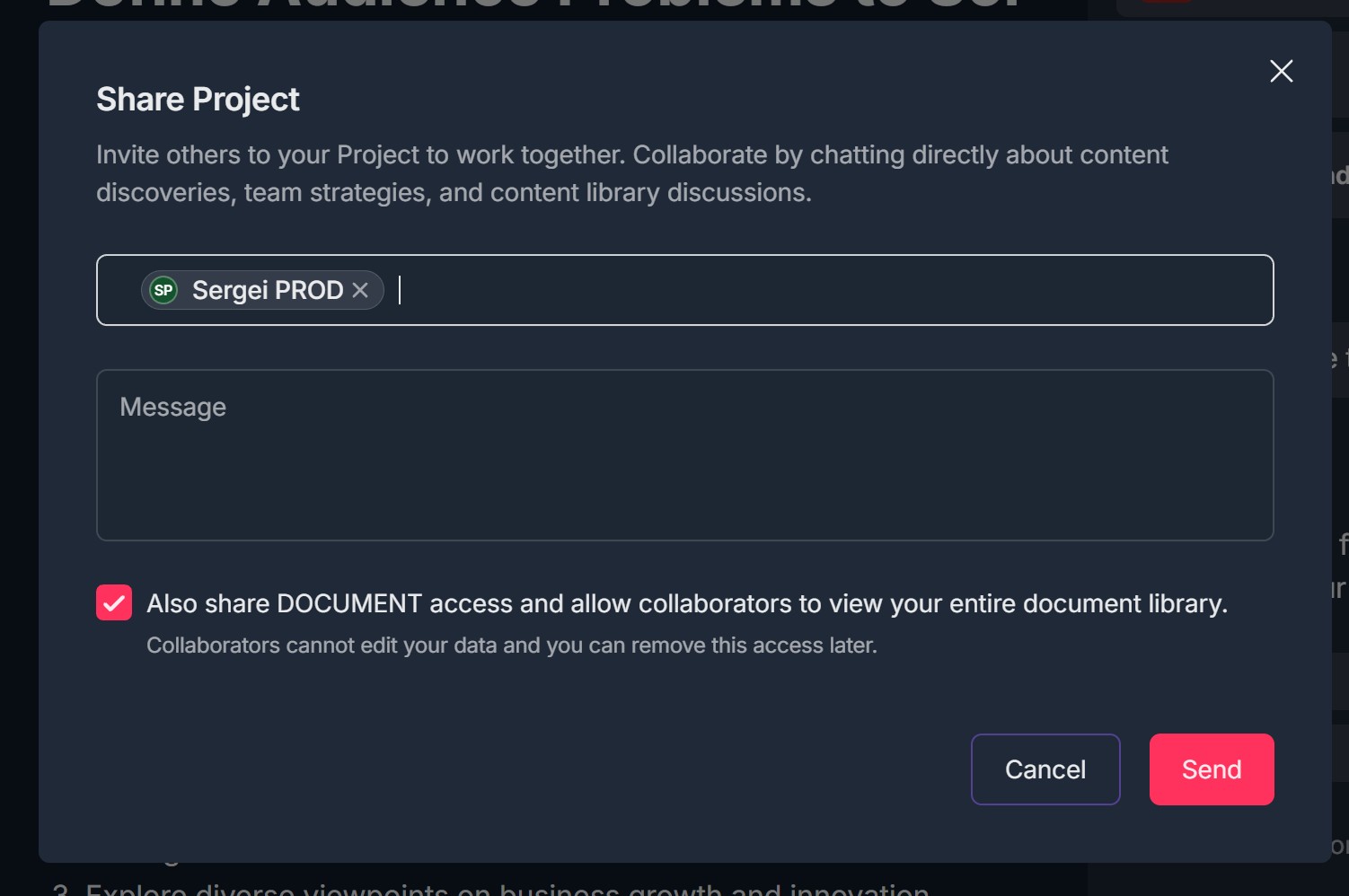
- The "Share Project" modal window will open, displaying:
- An input field for adding user emails to share project with
- The list of Users who already has access to the Project (and Project Owner)
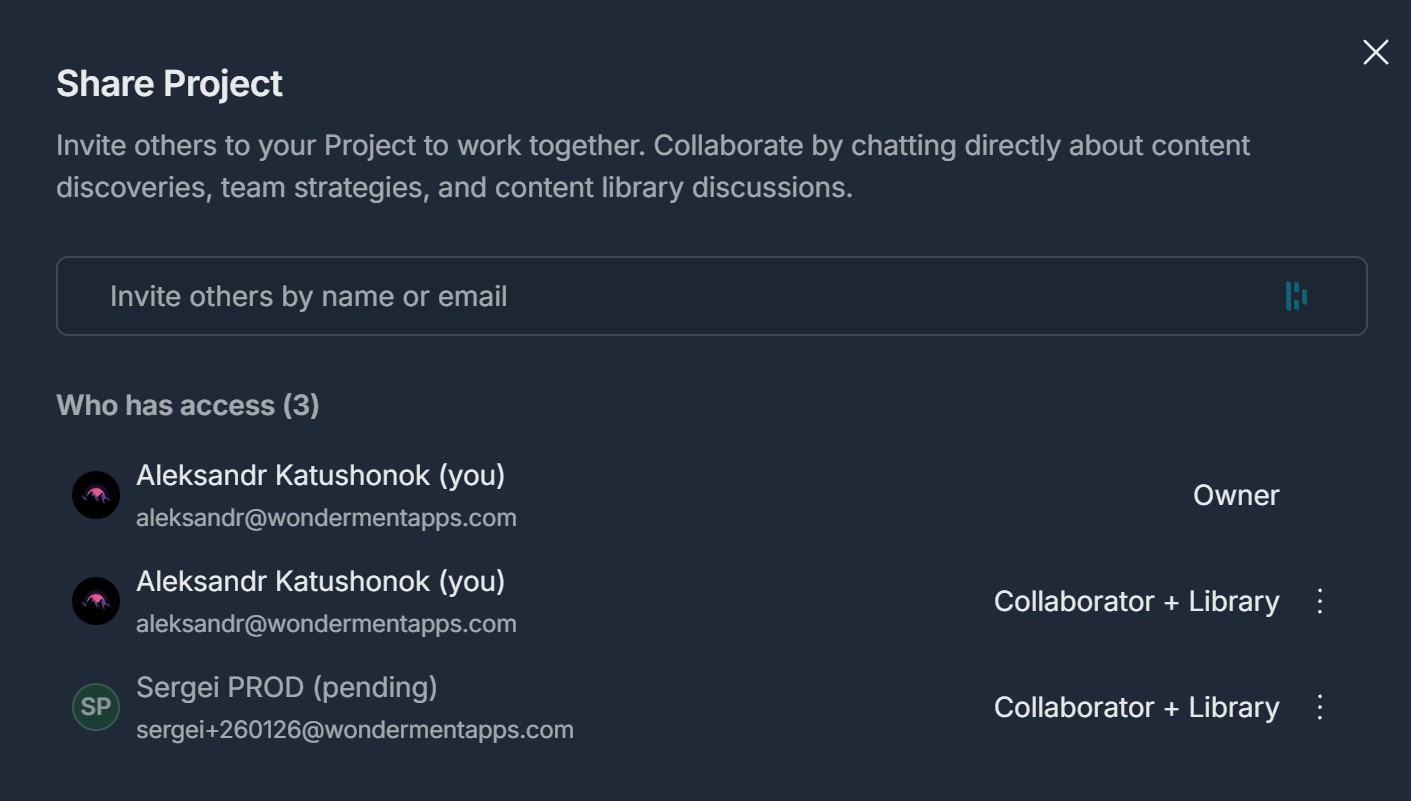
2. Invite Collaborators
- In the "Share Project" modal, locate the input field labeled "Invite others by name or email"
- Click inside the input field to activate it
- Start typing the user's email address (e.g., "john@example.com") or their name
- As you type, a dropdown menu will appear below the input field showing matching users
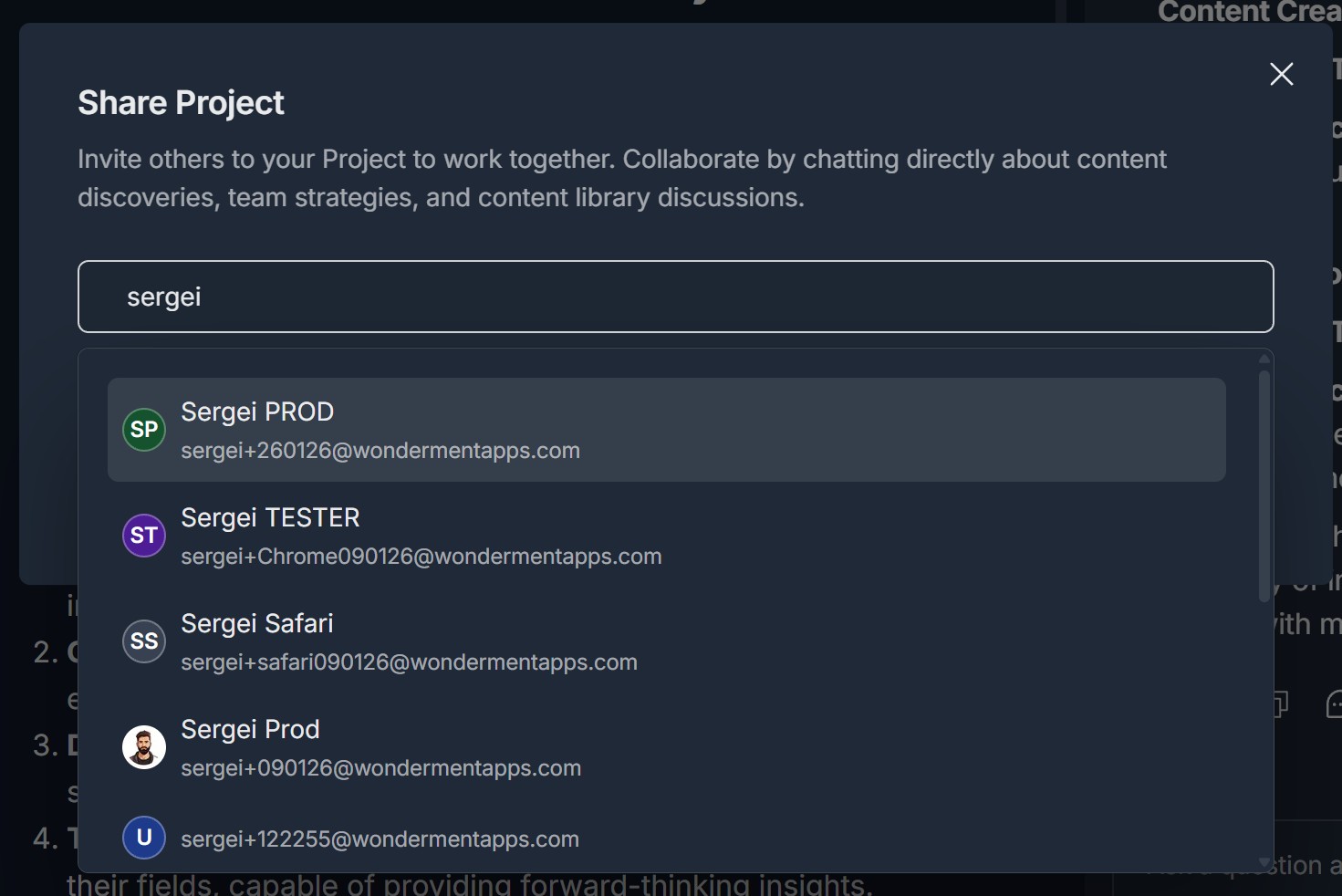
- As you type, a dropdown menu will appear below the input field showing matching users
- Review the dropdown suggestions - they will show user names and email addresses
- only email is shown if user does not present in Contesimal system
- Click on the user you want to invite from the dropdown list
- The selected user will appear in the input field with:
- Their name displayed
- An X icon next to their name (to remove them if needed)
- To add multiple collaborators:
- Continue typing in the same input field after selecting the first user
- The dropdown will appear again with new suggestions
- Select additional users one by one
- Each selected user will appear in the input field
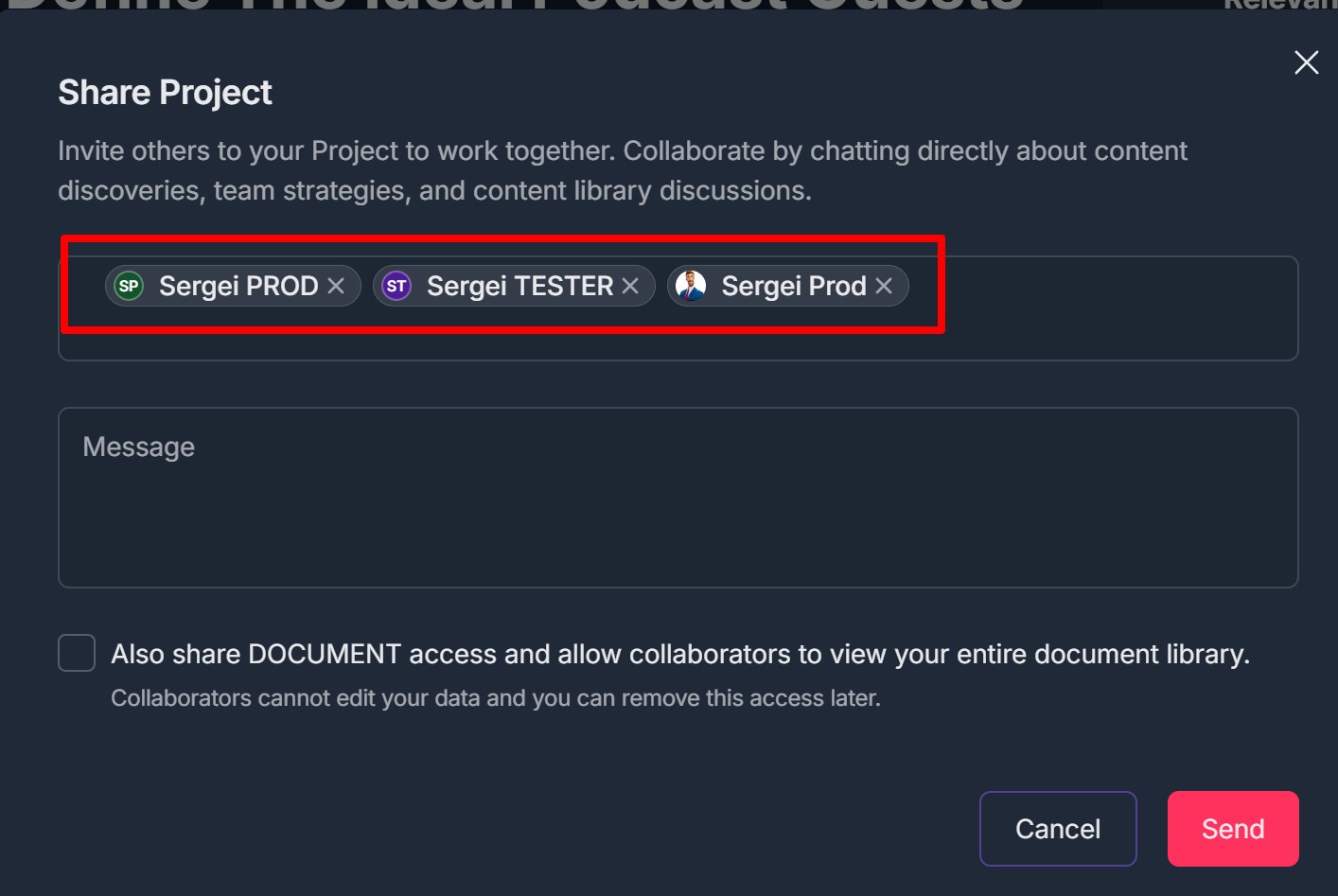
- If you need to remove a collaborator before sending:
- Click the X icon next to their name in the input field
- They will be removed from the invitation list
3. Add Optional Message
- In the "Share Project" modal, locate the "Message" text area (below the invite input field)
- Click inside the message text area to activate it
- Type a custom message that will be included with the project invitation
- The message field is completely optional - you can leave it blank if you prefer
- There is no character limit for the message, but keep it concise and professional
- The message will be visible to the collaborator in the invitation email
4. Enable Library Sharing (Optional)
- In the "Share Project" modal, locate the checkbox below the message field
- The checkbox is labeled: "Also share DOCUMENT access and allow collaborators to view your entire document library"
- If you want to share your document library:
- Click the checkbox to check it (a checkmark will appear)
- This grants read-only access to your entire document library
- Collaborators will be able to view and use your documents for research and content creation
- Notes:
- When checked, collaborators receive read-only access - they cannot edit or delete your documents
- You can change this setting later using the permissions menu
- Collaborators can access shared libraries via the library dropdown menu under "Shared with me"
5. Send the Invitation
- Before sending, review all the information you've entered:
- Collaborators: Verify all email addresses/names are correct
- Message: Check that your optional message is appropriate (if you added one)
- Document Access: Confirm whether you want to share document library access
- Locate the "Send" button at the bottom right of the modal (red button)
- Click the "Send" button
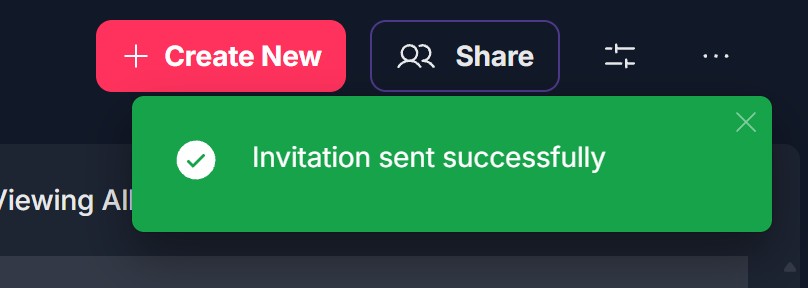
- A green success notification banner appears at the top of the screen: "Invitation sent successfully"
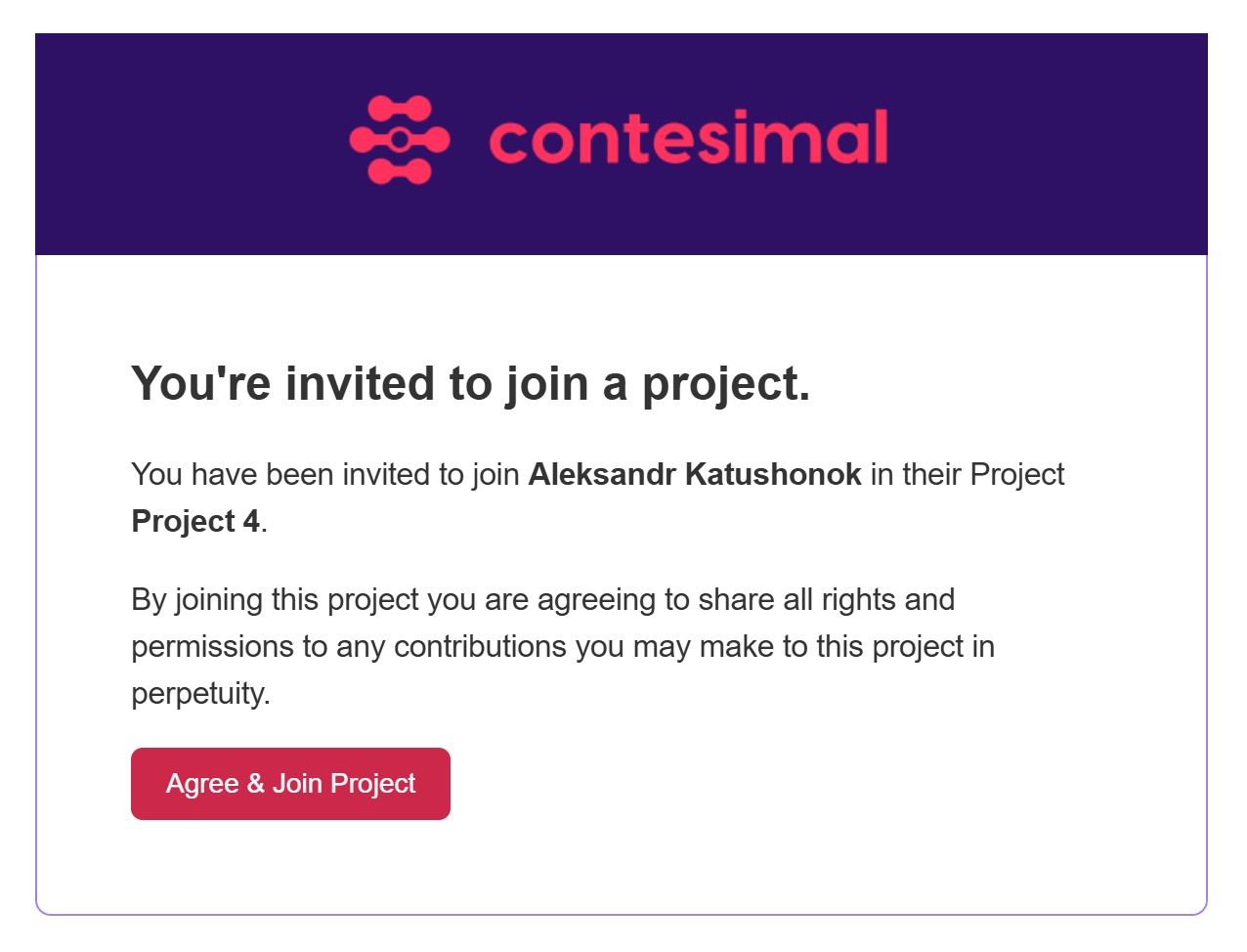
- The invitation email is sent immediately to all collaborators you added
- A green success notification banner appears at the top of the screen: "Invitation sent successfully"
6. Collaborator Receives Invitation
- The invited user will receive an email invitation from Contesimal (usually within a few minutes)
- Email Contents:
- Subject line: "Contesimal - {User Name} invited you to join a project"
- Sender: Contesimal (no-reply@contesimal.ai)
- Project name: The name of the project they're being invited to join
- Message: Your custom message (if you included one)
- A message stating that by joining, they agree to share all rights and permissions to any contributions they make to the project in perpetuity
- Action button: A prominent "Agree & Join Project" button
- Note: The email may go to the collaborator's spam/junk folder, so they should check there if they don't see it
7. Collaborator Accepts Invitation
- The invited user opens the invitation email
- They click the "Agree & Join Project" button in the email
- If the user is already logged into Contesimal:
- They will be redirected directly to the project details page
- They can immediately start collaborating on the project
- If the user is not logged in:
- They will be redirected to the Contesimal login page
- They need to log in with their Contesimal account credentials
- After logging in, they will be redirected to the project details page
- If the user does not have an account yet:
- They will be redirected to the Contesimal login page
- They need to create an account and create first project during registration
- After accepting, the collaborator can access the shared library :
- The collaborator navigates to the Content Library section or uses the library dropdown menu
- In the library selector/dropdown, they will see:
- "My Library" section (their own library)
- "Shared with me" section (libraries shared by others)
- Under "Shared with me", they will see your library listed ("My Library")
- They click on your shared library to switch to it
- They can click on any library under "Shared with me" to view that shared library
- The selected library is highlighted (usually with a red outline or background)
- All documents from the selected library are displayed
- What collaborators can do with shared libraries:
- View all documents in the shared library
- Use documents for research and content creation within shared projects
- Generate new creations using documents from the shared library
- Explore documents in the Content Library tab
- Note: They cannot edit, delete, or modify any documents in the shared library
8. Manage Collaborator Permissions (After Sharing)
- Access the permissions menu:
- Navigate to Creations → Projects
- Click on the project you want to manage
- Click the "Share" button at the top right of the screen
- The Share Project modal opens, showing the "Who has access" section
- Find the collaborator you want to manage:
- Scroll through the list of project members in the "Who has access" section
- Each member shows their name/email and current status (e.g., "Owner", "Member", "Pending")
- Open the permissions menu:
- Locate the three dots menu (more menu icon: ⋮) to the right of the user's account information
- Click on the three dots menu icon
- A pop-up menu appears with the following options:
- "Document Access" - A checkbox that you can toggle:
- Checked: Grants read-only access to your document library
- Unchecked: Revokes document library access
- "Remove from this project" - Removes the user from the current project only (they will still have access to other projects you've shared with them)
- "Remove from all projects" - Removes the user from all projects you've shared with them across your account
- "Document Access" - A checkbox that you can toggle:
- Make your permission changes:
- Toggle the "Document Access" checkbox if you want to change library access
- Click "Remove from this project" or "Remove from all projects" if you want to remove the collaborator
- Review your changes before applying
- Apply the changes:
- Click the "Apply" button (usually at the bottom of the pop-up menu)
- The changes are saved immediately
- The pop-up menu closes
- The Share Project modal updates to reflect the changes
- What happens when you revoke access:
- The collaborator's library access is removed immediately
- The shared library will disappear from their "Shared with me" section
- They will no longer be able to view or use your documents
- They will still have access to the shared project (unless you also remove them from the project)
Troubleshooting Guide
A. Library Access Checkbox Doesn't Appear or Doesn't Work
Issue:The "Also share DOCUMENT access" checkbox doesn't appear in the Share Project modal, or you can't check or uncheck it.
Fix:
- Ensure you're sharing a project first - the library sharing checkbox only appears in the Share Project modal
- Refresh the page and try checking/unchecking the box again
- Ensure you're clicking directly on the checkbox square, not just the text label
- Try clicking the checkbox multiple times - sometimes it needs a few clicks to register
- Check if you have documents in your library - if your library is empty, the option may still work but there's nothing to share
- Clear your browser cache and cookies, then try again
- Try a different browser (Chrome, Edge, Firefox) if the issue persists
- Ensure you're the project owner - only owners can share libraries
- If the checkbox consistently doesn't work, contact Support and mention: Whether you're trying to check or uncheck the box, Whether you have documents in your library, What happens when you click the checkbox, Whether you can share the project without the library checkbox
B. Collaborator Can't See Shared Library After Accepting Invitation
Issue: You shared a project with library access enabled, but the collaborator says they can't see your library in their "Shared with me" section.
Fix:
- Verify library access was granted - check the Share Project modal to confirm the "Also share DOCUMENT access" checkbox was selected when the invitation was sent
- Ask the collaborator to check if they accepted the project invitation - they must accept the project invitation first to receive library access
- Ask the collaborator to refresh the page or log out and log back in - library access may need a refresh to appear
- Verify the collaborator is looking in the correct location: They should use the library dropdown menu (usually in the top navigation or Content Library section), Look in the "Shared with me" section, not "My Library", The library should appear with your name (e.g., "[Your Name]'s Library")
- Check if library access was later revoked - verify in the Share Project permissions (three dots menu → Document Access checkbox)
- Ensure the library owner has documents in their library - if the library is empty, there's nothing to see (but the library should still appear)
- Verify the collaborator is logged into the correct Contesimal account (the one that received the invitation email)
- Try having the project owner toggle library access off and back on (revoke and re-grant access)
- Check if the collaborator has their own projects - this may be required to see shared libraries
- If the collaborator still can't see the library, contact Support with: The project name, The library owner's email address, The collaborator's email address, Whether the library access checkbox was selected, What the collaborator sees (or doesn't see) in their library dropdown
C. Can't Switch Between Libraries
Issue: A collaborator can see the shared library in "Shared with me" but can't switch to it, or switching doesn't work.
Fix:
- Refresh the page and try switching again
- Click directly on the library name, not just the dropdown area
- Ensure you're clicking on the library under "Shared with me" section
- Try expanding the "Shared with me" section first (if it's collapsed)
- Clear browser cache and cookies, then try again
- Check your internet connection - a slow connection may prevent library switching
- Try clicking on "My Library" first, then switch to the shared library
- Try a different browser if the issue persists
- If switching consistently doesn't work, contact Support and mention: Which library you're trying to switch to, What happens when you click on it, Whether you can see the library in the dropdown, Your browser and version
D. Shared Library Appears Empty Even Though Owner Has Documents
Issue: A collaborator can access a shared library, but it appears empty or shows no documents, even though the owner has documents in their library.
Fix:
- Verify the library owner actually has documents in their library - ask them to confirm
- Refresh the page and check again - documents may take a moment to load
- Check your internet connection - a slow connection may delay document loading
- Try switching to "My Library" and then back to the shared library
- Clear browser cache and cookies, then try again
- Check if library access was revoked and re-granted - documents should reload
- Verify you're looking at the correct library - check the library name matches the owner
- Try logging out and logging back in
- If the library consistently appears empty, contact Support with: The library owner's email address, The project name, Whether you can see the library in "Shared with me", What you see when you switch to the library (empty, error message, etc.)
E. Can't Revoke Library Access
Issue: You try to revoke library access using the three dots menu, but the access isn't revoked or the option doesn't work.
Fix:
- Ensure you're the project owner - only owners can revoke library access
- Click directly on the "Document Access" checkbox in the three dots menu
- After unchecking the box, click "Apply" to confirm the change
- Wait a moment for the change to process
- Refresh the page to verify the access has been revoked
- Check your internet connection - a poor connection may prevent changes from saving
- Try closing and reopening the Share Project modal
- Clear browser cache and cookies, then try again
- If revoking access consistently doesn't work, contact Support with: The project name, The collaborator's email address, What happens when you try to revoke access, Whether the "Apply" button works
F. Library Access Not Granted Even Though Checkbox Was Checked
- Issue: You checked the library access checkbox and sent the invitation, but the collaborator doesn't receive library access after accepting.
- Fix:
- Verify the checkbox was actually checked when you sent the invitation - check the "Who has access" section to see if library access is listed
- Check if library access was later revoked - verify in the Share Project permissions (three dots menu → Document Access checkbox)
- Ask the collaborator to refresh the page or log out and log back in
- Try having the project owner toggle library access off and back on (revoke and re-grant access)
- Verify the collaborator accepted the project invitation - they must accept the project first
- Check if the collaborator is looking in the correct location - they should check "Shared with me" section
- Ensure the library owner has documents in their library
- Try sending a new invitation with library access enabled
- If library access consistently isn't granted, contact Support with: The project name, The collaborator's email address, Whether the checkbox was checked when sending, Whether the collaborator accepted the invitation, What the collaborator sees in their library dropdown
G. Can't Use Shared Library Documents for Research or Creation
Issue: A collaborator can see the shared library but can't use the documents for research or content creation within shared projects.
Fix:
- Verify you're working within a shared project - shared library documents can typically only be used in shared projects
- Check if library access is still active - verify in the Share Project permissions
- Try switching to the shared library, then switch back to "My Library", then back to shared library
- Refresh the page and try using the documents again
- Ensure you're selecting documents from the correct library - make sure the shared library is active
- Check if there are any restrictions on the documents - some documents may have usage limitations
- Try logging out and logging back in
- If documents consistently can't be used, contact Support with: The project name, The library owner's email address, What you're trying to do with the documents, What error message appears (if any)
H. Shared Library Disappears After Being Visible
Issue: A collaborator could see and access a shared library, but it suddenly disappears from "Shared with me" section.
Fix:
- Check if library access was revoked - verify with the project owner
- Check if you were removed from the project - if removed from all projects, you lose library access
- Verify the project is still shared - check with the project owner
- Refresh the page and check again - the library may reappear
- Try logging out and logging back in
- Check if the library owner deleted their account or library
- Verify you're logged into the correct Contesimal account
- If the library consistently doesn't appear, contact Support with: The project name, The library owner's email address, When the library disappeared, Whether you were removed from the project
I. Multiple Shared Libraries Not Showing or Can't Distinguish Between Them
Issue: A collaborator has access to multiple shared libraries, but they don't all appear, or it's difficult to tell which library is which.
Fix:
- Refresh the page and check again - all shared libraries should appear
- Look for the owner's name next to each library (e.g., "John Doe's Library")
- Check the file count for each library to help identify them
- Try expanding the "Shared with me" section if it's collapsed
- Clear browser cache and cookies, then check again
- Verify you're still a member of all the projects that share libraries
- Check if any library access was revoked
- Try logging out and logging back in
- If libraries consistently don't appear or are unclear, contact Support with: How many shared libraries you should have access to, Which libraries are missing or unclear, The project names associated with each library
Was this article helpful?
That’s Great!
Thank you for your feedback
Sorry! We couldn't be helpful
Thank you for your feedback
Feedback sent
We appreciate your effort and will try to fix the article