Description
The Team Chat feature enables real-time collaboration and communication within shared projects. This feature allows team members who have access to a shared project to communicate directly about content discoveries, team strategies, content library discussions, and project-related topics. When you use Team Chat you can:
- Chat with project collaborators - Only members who have access to the shared project can participate in the chat
- Send formatted messages - Use text formatting options to emphasize important information
- Share files and links - Attach files and insert links to share resources with your team
- React to messages - Add reactions to any message to quickly express your thoughts
- Create threaded discussions - Reply to specific messages to keep conversations organized
- Edit and delete your messages - Maintain control over your own messages
- Mention team members - Use @mentions to notify specific collaborators
- Express with emojis - Add emojis to make conversations more engaging
Team Chat is only available for shared projects - you must share a project with collaborators before the chat feature becomes accessible. This feature makes collaboration seamless by providing a dedicated space for team communication within the context of your shared projects.
Chat Availability
- Shared projects only: Team Chat is only available for projects that have been shared with collaborators
- Project-specific: Each shared project has its own separate chat
- Access control: Only team members who have access to the shared project can see and participate in the chat
- Real-time updates: Messages appear in real-time for all active collaborators
Message Features
- Rich text formatting: Apply bold, italic, underline, strikethrough, and lists to your messages
- File attachments: Share files up to 2 MB with your team
- Link sharing: Insert clickable links in your messages
- Emoji support: Add emojis to express emotions and reactions
- Mentions: Use @mentions to notify specific team members or all members (@here)
- Reactions: Add emoji reactions to any message
- Threading: Reply to specific messages to keep conversations organized
- Message management: Edit and delete your own messages
Collaboration Features
- Threaded discussions: Keep conversations organized by replying to specific messages
- Reactions: Quickly express your thoughts with emoji reactions
- Mentions: Get team members' attention with @mentions
- File sharing: Share documents and resources directly in the chat
- Link sharing: Share relevant URLs and resources
Message History
- Date organization: Messages are organized by date with clear date separators
- Timestamps: Each message shows when it was sent
- Scrollable history: Scroll up to view older messages
- Persistent storage: Chat history is saved and accessible to all project members
Step-by-Step:
The step-by-step instructions, screen descriptions, and UI details in this section are examples only. They are intended to help you understand how the feature works and how to complete the flow. Screens, labels, and layout may change in future product updates.
1. Access Team Chat
- Log in to your Contesimal account
- Navigate to Creations in the left sidebar menu
- Click on Projects tab (located at the top of the Creations page)
- You'll see a list of all your projects
- Important: Team Chat is only available for shared projects - you must share a project with collaborators first
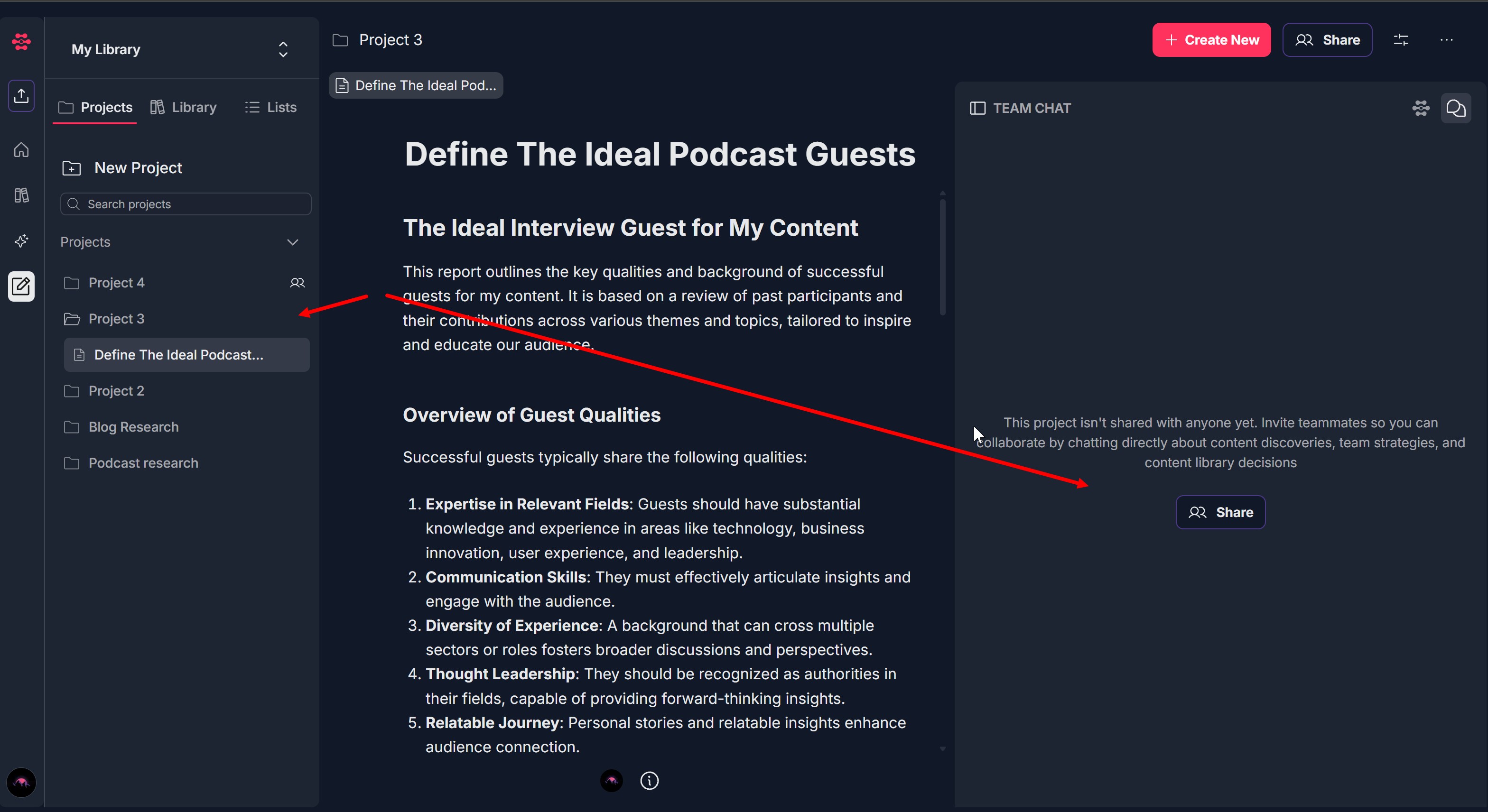
- Click on a shared project (projects shared with others will have a person/people icon next to them)
- The project details page will open
- Look for the Team Chat panel on the right side of the screen (or click the chat icon if it's not visible)

- The Team Chat panel will display:
- Chat history (if there are previous messages)
- A message input area at the bottom
- Formatting toolbar and action icons
2. Send a Basic Message
- In the Team Chat panel, locate the message input field at the bottom
- The input field shows placeholder text: "Message your team"
- Click inside the input field to activate it
- Type your message
- Click the Send button (red button with a paper airplane icon) on the right side of the input area
- Your message will appear in the chat with:
- Your name and avatar
- The timestamp (e.g., "02:04 PM")
- The message content
- All project collaborators who have access to the shared project will be able to see your message
3. Apply Text Formatting
- Before typing your message, you can access formatting options from the formatting toolbar above the input field
- Available formatting options:
- Bold (B): Click the B icon to make text bold
- Italic (I): Click the I icon to make text italic
- Underline (U): Click the U icon to underline text
- Strikethrough (S): Click the S icon to strike through text
- Bulleted List (≡): Click the bulleted list icon to create a bulleted list
- Numbered List (⋮≡): Click the numbered list icon to create a numbered list
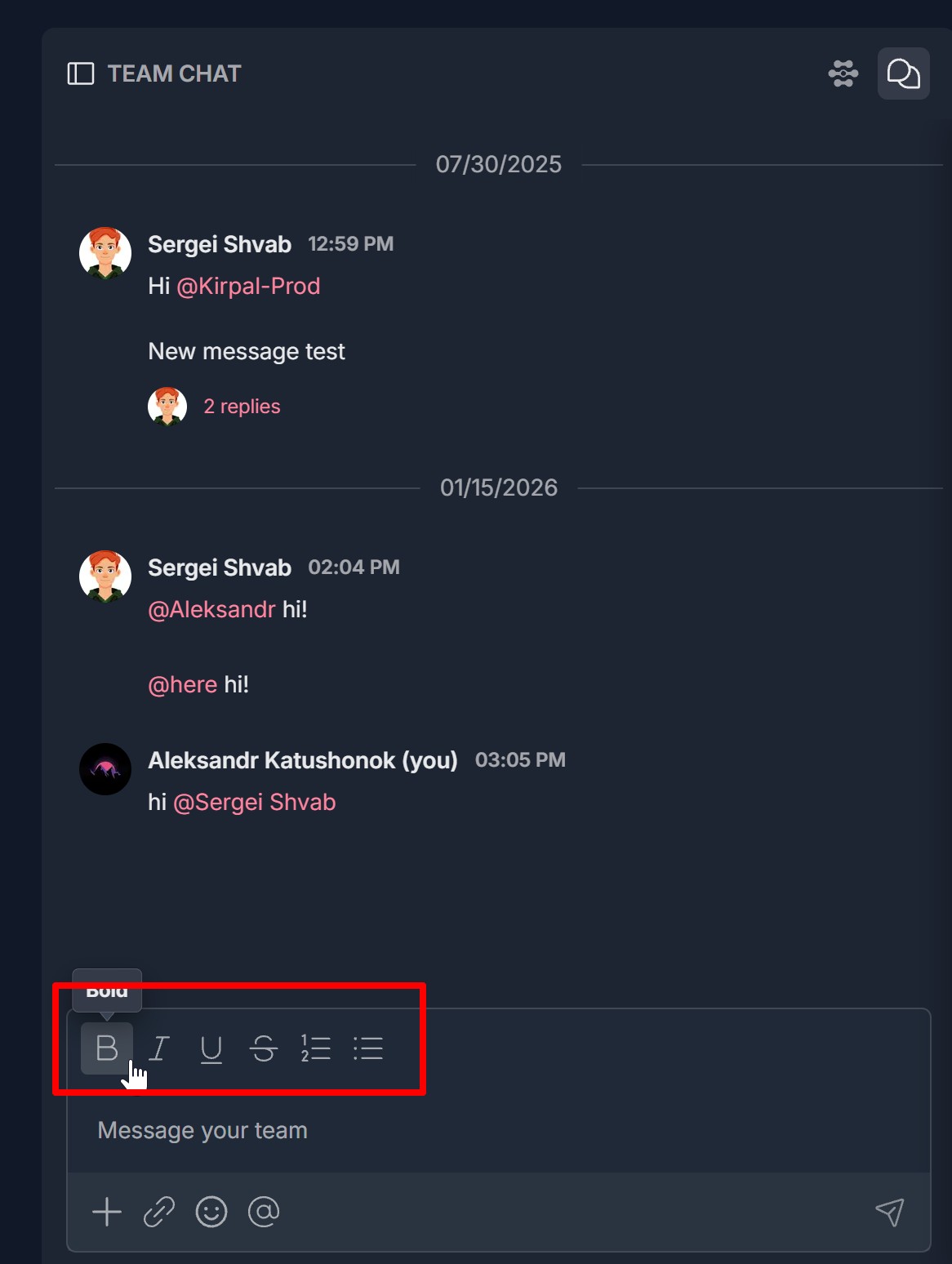
- To apply formatting:
- Click the formatting icon you want to use (it will highlight when active)
- Type your text - it will be formatted according to your selection
- Click the formatting icon again to turn it off, or select different text and apply different formatting
- Alternative method:
- Type your message first
- Select the text you want to format
- Click the formatting icon to apply the format to the selected text
- Your formatted message will appear in the chat with the formatting applied
4. Attach Files
- In the message input area, locate the + (plus) button on the left side of the action icons
- Click the + button
- A file picker dialog will open
- Navigate to the file you want to attach
- Select the file and click Open (or double-click the file)
- Important: Maximum file size is 2 MB - files larger than 2 MB cannot be attached
- The file will be attached to your message
- Type your message (optional) to accompany the file
- Click the Send button to send the message with the attached file
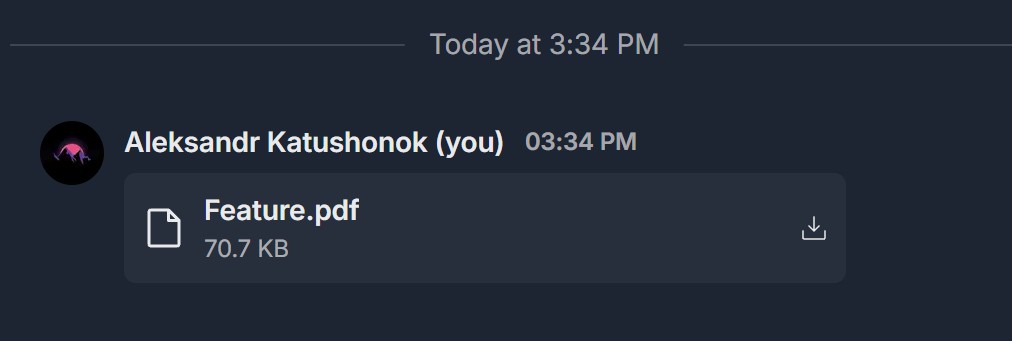
- The file will appear in the chat as an attachment that collaborators can download
5. Insert a Link
- In the message input area, locate the paperclip/link icon (?) in the action icons row
- Click the link icon
- An "Insert link" modal window will open
- In the modal, you'll see an input field with placeholder text: "https://example.com"
- Type or paste the URL you want to insert
- Click the "Save" button (red/pink button on the right) to insert the link
- Click "Cancel" if you want to close the modal without inserting a link
- The link will be inserted into your message
- Type any additional text for your message (optional)
- Click the Send button to send the message with the link
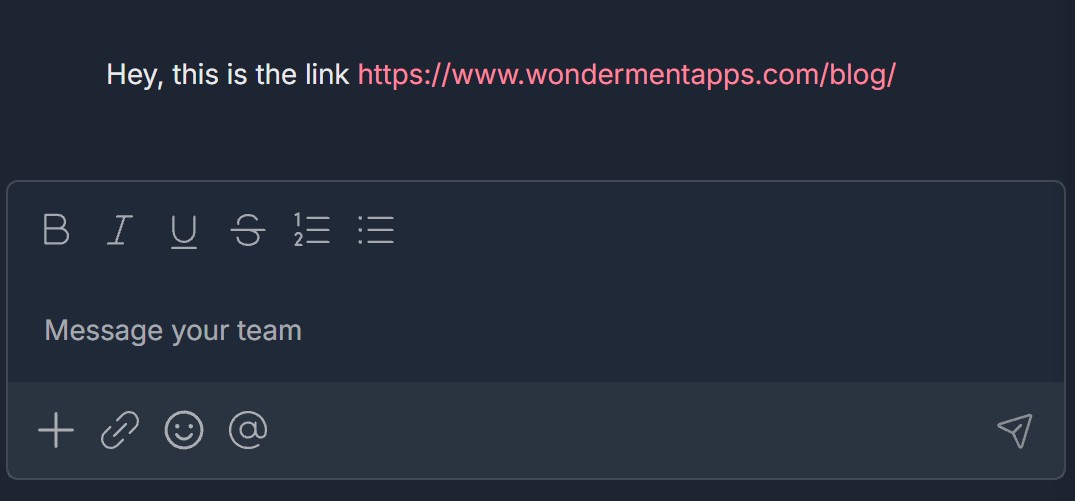
- The link will appear in the chat as a clickable hyperlink (opens in a new browser tab)
6. Add an Emoji
- In the message input area, locate the smiley face icon (?) in the action icons row
- Click the emoji icon
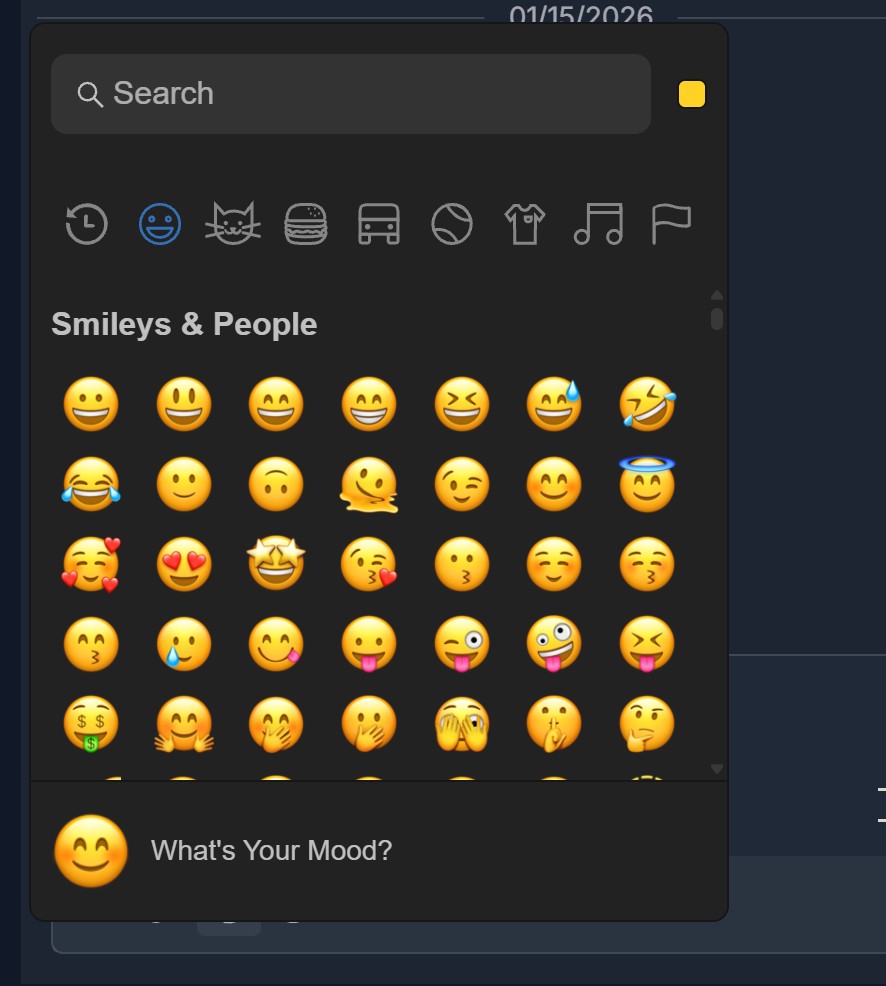
- An emoji picker pop-up will open, displaying:
- A search bar at the top labeled "Q Search"
- Emoji category icons (recently used, smileys & people, animals & nature, food & drink, travel & places, activities, objects, symbols, flags)
- A grid of emojis from the selected category, A "What's Your Mood?" section at the bottom
- To search for a specific emoji:
- Click in the search bar
- Type keywords (e.g., "happy", "thumbs up", "heart")
- Matching emojis will appear in the grid
- To browse by category:
- Click on a category icon (e.g., smiley face for "Smileys & People")
- The grid will update to show emojis from that category
- Scroll through the grid to see more emojis
- To select an emoji:
- Click on the emoji you want to add
- The emoji will be inserted into your message at the cursor position
- The emoji picker will close automatically
- Type any additional text for your message (optional)
- Click the Send button to send the message with the emoji
- An emoji picker pop-up will open, displaying:
- The emoji will appear in the chat message
7. Mention a Team Member
- In the message input area, type the @ (at symbol) character
- As soon as you type @, a dropdown menu will appear showing:
- "@ here" - Mentions all team members in the project
- List of team members with their names and avatars (e.g., "Sergei Shvab", "Kirpal-Prod")
- To mention all team members: Click on "@ here" from the dropdown
- This will notify all project collaborators
- To mention a specific team member:
- Continue typing the person's name after @ to filter the list
- Or scroll through the dropdown and click on the team member you want to mention
- The selected person's name will appear in your message as a mention (highlighted in purple)
- Continue typing your message after the mention
- Click the Send button to send the message
- The mentioned team member(s) will receive a notification about the mention
- The mention will appear highlighted in the chat message

8. Add a Reaction to a Message
- In the Team Chat panel, locate any message (yours or from other collaborators)
- Hover your mouse over the message
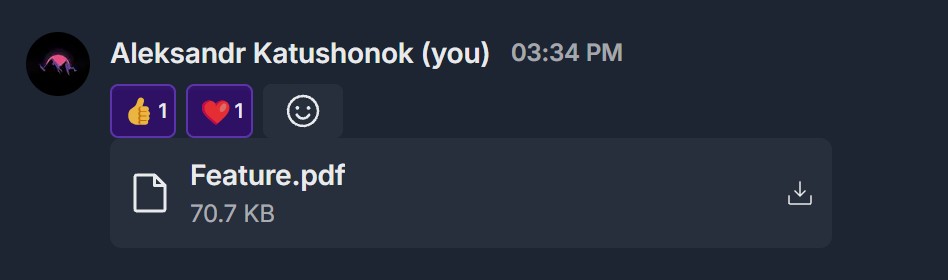
- A reaction icon or menu will appear (a smiley face)
- Click on the reaction icon
- A small emoji picker or reaction menu will appear
- Select the emoji reaction you want to add (e.g., thumbs up, heart, smiley face)
- The reaction will be added to the message
- You can see all reactions on a message below the message text
- Note: You can add reactions to any message, including messages from other team members
9. Reply in a Thread
- In the Team Chat panel, locate the message you want to reply to
- Hover your mouse over the message
- Look for a "Reply to thread" icon that appears
- Click the "Reply" button
- A thread view will open, showing:
- The original message
- Any existing replies in the thread
- A reply input field at the bottom
- A thread view will open, showing:
- Type your reply in the reply input field
- You can use all the same features in a thread reply:
- Apply formatting
- Attach files
- Insert links
- Add emojis
- Mention team members
- Click the Send button to post your reply
- Your reply will appear in the thread below the original message
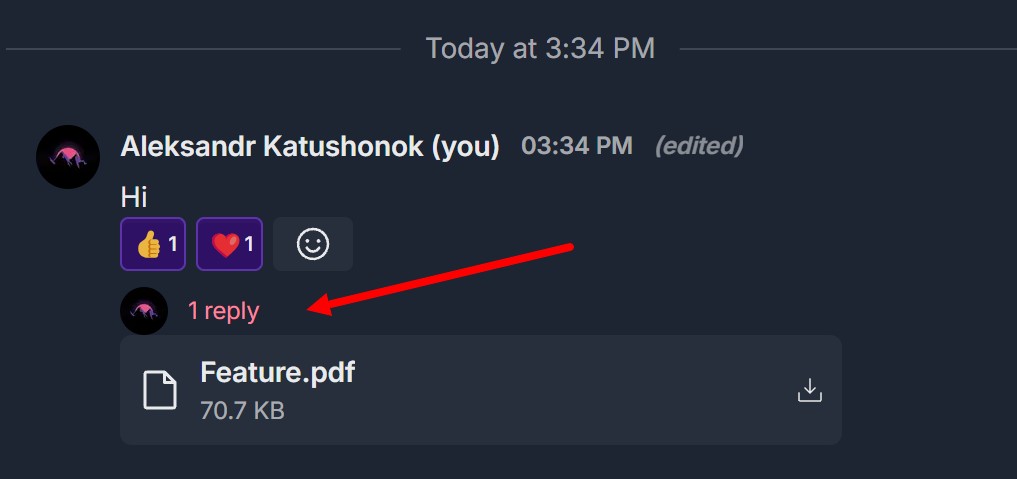
- The original message will show a thread indicator (e.g., "2 replies") indicating there are replies
- Click on the thread indicator to view or add more replies
10. Edit Your Message
- In the Team Chat panel, locate one of your own messages
- Hover your mouse over your message
- Look for an "Edit message" icon (pencil icon)
- Click the "Edit" button
- The message will become editable in the input field
- Make your changes to the message text
- Click the "Save" button to save your edited message
- The message will be updated in the chat
- Note: You can only edit your own messages, not messages from other team members
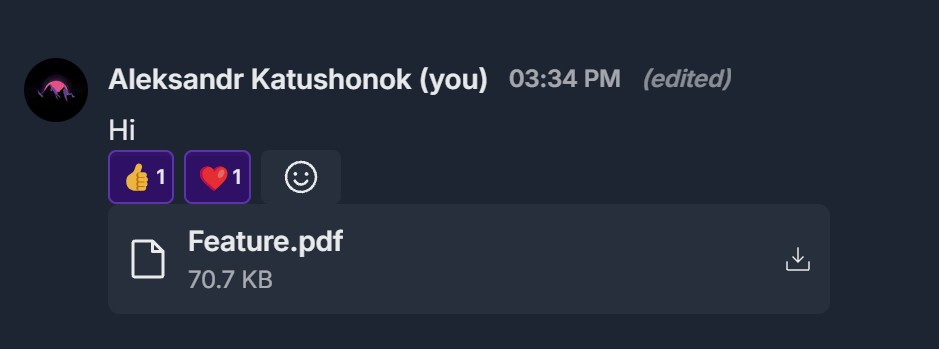
- Edited messages will show an indicator ("edited") to indicate they were modified
11. Delete Your Message
- In the Team Chat panel, locate one of your own messages
- Hover your mouse over your message
- Look for a "Remove this message" icon trash icon)
- Click the "Delete" button
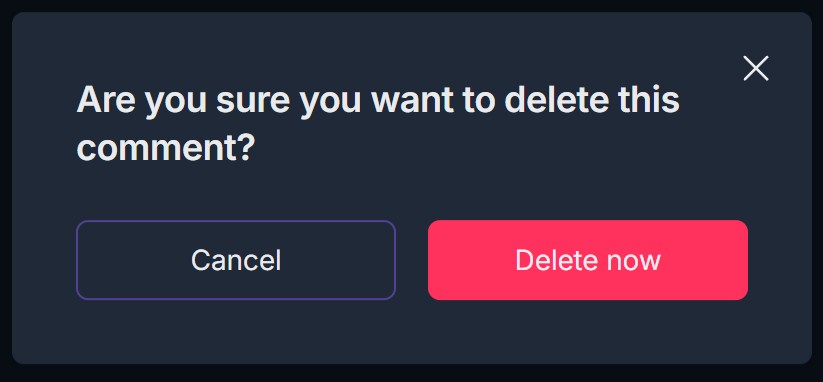
- A confirmation dialog appear asking you to confirm the deletion
- Click "Delete Now" to confirm the deletion
- The message will be removed from the chat
- Notes:
- You can only delete your own messages, not messages from other team members
- Deleted messages cannot be recovered
Troubleshooting Guide
A. Team Chat Doesn't Appear or Is Not Available
Issue: You open a project but don't see the Team Chat panel, or the chat icon doesn't appear.
Fix:
- Check if the project is actually shared:
- Look for a person/people icon next to the project name in the Projects list
- Click the "Share" button and verify collaborators are listed in "Who has access"
- If the project isn't shared:
- Share the project with at least one collaborator
- Wait for them to accept the invitation
- The Team Chat will become available once the project is shared
- If the project is shared but chat still doesn't appear:
- Refresh the page and check again
- Try closing and reopening the project
- Check if you're viewing the project correctly - navigate to Creations → Projects → Click on the shared project
- Clear browser cache and cookies, then try again
- Try a different browser (Chrome, Edge, Firefox) if the issue persists
- If Team Chat consistently doesn't appear for a shared project, contact Support with: The project name, Whether the project is shared (and with whom), What you see instead of the Team Chat panel
B. Can't Send Messages
Issue: You type a message but can't send it, or the Send button doesn't work.
Fix:
- Ensure you're a member of the shared project - only project members can send messages
- Check if the message input field is empty - you need to type something before sending
- Verify your internet connection - a poor connection may prevent messages from sending
- Refresh the page and try sending the message again
- Check if the project is still shared - verify with the project owner
- Clear browser cache and cookies, then try again
- Try typing a shorter message - very long messages may cause issues
- If the Send button consistently doesn't work, contact Support with: The project name, What happens when you click Send, Whether you can see the chat history, Your browser and version
C. Can't Attach Files or File Upload Fails
Issue: : You click the + button to attach a file, but the file doesn't attach or an error appears.
Fix:
- Check file size: Maximum file size is 2 MB - ensure your file is 2 MB or smaller. If file is too large: Compress the file, reduce image quality, or split into smaller files
- Ensure you're clicking the + button (not other icons)
- Check file format - some file types may not be supported
- Try a different file to see if the issue is file-specific
- Refresh the page and try attaching again
- Check your internet connection - a slow connection may cause upload failures
- Clear browser cache and cookies, then try again
- Check browser permissions - ensure file access is allowed
- Try a different browser if the issue persists
- If file attachment consistently doesn't work, contact Support with: File size and type, What happens when you click the + button, Error message (if any)
D. Can't Mention Team Members
Issue: You type @ but the mention dropdown doesn't appear, or you can't select team members to mention.
Fix:
- Ensure you're typing @ in the message input field (not elsewhere)
- Wait a moment - the dropdown may take a second to appear
- Check if there are team members in the project - the dropdown only shows project collaborators
- Verify you're a member of the shared project - only members can mention others
- Try typing @ and then start typing a team member's name to filter the list
- Refresh the page and try mentioning again
- Check your internet connection - a slow connection may delay the dropdown
- Clear browser cache and cookies, then try again
- If mentions consistently don't work, contact Support with: Whether the dropdown appears when typing @, How many team members are in the project, What happens when you try to select a team member
E. Can't Edit or Delete Your Messages
Issue: You try to edit or delete one of your messages, but the options don't appear or don't work.
Fix:
- Hover your mouse directly over your message - the Edit/Delete options should appear
- Refresh the page and try again
- Clear browser cache and cookies, then try again
- Verify you're logged into the correct account - you can only edit/delete messages from your own account
- If edit/delete consistently doesn't work, contact Support with: Whether the Edit/Delete buttons appear, What happens when you click them, Whether it's your own messag
F. Can't Insert Link
Issue: You click the link icon but the "Insert link" modal doesn't open, or the link doesn't insert.
Fix:
- Ensure you're clicking the paperclip/link icon (?), not other icons
- Refresh the page and try clicking the link icon again
- When the modal opens, ensure you're entering a valid URL:
- Include "http://" or "https://" at the beginning
- Example: "https://example.com" (not just "example.com")
- Check for typos in the URL
- Click "Save" after entering the URL - the link should insert into your message
- Clear browser cache and cookies, then try again
- Try a different browser if the issue persists
- If link insertion consistently doesn't work, contact Support and mention: What happens when you click the link icon, Whether the modal appears, What URL you're trying to insert
G. Emoji Picker Doesn't Open or Emojis Don't Insert
Issue: You click the emoji icon but the emoji picker doesn't open, or emojis don't insert into your message.
Fix:
- Ensure you're clicking the smiley face icon (?), not other icons
- Refresh the page and try clicking the emoji icon again
- When the picker opens, try clicking directly on an emoji
- If search doesn't work, try browsing by category instead
- Clear browser cache and cookies, then try again
- Try a different browser if the issue persists
- Ensure pop-ups aren't blocked by browser settings
- If emoji picker consistently doesn't work, contact Support and mention: What happens when you click the emoji icon, Whether the picker appears, Whether clicking emojis works
H. Can't Add Reactions to Messages
Issue: You try to add a reaction to a message but the reaction doesn't appear or the reaction menu doesn't open.
Fix:
- Hover your mouse directly over the message - the reaction option should appear
- Try hovering over different parts of the message
- Click on the reaction icon when it appears
- Select an emoji from the reaction menu
- Refresh the page and try adding a reaction again
- Check if reactions are visible on other messages - this helps verify if the feature is working
- Clear browser cache and cookies, then try again
- Try a different browser if the issue persists
- If reactions consistently don't work, contact Support and mention: Whether the reaction icon appears when hovering, What happens when you try to add a reaction, Whether you can see reactions added by others
Was this article helpful?
That’s Great!
Thank you for your feedback
Sorry! We couldn't be helpful
Thank you for your feedback
Feedback sent
We appreciate your effort and will try to fix the article