Description
The User Notations on Lists and Snippets feature lets you add notations (comments) to any content in your lists. You can add notations to list items such as chat messages, snippets, keyword search items, and articles. You open any list, click a list item, and a pop-up (detail view) opens showing the item's content and any existing notations. You can add a new comment/notation and save it, and for all list items you can edit a notation, add a reaction (e.g., emoji), or delete it. This feature helps you annotate and discuss list content in one place—whether it's a saved snippet, an article, a keyword result, or a chat message—so you and your team can capture context, feedback, or follow-up without leaving the list.
How This Feature Helps You
- Annotate any list content — Add comments (notations) to snippets, articles, keyword search items, and chat messages saved in lists. Each item type opens the same style of detail pop-up where you can view the content and add or manage notations.
- Context and follow-up — Use notations to explain why you saved an item, how you plan to use it, or to leave feedback for yourself or teammates. Notations appear with your name and timestamp so everyone knows who said what and when.
- Edit, react, delete — For every list item (snippet, article, keyword item, chat message), you can edit your notations (e.g., fix a typo or update the note), add a reaction (e.g., emoji via Add reaction... or smiley icon), or delete a notation you no longer need. These options are available for all list item types.
- One place for discussion — All notations live in the item's detail view, so you can scroll through the notation history (e.g., Today at 2:53 PM) and add new comments at the bottom without switching context.
Benefits
- Clear context — Notations give list items meaning: why they were saved, how they'll be used, or what the team thinks. No more guessing later.
- Collaboration — Teammates can add, edit, react to, or delete notations so list content becomes a shared discussion thread.
- Full control — Edit your own notations, add reactions for quick feedback, or delete outdated notes so the list stays relevant.
- Works for every list item type — The same add/edit/reaction/delete flow applies to snippets, articles, keyword search items, and chat messages, so you learn once and use everywhere.
Step-by-Step Usage
The step-by-step instructions, screen descriptions, and UI details in this section are examples only. They are intended to help you understand how the feature works and how to complete the flow. Screens, labels, and layout may change in future product updates.
1. Open Any List
- Log in to your Contesimal account
- In the left panel, go to Creations (e.g., edit/pencil icon or Creations section)
- Under My Library, select the Lists tab (list/bullet icon)
- Open any list — click the list name (e.g., Zlatan list, Research notes) so the list's items are visible
- You see the list's content: articles, snippets (scissors icon), keyword search items, or chat messages, depending on what you've added to the list
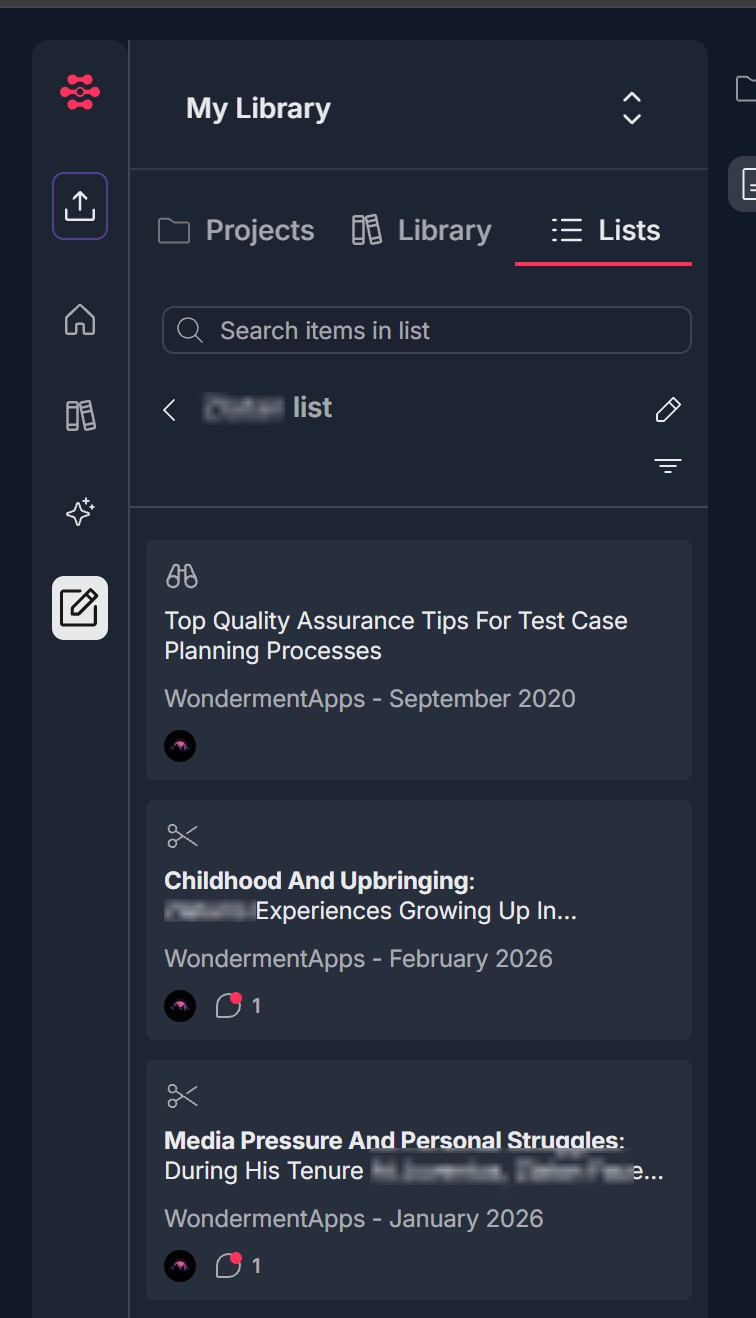
2. Click Any List Item -> Pop-Up Opens
- In the list view, click any list item (e.g., a snippet, an article, a keyword search item, or a chat message)
- A pop-up (detail modal) opens: Header — The modal title reflects the item type (e.g., "Snippet" with a scissors icon, "Article," "Keyword Item"). An X in the top right closes the modal. Item content — The main content of the item is displayed (e.g., for a snippet: the full snippet text, often framed by wavy purple lines; for an article: title, description, Read more link, source; for a keyword item or chat message: the relevant text or preview). Notations summary — Below the content, you see "0 Notations" or "1 Notations" (etc.), with a small avatar and "You" (or the current user). Notation history — Existing notations are listed with: User name and "(you)" if it's your notation (e.g., "Aleksandr Katushonok (you)"); Timestamp (e.g., "02:53 PM," "Today at 2:53 PM"); The comment text (e.g., "Barca snippet"). Interactive options per notation — For each notation you can: Add reaction... — A button or smiley face icon to add an emoji reaction to that notation; Edit — A pencil icon to edit the notation text; Delete — A trash can icon to remove the notation.
- These options (add reaction, edit, delete) are available for all list item types (snippet, article, keyword search item, chat message)
3. Add Comment/Notation and Save It
- At the bottom of the pop-up, you see an Add comment area: On the left, your avatar (or current user icon) is shown; An input field with placeholder text "Add comment"; A paper airplane icon (send button) on the right to submit the comment.
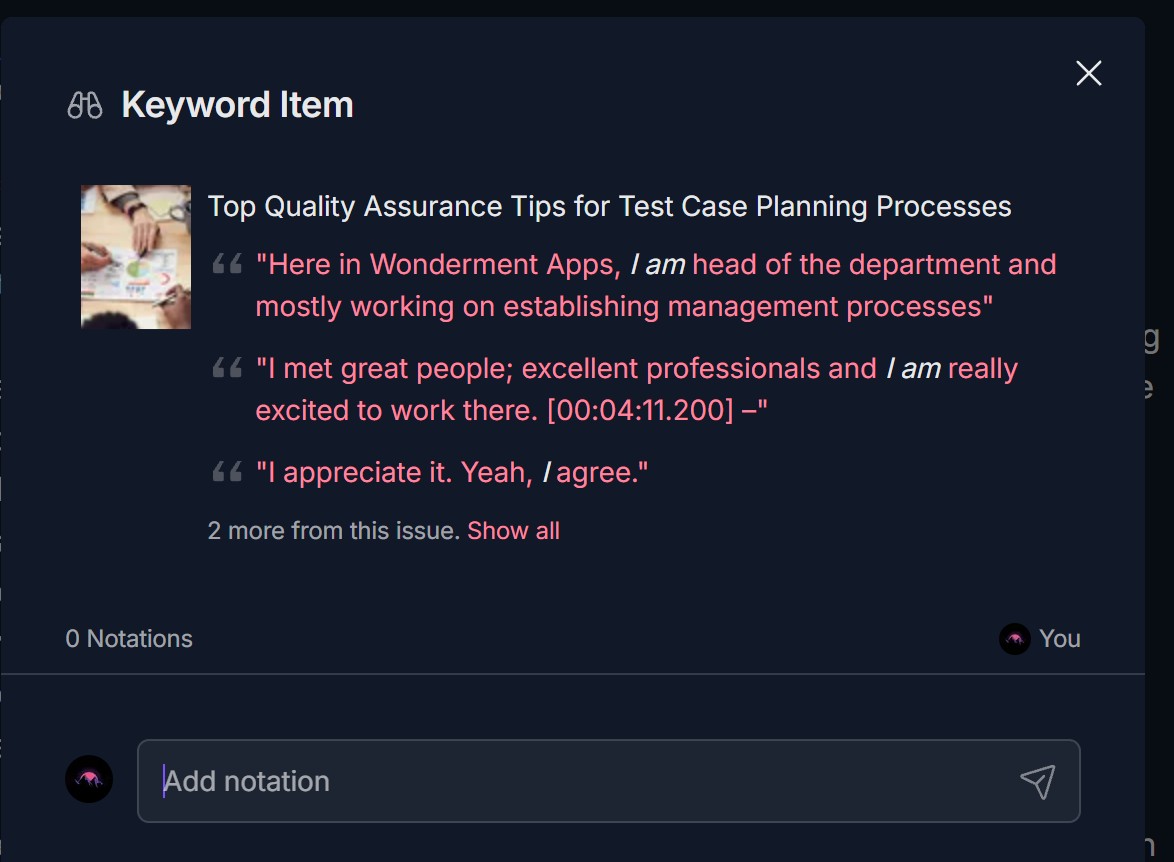
- Type your comment or notation in the input field (e.g., Barca snippet, Use for intro, Good quote)
- Click the paper airplane icon (or press Enter, if supported) to save the notation
- The new notation appears in the notation history above, with your name, (you), and the current timestamp (e.g., Today at 2:53 PM, 02:53 PM)
- The notation count at the top updates (e.g., 0 Notations -> 1 Notations)
- You can add as many notations as you need; each is saved with your identity and time
4. Edit Notation, Add Reaction, or Delete It (For All List Items)
- In the same pop-up for any existing notation (on any list item type—snippet, article, keyword item, chat message), you can: Edit the notation — Click the pencil icon next to the notation. The comment text becomes editable; change it as needed and save. Your edit is reflected in the notation history. Add a reaction — Click Add reaction... or the smiley face icon next to the notation. A reaction picker (e.g., emoji list) may appear; choose an emoji to add as a reaction to that notation. Delete the notation — Click the trash can icon next to the notation. Confirm if prompted; the notation is removed from the item. The notation count updates.
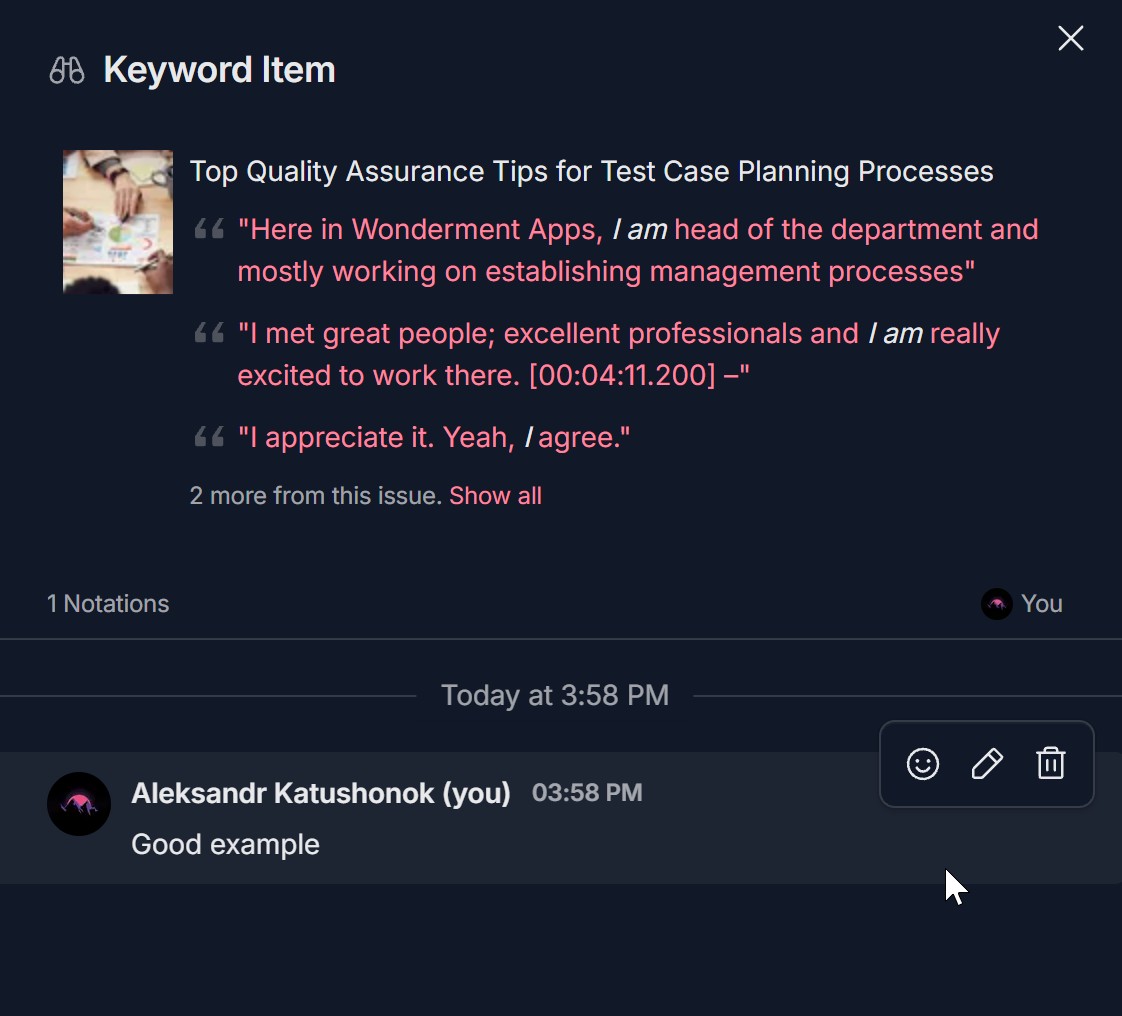
- Edit, reaction, and delete work the same way for all list item types — snippets, articles, keyword search items, and chat messages. Open the item, see its notations, and use the icons or Add reaction... as needed
- Close the pop-up with X when you're done; your changes are already saved
Troubleshooting Guide
A. Pop-Up Does Not Open When Clicking a List Item
- Issue: You open a list and click a list item (snippet, article, keyword item, chat message) but no detail pop-up appears.
- Fix:
- Ensure you clicked directly on the list item (the card or row), not on empty space or the list title
- Try clicking the item again; some UIs require a single click on the main content area
- Refresh the page and open the list again; click the item once more
- Check if a pop-up blocker or browser extension is blocking the modal
- If the pop-up still doesn't open, contact Support with the list name, item type (snippet/article/keyword/chat), and your browser
B. Notation Does Not Save When Adding a Comment
- Issue: You type in Add comment and click the paper airplane (send) but the notation doesn't appear.
- Fix:
- Ensure you entered some text in the Add comment field before sending; empty comments may not be saved
- Click the paper airplane icon (send) explicitly; some UIs don't submit on Enter until configured
- Wait a moment and scroll the notation area; the new notation may appear at the bottom with a short delay
- Refresh the page and open the item again; check if the notation was saved
- If the notation still doesn't save, contact Support with the item type and any error message you see
C. Cannot Edit, Add Reaction, or Delete a Notation
- Issue: You see the pencil, smiley, or trash icon but nothing happens when you click, or you don't see these options.
- Fix:
- Edit — Ensure you have permission to edit the notation (e.g., it's your own). Click the pencil icon; if an edit mode appears, change the text and save. If the icon is grayed out, you may not have edit rights
- Add reaction — Click Add reaction... or the smiley icon; if a reaction picker appears, select an emoji. If nothing happens, try again after a short delay or refresh the page
- Delete — Click the trash icon and confirm if a confirmation dialog appears. If the icon is missing or disabled, you may not have permission to delete that notation
- Refresh the page and open the item again; try edit/reaction/delete once more
- If options are still missing or don't work, contact Support with your role, the item type, and what you see next to the notation
D. Notations Don't Appear or Count Is Wrong
- Issue: You added notations but they don't show in the pop-up, or the N Notations count is incorrect.
- Fix:
- Refresh the page and open the list and item again; the UI may need to reload to show the latest notations
- Scroll within the notation history; older notations may be below the fold
- Check that you're viewing the same list item (e.g., same snippet or article) you added the notation to; different items have separate notation threads
- If the count or list is still wrong, contact Support with the list name, item type, and what you expect to see
E. Pop-Up Closes Unexpectedly or Won't Close
- Issue: The detail pop-up closes as soon as you click something, or the X doesn't close it.
- Fix:
- Unexpected close — Avoid clicking outside the modal if the UI is set to close on outside click; click only inside the pop-up when adding or editing notations
- Won't close — Click the X in the top right of the modal. If X doesn't respond, try pressing Escape (if supported) or clicking a different area of the app (e.g., list name) to navigate away
- Refresh the page if the modal appears stuck; your notation changes are typically saved already
Was this article helpful?
That’s Great!
Thank you for your feedback
Sorry! We couldn't be helpful
Thank you for your feedback
Feedback sent
We appreciate your effort and will try to fix the article