Description
The Collect and Organize Snippets feature in the Contesimal AI Research tool lets you capture and organize snippets—pieces of text from AI research results—into lists. You go to Creations -> AI Research, ask a question about your content (using document-based or web-based AI). When a result is returned, you select the text you want to keep, click Save to list, and the selected text is added to a list as a snippet. You can save to an existing list or create a new list while adding the snippet. Once saved, you can view snippet(s) in the list, delete them, and add comments (notations) to snippets. This feature helps you collect only the passages that matter to you, keep them in named lists, and annotate them for later use.
How This Feature Helps You
- Precise capture — Instead of saving whole articles, you select only the sentence or paragraph you need from an AI research result. The snippet is a direct quote from that result, so you keep exactly what you want.
- Document or web AI — Snippets can come from document-based AI (your content library) or web-based AI results. Ask a question, get an answer, then select and save the relevant part as a snippet.
- Lists as containers — Snippets live in lists (e.g., Quotes, Key points, Research notes). You can use an existing list or create a new one from the Save Snip to List modal (e.g., + New List), so you never lose a thought.
- View, comment, delete — Open a list to see all snippets (each has a scissors icon). Click a snippet to view its full text and notations (comments). Add comments to remember why you saved it; delete snippets you no longer need.
Benefits
- Focused research — Keep only the exact text that matters, not entire documents or long answers.
- Organized by topic — Use one list per theme (e.g., Leadership quotes, Product feedback) so snippets are easy to find later.
- Context with comments — Add notations to snippets so you (or your team) remember the context or how you plan to use them.
- Flexible list choice — Save to an existing list or create a new list on the spot when saving a snippet, without leaving the AI Research flow.
Step-by-Step Usage
The step-by-step instructions, screen descriptions, and UI details in this section are examples only. They are intended to help you understand how the feature works and how to complete the flow. Screens, labels, and layout may change in future product updates.
1. Go to Creations -> AI Research Tool
- Log in to your Contesimal account
- In the left panel, go to Creations (e.g., edit/pencil icon or Creations section)
- Open AI RESEARCH panel
- You are now in the AI Research tool and can ask questions about your content (document-based or web-based AI)
2. Ask a Question About Your Content (Document-Based or Web-Based AI)
- In the AI RESEARCH panel, use the input at the bottom (e.g., "Ask a question about your content.")
- You can use document-based AI (questions answered from your content library) or web-based AI (questions answered from the web), depending on how your project is set up (e.g., @ Add Context to choose Content Library, URL, or Add Document)
- Type your question and send it (e.g., click the send/arrow icon)
- Wait for the result to be returned (e.g., a paragraph, bullet list, or article excerpt)
3. When the Result Is Returned, Select the Text You Want to Add as a Snippet
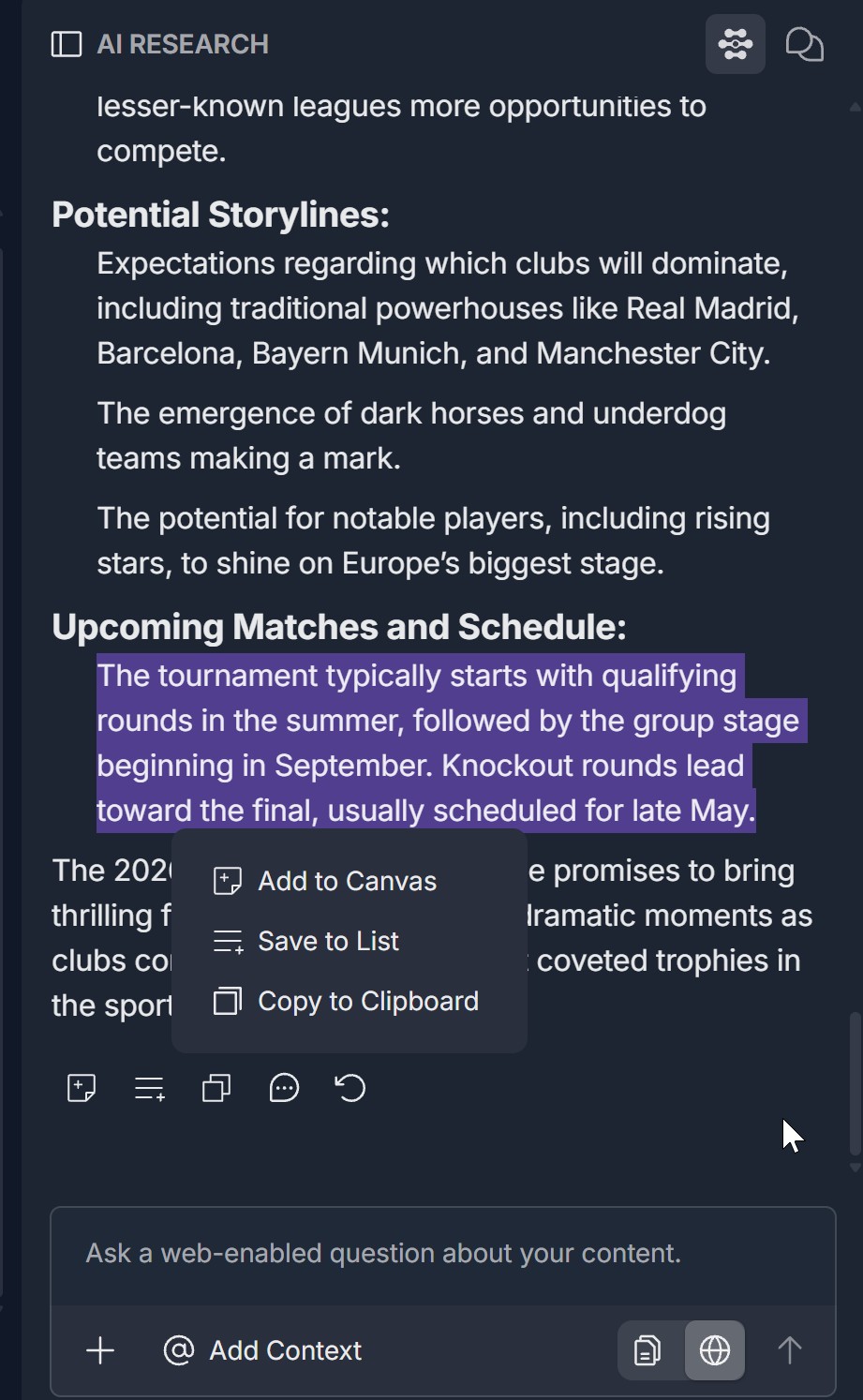
- In the AI Research result area, select the text you want to save as a snippet (click and drag to highlight)
- The selected text should be highlighted (e.g., purple or colored background)
- A context menu appears over or near the selection with options such as Add to Canvas, Save to List, and Copy to Clipboard
- You are ready to save this selection as a snippet to a list (step 4)
4. Click Save to List -> Text Is Added to a Selected List as a Snippet
- In the context menu, click Save to List
- A Save Snip to List modal opens: Title: "Save Snip to List" at the top; X in the top right to close; The selected snippet text is shown (e.g., in italics), with a scissors icon; Add To List / Select List — dropdown or selection area to choose the list; Search — search bar to find a list by name; Existing lists — e.g., "Zlatan list," "Zlatan," or other list names; + New List — button to create a new list while adding the snippet; Cancel (dark/gray) and Save (red/pink) buttons at the bottom right.
- Choose an existing list (select from the dropdown or list) or click + New List to create a new list; if you create a new list, follow the prompts to name it
- Optionally add a notation (comment) if the modal offers an Add Notation (optional) field; the note will be saved with the snippet
- Click Save
- The selected text is added to the chosen list as a snippet
5. Snippet Is Saved to the List
- After you click Save, the snippet is saved to the list
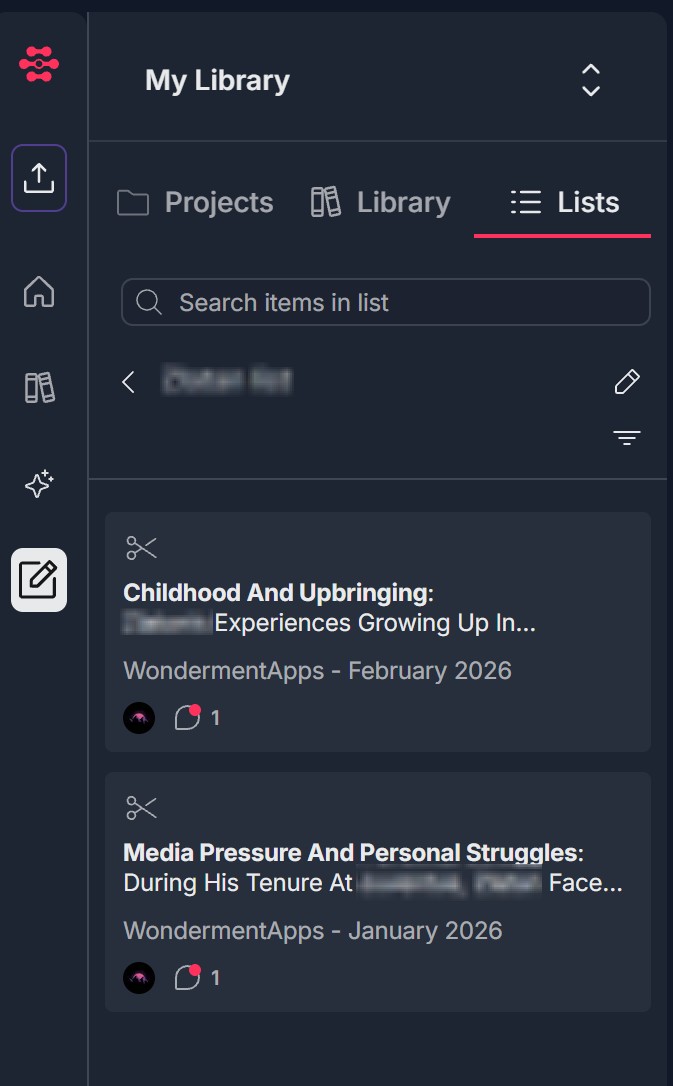
- You can confirm by going to Creations -> Lists and opening the list you chose
- The new snippet appears in the list with: A scissors icon (indicating it is a snippet); The snippet title or preview (e.g., "Childhood And Upbringing: Zlatan's experiences growing up in..." or "Media Pressure And Personal Struggles: During his tenure at Juventus..."); Source and date (e.g., "WondermentApps - February 2026") if shown; A comment/notation count (e.g., "1" if you added a notation) and a You or profile icon
- You can continue adding more snippets from other AI research results to the same or different lists
6. View Snippet(s), Delete Them, or Add Comments to Snippets
- View snippet(s) — Go to Creations -> Lists, open your list, and scroll through the items. Snippets are identified by the scissors icon. Click a snippet to open its detail view (Snippet modal): Title: Snippet with a scissors icon; X to close; The full snippet text is displayed (e.g., enclosed by wavy purple lines or similar); Notations — 0 Notations or 1 Notations (etc.) and the list of comments (e.g., Aleksandr Katushonok (you) 01:24 PM with the comment text Childhood.); Add comment — An input field at the bottom (e.g., Add comment with a paper airplane/send icon) lets you add new comments (notations) to the snippet.
- Add comments to snippets — In the Snippet modal, type in the Add comment field and send (e.g., click the paper airplane icon). Your comment appears under Notations with your name and timestamp. Use comments to explain why you saved the snippet or how you plan to use it.
- Delete snippets — From the list view, use the trash can icon (or remove/delete action) on the snippet's card to remove it from the list. Confirm if prompted. The snippet is removed from the list but is not deleted from the original AI research result.
Troubleshooting Guide
A. Save to List Does Not Appear After Selecting Text
- Issue: You select text in an AI research result but no context menu appears, or Save to List is missing from the menu.
- Fix:
- Ensure you selected the text (it should be highlighted); the context menu usually appears on or near the selection
- Try selecting again: click and drag over the exact passage you want; avoid selecting only a single character or empty space
- Check that you are in the AI RESEARCH panel and viewing a result (answer or article), not only the input field or a different section
- Refresh the page, ask a question again, and try selecting and saving once more
- If Save to List still doesn't appear, contact Support with where you were selecting (e.g., document-based answer, web AI answer) and what options you do see
B. Snippet Does Not Save or Modal Does Not Open
- Issue: You click Save to List but the Save Snip to List modal doesn't open, or you click Save in the modal but the snippet doesn't appear in the list.
- Fix:
- Ensure you chose a list (selected an existing list or created one with + New List) before clicking Save
- If you clicked + New List, complete the new-list flow (e.g., enter a name) so the list exists before saving
- Check that the list name appears in the Select List / Add To List area before clicking Save
- Refresh the page and go to Creations -> Lists -> open the list; check if the snippet was added
- Try saving again with a shorter selection if the passage was very long
- If the snippet still doesn't save, contact Support with what you see in the modal (e.g., error message, grayed-out Save)
C. Cannot View Snippet or Add Comments
- Issue: You open a list and click a snippet but the Snippet modal doesn't open, or you cannot add a comment in the modal.
- Fix:
- Ensure you are in Creations -> Lists and have opened the correct list (snippets have a scissors icon)
- Click directly on the snippet row or card (the clickable area that opens the detail view)
- In the Snippet modal, use the Add comment input at the bottom and click the send (paper airplane) icon to submit the comment
- Refresh the page and open the list and snippet again
- If the modal still doesn't open or comments don't save, contact Support with your browser and what you see when you click the snippet
D. Cannot Delete a Snippet
- Issue: You want to remove a snippet from the list but cannot find the delete/remove action or it doesn't work.
- Fix:
- In the list view (Creations -> Lists -> open list), look for the trash can icon on the snippet's card (often at the top right of the card), or a three-dots menu with a Remove/Delete option
- Click the trash can (or Remove/Delete) and confirm if a confirmation dialog appears
- Ensure you have permission to edit the list (e.g., you created it or have edit access)
- Refresh the page and try again; if the snippet still cannot be removed, contact Support with what you see on the snippet card (e.g., no trash icon, error on click)
E. No Lists Available When Saving a Snippet
- Issue: The Save Snip to List modal opens but there are no lists to choose from, or + New List doesn't work.
- Fix:
- You can create a new list from the modal by clicking + New List; follow the prompts to name the list, then save the snippet to it
- If you expect to see existing lists, go to Creations -> Lists first and confirm your lists appear there; then return to AI Research and try saving the snippet again
- Ensure you are in the same account/workspace where you created your lists
- If + New List fails or lists still don't appear, contact Support with your account and what you see in the Select List dropdown
Was this article helpful?
That’s Great!
Thank you for your feedback
Sorry! We couldn't be helpful
Thank you for your feedback
Feedback sent
We appreciate your effort and will try to fix the article