Description
The Comment on AI Research in the Contesimal AI Research tool lets you add, view, edit, delete, and react to comments on AI research results. When you ask the AI (document-focused or web-enabled) about your content and receive a research result, you can open the COMMENT panel to add a comment on that result. Comments are tied to the research result and help you collaborate, give feedback (e.g., Research looks great), or ask follow-up questions. You can edit your comment (e.g., fix a typo), delete it, or add a reaction (e.g., emoji) to any comment. This feature helps you discuss and annotate AI research in one place—without leaving the AI RESEARCH panel—so you and your team can capture feedback and context.
How This Feature Helps You
- Discuss research results — After the AI returns a result (from document-focused or web-enabled research), you open the Comment button or speech bubble icon (e.g., with three dots) in the toolbar below the result. The COMMENT panel opens so you can read existing comments and add new ones. Each comment shows the user's avatar, name (with (you) for your own), timestamp, and comment text.
- Add comments — Type in the Add comment input at the bottom of the panel (or placeholder Comment on AI research result) and send with the paper airplane (send) icon. Your comment appears in the list with your name and timestamp.
- Edit, delete, or add reactions — For each comment (including your own), you can edit the text (pencil icon), delete the comment (trash can icon), or add a reaction (e.g., Add reaction... or smiley face icon to pick an emoji). These options appear when you hover over or select the comment.
- Empty state — If there are no comments yet, the panel shows a large speech bubble icon and the message No chats here yet... so you can be the first to add a comment. Close the panel with the X button in the top right when you're done.
Benefits
- Clear feedback — Comments give research results meaning: what you think, what to do next, or questions for the team. No more losing feedback in email or chat.
- Collaboration — Teammates can add, edit, react to, or delete comments so AI research becomes a shared discussion thread.
- Full control — Edit your own comments, add reactions for quick feedback, or delete outdated comments so the thread stays relevant.
- Stays in context — Comment directly on the research result in the AI RESEARCH panel, so discussion and research stay together.
Step-by-Step Usage
The step-by-step instructions, screen descriptions, and UI details in this section are examples only. They are intended to help you understand how the feature works and how to complete the flow. Screens, labels, and layout may change in future product updates.
1. Ask the AI About Your Content and Receive a Research Result
- Log in to your Contesimal account
- In the left panel, go to Creations (e.g., edit/pencil icon or Creations section)
- Ask the AI a question about your content using document-focused AI (your content library) or web-enabled AI (web content), depending on how you added context (e.g., @ Add Context for library, URL, or document)
- Type your question in Ask a question about your content. and send (e.g., up arrow icon)
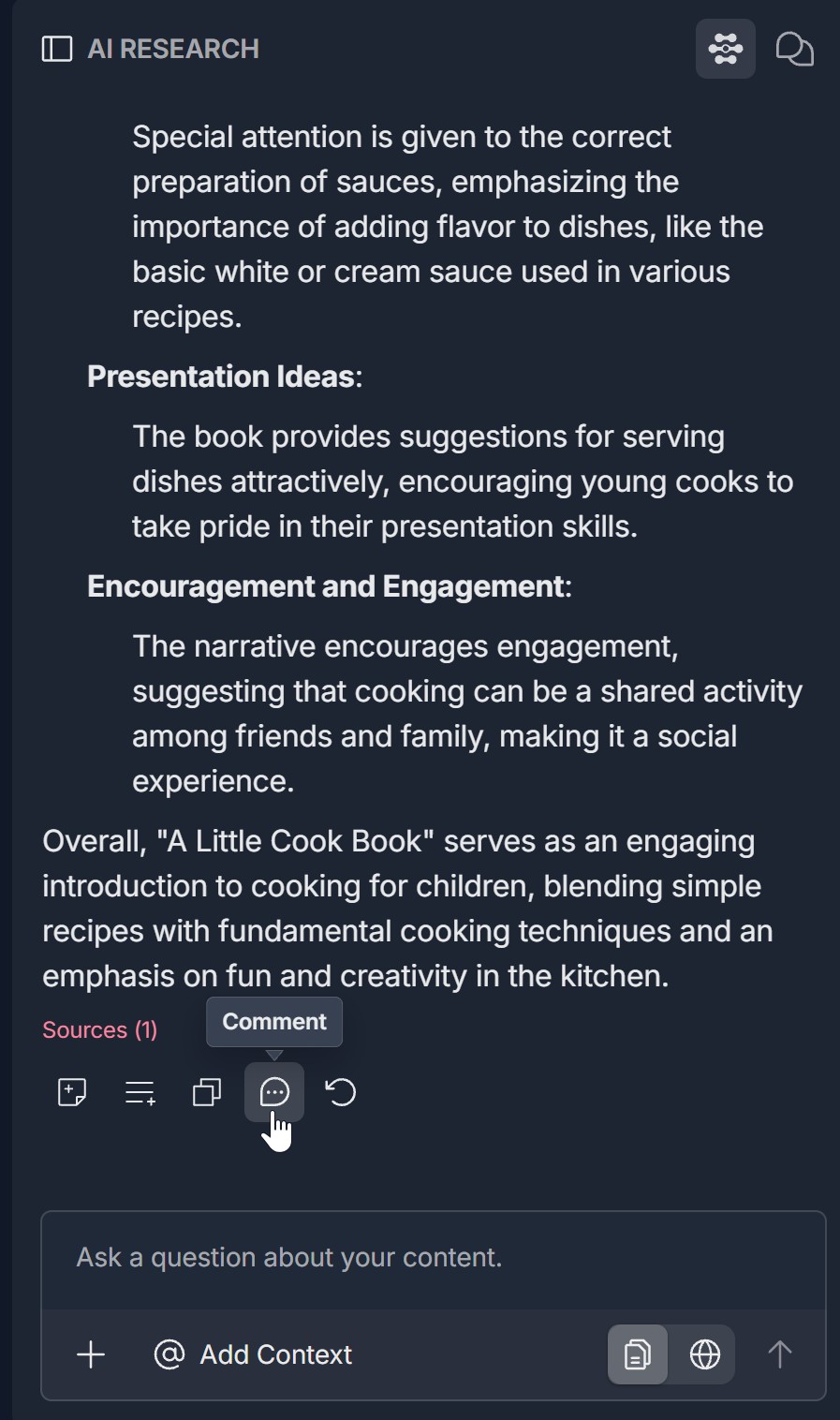
- Wait for the research result to be returned (e.g., a summary, bullet list, or article overview). Below the result you may see Sources (N) and a Comment button with a toolbar of icons (e.g., speech bubble with three dots for comment, copy, list, save, refresh)
- You are now ready to add a comment on this research result
2. Open the COMMENT Panel and Add a Comment
- Below the research result, click the Comment button or the speech bubble icon (e.g., speech bubble with three dots) in the toolbar
- The COMMENT panel (or modal) opens with: A header with the title COMMENT on the left and an X (close) button on the right
- A main area that either shows: Empty state — A large speech bubble icon and the message No chats here yet... if there are no comments yet; or Existing comments — A timestamp (e.g., Today at 4:39 PM) and a list of comments; each comment shows the user's avatar, name (e.g., Aleksandr Katushonok (you)), time (e.g., 04:39 PM), and the comment text on the next line
- At the bottom: your avatar on the left, an input field with placeholder Add comment or Comment on AI research result, and a paper airplane (send) icon on the right
- Type your comment in the input field (e.g., Comment on AI research result, Research looks great, or a question)
- Click the paper airplane (send) icon to submit your comment
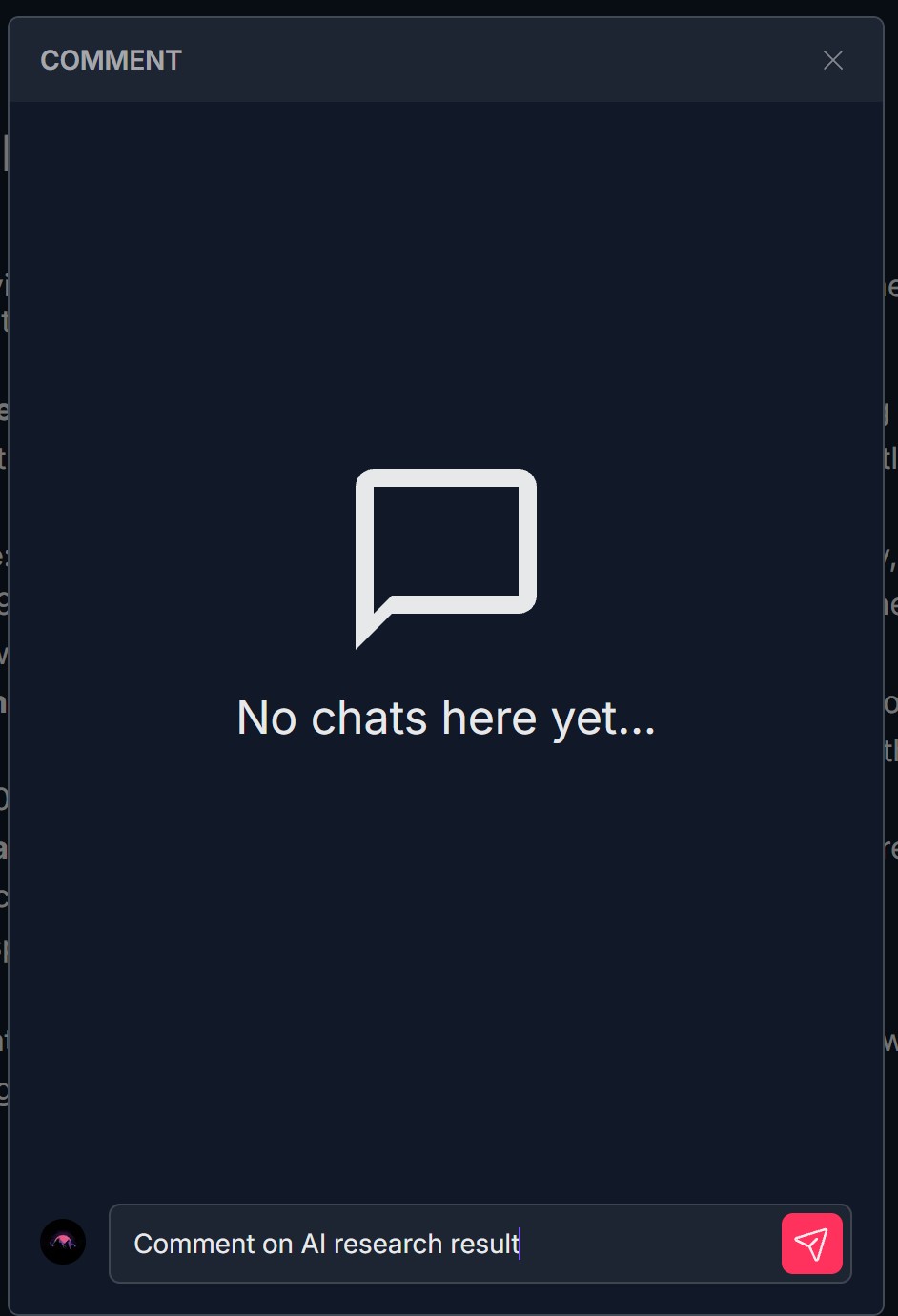
- Your comment is sent and appears in the comment list above with your name, (you), the current time (e.g., 04:39 PM, Today at 4:39 PM), and the text you entered
3. Edit, Delete, or Add a Reaction to a Comment
- In the COMMENT panel, hover over or click an existing comment (yours or another user's)
- A set of interaction options appears next to the comment: Add reaction... — A button or smiley face icon to add an emoji reaction to that comment (e.g., thumbs up, heart). Click it and choose an emoji from the reaction picker if one appears; Edit — A pencil icon to edit the comment text. Click it to change the text (e.g., fix a typo or update the note); save or confirm when done; Delete — A trash can icon to remove the comment. Click it and confirm if prompted; the comment is removed from the list
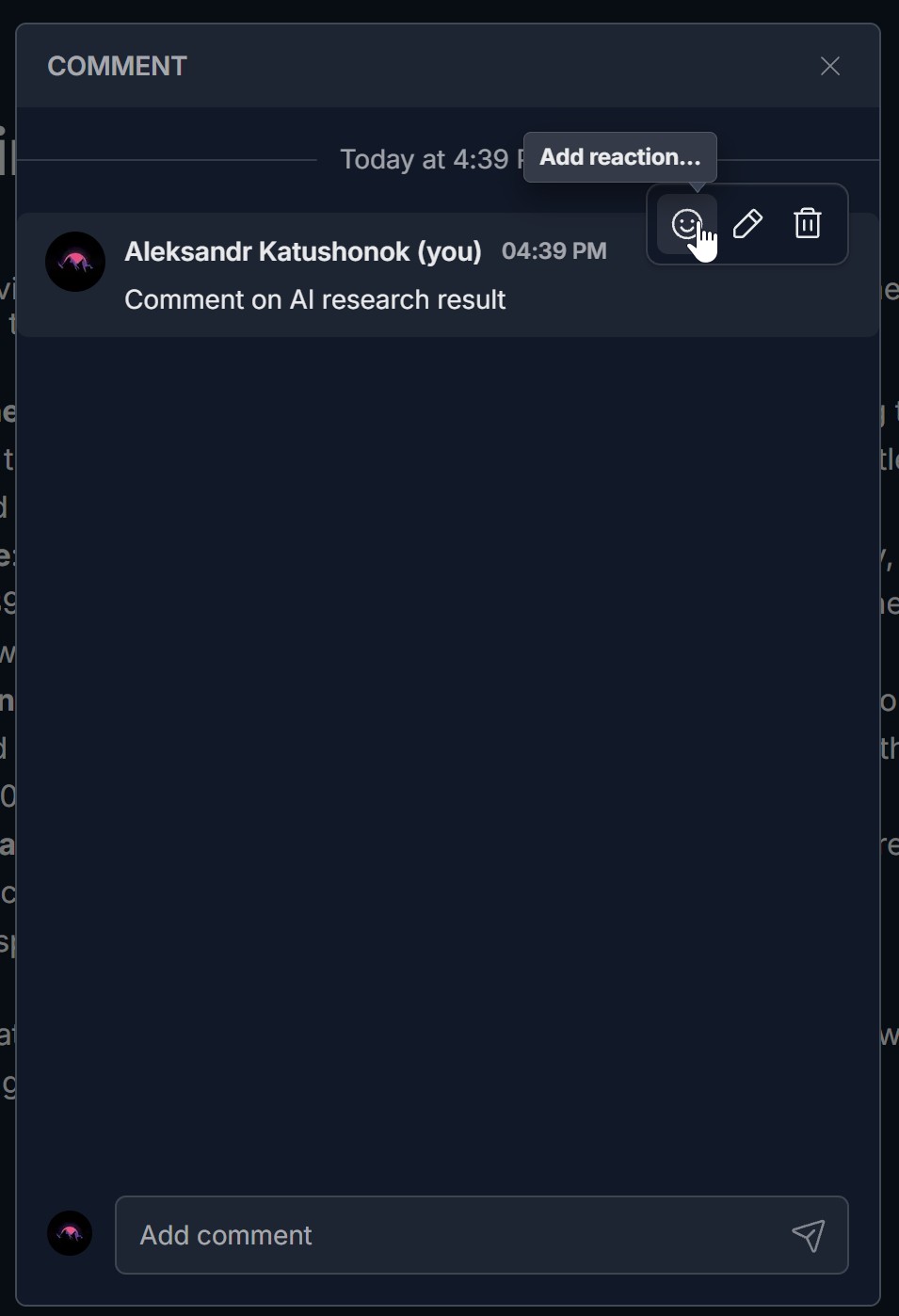
- Edit is typically available for your own comments; Delete and Add reaction may be available for your comments or others', depending on permissions
- When you are done, click the X button in the top right of the COMMENT panel to close it. You can open Comment again anytime to view, add, edit, delete, or react to comments
Troubleshooting Guide
A. Comment Button or Speech Bubble Icon Doesn't Open the COMMENT Panel
- Issue: You click the Comment button or the speech bubble icon (e.g., with three dots) below the research result but the COMMENT panel does not appear.
- Fix:
- Ensure you received a research result first (ask a question and wait for the AI to return an answer); the Comment button or speech bubble icon appears below the result
- Click directly on the Comment button or the speech bubble icon (e.g., with three dots) in the toolbar below the result, not on Sources or other icons
- Confirm the AI RESEARCH panel is visible on the right and a research result is displayed
- Refresh the page, ask a question again, and once the result appears click Comment (or the speech bubble icon)
- Check if a pop-up or ad blocker is blocking the panel
- Try a different browser (Chrome, Edge, Firefox) if the issue persists
- If the issue continues, contact Support with your browser and steps taken
B. Comment Doesn't Send After Clicking the Paper Airplane
- Issue: You type a comment in the Add comment field and click the paper airplane (send) icon but the comment does not appear in the list.
- Fix:
- Ensure you entered some text in the Add comment field before clicking send; empty comments may not be sent
- Check your network connection; a failed request can prevent the comment from being saved
- Click the paper airplane icon again after ensuring the field has text
- Refresh the page and open the COMMENT panel again; try adding the comment again
- Check the browser console (F12 -> Console) for failed network requests or errors
- If sending consistently fails, try in an incognito/private window to rule out extensions, or contact Support with your browser and steps taken
C. Comments Don't Appear or I Don't See My Comment
- Issue: You sent a comment but it does not show in the comment list, or you don't see comments that others added.
- Fix:
- Wait a few seconds; the list may need a moment to update after sending
- Scroll within the COMMENT panel to see if the comment appears below
- Close the panel (X) and open it again (Comment button or speech bubble icon) to refresh the comment list
- Refresh the page and open the COMMENT panel again
- Confirm you are viewing the same research result; comments are tied to that AI research result
- If comments still don't appear, contact Support with what you see in the panel
D. COMMENT Panel Is Missing or Looks Different
- Issue: You don't see a Comment button or speech bubble icon below the research result, or the COMMENT panel doesn't show the expected title, empty state, or Add comment field.
- Fix:
- Confirm you are in a view where the AI RESEARCH panel is available and you have received a research result (ask a question first)
- Scroll below the research result to ensure the Comment button and toolbar icons (e.g., speech bubble with three dots) are visible
- Refresh the page, ask a question again, and once the result appears look for Comment or the speech bubble icon
- Check if your account or plan includes commenting on AI research; if unsure, contact Support
- If the panel opens but looks different (e.g., different title or layout), note what you see and contact Support for product-specific guidance
E. COMMENT Panel Won't Close
- Issue: You click the X button but the COMMENT panel does not close.
- Fix:
- Ensure you clicked the X in the top right of the panel header, not elsewhere on the page
- Try clicking the X again or pressing Escape (Esc) if the product supports it
- Click outside the panel (on the dimmed background) if that closes it
- Refresh the page to dismiss the panel and return to the AI RESEARCH view
- If the panel consistently won't close, try a different browser or contact Support with your browser and steps taken
F. Cannot Edit, Delete, or Add Reaction to a Comment
- Issue: You hover over a comment but don't see the pencil, trash can, or smiley (Add reaction) icon, or clicking them doesn't work.
- Fix:
- Edit — Ensure you have permission to edit the comment (e.g., it's your own). Click the pencil icon; if an edit mode appears, change the text and save or confirm. If the icon is grayed out or missing, you may not have edit rights
- Delete — Click the trash can icon and confirm if a confirmation dialog appears. If the icon is missing or disabled, you may not have permission to delete that comment
- Add reaction — Click Add reaction... or the smiley face icon; if a reaction picker appears, select an emoji. If nothing happens, try hovering over the comment again or refresh the page
- Refresh the page and open the COMMENT panel again; try edit, delete, or add reaction once more
- If options are still missing or don't work, contact Support with your role and what you see next to the comment
Was this article helpful?
That’s Great!
Thank you for your feedback
Sorry! We couldn't be helpful
Thank you for your feedback
Feedback sent
We appreciate your effort and will try to fix the article