Description
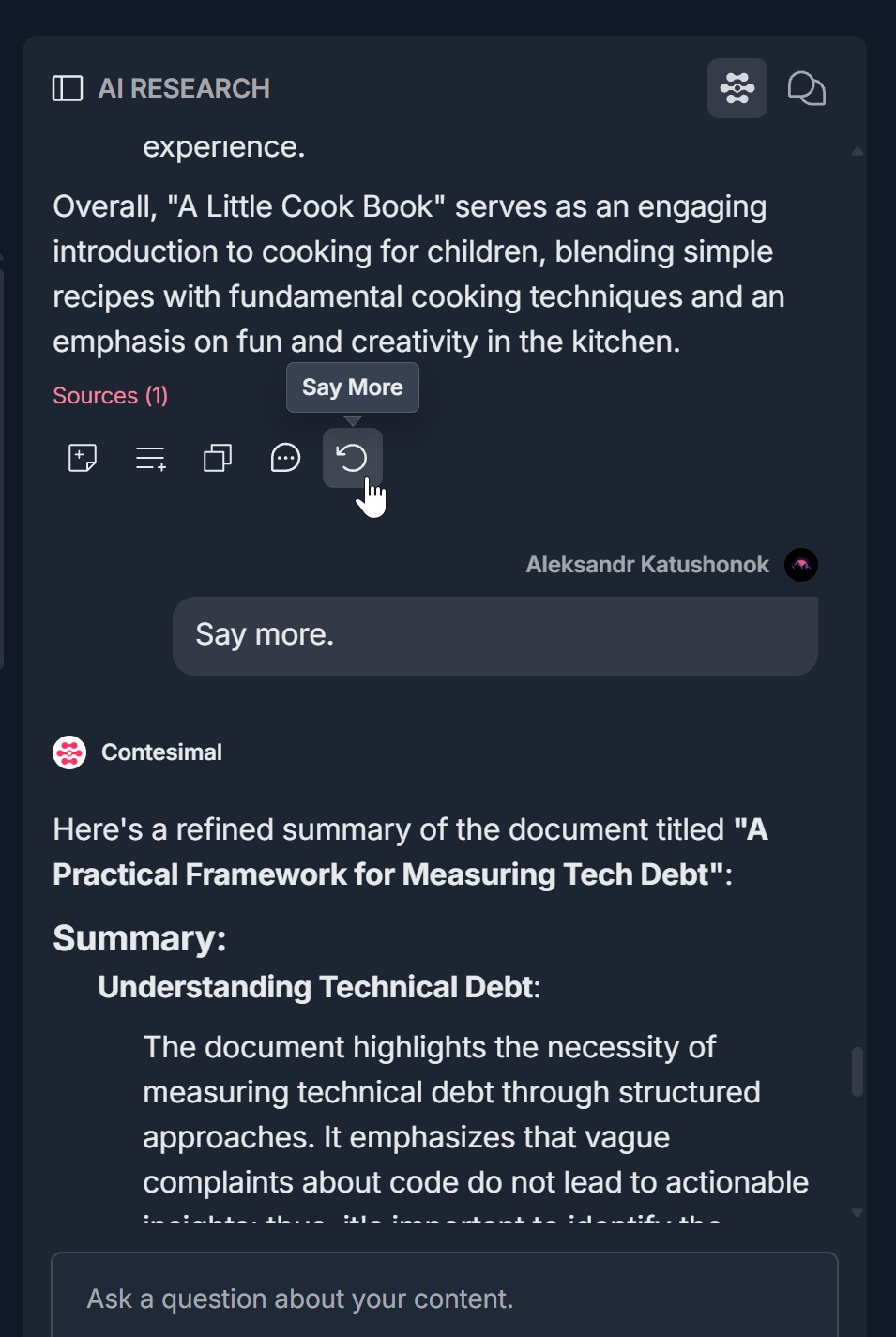
Quick Interactions with AI Research Results in the Contesimal AI Research tool are one-click actions available in the toolbar below each AI research result. When the AI (document-focused or web-enabled) returns a research result—such as a summary, analysis, or answer—you see a row of quick interaction icons (and sometimes buttons) that let you view the source document, add the result to a canvas, save it to a list, copy the text, comment on the result, or ask the AI to say more. These actions help you act on research without leaving the AI RESEARCH panel: verify sources, reuse content, organize findings, share text, collaborate with comments, or deepen the answer. This feature streamlines your workflow by putting the most common next steps right under each result.
How This Feature Helps You
- View source — Click Sources (N) (or the document/source icon in the toolbar) to open a Links pop-up listing the source documents for the result. Click a link (e.g., a PDF or document name) to open the original document in a modal viewer so you can read the source and verify what the AI summarized.
- Add to canvas — Click the Add to Canvas button or the rectangle-with-plus icon to add the research result (or a snippet of it) to a canvas. Use this to build boards, presentations, or visual collections from your AI research.
- Save to list — Click the list-with-plus icon (or Save to list) to open the Save Chat Message to List modal. Choose an existing list (or create one), add an optional notation, and click Save to store the research result in that list for later use or organization.
- Copy — Click the Copy button or the overlapping-rectangles (copy) icon to copy the research result text to your clipboard. A notification (e.g., Text copied to clipboard) confirms the action. Paste the text into emails, docs, or other tools.
- Comment — Click the speech bubble icon to open the COMMENT panel and add, view, edit, delete, or react to comments on this research result. Use comments to give feedback, ask questions, or collaborate with your team.
- Say more — Click the circular-arrow (Say more) icon to open a Say more prompt (or input) so you can ask the AI to elaborate, expand, or refine its previous response without re-typing the original question.
Benefits
- Faster workflow — One click to view source, copy, save to list, add to canvas, comment, or say more; no need to leave the AI RESEARCH panel or hunt for menus.
- Trust and verification — View source lets you open the original document and confirm that the AI's summary or answer is accurate.
- Reuse and organize — Add to canvas and Save to list let you collect and organize research results for projects, reports, or later reference.
- Share and collaborate — Copy lets you paste research into other tools; Comment lets you discuss results with teammates directly on the result.
- Deeper answers — Say more lets you get more detail or a refined answer from the AI in context, without starting a new query.
Step-by-Step Usage
The step-by-step instructions, screen descriptions, and UI details in this section are examples only. They are intended to help you understand how the feature works and how to complete the flow. Screens, labels, and layout may change in future product updates.
Prerequisite: Receive an AI Research Result
- Log in to your Contesimal account.
- Open a project so the AI RESEARCH panel is visible (e.g., on the right).
- Ask the AI a question about your content (document-focused or web-enabled) using Ask a question about your content. and send (e.g., up arrow).
- Wait for the research result to appear (e.g., summary, bullet list, or analysis). Below the result you see Sources (N) (if sources exist) and a toolbar with quick interaction icons: Add to Canvas, Save to list, Copy, Comment, Say more, and optionally a View source or document icon.
- You are now ready to use any quick interaction.
1. View Source
- Below the research result, click Sources (N) (where N is the number of sources) or the document/source icon in the toolbar.
- A Links pop-up (or similar) opens, listing the source documents (e.g., PDF or other file names).
- Click a link in the pop-up to open that document.
- The document viewer opens (e.g., as a modal) showing the original file (e.g., PDF title page, metadata, and content). You can read the source to verify the AI's summary.
- Close the document viewer (e.g., X in the header) when done. The Links pop-up may close when you open a link, or you can close it with X if it stays open.
2. Add to Canvas
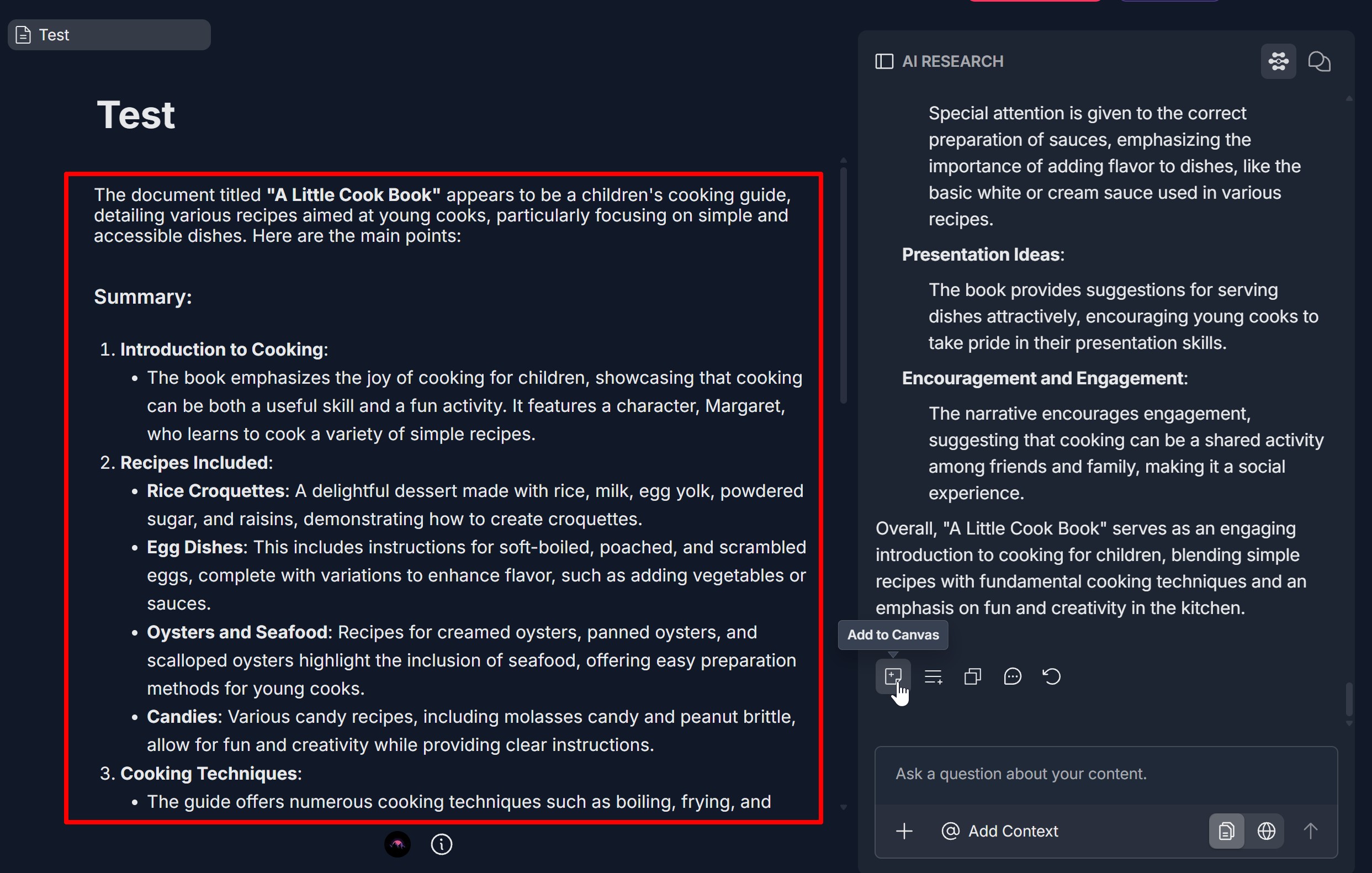
- Below the research result, click the Add to Canvas button or the rectangle-with-plus icon in the toolbar.
- If a list of canvases or a picker appears, select the canvas (or board) where you want to add the result.
- The research result (or a snippet/card of it) is added to the selected canvas. You can then arrange it, combine it with other content, or use it in presentations or boards.
- If no picker appears, the result may be added to a default or current canvas; check the canvas view to confirm.
3. Save to List
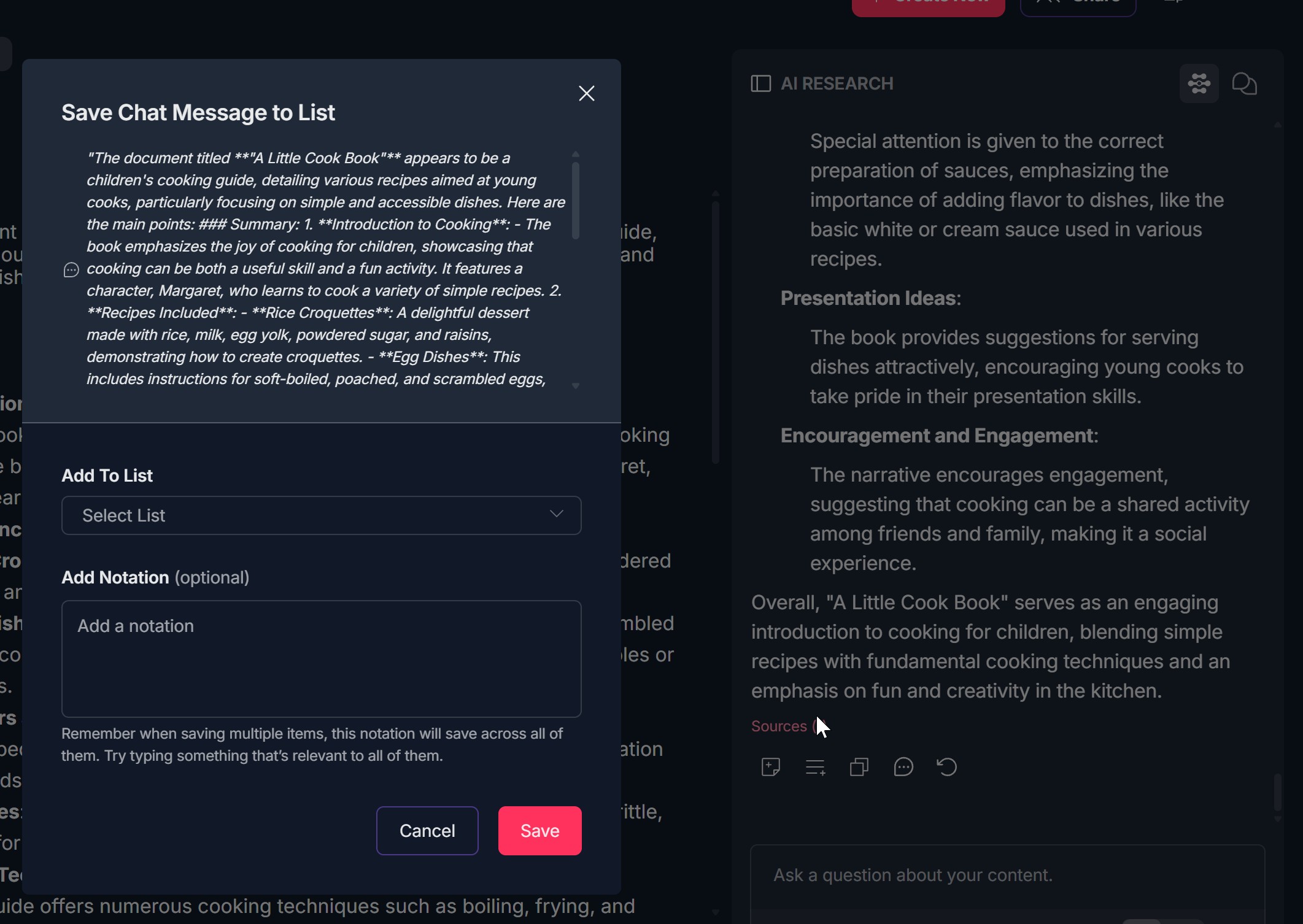
- Below the research result, click the list-with-plus icon (or Save to list) in the toolbar. A tooltip may show Save to list.
- The Save Chat Message to List modal opens. It shows: The content to be saved (the research result text) in a scrollable area; Add To List — A Select List dropdown to choose an existing list (or create a new one if the product supports it); Add Notation (optional) — A field to add a note; Cancel and Save buttons at the bottom.
- Select a list from the dropdown (or create one).
- Optionally type a notation in the Add Notation field.
- Click Save. The research result is saved to the selected list. The modal closes.
- You can open your lists later to view, edit, or reuse the saved result.
4. Copy
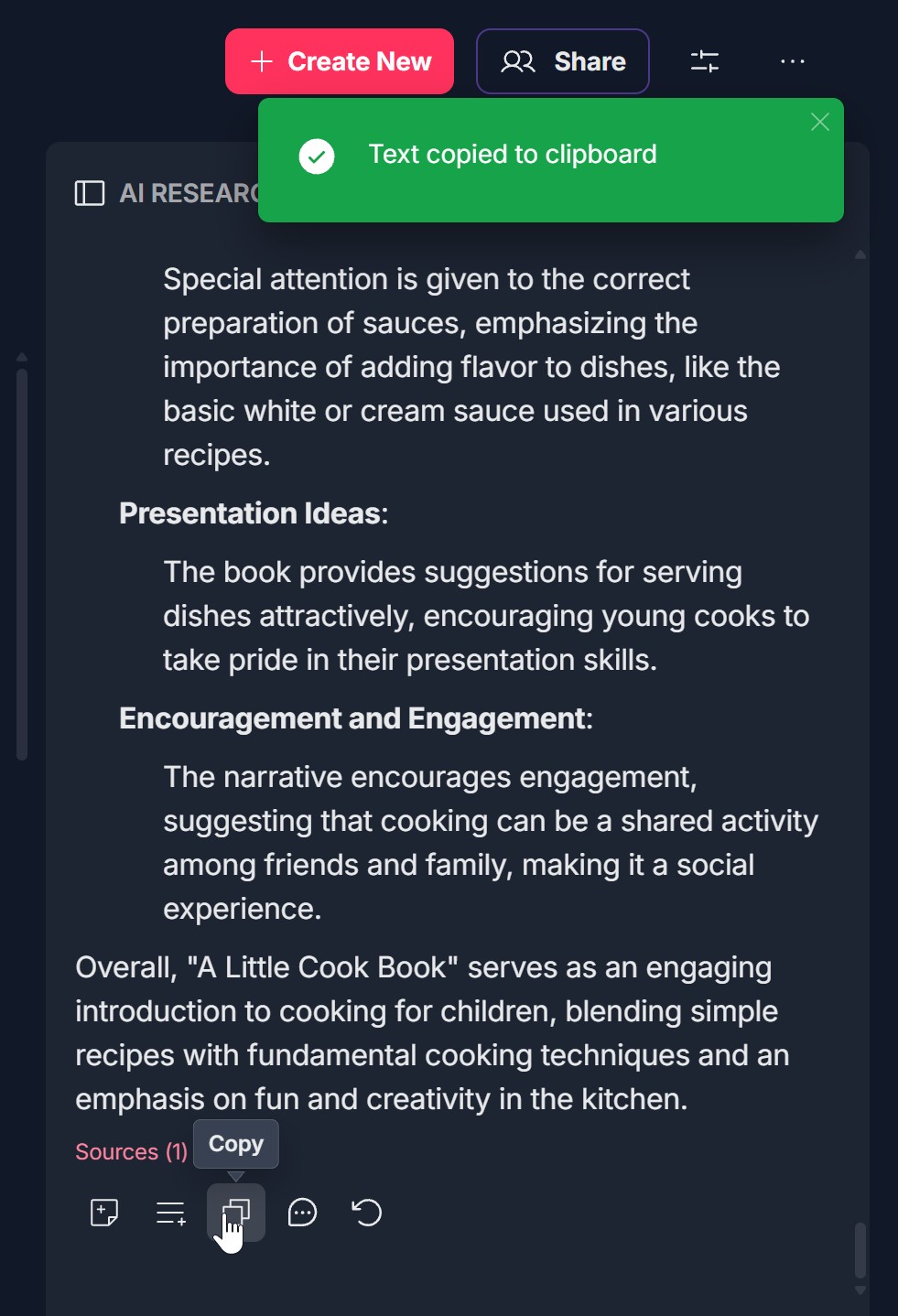
- Below the research result, click the Copy button or the overlapping-rectangles (copy) icon in the toolbar.
- The research result text is copied to your clipboard. A green notification (e.g., Text copied to clipboard) appears to confirm.
- Paste the text elsewhere (e.g., email, document, or another app) using your system paste shortcut (e.g., Ctrl+V or Cmd+V).
5. Comment
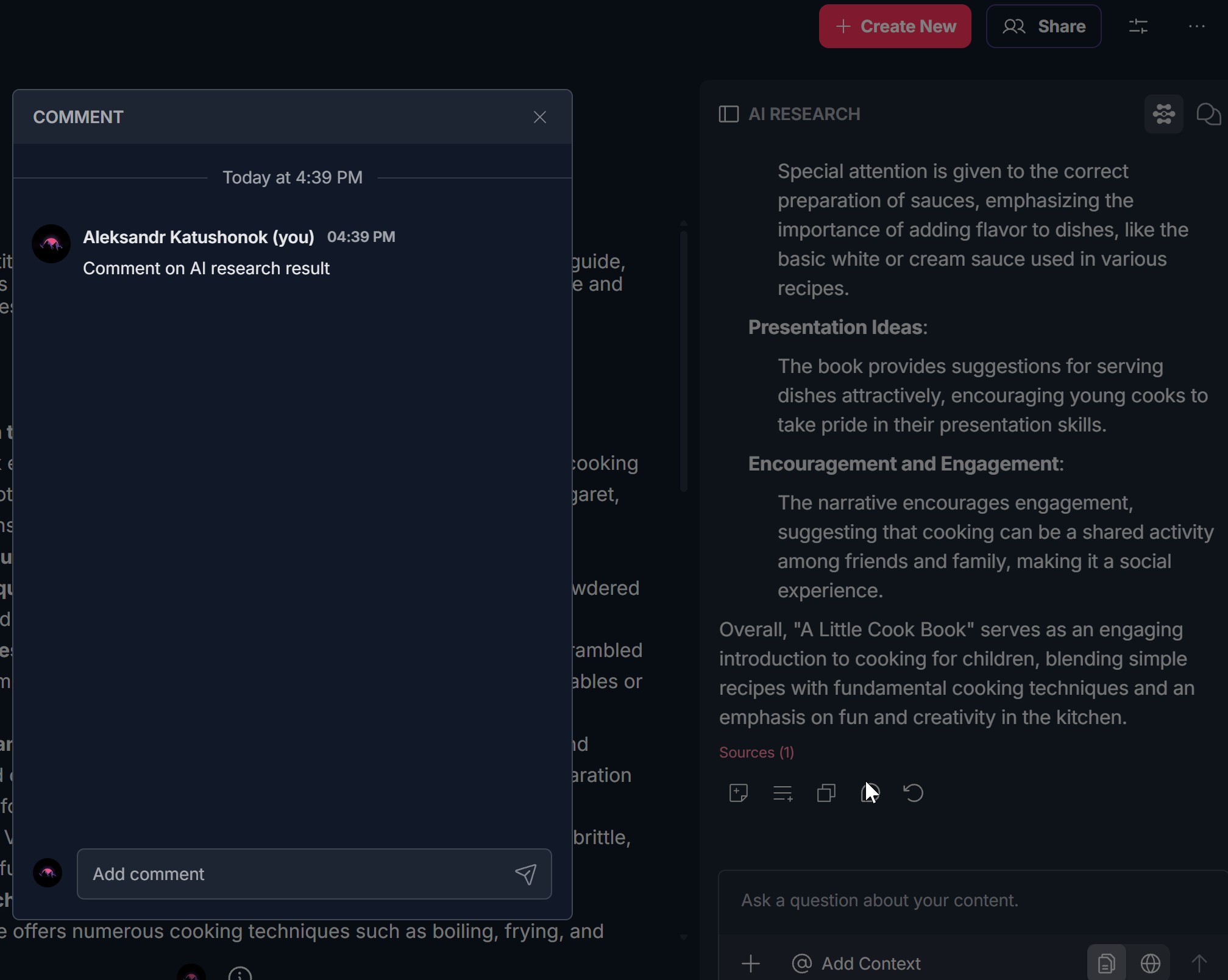
- Below the research result, click the speech bubble icon (or Comment) in the toolbar.
- The COMMENT panel opens. You can read existing comments and add a new one in the Add comment field; send with the paper airplane icon. You can also edit, delete, or add reactions to comments as described in the Comment on AI Research Results guidelines.
- When done, close the COMMENT panel with X.
6. Say More
- Below the research result, click the circular-arrow icon (or Say more) in the toolbar.
- A Say more input (or prompt) appears, often with placeholder text like Say more. You can type a follow-up question or request (e.g., Explain the sauce section in more detail or Add examples).
- Send your message (e.g., press Enter or click send). The AI responds with additional or refined information in context, below (or next to) the previous result.
- You can repeat Say more to keep deepening the conversation without re-asking the original question.
Troubleshooting Guide
A. Sources / View Source Doesn't Open or Show Links
- Issue: You click Sources (N) or the document/source icon but no Links pop-up appears, or the pop-up is empty.
- Fix:
- Ensure the research result has sources (e.g., from document-focused or web research); some results may have zero sources and then Sources may not appear
- Click directly on Sources (N) or the document/source icon in the toolbar below the result, not on other elements
- Refresh the page, run the query again, and once the result appears try View source again
- Check if a pop-up blocker is blocking the Links window; allow pop-ups for the Contesimal site if needed
- If the pop-up opens but shows no links, the result may have no linked sources; try a query that uses documents or web pages as context
- If the issue continues, contact Support with your browser and steps taken
B. Document Doesn't Open When Clicking a Source Link
- Issue: You click a link in the Links pop-up but the document viewer doesn't open or the document doesn't load.
- Fix:
- Ensure you clicked the document link (e.g., PDF name) inside the Links pop-up
- Wait a few seconds; large documents may take a moment to load
- Check your network connection; the document may be fetched from a server
- Try opening the link again; if it opens in a new tab, check that the tab isn't blocked by the browser
- Refresh the page and open Sources again; click the link once more
- If the document viewer opens but shows an error, the file may be missing or inaccessible; contact Support with the document name and error message
- If the issue continues, try a different browser or contact Support
C. Add to Canvas Doesn't Add the Result
- Issue: You click Add to Canvas or the rectangle-with-plus icon but the research result doesn't appear on a canvas.
- Fix:
- If a canvas picker appears, ensure you selected a canvas and confirmed (e.g., clicked OK or Add)
- Check that you have permission to add content to the selected canvas
- Open the canvas view and scroll or refresh to see if the result was added
- Try adding to a different canvas if you have more than one
- Refresh the page, run the query again, and use Add to Canvas once more
- If the icon is disabled, you may not have canvas access or the feature may be unavailable for your plan; contact Support if unsure
D. Save to List Doesn't Save or Modal Doesn't Open
- Issue: You click Save to list but the Save Chat Message to List modal doesn't open, or you click Save but the result doesn't appear in the list.
- Fix:
- Click the list-with-plus icon (or Save to list) directly in the toolbar below the result
- If the modal opens, ensure you selected a list in the Select List dropdown before clicking Save; saving without a selection may fail
- If you need to create a new list, check whether the dropdown offers a Create new list option; create the list first, then save
- After clicking Save, open your list and refresh or scroll to see if the item was added
- Check your network connection; a failed request can prevent saving
- Refresh the page and try Save to list again; if it still fails, contact Support with what you see in the modal
E. Copy Doesn't Copy or No Confirmation Appears
- Issue: You click Copy or the copy icon but the text isn't in your clipboard, or you don't see Text copied to clipboard.
- Fix:
- Click the Copy button or the overlapping-rectangles icon in the toolbar below the result
- After clicking, paste (e.g., Ctrl+V or Cmd+V) into a text field to verify; some systems don't show a notification but still copy
- Ensure your browser or app has clipboard permission if prompted; without it, copy may fail
- Try copying again; if the result is very long, a delay is possible
- Refresh the page and use Copy again; if it still doesn't copy, try a different browser or contact Support with your browser and OS
F. Comment or Say More Doesn't Open or Work
- Issue: You click the Comment or Say more icon but the COMMENT panel or Say more input doesn't open, or Say more doesn't send.
- Fix:
- Comment — Click the speech bubble icon in the toolbar; if the COMMENT panel doesn't open, see the Comment on AI Research Results guidelines Troubleshooting section for detailed fixes (e.g., panel not opening, comments not sending)
- Say more — Click the circular-arrow (Say more) icon; if the input doesn't appear, scroll to ensure it's not below the fold, and refresh the page then try again. If the input appears but sending doesn't work, ensure you entered text and use the send button or Enter; check your network connection and try again. If the AI doesn't respond, wait a few seconds or re-send; if the issue continues, contact Support
G. Quick Interaction Icons Are Missing or Different
- Issue: You don't see the expected icons (Add to canvas, Save to list, Copy, Comment, Say more, View source) below the result, or they look different.
- Fix:
- Confirm you have received a research result first; the toolbar appears below the result, not before
- Scroll down below the result text and Sources (N) to ensure the toolbar is visible
- Some actions may be hidden or disabled depending on plan, permissions, or context (e.g., View source only when sources exist)
- Refresh the page and run the query again; product updates may change icon order or labels
- If icons are still missing or unclear, note what you see and contact Support for product-specific guidance
Was this article helpful?
That’s Great!
Thank you for your feedback
Sorry! We couldn't be helpful
Thank you for your feedback
Feedback sent
We appreciate your effort and will try to fix the article