Description
The Keyword Search in AI Research tool feature lets you search your content library by keywords from AI RESEARCH panel. When you have something specific you want to find in your content, you open Search (via the + menu in AI Research), enter one or more keywords (comma-separated for multiple; one at a time for more targeted results), and click Generate Result. The system returns a list of relevant articles from your content library, with snippets showing where the keywords appear. You can then select result(s) and add to canvas or save to list for further use. Search is one of the ways to explore your library from AI Research (alongside Build a List, Browse Themes, Browse Topics, and Agent Library).
Step-by-Step Usage
The step-by-step instructions, screen descriptions, and UI details in this section are examples only. They are intended to help you understand how the feature works and how to complete the flow. Screens, labels, and layout may change in future product updates.
1. Open AI Research in any project and select Search
- Log in to your Contesimal account
- In the left panel, click Creations (e.g., edit/pencil icon or Creations section)
- Under My Library, ensure the Projects tab is selected
- Open a project (e.g., click an existing project such as Untitled Project, or create a new one)
- The AI RESEARCH panel is visible on the right (heading "AI RESEARCH"; at the bottom: input "Ask a question about your content.", + icon, @ Add Context)
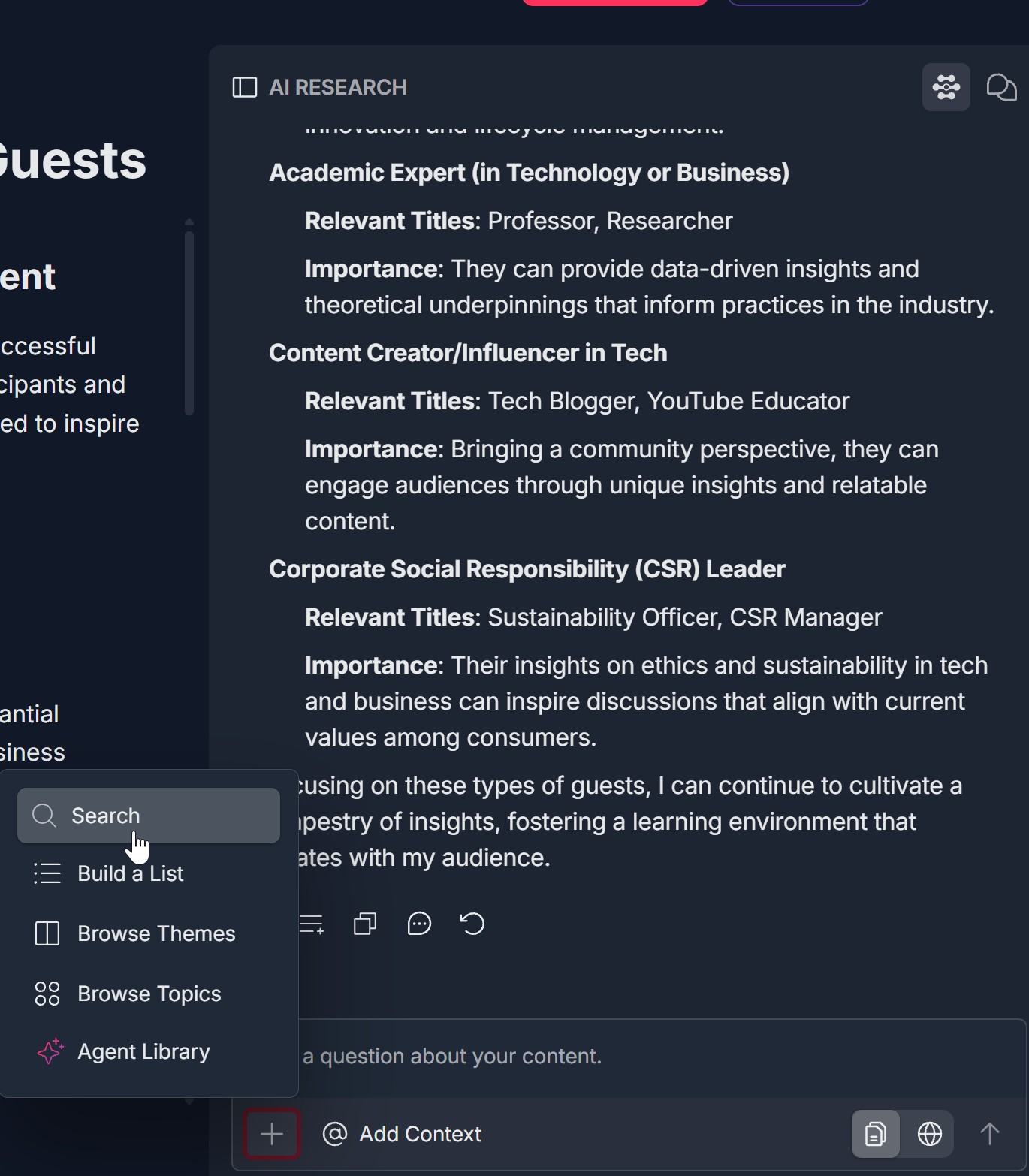
- Click the + icon at the bottom of the AI RESEARCH panel (a red circular button with a white plus)
- A dropdown menu opens: Search (magnifying glass), Build a List, Browse Themes, Browse Topics, Agent Library
- Click Search to open the Search flow
2. Search modal opens
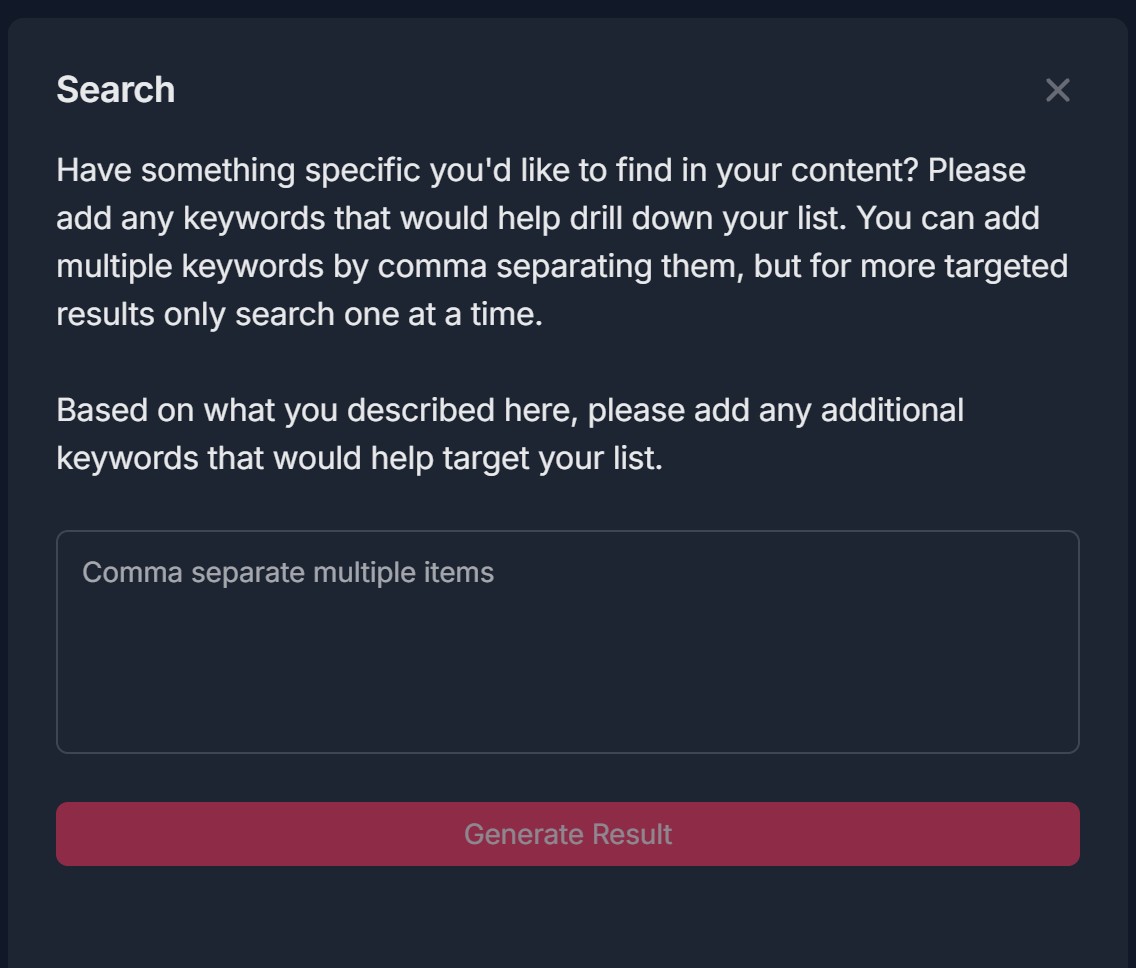
- After selecting Search, the Search modal opens
- The modal shows: Title "Search" at top left; X button at top right; Instructions (two paragraphs about keywords and comma-separating, one at a time for targeted results, and additional keywords); Input field "Comma separate multiple items"; Generate Result button at bottom
3. Enter keyword(s) and click Generate Result
- In the Search modal, click inside the keyword input field (placeholder: "Comma separate multiple items")
- Enter one or more keywords: Single keyword for more targeted results; Multiple keywords separated by commas (e.g., "AI, tools, free"); optionally add additional keywords per the second instruction paragraph
- Click the Generate Result button at the bottom of the modal; the system runs the search against your content library
4. Results are displayed
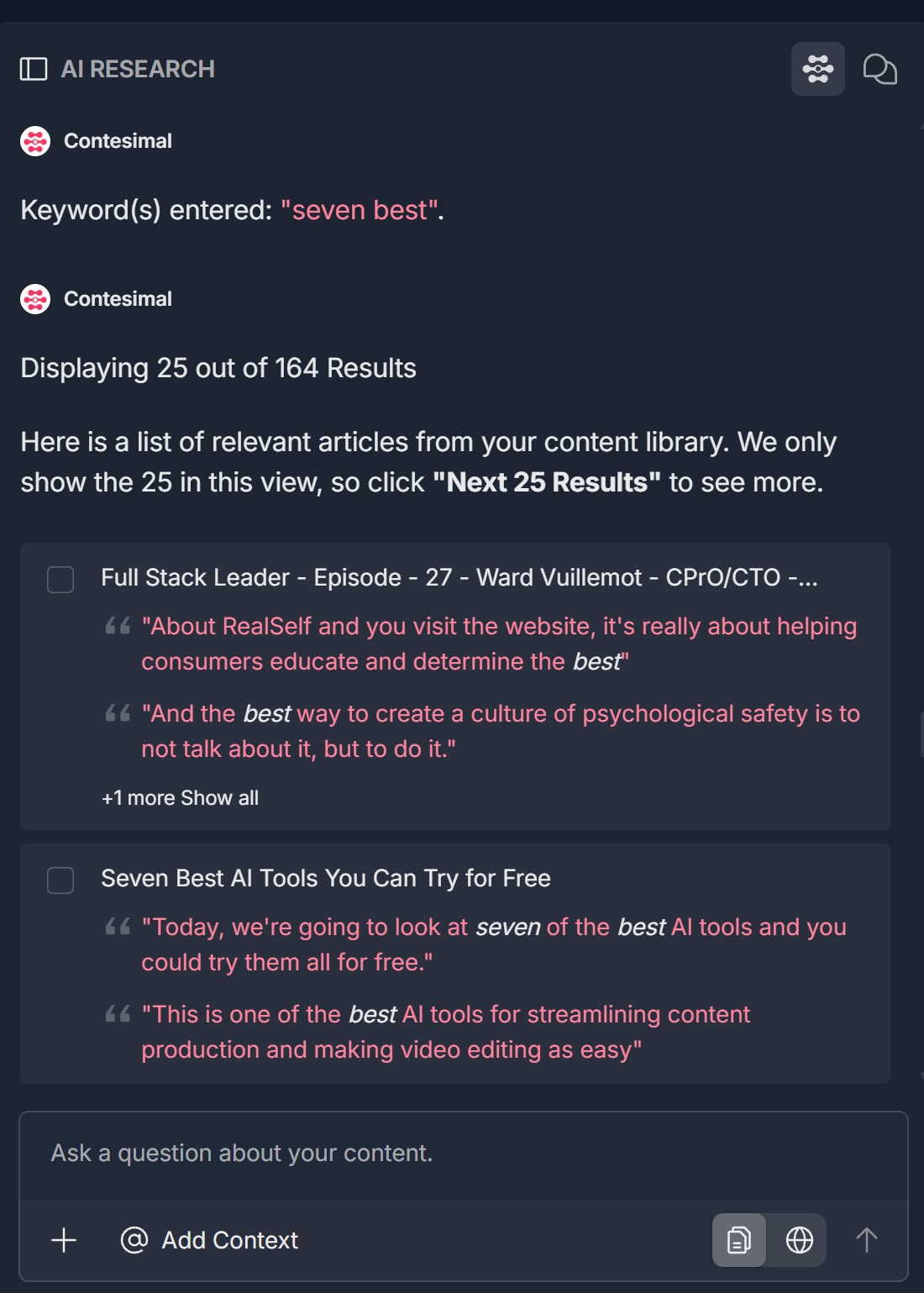
- After the search runs, results are displayed in the AI RESEARCH panel (or Search view)
- You will see: Keyword(s) entered (e.g., "Keyword(s) entered: seven best" with keywords highlighted); Results summary (e.g., "Displaying 25 out of 164 Results"); Helper text about clicking Next 25 Results to see more; Results list with checkbox, title, quoted snippets (keywords highlighted), "+1 more Show all"
- Scroll to see more results; use Next 25 Results to load the next page; footer has input "Ask a question about your content.", +, @ Add Context, document icon (save to list), globe icon (add to canvas)
5. Select result(s) and add to canvas or save to list
- In the results list, check the checkbox(es) next to the result(s) you want to keep or use
- Add to canvas — Use the globe icon (or "add to canvas" action) in the footer to add the selected result(s) to your canvas or document
- Save to list — Use the document icon (or "save to list" action) in the footer to save the selected result(s) to a list
- You can select multiple results before adding to canvas or saving to list; after adding or saving, you can run another search or continue working in the project
Troubleshooting Guide
A. + Menu Doesn't Open or Search Isn't Listed
- Issue: You click the + icon at the bottom of the AI RESEARCH panel but the dropdown doesn't open, or Search is missing from the menu.
- Fix:
- Ensure you are inside a project (Creations -> Projects -> project open) and the AI RESEARCH panel is visible on the right
- Click directly on the + icon (red circular button with white plus), not on @ Add Context or the input field
- Refresh the page and open the project again; click + once the panel has loaded
- Check if a pop-up or ad blocker is blocking the dropdown
- If Search still doesn't appear, try a different browser or contact Support
B. Search Modal Doesn't Open or Missing Fields
- Issue: You select Search but the Search modal doesn't appear, or it opens without the instructions or "Comma separate multiple items" field.
- Fix:
- Ensure you clicked Search (magnifying glass) in the dropdown, not Build a List, Browse Themes, or another option
- Refresh the page and open the project again; click + -> Search
- Check if a pop-up blocker is blocking the modal
- If the modal opens but looks different (e.g., different title or no Generate Result button), note what you see and contact Support; the UI may have been updated
C. Generate Result Doesn't Return Results or Shows Error
- Issue: You enter keywords and click Generate Result but no results appear, or an error is shown.
- Fix:
- Ensure you entered at least one keyword in the "Comma separate multiple items" field before clicking Generate Result
- Try a single keyword first (e.g., "seven best") for a more targeted search
- Check your network connection; the search runs against your content library and requires a successful request
- Ensure you have documents in your content library; if the library is empty, there will be no results
- Wait a few seconds and try again; if the issue persists, contact Support with your keywords and what you see on screen
D. Results Don't Show or "Next 25 Results" Doesn't Work
- Issue: The search runs but the results list is empty, or clicking "Next 25 Results" doesn't load more.
- Fix:
- Scroll within the results area; the list may be below the fold
- Check that the summary shows "Displaying 25 out of [N] Results" with N > 0; if N is 0, no articles matched your keywords (try different or broader keywords)
- Click Next 25 Results (or the equivalent button) to load the next page; if it doesn't respond, refresh the page and run the search again
- If results still don't appear, contact Support with your search terms and whether you see any error message
E. Add to Canvas or Save to List Doesn't Work
- Issue: You select one or more results (checkboxes) and click the document or globe icon but nothing is added or saved.
- Fix:
- Ensure you checked the checkbox(es) next to the result(s) you want before using add to canvas or save to list
- Click the document icon for save to list, or the globe icon for add to canvas (or the labels shown in your UI), not the + or @ Add Context
- Refresh the page and run the search again; select results and try add to canvas or save to list once more
- If the action still doesn't work, note which icon you clicked and contact Support; the behavior may vary by project or plan
Was this article helpful?
That’s Great!
Thank you for your feedback
Sorry! We couldn't be helpful
Thank you for your feedback
Feedback sent
We appreciate your effort and will try to fix the article