Description
The Browse Content by Themes and Topics feature in the AI Research tool lets you discover relevant articles in your content library by themes or topics instead of typing keywords. You open the AI Research tool, click + -> Browse Themes (or Browse Topics), select one or several themes (or topics), and click Generate Result. The system returns a list of relevant articles from your content library that match your selection. You can then add a comment, select relevant article(s), and add them to canvas or save to the list for further use. This feature helps you explore your library by category—themes and topics were created during your document upload or initial import—so you can quickly find content that fits what you want to discover without searching by keyword.
How This Feature Helps You
- Categorical discovery — Instead of guessing keywords, you choose from themes or topics that represent types of content (e.g., Teamwork, Technology, Leadership). The system surfaces articles that match, so you discover content by category rather than by term.
- Themes from your upload — Themes were created during the original upload of your documents. As you filter, think about which theme explorations best fit what you are looking to discover in your library. An info tip ("How do I pick the right themes?") explains: "As you are categorically filtering, think about which theme explorations best fit what you are looking to discover in your library. These themes were created during the original upload of your document."
- Topics from your import — Topics are a set of common topics generated during your initial import. An info tip ("How does browsing topics work?") explains: "Select from a set of common topics that were generated during your initial import." The broader the topic area, the more articles Contesimal will cover; for more granular topics you should expect fewer research results. You can add as many topics as you like, but the more you include, the more they will narrow down.
- One flow for themes and topics — The flow is the same for both: open AI Research -> click + -> choose Browse Themes or Browse Topics -> select one or several -> click Generate Result -> view results -> select article(s) and add to canvas or save to list (and add comment if needed).
Benefits
- Faster discovery — Find relevant articles by theme or topic in a few clicks instead of typing and refining keyword searches.
- Consistent categories — Themes and topics are derived from your library (upload/import), so filtering aligns with how your content is already categorized.
- Control over breadth — Pick one or several themes/topics; more selections narrow results. For topics, broader topics yield more articles, granular topics yield fewer.
- Reuse results — Select relevant article(s), add to canvas or save to list, and add comments so you can act on what you find without leaving the AI Research tool.
Step-by-Step Usage
The step-by-step instructions, screen descriptions, and UI details in this section are examples only. They are intended to help you understand how the feature works and how to complete the flow. Screens, labels, and layout may change in future product updates.
1. Open the AI Research Tool
- Log in to your Contesimal account
- In the left panel, go to Creations (e.g., edit/pencil icon or Creations section)
- The AI RESEARCH panel is visible on the right (heading "AI RESEARCH" with icons; content area; at the bottom: input "Ask a question about your content.", + icon, @ Add Context, and other icons)
- You are now in the AI Research tool and can use the + menu to browse themes or topics
2. Click + -> Browse Themes (or Browse Topics)
- At the bottom of the AI RESEARCH panel, click the + icon (often a red circular button with a white plus)
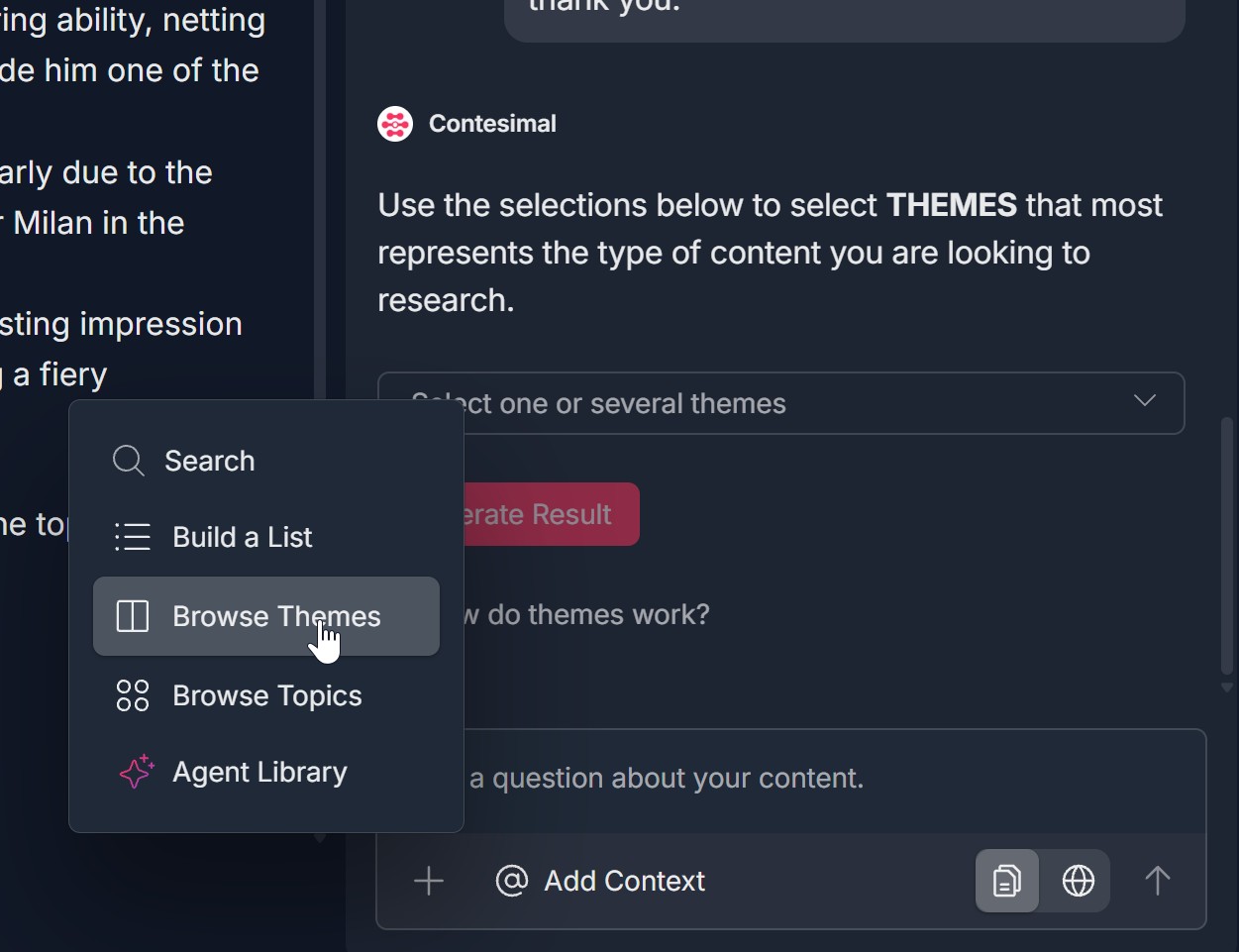
- A dropdown menu opens with options: Search (magnifying glass), Build a List, Browse Themes (document icon), Browse Topics (four circles/grid icon), Agent Library (sparkle/star icon)
- To browse by themes: Click Browse Themes (document icon)
- To browse by topics: Click Browse Topics (four circles/grid icon)
- The Themes (or Topics) view opens in the panel with an instruction and a selection field
3. Select One or Several Themes (or Topics) and Click Generate Result
- For Themes: You will see the instruction "Use the selections below to select THEMES that most represents the type of content you are looking to research." and a field "Select one or several themes" (with a dropdown or list). An info link "How do themes work?" (or "How do I pick the right themes?") may appear; it explains that themes were created during the original upload of your document and helps you choose theme explorations that fit what you want to discover.
- For Topics: You will see a similar instruction for TOPICS and a field "Select one or several topics" (with a dropdown or list). An info link "How does browsing topics work?" may appear; it explains that topics were generated during your initial import, that broader topics yield more articles and granular topics fewer, and that more topics narrow results.
- Click the selection field to open the list of themes (or topics)
- Select one or several themes (or topics)—e.g., click "Teamwork" for themes; selected items may appear as pill-shaped tags below the field with an X to remove
- Click the red Generate Result button at the bottom of the section
- The system runs the filter and displays results in the panel
4. View the List of Relevant Articles — Add Comment, Select Article(s), Add to Canvas or Save to List
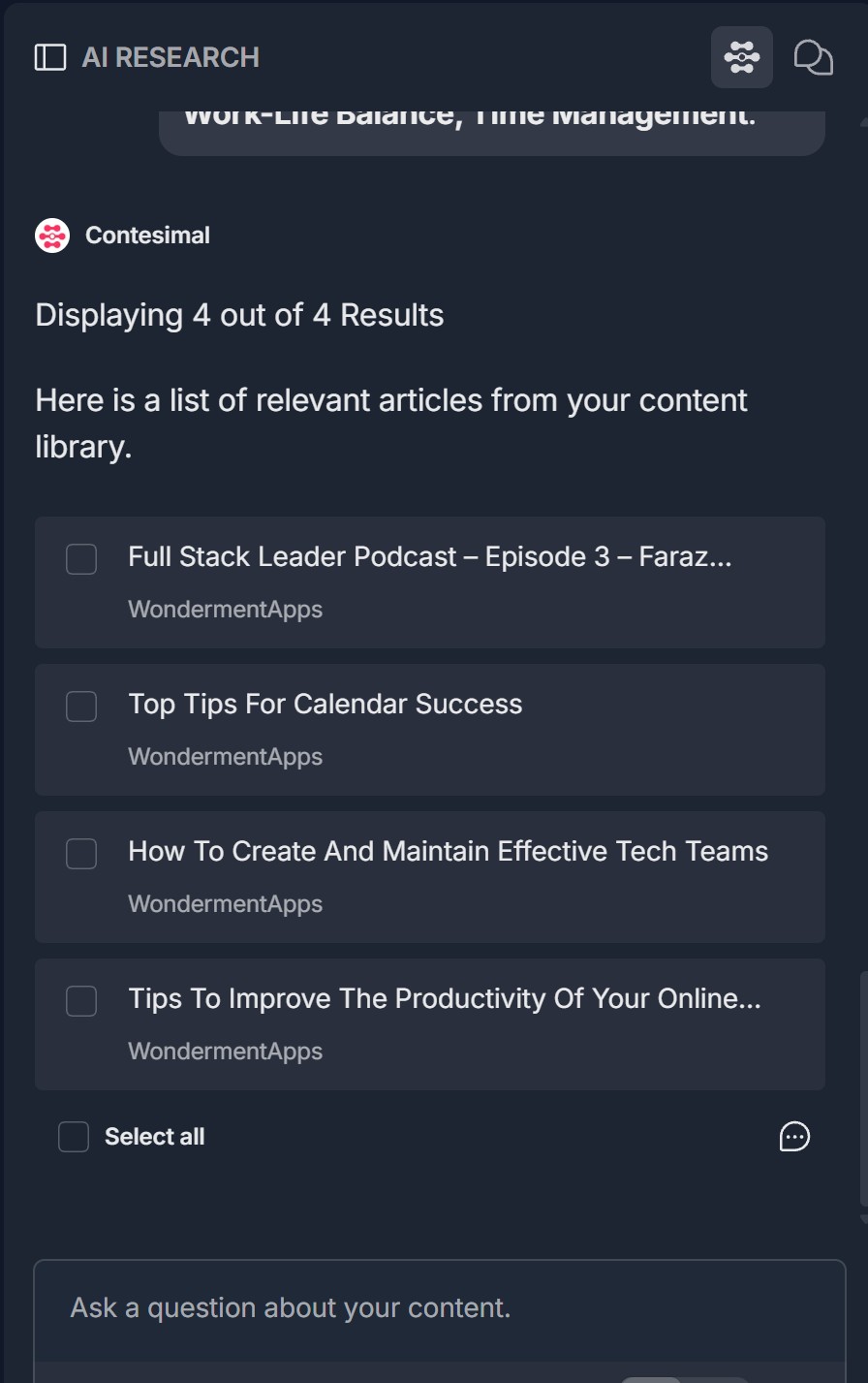
- After clicking Generate Result, a list of relevant articles from your content library is shown (e.g., "Displaying 1 out of 1 Results" or "Displaying N out of M Results")
- Helper text appears: "Here is a list of relevant articles from your content library."
- Results list — Each result has: A checkbox on the left (to select the article); Title of the article (e.g., "I Am Zlatan"); Source or category (e.g., "WondermentApps") and possibly a three-dots menu for more options
- Select all — A "Select all" checkbox (and possibly an icon) at the bottom lets you select all results at once
- Add comment — A Comment button (with a chat bubble icon) lets you add a comment on a result or on the selection
- Add to canvas or save to list — After selecting one or more articles (checkboxes), a context menu or action bar appears (or use footer icons) with: Add to Canvas (icon: document with a plus; adds the selected article(s) to your canvas or document); Save to list (icon: list with a plus; saves the selected article(s) to a list)
- Click the action you want (Add to Canvas or Save to list); follow any on-screen prompt (e.g., choose a canvas or list)
- You can add a comment before or after selecting; you can select multiple articles and add them all to canvas or save them all to a list in one go
Troubleshooting Guide
A. + Menu Doesn't Open or Browse Themes/Topics Isn't Listed
- Issue: You click the + icon in the AI RESEARCH panel but the dropdown doesn't open, or Browse Themes or Browse Topics is missing.
- Fix:
- Ensure you are inside a project (Creations -> Projects -> project open) and the AI RESEARCH panel is visible on the right
- Click directly on the + icon (red circular button with white plus), not on @ Add Context or the input field
- Refresh the page and open the project again; click + once the panel has loaded
- Check if a pop-up or ad blocker is blocking the dropdown
- If Browse Themes or Browse Topics still doesn't appear, try a different browser or contact Support
B. No Themes or Topics in the List
- Issue: You open Browse Themes (or Browse Topics) but the selection list is empty or has no options.
- Fix:
- Themes were created during the original upload of your documents; topics were generated during your initial import. If you have not uploaded/imported documents yet, themes and topics may be empty
- Ensure your project has access to a content library with uploaded/imported documents
- Refresh the page and open Browse Themes or Browse Topics again
- If the list is still empty after upload/import, contact Support with your project and library status
C. Generate Result Doesn't Return Results or Shows Zero Results
- Issue: You select one or several themes (or topics) and click Generate Result but no articles appear, or it says "0 Results."
- Fix:
- Ensure you selected at least one theme or topic before clicking Generate Result
- For topics: try a broader topic (broader topics yield more articles); for themes, try a different theme or add another theme to widen the set
- Check that your content library has documents that match the selected themes/topics; if your library is small or doesn't match, results may be zero
- Refresh the page and run the flow again; if the issue persists, contact Support with your selection and library size
D. Add to Canvas or Save to List Doesn't Work
- Issue: You select one or more articles (checkboxes) and click Add to Canvas or Save to list but nothing happens.
- Fix:
- Ensure you checked the checkbox(es) next to the article(s) you want before using Add to Canvas or Save to list
- Use the context menu or action bar that appears for the selection (e.g., Add to Canvas, Save to list), or the document/list icons in the footer if that's how the UI works
- Follow any on-screen prompt (e.g., choose a canvas or list name)
- Refresh the page and run Browse Themes/Topics again; select articles and try Add to Canvas or Save to list once more
- If the action still doesn't work, contact Support with your browser and what you see on screen
Was this article helpful?
That’s Great!
Thank you for your feedback
Sorry! We couldn't be helpful
Thank you for your feedback
Feedback sent
We appreciate your effort and will try to fix the article