Description
The Agent Library - Analyze feature lets you use Aristotle (Contesimal's AI agent) to analyze your content library and generate insights across different analytical dimensions. You can choose from six analysis types: Commercial & Conversion Analysis, Structural & Format Analysis, Authority & Expertise Analysis, Audience & Pain-Point Analysis, Thematic & Conceptual Analysis, and Analyze My Content.
Each analysis type provides specific tasks tailored to that analytical dimension (e.g., "Evergreen vs. Timely Value Scoring", "Content Density Analysis", "Pain-point Extraction", "Theme Frequency Analysis"). After selecting your analysis type and task, providing optional context, and selecting a project, Aristotle processes your request and generates analytical insights and reports that you can refine and use in your Creation Canvas.
Step-by-Step:
The step-by-step instructions, screen descriptions, and UI details in this section are examples only. They are intended to help you understand how the feature works and how to complete the flow. Screens, labels, and layout may change in future product updates.
1. Access Agent Library - Analyze
- Navigate to the Agent Library section In left navigation menu
- Click Analyze section
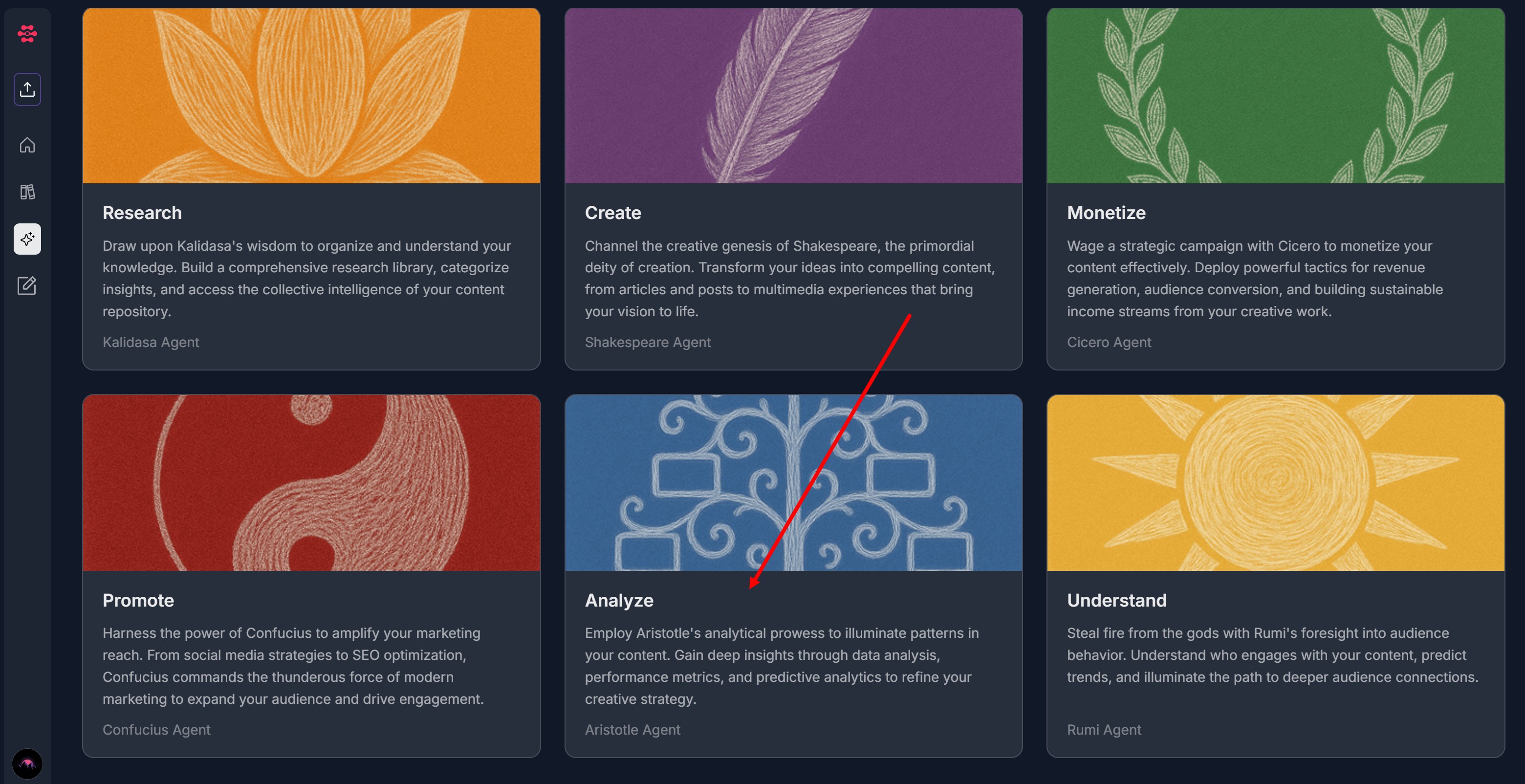
2. Select Analysis Type
- On the "Select an option" screen, choose one of the six analysis types:
- Commercial & Conversion Analysis
- Analyze monetization potential and conversion opportunities
- Structural & Format Analysis
- Analyze content structure, format, and repurposing capabilities
- Authority & Expertise Analysis
- Analyze expertise markers, proof points, and authority signals
- Audience & Pain-Point Analysis
- Analyze audience needs, pain points, and language patterns
- Thematic & Conceptual Analysis
- Analyze themes, concepts, and narrative patterns
- Analyze My Content
- General content library analysis and assessments
- Commercial & Conversion Analysis
- Click on your desired analysis type
- You'll be taken to the task selection screen
3. Select Task
- After selecting an analysis type, you'll see a "Select a task" screen with specific task options for that analysis type
- For Commercial & Conversion Analysis, available tasks include:
- Evergreen vs. Timely Value Scoring
- Longevity of monetization potential
- Frequently Asked Monetization Analysis
- Questions that suggest willingness to pay
- Content-to-Offer Alignment
- Which topics potentially align with high-ticket vs. low-ticket offers
- Upgrade Trigger Detection
- Moments where viewers would want "the next step"
- Offer Adjacency Mapping
- What products or services the content naturally points to
- Evergreen vs. Timely Value Scoring
- For Structural & Format Analysis, available tasks include:
- Repurpose Capabilities
- How easily a segment or an overall piece of content converts into other formats
- Content Density Analysis
- Assessing insights clusters inside the content
- Depth vs. Clarity Scoring
- Which segments deliver maximum value with minimal complexity
- Format Performance Analysis
- Uncover stories vs. frameworks vs. tactical walkthroughs
- Moment Mapping
- Identify high-impact moments (insights, stories, turning points)
- Repurpose Capabilities
- For Authority & Expertise Analysis, available tasks include:
- Proof Density Analysis
- Claims that are backed by real-world examples
- Pattern Recognition Statements
- A breakdown of statements used over and over again
- Contrarian Insights Report
- Unlock ideas that challenge common wisdom
- Decision-making Heuristics
- Uncover the rules of thumb experts repeatedly rely on
- Experience Markers
- Years of experience, scale of impact, notable failures/successes
- Proof Density Analysis
- For Audience & Pain-Point Analysis, available tasks include:
- Awareness-stage Classification
- Beginner, intermediate, or advanced problem awareness
- Language & Phrasing Analysis
- How the audience describes problems in their own words
- Objection Analysis
- Repeated hesitations, fears, or blockers
- Desire & Outcome Mapping
- Break down what success looks like to your audience
- Pain-point Extraction
- Identify explicit problems mentioned by guests, audience questions, or generally within the content
- Awareness-stage Classification
- For Thematic & Conceptual Analysis, available tasks include:
- Concept Evolution Over Time
- See how ideas mature or shift across episodes or content dates
- Emergent Themes Exploration
- Spot ideas that appear organically without being prompted
- Narrative Arc Analysis
- Detect common story patterns across your content
- Concept Clustering Analysis
- Group related ideas into higher-order frameworks
- Theme Frequency Analysis
- Identify recurring topics, concepts, or problem areas
- Concept Evolution Over Time
- For Analyze My Content, available tasks include:
- Assess Library Content Relevance
- Generate an overview on the general relevancy of the content of your content library
- Generate Potential Promo Partnerships List
- Establish a list of key promotional partners that have been mentioned or used in your library
- List Past Guests
- Prepare a past interview list that includes their expertise, relevance, and ability to provide value
- List Past Storylines
- Provide a breakdown of storylines created in your content library
- Analyze My Content Structure
- Document the pattern of the general structure of the content in your library
- Audit My Calls To Action
- Provide an overview of the overall effectiveness of CTAs in your content
- Assess Branding Consistency
- Analyze and report on the consistency of the usage of branding in the content
- Assess Library Content Relevance
- Click on the task card that matches your needs
4. Add Additional Context (Optional)
On the "Would you like to add additional context?" screen, you have three options:
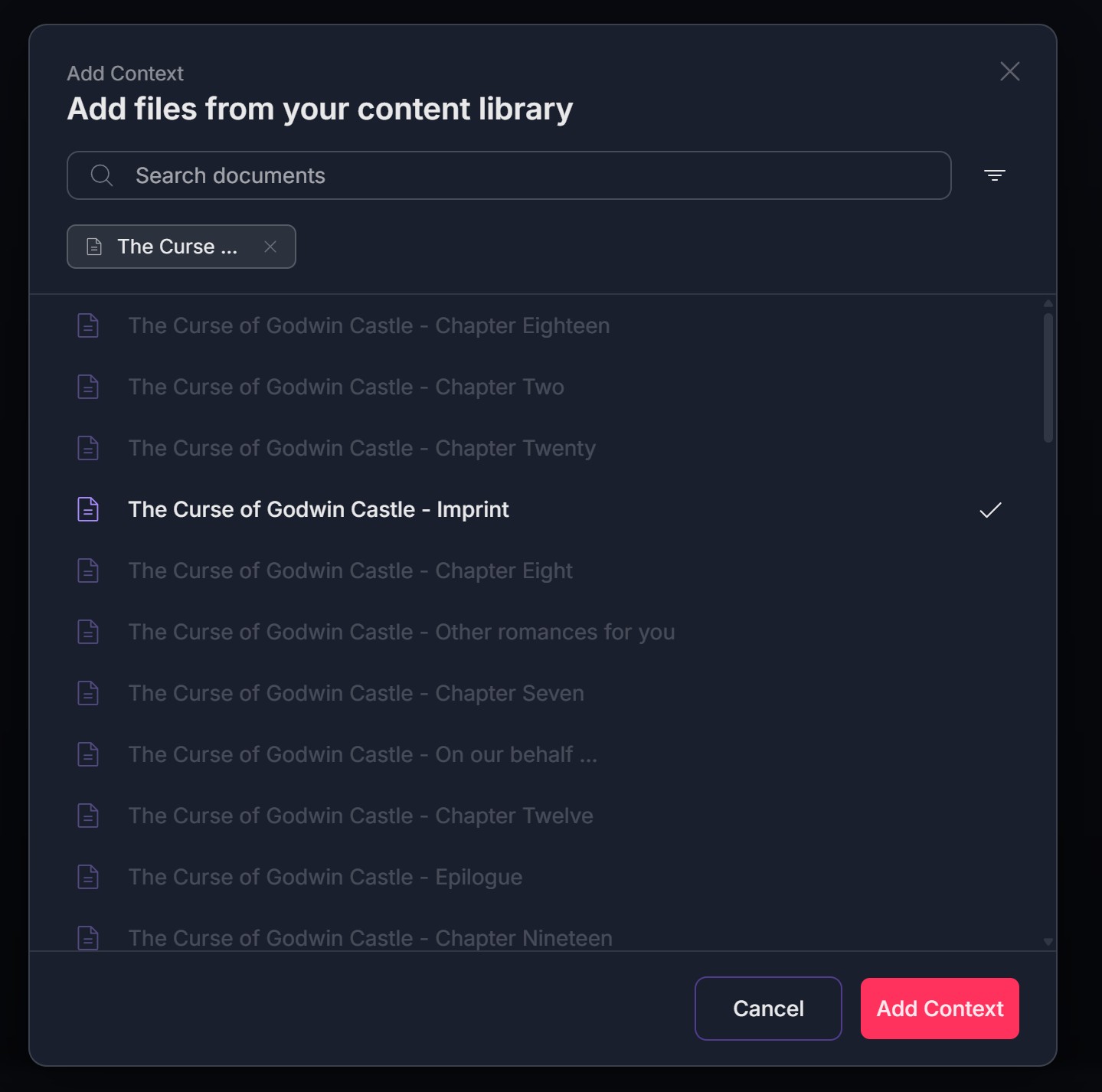
- "Add from your Library" - Select documents from your existing content library
- Select one document from the Content Library and click "Add Content" button OR
- Search for a document from the Content Library and click "Add Content" button
- Click the X icon on selected document to remove it and add another one
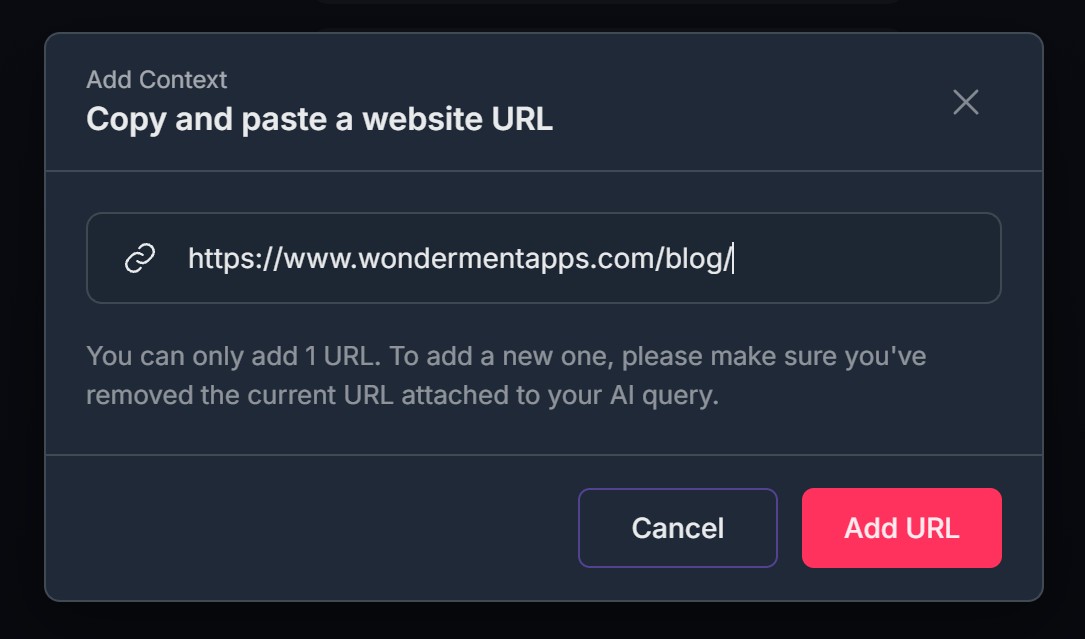
- "Add a URL" - Provide a web URL for Aristotle Agent to reference
- "Upload a document" - Upload a new document from your computer
- Suppported formats: PDF, DOC, DOCX, TXT,
- Max size 480 KB
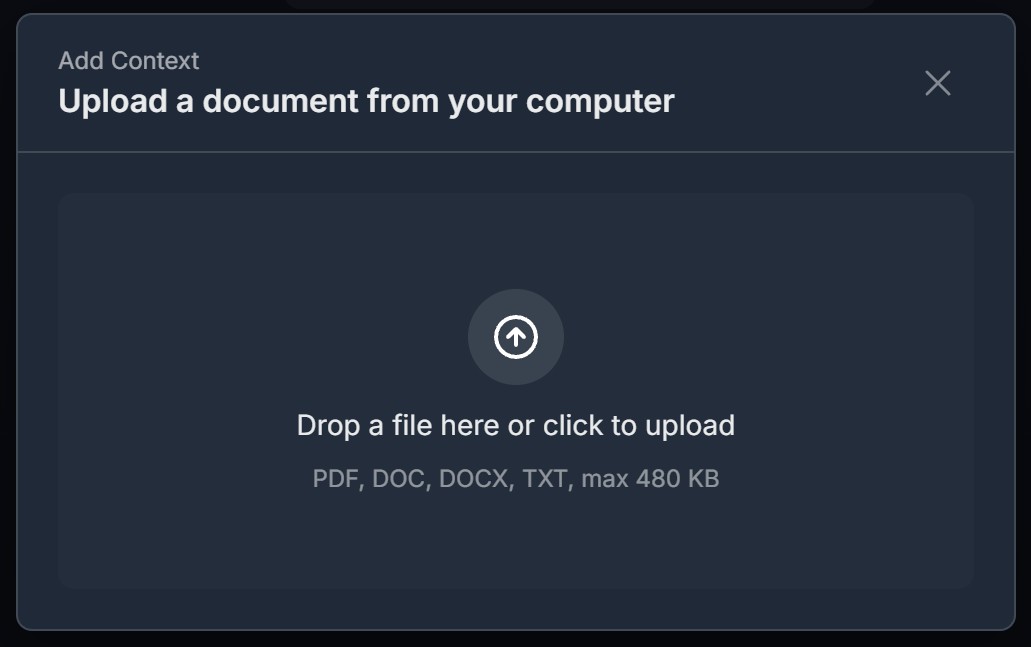
- Click the X icon to remove a context item and upload a new one
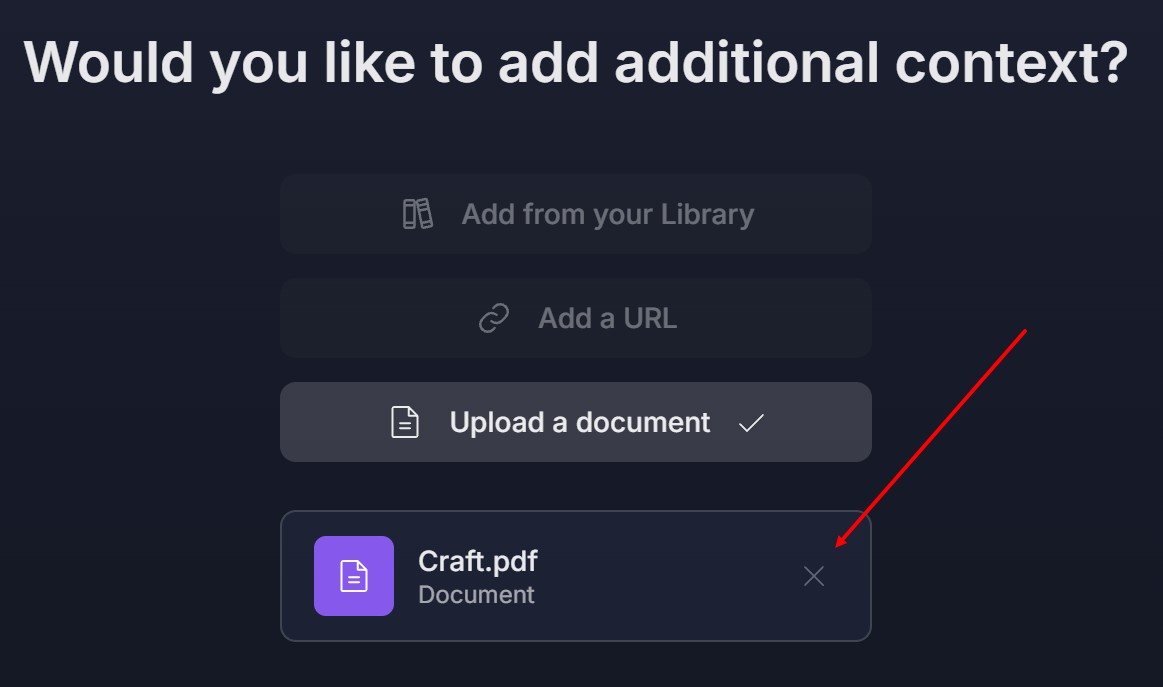
- Click "Next" to proceed, or "Skip" if you don't want to add context
5. Select or Create Project
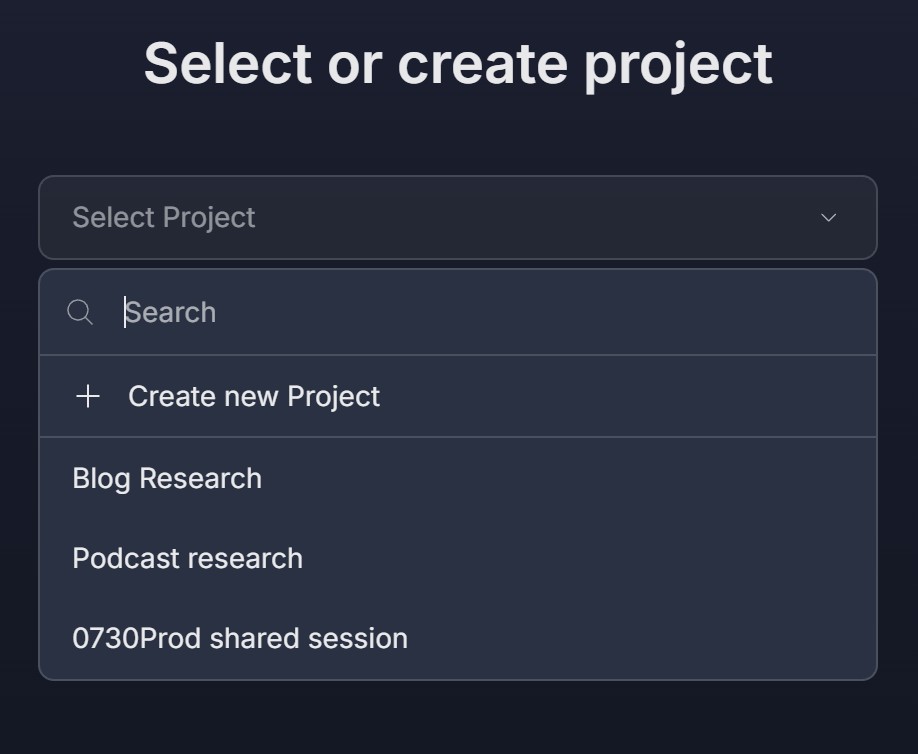
On the "Select or create project" screen, choose where to save your research:
- Select an existing project from the dropdown menu
- Use the search bar to find a specific project
- Click "+ Create new Project" to create a new project
- Click "Next" button
6. Aristotle Agent Processes Your Request
- You'll see: "Aristotle is working on your request" screen
- A progress bar will show at the bottom
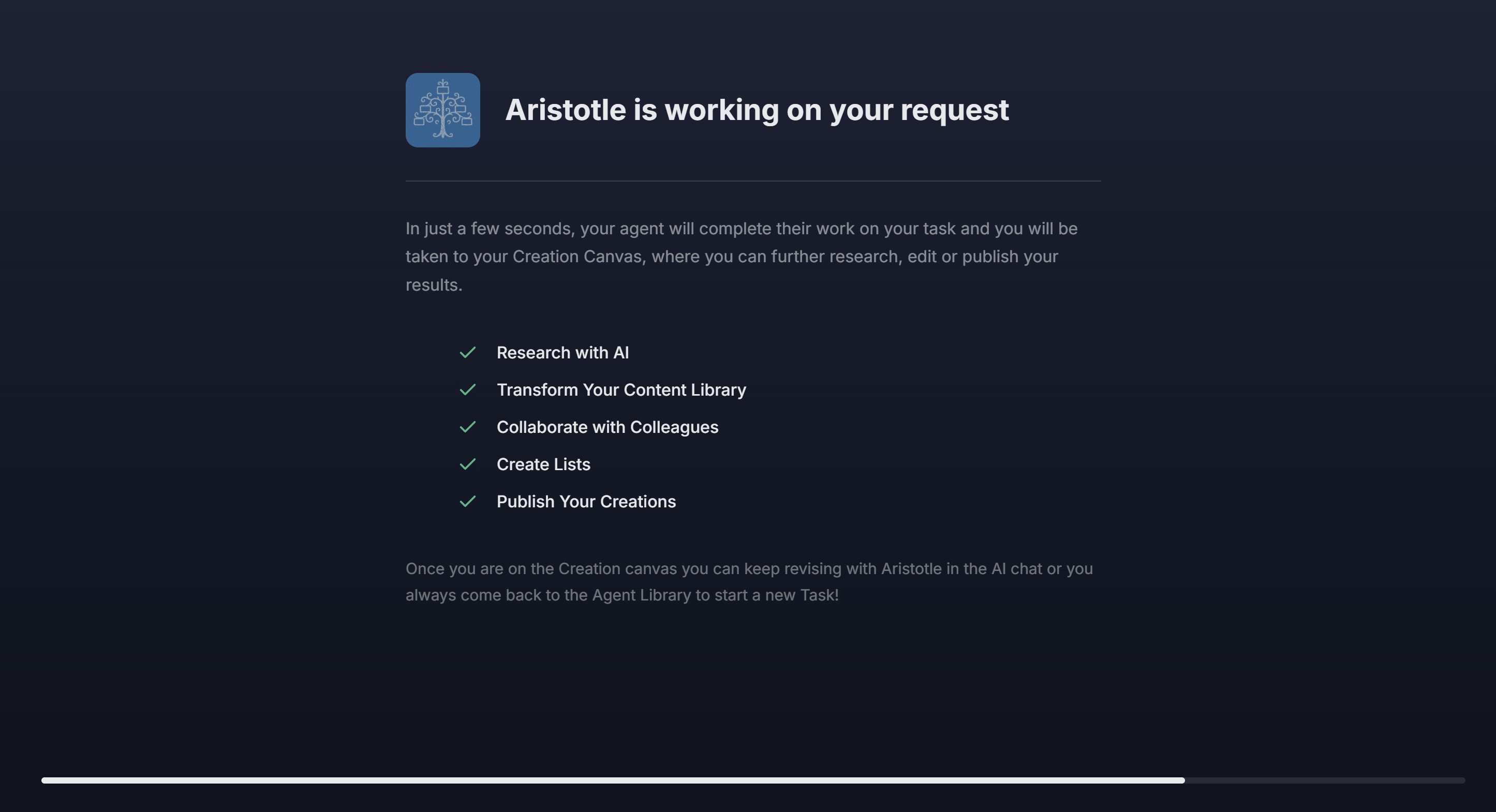
- Wait for the Agent to complete the research (typically takes a few seconds to a few minutes)
7. Review Results on Creation Canvas
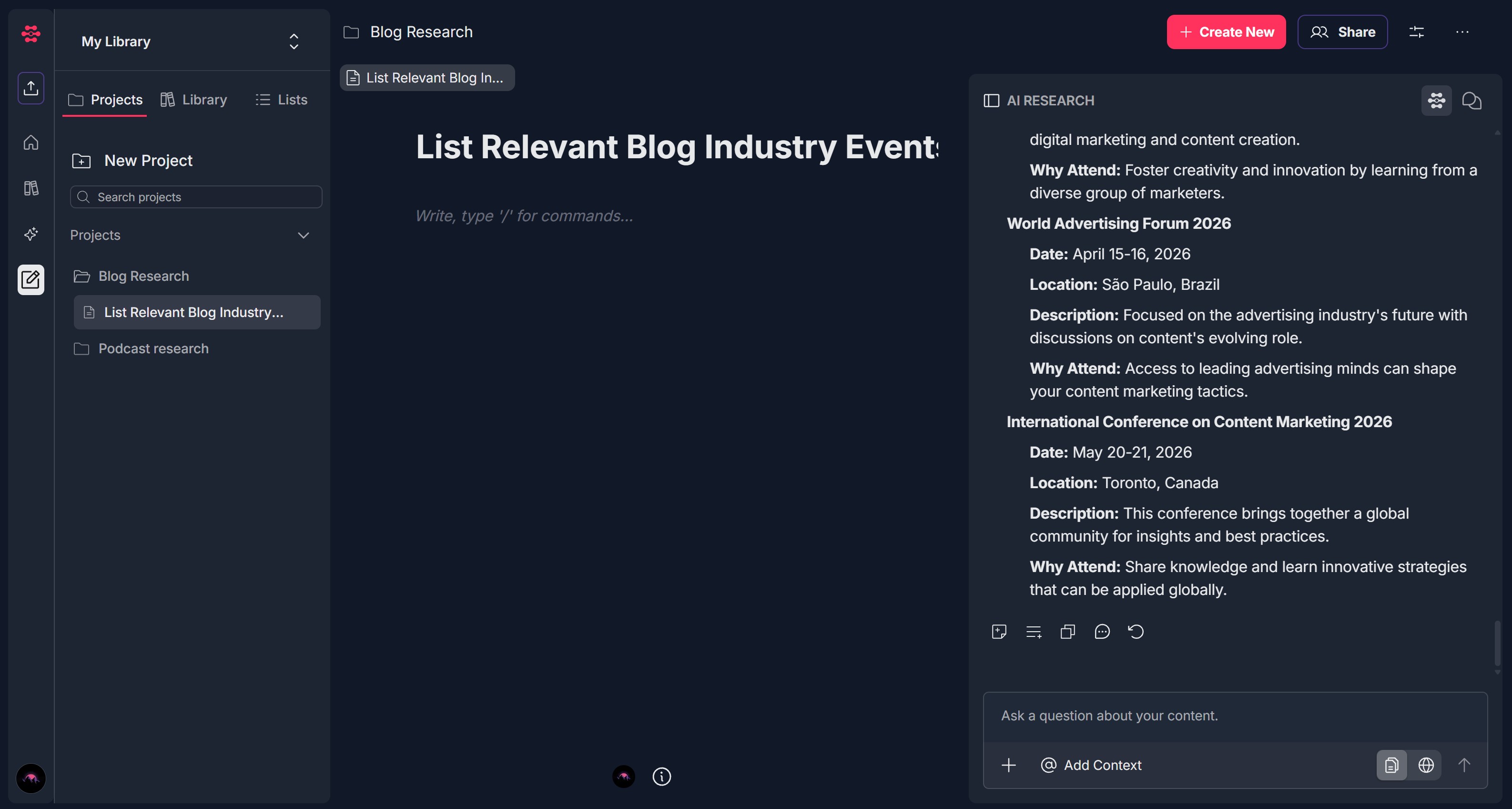
- Once Aristotle Agent completes the research, you'll be automatically redirected to the Creation Canvas
- Your research results will be displayed in a document format
- You can review, edit, refine, delete or share your creation
Troubleshooting Guide
A. Analysis Type Options Don't Appear
Issue: After accessing Analyze, the analysis type selection screen is blank or options don't load.
Fix:
Refresh the page and wait a few seconds for options to load
Check your internet connection - ensure you have a stable connection
Clear browser cache and try again
Try a different browser (Chrome, Edge, Firefox) if the issue persists
If options consistently don't appear, contact Support and mention that marketing content creation types aren't loading
B. Task Cards Don't Appear
Issue: After selecting an analysis type, the task selection screen is blank or task cards don't load.
Fix:
Refresh the page and wait a few seconds for channels to load
Check your internet connection - ensure you have a stable connection
Clear browser cache and try again
Try selecting the analysis type again
If tasks consistently don't appear, contact Support and mention which analysis type you selected
C. Task Cards Don't Respond to Clicks
Issue: Clicking on a task card (e.g., "Generate Email Newsletter Article for Magazines") doesn't proceed to the next step.
Fix:
Refresh the page and try clicking the task card again
Wait a moment - there may be a brief delay before navigation
Try clicking directly on the card text rather than the edges
Check browser console for any JavaScript errors
Try a different browser if the issue persists
If clicking consistently doesn't work, contact Support with the specific content creation type and task you're trying to select
D. Can't Find Documents in Library Search
Issue: When adding context from Library, you can't find the documents you're looking for.
Fix:
Use the search bar - type keywords from the document title
Check document names - ensure you're searching for the correct title
Scroll through the list - there may be more documents below the visible area
Use filters - click the filter icon to narrow down document types
Check if documents are processed - ensure your documents have finished processing in the Library
If you still can't find documents, try uploading them directly using "Upload a document"
E. Selected Context Items Don't Appear or Can't Be Removed
Issue: After selecting documents from Library, they don't show as tags, or you can't remove them with the X icon.
Fix:
Refresh the page and try selecting documents again
Click the X icon directly on the tag to remove it
Check if documents were actually selected - look for checkmarks in the modal
Try selecting fewer documents - there may be a limit on context items
If context items consistently don't appear, contact Support and mention the context selection issue
F. Project Dropdown Doesn't Open or Shows No Projects
Issue: The "Select or create project" dropdown doesn't open, or no projects are listed.
Fix:
Click the dropdown arrow to ensure it opens
Use the search bar within the dropdown to find projects
Create a new project by clicking "+ Create new Project"
Refresh the page and try again
Check if you have existing projects - you may need to create one first
If the dropdown consistently doesn't work, contact Support and mention the project selection issue
G. "Add from your Library" Modal Doesn't Open
Issue: Clicking "Add from your Library" doesn't open the document selection modal.
Fix:
Refresh the page and try clicking the button again
Check browser pop-up blockers - ensure they're not blocking the modal
Try a different browser (Chrome, Edge, Firefox) or use an incognito/private window
Check browser permissions - ensure JavaScript is enabled
If the modal consistently won't open, try the other context options (Add URL or Upload document) instead
H. Agent Takes Too Long or Gets Stuck
Issue: The "Aristotle is working on your request" message persists for an unusually long time, or the progress bar doesn't advance.
Fix:
Wait a few minutes - complex research requests may take longer
Check your internet connection - ensure you have a stable connection
Refresh the page - sometimes a refresh can resolve temporary issues
Check if the research completed - try navigating to Creation Canvas manually to see if results are there
Try a simpler research request - very complex or broad requests may take longer
If Aristotle remains stuck for more than 10-15 minutes, contact Support with details about your research request
I. Not Redirected to Creation Canvas After Research Completes
Issue: Agent appears to have finished, but you're not automatically taken to the Creation Canvas.
Fix:
Manually navigate to the Creation Canvas section
Check your project - look in the project you selected to see if research results are there
Clear browser cache and cookies, then try a new research request
Check browser settings - ensure no extensions are blocking redirects
Try a different browser if the issue persists
If automatic redirection consistently fails, contact Support and mention the redirect issue
J. Create Results Are Incomplete or Incorrect
Issue: The create results on Creation Canvas don't match what you requested, or information seems wrong.
Fix:
Review your instructions - ensure they were clear and specific
Check your context - verify that the documents/URLs you added are relevant
Try refining the research - use the AI Research panel to ask follow-up questions
Add more specific instructions - try running the research again with more detailed instructions
Check the research type and option - ensure you selected the correct research category
If results are consistently incorrect, contact Support with details about what you requested vs. what you received
K. Can't Add URL or Upload Document for Context
Issue: The "Add a URL" or "Upload a document" options don't work when clicked.
Fix:
Refresh the page and try clicking the option again
For URL: Ensure you're entering a valid, accessible web address
For Upload: Check file size limits and supported formats (PDF, DOCX, TXT, etc.)
Try a different browser if the issue persists
Check browser permissions - ensure file access is allowed
If these options consistently don't work, try using "Add from your Library" instead, or contact Support
Was this article helpful?
That’s Great!
Thank you for your feedback
Sorry! We couldn't be helpful
Thank you for your feedback
Feedback sent
We appreciate your effort and will try to fix the article