Description
The Agent Library - Understand feature lets you use Rumi (Contesimal's AI agent) to analyze your audience's values, perspectives, sophistication levels, intent, and learning orientation based on your content library. You can choose from four analysis types: Audience Values & Perspectives, Audience Sophistication Assessment, Audience Intent & Learning Orientation, and Audience Overview Insights.
Each analysis type provides specific tasks tailored to understanding different aspects of your audience (e.g., "Perspective Consistency Report", "Cognitive Load Profile Report", "Intent Consistency Report", "Create Audience Purpose Assessment"). After selecting your analysis type and task, providing optional context, and selecting a project, Rumi processes your request and generates audience insights and reports that you can refine and use in your Creation Canvas.
Step-by-Step:
The step-by-step instructions, screen descriptions, and UI details in this section are examples only. They are intended to help you understand how the feature works and how to complete the flow. Screens, labels, and layout may change in future product updates.
1. Access Agent Library - Understand
- Navigate to the Agent Library section In left navigation menu
- Click Understand section
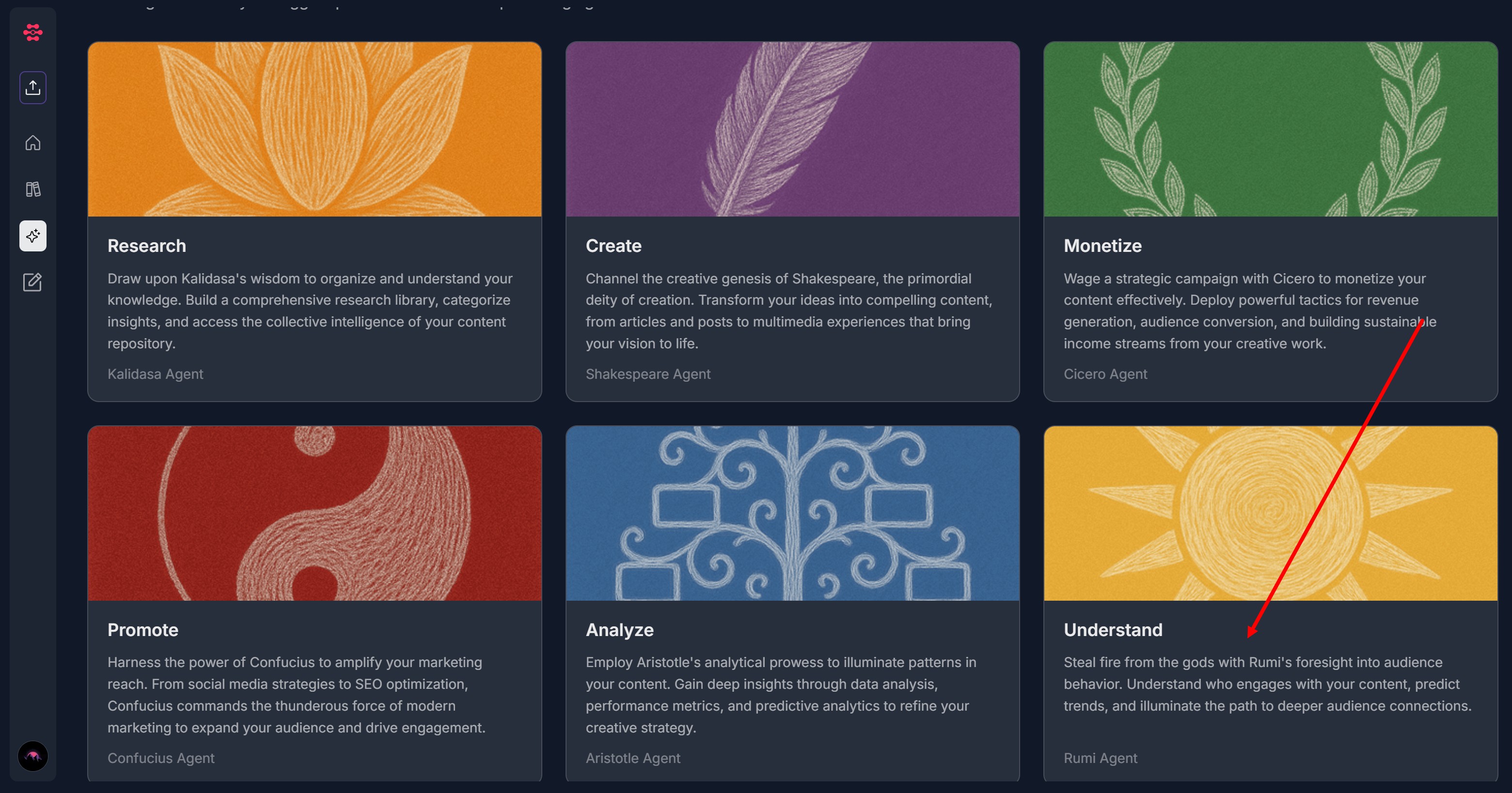
2. Select Understand Type
- On the "Select an option" screen, choose one of the four analysis types:
- Audience Values & Perspectives
- Analyze audience values, worldviews, and perspective alignment
- Audience Sophistication Assessment
- Assess audience cognitive level, knowledge familiarity, and mental model assumptions
- Audience Intent & Learning Orientation
- Analyze audience intent, learning preferences, and consumption patterns
- Audience Overview Insights
- General audience insights and assessments
- Audience Values & Perspectives
- Click on your desired analysis type
- You'll be taken to the task selection screen
3. Select Task
- After selecting an analysis type, you'll see a "Select a task" screen with specific task options for that analysis type
- For Audience Values & Perspectives, available tasks include:
- Perspective Consistency Report
- Evaluates how aligned or fragmented audience value signals are across the analyzed document set
- Language Density Report
- Quantifies prescriptive or belief-driven language to infer how strongly values are asserted
- Perspective Alignment Report
- Measures whether the content reflects a conventional, balanced, or contrarian worldview relative to common industry norms
- Trade-Off Preference Report
- Surfaces implicit prioritizations (such as speed vs. quality or scale vs. control) expressed through comparative language
- Value Signal Frequency Report
- Identifies recurring value indicators (e.g., efficiency, quality, autonomy, growth) embedded in content summaries
- Perspective Consistency Report
- For Audience Sophistication Assessment, available tasks include:
- Sophistication Stability Report
- Assesses whether the audience cognitive level remains stable or varies significantly across content selections
- Concept Reuse & Familiarity Report
- Analyzes repeated concepts and phrasing to infer what knowledge is treated as familiar vs. newly introduced
- Cognitive Load Profile Report
- Estimates the mental effort required to consume the content based on idea density, abstraction shifts, and inferential gaps
- Mental Model Assumption Report
- Identifies whether the content assumes prior frameworks, heuristics, or first-principles thinking from the audience
- Concept Depth Distribution Report
- Measures the complexity and layering of ideas to infer whether the audience skews beginner, intermediate, or advanced
- Sophistication Stability Report
- For Audience Intent & Learning Orientation, available tasks include:
- Intent Consistency Report
- Evaluates how consistent audience intent signals are across the library or within
- Exploration vs. Resolution Orientation Report
- Measures whether content invites open-ended exploration or pushes toward concrete answers and conclusions
- Outcome Expectation Report
- Surfaces the type of value the audience expects (knowledge gain, application, mindset shift, or validation) as inferred across your library
- Learning Mode Preference Report
- Determines whether content is primarily conceptual, procedural, narrative, or principle-driven based on language and structure patterns
- Primary Consumption Intent Report
- Identifies the dominant intent (e.g., learning, exploration, inspiration, entertainment) inferred from semantic similarity across content summaries
- Intent Consistency Report
- For Audience Overview Insights, available tasks include:
- Create Audience Purpose Assessment
- Break down the main purposes underlying your core audiences reason for listening or watching
- Get Strategy for Measuring Performance
- Report on how to measure your content's performance at a high-level
- Define Audience Problems to Solve
- Address common questions, challenges, or aspirations your audience faces
- Generate an Audience Category Report
- Discover key categorical trends for your main audience
- Create Audience Purpose Assessment
- Click on the task card that matches your needs
4. Add Additional Context (Optional)
On the "Would you like to add additional context?" screen, you have three options:
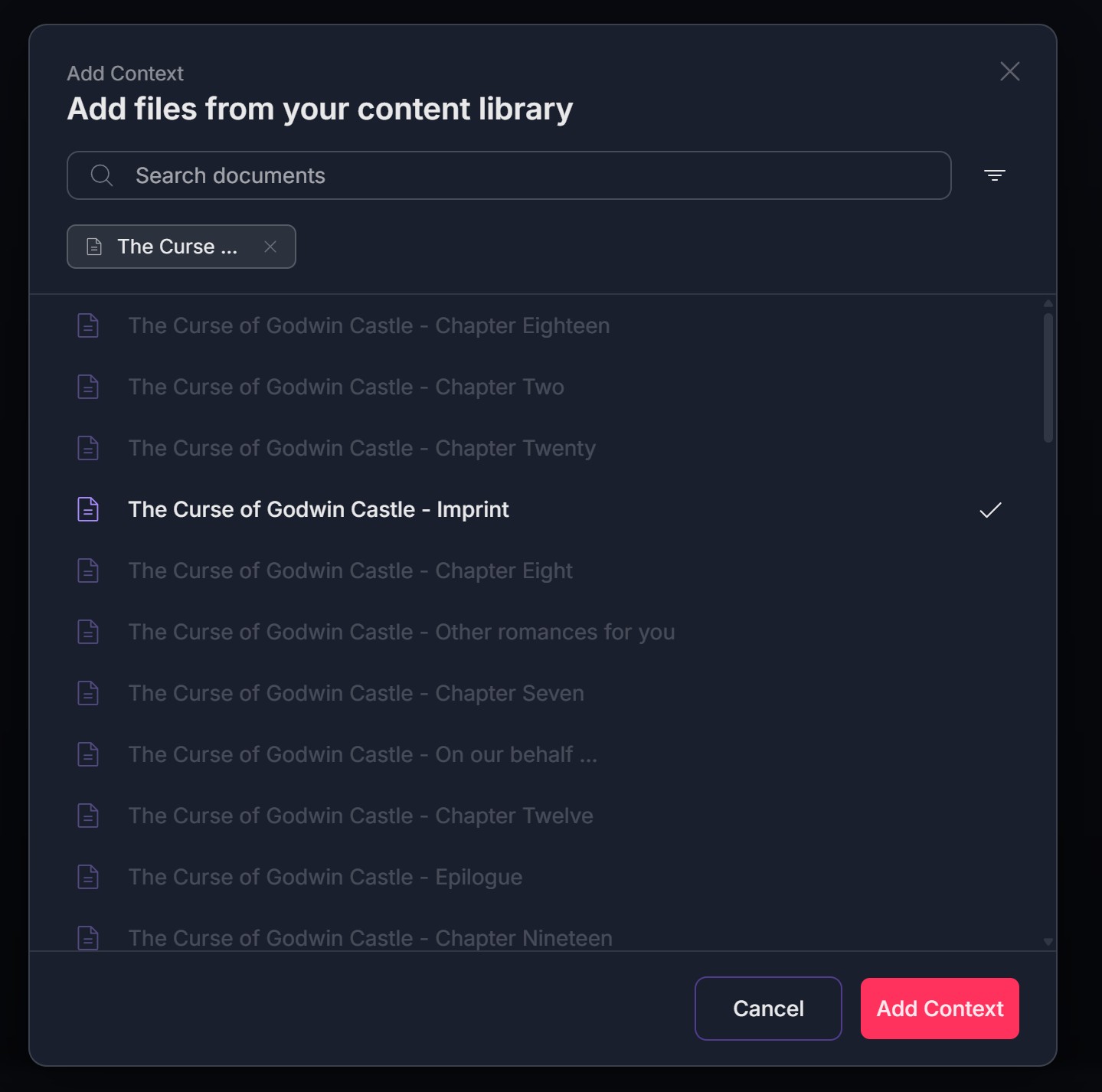
- "Add from your Library" - Select documents from your existing content library
- Select one document from the Content Library and click "Add Content" button OR
- Search for a document from the Content Library and click "Add Content" button
- Click the X icon on selected document to remove it and add another one
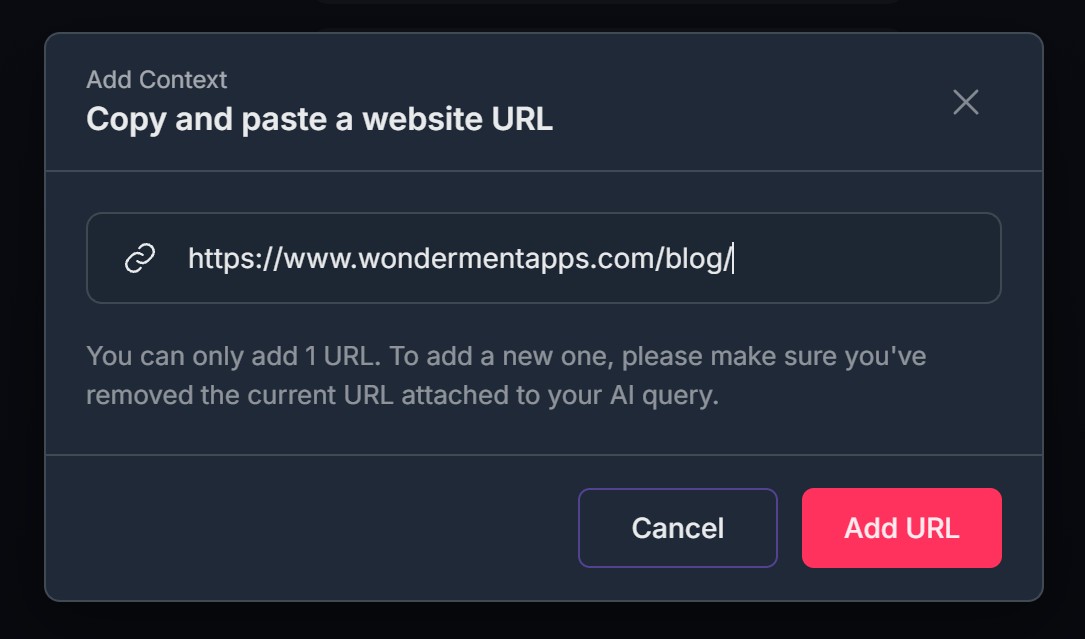
- "Add a URL" - Provide a web URL for Rumi Agent to reference
- "Upload a document" - Upload a new document from your computer
- Suppported formats: PDF, DOC, DOCX, TXT,
- Max size 480 KB
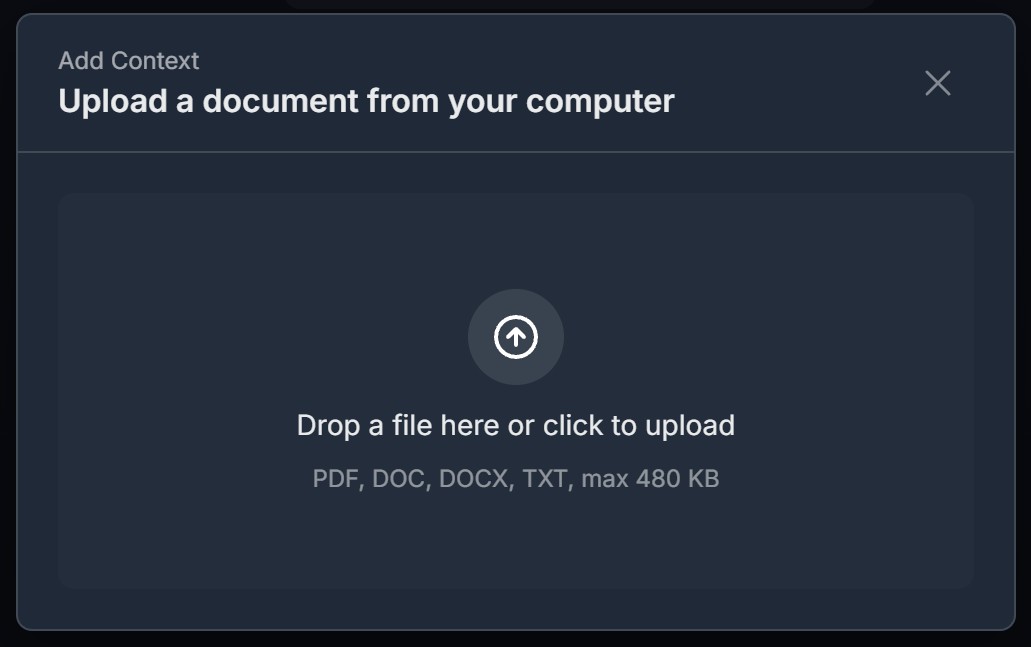
- Click the X icon to remove a context item and upload a new one
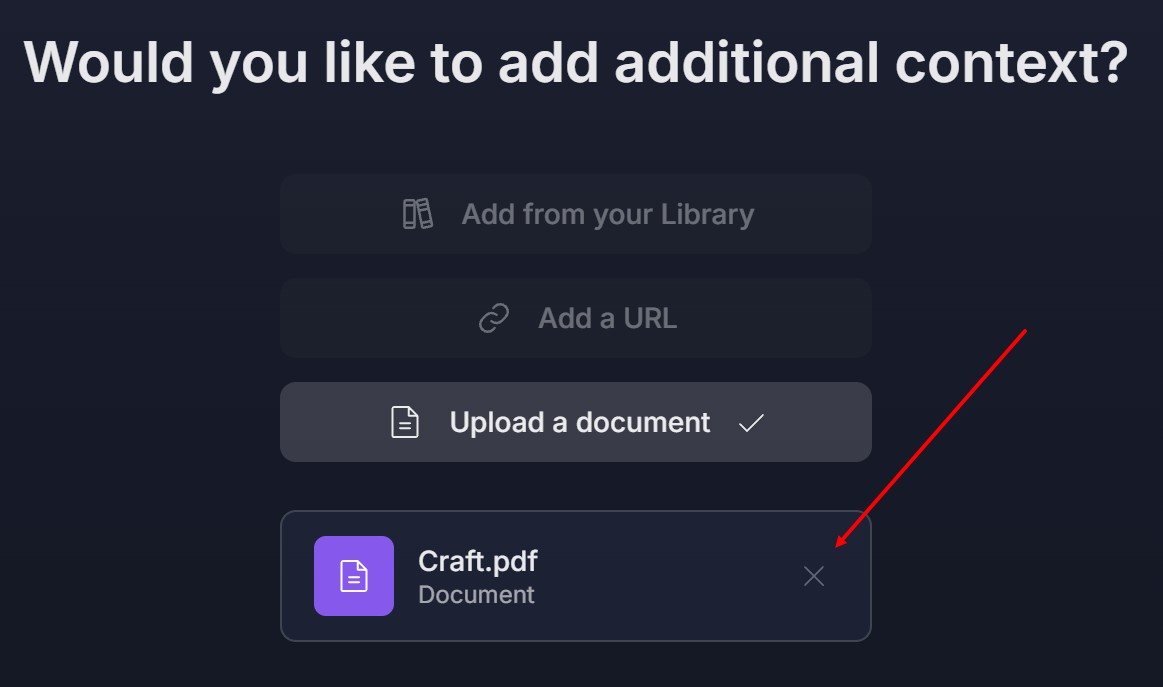
- Click "Next" to proceed, or "Skip" if you don't want to add context
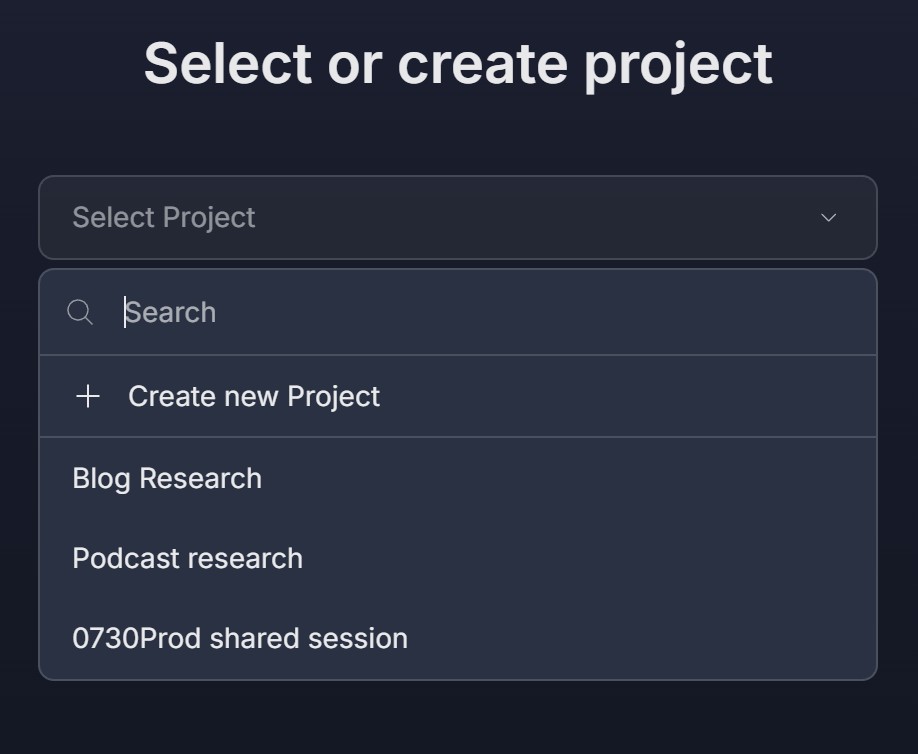
5. Select or Create Project
On the "Select or create project" screen, choose where to save your research:
- Select an existing project from the dropdown menu
- Use the search bar to find a specific project
- Click "+ Create new Project" to create a new project
- Click "Next" button
6. Rumi Agent Processes Your Request
- You'll see: "Rumi is working on your request" screen
- A progress bar will show at the bottom
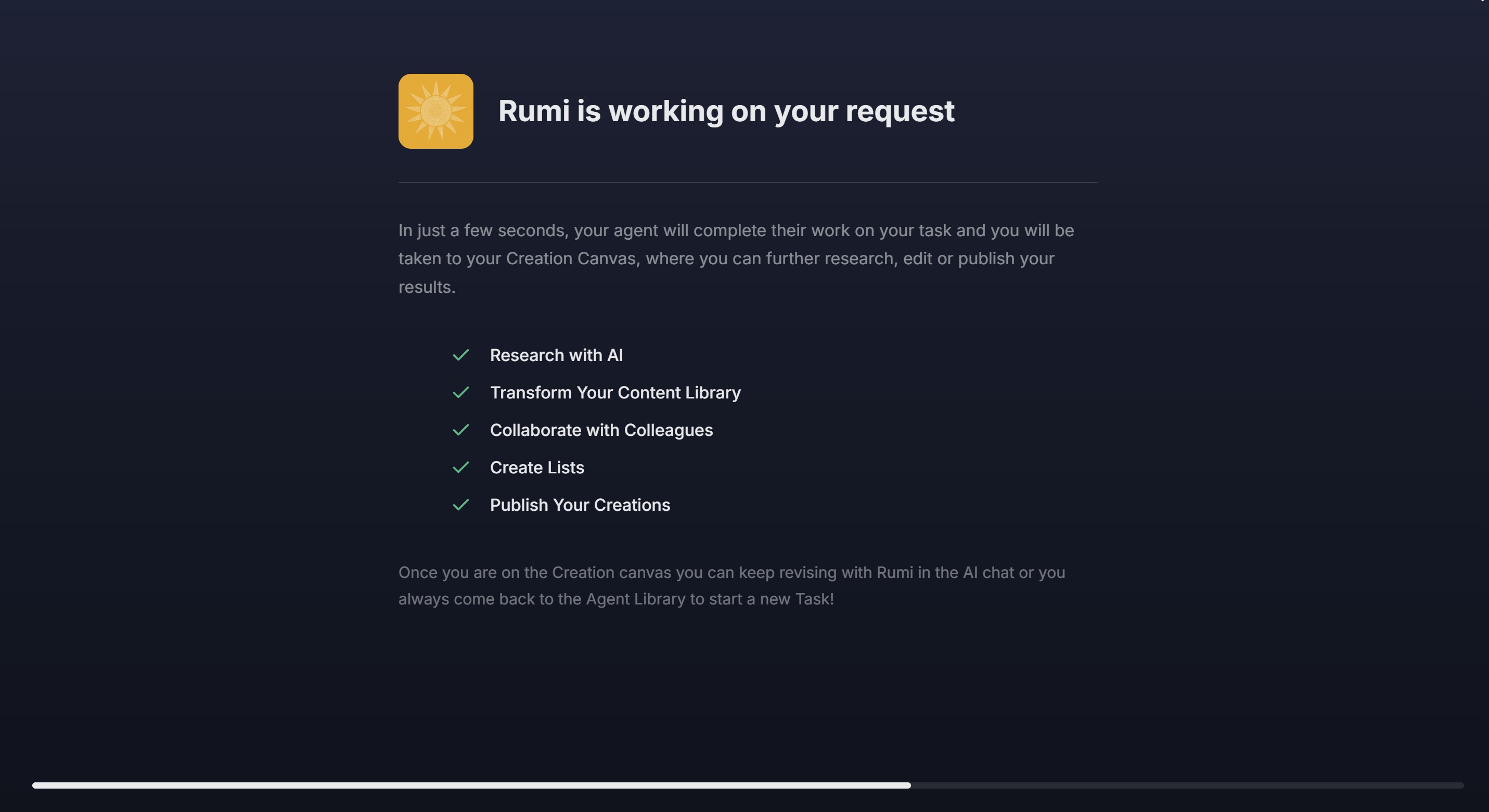
- Wait for the Agent to complete the research (typically takes a few seconds to a few minutes)
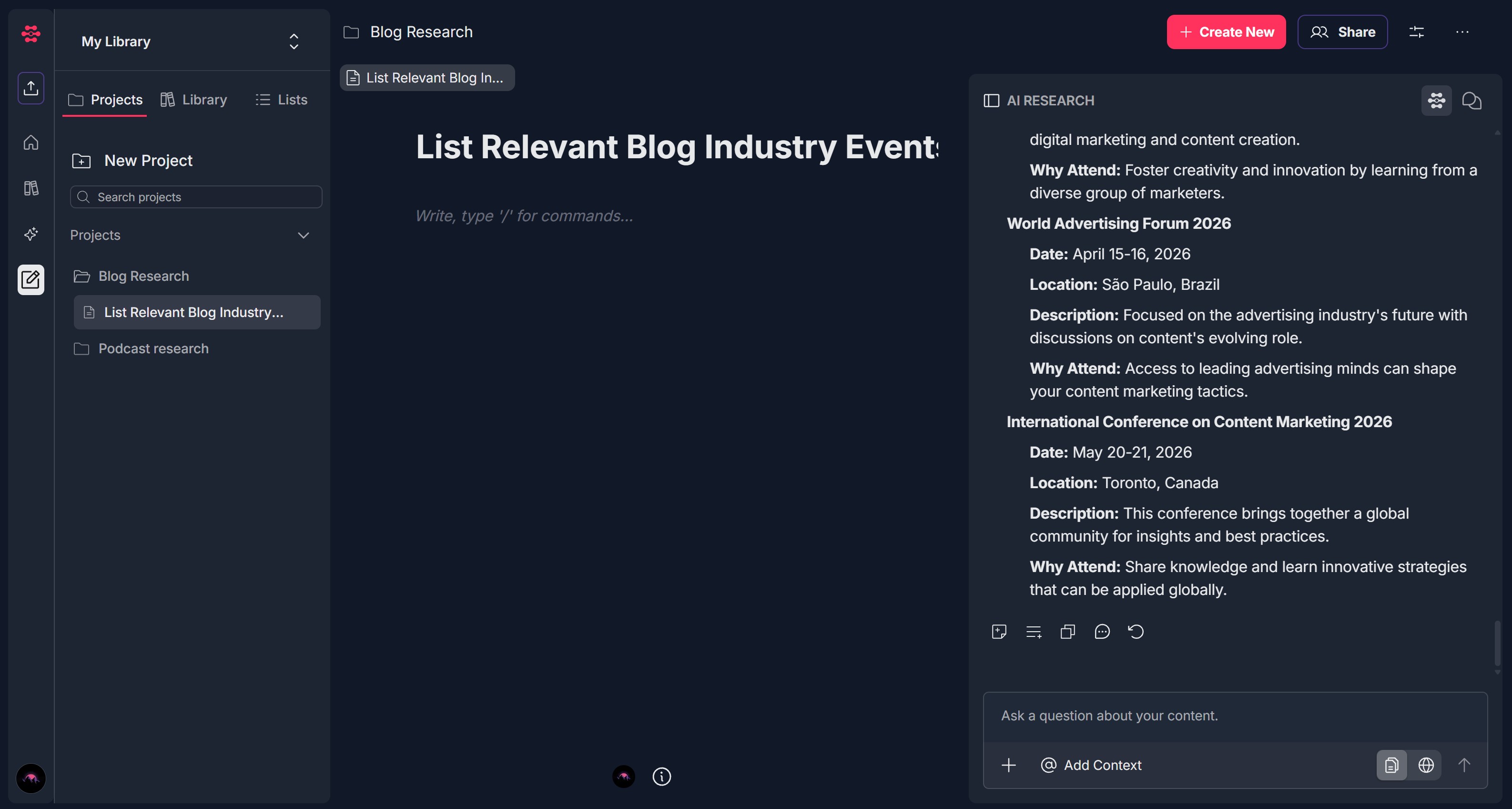
7. Review Results on Creation Canvas
- Once Rumi Agent completes the research, you'll be automatically redirected to the Creation Canvas
- Your research results will be displayed in a document format
- You can review, edit, refine, delete or share your creation
Troubleshooting Guide
A. Analysis Type Options Don't Appear
Issue: After accessing Understand, the analysis type selection screen is blank or options don't load.
Fix:
Refresh the page and wait a few seconds for options to load
Check your internet connection - ensure you have a stable connection
Clear browser cache and try again
Try a different browser (Chrome, Edge, Firefox) if the issue persists
If options consistently don't appear, contact Support and mention that marketing content creation types aren't loading
B. Task Cards Don't Appear
Issue: After selecting an analysis type, the task selection screen is blank or task cards don't load.
Fix:
Refresh the page and wait a few seconds for channels to load
Check your internet connection - ensure you have a stable connection
Clear browser cache and try again
Try selecting the analysis type again
If tasks consistently don't appear, contact Support and mention which analysis type you selected
C. Task Cards Don't Respond to Clicks
Issue: Clicking on a task card (e.g., "Perspective Consistency Report") doesn't proceed to the next step.
Fix:
Refresh the page and try clicking the task card again
Wait a moment - there may be a brief delay before navigation
Try clicking directly on the card text rather than the edges
Check browser console for any JavaScript errors
Try a different browser if the issue persists
If clicking consistently doesn't work, contact Support with the specific content creation type and task you're trying to select
D. Can't Find Documents in Library Search
Issue: When adding context from Library, you can't find the documents you're looking for.
Fix:
Use the search bar - type keywords from the document title
Check document names - ensure you're searching for the correct title
Scroll through the list - there may be more documents below the visible area
Use filters - click the filter icon to narrow down document types
Check if documents are processed - ensure your documents have finished processing in the Library
If you still can't find documents, try uploading them directly using "Upload a document"
E. Selected Context Items Don't Appear or Can't Be Removed
Issue: After selecting documents from Library, they don't show as tags, or you can't remove them with the X icon.
Fix:
Refresh the page and try selecting documents again
Click the X icon directly on the tag to remove it
Check if documents were actually selected - look for checkmarks in the modal
Try selecting fewer documents - there may be a limit on context items
If context items consistently don't appear, contact Support and mention the context selection issue
F. Project Dropdown Doesn't Open or Shows No Projects
Issue: The "Select or create project" dropdown doesn't open, or no projects are listed.
Fix:
Click the dropdown arrow to ensure it opens
Use the search bar within the dropdown to find projects
Create a new project by clicking "+ Create new Project"
Refresh the page and try again
Check if you have existing projects - you may need to create one first
If the dropdown consistently doesn't work, contact Support and mention the project selection issue
G. "Add from your Library" Modal Doesn't Open
Issue: Clicking "Add from your Library" doesn't open the document selection modal.
Fix:
Refresh the page and try clicking the button again
Check browser pop-up blockers - ensure they're not blocking the modal
Try a different browser (Chrome, Edge, Firefox) or use an incognito/private window
Check browser permissions - ensure JavaScript is enabled
If the modal consistently won't open, try the other context options (Add URL or Upload document) instead
H. Agent Takes Too Long or Gets Stuck
Issue: The "Rumi is working on your request" message persists for an unusually long time, or the progress bar doesn't advance.
Fix:
Wait a few minutes - complex research requests may take longer
Check your internet connection - ensure you have a stable connection
Refresh the page - sometimes a refresh can resolve temporary issues
Check if the research completed - try navigating to Creation Canvas manually to see if results are there
Try a simpler research request - very complex or broad requests may take longer
If Rumi remains stuck for more than 10-15 minutes, contact Support with details about your research request
I. Not Redirected to Creation Canvas After Research Completes
Issue: Agent appears to have finished, but you're not automatically taken to the Creation Canvas.
Fix:
Manually navigate to the Creation Canvas section
Check your project - look in the project you selected to see if research results are there
Clear browser cache and cookies, then try a new research request
Check browser settings - ensure no extensions are blocking redirects
Try a different browser if the issue persists
If automatic redirection consistently fails, contact Support and mention the redirect issue
J. Create Results Are Incomplete or Incorrect
Issue: The create results on Creation Canvas don't match what you requested, or information seems wrong.
Fix:
Review your instructions - ensure they were clear and specific
Check your context - verify that the documents/URLs you added are relevant
Try refining the research - use the AI Research panel to ask follow-up questions
Add more specific instructions - try running the research again with more detailed instructions
Check the research type and option - ensure you selected the correct research category
If results are consistently incorrect, contact Support with details about what you requested vs. what you received
K. Can't Add URL or Upload Document for Context
Issue: The "Add a URL" or "Upload a document" options don't work when clicked.
Fix:
Refresh the page and try clicking the option again
For URL: Ensure you're entering a valid, accessible web address
For Upload: Check file size limits and supported formats (PDF, DOCX, TXT, etc.)
Try a different browser if the issue persists
Check browser permissions - ensure file access is allowed
If these options consistently don't work, try using "Add from your Library" instead, or contact Support
Was this article helpful?
That’s Great!
Thank you for your feedback
Sorry! We couldn't be helpful
Thank you for your feedback
Feedback sent
We appreciate your effort and will try to fix the article