Description
The Document Preview feature in the Content Library allows you to view the full text content of an imported document without leaving the library or opening the file in another application. When you use document preview:
- View document content - See the full text of a document (article, transcript, report, etc.) in a preview window
- Quick access - Open the preview from the document detail view with one click
- No download required - Read content in the browser; no need to download or open in Word, PDF viewer, or another app
- Scrollable content - Long documents show a scrollbar so you can read from top to bottom
- Close and return - Close the preview with the X button to return to the Content Library
The preview converts supported document types (e.g., PDF, DOC, DOCX, TXT, SRT) into readable text so you can skim, search, or read content directly in Contesimal. This helps you verify imports, find specific passages, and work with your library without switching applications.
Step-by-Step Usage
The step-by-step instructions, screen descriptions, and UI details in this section are examples only. They are intended to help you understand how the feature works and how to complete the flow. Screens, labels, and layout may change in future product updates.
1. Access the Content Library and Open a Document
- Log in to your Contesimal account
- Navigate to Content Library (in the left sidebar)
- Locate the document you want to preview
- The document detail page will show: Document title, type, and publication date; Abstract or description; A placeholder or thumbnail on the left (if applicable); The Preview Document button (with an eye icon, light gray background)
2. Open the Document Preview
- In the document detail view, find the Preview Document button
- The button is below the document image/placeholder, with an eye icon and the label "Preview Document"
- Click the Preview Document button
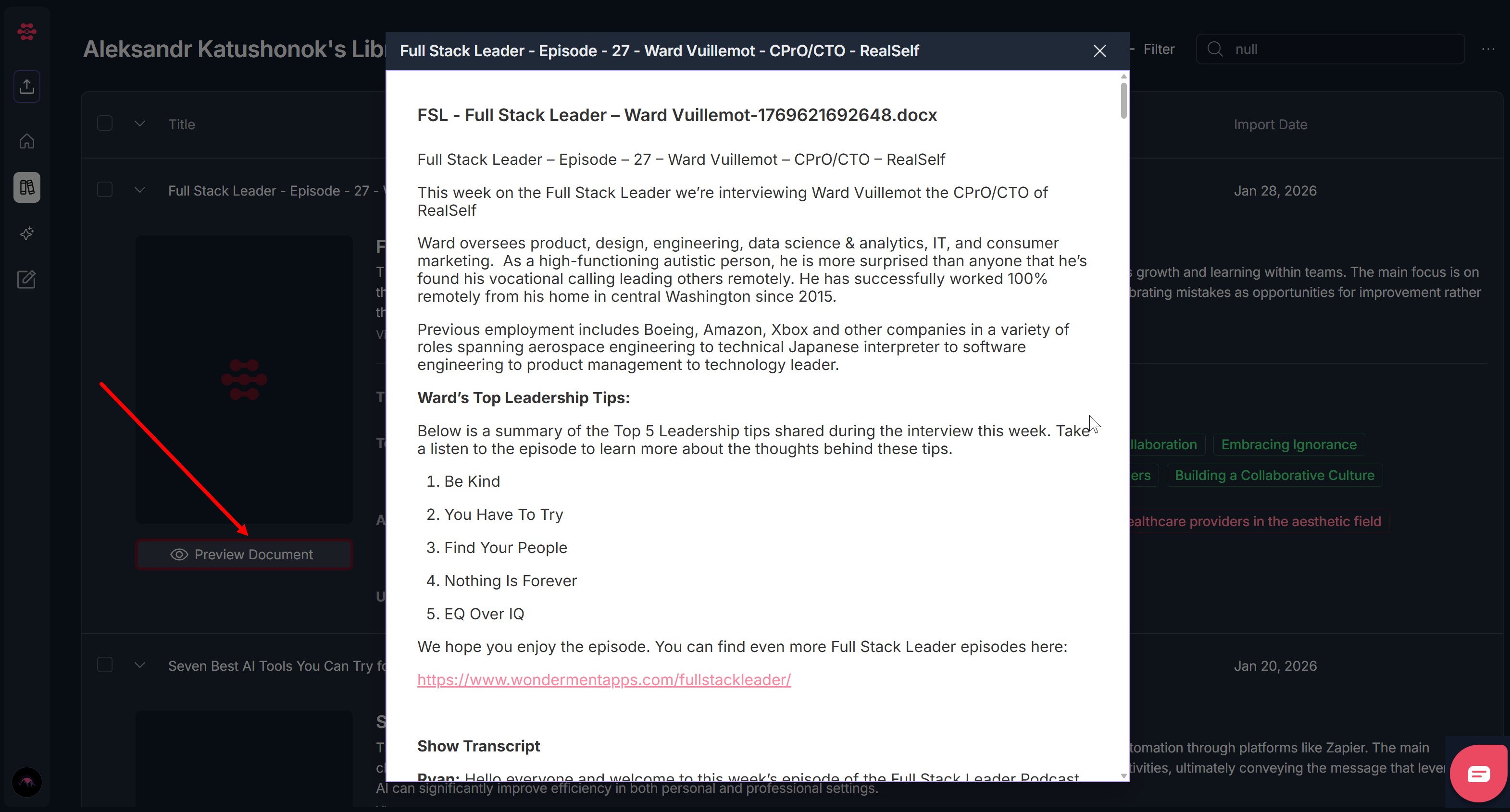
- A preview window (modal) will open, overlaying the Content Library
- The modal title bar will show the document title (e.g., "Full Stack Leader - Episode - 27 - Ward Vuillemot - CPrO/CTO - RealSelf")
3. View Content in the Preview Window
- The preview window displays:
- Title bar - Document title on the left; X (close)
- Document content - The full text of the document (e.g., interview summary, numbered lists, paragraphs, links)
- File name - The original file name may appear in the content area
- Scroll - If the document is long, use the vertical scrollbar on the right side of the preview to read from top to bottom
4. Close the Preview
- To close the preview and return to the Content Library, click the X button in the top-right corner of the preview window
- The modal will close and you will see the document list again
- You can open the preview again at any time by clicking Preview Document on the same or another document
Troubleshooting Guide
A. Preview Document Button Doesn't Open the Preview
Issue: You click the "Preview Document" button but the preview window does not appear.
Fix:
- Ensure you clicked directly on the "Preview Document" button (with the eye icon), not on the document title or other elements
- Refresh the page and open the document detail view again, then click Preview Document
- Check if a pop-up or ad blocker is blocking the preview window
- Try a different browser (Chrome, Edge, Firefox) if the issue persists
- Clear browser cache and cookies, then try again
- If the button is grayed out or disabled, the document may not be ready for preview (e.g., still processing); wait and try again
- If the issue continues, contact Support with your browser and steps taken
B. Preview Opens but Content Is Empty or Doesn't Load
Issue: The preview window opens but the content area is blank, shows a loading state that never finishes, or shows an error instead of the document text.
Fix:
- Wait a few seconds; large documents may take longer to load
- Refresh the page and open the document detail view again, then click Preview Document
- Check your network connection; a slow or failed request can prevent content from loading
- Close the preview (X) and try opening it again
- Verify the document imported successfully (e.g., no "Failed" status in the library)
- If the document was recently imported, wait for processing to complete and try again
- Try opening preview on a different document to see if the issue is document-specific
- If content consistently doesn't load, contact Support with document name and any error message
C. Can't Close the Preview Window
Issue: You click the X button but the preview window does not close, or you cannot find a way to close it.
Fix:
- Click directly on the X button in the top-right corner of the preview window
- Try pressing the Escape (Esc) key on your keyboard; many modals close with Esc
- Refresh the browser page; this will close the preview and reload the library
- Check if another overlay or dialog is on top of the X button; close other dialogs first
- Try a different browser if the issue persists
- If the preview is stuck, note the steps and contact Support
D. Preview Is Slow or Scrolling Is Laggy
Issue: The preview window takes a long time to open, or scrolling through the document is slow or unresponsive.
Fix:
- Large documents may load slowly; wait for the full content to load before scrolling heavily
- Close other browser tabs or applications to free memory and CPU
- Check your internet connection; slow connectivity can affect loading
- Try a different browser (Chrome, Edge, Firefox) for better performance
- Clear browser cache and reload; then open the preview again
- If the issue is only with very long documents, this may be a known limitation; consider using search to jump to sections
- If performance is consistently poor, contact Support with document size and browser
Was this article helpful?
That’s Great!
Thank you for your feedback
Sorry! We couldn't be helpful
Thank you for your feedback
Feedback sent
We appreciate your effort and will try to fix the article