Description
The Image Management feature in the Content Library allows you to change the cover image displayed for an imported document. When content is first imported (e.g., a text document, book, or article), it is assigned a default cover image. You can replace this with your own image at any time. When you use image management:
- Change cover image - Replace the default cover image with a custom image (e.g., logo, artwork, thumbnail
- Edit from document details - Open the Edit Document Metadata screen from the document's expanded row in the Content Library
- Upload flow - Choose a file from your device, upload it, then save your changes
- Image requirements - PNG format; maximum file size 800 KB; white and color logos with a transparent background display best
- Confirmation - After saving, a confirmation toast appears and the document's cover image is updated in the library
This feature helps you visually identify and brand documents in your Content Library so they are easier to recognize and present consistently.
Step-by-Step Usage
The step-by-step instructions, screen descriptions, and UI details in this section are examples only. They are intended to help you understand how the feature works and how to complete the flow. Screens, labels, and layout may change in future product updates.
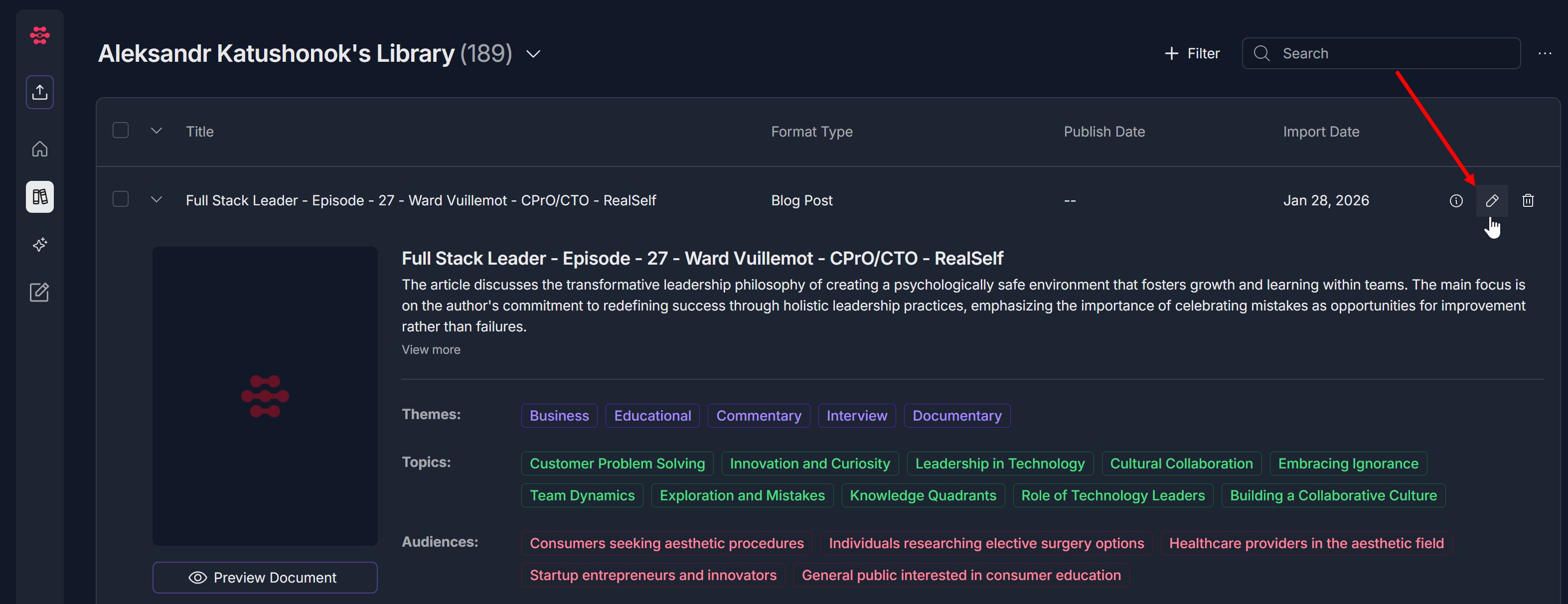
1. Access the Content Library and open the document details
- Log in to your Contesimal account
- Navigate to Content Library (in the left sidebar)
- Locate the document whose cover image you want to change
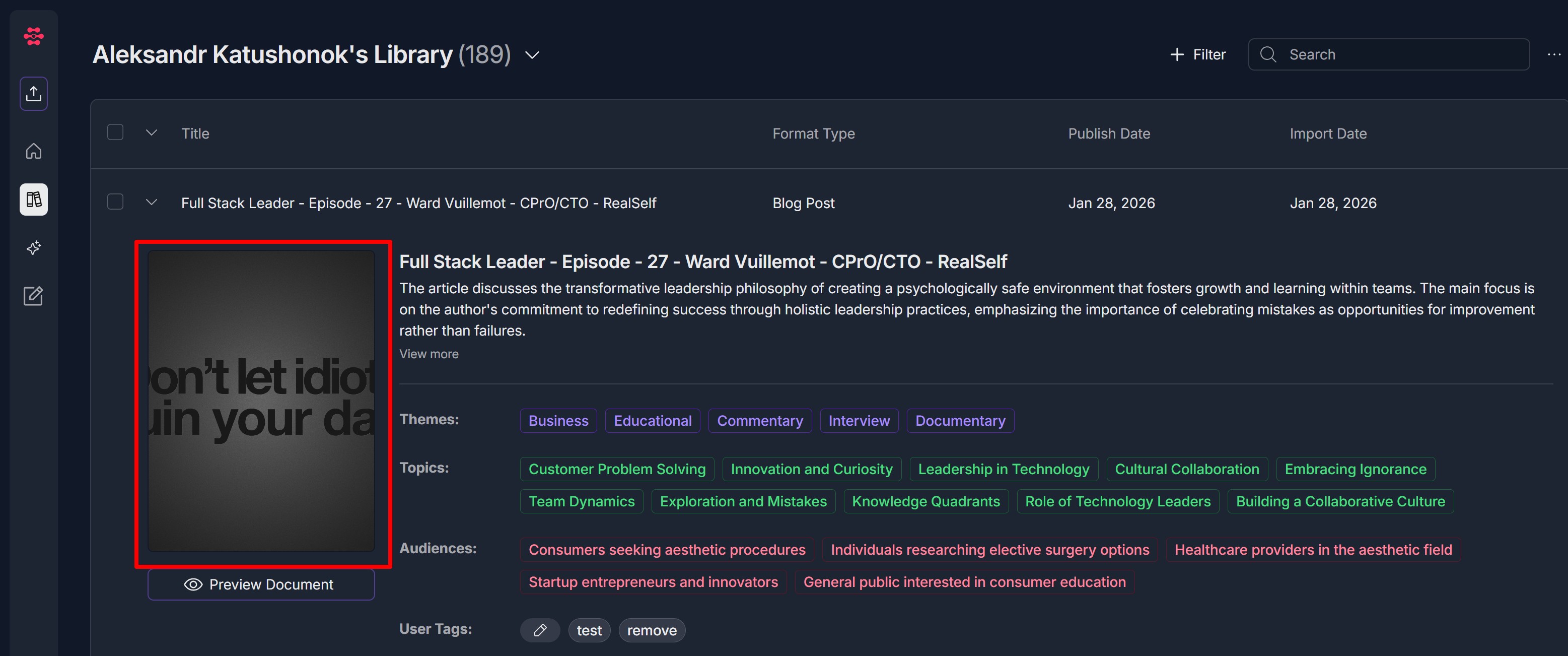
- The document detail section will show: Document title, description, and metadata (Themes, Topics, Audiences); A placeholder or current cover image on the left (e.g., a default red icon); The Preview Document button below the image; On the right side of the document row: an information (i) icon, an edit (pencil) icon, and a delete (trash) icon
2. Open the Edit Document Metadata pop-up
- Find the edit (pencil) icon on the right (next to the information and delete icons)
- Click the edit (pencil) icon
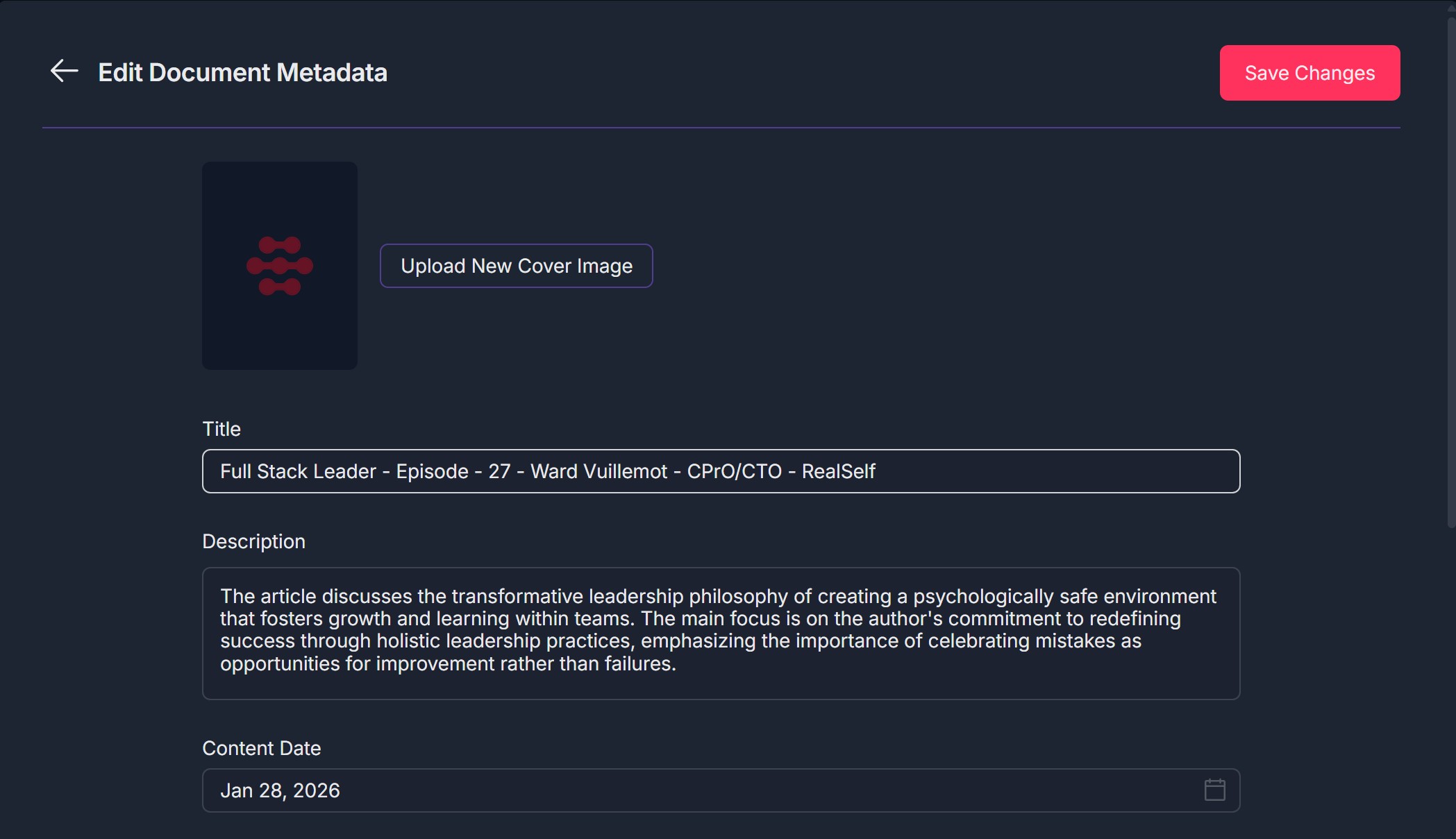
- The Edit Document Metadata pop-up (modal) opens
- The modal shows: A back arrow and title "Edit Document Metadata" at the top left; A red Save Changes button at the top right; A cover image section: placeholder (or current image) on the left and an Upload New Cover Image button (with purple outline) on the right; Title, Description, and Content Date fields below
3. Open the choose-file section
- In the Edit Document Metadata pop-up, locate the Upload New Cover Image button in the cover image section
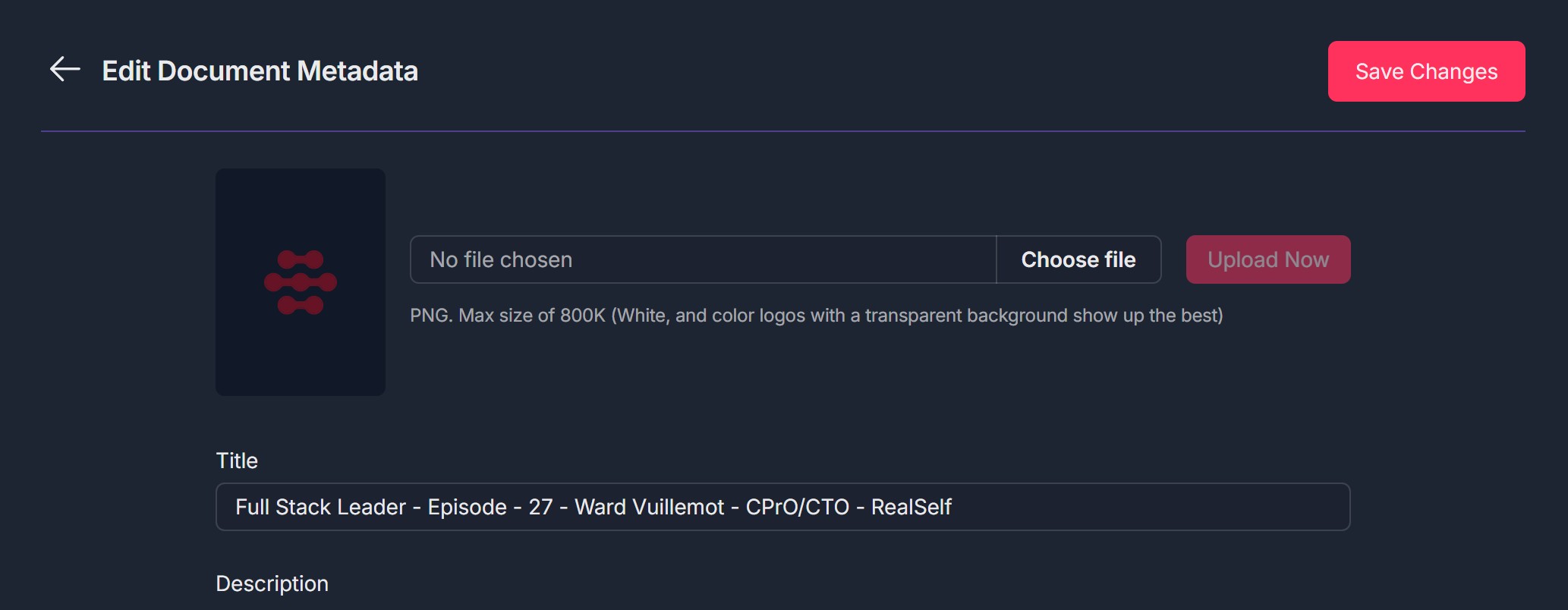
- Click Upload New Cover Image
- The choose file section appears: A file input area (may show "No file chosen" until you select a file); A Choose file button (dark gray) that opens your device's file picker; An Upload Now button (red) that becomes active after a file is selected; Below: "PNG. Max size of 800K (White, and color logos with a transparent background show up the best)"
4. Choose a file and upload the cover image
- Click Choose file
- In the file picker, select an image file from your device (PNG recommended; max 800 KB)
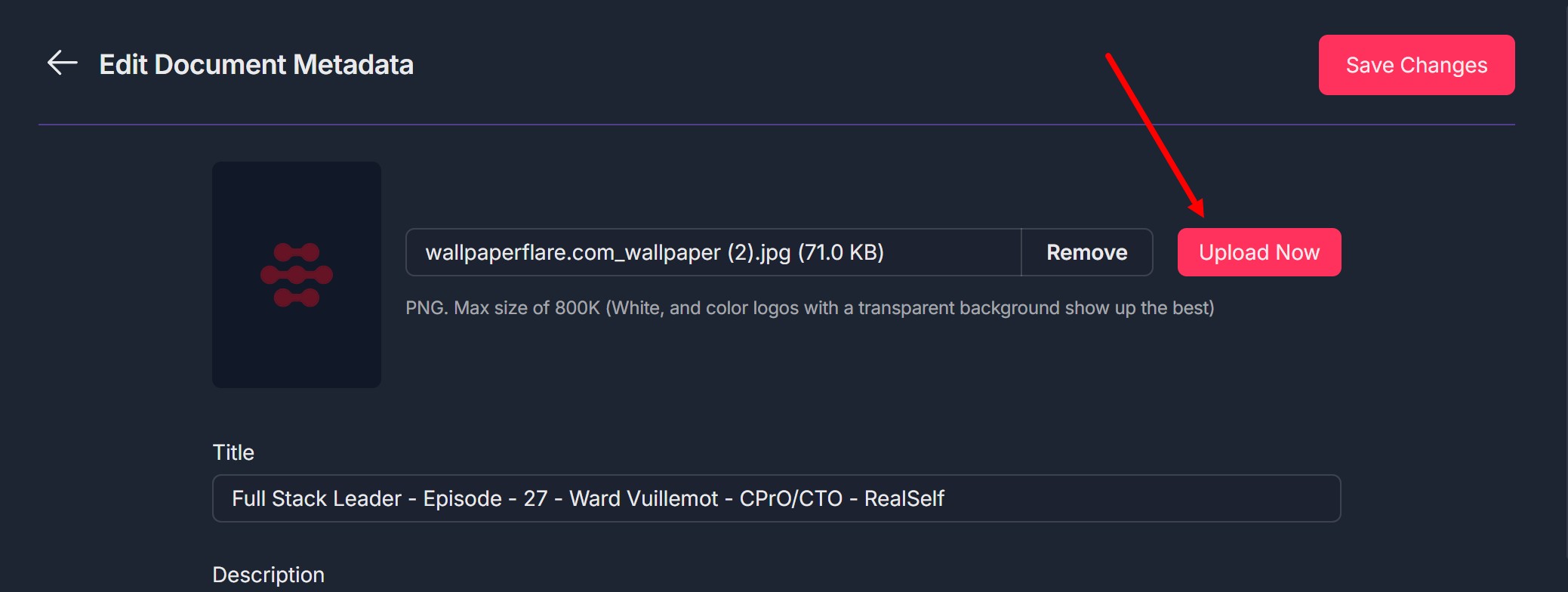
- After selecting, the file name and size appear (e.g., "filename.png (71.0 KB)")
- Optionally click Remove to clear the selection and choose a different file
- Click Upload Now to upload the selected image
- The image is uploaded; the placeholder in the cover image section may update to show the new image (or a preview)
5. Save changes and confirm
- Click the red Save Changes button at the top right of the Edit Document Metadata pop-up
- The pop-up closes
- A confirmation toast "Document changed successfully" appears
- The document's cover image is updated in the Content Library: the document row or detail view now shows the new cover image instead of the default placeholder
Troubleshooting Guide
A. Edit (Pencil) Icon Doesn't Open Edit Document Metadata
- Issue: You click the edit (pencil) icon on the document row but the Edit Document Metadata pop-up does not open.
- Fix:
- Ensure you clicked directly on the pencil icon, not on the information icon, delete icon, or document text
- Confirm the document row is expanded (you see the detail section with image, description, and metadata)
- Refresh the page and expand the document again, then click the pencil icon
- Check if a pop-up or ad blocker is blocking the modal
- Try a different browser (Chrome, Edge, Firefox) if the issue persists
- Clear browser cache and cookies, then try again
- If the icon is grayed out or disabled, you may not have permission to edit; contact your admin or Support
- If the issue continues, contact Support with your browser and steps taken
B. Upload New Cover Image Doesn't Show Choose File Section
- Issue: You click "Upload New Cover Image" but the choose file section (Choose file button, Upload Now) does not appear.
- Fix:
- Ensure you clicked the Upload New Cover Image button (purple outline) in the cover image section, not "Save Changes"
- Refresh the page, open Edit Document Metadata again (pencil icon), then click Upload New Cover Image
- Check if a pop-up blocker is preventing the file input from showing
- Try a different browser if the issue persists
- If the section still doesn't appear, contact Support with your browser and steps taken
C. File Doesn't Upload or Upload Now Doesn't Work
- Issue: You selected a file and clicked "Upload Now" but the image doesn't upload, or nothing happens. Error: Upload Now button doesn't respond; file name disappears; error message such as "Upload failed" or "File too large."
- Fix:
- Verify the file is PNG (or an accepted format) and under 800 KB
- If the file is too large, resize or compress the image and try again
- Ensure you clicked Upload Now after choosing the file (not only Choose file)
- Check your network connection; a failed request can prevent upload
- Try a different image file to see if the issue is file-specific
- Clear browser cache and try again
- If you see an error message, note it and follow any on-screen instructions; contact Support with the message if needed
D. Image Rejected (Wrong Format or Too Large)
- Issue: After selecting a file and clicking Upload Now, the system rejects the image (e.g., wrong format or file too large). Error: Message such as "Invalid file format," "File too large," or "Maximum size 800KB."
- Fix:
- Use PNG format; convert other formats (e.g., JPG) to PNG if necessary
- Ensure file size is 800 KB or less; compress or resize the image if needed
- For best display, use white or color logos with a transparent background
- Click Remove in the choose file section, select a compliant file, then click Upload Now again
- If the issue persists with a file that meets the requirements, contact Support with file format, size, and any error message
E. Save Changes Doesn't Save or Pop-up Doesn't Close
- Issue: You clicked "Save Changes" but the pop-up doesn't close, or your cover image (or other metadata) changes are not saved. Error: Pop-up stays open; no confirmation toast; document image or metadata reverts after closing.
- Fix:
- Ensure you clicked Save Changes (red button at top right), not only "Upload Now"
- You must click Upload Now first to upload the image, then Save Changes to apply all edits and close the pop-up
- Check your network connection; a failed request can prevent saving
- Refresh the page and repeat the flow: Upload New Cover Image → Choose file → Upload Now → Save Changes
- If the pop-up doesn't close, try clicking Save Changes again or the back arrow; if it still sticks, refresh the page
- If saving consistently fails, contact Support with your browser and steps taken
F. No Confirmation Toast or Document Image Doesn't Update
- Issue: After saving, you don't see a confirmation toast, or the document's cover image in the library still shows the old/default image.
- Fix:
- Wait a few seconds; the toast may appear briefly and the list may need a moment to refresh
- Scroll or click elsewhere in the Content Library to trigger a refresh, or refresh the page
- Re-open the document detail (expand the row or click the document) to see if the new image appears
- Verify you completed the full flow: Choose file → Upload Now → Save Changes
- If the image still doesn't update, repeat the upload and save; if it persists, contact Support with document name and what you did
Was this article helpful?
That’s Great!
Thank you for your feedback
Sorry! We couldn't be helpful
Thank you for your feedback
Feedback sent
We appreciate your effort and will try to fix the article