Description
The Project Navigator (e.g., under My Library or your library view) lets you organize your creations (documents, boards, and other project files) by project. Each project can contain one or more creations. You use the three-dots menu (⋯) on a creation or on a project to access actions such as Rename, Details, Duplicate, and Delete. Available options depend on whether you are the project owner or a user with shared access: owners typically see full management options; shared users see a reduced set (e.g., Details and Duplicate for creations, and Details and Leave for projects). This feature helps you keep work organized, view metadata, copy creations, and remove content or leave projects as appropriate to your role.
How This Feature Helps You
- Organize by project — Creations live under projects in the navigator, so you can browse and open work by project.
- Manage creations — Use the three-dots menu on any creation to rename it, view its details, duplicate it within the project, or delete it (when allowed).
- Manage projects — Use the three-dots menu on a project to rename it, view details, manage AI Instructions (owner only), or delete the project (owner only). As a shared user, you can view details or leave the project.
- Role-based options — The menu shows only the actions you are allowed to perform: project owners get full control; shared users get view, duplicate, and leave options as applicable.
Benefits
- Clear structure — Projects and creations are easy to find and manage from one place.
- Quick actions — Rename, details, duplicate, and delete (or leave) without opening multiple screens.
- Transparency — Details show name, content type, owner, and created/modified information.
- Safe collaboration — Shared users can work with content (e.g., duplicate, view details) and leave a project without being able to delete the project or rename it.
Step-by-Step:
The step-by-step instructions, screen descriptions, and UI details in this section are examples only. They are intended to help you understand how the feature works and how to complete the flow. Screens, labels, and layout may change in future product updates.
1. Open the Options Menu for a Creation
- In the Project Navigator (e.g., My Library → Projects tab), locate the project that contains the creation you want to manage.
- Find the creation (e.g., a document or board) under that project.
- Click the three-dots (⋯) icon next to the creation's name.
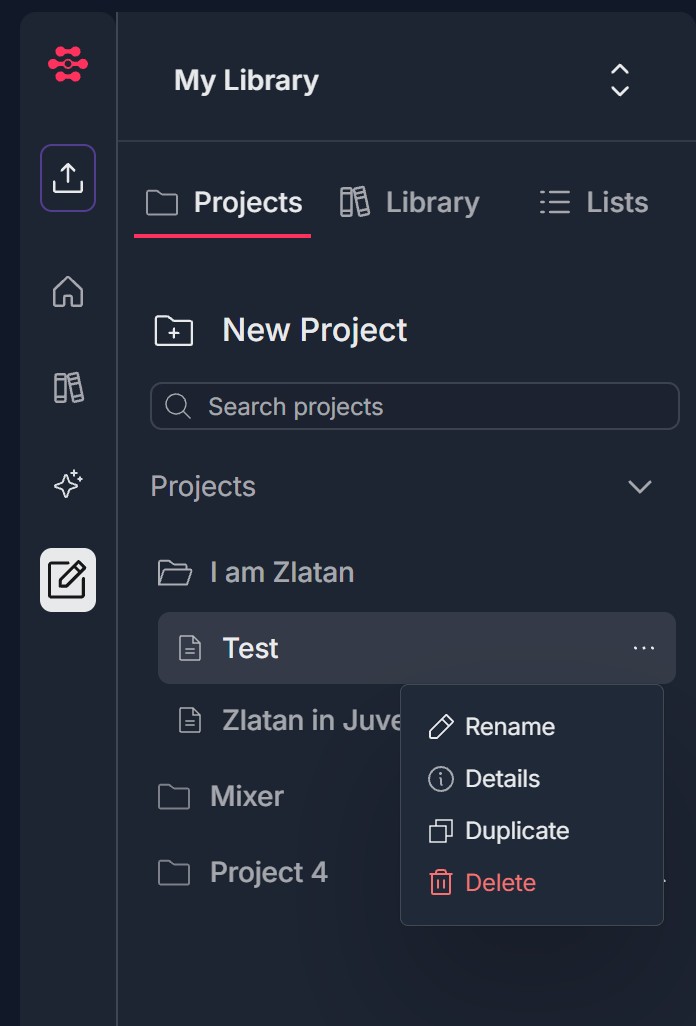
- A context menu opens with the options available to you. Options may include Rename, Details, Duplicate, and Delete. If you have shared access (not the owner), you may see only Details and Duplicate (or a subset); the exact set depends on your role and product settings.
2. Rename a Creation
- From the creation's three-dots menu, click Rename (e.g., with a pen icon).
- An Edit Name dialog opens. It typically shows: a title such as Edit Name and a close (X) button; a text field with the current name (e.g., Test); a character counter (e.g., 4 / 100); Cancel and Save buttons.
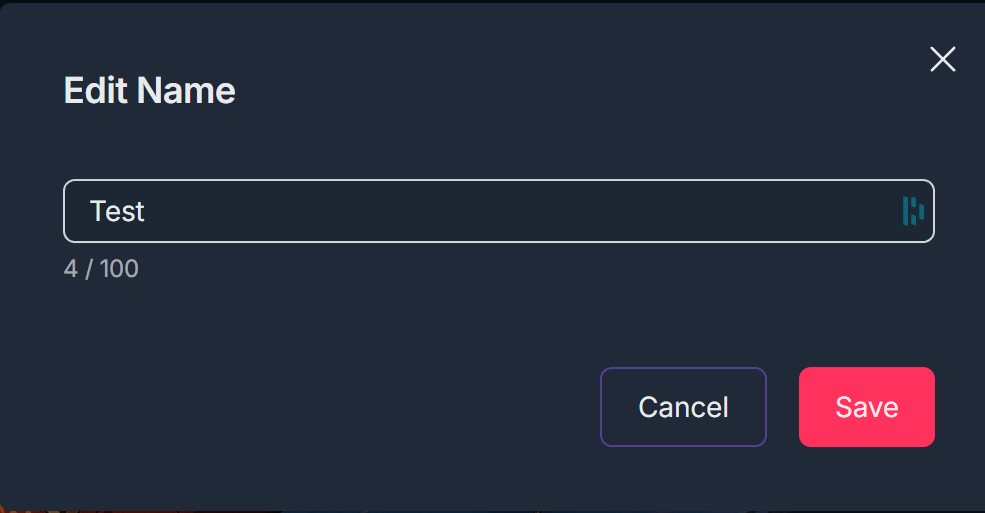
- Type the new name in the text field (up to the maximum length).
- Click Save to apply the new name, or Cancel (or X) to close without saving.
- The creation's name is updated in the navigator. This option is typically available to the project owner; shared users may not see Rename.
3. View Details of a Creation
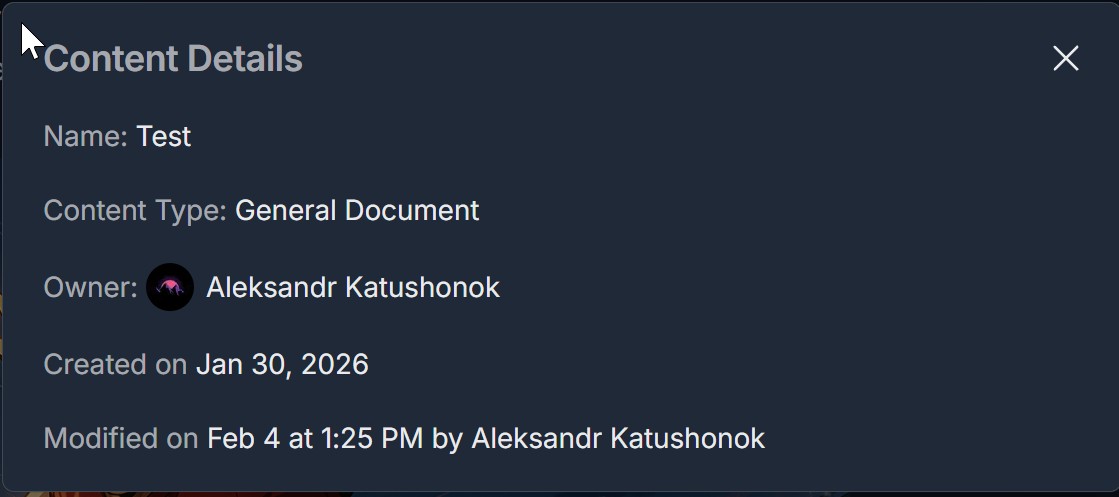
- From the creation's three-dots menu, click Details (e.g., with an information icon).
- A Content Details dialog (or similar) opens. It typically shows: Name; Content Type (e.g., General Document); Owner (with avatar if shown); Created on; Modified on (date, time, and who made it).
- Use this to verify metadata or ownership. Close the dialog with X when done. Details is usually available to both project owners and shared users.
4. Duplicate a Creation
- From the creation's three-dots menu, click Duplicate (e.g., with an icon of two overlapping squares).
- A copy of the creation is created under the same project. The duplicate usually has a name that indicates it is a copy (e.g., name with (copy) or similar).
- You can then rename or edit the duplicate as needed. Duplicate is often available to both owners and shared users.
5. Delete a Creation
- From the creation's three-dots menu, click Delete (e.g., with a trash can icon; the label may be shown in red).
- A Delete Project File confirmation dialog opens. It typically states that the action cannot be undone and asks you to confirm.
- Click Delete now (or the equivalent confirm button) to permanently delete the creation, or Cancel (or X) to close without deleting.
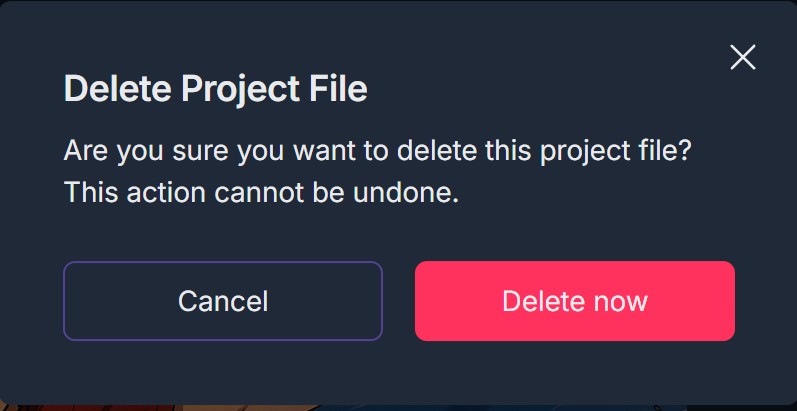
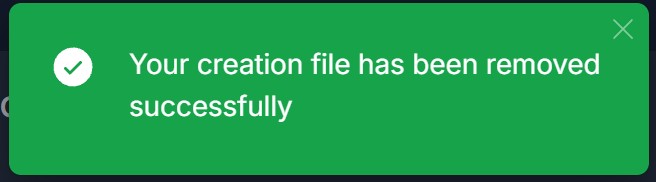
- After confirmation, the creation is removed from the project. Delete is typically available only to the project owner; shared users usually do not see Delete for creations.
Projects: Owner vs Shared User Options
1. Open the Options Menu for a Project
- In the Project Navigator, find the project (e.g., folder or project row) you want to manage.
- Click the three-dots (⋯) icon next to the project name.
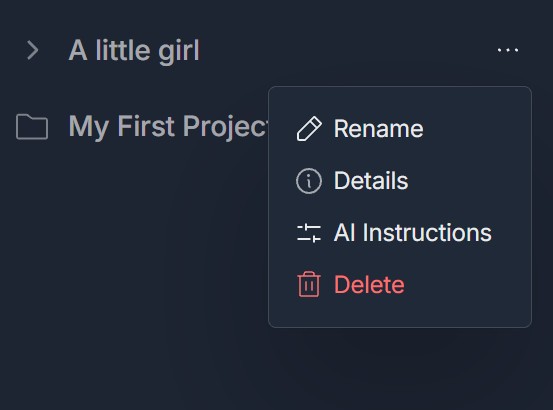
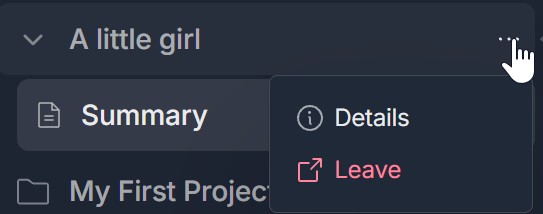
- A context menu opens. Project owner typically sees Rename, Details, AI Instructions, and Delete. Shared user typically sees Details and Leave.
2. Actions Available to the Project Owner
- Rename — Change the project's name (similar flow to renaming a creation: dialog with name field, character limit, Cancel/Save).
- Details — View project metadata (e.g., name, owner, created/modified). Close with X when done.
- AI Instructions — Open or manage AI Instructions for this project. See the AI Instructions guidelines for how to create and manage instructions.
- Delete — Permanently delete the project (and typically its contents). A confirmation dialog will ask you to confirm; deletion is usually irreversible. Only the owner can delete the project.
3. Actions Available to a Shared User
- Details — View project information (e.g., name, owner, dates). Useful to confirm which project you are in or who owns it.
- Leave — Remove your access from the project. After leaving, you will no longer see the project in your library (unless you are re-invited). The project and its contents remain for the owner and other collaborators. Leave is often shown in red.
Troubleshooting Guide
A. Three-Dots Menu Does Not Appear or Does Not Open
- Issue: You do not see the three-dots icon next to a creation or project, or clicking it does not open a menu.
- Fix:
- Ensure you are in the Projects view (e.g., My Library → Projects tab) and that the project is expanded so creations are visible
- Hover over the creation or project row; the three-dots icon may appear on hover. Click directly on the three-dots (⋯), not on the name or icon
- Refresh the page and try again. If you have very limited permissions, the menu might be hidden; contact your project owner or Support to confirm your access level
- If the menu still does not open, try a different browser or contact Support with your role (owner vs shared) and what you see
B. Rename or Delete Is Missing for a Creation
- Issue: You expect to rename or delete a creation but do not see Rename or Delete in the menu.
- Fix:
- Rename and Delete for creations are typically available only to the project owner. If you have shared access, you will usually see Details and Duplicate only
- Ask the project owner to rename or delete the creation, or request owner-level access if appropriate
- If you are the owner and still do not see these options, refresh the page and open the three-dots menu again; if still missing, contact Support with your account and project details
C. Edit Name Dialog Does Not Save or Shows an Error
- Issue: You click Save in the Edit Name dialog but the name does not change, or you see an error (e.g., invalid name or length).
- Fix:
- Check the character counter (e.g., 4 / 100). The name must not exceed the maximum length (e.g., 100 characters). Shorten the name if necessary
- Ensure the name is not empty and does not contain only spaces or invalid characters if the product restricts them
- Click Save again after making a valid change. If the dialog closes but the name does not update in the navigator, refresh the page and check the item
- If you see an explicit error message, follow its instructions (e.g., reduce length, remove special characters)
D. Duplicate Creates a Copy in the Wrong Place or Fails
- Issue: You click Duplicate but no copy appears, or the copy appears under a different project.
- Fix:
- The duplicate is usually created under the same project as the original. Check that project's list; the new item may have a (copy) or similar suffix in the name
- If you have many creations, scroll within the project to find the duplicate
- Refresh the page and look again. If duplicate still does not appear, you may have hit a limit or a temporary error; try again later or contact Support with the creation name and project
E. Delete Confirmation Does Not Appear or Delete Fails
- Issue: You click Delete but no confirmation dialog appears, or you confirm but the creation (or project) is not deleted.
- Fix:
- For creations: Ensure you clicked Delete in the creation's three-dots menu (not the project's). The Delete Project File dialog should appear before anything is removed. Click Delete now to complete
- For projects: Only the owner can delete a project. If you are a shared user, Delete will not appear. If you are the owner and click Delete, confirm in the dialog that appears
- After confirming, refresh the page. If the item still appears, there may have been a network or permission error; try again or contact Support with your role and what you see after confirming
F. Project Owner vs Shared User: Wrong Options Shown
- Issue: You are the project owner but see only Details and Duplicate (or Leave) as for a shared user, or you are a shared user but see Rename/Delete.
- Fix:
- Confirm who owns the project (e.g., open Details on the project and check Owner). Your menu options are based on your role for that project
- If you were recently made owner or shared user, refresh the page or log out and log back in so permissions are updated
- If the options are still wrong for your role, contact Support with the project name, your account, and whether you are owner or shared user
G. Cannot Leave a Project or Leave Option Missing
- Issue: You want to leave a project but do not see Leave, or Leave does not work.
- Fix:
- Leave appears in the project's three-dots menu (not the creation's). Open the menu next to the project name (folder or project row)
- Leave is typically shown only to shared users; the project owner usually does not see Leave
- After clicking Leave, confirm if a confirmation message appears. Then refresh or navigate away; the project should no longer appear in your library. If it still appears, log out and back in, or contact Support
Was this article helpful?
That’s Great!
Thank you for your feedback
Sorry! We couldn't be helpful
Thank you for your feedback
Feedback sent
We appreciate your effort and will try to fix the article