Description
AI Instructions in Contesimal let you define rules for how the AI should respond in the Project research chat. You create and assign custom instructions to a project so that answers follow a consistent tone, audience, level of detail, format (e.g., bullets, headings, code blocks), and any do's, don'ts, or constraints you specify. The clearer your instructions, the more consistent the AI's answers will be. You can change instructions whenever you like; changes apply to new conversations going forward, not to past messages. Who can add instructions: Only the project owner can create, edit, assign, and remove AI instructions for a project. Shared users (people with shared access to the project) cannot add or manage instructions; they use the project with whatever instruction the owner has assigned, or with no instruction. You can create new instructions (with an Instruction Name and Instruction Details up to 8,000 characters), assign one instruction per project, view, duplicate, edit, or delete existing instructions, and remove the instruction from a project by selecting No Instruction or by deleting the instruction. When an instruction is assigned, an indicator (e.g., an icon with a red dot near the Share button) and tooltip (e.g., Instruction assigned) show that the project is using custom AI guidance.
What AI Instructions Are For
- AI Instructions give you the ability to add common rules for how AI should respond throughout the Project research chat. You can use them for a variety of purposes, including: Describe the tone and voice you want (e.g., formal, casual, humorous); Define who the audience is (e.g., technical, general readers); Set how detailed answers should be (e.g., brief summaries vs. in-depth); Specify formats you prefer (e.g., bullets, headings, code blocks); Add do's, don'ts, or constraints (e.g., avoid jargon, always cite sources). The clearer your instructions, the more consistent the AI's answers will be. You can change the instructions whenever you like; these changes will only apply to the conversation going forward.
Benefits
- Consistent AI behavior — One set of rules per project so research chat answers match your tone, audience, and format.
- Reusable instructions — Create once (e.g., Instagram post style) and assign to any project; duplicate to adapt for another use case.
- Clear ownership — Only the project owner manages instructions, so shared users get a stable experience without changing settings.
- Visible status — The instruction icon (and red dot when assigned) shows at a glance whether the project has custom AI guidance.
Step-by-Step:
The step-by-step instructions, screen descriptions, and UI details in this section are examples only. They are intended to help you understand how the feature works and how to complete the flow. Screens, labels, and layout may change in future product updates.
1. Open AI Instructions from the Project Page
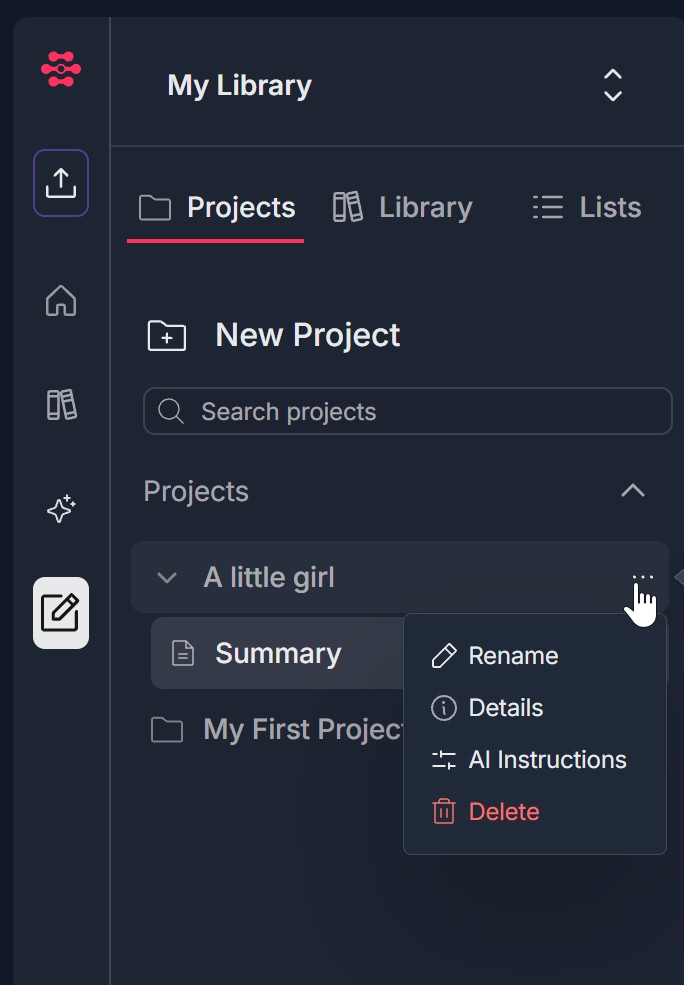
- From the Projects list (left panel): Go to My Library -> Projects. Find your project (e.g., A little girl, Test). Click the three dots next to the project name. In the menu, click AI Instructions (icon with horizontal lines/gear). The Custom AI Instructions modal opens.
- From the top right of the project view: With the project open, click the three dots in the top right corner (near + Create New and Share). In the dropdown, click AI Instructions. The Custom AI Instructions modal opens.

- From the instruction icon near Share: Click the instruction icon (e.g., filter/sliders icon) next to the Share button. When no instruction is assigned, tooltip may say No instruction assigned. When one is assigned, the icon may show a red dot and tooltip Instruction assigned. Clicking the icon opens the Custom AI Instructions modal.

2. Create a New AI Instruction (Create Pop-Up)
- In the Custom AI Instructions modal, click + New Instruction (or the equivalent to create a new instruction). A create form or pop-up appears.
- The form shows: Title: Custom AI Instructions with an information (i) icon. Below it, a short description about guiding the AI (writing style, content focus, brand voice, etc.). Instruction Name — A short title (e.g., Use a short title for this instruction (e.g., Instagram post style)). Instruction Details — A large text area (placeholder: Describe how you want the AI to respond in this project...). A character counter (e.g., 0/8,000) shows the limit. Cancel and Save & Assign Instruction (red) buttons at the bottom; X in the top right to close.
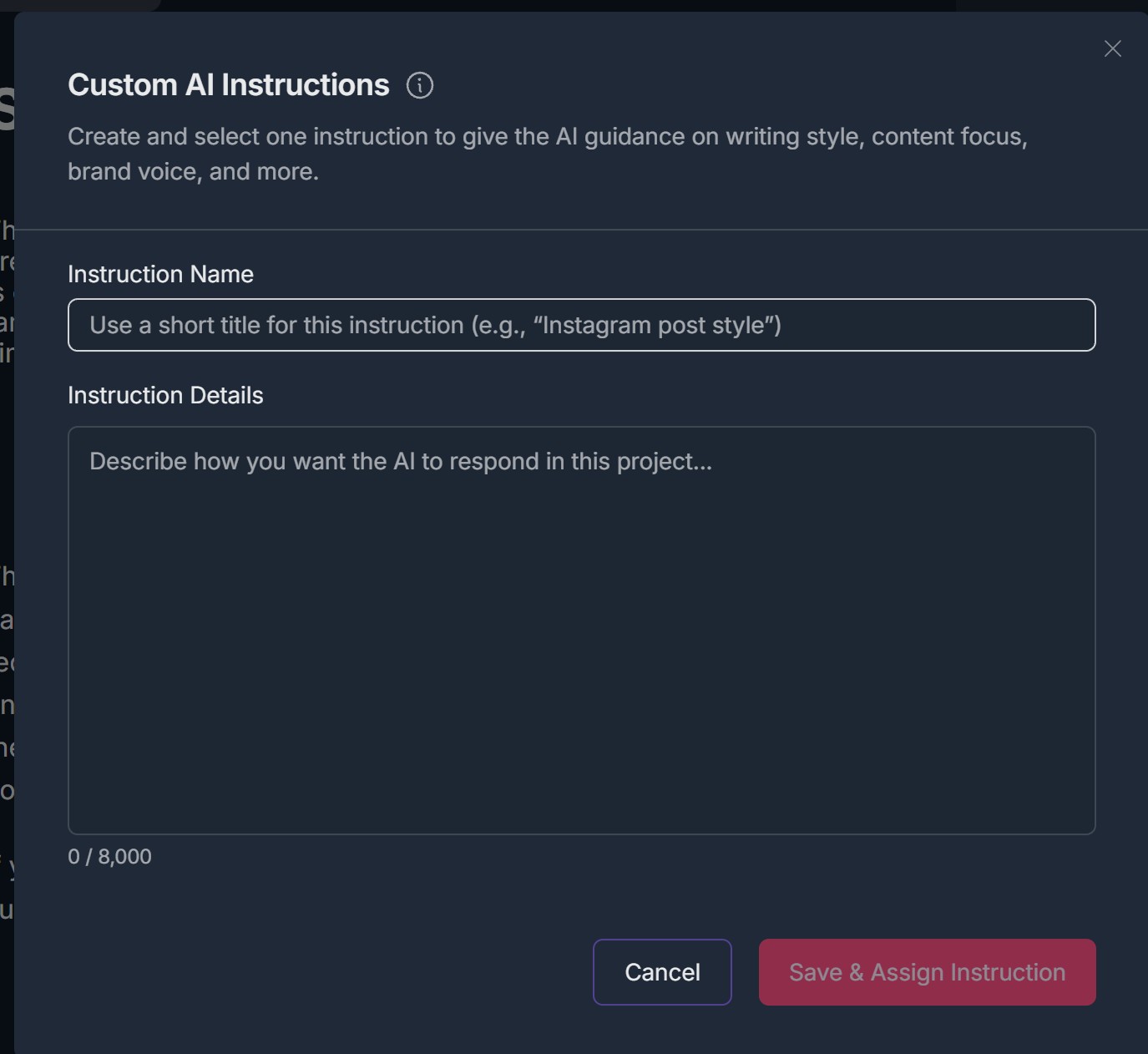
- Fill in the Instruction Name and Instruction Details.
- Click Save & Assign Instruction. The instruction is saved and assigned to the current project. The create pop-up closes.
3. Confirmation and Indicator After Assignment
- A success notification appears (e.g., green banner): AI Instruction assigned to Project: followed by the project name (e.g., A little girl). You can close it with X.
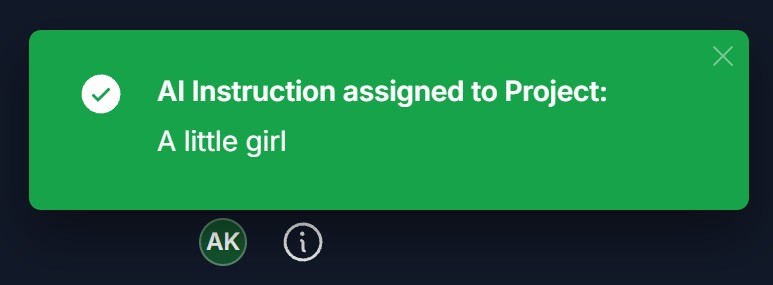
- The instruction icon near the Share button now shows that an instruction is active: a red dot may appear on the icon, and hovering shows the tooltip Instruction assigned. This is the indicator that the project is using custom AI instructions.
4. When an Instruction Is Assigned — Selection View
- Open Custom AI Instructions again (three dots next to project name, three dots in top right, or instruction icon near Share).
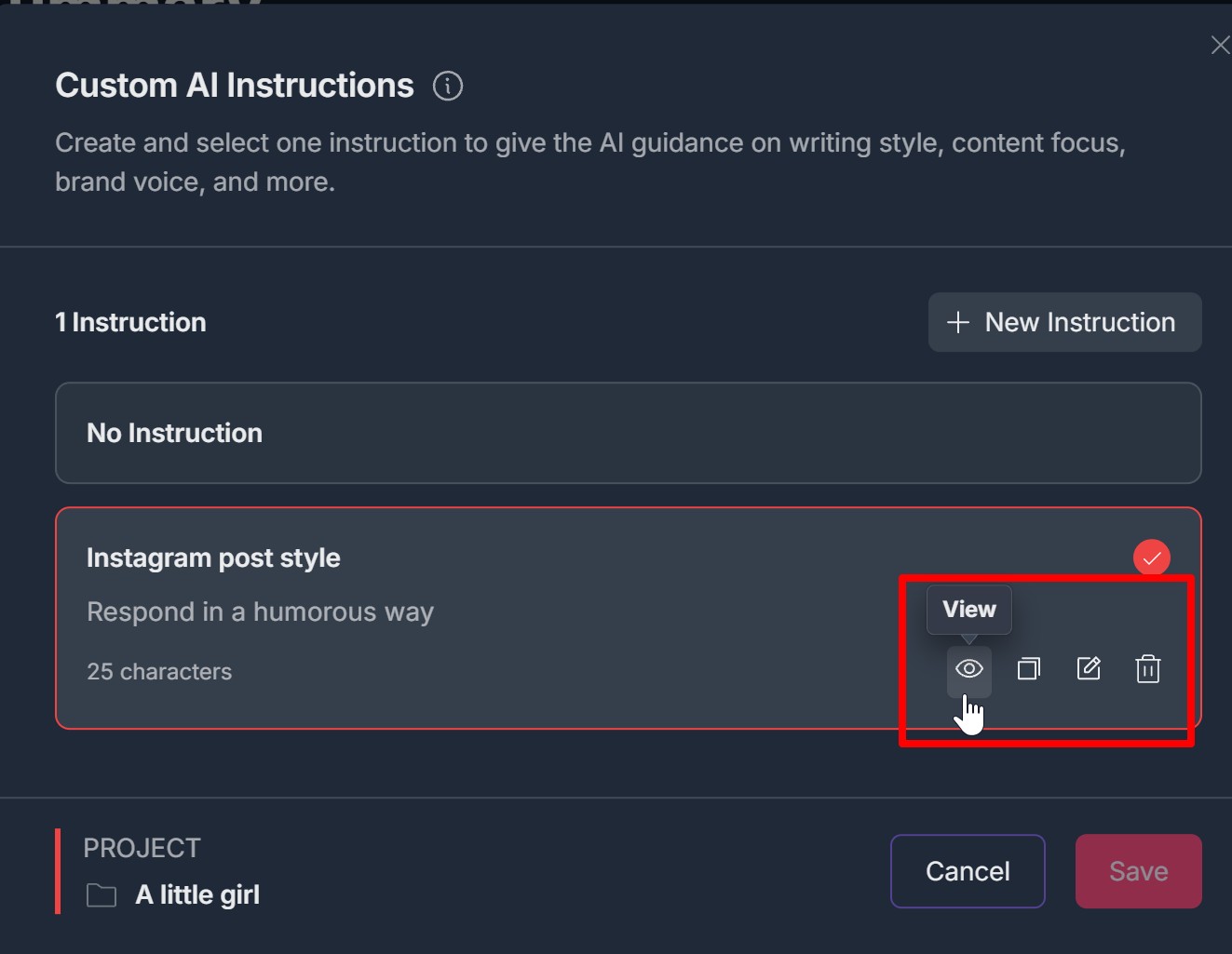
- The modal shows 1 Instruction (or the count) and a + New Instruction button. Below: No Instruction — A gray card; select this to remove the instruction from the project. Your instruction(s) — Each as a card with name, description preview (e.g., Respond in a humorous way), and character count (e.g., 25 characters). The assigned instruction has a red border and a checkmark in the top right. Under PROJECT, the current project name (e.g., A little girl with folder icon) is shown.
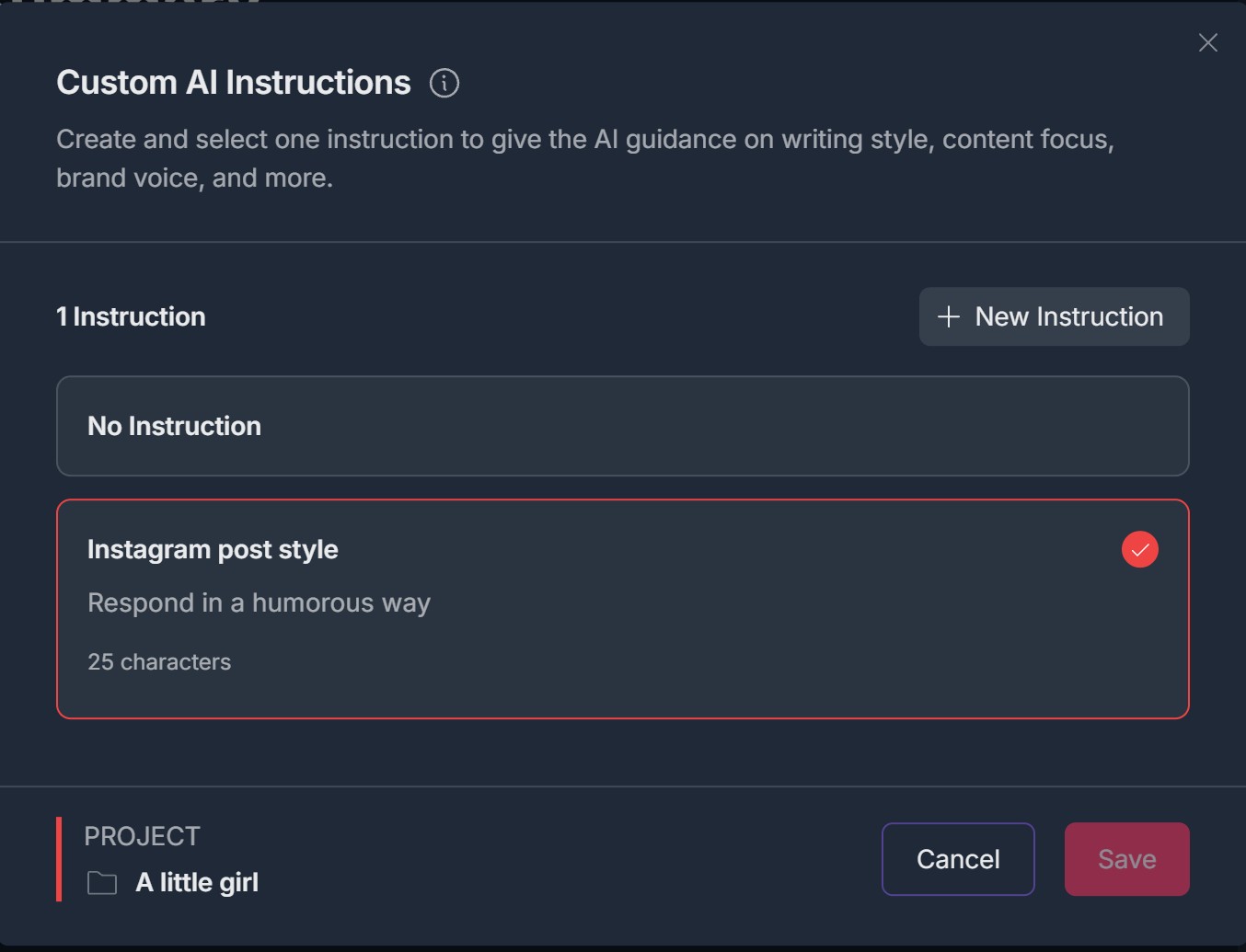
- You can select a different instruction (click its card) and click Save to assign it, or select No Instruction and click Save to clear the assignment.
5. View, Duplicate, Edit, or Delete an Instruction
- In the Custom AI Instructions modal, hover over an instruction card (e.g., Instagram post style). Action icons appear: View (eye icon) — Open the instruction to read the full details; Duplicate (copy/square icon) — Create a copy of the instruction; Edit (pencil icon) — Change the Instruction Name or Instruction Details; Delete (trash icon) — Remove the instruction. If it was assigned to the project, the project will have no instruction after deletion.
- Use View to check content, Duplicate to reuse, Edit to refine, or Delete to remove. Click Save after changing the selection or editing.
6. Remove Instruction from a Project
- Open Custom AI Instructions (three dots, or instruction icon near Share).
- Option A: Click the No Instruction card so it is selected. Click Save. The project no longer uses a custom instruction; the instruction icon loses the red dot and may show No instruction assigned.
- Option B: Delete all existing instructionst (trash icon on card). After deletion, the project has no instruction unless you assign another.
Troubleshooting Guide
A. I Don't See AI Instructions or the Instruction Icon
- Issue: You don't see AI Instructions in the three-dot menu or the instruction icon near Share.
- Fix:
- Only the project owner can see and use AI Instructions. If the project was shared with you, you will not see the option to add or manage instructions; this is by design
- Ensure you are the owner of the project (you created it or it was transferred to you). Open the project and check the three dots next to the project name in the left panel, the three dots in the top right, and the icon next to Share (filter/sliders style)
- Refresh the page and open the project again. If you are the owner and the option still doesn't appear, contact Support
B. I Can't Save or Assign the Instruction
- Issue: You fill in Instruction Name and Details but Save & Assign doesn't work or you get an error.
- Fix:
- Ensure you entered an Instruction Name (short title). Some flows require it before saving
- Instruction Details can be up to 8,000 characters; if you exceed the limit, shorten the text
- Check your network connection; saving may fail if the request doesn't complete
- Try Save & Assign Instruction again. If it still fails, copy your text, refresh the page, and create the instruction again; contact Support if the error persists
C. The Indicator Doesn't Show Instruction Assigned After I Assigned One
- Issue: You assigned an instruction and saved but the icon near Share doesn't show the red dot or Instruction assigned.
- Fix:
- Refresh the page and open the project again; the indicator may update after reload
- Confirm in the Custom AI Instructions modal that the instruction card has the red border and checkmark and you clicked Save. If the modal shows No Instruction selected, select your instruction and Save again
- Hover over the instruction icon (next to Share); the tooltip may take a moment to update. If the red dot and tooltip never appear, contact Support with your browser and steps taken
D. I Want to Remove the Instruction from the Project
- Issue: You want the project to use no custom instruction.
- Fix:
- Open Custom AI Instructions (three dots or instruction icon). Select the No Instruction card (so no instruction has the red border/checkmark). Click Save. The project will use no instruction; the indicator will show No instruction assigned
- Alternatively, delete the instruction that is assigned (trash icon on that card). The project will then have no instruction until you assign another or explicitly select No Instruction and Save
E. Shared User: Can I Add or Change AI Instructions?
- Issue: I have shared access to a project and want to add or edit AI instructions.
- Fix:
- Only the project owner can create, edit, assign, or delete AI instructions. Shared users cannot add or manage instructions; they use the project with the instruction (or none) set by the owner
- If you need a different instruction for the project, ask the project owner to create or assign it. If you need your own instructions for your work, use a project you own and set instructions there
Was this article helpful?
That’s Great!
Thank you for your feedback
Sorry! We couldn't be helpful
Thank you for your feedback
Feedback sent
We appreciate your effort and will try to fix the article