Description
The Invoices page lets you view and manage all invoices for your Contesimal subscription. From here you can:
- View all invoices in a table (Invoice number, Date, Amount, Status)
- View invoice details for any invoice
- Download an invoice as a PDF
- Contact Support if you have questions about billing or charges
Step-by-Step Usage:
The step-by-step instructions, screen descriptions, and UI details in this section are examples only. They are intended to help you understand how the feature works and how to complete the flow. Screens, labels, and layout may change in future product updates.
A: Open the Invoices page
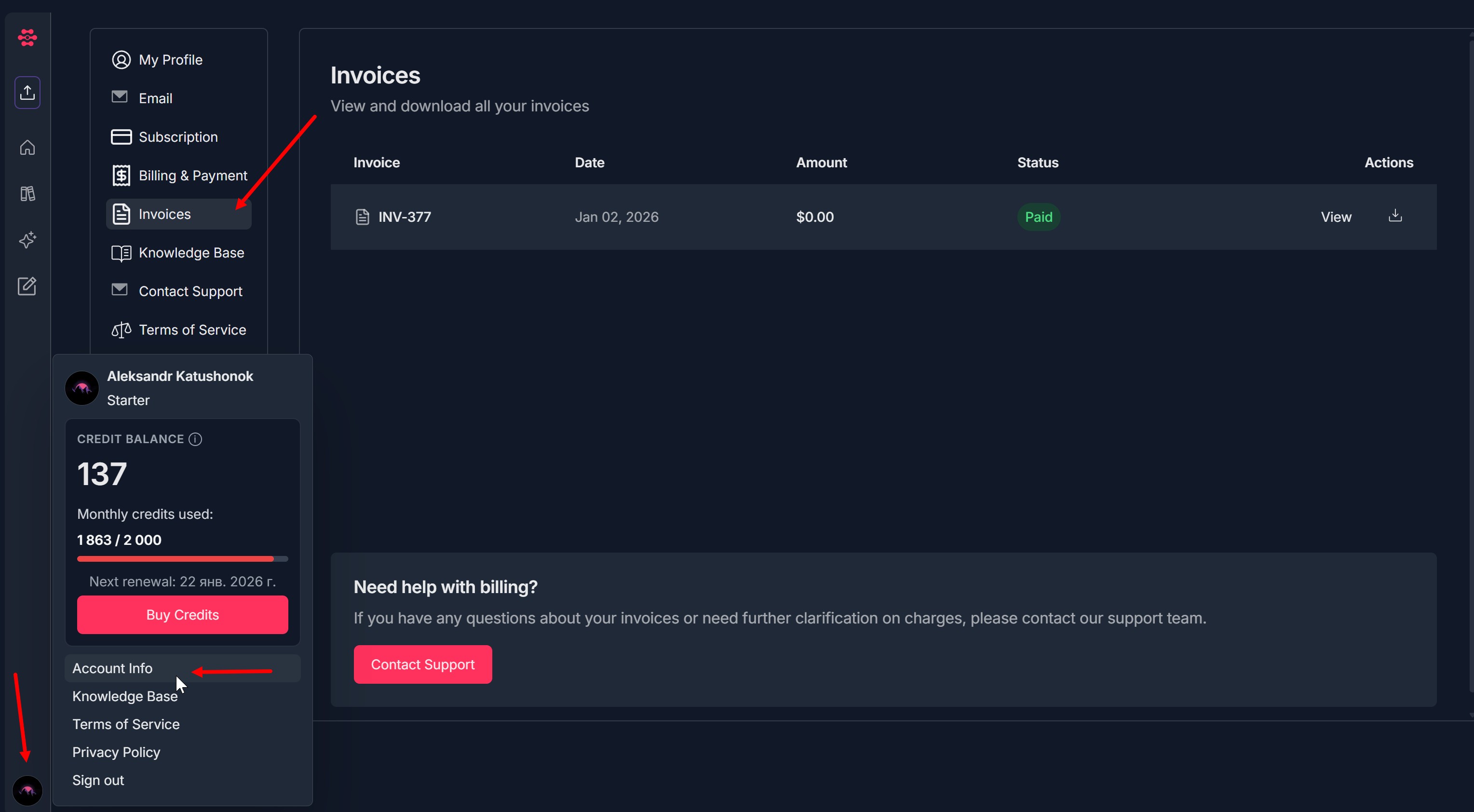
- Go to Account Info - click icon with initials at the bottom of left navigation menu
- Click "Account Info"
- Select "Invoices"
B: View all invoices
Review the invoices table. Each row shows:
- Invoice number (e.g., INV-377)
- Date
- Amount
- Status (e.g., Paid)
- Actions (View + download icon)
C: View invoice details
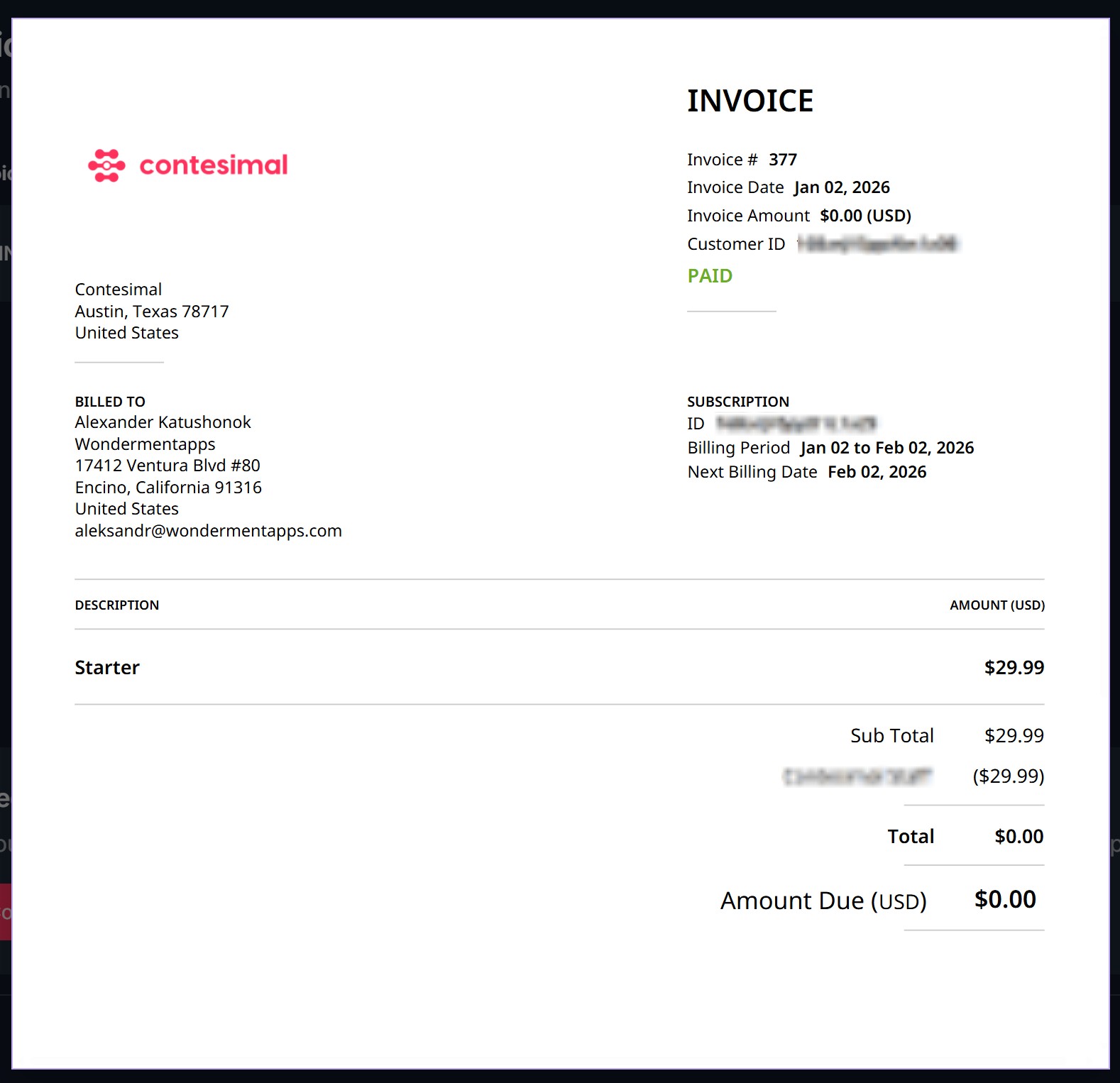
- In the Actions column, click View for the invoice you want.
- Review the invoice details (invoice number/date, charges, totals, etc.).
D: Download an invoice (PDF)
- In the Actions column, click the download icon for the invoice.
- The invoice will download as a PDF to your computer.
E: Contact Support about billing (optional)
- Scroll to the Need help with billing? section.
- Click Contact Support and send your question (include the invoice number and attach invoice if needed).
Troubleshooting Guide
A: Invoices table is empty or not loading
- Issue: The invoices list is blank, or the page doesn’t load invoices.
- Fix:
- Refresh the page and wait a few seconds.
- Confirm you’re logged into the correct account (invoices are account-specific).
- If you’re new / not yet billed, you may not have invoices yet.
- If it still doesn’t load, click Contact Support and report that invoices are not appearing.
B: “View” doesn’t open invoice details
- Issue: Clicking View does nothing or invoice details don’t open.
- Fix:
C: Invoice PDF doesn’t download
- Issue: Clicking the download icon doesn’t download the PDF.
- Fix:
- Check your browser download permissions/settings.
- Check your Downloads folder (it may have downloaded silently).
- Try a different browser or disable extensions that may block downloads.
- Retry the download after refreshing the page.
D: Invoice amount or status looks incorrect
- Issue: The amount/status shown doesn’t match expectations (e.g., status says Paid but you believe payment failed).
- Fix:
- Click View to verify itemized details and totals.
- Check Billing & Payment to confirm your payment method is valid.
- Compare with your bank/credit card statement.
- Contact Support with the invoice number and describe the discrepancy.
E: Need help disputing a charge / requesting clarification
- Issue: You don’t recognize a charge or need an explanation/refund request.
- Fix:
- Click View and note the invoice number, date, and amount.
- Click Contact Support and include:
- Invoice number (e.g., INV-377)
- Date
- Amount
- What you believe is wrong / what you need (clarification, dispute, etc.)
F: Can’t find a specific invoice
- Issue: You can’t locate an invoice you expect to see.
- Fix:
- Scroll the invoice list (older invoices may be further down).
- Confirm you’re on the correct account.
- If you know the approximate date/amount, use that to scan the list.
- Contact Support with approximate date and amount so they can help locate it.
G: Downloaded invoice PDF is unreadable or corrupted
- Issue: The PDF opens with missing text, broken formatting, or won’t open.
- Fix:
- Download the invoice again.
- Try opening it with a different PDF viewer (browser vs. Adobe Reader).
- If it keeps happening, contact Support and mention the invoice number and that the PDF appears corrupted.
Was this article helpful?
That’s Great!
Thank you for your feedback
Sorry! We couldn't be helpful
Thank you for your feedback
Feedback sent
We appreciate your effort and will try to fix the article