Description
The Email page lets you view your current account email and update it by entering a new email address. After saving, Contesimal updates the email linked to your account (used for login, notifications, billing/receipts where applicable, and account communications).
Step-by-Step Usage:
The step-by-step instructions, screen descriptions, and UI details in this section are examples only. They are intended to help you understand how the feature works and how to complete the flow. Screens, labels, and layout may change in future product updates.
A: Open Email Page
- Go to Account Info - click icon with initials at the bottom of left navigation menu
- Click "Account Info"
- Select "Email"
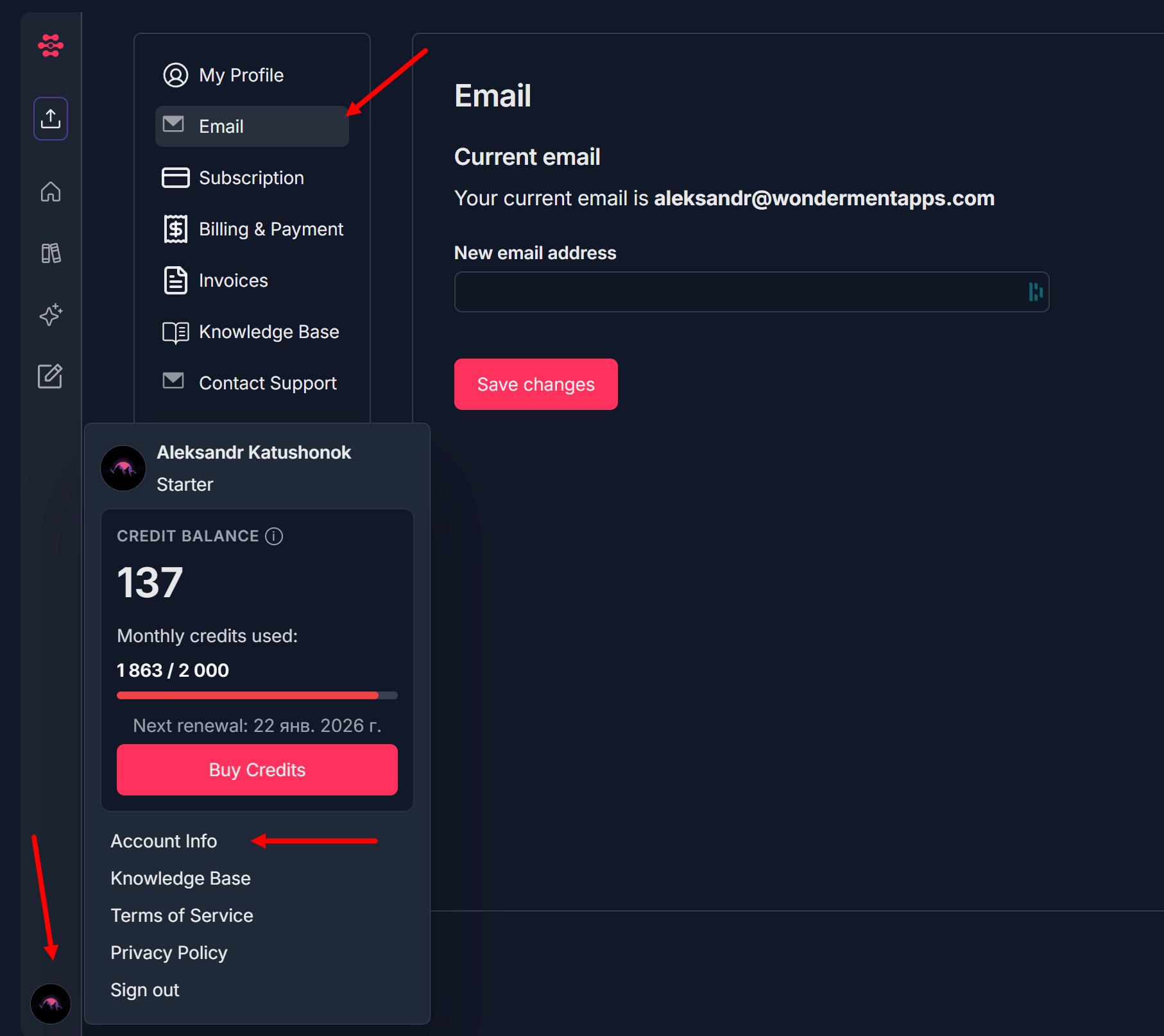
B: Review your current email
- In Current email, confirm the email currently associated with your account
C: Enter a new email address
- In New email address, type the email you want to use
Double-check for typos (missing @, spaces, wrong domain, etc.)
D: Save changes
- Click Save changes
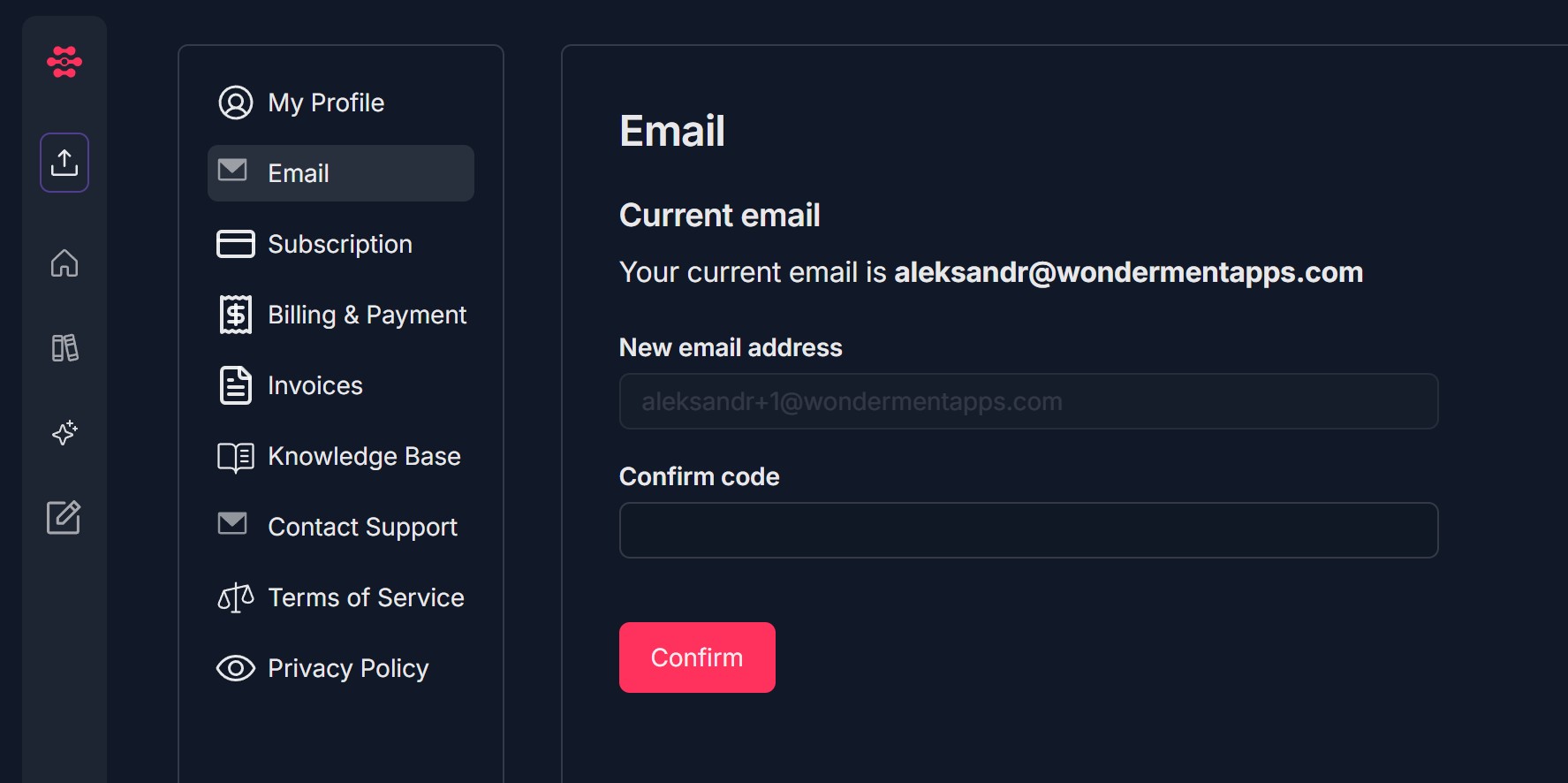
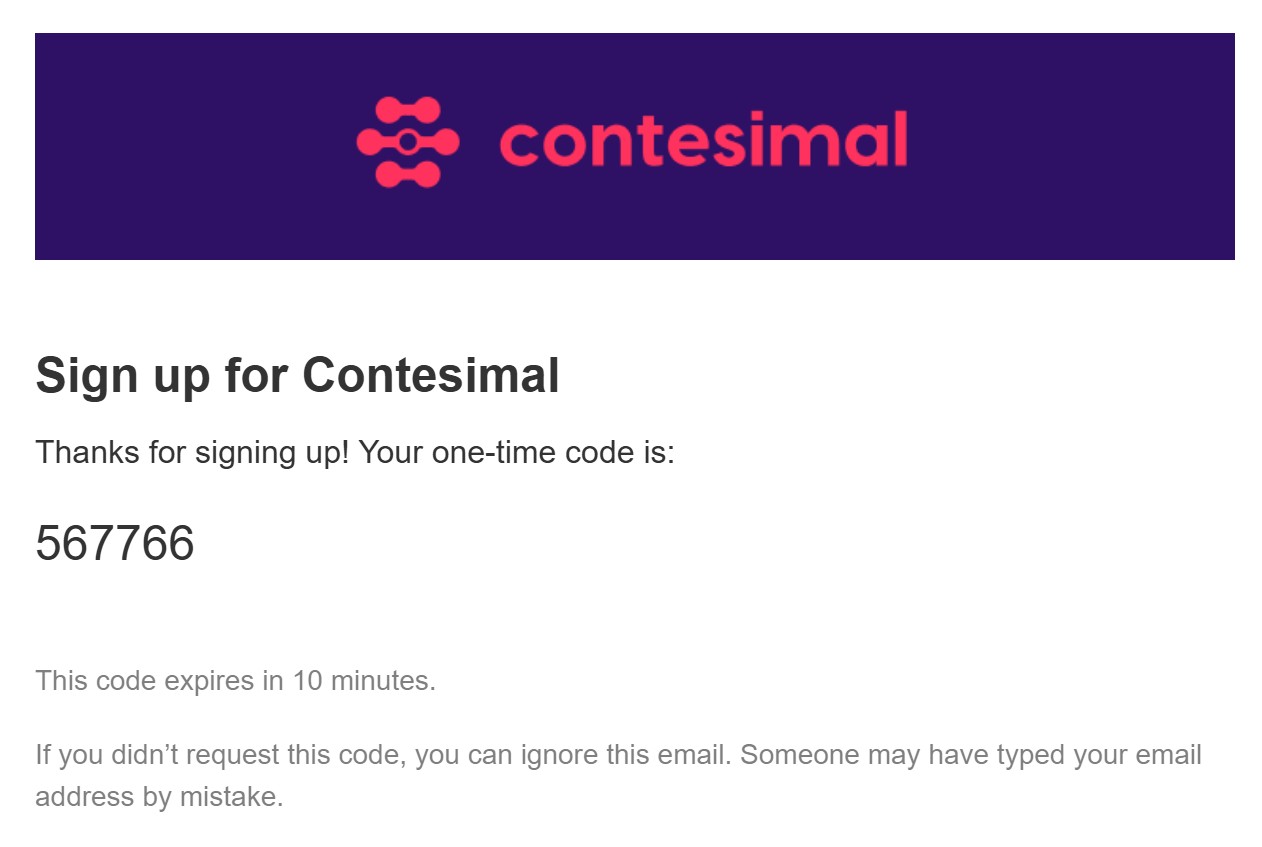
A verification code is sent to the new email.
E: Confirm changes
- Retrieve the code from the new email inbox (check spam/junk), enter it to the "Confirm Code" field
Click Confirm to apply the change
Email is updated and the new email should now show as your current email
Troubleshooting Guide
A: “Save changes” button is disabled
- Issue: You cannot click Save changes.
- Fix:
- Make sure you entered a new email address (different from the current one).
- Ensure the email field is not empty and contains no leading/trailing spaces.
- Refresh the page and try again.
B: Invalid email format error
- Issue: The system rejects the email because it’s not a valid format.
- Fix:
- Use a valid format like name@domain.com.
Remove spaces and unsupported characters.
Try retyping the email manually instead of copy/paste.
C: Email already in use
- Issue: The new email is already connected to another Contesimal account.
- Fix:
- Use a different email address.
- If you own the other account, sign in to that account and change its email first (or contact Support to merge/resolve account ownership).
D: Email change doesn’t apply / reverts after refresh
- Issue: You clicked Save changes, but the email stays the same.
- Fix:
- Refresh the page and confirm the update.
- Sign out and sign back in, then re-check.
- Try again in another browser (Chrome/Edge/Firefox).
- If it still doesn’t apply, use Contact Support in the left menu and include the current email + the new email you tried to set.
E: You can’t log in after changing email
- Issue: You’re unsure which email is active for login, or login fails after the change.
- Fix:
- Try logging in with the new email first.
- If login fails, use the Forgot password flow with the new email.
- If you still can’t access the account, contact Support and request account email verification/reset.
Was this article helpful?
That’s Great!
Thank you for your feedback
Sorry! We couldn't be helpful
Thank you for your feedback
Feedback sent
We appreciate your effort and will try to fix the article