Description
Credits are used across Contesimal for actions such as uploading and processing documents and videos. This guide covers:
- Viewing your credit balance — Your current balance is visible in My account (top left)
- How credits are spent — Your balance is reduced when you upload documents or videos; each item has a credit cost based on size (word count for documents, length for video)
- Buying more credits — When you run out of credits, you can make a one-time purchase with your credit card via Buy Credits (from the account menu or during upload)
- Credit packs and promotion codes — You choose a pack, optionally add a promotion code, then confirm with Buy Now; a confirmation appears when the purchase completes
Step-by-Step Usage:
The step-by-step instructions, screen descriptions, and UI details in this section are examples only. They are intended to help you understand how the feature works and how to complete the flow. Screens, labels, and layout may change in future product updates.
A: View Your Credit Balance
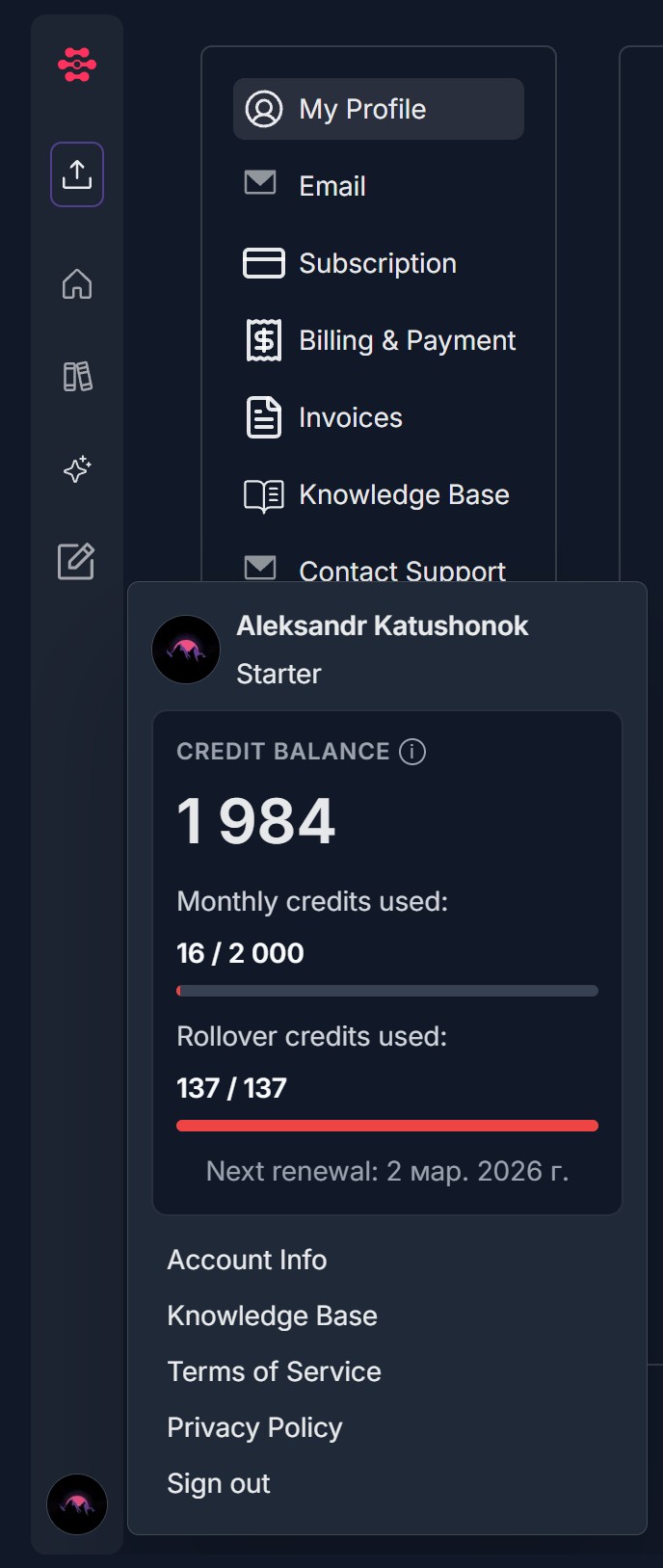
- Your credit balance is visible under My account (top left).
- Click your profile/avatar or the account icon in the top left to open the account menu
- In the dropdown, find the CREDIT BALANCE section (with an information icon)
- You will see:
- Current balance (e.g., 1984) in large, bold text
- Monthly credits used (e.g., 16 / 2 000) with a progress bar
- Rollover credits used (e.g., 137 / 137) with a progress bar
- Next renewal date (e.g., 2 Mar. 2026)
B: How Credits Are Used When Uploading
- Your credit balance is reduced when you upload documents from the document library. Each document (or video) has its own credit cost depending on:
- Documents: size / word count (e.g., Standard ≤7,500 words, Large ≤15,000 words, or Standard ≤75,000 words)
- Videos: length (e.g., Standard ≤10 min)
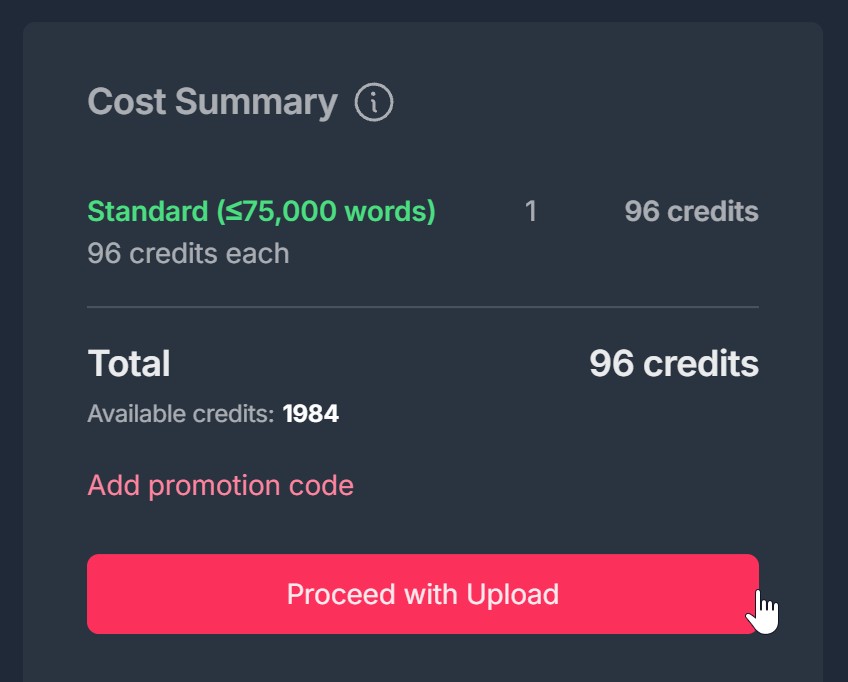
- Before you confirm the upload, a Cost Summary is shown.
- When uploading, you'll see a Cost Summary (with an information icon)
- The summary lists: Item type (e.g., Standard ≤10 min, Standard ≤75,000 words), Unit cost (e.g., 3 credits each, 96 credits each), Quantity and total credits for that line
- A Total shows the full credit cost for the batch
- Available credits is displayed (e.g., Available credits: 1984)
- You can use Add promotion code (red link) if you have a code
- Click Proceed with Upload to confirm; your balance will be reduced by the total cost
C: When You Run Out of Credits — Buy More
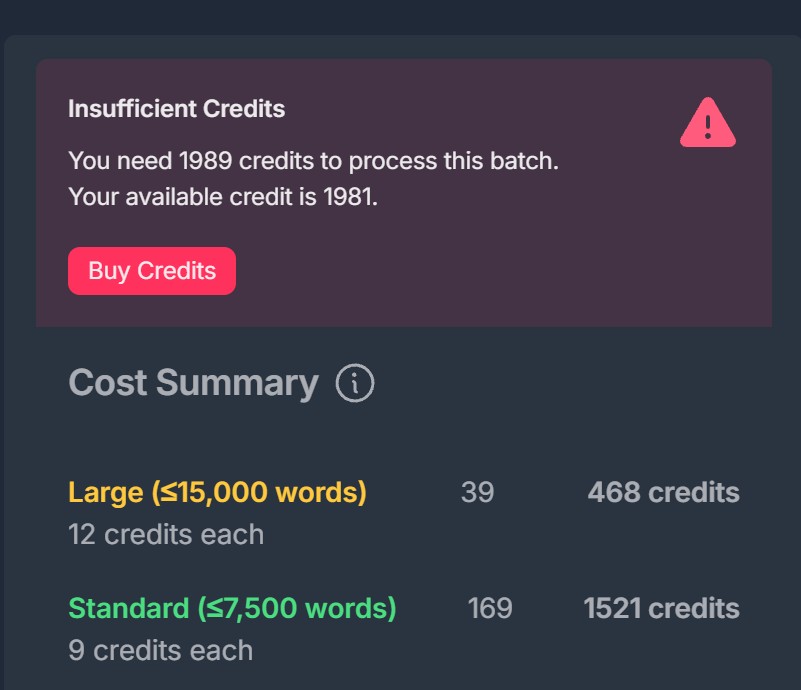
- When you don't have enough credits for a batch, an Insufficient Credits message appears.
- You'll see a prominent Insufficient Credits alert (e.g., dark pink/maroon box with a warning icon)
- The message states how many credits you need vs. your available balance (e.g., You need 1989 credits to process this batch. Your available credit is 1981.)
- A Cost Summary below shows the breakdown (e.g., Large and Standard documents with credits each and totals)
- Click the red Buy Credits button to open the purchase flow
- You can also open Buy Credits from the account menu (top left) without being in the upload flow.
D: Buy Credits Pop-up — Overview
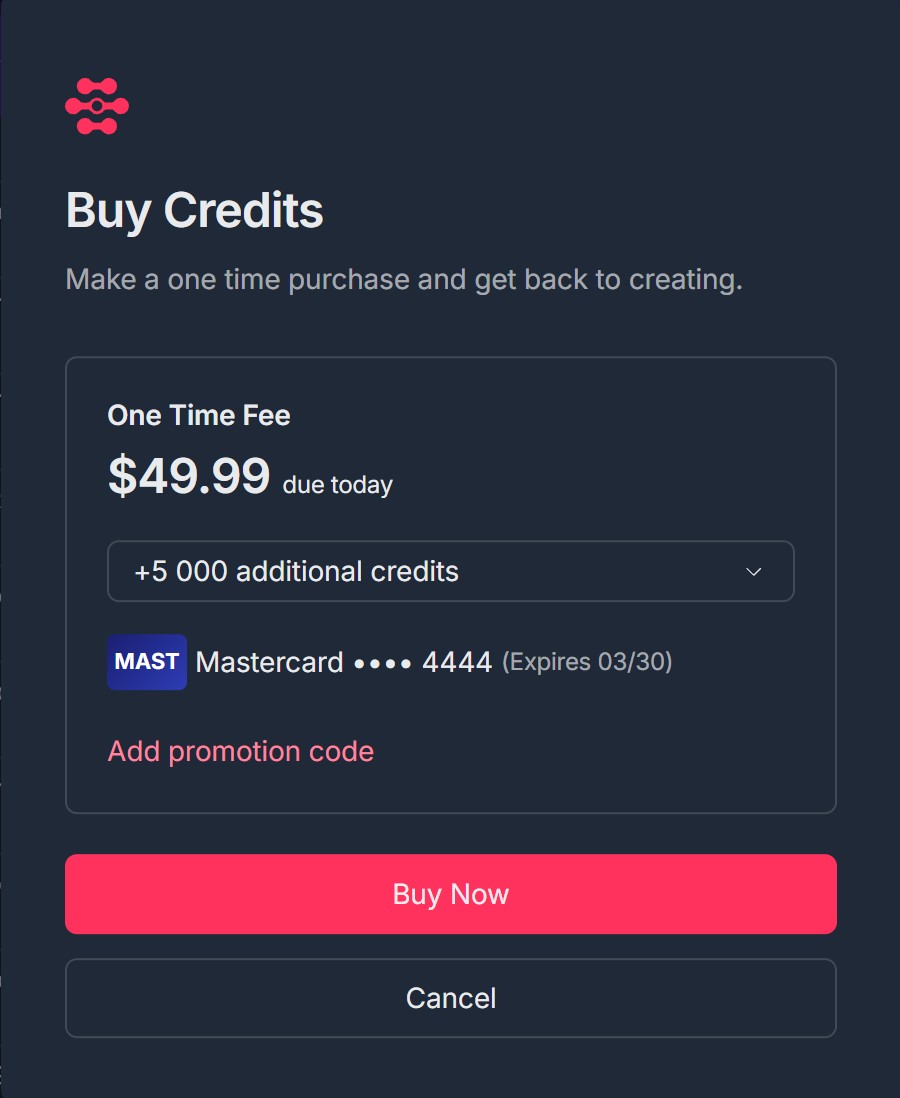
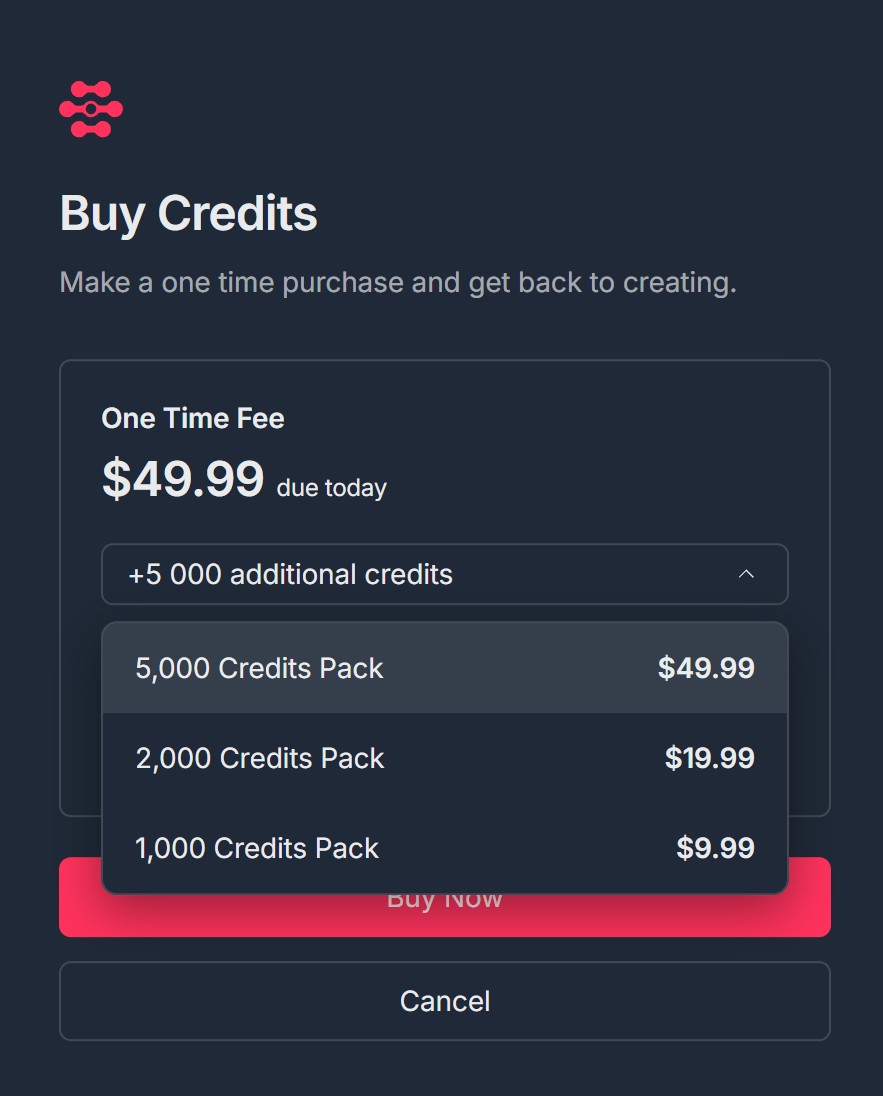
- The Buy Credits pop-up is where you make a one-time purchase.
- The modal title is Buy Credits
- Subtitle: Make a one time purchase and get back to creating.
- You'll see: One Time Fee (e.g., $49.99 due today), Credit pack (e.g., +5 000 additional credits), Payment method (e.g., MAST Mastercard .... 4444, Expires 03/30)
- Add promotion code appears as a red link
- Buttons at the bottom: Buy Now (primary red) and Cancel
E: Select a Pack and Add Promotion Code
- In the Buy Credits pop-up, review the One Time Fee and selected pack (e.g., +5 000 additional credits)
- Select a credit pack from the list (e.g.): 5,000 Credits Pack — $49.99 (often pre-selected), 2,000 Credits Pack — $19.99, 1,000 Credits Pack — $9.99
- The selected pack is highlighted (e.g., darker background); the One Time Fee updates to match
- (Optional) Click Add promotion code to enter a discount or promotional code
- Click BUY NOW to confirm the purchase, or Cancel to close without buying
F: Confirmation After Buy Now
- After you click Buy Now, a success confirmation appears.
- A success pop-up (e.g., green box with checkmark icon) appears
- Main message: One time purchase complete
- Secondary message: e.g., 1000 additional credits added to your account (amount matches the pack you bought)
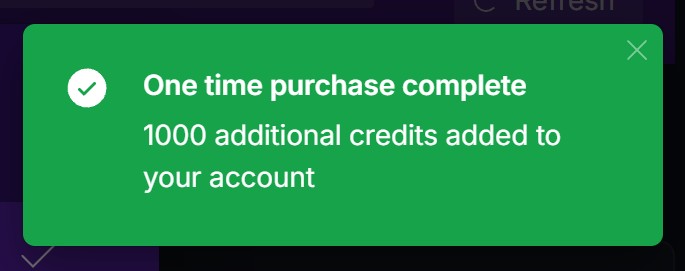
- Close the pop-up using the X in the top right
- Your credit balance in the account menu will reflect the new credits
Troubleshooting Guide
A. : I Don't See My Credit Balance
- Issue: Credit balance or CREDIT BALANCE section is not visible in the account menu.
- Fix:
- Open My account by clicking your profile/avatar or account icon in the top left (not just Settings)
- Scroll in the dropdown if the menu is long — CREDIT BALANCE is usually below navigation links (My Profile, Email, Subscription, etc.)
- Refresh the page and open the account menu again
- If it still doesn't appear, contact Support and mention that the credit balance section is missing
B. Cost Summary Doesn't Match What I Expect
- Issue: The credit cost for documents or videos seems wrong (e.g., different tier or total).
- Fix:
- Check the Cost Summary — cost is per document/video and depends on word count (docs) or length (video). Large or long items cost more (e.g., 96 credits for ≤75,000 words vs. 3 for ≤10 min video)
- Use the information icon (i) next to Cost Summary for details on how costs are calculated
- If you have a promotion code, click Add promotion code before Proceed with Upload or before Buy Now so it's applied
C. Insufficient Credits but I Want to Upload
- Issue: You see the Insufficient Credits alert and cannot proceed with the upload.
- Fix:
- Click the red Buy Credits button in the alert to open the purchase flow
- Alternatively, open My account (top left) and look for Buy Credits or Subscription/Billing to buy credits from the account menu
- After purchasing, your new balance will appear; return to the upload flow and try Proceed with Upload again
D. Buy Credits Pop-up Doesn't Open or Crashes
- Issue: Clicking Buy Credits doesn't open the modal, or the modal closes or errors.
- Fix:
- Refresh the page and try Buy Credits again (from the Insufficient Credits screen or from the account menu)
- Disable pop-up blockers or allow pop-ups for Contesimal
- Try another browser (Chrome, Edge, Firefox) or a private/incognito window
- If the problem persists, contact Support and mention you cannot open the Buy Credits flow
Was this article helpful?
That’s Great!
Thank you for your feedback
Sorry! We couldn't be helpful
Thank you for your feedback
Feedback sent
We appreciate your effort and will try to fix the article