Description
The Billing & Payment page lets you manage your payment methods and billing address used for your Contesimal subscription.
From here you can:
- View, add, edit, or remove credit card payment methods
- Choose which card is your default payment method
- View and update your billing address (name, street, city, state, ZIP/postal code, country)
Step-by-Step Usage:
The step-by-step instructions, screen descriptions, and UI details in this section are examples only. They are intended to help you understand how the feature works and how to complete the flow. Screens, labels, and layout may change in future product updates.
A: Manage Payment Methods
1. Open Billing & Payment
- Go to Account Info - click icon with initials at the bottom of left navigation menu
- Click "Account Info"
- Select "Billing & Payment"
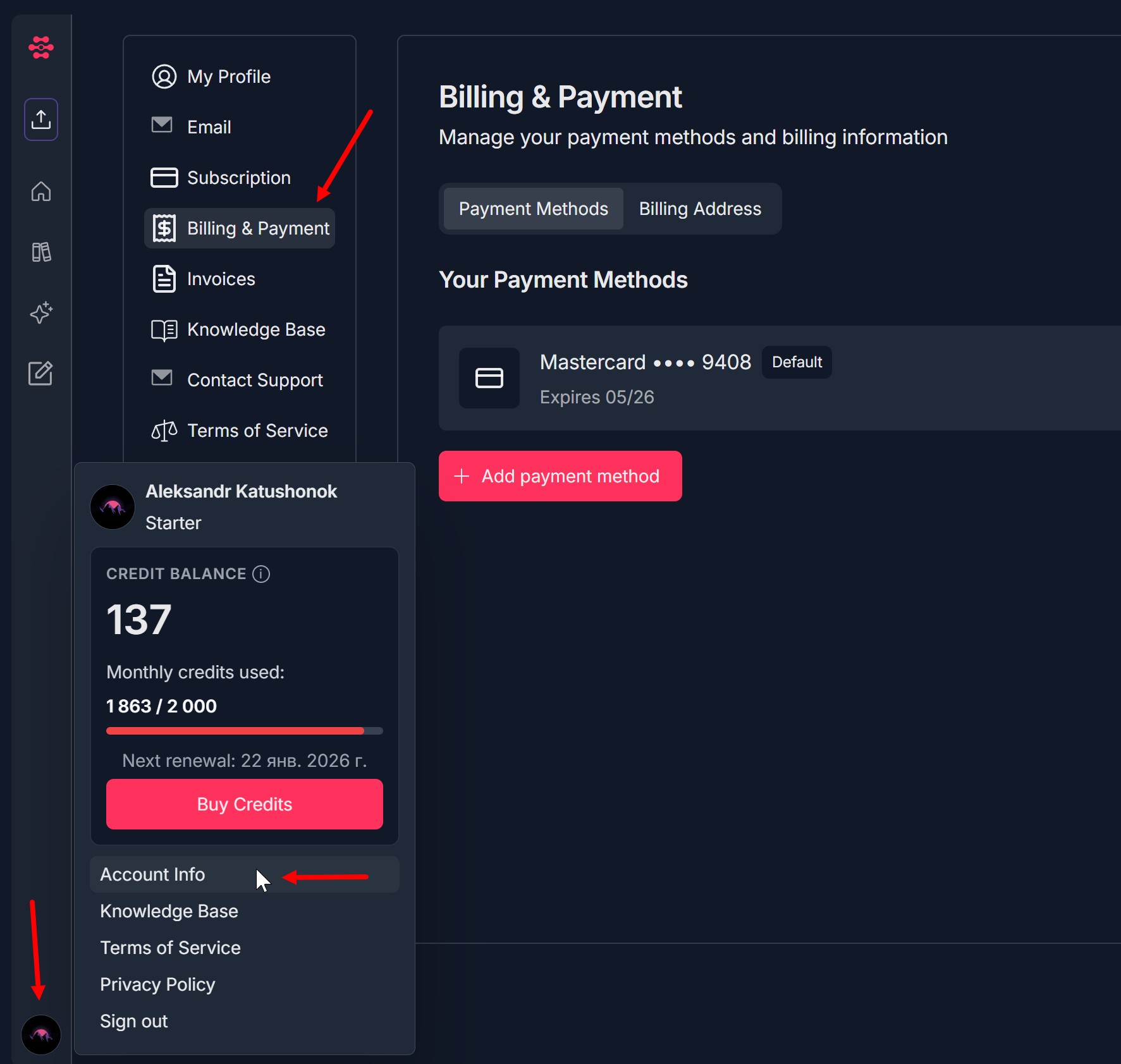
2. Review your current payment methods
- Under Your Payment Methods, see your saved card(s), including:
- Card brand and last 4 digits
- Expiration date
- Whether it is marked as Default
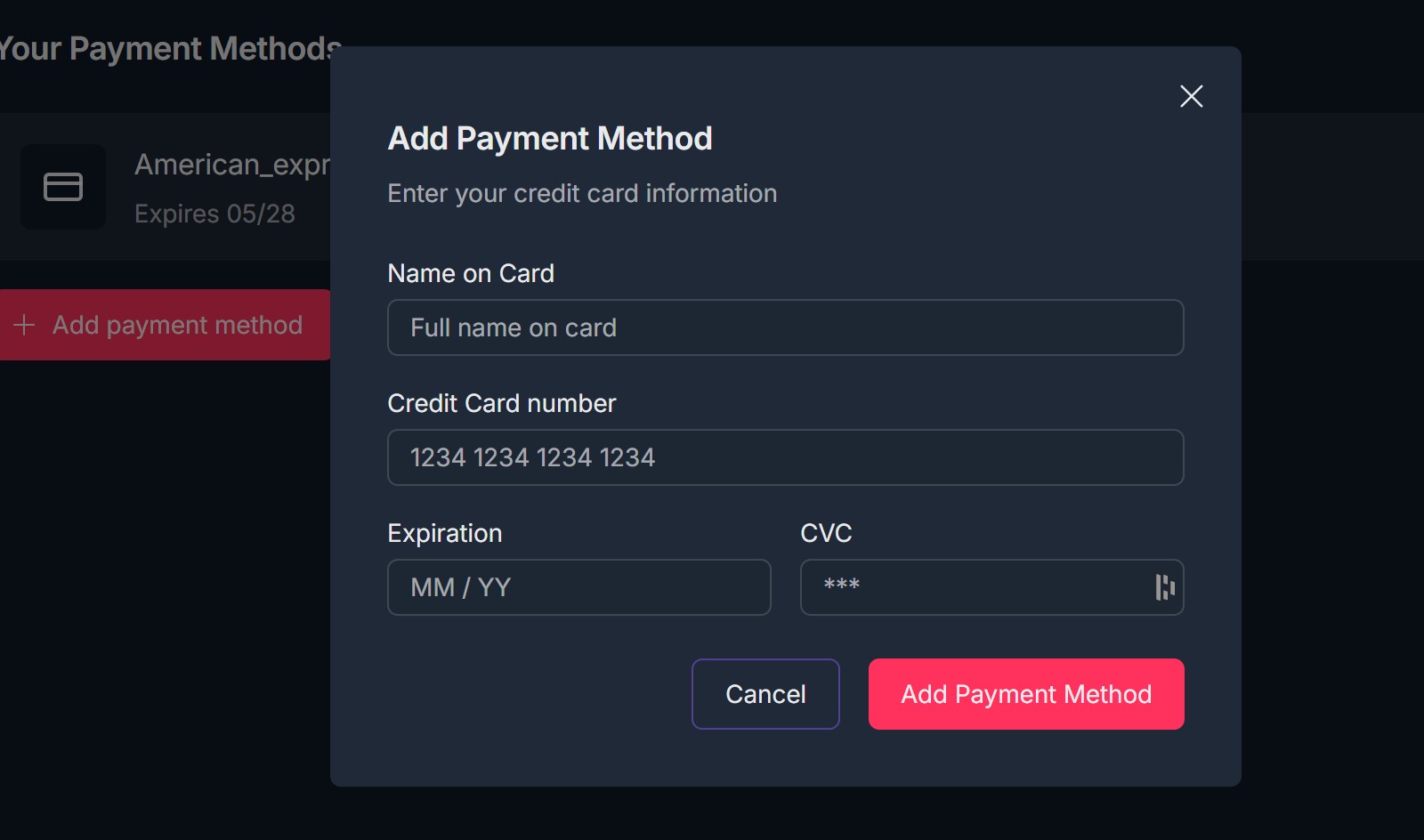
3: Add a new payment method
- Click + Add payment method
- In the Add Payment Method pop-up, fill in:
- Name on Card
- Credit Card number
- Expiration (MM/YY)
- CVC
- Click Add Payment Method to save, or Cancel to close without saving
4: Edit an existing payment method
- Next to the card, click Edit
- In the Edit Payment Method pop-up, update:
- Name on Card
- Expiration
- Other editable fields as allowed
- Click Update Payment Method to save, or Cancel to discard changes
5: Remove a payment method
- Next to the card, click Remove
- Click "Remove" button
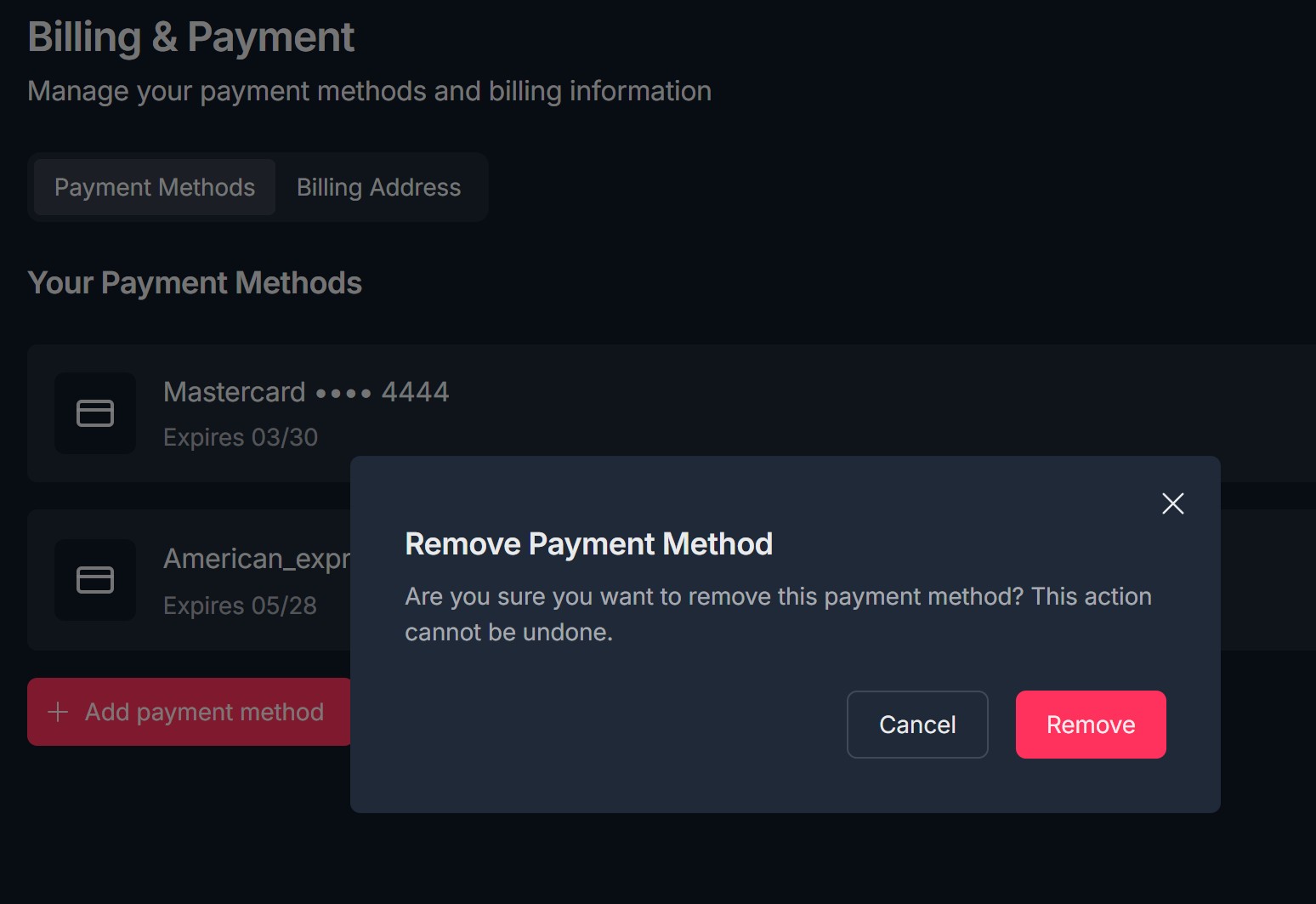
- Make sure at least one valid default payment method remains for active subscriptions
B: Manage Billing Address
1. Open Billing Address tab
- On the Billing & Payment page, click the Billing Address tab
2. Review your current billing address
- Under Billing Address, verify:
- First and Last Name
- Street Address
- City, State/Province, ZIP/Postal Code
- Country
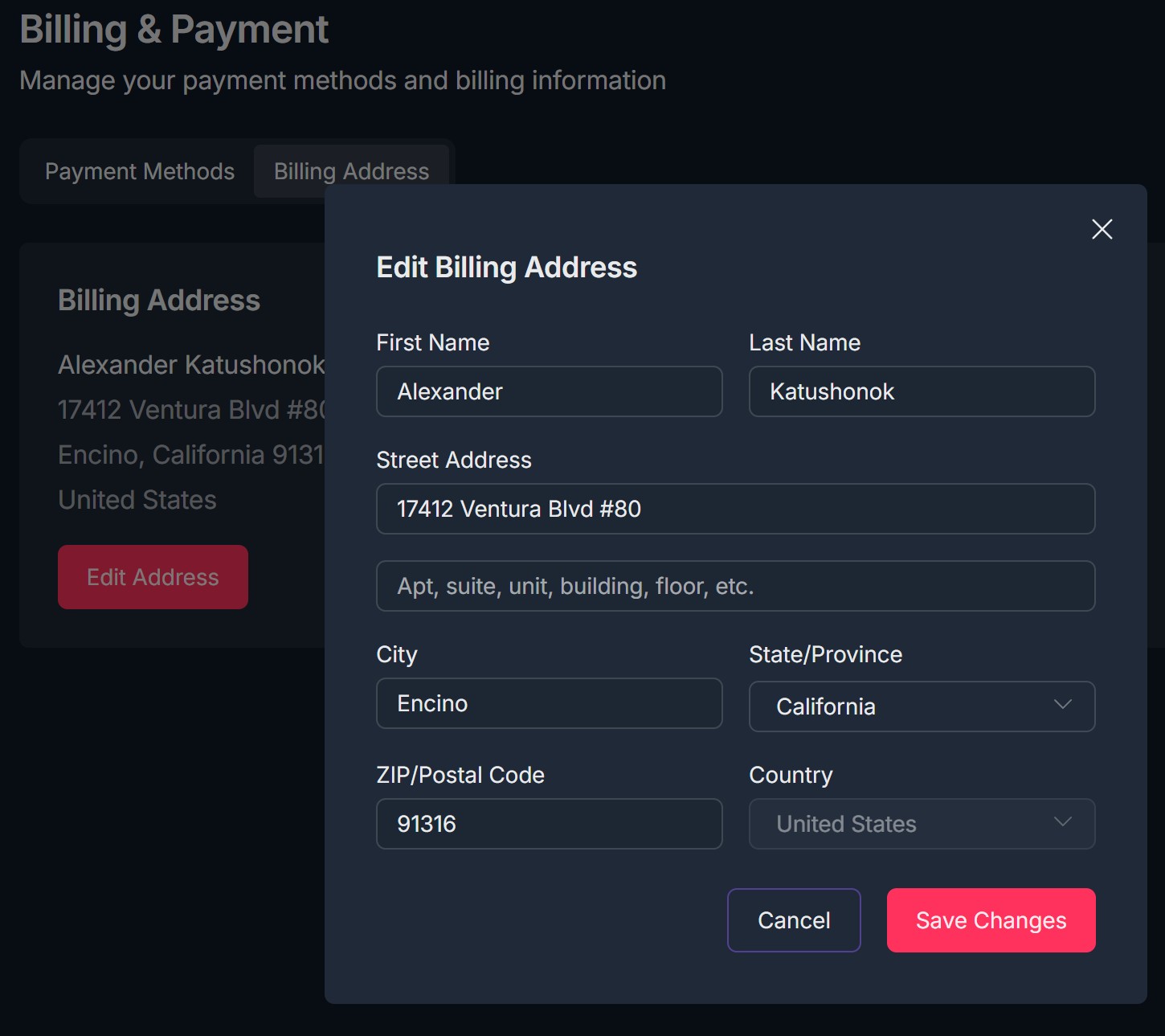
3. Edit billing address
- Click Edit Address
- In the Edit Billing Address pop-up, update:
- First Name and Last Name
- Street Address and optional Apt/Suite/Unit field
- City
- State/Province (dropdown)
- ZIP/Postal Code
- Country (if editable)
- Click Save Changes to apply, or Cancel to discard
Troubleshooting Guide
A: “Switch Plan” doesn’t work / nothing happens
- Issue: Clicking Switch Plan does not change the plan or no confirmation appears.
- Fix:
- Refresh the page and try again.
- Try another browser (Chrome/Edge/Firefox) or an incognito/private window.
- Check your internet connection.
- If it persists, contact Support and include the plan you tried to switch to.
B: Plan changed but UI still shows the old plan
- Issue: You completed the flow but the page still shows the previous plan as current.
- Fix:
C: “Current Plan” shows, but renewal date/price looks incorrect
- Issue: The displayed renewal date or price doesn’t match what you expect.
- Fix:
- Refresh the page and confirm again.
- Check if you have multiple subscriptions/accounts and you’re logged into the correct one.
- If incorrect after refresh, contact Support with a screenshot of the Subscription page.
D: Cannot cancel subscription
- Issue: The Cancel Subscription button is missing, disabled, or cancellation fails.
- Fix:
- Confirm you are the account owner/admin authorized to manage billing.
- Refresh the page and retry.
- If the issue persists, use Contact Support and request cancellation assistance.
E: Need a plan not listed (custom requirements)
- Issue: None of the listed plans meet your usage needs (documents, seats, features).
- Fix:
- Click Contact Sales in the “Need a custom plan?” section and share your requirements.
- Include expected document volume, number of users, and any required features or integrations.
Was this article helpful?
That’s Great!
Thank you for your feedback
Sorry! We couldn't be helpful
Thank you for your feedback
Feedback sent
We appreciate your effort and will try to fix the article