Description
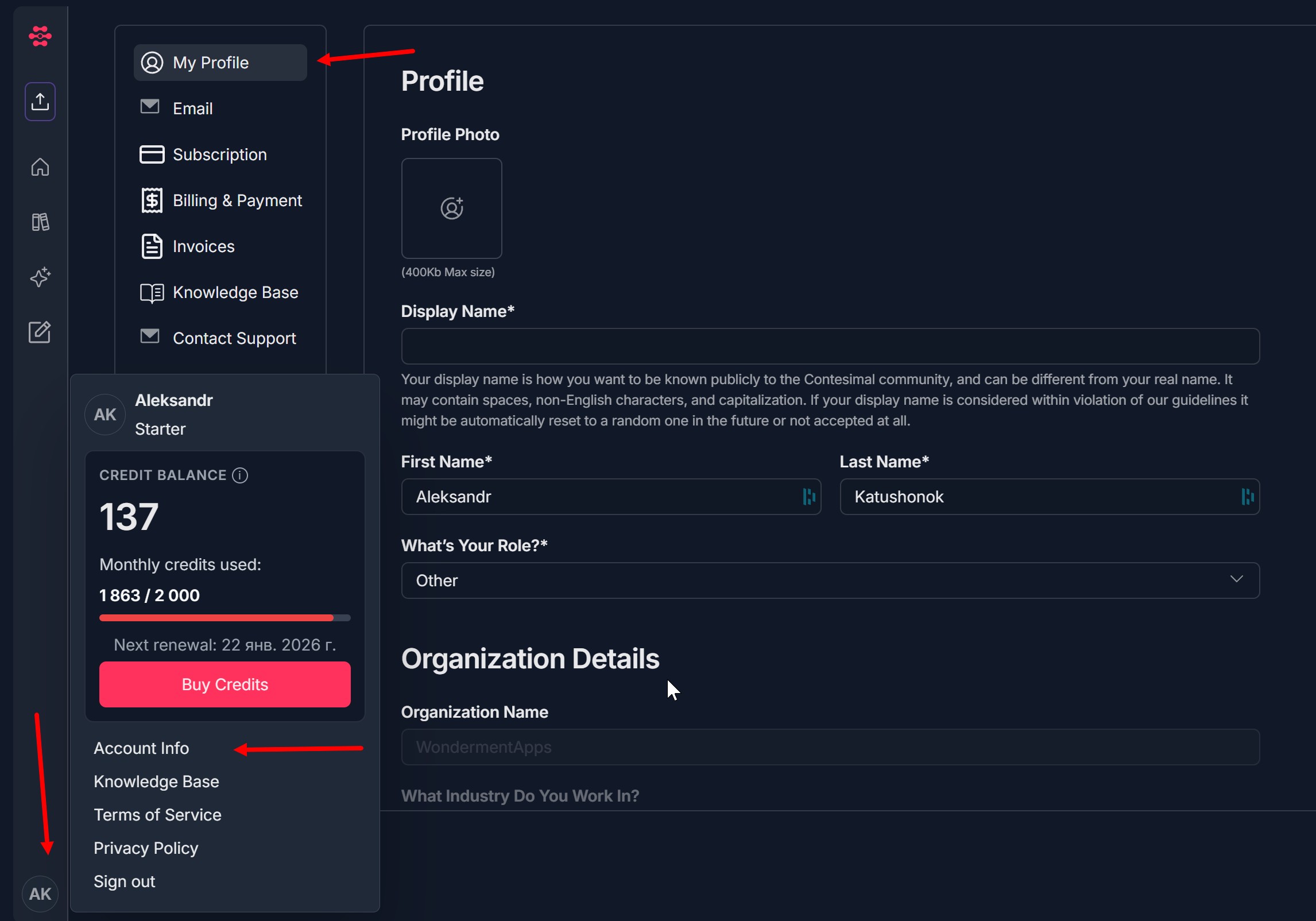
The My Profile page lets you view and update your account’s basic profile information used in Contesimal, including your profile photo, display name, first/last name, role, and organization details. Changes are saved by clicking Apply Changes.
Step-by-Step Usage:
The step-by-step instructions, screen descriptions, and UI details in this section are examples only. They are intended to help you understand how the feature works and how to complete the flow. Screens, labels, and layout may change in future product updates.
A: Open My Profile
- Go to Account Info - click icon with initials at the bottom of left navigation menu
- Click "Account Info"
- Select "My Profile
B: Update Profile Photo (optional)
- In Profile Photo, click the photo placeholder/upload icon
- Choose an image from your computer
- Click "Apply" on Profile photo pop-up
- Ensure the file meets the limit shown on the page (e.g., 400KB max size)
C: Update your basic profile fields
- Display Name: Enter the name you want shown publicly (community/visibility context)
- First Name / Last Name: Update your personal name fields
- What’s Your Role?: Select your role from the dropdown
D: Update Organization Details (if available)
- Under Organization Details, review/update fields such as:
- Organization Name
- Industry (dropdown)
E: Save changes
- Click "Apply Changes"
- Confirm the update succeeds (page reflects the new values after saving)
Troubleshooting Guide
A: “Apply Changes” doesn’t save / changes revert
- Issue: You click Apply Changes, but updates don’t persist after refresh.
- Fix:
- Refresh the page and re-check fields.
- Make sure required fields (marked with *) are filled.
- Try again after signing out and signing back in.
- If it still fails, reqch out to Contact Support from and share what fields you edited.
B: “Apply Changes” button is disabled
- Issue: You cannot click Apply Changes.
- Fix:
- Ensure you actually changed a field (some pages enable Save only after changes).
- Fill all required fields (those with *).
- Fix any invalid input (extra spaces, unsupported characters) and try again.
C: Profile photo upload fails
- Issue: Image won’t upload or doesn’t appear after selection.
- Fix:
- Confirm the image is under the size limit shown on the UI (e.g., ≤ 400KB).
- Use a common image format (PNG/JPG) and re-upload.
- Try a smaller/optimized image export and upload again.
- Disable browser extensions that may block uploads, then retry.
D: Display Name rejected or changed automatically
- Issue: Display name isn’t accepted or gets modified after saving.
- Fix:
- Remove unusual symbols, excessive punctuation, or unsupported characters.
- Try a simpler name format and save again.
- If your preferred name is blocked by guidelines, contact Support to clarify allowed formats.
E: Dropdown fields (Role/Industry) won’t open or select
- Issue: Dropdown doesn’t respond or selection doesn’t stick.
- Fix:
- Refresh the page and try again.
- Try in another supported browser (Chrome/Edge/Firefox).
- Clear cache or open an incognito/private window and retry.
Was this article helpful?
That’s Great!
Thank you for your feedback
Sorry! We couldn't be helpful
Thank you for your feedback
Feedback sent
We appreciate your effort and will try to fix the article