Description
The Custom Tagging feature in the Content Library allows you to assign your own custom tags to imported documents (articles). Unlike system-defined metadata such as Themes, Topics, and Audiences, User Tags are fully under your control. When you use custom tagging:
- Add custom tags - Assign your own tags to any document in the Content Library
- Edit existing tags - Change or update the tags you've already added to a document
- Remove tags - Clear or remove user tags from a document when they're no longer needed
- Comma-separated format - Enter multiple tags at once by separating them with commas
- Unique tags - Each tag should be unique; commas separate individual tags
- Consistent display - User tags appear as pill-shaped buttons in the document detail view, similar in style to Themes, Topics, and Audiences
User Tags help you organize and find documents using your own vocabulary (e.g., project names, campaigns, personal categories). They appear in a dedicated User Tags section on each document's detail page and can be used alongside filters and search.
Step-by-Step Usage
The step-by-step instructions, screen descriptions, and UI details in this section are examples only. They are intended to help you understand how the feature works and how to complete the flow. Screens, labels, and layout may change in future product updates.
1. Access the Content Library and Open a Document
- Log in to your Contesimal account
- Navigate to Content Library (in the left sidebar or main navigation)
- Locate the document you want to tag
2. Open the User Tags Modal — Add New Tags
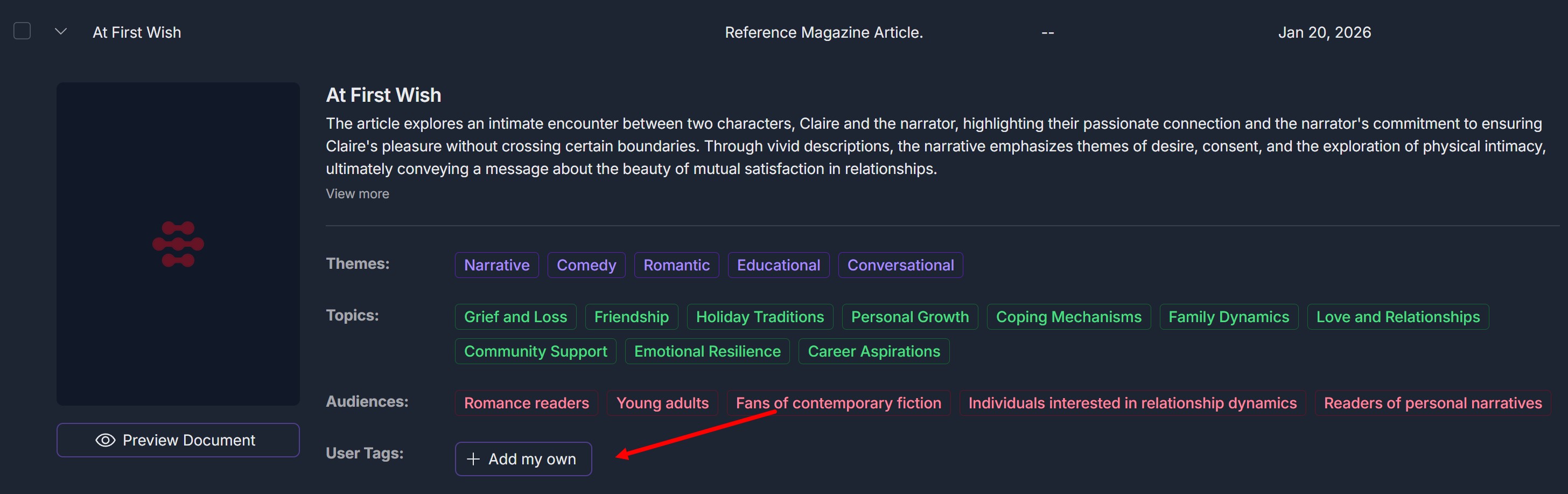
- Find the User Tags section
- If the document has no user tags yet, you will see: A label "User Tags:"; A button "+ Add my own" (with a plus icon and light border)
- Click "+ Add my own"
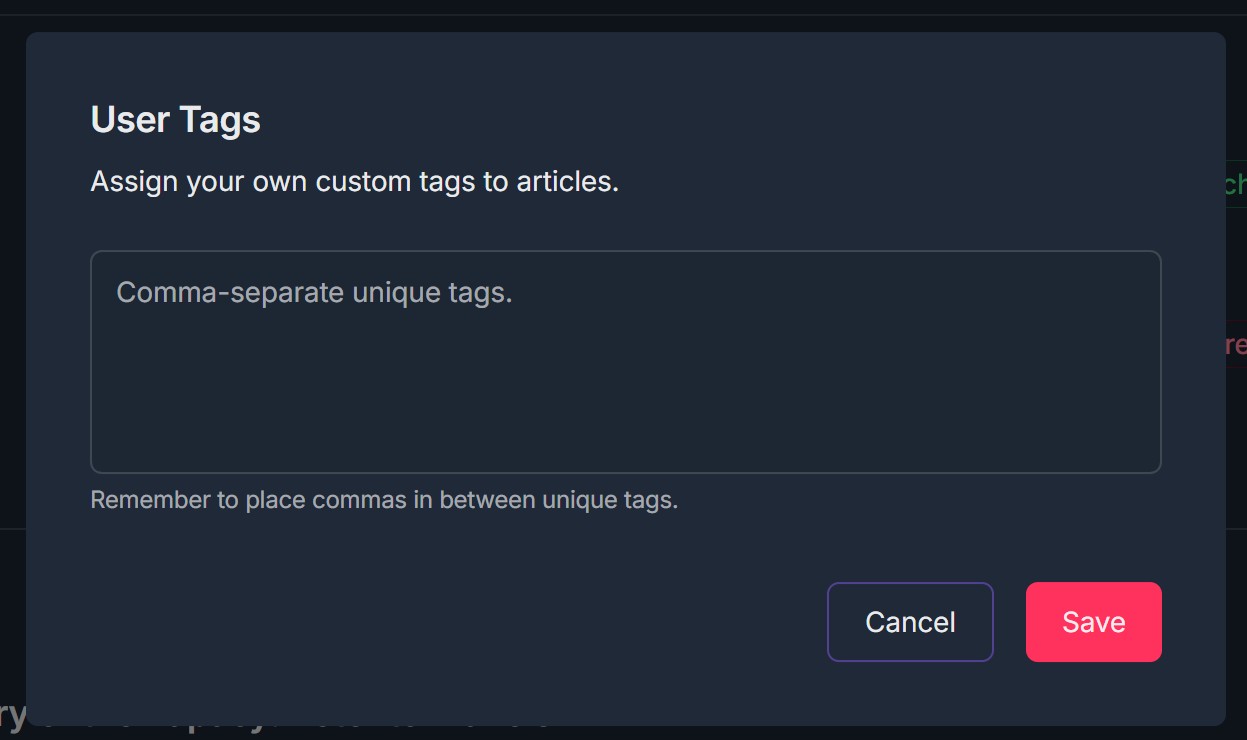
- The User Tags modal will open with:
- Title "User Tags";
- Instruction "Assign your own custom tags to articles.";
- A large text input field;
- Placeholder "Comma-separate unique tags.";
- Helper text "Remember to place commas in between unique tags.";
- Cancel and Save buttons at the bottom right
3. Open the User Tags Modal - Edit Existing Tags
- Find the User Tags section
- If the document already has user tags, you will see:
- A label "User Tags:";
- An edit icon (pencil) next to the label or next to the tags;
- One or more tags displayed as pill-shaped buttons (e.g., "At First Wish")
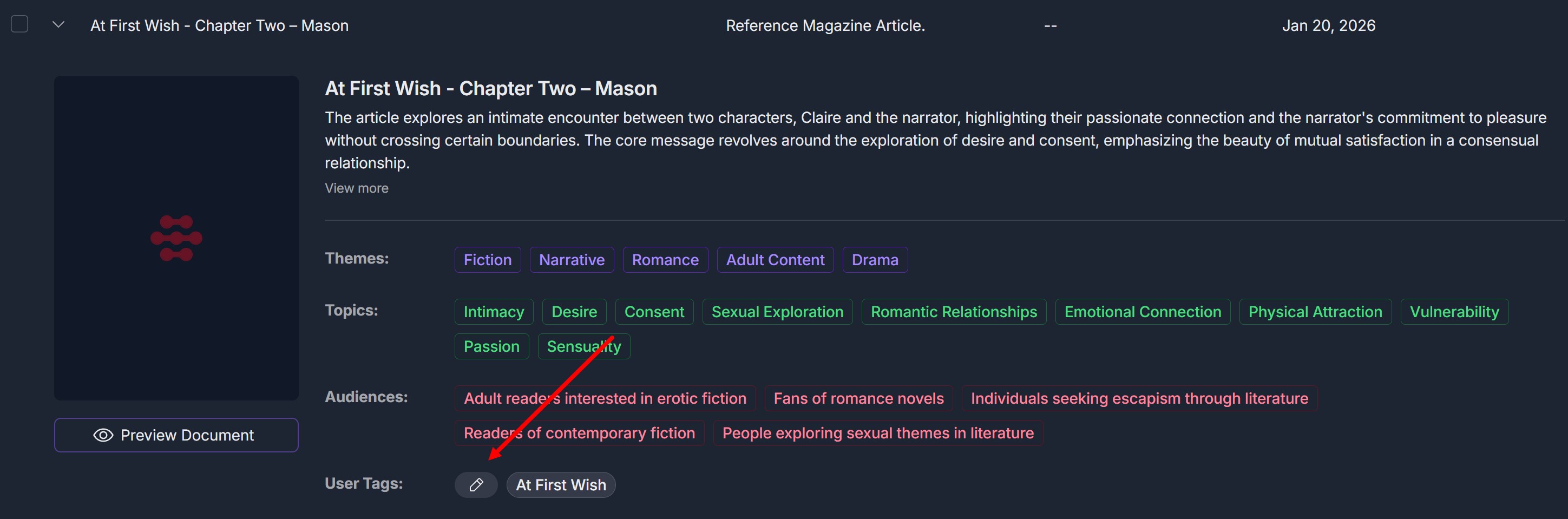
- Click the pencil icon (or the edit control next to User Tags)
- The User Tags modal will open with the same layout as in Step 2
- The input field will contain the current tags (e.g., comma-separated: "At First Wish")
- You can add, change, or remove text in the field
4. Enter or Edit Tags in the Modal
- In the User Tags modal, click inside the text input field
- To add new tags: Type your tags, separating each tag with a comma (e.g., At First Wish, Chapter Two, Romance)
- To edit tags: Modify the text in the field (add, delete, or change words)
- To remove specific tags: Delete that tag and its comma from the field
- Follow the reminder: "Remember to place commas in between unique tags."
5. Save or Cancel
- To save your changes:
- Click the Save button (red, primary action);
- The modal will close;
- The document detail view will refresh;
- The User Tags section will show the updated tags as pill-shaped buttons
- To discard your changes:
- Click the Cancel button (purple);
- The modal will close without saving;
- User tags on the document will remain as they were before you opened the modal
6. View Tags on the Document
- After saving, the User Tags section on the document detail page will display:
- Your custom tags as pill-shaped buttons;
- The pencil icon so you can edit or remove tags again
- User tags are stored with the document and will appear whenever you open that document in the Content Library
Troubleshooting Guide
A. "+ Add my own" or Edit Icon Doesn't Open the Modal
Issue: You click "+ Add my own" or the pencil icon next to User Tags but the User Tags modal does not appear.
Fix:
- Ensure you clicked directly on "+ Add my own" or the pencil icon, not on a tag or nearby text
- Refresh the page and try again
- Check if a pop-up or ad blocker is blocking the modal
- Try a different browser (Chrome, Edge, Firefox) if the issue persists
- Clear browser cache and cookies, then reload the document
- If the issue continues, contact Support with your browser and steps taken
B. Tags Don't Save After Clicking Save
Issue: You enter or edit tags in the User Tags modal and click Save, but the tags do not appear on the document or your changes are lost.
Fix:
- Ensure you clicked Save (red button), not Cancel
- Check your network connection; a failed request can prevent saving
- Refresh the page and open the document again to see if tags were saved
- Re-open the User Tags modal and re-enter the tags, then click Save again
- If you see an error message in the UI, note it and contact Support
- Try again in an incognito/private window to rule out extensions
- If the problem persists, contact Support with document name and what you entered
C. Comma-Separated Tags Are Not Recognized Correctly
Issue: You enter multiple tags separated by commas but they appear as one long tag or are split incorrectly.
Fix:
- Use only commas to separate tags (e.g., Tag1, Tag2, Tag3)
- Avoid commas inside a single tag if the system treats them as separators
- Remove extra spaces after commas if you see unwanted spaces in tag labels
- Follow the helper text: "Remember to place commas in between unique tags."
- Re-edit the tags: remove incorrect ones and re-enter with correct comma placement, then Save
D. Can't Remove or Edit Existing Tags
Issue: You want to remove or change existing user tags but cannot open the edit modal or clear the tags.
Fix:
- Confirm you are clicking the pencil icon next to the User Tags section, not on a tag pill
- To remove one/several tags, delete that tag(s) text and its comma in the input field, then Save
- Note: you can not remove all tags if tag(s) already added
- If the field is read-only, try another browser or refresh and try again
- If tags still don't remove after saving, refresh the page and re-open the document; if they persist, contact Support
E. User Tags Section or Modal Is Missing
Issue: You don't see a User Tags section on the document details, or the modal doesn't show the expected title and fields.
Fix:
- User Tags is usually below Themes, Topics, and Audiences
- Refresh the page and open the document again
- Confirm you are in Content Library and on the detail view of a single document, not the list view
- Check if your account or plan includes custom tagging; if unsure, contact Support
- Try another document to see if the section appears
- If the modal looks different, note what you see and contact Support for product-specific guidance
Was this article helpful?
That’s Great!
Thank you for your feedback
Sorry! We couldn't be helpful
Thank you for your feedback
Feedback sent
We appreciate your effort and will try to fix the article