Description
The Add Context To AI Research Requests feature in the Contesimal AI Research tool lets you provide context for your questions so the AI answers based on the content you choose. You can add context in three ways: content from your Library (select specific documents from My Library), a URL (provide a website address), or a document (upload a file from your computer). After you add context, you type your question in the Ask a question about your content. field and send it; the AI research tool uses that context to answer. This feature helps you get accurate, relevant answers by grounding the AI in the exact documents, web page, or file you care about—instead of relying on generic or unfocused responses.
How This Feature Helps You
- Ground answers in your content — Whether you choose library documents, a URL, or an uploaded file, the AI uses that content as the source for its answer. Your question is answered in the context of what you added, so responses stay on topic and factual.
- Three ways to add context — Library: Select one or more documents from My Library (search and filter to find them; selected items appear as chips you can remove). URL: Paste a web address and click Add URL; only one URL can be active at a time—remove the current one to add a new one. Document: Upload a file from your computer via the document/upload icon. Use the option that fits your research (existing library, a website, or a new file).
- Clear and remove context — Selected library documents appear as chips (e.g., Seven Best AI Tools..., At First Wish -...) with an X to remove. A URL appears as a pill with a chain-link icon and X to remove. Use Clear all to remove all context and start over. Then ask a new question about the (updated) content.
- Then ask your question — Once context is set, type your question in Ask a question about your content. and send (e.g., up arrow). The AI research tool answers based on the context you provided (document-based or web-based, depending on what you added).
Benefits
- Precise, relevant answers — Answers are based on the documents, URL, or file you added, not on unrelated or generic data.
- Flexibility — Use library content for existing assets, a URL for a specific webpage, or an upload for a one-off document.
- Control — Add, remove, or change context (library selection, URL, or document) before or between questions; use Clear all when you want to reset.
- Better research — Combine add context with other AI Research flows (Search, Browse Themes/Topics, Build a List) so your research stays focused and reusable.
Step-by-Step Usage
The step-by-step instructions, screen descriptions, and UI details in this section are examples only. They are intended to help you understand how the feature works and how to complete the flow. Screens, labels, and layout may change in future product updates.
1. Open the AI Research Tool
- Log in to your Contesimal account
- In the left panel, go to Creations (e.g., edit/pencil icon or Creations section)
- You see the AI Research interface: header "AI RESEARCH" with icons (e.g., settings, chat), an area for conversation or context, and at the bottom an input "Ask a question about your content." with +, @ Add Context, and other controls (e.g., document icon, globe icon, up arrow to send)
- You are now ready to add context and ask a question
2. Add Context — Choose One or More of: Library, URL, or Document
Option A: Add Content from Your Library
- Click @ Add Context (or the equivalent control that opens context options)
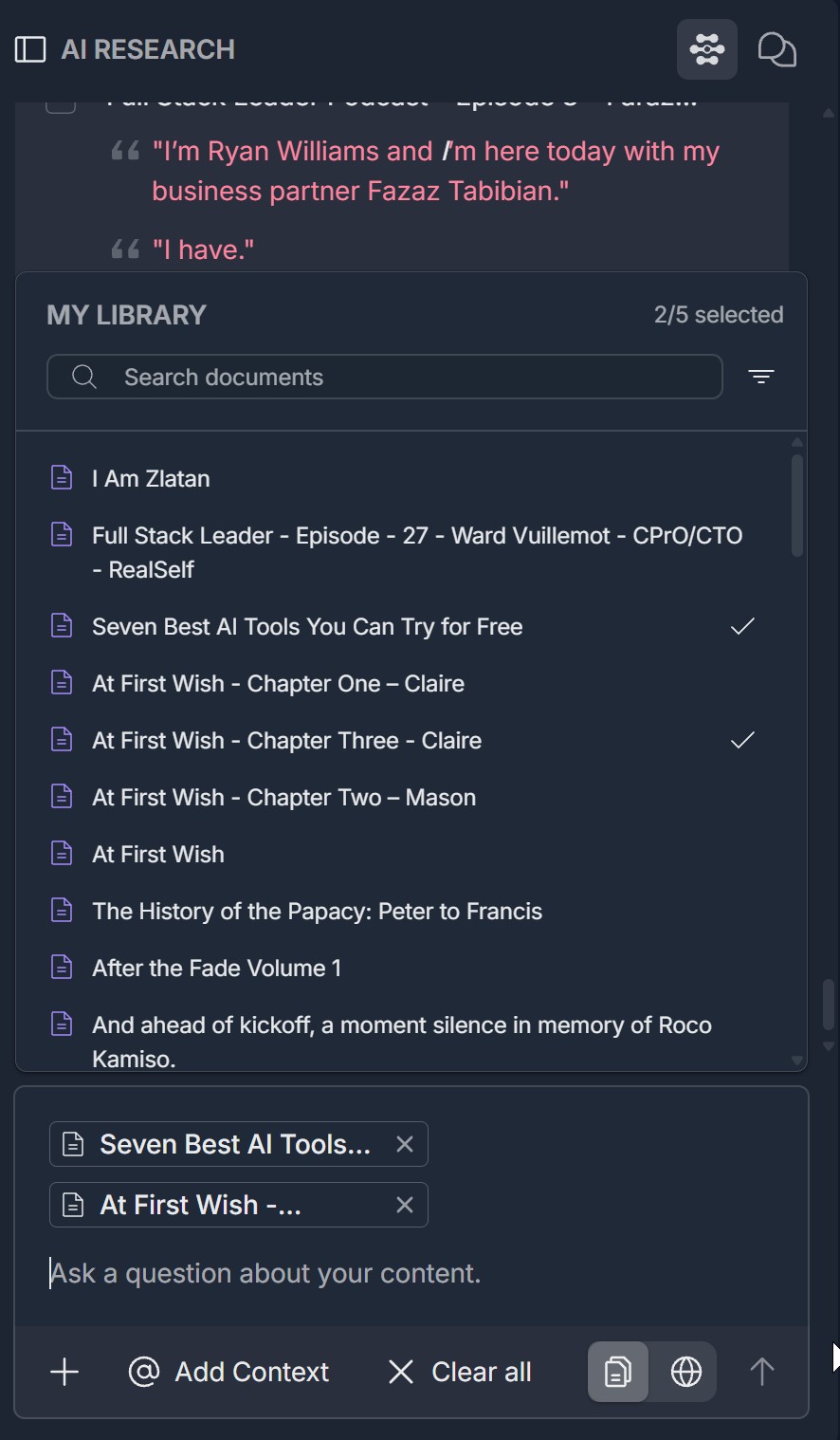
- A MY LIBRARY section appears, showing documents from your content library
- You may see "N/M selected" (e.g., "2/5 selected") indicating how many documents are currently selected out of a limit or total
- Use Search documents (with search and filter icons) to find specific documents
- In the document list, each item has a document icon and title (e.g., "I Am Zlatan," "Seven Best AI Tools You Can Try for Free"). Click a document to select it; a checkmark (e.g., white checkmark on the right) indicates it is selected
- Selected documents appear below the list as chips or tags (e.g., "Seven Best AI Tools...," "At First Wish -...") with an X on each chip; click X to remove that document from context
- Select as many documents as allowed (e.g., up to the N/M limit). Your question will be answered using these library documents as context
Option B: Add a URL (Provide a Website)
- Click @ Add Context (or the control that opens context options) and choose the option to add a URL (e.g., globe icon or URL / Web)
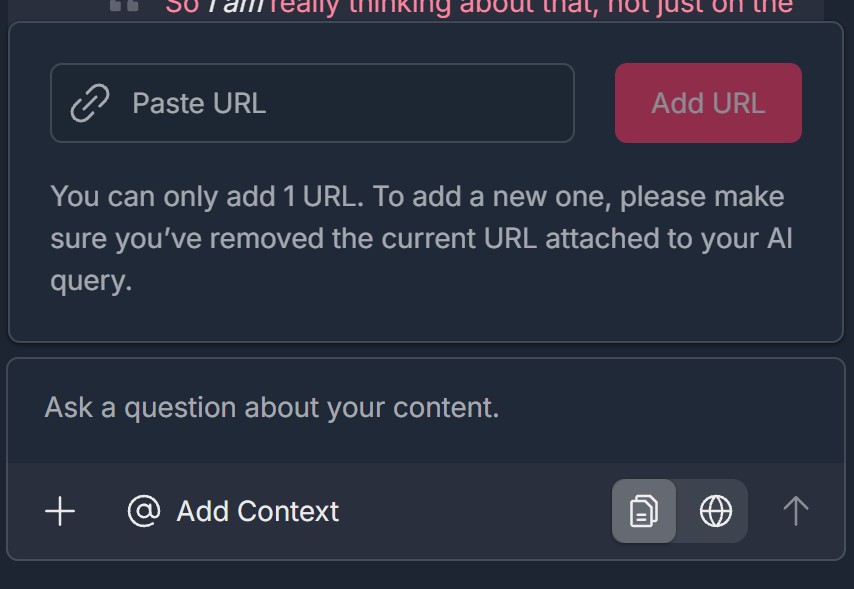
- An input area appears with a chain-link icon and a field labeled "Paste URL"
- Paste or type the web address (e.g., https://www.example.com/article)
- Click the Add URL button (e.g., red button) to add the URL as context
- A note may appear: You can only add 1 URL. To add a new one, please make sure you've removed the current URL attached to your AI query. — only one URL can be active at a time
- After adding, the URL appears as a pill or chip (e.g., chain-link icon and truncated text like "https://www.wonde...") with an X; click X to remove the URL if you want to add a different one
- Your question will be answered using the content from that website as context (web-based context). The globe icon in the action bar may indicate web-based mode when a URL is in use; the document icon may indicate document-based mode when library or uploaded documents are in use
Option C: Add a Document (Upload from Your Computer)
- Click @ Add Context (or the control that opens context options) and choose the option to add a document or upload (e.g., document icon or Add document / Upload)
- Use the document icon in the bottom action bar (e.g., two stacked document icons) to upload a file from your computer
- Select the file from your device (e.g., PDF, Word, or other supported format)
- The uploaded document is added as context; your question will be answered using that file
- Depending on the UI, the document may appear as a chip or in a list; use X or Clear all to remove it if needed
3. Review Context and Remove or Change If Needed
- Library — Selected documents appear as chips below the MY LIBRARY section; remove one by clicking X on its chip; change selection by clicking documents in the list to select or deselect
- URL — The active URL appears as a pill with X; click X to remove it, then add a new URL if you want to switch websites
- Document — Remove uploaded document via X on its chip or via Clear all
- Click Clear all (e.g., "X Clear all" in the action bar) to remove all context (library selections, URL, and uploaded document) and start fresh
4. Ask the AI Research Tool a Question About That Content
- In the input field at the bottom (e.g., "Ask a question about your content."), type your question (e.g., "What are the main points of this article?" "Summarize the key findings.")
- Send the question (e.g., click the up arrow icon or press Enter if supported)
- The AI research tool uses the context you added (library documents, URL, or uploaded document) to generate an answer
- Read the response; you can ask follow-up questions—they will also use the same context until you change or clear it
- To ask about different content, add new context (change library selection, replace URL, or upload a different document) or Clear all and add context again, then ask a new question
Troubleshooting Guide
A. @ Add Context Does Not Open or Library/URL/Document Options Missing
- Issue: You click @ Add Context but nothing opens, or you don't see options for Library, URL, or document upload.
- Fix:
- Ensure you are inside a project (Creations -> Projects -> project open) and the AI RESEARCH panel is visible
- Click @ Add Context directly (not the + icon or the input field)
- Refresh the page and open the project again; try @ Add Context once the panel has loaded
- Check if a pop-up or ad blocker is blocking the context panel
- If options are still missing, try a different browser or contact Support with your plan and what you see
B. Cannot Select Library Documents or Selection Not Reflected
- Issue: You open MY LIBRARY but cannot select documents, or selected documents don't appear as chips.
- Fix:
- Ensure your content library has documents; if the library is empty, there is nothing to select
- Click directly on the document row (or checkbox if present) to select; a checkmark or highlight should appear
- Check the N/M selected limit; you may have reached the maximum number of documents allowed—remove one (X on a chip) to add another
- If chips don't appear below the list, scroll down or look for a Selected area; refresh and try again
- If selection still doesn't work, contact Support with your library size and what you see in MY LIBRARY
C. URL Does Not Add or Only 1 URL Error
- Issue: You paste a URL and click Add URL but nothing happens, or you see a message that only one URL is allowed.
- Fix:
- Ensure the URL is valid (e.g., starts with https:// or http://) and is correctly pasted
- If you already have a URL in context, remove it first (click X on the URL pill), then add the new URL
- The product allows only one URL at a time; you must remove the current URL before adding another
- If Add URL still doesn't work, try a different URL or contact Support with the URL (if not sensitive) and any error message
D. Document Upload Fails or Uploaded File Not Used as Context
- Issue: You try to upload a document from your computer but the upload fails, or the file doesn't appear as context.
- Fix:
- Check that the file format is supported (e.g., PDF, Word, or other formats the product accepts)
- Check file size limits; very large files may be rejected
- Ensure you clicked the document/upload icon (or Add document / Upload) and selected the correct file
- Refresh the page and try the upload again; ensure a stable network connection
- If the upload succeeds but the question isn't answered using the file, confirm the file appears as a chip or in the context area; use Clear all and add the document again, then ask the question
- If the issue persists, contact Support with file type, size, and any error message
E. Question Ignored Context or Answer Seems Unrelated
- Issue: You added context (library, URL, or document) but the AI's answer doesn't seem to use it.
- Fix:
- Before sending, confirm context is still present (chips for library/docs, URL pill for URL); if you clicked Clear all by mistake, context is gone—add it again
- Rephrase your question to be clearly about the context (e.g., Based on the selected documents, what... or From this article, summarize...)
- For library: ensure the selected documents are the right ones and that they contain relevant content
- For URL: ensure the page loads and has text content the AI can read
- Try one source at a time (e.g., one document or one URL) to see if the answer improves
- If the answer is still unrelated, contact Support with the type of context you added and a sample question
F. Clear All Not Working or Context Stuck
- Issue: You click Clear all but context (library chips, URL, document) remains, or you can't remove a single item.
- Fix:
- Click Clear all (e.g., X Clear all in the action bar); wait a moment for the UI to update
- To remove one library document, click X on that document's chip
- To remove the URL, click X on the URL pill
- To remove an uploaded document, click X on its chip if shown, or use Clear all
- Refresh the page and open the project again; context may reset on reload
- If context is still stuck, contact Support with what you see (e.g., which chips or pill remain) and your browser
Was this article helpful?
That’s Great!
Thank you for your feedback
Sorry! We couldn't be helpful
Thank you for your feedback
Feedback sent
We appreciate your effort and will try to fix the article