Description
The Document-Focused AI vs Web-Focused AI in the Contesimal AI Research tool lets you choose how the AI answers your questions by switching between two modes: Document-focused AI and Web-focused AI (also referred to as Web-enabled AI). In Document-focused AI mode, the AI uses only your content—documents from your library, uploaded files, or context you added—to answer your question. In Web-focused AI mode, the AI can use web resources (and optionally your content) to answer, so you get answers that draw on broader, up-to-date information from the internet. You can switch between these two modes at any time using the mode switcher in the AI RESEARCH panel (e.g., a document icon button for Document-focused AI and a globe icon button for Web-focused AI). The active mode is highlighted (e.g., lighter background or label such as Document-focused AI or Web-enabled AI). This feature helps you control whether the AI grounds its answers in your own materials or in the wider web—so you get the right kind of research for each question.
How This Feature Helps You
- Control the source of answers — Document-focused AI keeps answers strictly based on your uploaded documents, library content, or context you added. Use it when you want the AI to stay within your materials. Web-focused AI lets the AI use web search or web-based knowledge so you get answers that can include current events, public information, or topics not in your library.
- Switch anytime — Below the input field you see the mode switcher: two buttons or icons—one for Document-focused AI (e.g., two overlapping documents) and one for Web-focused AI / Web-enabled AI (globe icon). The active mode is highlighted. Click the other button or icon to switch. The placeholder text may change (e.g., to Ask a web-enabled question about your content. when Web-focused is active).
- Combine with Add Context — You can use @ Add Context in either mode. In Document-focused mode, context defines what the AI reads. In Web-focused mode, context can still narrow or guide the AI while the AI also uses web resources.
- Clear visual feedback — The UI shows which mode is active (e.g., Document-focused AI or Web-enabled AI label, tooltip, or highlighted button). Use this to confirm you're in the right mode before asking.
Benefits
- Precise vs broad research — Document-focused gives you answers that stay inside your content; Web-focused gives you answers that can include the wider web. You pick the right scope for each question.
- Privacy and control — When you need answers only from your materials (e.g., confidential docs), Document-focused keeps the AI from using external sources. When you need public or current information, Web-focused expands the AI's sources.
- One place, two modes — No need to leave the AI Research tool; switch between Document-focused and Web-focused with one click and keep asking questions in the same conversation or start a new one.
- Better decisions — Use Document-focused to summarize, compare, or question your own content; use Web-focused to fact-check, get recent data, or explore topics beyond your library.
How Document-Focused AI and Web-Focused AI Differ
- Primary source:
- Document-focused: Your content only (content library, uploaded documents, or context you added).
- Web-focused: Web resources (search, public pages, or web-based knowledge), and optionally your content if you added context.
- Scope:
- Document-focused: Limited to what you've provided or selected. Answers are grounded in that content only.
- Web-focused: Can include information from the internet: current events, public data, articles, and other web content.
- Best for:
- Document-focused: Summarizing, comparing, or questioning your own documents; staying within internal or confidential material.
- Web-focused: Research that needs up-to-date or public information; fact-checking; exploring topics not (or only partly) in your library.
- UI indicator:
- Document-focused: Document icon (e.g., two overlapping documents) and/or label Document-focused AI highlighted.
- Web-focused: Globe icon and/or label Web-focused AI or Web-enabled AI highlighted.
When to Use Document-Focused AI
- You want answers only from your content (library, uploaded files, or context you added).
- You are working with confidential or internal material and should not use external sources.
- You need to summarize, compare, or extract information from specific documents or a set of documents you've selected.
- You want consistency with your existing library (e.g., What do my uploaded articles say about X?).
- You have already added context (library docs, URL, or document) and want the AI to answer strictly from that context.
- You do not need current events, public data, or general web knowledge for the question.
When to Use Web-Focused AI
- You need up-to-date or public information (e.g., recent news, market data, or general knowledge).
- Your question is about a topic not (or only partly) covered in your library, and you want the AI to use the web.
- You want to fact-check or cross-reference your content with external sources.
- You are exploring a subject and want answers that can draw on a wide range of web content.
- You may still add context (e.g., a document or URL) to focus or guide the answer while the AI also uses web resources.
When It Is Better to Use Both (Switching Between Modes)
- Start with Document-focused to understand or summarize what your content says; then switch to Web-focused to see how that compares to current or public information, or to fill gaps.
- Start with Web-focused to get a broad or current answer; then switch to Document-focused and add context to get an answer grounded only in your materials.
- Use Document-focused for internal or sensitive questions and Web-focused for non-sensitive, research-style questions—switching as needed.
- Combine with @ Add Context: in Document-focused mode, context is the sole (or primary) source; in Web-focused mode, context can guide the AI while it also uses the web.
Step-by-Step Usage
The step-by-step instructions, screen descriptions, and UI details in this section are examples only. They are intended to help you understand how the feature works and how to complete the flow. Screens, labels, and layout may change in future product updates.
1. Open the AI Research Tool
- Log in to your Contesimal account
- In the left panel, go to Creations (e.g., edit/pencil icon or Creations section)
- You see the AI Research interface: header "AI RESEARCH" with icons, an area for conversation or context, and at the bottom an input field (e.g., "Ask a question about your content.") with a mode switcher and other controls (e.g., +, @ Add Context, document icon, globe icon, up arrow to send)
- You are now ready to choose or switch between Document-focused AI and Web-focused AI
2. See Which Mode Is Active and Switch If Needed
- Locate the mode switcher — Below the input field (or in the action bar at the bottom), you see two controls:
- Document-focused AI (usually a button or icon with two overlapping documents; tooltip may say Document-focused AI when you hover; when active, the button or label is highlighted)
- Web-focused AI / Web-enabled AI (usually a button or icon with a globe; when active, the button or label is highlighted).
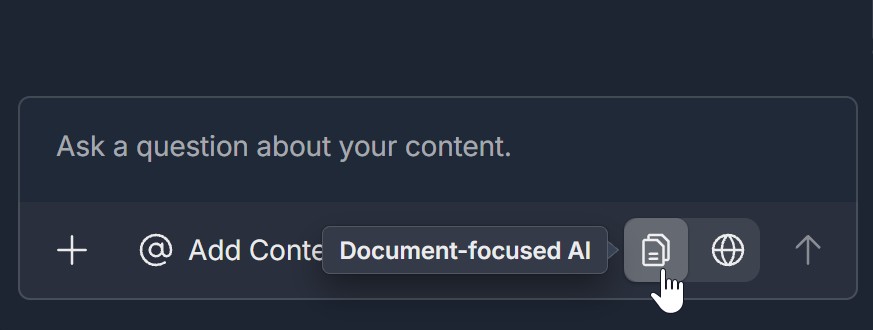
- Confirm the active mode — The highlighted control (document icon or globe icon, or the label next to it) indicates the current mode. The placeholder text in the input field may also change: Document-focused active: e.g., Ask a question about your content.; Web-focused active: e.g., Ask a web-enabled question about your content.
- Switch to the other mode — Click the control that is not highlighted (e.g., click the globe icon to switch to Web-focused AI, or click the document icon to switch to Document-focused AI). The highlight and placeholder update. Your next question will be answered using the mode you just selected.
- Optional: Add context — Before or after switching, you can click @ Add Context to add library documents, a URL, or an uploaded document. In Document-focused mode, that context is the (or primary) source; in Web-focused mode, that context can guide the AI while it also uses the web.
- Ask your question — Type your question in the input field and send (e.g., up arrow icon). The AI answers according to the currently active mode (Document-focused or Web-focused).
3. Use the Right Mode for Each Question
- For answers only from your content — Ensure Document-focused AI is active (document icon highlighted), add context if needed (@ Add Context), then ask. The AI will use only (or mainly) your content.
- For answers that can use the web — Ensure Web-focused AI is active (globe icon highlighted), add context if you want to guide the AI, then ask. The AI can use web resources (and your context if provided).
- To switch for the next question — Click the other mode (document or globe) before typing your next question. You can switch as often as you like; each question uses whichever mode is active when you send it.
Troubleshooting Guide
A. Mode Switcher (Document/Globe) Not Visible
- Issue: You don't see the document icon, globe icon, or Document-focused AI / Web-enabled AI controls below the input field.
- Fix:
- Ensure you are in the AI RESEARCH panel (Creations -> project open) and the panel is fully loaded
- Scroll down in the panel; the mode switcher is usually in the action bar at the very bottom, next to + and @ Add Context
- Resize the panel or browser window so the bottom bar is visible
- Refresh the page and open the project again; the switcher may appear after the panel loads
- If the switcher still doesn't appear, your plan or role may not include this feature; contact Support with what you see in the AI RESEARCH panel
B. Clicking the Document or Globe Icon Doesn't Switch the Mode
- Issue: You click the document icon or globe icon but the mode doesn't change (e.g., the highlight or placeholder doesn't update).
- Fix:
- Click directly on the document icon (for Document-focused) or globe icon (for Web-focused), not on the label or empty space
- Wait a moment; the UI may take a second to update the highlight and placeholder
- Refresh the page and open the project again; click the desired mode (document or globe) and ask a test question to confirm the answer matches the mode
- If switching still doesn't work, try a different browser or contact Support with your browser and what you see when you click
C. Answer Doesn't Match the Selected Mode
- Issue: You have Document-focused AI active but the answer seems to use web or external information; or you have Web-focused active but the answer seems to ignore the web.
- Fix:
- Confirm the active mode before sending: check which control is highlighted (document vs globe) and what the placeholder says
- In Document-focused mode, ensure you have added context (library, URL, or document) if you want the AI to use specific content
- In Web-focused mode, the AI may still use your context if you added it; the answer can mix your content and web content
- Switch explicitly (click the other icon), then ask the question again and see if the answer changes
- If the answer still doesn't match the mode, contact Support with the mode you had selected, your question, and what you expected vs what you got
D. Not Sure Which Mode I'm In
- Issue: You can't tell whether Document-focused or Web-focused AI is currently active.
- Fix:
- Look at the action bar below the input field: the highlighted button or label (document icon or globe icon) is the active mode
- Check the placeholder in the input field: "Ask a question about your content." usually means Document-focused; "Ask a web-enabled question about your content." usually means Web-focused
- Hover over the document and globe icons; a tooltip may say Document-focused AI or Web-focused AI / Web-enabled AI
- When in doubt, click the mode you want (document or globe) before asking your next question
E. Want to Use Only My Documents but Answer Seems to Use the Web
- Issue: You want answers only from your content, but the response seems to include external or web-based information.
- Fix:
- Ensure Document-focused AI is active (document icon highlighted, placeholder Ask a question about your content.)
- Use @ Add Context to select the specific library documents, URL, or uploaded document you want the AI to use
- Rephrase your question to be clearly about your content (e.g., Based only on the selected documents, what... or Summarize the attached file)
- If the answer still includes information that's not in your content, switch to Document-focused again (click document icon), add context again, and ask once more; if it persists, contact Support
Was this article helpful?
That’s Great!
Thank you for your feedback
Sorry! We couldn't be helpful
Thank you for your feedback
Feedback sent
We appreciate your effort and will try to fix the article